


Wer Loom bereits für Bildschirmaufnahmen oder schnelle Video-Updates genutzt hat, weiß, wie hilfreich das Tool sein kann. Da Sie jedoch diesen Artikel lesen, sind Sie vermutlich auf der Suche nach Alternativen, die besser zu Ihren geschäftlichen Anforderungen, Funktionswünschen oder Ihrem Budget passen.
Die gute Nachricht: Es gibt zahlreiche andere Tools, die zusätzliche Funktionen, mehr Flexibilität oder ein besseres Preis-Leistungs-Verhältnis bieten. In diesem Leitfaden stellen wir Ihnen sieben hervorragende Loom-Alternativen für das Jahr 2026 vor, damit Sie genau die Lösung finden, die perfekt zu Ihnen passt.
Funktionen und Einschränkungen von Loom
Loom ist ein beliebtes Tool für schnelle Videonachrichten – ideal für Teams, die Updates teilen möchten, ohne dafür ein Live-Meeting ansetzen zu müssen. Dank der Chrome-Erweiterung lassen sich Website-Walkthroughs, Tutorials oder Online-Kurse mühelos aufzeichnen. Es ist eine hervorragende Alternative zu langen E-Mails oder Chat-Nachrichten, da Sie Sachverhalte natürlicher und anschaulicher erklären können. Doch trotz der soliden Funktionen ist Loom nicht perfekt.
Das sind die Punkte, die Nutzer häufig nennen, wenn sie nach Alternativen zu Loom suchen:
- Eingeschränkte Bearbeitungsoptionen: Loom bietet zwar einige Bearbeitungsfunktionen, wie das Entfernen von Füllwörtern oder das Hinzufügen von Untertiteln, doch das war es auch schon. Für weiterführende Optionen, wie das Zuschneiden von Clips oder das Hinzufügen von Texteinblendungen, benötigen Sie eine zusätzliche App.
- Einschränkungen der kostenlosen Version: In der Gratis-Version können Sie lediglich 25 Videos mit einer Länge von jeweils bis zu fünf Minuten aufnehmen. Für mehr Videos oder längere Aufnahmen ist ein kostenpflichtiges Abonnement erforderlich.
- Datenschutzbedenken: Standardmäßig speichert Loom Videos in der Cloud und macht sie öffentlich zugänglich. Auch wenn sich diese Einstellungen anpassen lassen, sollten Sie dies bei der Arbeit mit sensiblen Informationen berücksichtigen.
Weitere Einschränkungen sind gelegentliche Audioprobleme, Verzögerungen bei langsamer Internetverbindung sowie begrenzte Tools zur Screenshot-Bearbeitung, und alles in der Cloud speichern zu müssen, was einschränkend ist, wenn Sie mehr Kontrolle über Ihre Dateien bevorzugen.
Worauf Sie bei einem Tool für Videoaufnahmen achten sollten
Wenn Sie nach einer Alternative zu Loom suchen, ist es hilfreich zu wissen, welche Funktionen Ihnen den Alltag erleichtern.
Hier sind einige Punkte, die Sie berücksichtigen sollten:
- Benutzerfreundliche Oberfläche: Ein Tool mit einem klaren, intuitiven Design macht das Aufnehmen und Teilen von Videos zum Kinderspiel. Je einfacher die Navigation, desto schneller erstellen Sie die Videos, die Sie benötigen.
- Videobearbeitungsfunktionen: Wenn Ihre Videos professioneller wirken sollen, achten Sie auf ein Tool mit leistungsstarken Bearbeitungsoptionen. Funktionen wie Zuschneiden, das Hinzufügen von Text oder flüssigere Übergänge ersparen Ihnen den Einsatz zusätzlicher Apps.
- Datenschutzeinstellungen: Datenschutz ist wichtig, besonders wenn Sie sensible Inhalte aufnehmen. Wählen Sie ein Tool mit klaren Datenschutzeinstellungen, wie Passwortschutz oder private Links, damit Sie genau steuern können, wer Ihre Videos sieht.
- Zuverlässige Leistung: Ein Tool, das auch unter schwierigen Bedingungen, wie einer langsamen Internetverbindung, einwandfrei funktioniert, ist entscheidend. Achten Sie auf Optionen, die für zuverlässige Wiedergabe, flüssige Aufnahmen und klaren Ton bekannt sind, um technische Frustrationen zu vermeiden.
- Hochwertige Videoqualität: Prüfen Sie, ob das Tool hochauflösende Bildschirmaufnahmen unterstützt – einige Anbieter bieten 4K-Aufnahmen kostenlos oder zu einem günstigeren Preis als die Premium-Pläne von Loom an.
- Integrationen: Wenn Sie Apps wie Slack, Gmail oder Projektmanagement-Tools – eine Option, die sich in diese integrieren lässt, kann die gemeinsame Arbeit und den Austausch erheblich erleichtern.
Wenn Sie wissen, was Sie am meisten benötigen, fällt es Ihnen leichter, eine Lösung zu wählen, die zu Ihrem Workflow passt und Videonachrichten zum Kinderspiel macht.
Die 7 besten Loom-Alternativen im Jahr 2026
Hier sind die besten Loom-Alternativen für 2024:
- Movavi
- Record by Wistia
- Zoom
- MeetGeek
- Clip by ClickUp
- ScreenRec
- Descript
1. Record by Wistia
Wistias „Record“-Tool macht das Erstellen und Teilen von Bildschirmaufnahmen ganz einfach. Es bietet eine schlanke Lösung für Teams ohne tiefgreifende Videokenntnisse, die schnell professionelle Videos erstellen möchten.
Diese direkt in die Wistia-Plattform integrierte Lösung ist ideal für Nutzer, die ihre Videos verwalten, verbreiten und analysieren möchten – eine starke Wahl für Marketing-Teams und Content Creator.
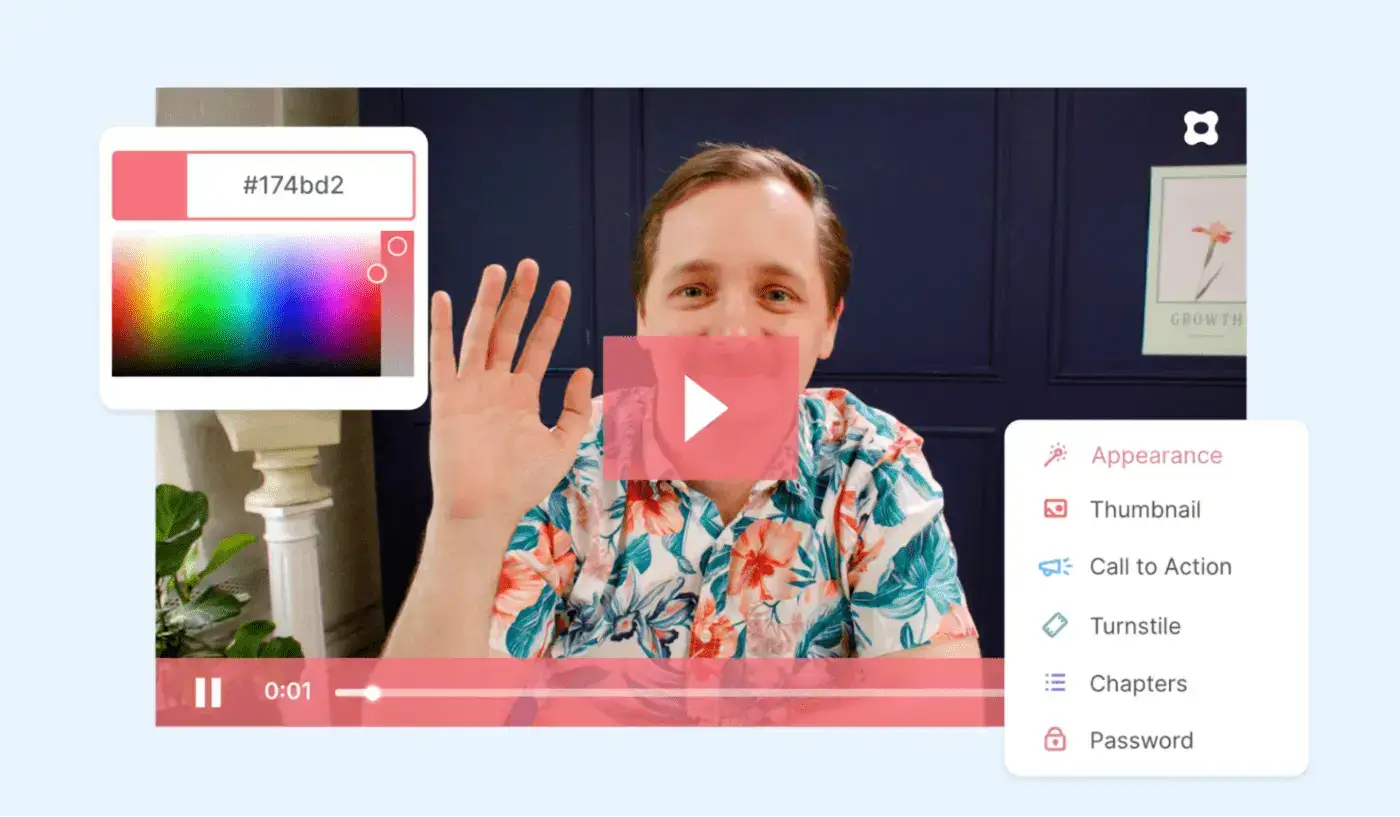
HINWEIS: Record by Wistia ist auch als Chrome-Erweiterung verfügbar, mit der Nutzer Videos direkt im Browser erstellen können, ohne zusätzliche Software herunterladen zu müssen.
Die wichtigsten Funktionen von Record by Wistia:
- Einfache Bildschirmaufnahme: Record by Wistia bietet eine benutzerfreundliche Oberfläche, mit der Sie Ihren Bildschirm aufzeichnen und Präsentationselemente wie Folien hinzufügen können.
- Direkte Bearbeitung im Browser: Grundlegende Bearbeitungswerkzeuge wie das Zuschneiden sind direkt in der App verfügbar, sodass Videos schnell optimiert werden können.
- Wistia-Integration: Mit Record erstellte Videos lassen sich nahtlos in die Hauptplattform integrieren, was die Verteilung und Nachverfolgung erleichtert.
- Video-Analysen: Nutzer erhalten Einblicke in das Zuschauerverhalten und erhalten Daten zu Aufrufzahlen und Interaktionen.
- Individuelles Branding: Sie können Ihre Videos mit Ihrem eigenen Branding versehen, was besonders für Marketingzwecke nützlich ist.
- Datenschutzoptionen: Videos können geschützt werden, sodass Zuschauer ihre E-Mail-Adresse angeben müssen, bevor sie das Video sehen können – für zusätzliche Sicherheit.
Vorteile von Record by Wistia:
- Der Bildschirmrekorder von Wistia überzeugt durch ein übersichtliches Design, das einen schnellen und unkomplizierten Einstieg ermöglicht.
- Dank der nativen Videohosting-Funktion können Nutzer ihre Videos per Link teilen, Analysen einsehen und Datenschutzeinstellungen verwalten – alles direkt über Wistia.
Nachteile von Record by Wistia:
- Die Bearbeitungsfunktionen sind grundlegend und beschränken sich auf das Zuschneiden und kleinere Anpassungen.
- Einige der besten Funktionen, wie Analysen und Branding, erfordern ein kostenpflichtiges Abonnement.
Preise für Record by Wistia
Wistia bietet verschiedene Preispläne für unterschiedliche Nutzungsanforderungen an:
- Kostenlos: Bis zu 10 Videos und 200 GB Speicherplatz
- Plus: 19 $/Monat
- Pro: 79 $/Monat
- Advanced: 319 $/Monat
G2-Bewertung für Record by Wistia: 4,6/5
2. Movavi
Movavi Screen Recorder ist eine Software für Bildschirmaufnahmen für Anwender, die professionell wirkende Videos und integrierte Bearbeitungswerkzeuge suchen. Egal, ob Sie Gamer, Podcaster oder Content Creator sind oder einfach nur Webinare speichern möchten – mit Movavi ist die Aufnahme hochwertiger Videos ein Kinderspiel.
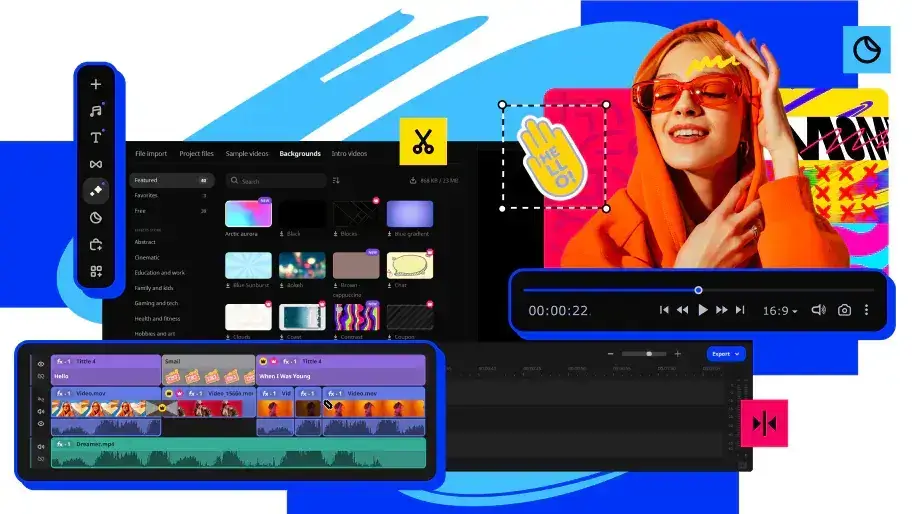
Diese Bildschirmaufnahme-Plattform wurde für Windows und macOS entwickelt, ist benutzerfreundlich und unterstützt Videoaufnahmen in bis zu 4K-Auflösung, wodurch sie sich für eine Vielzahl professioneller und privater Projekte eignet.
Die wichtigsten Funktionen von Movavi:
- Bildschirm- und Webcam-Aufnahme: Movavi bietet flexible Aufnahmeoptionen, mit denen Sie Ihren Bildschirm, Ihre Webcam oder beides gleichzeitig aufnehmen können.
- Live-Anmerkungen: Fügen Sie während der Aufnahme Zeichnungen, Formen und Notizen hinzu, um wichtige Punkte hervorzuheben.
- Videobearbeitungstools: Bearbeiten Sie Aufnahmen direkt in Movavi, ohne zusätzliche Software zu benötigen. Zu den Funktionen gehören das Herausschneiden unerwünschter Teile, das Hinzufügen von Anmerkungen und mehr.
- Geplante Aufnahme: Richten Sie automatische Aufnahmen ein, damit Sie keine Live-Streams oder wichtigen Meetings verpassen.
- Exportoptionen: Speichern Sie Aufnahmen in verschiedenen Formaten oder laden Sie sie direkt in soziale Medien oder auf Cloud-Plattformen wie Google Drive hoch.
- Ressourcenschonendes Design: Movavi läuft reibungslos im Hintergrund und nutzt Tastenkombinationen, sodass die Systemressourcen während der Aufnahme nicht übermäßig beansprucht werden.
Vorteile von Movavi:
- Movavi wird für sein intuitives Design gelobt, das es Anfängern leicht macht, ohne lange Einarbeitungszeit mit dem Aufnehmen und Bearbeiten zu beginnen.
- Mit der Live-Zeichenfunktion können Sie Ihre Aufnahmen in Echtzeit ansprechender und informativer gestalten.
Nachteile von Movavi:
- Movavi bietet innerhalb der App keinen schnellen Zugriff auf den Aufnahmeordner, was die Dateiverwaltung etwas umständlich machen kann.
- Obwohl Movavi die wichtigsten Bearbeitungsfunktionen abdeckt, fehlen fortgeschrittene Optionen wie die Mehrspurbearbeitung, was bei sehr komplexen Projekten einschränkend wirken kann.
Movavi Preise:
Movavi bietet flexible Preispläne für kurz- und langfristige Nutzung:
- 1-Jahres-Lizenz (1 PC): 42,95 $
- Lebenslange Lizenz (1 PC): 57,95 $
Movavi G2-Bewertung: 4,5/5
3. Zoom
Obwohl Zoom vor allem als Standard-Tool für virtuelle Meetings bekannt ist, verfügt es auch über Bildschirmaufnahme-Funktionen, die es zu einer nützlichen Alternative zu Loom machen.
Mit Zoom können Sie Ihren Bildschirm während Live-Sitzungen aufzeichnen, was ideal für die Erstellung von Präsentationen, Tutorials und Anleitungen ist. Da es zudem für Windows, macOS, iOS und Android verfügbar ist, können Sie Aufnahmen problemlos von jedem Gerät aus erstellen und teilen.

Zudem ist Zoom geräteübergreifend verfügbar – ob auf dem Desktop, Tablet oder Smartphone –, sodass Sie von fast überall an Sitzungen teilnehmen oder diese aufzeichnen können.
Zoom-Funktionen:
- Bildschirmaufnahme: Sie können Ihren Bildschirm während jedes Zoom-Meetings oder Live-Streams aufzeichnen. Diese Funktion eignet sich hervorragend, um Live-Präsentationen, Schulungen oder Produktdemos festzuhalten.
- Integrierte Audio- und Videofunktion: Aufzeichnungen umfassen Bildschirminhalte, Audio und Webcam-Aufnahmen und bieten den Zuschauern so ein vollständiges Bild Ihrer Sitzung. Dies ist besonders hilfreich für Tutorials oder Anleitungen, bei denen sowohl der Bildschirminhalt als auch die Erklärungen wichtig sind.
- Einfaches Teilen: Sobald Ihre Aufnahme fertig ist, können Sie diese bei Zoom per Link teilen, auf Websites einbetten oder zur Speicherung und Weitergabe außerhalb der App herunterladen.
- Grundlegende Bearbeitung: Zoom ermöglicht es Ihnen, den Anfang und das Ende von Aufnahmen zu kürzen, was praktisch ist, um Vorbereitungszeiten oder unnötige Abschnitte zu entfernen.
- Cloud- oder lokaler Speicher: Speichern Sie Aufnahmen in der Cloud, um sie einfach zu teilen, oder behalten Sie sie lokal auf Ihrem Gerät – besonders nützlich, wenn Sie die Aufnahmen später noch einmal ansehen möchten.
Zoom-Vorteile:
- Die Bildschirmaufnahmen von Zoom sind benutzerfreundlich und ideal, um Live-Präsentationen oder Schulungen festzuhalten.
- Sie können aufgezeichnete Sitzungen schnell per Link teilen, herunterladen oder online einbetten, sodass Teammitglieder problemlos auf dem Laufenden bleiben können.
Zoom-Nachteile:
- Obwohl Sie den Anfang und das Ende kürzen können Zoom-Aufzeichnungen, es gibt keine erweiterten Bearbeitungsoptionen, daher benötigen Sie möglicherweise andere Tools, um Ihre Videos zu optimieren.
- Zoom eignet sich am besten für Live-Aufzeichnungen und ist daher weniger praktisch für die spontane Erstellung von Tutorials oder Videos außerhalb geplanter Meetings.
Zoom-Preise:
Die Bildschirmaufzeichnungsfunktion von Zoom ist in allen Tarifen enthalten, hier ist jedoch eine Übersicht:
- Basic: Kostenlos, mit einer 40-minütigen Begrenzung für Gruppen-Meetings
- Pro: 13,33 $/Monat pro Benutzer, jährliche Abrechnung
- Business: 18,33 $/Monat pro Benutzer, jährliche Abrechnung
- Business Plus: 22,49 $/Monat pro Benutzer, jährliche Abrechnung
- Enterprise: Kontaktieren Sie Zoom für individuelle Preise
G2-Bewertung: 4,5/5
4. MeetGeek
Wenn Sie beruflich auf virtuelle Zusammenarbeit angewiesen sind und Video-Snippets aus Ihren Online-Gesprächen erstellen müssen, könnte dies genau das Richtige für Sie sein. MeetGeek ist eine Plattform zur Meeting-Automatisierung, die entwickelt wurde, um die Art und Weise zu verändern, wie Ihr Team virtuelle Sitzungen, Meetings, Schulungen, Tutorials, Produktdemos und mehr handhabt.
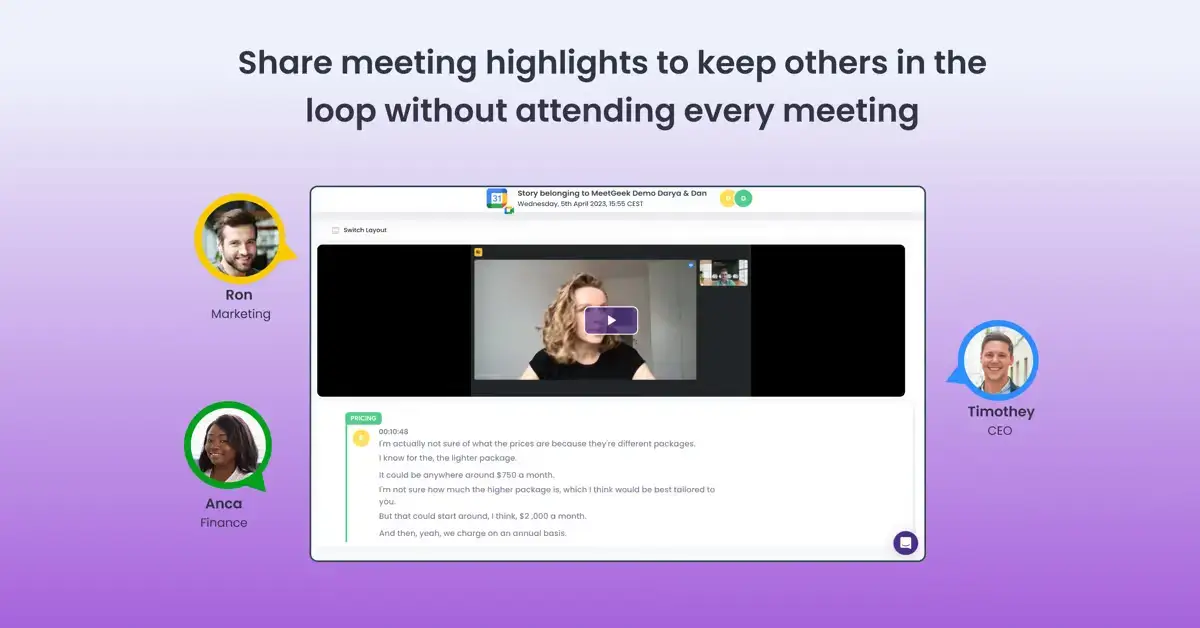
Dank automatischer Aufzeichnungen und hochpräziser Transkriptionen Ihrer Meetings ermöglicht MeetGeek es Nutzern, die Anzahl der „Nice-to-have“-Meetings zu reduzieren, da Teammitglieder stattdessen einfach Video-Snippets oder vollständige Meeting-Transkripte nachholen können.
Es bietet zudem den Import von Video- und Audiodateien, wodurch Nutzer präzise Transkripte erstellen und teilbare Video-Highlights generieren können.
Hier sind die wichtigsten Funktionen von MeetGeek:
- Automatisierte Aufzeichnung & Transkription: MeetGeek nimmt automatisch an Meetings teil, zeichnet diese auf und transkribiert sie, sodass alle Details präzise erfasst werden.
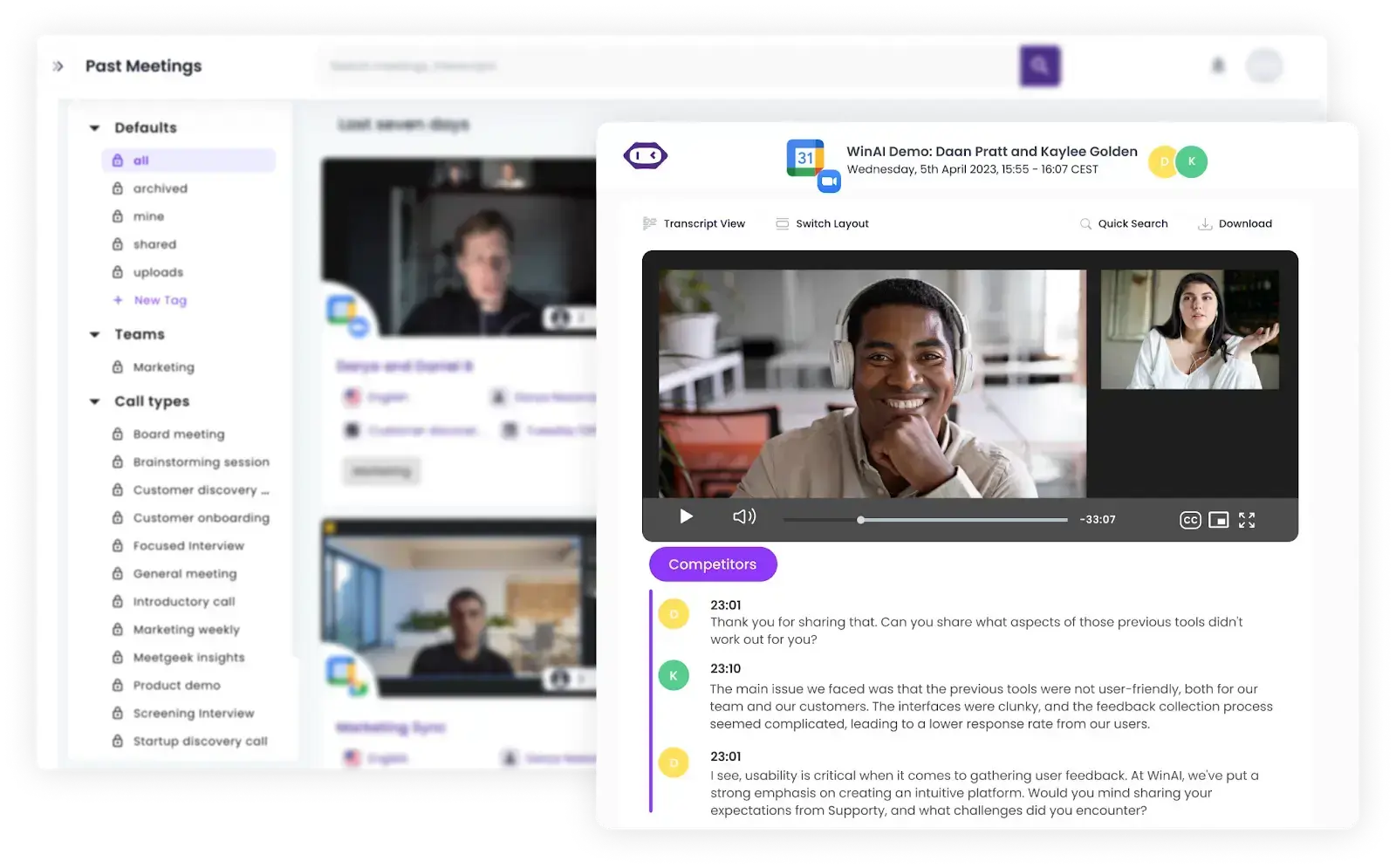
- Automatisierte Highlights: MeetGeek erkennt automatisch Schlüsselmomente in Ihren aufgezeichneten Meetings oder hochgeladenen Dateien und versieht sie mit Labels wie „Wichtig“, „Nächste Schritte“, „Bedenken“, „Preise“, „Wettbewerb“ und mehr. So können Sie schnell zu wichtigen Abschnitten navigieren und teilbare Snippets erstellen.
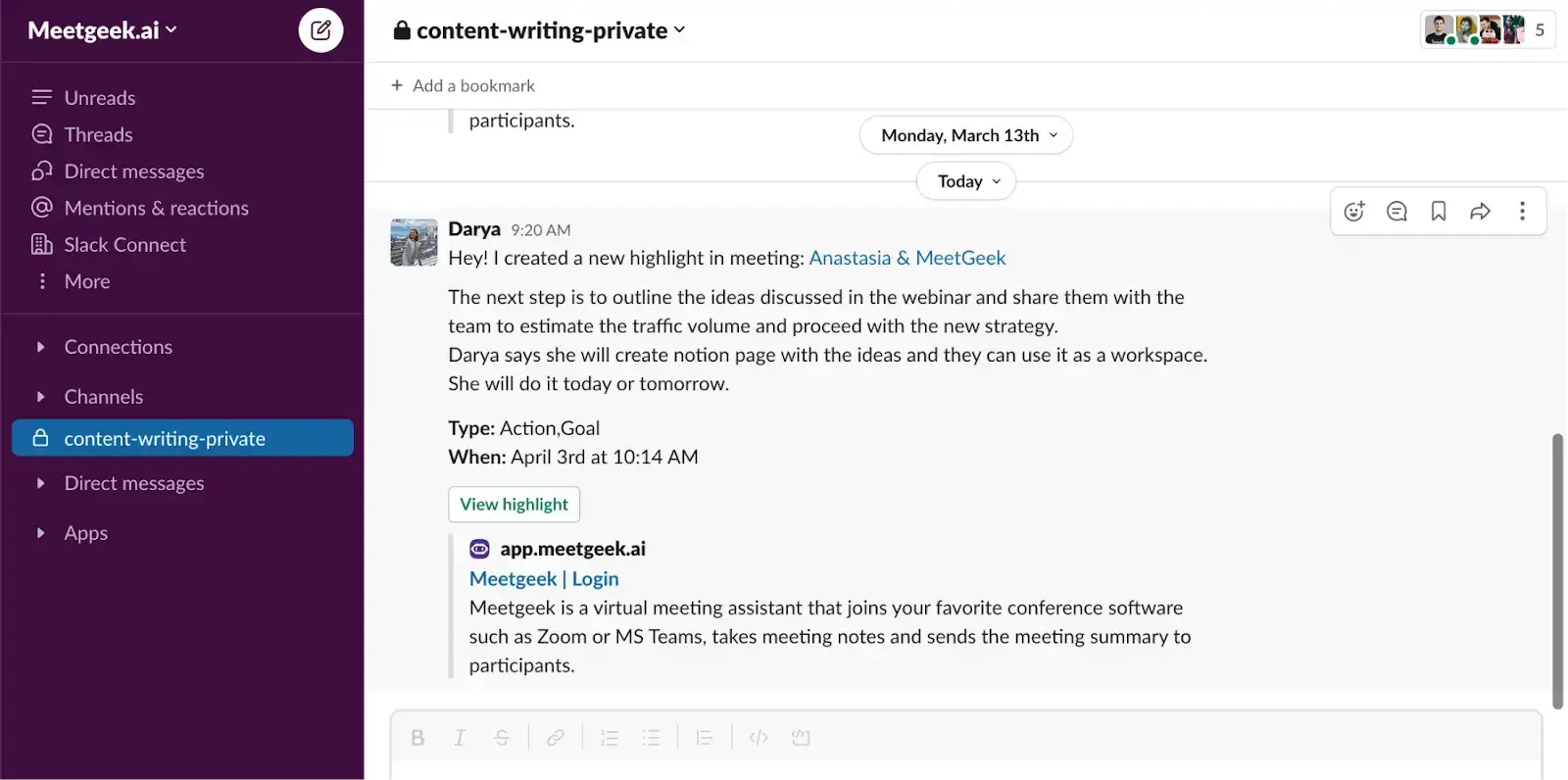
- Integration mit anderen Kollaborationstools: MeetGeek lässt sich mit über 10.000 Appssynchronisieren, darunter beliebte Tools wie Slack, Asana, Notion, HubSpot und andere, um Meeting- und Video-Erkenntnisse dort zu zentralisieren, wo Sie sie benötigen.
- Aufnahme-Bibliothek: Speichern Sie alle aufgezeichneten Meetings und hochgeladenen Dateien in einem durchsuchbaren Archiv, damit Sie und Ihre Kollegen jederzeit einfach darauf zugreifen können.
- MP3- und MP4-Transkription: MeetGeek transkribiert Offline-Audioaufnahmen in über 100 Sprachen – Funktionen wie Sprechererkennung und Zeitstempel sind sogar im kostenlosen Plan enthalten.
- Video-Snippets einbetten: Erstellen Sie wirkungsvolle Video-Tutorials, Testimonials oder schriftliche Fallstudien aus Ihren Kundengesprächen und betten Sie Ausschnitte auf Ihrer Website ein, um Ihre Marke zu stärken.
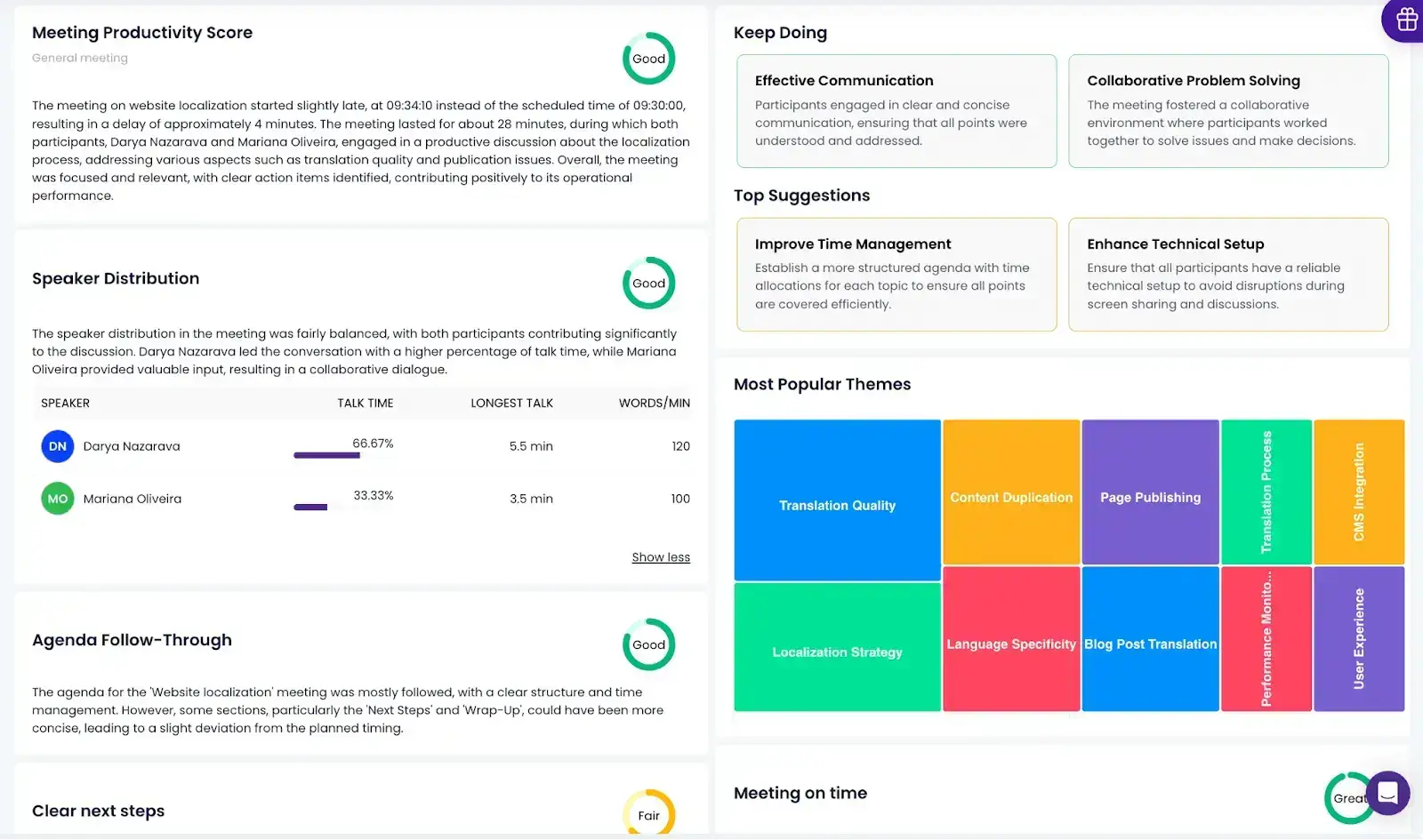
- Meeting-Analysen: MeetGeek bietet anpassbare KPIs, mit denen Sie die Redeanteile der Teilnehmer verfolgen, Stimmungsanalysen durchführen und die Beteiligungsraten bewerten können, um Ihr Meeting-Management zu optimieren.
- Sicherheit & Verschlüsselung: Datenschutz wird bei MeetGeek großgeschrieben, daher sind DSGVO-, HIPAA- und SOC-Konformität eine Selbstverständlichkeit, selbst in unserem kostenlosen Plan.
- Mobile App: Zeichnen Sie persönliche Gespräche und Offline-Meetings mit nur wenigen Fingertipps über die MeetGeek Mobile App auf jedem Ihrer Mobilgeräte auf und nutzen Sie den vollen Funktionsumfang der Plattform für Ihre persönlichen Treffen.
Vorteile von MeetGeek:
- Nutzer loben besonders die erstklassigen Bildschirmaufnahme-Funktionen während der Meetings sowie die hochwertigen Zusammenfassungen. Lesen Sie die vollständige Bewertung hier.
- Die Automatisierungsfunktionen, wie etwa Follow-up-E-Mails und benutzerdefinierte Workflows, ermöglichen es Teams, ohne manuellen Aufwand organisiert zu bleiben.
- Dank anpassbarer Vorlagen und Wörterbuchoptionen lässt sich MeetGeek flexibel an verschiedene Branchen und Meeting-Arten anpassen.
- MeetGeek verbindet sich nahtlos mit Tools wie Google Calendar, Slack, Notion und CRM-Systemen, steigert die Teamproduktivität und hält Daten zentral verfügbar.
Nachteile von MeetGeek:
- Die Videobearbeitungsfunktionen von MeetGeek sind begrenzt.
MeetGeek-Preise:
MeetGeek bietet flexible Preisoptionen, je nach Ihren individuellen Anforderungen:
- Ein kostenloser Basis-Tarif für Einzelnutzer
- Ein Pro-Tarif für Profis und kleine Teams für 9,99 $/Nutzer/Monat
- Ein Business-Tarif für innovative Teams und Unternehmen für 17 $/Nutzer/Monat
- Ein Enterprise-Plan für Teams, die Markenanpassungen, mehr Speicherplatz und Support zu individuellen Preisen benötigen
MeetGeek G2-Bewertung: 4,6/5
5. Clip von ClickUp
Clip von ClickUp integriert Videoaufnahmen direkt in eines der weltweit führenden Projektmanagement-Tools und ist damit eine praktische Wahl für Teams, die bereits mit ClickUp arbeiten. Mit Clip können Nutzer ganz einfach Aufgaben aus Videoaufnahmen erstellen, teilen und sogar zuweisen, sodass alle Beteiligten stets informiert und handlungsfähig bleiben.
Das Tool fügt sich nahtlos in das ClickUp-Ökosystem ein, wodurch Aufgaben, Ideen und Diskussionen in Videoform mühelos nachverfolgt werden können.
HINWEIS: Clip ist Teil von ClickUp und über jeden ClickUp-Arbeitsbereich zugänglich, sodass Nutzer Videoinhalte mit nur wenigen Klicks erstellen und teilen können.
Funktionen von Clip von ClickUp:
- Aufgabenerstellung aus Videos: Nutzer können jede Aufnahme in Aufgaben umwandeln, Beschreibungen hinzufügen und diese Teammitgliedern zuweisen.
- Sofortige Transkriptionen: Mit ClickUp Brain wird jeder Clip transkribiert, was es einfach macht, Abschnitte hervorzuheben, zwischen Segmenten zu springen und Ausschnitte als Referenz zu erstellen.
- Einfaches Teilen: Sie können Clips per Link teilen, direkt in ClickUp einbetten oder die Dateien bei Bedarf herunterladen.
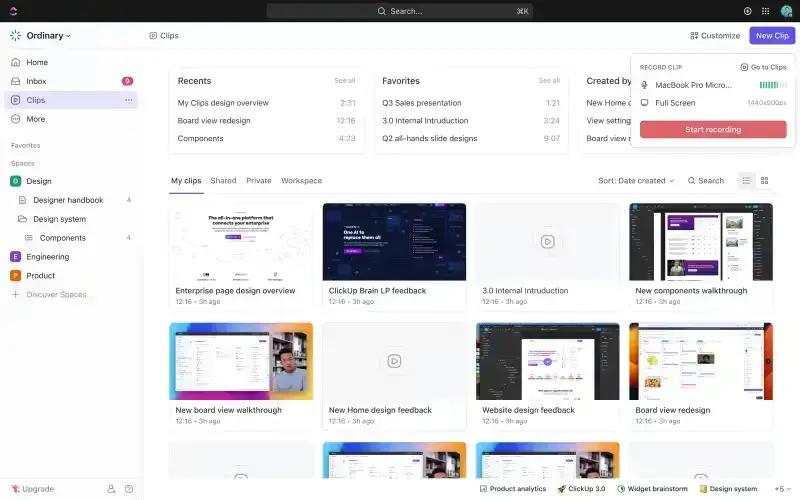
- Clips-Hub: Alle Clips werden automatisch in einem eigenen Hub gespeichert, sodass Benutzer ihre Aufnahmen jederzeit einfach wiederfinden, organisieren und verwalten können.
- Browser-Aufnahme: Nehmen Sie Ihren Desktop oder Browser-Tabs in Chrome und Firefox auf – ideal für schnelle Bildschirmfreigaben und Demonstrationen.
Vorteile von Clip by ClickUp:
- Für bestehende ClickUp-Nutzer ist Clip die ideale Ergänzung, da es Videofunktionen direkt in ihre Arbeitsabläufe integriert.
- Nutzer können Clips einfach per Link mit Teammitgliedern teilen, in ClickUp einbetten oder für mehr Flexibilität herunterladen.
- Clip ist im kostenlosen ClickUp-Tarif enthalten, der unbegrenzte Aufgaben und Mitglieder ohne zusätzliche Kosten bietet.
Nachteile von Clip by ClickUp:
- Nutzer können nur Browser-Tabs oder Desktop-Fenster aufnehmen; eine direkte Webcam-Aufnahme ist mit Clip nicht möglich.
- Clip verfügt über keine integrierten Bearbeitungstools. Um Videos zu optimieren, benötigen Sie daher ein separates Schnittprogramm.
Preise für Clip by ClickUp
Clip ist Teil der umfassenden ClickUp-Tarife und bietet flexible Optionen für Teams jeder Größe:
- Free Forever: Beinhaltet grundlegende Clip-Funktionen
- Unlimited: 7 $ pro Nutzer/Monat
- Business: 12 $ pro Nutzer/Monat
- Enterprise: Individuelle Preise (kontaktieren Sie ClickUp)
G2-Bewertung: 4,7/5
6. ScreenRec
ScreenRec ist ein kostenloses und benutzerfreundliches Tool zur Bildschirmaufnahme, das sich perfekt für schnelle Videoaufnahmen eignet. Es ist für Windows, macOS und Linux verfügbar und ermöglicht Aufnahmen in hoher Qualität, sofortiges Teilen von Videos und sogar das Erstellen von Screenshots – ganz ohne Wasserzeichen oder Zeitbegrenzungen.
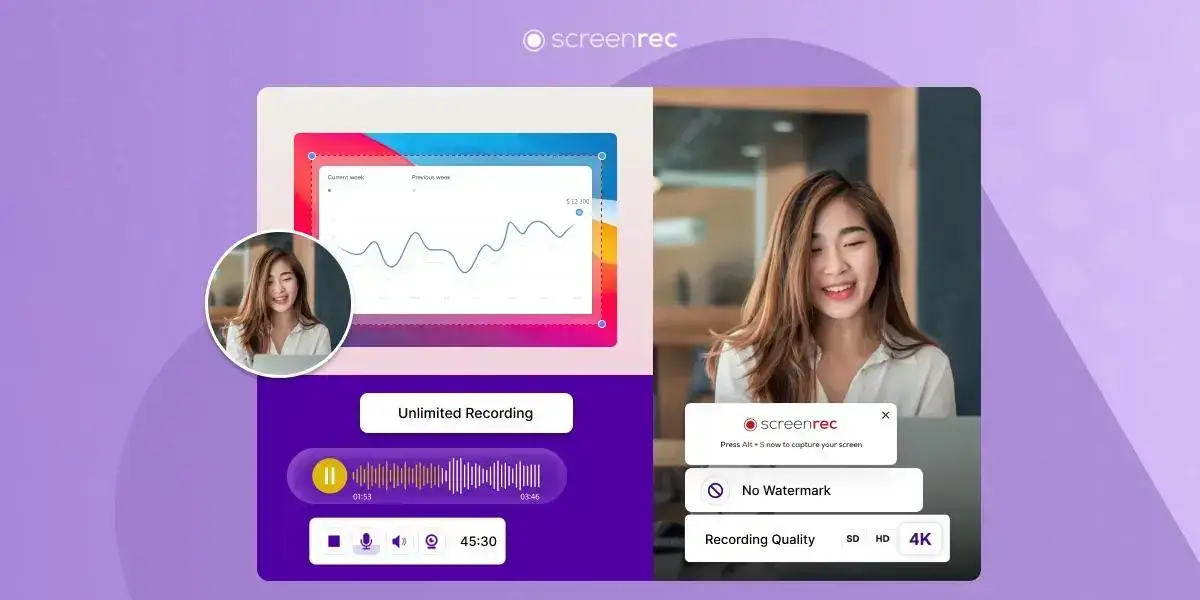
Wenn Sie eine einfache Möglichkeit suchen, Ihren Bildschirm aufzunehmen und schnell zu teilen, ist ScreenRec eine hervorragende Wahl. Für erweiterte Bearbeitungsfunktionen oder eine Pausenfunktion sollten Sie sich jedoch möglicherweise nach anderen Tools umsehen.
ScreenRec-Funktionen:
- HD- und 4K-Bildschirmaufnahme: Nehmen Sie Ihren gesamten Bildschirm, ein bestimmtes Fenster oder nur einen Teil Ihres Bildschirms in hoher Qualität auf.
- Audio und Webcam: Zeichnen Sie Audio sowohl von Ihrem Computer als auch über Ihr Mikrofon auf oder fügen Sie ein Webcam-Video hinzu, um eine persönlichere Note zu verleihen.
- Schnelle Anmerkungen: Fügen Sie Ihren Screenshots einfache Notizen und Markierungen hinzu, um wichtige Details leicht hervorzuheben.
- Sofortige Freigabelinks: Nach der Aufnahme erstellt ScreenRec automatisch einen Link zum Teilen, wodurch das Versenden von Videos zum Kinderspiel wird.
- Unbegrenzte Aufnahme: Nehmen Sie so lange auf, wie Sie möchten – ohne Zeit- oder Dateigrößenbeschränkungen.
- Sicherer Cloud-Speicher: Erhalten Sie 2 GB kostenlosen, verschlüsselten Speicherplatz, damit Ihre Videos privat und jederzeit leicht zugänglich bleiben.
Vorteile von ScreenRec:
- Die Benutzeroberfläche von ScreenRec ist einfach und übersichtlich, sodass Sie schnell und ohne großen Einrichtungsaufwand mit der Erstellung personalisierter Videos beginnen können.
- Es gibt keine Gebühren, Wasserzeichen oder Einschränkungen, was es zu einer hervorragenden Loom-Alternative für alle macht, die ein schnelles und kostenloses Aufnahmetool suchen.
Nachteile von ScreenRec:
- Sie können die Aufnahme nicht pausieren und fortsetzen, was bei längeren Videos einschränkend sein kann.
- ScreenRec bietet keine Bearbeitungstools an, daher benötigen Sie möglicherweise eine andere Software, wenn Sie Ihre Videos nachbearbeiten möchten.
Preise von ScreenRec:
ScreenRec ist komplett kostenlos und Sie müssen sich keine Gedanken über Kosten für Zusatzfunktionen machen. Business-Pläne mit erweiterten Funktionen sind in Planung, aber aktuell bietet die kostenlose Version alles, was Sie für grundlegende Bildschirmaufnahmen benötigen.
ScreenRec G2-Bewertung: 4,7/5
7. Descript
Descript ist in erster Linie ein Video-Editor, mit dem Sie zudem Ihren Bildschirm aufzeichnen können – alles in einer einzigen App. Descript ist für Mac und Windows verfügbar und bietet wichtige Funktionen wie das Aufnehmen, Bearbeiten und Teilen von Videos, ohne dass zusätzliche Tools erforderlich sind. Mit Features wie automatischen Transkriptionen, dem Entfernen von Füllwörtern sowie einer integrierten Bibliothek für Musik und Bilder bietet Ihnen Descript alles, was Sie für die Erstellung professioneller Videos benötigen.
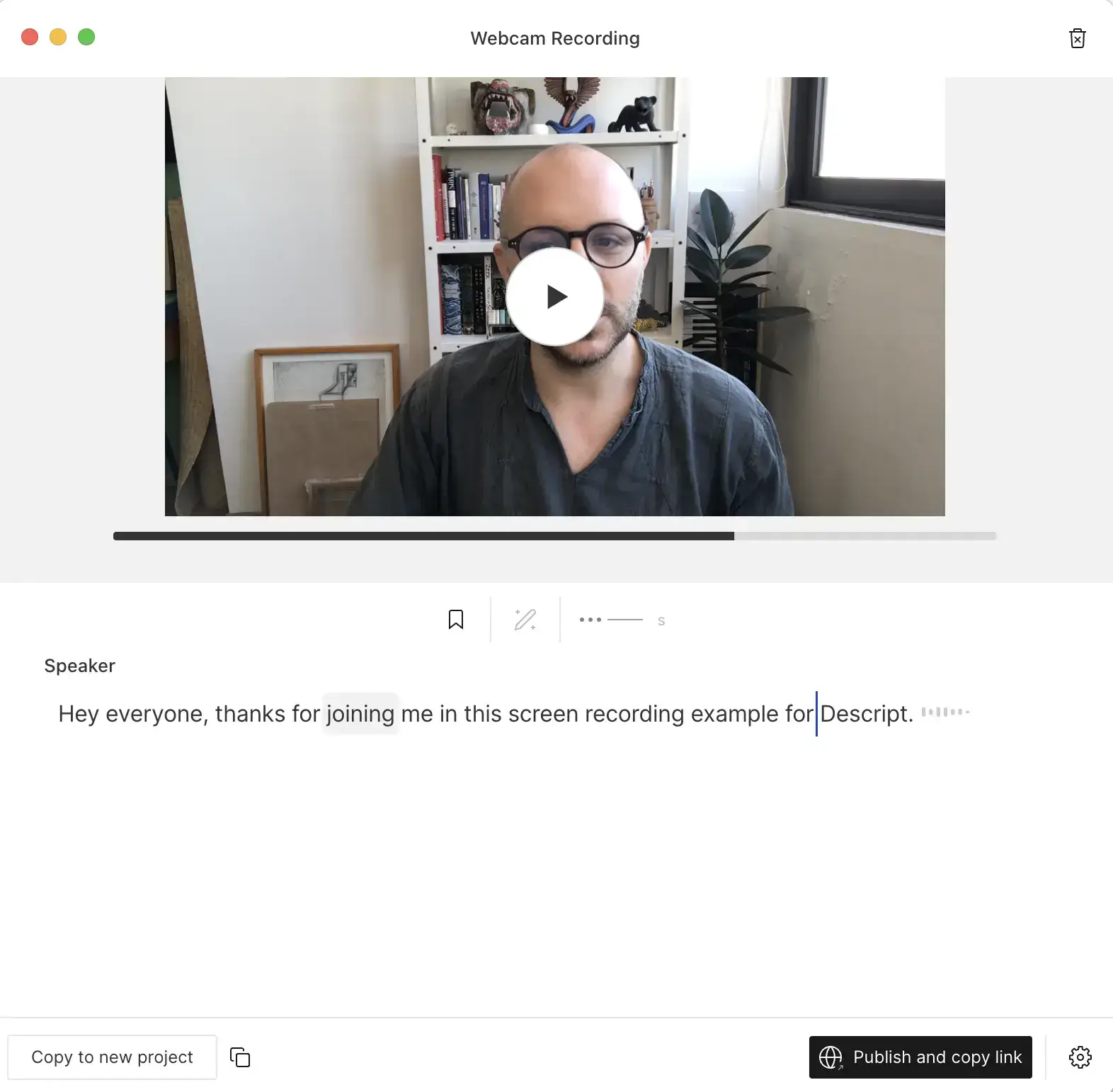
HINWEIS: Sie können Descript für Mac oder Windows herunterladen, um direkt von Ihrem Desktop aus auf alle Funktionen zuzugreifen.
Descript-Funktionen:
- Bildschirmaufnahme: Nehmen Sie Videos Ihres gesamten Bildschirms oder nur eines Ausschnitts auf – mit oder ohne Ton – für eine flexible Videogestaltung.
- Automatische Transkriptionen: Descript wandelt Ihre gesprochenen Worte automatisch in Text um, was hilfreich für das Hinzufügen von Untertiteln oder die Bearbeitung ist.
- Entfernen von Füllwörtern: Bereinigen Sie Ihre Aufnahmen ganz einfach, indem Sie „ähm“, „äh“ und andere Füllwörter mit einem einzigen Klick entfernen.
- Integrierte Medienbibliothek: Greifen Sie auf eine Sammlung lizenzfreier Musik, Bilder und Effekte zu, um Ihre Videos ansprechender zu gestalten.
- Einfaches Teilen: Teilen Sie Ihre fertigen Videos über einen einfachen Link oder binden Sie diese auf Ihrer Website ein.
Vorteile von Descript:
- Descript vereint Aufnahme und Bearbeitung, sodass Sie keine mehreren Apps benötigen, um hochwertige Videos zu erstellen.
- Das Design ist intuitiv und dank der Tutorials finden Sie sich schnell zurecht.
Nachteile von Descript:
- Descript ist derzeit nur für den Desktop verfügbar, Sie müssen es also über Ihren Computer nutzen.
- Der kostenlose Plan umfasst lediglich 1 Stunde Transkription und 1 Stunde Aufnahme pro Monat, was für eine häufige Nutzung möglicherweise nicht ausreicht.
Descript Preise
Descript bietet flexible Preisoptionen:
- Kostenlos: Beinhaltet 1 Stunde Transkription, 1 Stunde Aufnahme und ein Video ohne Wasserzeichen in 720p.
- Creator: 15 $/Monat für unbegrenzte Videos ohne Wasserzeichen, 10 Stunden Transkription und 10 Stunden Aufnahme.
- Pro: 30 $/Monat für 30 Stunden Transkription und 30 Stunden Aufnahme sowie KI-Tools und Premium-Stockmedien.
- Enterprise: Individuelle Preise für Teams, die zusätzlichen Support und Sicherheitsfunktionen benötigen.
G2-Bewertung: 4,6/5
Häufig gestellte Fragen
1. Warum Loom statt Zoom verwenden?
Loom eignet sich hervorragend für kurze Videonachrichten, die sich jeder flexibel ansehen kann. Sie können Ihren Bildschirm aufzeichnen, einen Kommentar einsprechen und den Link teilen. So können Teammitglieder Informationen prüfen, ohne dass ein Meeting angesetzt werden muss.
Zoom hingegen ist auf Echtzeit-Videokonferenzen ausgelegt, die sich besser für Live-Diskussionen und die Zusammenarbeit eignen. Wenn Sie Updates oder Anleitungen teilen möchten, ohne sich live zu treffen, ist Loom eine gute Wahl. Für interaktive Gespräche ist Zoom besser geeignet.
2. Was sind die Nachteile von Loom?
Obwohl Loom für schnelle Videoaufnahmen nützlich ist, gibt es einige Einschränkungen. Die kostenlose Version erlaubt nur die Erstellung von 25 Videos mit einer maximalen Länge von jeweils fünf Minuten, was für eine regelmäßige Nutzung möglicherweise nicht ausreicht.
Loom bietet zudem nur eingeschränkte Bearbeitungsfunktionen. Wenn Sie detaillierte Anpassungen vornehmen möchten, benötigen Sie ein zusätzliches Tool. Außerdem werden Loom-Videos auf deren Cloud-Plattform gespeichert, wo sie standardmäßig öffentlich sind, sofern Sie die Einstellungen nicht ändern.
3. Können andere meine Loom-Videos sehen?
Ja, andere können Ihre Loom-Videos ansehen, aber nur, wenn sie über den Link verfügen oder Sie das Video öffentlich zugänglich machen. Standardmäßig werden Loom-Videos in der Cloud mit öffentlichem Zugriff gespeichert, was bedeutet, dass jeder mit dem Link sie ansehen kann. Sie können jedoch die Datenschutzeinstellungen anpassen, um den Zugriff einzuschränken oder ein Passwort festzulegen, falls das Video sensible Informationen enthält.
Starten Sie die Bildschirmaufnahme Ihrer Meetings mit MeetGeek!
Das richtige Tool für Bildschirmaufnahmen kann einen großen Unterschied in Ihrer Kommunikation und Zusammenarbeit bewirken.
Egal, ob Sie ein Tool für kurze Videonachrichten, detaillierte Anleitungen oder die Aufzeichnung von Live-Meetings benötigen – es gibt zahlreiche Loom-Alternativen mit einzigartigen Funktionen für unterschiedliche Anforderungen. Von benutzerfreundlichen Optionen bis hin zu leistungsstarken All-in-One-Tools wie MeetGeek bietet jede dieser Alternativen eine Möglichkeit, Ihren Arbeitsablauf zu optimieren und Informationen effektiver zu teilen.
Nachdem Sie nun Ihre Optionen kennen, sind Sie bereit, das Tool auszuwählen, das Ihre Ziele am besten unterstützt. Wenn Sie nach einer funktionsreichen Lösung suchen, die Meeting-Aufzeichnungen und Erkenntnisse vereinfacht, warum probieren Sie nicht MeetGeek aus? Entdecken Sie unseren kostenlosen Plan und erleben Sie, wie Ihre Produktivität neue Höhen erreicht!





.avif)