Durch Anklicken „Alle Cookies akzeptieren“, stimmen Sie der Speicherung von Cookies auf Ihrem Gerät zu, um die Seitennavigation zu verbessern, die Nutzung der Website zu analysieren und unsere Marketingaktivitäten zu unterstützen. Sehen Sie sich unsere an Datenschutzrichtlinie für weitere Informationen.
MeetGeekBlogHow Do I Share My Google Calendar for Better Collaboration?
Back to Blog

How Do I Share My Google Calendar for Better Collaboration?

Produktivität
Produktivität

Are you getting the most out of your Google Calendar app? Learn how to share your Google Calendar with others to boost your productivity here!

Anastasia Muha
September 10, 2023
/
5 min read
Table of content
Get started with MeetGeek AI Meeting Assistant:
📝 AI-powered Meeting Note taker
✅ Free meeting recording & transcription
💬 Automated sharing of insights to other tools.
Sign Up for Free
Share the knowledge with your circle
Copied

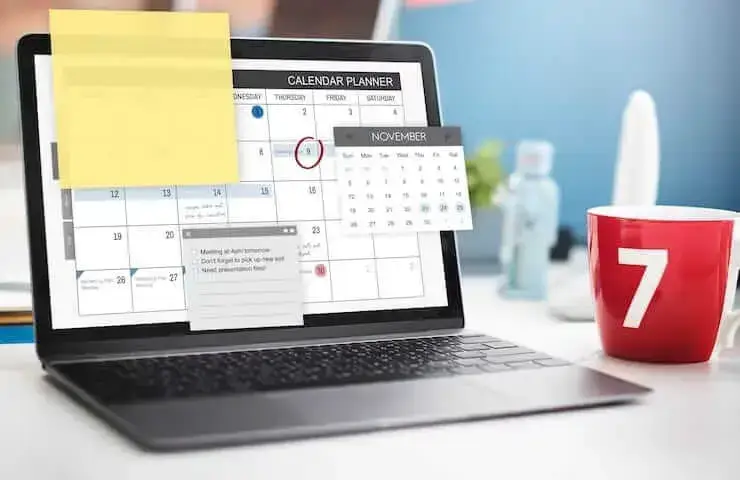
Image Source: rawpixel.com on Freepik

Many people rely on calendars to keep their lives organized and running smoothly. Whether it's for work, personal projects, family events, or simply staying on top of deadlines, calendars are essential tools.

Scheduling a meeting with someone can be challenging, especially when trying to find a time slot that works for both of you. Luckily, there is a solution — calendar sharing. 

If you're an avid Google Calendar user, you can easily share your schedule with others, allowing them to see your availability. If you want to learn how to share your Google Calendar with others, keep reading, as we guide you through the entire process!

Benefits of Sharing Your Google Calendar 

There are plenty of benefits you can expect when sharing your Google Calendar, and below we discuss the most important ones.

A. Efficient Scheduling 

Sharing your Google calendar with others can greatly reduce unnecessary email clutter. Others can easily see when you're busy and schedule meetings accordingly, saving everyone time and effort.

B. Better Time Management for Enhanced Productivity

When you add something to your Google Calendar, you have to include event details like the start and end times for each task or activity. This way, when you review your schedule later on, you can easily identify which activities are taking up more time than they should and pinpoint where you need to improve your time management and increase your productivity.

C. Easy Coordination with Your Group

From collaborating on a project to planning a vacation, figuring out another person's availability can be quite a challenge. And when there are more than two people involved in the scheduling process, things can get even more confusing. Google Calendar makes it easy to effectively coordinate with everyone and get things done in time.

D. Hassle-Free Meeting Organizing

When it comes to meetings, scheduling them isn’t even the worst part. Effectively managing and streamlining them is. 

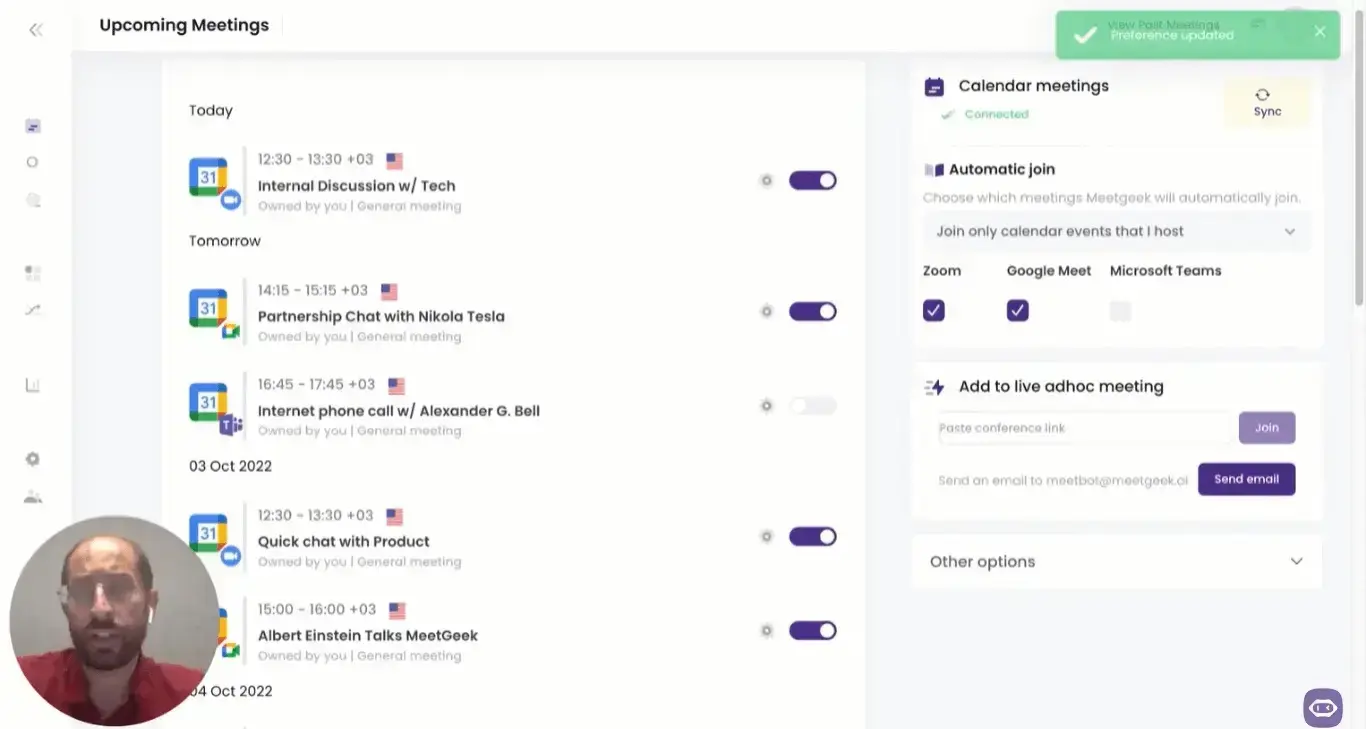
With MeetGeek, meetings become a breeze. Our AI virtual meeting assistant automatically joins, records, transcribes, analyzes, and summarizes your online meetings in only a few clicks. This way, you can reap the benefits of having productive meetings without wasting hours of extra work on properly managing them.

MeetGeek joins your Google Calendar meetings automatically!

E. Better Access to Your Schedule for Supervisors

Shared Google Calendars allow your supervisors to check how you're performing and assist you whenever you're struggling to keep up with tasks. This way, team projects will stay on track, and you’ll ensure that any concerns are addressed in a timely manner.

How Do I Set Up a New Google Calendar? 

The first thing you need to do before sharing a calendar is to actually set one up. Sometimes you may want to share an existing calendar, but more often than not, you'll want to create a separate calendar specifically for sharing with certain individuals. 

Thankfully, Google makes it super easy to create a new calendar, allowing you to have multiple calendars in one place. 

To set up a new Google Calendar, just follow these steps:

  1. Go to calendar.google.com, or simply click on the Google Apps icon on any Google page. Select the Calendar icon and log into your Google account.
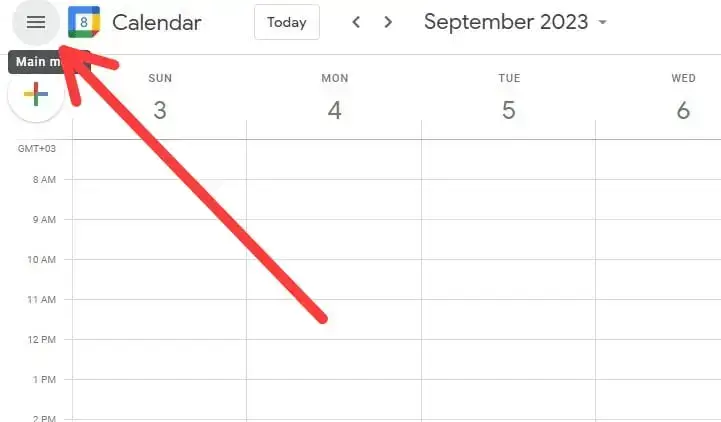
  2. In the top left corner of the Google Calendar page, you'll see a little hamburger icon. Click on that to open up the left menu bar.
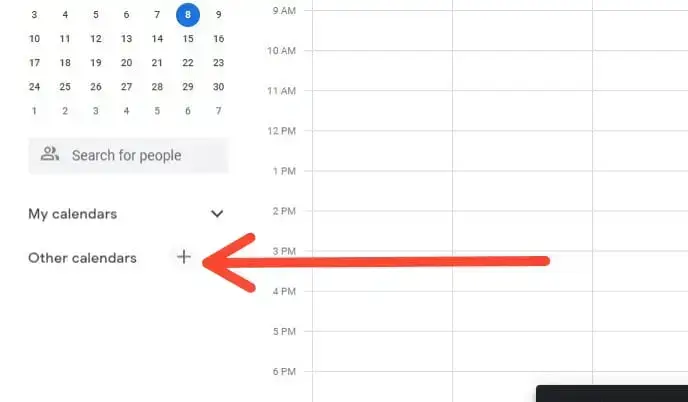
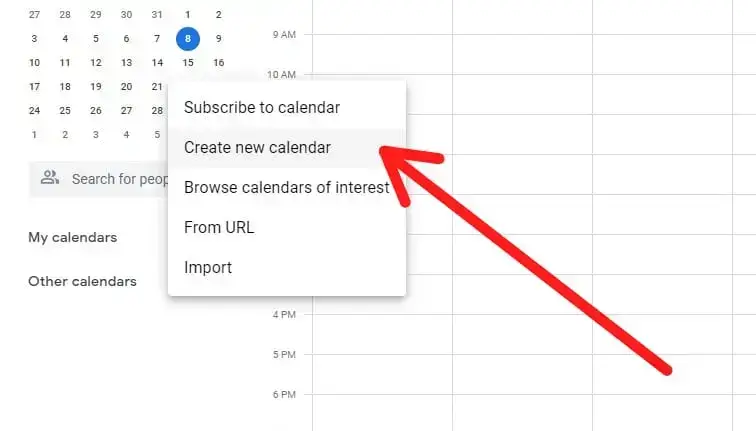
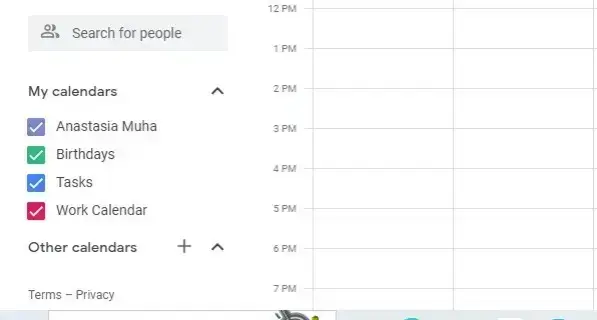
  1. Scroll down until you see "Other calendars," and then click on the plus symbol followed by "Create new calendar."
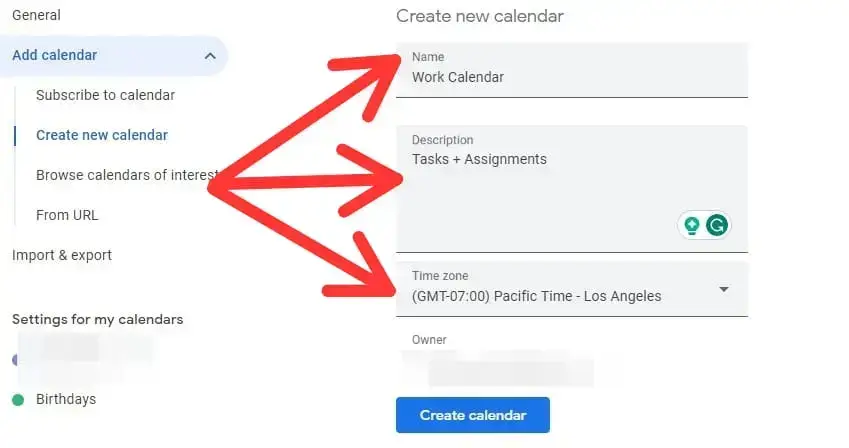
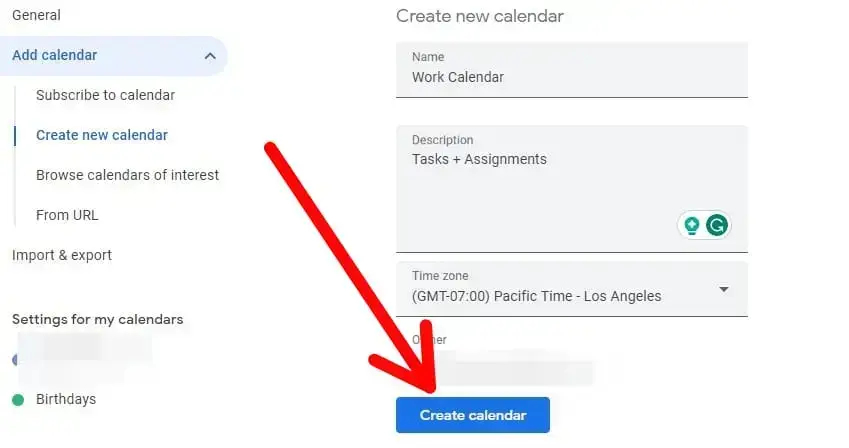
  1. This will take you to the settings page for your new calendar, where you can name it, write a description, and select a time zone. Note: use time zone meeting planning tools to ensure smooth interactions between your teams in different locations.
  1. Afterward, click on "Create calendar."

Voilà! Your new calendar is good to go, and you can move on to sharing it with whomever you want.

How to Share Your Google Calendar 

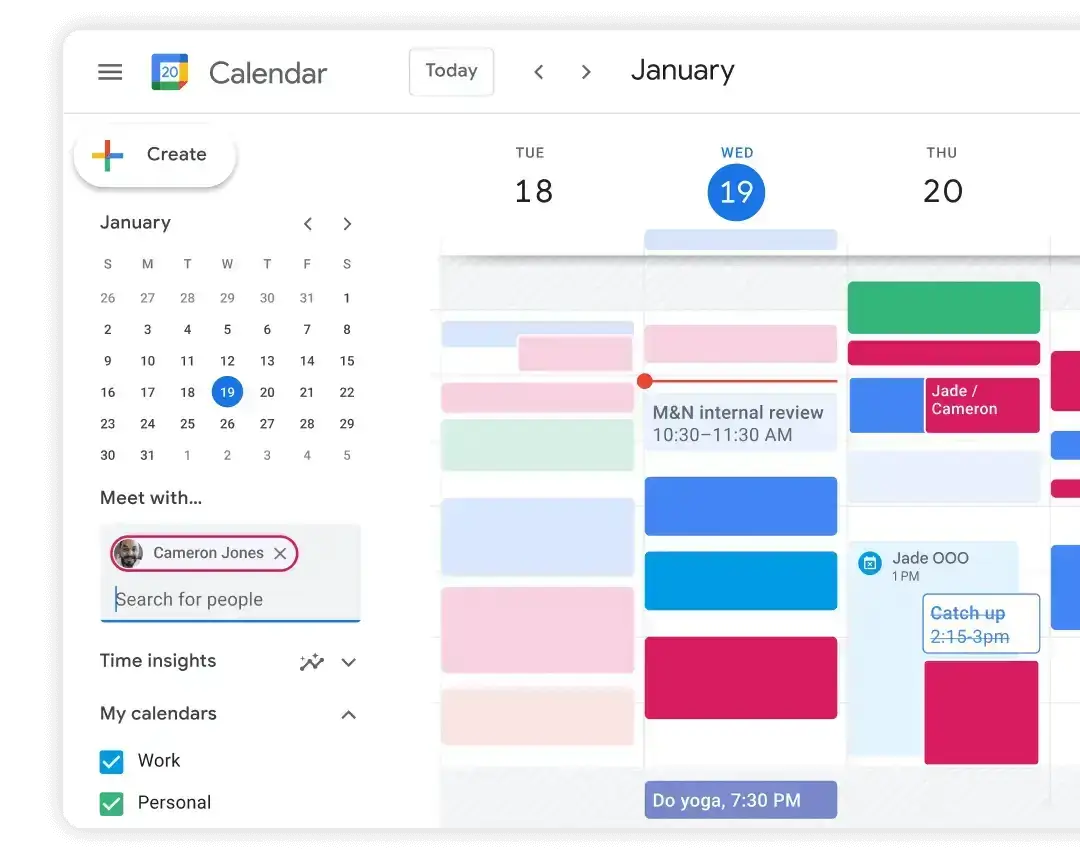
Every time you create a new Google Calendar, the calendar is private, visible only to you. You’ll have to manually adjust the settings to change that.

Image Source

A. How to Share Your Google Calendar with Your Team Members

To add someone else to your Google Calendar, follow these steps:

  1. Open Google Calendar and identify the calendar you want to share from the left-hand menu.
  2. Press the "Settings and sharing" option under the "More" button.
  3. Select the person/group you want to give access to your calendar.
  4. In the permissions section, click the down arrow to choose the level of access you want to give them. Keep reading to find out what the permission options are, as we’ll discuss those later on.
  5. Press "Send".

Once you've completed these steps, Google will send out a group calendar invitation to the people you've shared it with. This invitation will include the links to your calendar, making it easy for everyone to access it.

B. How to Share Google Calendar with the Public

To make your calendar available to the public, here is what you’ll need to do:

  1. Open your Google Calendar.
  2. Find the calendar you want to share in the "My calendars" section, and click on "More".
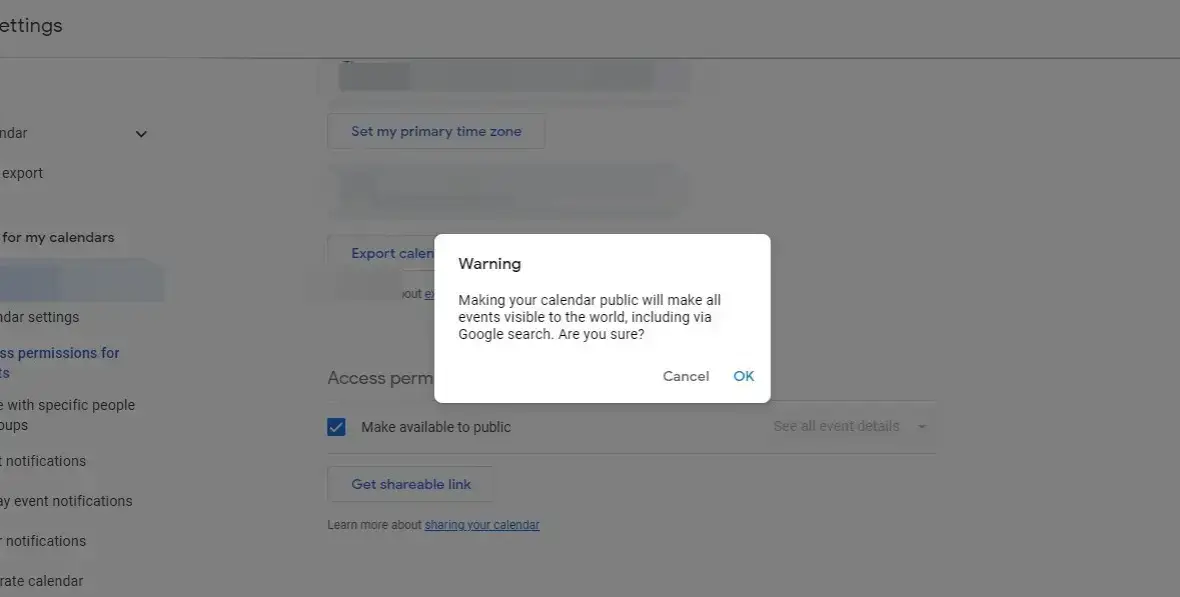
  3. In the "Access permissions" section, select the "Make available to the public" option.
  4. Customize the level of access you want to grant to the public.

C. How to Share a Google Calendar with Non-Users of Google Calendar

If you use Google Calendar and want to share it with people who don't, follow these steps:

  1. Open Google Calendar
  2. Identify the calendar you want to share, and click on “Settings and sharing.”
  3. Select the Integrate Calendar option and copy the link provided under Public URL.
  4. Send this link to people via email, so they can open it in their browser and view your calendar.

If you prefer to keep your calendar data private and only share it with selected people, you have that option too. 

Instead of copying the public URL link, copy the link given in Secret address in iCal format under “Integrate calendar.” This will allow others to see all the details of your events, but only if you trust them.

How to Manage Access to the Shared Calendar

When you share your Google Calendar with others, it's crucial to manage the permissions so that people can only see what you want them to see. For instance, you may not want them to see every little detail of your appointments, but simply when you're busy or available.

In such cases, you'll need to adjust the permission settings either when you invite others to collaborate or by updating the settings for existing users.

There are several permissions you can set for your shared Google Calendar:

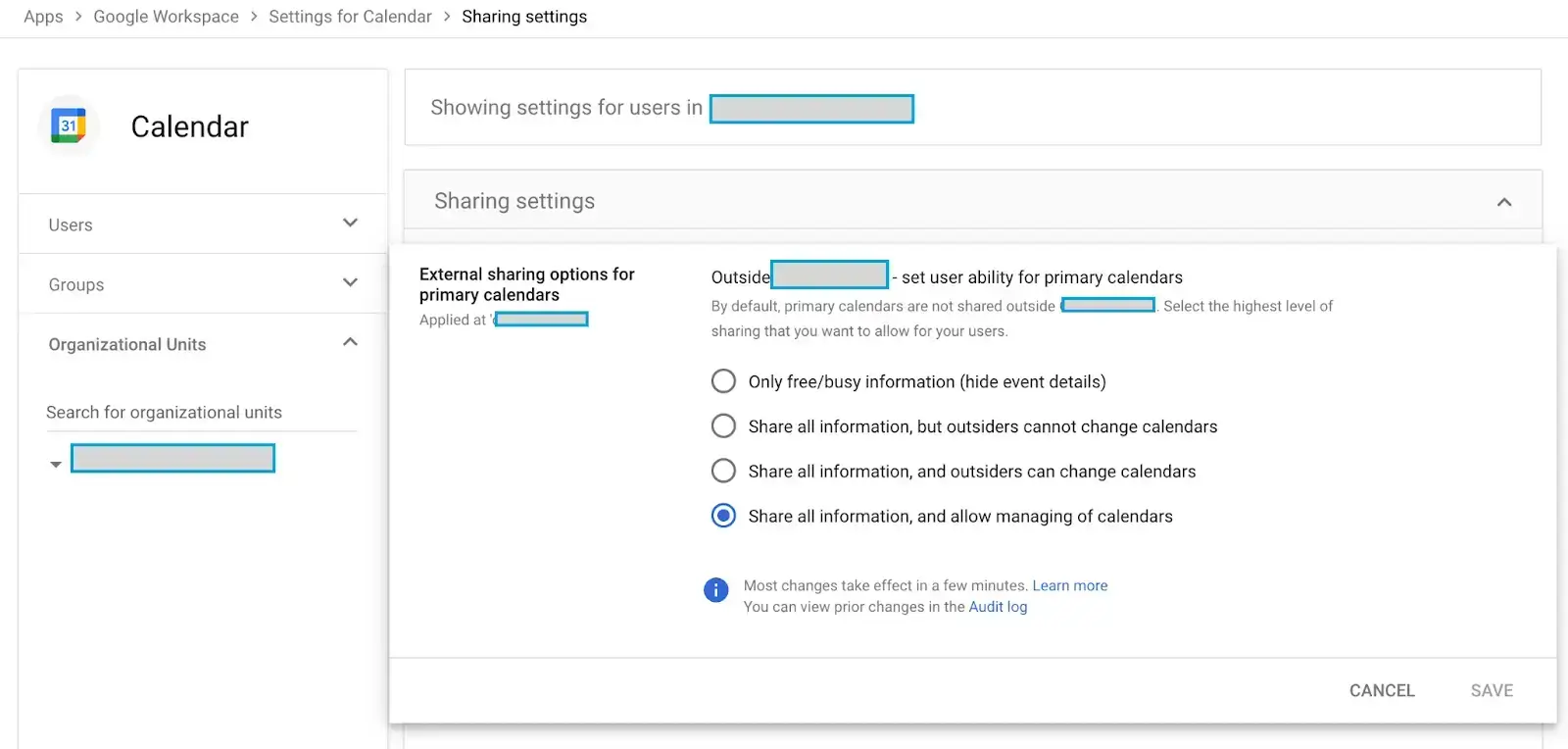
  • See only free/busy (hide details): With this setting, users can see when you're free during specific time periods but won't be able to view the details of your events. 
  • See all event details: Use this setting when you want users to have access to more Google Calendar event details, like the name, description, time, and location.
  • Make changes to events: By enabling this setting, users not only have access to all your event details but can also make changes. They have the same scheduling, changing, and deleting abilities as you do. This option makes the shared calendar more open to users.
  • Make changes to events and manage sharing: This gives users have full access to the details of your calendar events and enables them to make changes. Additionally, they have permission to share your entire calendar with others. 
Image Source

How to Create a Collaborative Google Calendar

Google refers to a collaborative calendar as a group calendar, which allows you to share calendars with an entire group, such as your organization. Setting up a group calendar in Google requires you to first create a group and be an administrator.

You can create a group in the Admin console or use Google Groups. To create a collaborative Google Calendar, follow these steps:

  1. Open Google Calendar and scroll down to your list of calendars.
  1. In the "Other calendars" section, click on the "Add" button and choose "Create new calendar."
  1. You will be taken to a Settings screen where you can fill in the details for your new calendar. Enter the calendar name, description, and select a time zone.
  1. Click on "Create calendar" to set up your new calendar.
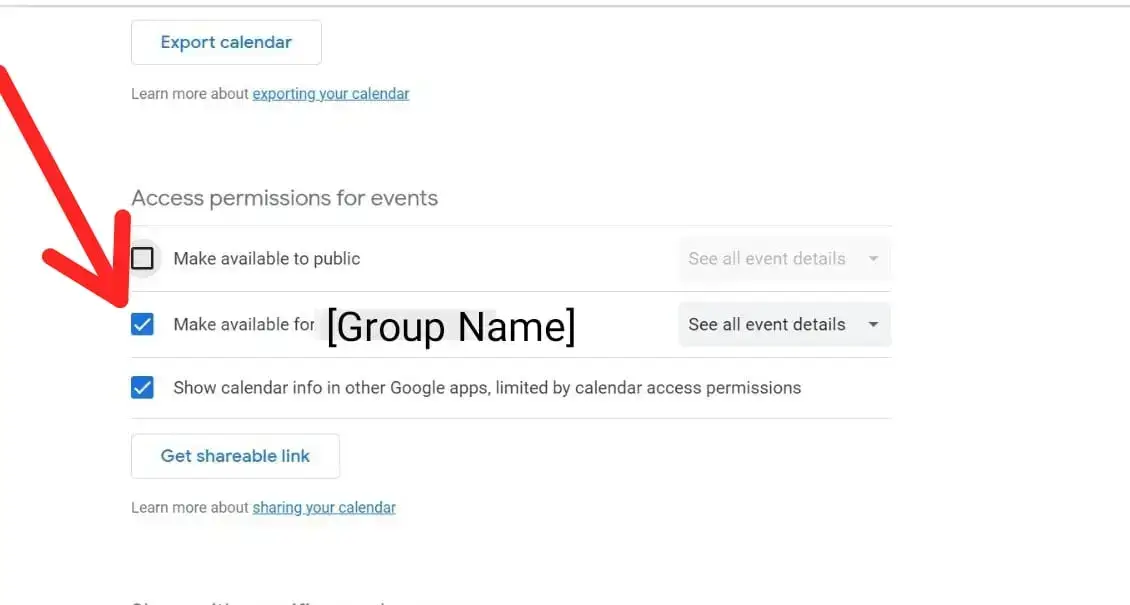
  1. Under "Access permissions", check the "Make available for your organization" box to share the calendar with everyone in your organization.

How to Request Permission for Your Team’s Google Calendars for Enhanced Collaboration

Especially in the context of work meetings, Google Calendar’s sharing features can be of great help. If you don’t know how to request team members to share their calendars with you, we prepared a template for you to use as inspiration. Check it out below!

Subject: Collaboration — Google Calendar Sharing

Dear [Team Members],

I hope this email finds you well. From now on, to streamline the process of meeting scheduling, I propose that we utilize Google Calendar’s sharing feature.

By sharing our calendars, we can easily find a time that works for everyone without back-and-forth emails or scheduling conflicts. Please share your calendar with me and I'll do the same. 

Also, I would greatly appreciate it if you could take a few moments to update your calendar with any recurring events, time blocks, or unavailability. This will help us avoid scheduling conflicts and minimize disruptions.

If you have any concerns regarding privacy, let me know. I assure you that our team's information will remain confidential.

Thank you, and let me know if you need help with the Google Calendar setup.

Best regards,

[Your Name]

How to Add Someone Else’s Calendar to Your Own

To include someone else's calendar in your own, you have two options to choose from:

  1. Locate the ‘+’ on the left side of your calendar, right next to ‘other calendars'. Click on it, then select 'Subscribe to calendar'. From there, you can simply enter the email address of the person whose public calendars you'd like to follow.
  2. Directly click on 'from URL' option. If the other person has shared their calendar URL with you, all you need to do is enter it there.

Either way, you'll be able to seamlessly include and keep track of someone else's calendar from your own.

How to Turn Off Calendar Sharing

Let's say you have a calendar that you were sharing with others, but now you want to stop sharing it for some reason.

Google has provided some simple steps to stop sharing your Google Calendar:

  1. Open up your Google Calendar.
  2. Look for the section called "My calendars."
  3. Choose the calendar that you want to stop sharing.
  4. Click on "More Settings" and then on the Google sharing button.
  5. In the "Access permissions" section, toggle off the option that says "Make available to the public."

If you simply want to stop sharing with a specific person, locate the "Share with specific people" section, and click on the "Remove" option next to the name of the person you want to stop sharing your calendar with.

If you want to stop sharing with your organization, switch off the option that says "Make available to everyone in my organization" under the "Access permissions" section.

Trouble Fixes For Google Calendar Sharing

Are there still issues with someone being unable to access a calendar you shared with them? Let's go through some troubleshooting steps together:

  • First, ensure that you have their correct email address. Double-check for any typos.
  • Ask the person to check their spam folder, as emails can sometimes get redirected there.
  • Did they click the link in the email they received? It's important to confirm whether they followed the necessary steps to access the shared calendar.
  • Take a look at your Google Calendar sharing options. One option is to remove the person from the sharing settings and then add them back again. This might help resolve any sharing issues.
  • It's possible that there are administrator settings in place that limit or disable sharing. Check if any such restrictions are in effect.

Google Calendar Sharing FAQ

How Do I Share My Google Calendar on Android?

If you're an Android user, you can easily access your Google Calendar by installing the Google Calendar app from Google Play. Once installed, simply launch the app, and you'll find your Google Calendar readily available on your Android device. This makes it super convenient to stay organized and keep track of your schedule while on the go.

Can Others See My Google Calendar?

Other people won't be able to access your Google Calendar unless you explicitly decide to share it with them. This gives you the freedom to create multiple calendars without worrying about others snooping on your events. 

Even if you do decide to share a specific Google calendar with others, you always have the option to remove them or tweak their access levels on the Settings page. 

How Do I Share Google Calendars on My iPhone App?

Although Google Calendar isn't native to iOS devices, there is still a way to share your Google Calendar events. All you need is your iPhone or iPad to make this happen.

Here's a simple step-by-step guide on how to sync Google Calendar to Apple Calendar:

  1. Grab your Mac, iPhone, or iPad and go to the settings of your device.
  2. Scroll down and find the Calendar icon.
  3. Select "Accounts", tap on "Add account", and choose Google.
  4. Enter your email address information and tap "Next", then enter your password.
  5. Now, all your emails, contacts, and calendar events will be shared directly with your Google Account. If you only want to sync your Google Calendar, simply switch off the other services.
  6. Finally, open the Calendar app on your iPhone, Mac, or iPad to see your updated Google Calendar events.

It's important to note that while you can view and access your Google Calendar events on Apple Calendar, you won't be able to create new Google Calendars directly from the Apple Calendar app. Still, you’ll be able to keep track of all your events in one place, making it a breeze to stay organized and on top of your schedule.

Get More Out of Your Google Calendar Today! 

Make your scheduling process run smoothly by sharing your Google Calendar with others. 

And while you’re at it, automatically sync your Google Calendar with MeetGeek, the virtual meeting assistant that automatically joins, records, transcribes, and summarizes your meetings. Try MeetGeek for free for seamless meetings today!

Article updated on 
September 29, 2025
Share the knowledge with your circle
Copied
Related posts

What is Companion Mode in Google Meet? Everything You Need to Know

Read on for a practical guide to using Companion Mode in Google Meet for clearer, more balanced hybrid meetings.

This is some text inside of a div block.

What Is a Skip-Level Meeting? How Leaders Use Skip-Levels to Improve Communication

An in-depth look at skip-level meetings and how they help leaders connect with teams and gain real insight.

This is some text inside of a div block.

Was ist ein AI-Sprachagent? Ein praktischer Leitfaden, wie Sprach-KI wirklich funktioniert

In diesem Leitfaden wird erklärt, was ein KI-Sprachagent ist, wie er funktioniert, welche Vorteile er bietet und wo er am besten zu menschlichen Teams passt.

This is some text inside of a div block.

Leitfaden für Stand-Up-Meetings: Was sie sind und wie man sie durchführt

Finden Sie heraus, was ein Stand-up-Meeting tatsächlich nützlich macht. In diesem Leitfaden wird erklärt, wie du tägliche Stand-Ups durchführst, die kurz bleiben, Blockaden zum Vorschein bringen und die Teams auf einer Linie halten.

This is some text inside of a div block.

Alles über Microsoft Teams AI Interpreter + So gehen Sie über die Übersetzung hinaus

Erfahren Sie, wie Microsoft Teams AI Interpreter funktioniert, wo er zu kurz kommt und wie Sie über die Übersetzung hinausgehen können.

This is some text inside of a div block.

Beste App zur Vorlesungsaufzeichnung im Jahr 2026:5 Tools, die Studierende tatsächlich verwenden

Schauen wir uns genauer an, was Studierende heutzutage verwenden, um ihre Vorlesungen sowohl online als auch offline aufzuzeichnen und zu organisieren.

This is some text inside of a div block.

Read AI-Preise erklärt für 2026: Lohnt es sich für Meeting-Notizen?

Erfahren Sie mehr über die Preisgestaltung für 2026 von Read AI, ihre Kernfunktionen und wie sie mit Besprechungsnotizen, Transkriptionen und Erkenntnissen umgeht, um moderne Teams zu unterstützen.

This is some text inside of a div block.

Was ist eine durchsuchbare Wissensdatenbank und wie funktioniert sie?

Erfahren Sie, wie durchsuchbare Wissensdatenbanken den Zugriff auf Informationen verbessern, und sehen Sie, wie MeetGeek Ihre Meetings in eine schnelle, zuverlässige Wissenszentrale verwandelt.

This is some text inside of a div block.

So verwischen Sie den Hintergrund in Google Meet (einfache Anleitung für alle Geräte)

Erfahren Sie, wie Sie Ihren Hintergrund in Google Meet auf Desktop und Handy verwischen, visuelle Effekte verwenden und bei jedem Anruf ein klareres, fokussierteres Aussehen erzielen.

This is some text inside of a div block.

So treten Sie Team-Meetings mit Code bei: Eine vollständige schrittweise Anleitung

Erfahren Sie, wie Sie mithilfe eines Besprechungscodes an Microsoft Teams-Besprechungen teilnehmen können, sowie über andere Optionen wie einen Link oder eine Einladung. In diesem Handbuch werden alle Methoden klar und Schritt für Schritt erklärt.

This is some text inside of a div block.

Die 5 besten NoteGPT-Alternativen im Jahr 2026

Entdecken Sie die 5 besten NoteGPT-Alternativen, mit denen Sie wichtige Erkenntnisse erfassen, Inhalte transkribieren und die Produktivität in Lern- und professionellen Arbeitsabläufen steigern können.

This is some text inside of a div block.

Was ist Perplexity AI? Ein Leitfaden für die KI-gestützte Suchmaschine, die die Art und Weise, wie wir Informationen finden, verändert

In diesem Artikel werfen wir einen genaueren Blick auf Perplexity AI, was sie im Vergleich zu herkömmlichen Suchmaschinen für Sie tun kann, und einige ihrer Vor- und Nachteile.

This is some text inside of a div block.

Die besten tl;dv-Alternativen zur Optimierung Ihrer Besprechungen

Entdecken Sie die besten tl;dv-Alternativen und erkunden und vergleichen Sie deren Funktionen, um das richtige KI-Meeting-Tool für Ihr Unternehmen auszuwählen.

This is some text inside of a div block.

ChatGPT-Aufnahmemodus gegen MeetGeek: Hier finden Sie alles, was Sie wissen müssen

Neugierig, wie der ChatGPT-Rekorder im Vergleich zu MeetGeek abschneidet? Wir haben uns die Funktionen, die Integration und die Datensicherheit für die Aufzeichnung von Besprechungen angesehen.

This is some text inside of a div block.

Fathom AI Pricing 2026: Lohnt es sich für moderne Teams immer noch?

Erkunden Sie die Preise von Fathom AI für 2026, einschließlich Funktionen, Limits und Tarifvergleiche, und erfahren Sie, wie MeetGeek Teams mehr Flexibilität bietet.

This is some text inside of a div block.

KI-Tagenten: Wie autonome KI die Zukunft der Arbeit verändert

Erfahren Sie, wie KI-Besprechungsagenten die Zukunft der Arbeit neu definieren. Sie kümmern sich um die Planung, Nachbereitung und sprechen sogar in Ihrem Namen, um Zeit zu sparen und jedes Meeting in echte Aktionen umzusetzen.

This is some text inside of a div block.

Notta AI Review: Lohnt sich dieses KI-Transkriptionstool im Jahr 2026?

Lesen Sie diesen ausführlichen Testbericht über Notta AI, um zu erfahren, wie gut es Besprechungen transkribiert, mehrere Sprachen verarbeitet und KI-Zusammenfassungen liefert und wo es im Vergleich zu intelligenteren Besprechungsassistenten zu kurz kommt.

This is some text inside of a div block.

Mit diesen 4 KI-Tools für gemeinnützige Organisationen zählt jede Stunde

Machen Sie Ihre gemeinnützige Organisation effizienter mit KI-Tools, die den Verwaltungsaufwand verkürzen, die Zusammenarbeit verbessern und jede Stunde der Wirkung maximieren.

This is some text inside of a div block.

Granola AI Notes-Alternativen: Die besten Optionen, die Sie 2026 ausprobieren sollten

Entdecken Sie die besten Granola AI Notes-Alternativen für 2026 mit intelligenteren Tools, die über die Transkription hinausgehen und Automatisierung, Einblicke und Zusammenarbeit bieten.

This is some text inside of a div block.

Folge-E-Mail nach dem Interview: Wie man es schreibt, wann man es sendet und was man sagt

Erfahren Sie, wie Sie nach einem Interview eine effektive Folge-E-Mail schreiben. Von Zeitplan und Vorlagen bis hin zu Ton und Struktur behandelt dieser Leitfaden alles, was Sie brauchen, um sich abzuheben und unvergesslich zu bleiben.

This is some text inside of a div block.

Tactiq Pricing Review 2026: Pläne, Grenzen und die beste Alternative

Informieren Sie sich über die neuesten Preispläne von Tactiq und finden Sie heraus, wie sie im Vergleich zum All-in-One-Meeting-Assistenten von MeetGeek abschneiden.

This is some text inside of a div block.

Bedeutung und Durchführung eines Ad-hoc-Meetings

Entdecken Sie die wahre Bedeutung von Ad-hoc-Meetings und lernen Sie, wie Sie spontane Diskussionen zielgerichteter und effektiver gestalten können. Finden Sie heraus, wann Sie sie abhalten und verwalten sollten.

This is some text inside of a div block.

Etikette für virtuelle Besprechungen: Grundlegende Regeln für Professionalität

In diesem Artikel werden wir 15 praktische Tipps zur Etikette virtueller Besprechungen untersuchen, die Ihnen helfen, reibungslosere und professionellere Online-Meetings abzuhalten.

This is some text inside of a div block.

So verwischen Sie den Hintergrund im Zoom: Schrittweise Anleitung

Erfahren Sie, wie Sie die Funktion zum Weichzeichnen des Hintergrunds von Zoom für mehr Privatsphäre und Fokus verwenden können, sowie Tipps, Korrekturen und wann Sie zu virtuellen Hintergründen wechseln sollten.

This is some text inside of a div block.

So teilen Sie den Bildschirm in Google Meet: Eine einfache schrittweise Anleitung

Erfahre, wie du deinen Bildschirm auf Google Meet mit klaren Schritten für Computer, iPhone, iPad und Android teilst.

This is some text inside of a div block.

Der MCP-Server von MeetGeek erklärt: Wie KI-Assistenten damit Besprechungen transformieren können

Erfahren Sie, wie der MCP Server von MeetGeek KI-Assistenten dabei unterstützt, Ihre Besprechungen in intelligente, umsetzbare Erkenntnisse zu verwandeln, und das alles von Ihrem lokalen Computer aus.

This is some text inside of a div block.

So ändern Sie den Namen auf Zoom (vor und nach dem Beitritt zu einem Meeting)

Erfahre Schritt für Schritt, wie du deinen Zoom-Namen auf jedem Gerät änderst, und erhalte Tipps für Gastgeber, Wartezimmer und Problemlösungen.

This is some text inside of a div block.

KI zum Notieren für Studierende: Die besten Tools, um 2026 intelligenter zu lernen

Ein Leitfaden zu den besten KI-Tools zum Notieren für Schüler im Jahr 2026 mit Funktionen, Vor- und Nachteilen, die Ihnen bei der Auswahl der richtigen App für das Lernen helfen.

This is some text inside of a div block.

Beschreibung des Preisüberblicks 2026: Was es bietet, wo es zu kurz kommt und eine bessere Alternative

Ein genauerer Blick auf die Preisstufen von Descript, ihre Kompromisse und warum MeetGeek als intelligentere Wahl für YouTuber hervorsticht.

This is some text inside of a div block.

Google Meet-Zeitlimit: Alles, was Sie wissen müssen

In diesem Artikel erfahren Sie alles, was Sie über die Zeitlimits von Google Meet wissen müssen und wie Sie diese überschreiten.

This is some text inside of a div block.

So transkribieren Sie Sprachnotizen in Text (3 verschiedene Möglichkeiten)

In diesem Artikel erfahren Sie, wie Sie Sprachnotizen auf drei verschiedene Arten transkribieren und dabei die Vor- und Nachteile der einzelnen Optionen abwägen.

This is some text inside of a div block.

Beste ClickUp-Alternativen für KI-Notizen

Erfahren Sie mehr über die 5 besten ClickUp-Alternativen, wenn Sie über das einfache Erstellen von KI-Notizen hinausgehen und einen umfassenden Besprechungsassistenten finden möchten.

This is some text inside of a div block.

Was ist eine objektive Zusammenfassung und wie schreibe ich eine für Ihre Besprechungen

Objektive Zusammenfassungen sind ein Muss, wenn Sie wichtige Informationen aus langen Besprechungen benötigen. Wir werden in diesem Artikel alles darüber besprechen!

This is some text inside of a div block.

So zeichnen Sie ein Google Meet auf: Alle Optionen erklärt

In diesem Artikel erfahren Sie, wie Sie ein Google Meet sowohl nativ als auch mithilfe von Tools von Drittanbietern wie MeetGeek aufzeichnen.

This is some text inside of a div block.

Die 7 derzeit besten Apps zum Aufzeichnen von Besprechungsnotizen

Suchen Sie nach der besten App zum Aufzeichnen von Besprechungsnotizen für Ihr Team? Wir erläutern die Funktionen, Vor- und Nachteile der derzeit 7 besten Apps.

This is some text inside of a div block.

So zeichnen Sie ein Zoom-Webinar als Gastgeber oder Teilnehmer auf (2 Methoden)

In diesem Artikel erfahren Sie, wie Sie ein Zoom-Webinar als Gastgeber oder Teilnehmer mithilfe des integrierten Aufzeichnungs- und Drittanbietertools mit KI-Transkription von Zoom aufzeichnen.

This is some text inside of a div block.

Die 7 besten Chrome-Erweiterungen für Verkäufer und AMs

In diesem Artikel werden wir die besten Chrome-Erweiterungen für Vertriebsmitarbeiter untersuchen und uns dabei auf Tools konzentrieren, die die Intelligenz von Besprechungen verbessern, in CRMs integrieren und die Produktivität optimieren.

This is some text inside of a div block.

Die besten Chrome Audio Capture-Erweiterungen und -Tools im Jahr 2026 [Vergleich]

Wir werden uns mit einer Reihe von Optionen befassen, von einfachen Rekordern bis hin zu fortschrittlichen Plattformen, die Transkription, Zusammenfassungen und nahtlose Integrationen bieten.

This is some text inside of a div block.

Die 7 besten Speech-to-Text-Chrome-Erweiterungen: Vergleich und Funktionen

In diesem Leitfaden werden die 8 wichtigsten Chrome-Erweiterungen für Speech-to-Text für 2025 beschrieben. Dabei werden die wichtigsten Funktionen, Preise und idealen Anwendungsfälle beschrieben, damit Sie eine fundierte Entscheidung treffen können.

This is some text inside of a div block.

Die Überlastung von Besprechungen ist nicht das eigentliche Problem — schlechtes Meeting-Design schon

Wenn eine Überlastung der Besprechungen offensichtlich wird, gibt es einige kleine Änderungen, die Ihre gesamte Meetingkultur verändern können.

This is some text inside of a div block.

Die beste Conversational Intelligence-Software für Coaching und Meeting-Analytics im Jahr 2026

Durch den Einsatz von KI liefern diese Conversational Intelligence-Plattformen die Analysen, die erforderlich sind, um Verkaufs- oder Investorengespräche zu verfeinern, das Coaching zu verbessern und den Umsatz zu beeinflussen.

This is some text inside of a div block.

So fügen Sie Besprechungsnotizen zu Google Docs hinzu [3 einfache Möglichkeiten]

Schauen wir uns drei Möglichkeiten an, wie Sie Ihre Besprechungsnotizen zu Google Docs hinzufügen können — manuell oder automatisch.

This is some text inside of a div block.

Finden Sie die beste Zoom-Alternative im Jahr 2026

Suchen Sie nach einer Zoom-Alternative? Schauen Sie sich die besten Optionen für 2026 an und finden Sie die perfekte Lösung für Ihre Meetings!

This is some text inside of a div block.

So verlängern Sie das Zoom-Zeitlimit: Bezahlte und kostenlose Lösungen

Benötigen Sie mehr Zeit für Ihr Zoom-Meeting? Erfahren Sie mit dieser einfachen Anleitung, wie Sie Ihre Sitzung einfach verlängern können.

This is some text inside of a div block.

So installieren Sie Microsoft Teams für Mac (Anfängerfreundliche Anleitung)

Das Einrichten von Microsoft Teams auf dem Mac ist einfach! Folgen Sie unserer Kurzanleitung, um nahtlos mit der Zusammenarbeit zu beginnen.

This is some text inside of a div block.

Die 5 besten Integrationen für KI-Besprechungsassistenten im Jahr 2026

Sie möchten Ihre Meeting-Produktivität steigern? Entdecken Sie die besten KI-Integrationen für Besprechungsassistenten von 2026, die sich nahtlos mit Ihren bevorzugten Tools und Apps verbinden lassen.

This is some text inside of a div block.

Die viertägige Arbeitswoche: Wie Unternehmen den Talentkrieg gewinnen

Warum weniger Arbeit für Unternehmen, die nach Produktivität, Innovation und Talentbindung streben, der klügste Schritt sein könnte.

This is some text inside of a div block.

So zeichnen Sie WhatsApp-Anrufe Schritt für Schritt auf

Entdecken Sie mit unserer klaren, schrittweisen Anleitung, wie Sie WhatsApp-Anrufe am einfachsten aufzeichnen können.

This is some text inside of a div block.

7 Möglichkeiten, wie KI-Meeting-Assistenten Vertriebsteams im Jahr 2026 Zeit sparen

Erfahren Sie, wie KI-Besprechungsassistenten die Vertriebsproduktivität im Jahr 2026 verbessern, indem sie manuelle Aufgaben eliminieren, Arbeitsabläufe rationalisieren und es den Mitarbeitern ermöglichen, sich auf den Verkauf zu konzentrieren.

This is some text inside of a div block.

Alle Zoom-Preispläne erklärt und Alternativen

Erhalten Sie eine klare Aufschlüsselung aller Zoom-Preispläne sowie nützliche Tipps zum Speichern oder zur kostenlosen Nutzung von Funktionen.

This is some text inside of a div block.

Kann ich in Teams einen Screenshot machen? Ihre Fragen, beantwortet

Sie fragen sich, wie Sie einen Screenshot in Teams machen können? Wir erklären, was funktioniert, was nicht und worauf Sie achten sollten.

This is some text inside of a div block.

Preise und Tarife für Google Meet, vereinfacht

Finden Sie mit unserer übersichtlichen Aufschlüsselung und intelligenten Tipps zum Kostensparen den richtigen Google Meet-Tarif für Ihr Team.

This is some text inside of a div block.

Where Are Teams Recordings Stored? All Locations, Explained

Wondering where your Microsoft Teams recordings end up? Here’s every storage option clearly explained.

This is some text inside of a div block.

Find the Best Speech to Text App for Work in 2026 (Free & Paid)

Looking for a speech to text app in 2026? We’ve rounded up top picks to boost productivity and save time at work.

This is some text inside of a div block.

Managing Security and Compliance Risks Related to AI Note-Takers

Keep your AI-powered meetings secure and compliant! Learn how to manage security and compliance risks, protect sensitive data, and ensure privacy in your virtual meetings.

This is some text inside of a div block.

How to Write a Business Meeting Follow-Up Email + Templates & ChatGPT Prompts

Learn how to write clear, professional business meeting follow-ups with templates and ChatGPT prompts to save time and boost responses.

This is some text inside of a div block.

How to Take Minutes for a Meeting Like a Pro [+ Free Customizable Template]

Take flawless meeting minutes every time! Learn expert tips to capture key points, track action items, and impress your team with professional note-taking skills.

This is some text inside of a div block.

How to Use Microsoft Teams AI for Meetings

Learn how to automate notes, improve team collaboration and knowledge exchange, and make Teams meetings more productive with AI-powered features.

This is some text inside of a div block.

The 5 A's of Effective Communication: A Startup Guide to Better Team Collaboration

Startup success isn’t just about great ideas—it’s about how well your team communicates. Discover the 5 A’s framework to improve collaboration, reduce friction, and turn conversations into action.

This is some text inside of a div block.

Teams Meeting Attendance Report: What It Is & How to Use It

Demystify the Teams Meeting Attendance Report! Learn how to access, interpret, and leverage it to track engagement and improve your virtual meetings effortlessly.

This is some text inside of a div block.

How to Create & Use Google Meet Breakout Rooms

Master Google Meet breakout rooms! Learn how to create, manage, and use them to foster collaboration and engagement in your virtual meetings.

This is some text inside of a div block.

Fireflies vs. Otter: Which One’s the Best

Compare Fireflies.AI and Otter.AI to find out which meeting transcription tool fits your needs best. Explore features, pricing, and more to make the right choice!

This is some text inside of a div block.

How to Make the Most of the Zoom AI Companion as Your AI Meeting Assistant

Learn how to use Zoom AI Companion features to enhance your meetings, save time, and boost productivity with helpful features and tips for a smoother workflow.

This is some text inside of a div block.

How to Schedule a Zoom Meeting in Outlook on Any Device

Learn to schedule Zoom meetings in Outlook across devices with our step-by-step guide. Streamline your planning process for efficient meetings.

This is some text inside of a div block.

How to Write a “Thank You” Email After a Sales Meeting with Examples

Learn to craft compelling thank you emails after sales meetings with examples, to accelerate deals and foster strong client relationships.

This is some text inside of a div block.

How to Record a Teams Meeting with any Microsoft 365 Subscription

Discover our easy-to-follow steps for recording a Teams Meeting. Effortlessly save discussions, presentations, and collaborative sessions to never miss out on important details again!

This is some text inside of a div block.

How to Record Google Meet Sessions without Special Permissions in 2026

Discover how to easily record a Google Meet in our comprehensive guide. Read this article to never worry about missing important information again!

This is some text inside of a div block.

Best 60+ Sales Motivational Quotes for Your Sales Team in 2026

Looking for sales motivation? Find the best sales quotes for 2026 to empower your team, encourage a positive mindset, and keep everyone focused on hitting targets.

This is some text inside of a div block.

How to Professionally Handle Any Schedule Conflict

Learn how to handle schedule conflicts professionally. This guide offers practical tips to manage overlaps, reschedule meetings, and maintain strong relationships.

This is some text inside of a div block.

How to Use the Google Meet AI Note-Taker

Learn how to make the most of Google Meet’s AI note-taker to automatically capture meeting details, stay organized, and save time on follow-ups and summaries!

This is some text inside of a div block.

The 10 Most Effective Types of Note-Taking

Unveiling the top 10 note-taking methods to skyrocket your productivity. Don't miss out on these game-changing strategies!

This is some text inside of a div block.

30+ Sales KPIs to Track in 2026

Unlock the secrets to sales success in 2026 with this guide to over 30 essential sales KPIs. Learn what to track to drive your team’s performance and revenue growth.

This is some text inside of a div block.

How to Create a Zoom Transcript: 3 Ways

Discover how to effortlessly create Zoom transcripts with our guide on three simple methods, perfect for capturing every key discussion point.

This is some text inside of a div block.

7 Best Loom Alternatives in 2026

Discover the top 7 Loom alternatives in 2026. Find the best tools for video messaging and team collaboration.

This is some text inside of a div block.

Microsoft Teams vs Zoom: What Works Better in 2026?

Discover which is better for you in 2026: Zoom or Microsoft Teams? Compare features and make the best choice for your needs!

This is some text inside of a div block.

Land More Appointments With a Meeting QR Codes

Read this handbook to learn all about meeting QR Codes. Dive into their practical use cases, benefits, and step-by-step instructions to create these for your needs.

This is some text inside of a div block.

How to Ace Remote Closing in 2026: Top Tips & Strategies

Discover how to stand out in the remote closing industry with these expert-approved tips and strategies!

This is some text inside of a div block.

How to Take Great Meeting Notes (+Free Template)

Are you struggling to take meeting notes during your team meetings? Follow these tips to get it down to a science and ace your next meeting!

This is some text inside of a div block.

Find the Perfect Employee Performance Review Template

Discover the best employee performance review templates to streamline your evaluation process and boost workplace productivity.

This is some text inside of a div block.

Where Do Zoom Recordings Go? 3 Places You Should Check

Find out where your Zoom recordings are stored with this easy guide. Learn how to locate, access, and manage your recorded meetings in just a few simple steps.

This is some text inside of a div block.

How to Generate a Podcast Transcript: A Complete Guide

Discover easy steps to generate a podcast transcript with this comprehensive guide. Boost accessibility and engagement for your audience today!

This is some text inside of a div block.

How to Switch to and from DST Using a Time Zone Meeting Planner

Unlock seamless time transitions with a time zone meeting planner! Effortlessly switch between DST and standard time. Plan better, stress less!

This is some text inside of a div block.

How Do I Share My Google Calendar for Better Collaboration?

Are you getting the most out of your Google Calendar app? Learn how to share your Google Calendar with others to boost your productivity here!

This is some text inside of a div block.

9 Tips to Achieve Ultimate Meeting Productivity

Are you tired of being stuck in an endless cycle of unproductive meetings? Follow our 9 tips to help you achieve maximum meeting productivity!

This is some text inside of a div block.

How to Record Yourself on Zoom, Step-by-Step

Master the art of recording on Zoom with our straightforward guide. Learn how to capture your meetings or personal notes effortlessly.

This is some text inside of a div block.

How to Generate ChatGPT Meeting Notes [+Free ChatGPT Prompts]

Discover simple steps to generate meeting notes with ChatGPT. Follow this guide to capture key points, action items, and more for organized and efficient meeting records.

This is some text inside of a div block.

12 Effective Sales Team Management Strategies

Discover 12 powerful strategies for managing your sales team more effectively. Boost productivity, enhance teamwork, and drive sales success!

This is some text inside of a div block.

15 Tips to Run Effective Team Meetings

Team meetings are an important tool for motivating your team and driving success. Learn how to plan and execute effective meetings that inspire and engage your team!

This is some text inside of a div block.

Essential Productivity Tools for Customer Success Managers

15 best tools for calendaring, emailing, customer success activities, project management, and meetings gathered by our partner Custify

This is some text inside of a div block.

Easy Guide for Installing Zoom for Windows

New to Zoom? Follow this simple guide to install Zoom on your Windows computer. Get set up in no time and start joining meetings with ease. Perfect for beginners.

This is some text inside of a div block.

How to Generate a Microsoft Teams Transcription as a Standard User

Unlock the power of every word spoken in your meetings with our guide to Microsoft Teams Transcription – perfect clarity in every conversation!

This is some text inside of a div block.

How to Send a Teams Meeting Invite from Any Device

Discover how to invite people to your Teams meetings in only a few steps with this guide!

This is some text inside of a div block.

Every Way You Can Transcribe Audio to Text: A Comparative Guide

Explore the best ways to transcribe audio to text, covering options to suit every need and budget. Simplify your approach to productivity today!

This is some text inside of a div block.

What Is Conversation Intelligence & Why You Need It

Learn how conversation intelligence can change how you do business and what tools to look for by reading this article!

This is some text inside of a div block.

Como Gerar uma Transcrição do Microsoft Teams como um Usuário Padrão

Desbloqueie o poder de cada palavra falada em suas reuniões com nosso guia para Transcrição do Microsoft Teams – clareza total em todas as conversas!

This is some text inside of a div block.

Best Sales Training Software in 2026: Pros, Cons & Pricing

Uncover the leading sales training software of 2026 with our analysis on their advantages, disadvantages, and pricing options.

This is some text inside of a div block.

How Sales Call Recording Can Help Your Team Close More Deals

Sales call recording is a game-changer for any sales team. Read this article to discover how it can help sales reps and managers alike refine their sales process and close more deals!

This is some text inside of a div block.

How to Create AI Notion Meeting Notes, Automatically

Read this article to learn how to hack notion meeting notes with minimal effort on your part — in only a few steps!

This is some text inside of a div block.

Where to Find Google Meet Recordings + How to Manage Them

Discover where to find your Google Meet recordings with this complete guide. Learn how to access, manage, and share your recordings easily and efficiently.

This is some text inside of a div block.

How to Create a Killer Talk Track Your Sales Team Will Use

A good talk track is a tried and tested way to engage potential customers in conversation and boost your sales. Here’s what you need to know!

This is some text inside of a div block.

Erste Schritte mit MeetGeek

Machen Sie Besprechungen von einem notwendigen Übel zu einer positiven und lohnenden Erfahrung
Kostenlos testen
Keine Kreditkarte erforderlich.