


Le fait de rendre votre arrière-plan flou dans Google Meet est un moyen simple de rester concentré sur vous, en particulier lorsque votre espace n'est pas prêt pour la caméra. Que vous appeliez depuis une pièce très fréquentée ou que vous souhaitiez simplement un look plus épuré, Google Meet vous propose des commandes simples pour flouter légèrement votre arrière-plan, ajouter des arrière-plans personnels ou utiliser d'autres effets visuels.
Dans ce guide, vous apprendrez à flouter votre arrière-plan dans Google Meet sur les ordinateurs de bureau, les appareils mobiles et les navigateurs Web, ainsi que des conseils pratiques pour vous aider à obtenir la meilleure qualité vidéo lors de l'utilisation des effets d'arrière-plan.
Pourquoi utiliser le flou d'arrière-plan dans Google Meet
Google Meet propose un flou d'arrière-plan et des arrière-plans personnels pour vous aider à contrôler ce que les autres participants voient derrière vous. Cette fonctionnalité est idéale lorsque vous souhaitez :
- Réduisez les distractions et concentrez-vous sur vous
- Masquer les informations personnelles ou les encombrer
- Améliorez l'apparence générale de votre vidéo
- Ajoutez du fun, du style ou une image de marque avec des arrière-plans personnalisés
Étant donné que Google Meet utilise le traitement des effets basé sur le cloud sur les appareils compatibles, vous pouvez appliquer des effets visuels même sur du matériel à faible consommation, à condition d'utiliser un navigateur compatible et la dernière version de l'application Google Meet.
Comment flouter votre arrière-plan avant de participer à un appel Google Meet
Google Meet vous propose une fenêtre d'aperçu avant chaque appel. Vous pouvez ainsi ajuster votre arrière-plan, appliquer des effets visuels ou télécharger un arrière-plan personnel avant que quiconque ne voie votre vidéo. Les étapes sont légèrement différentes selon l'appareil, mais le processus est simple à la fois sur ordinateur et sur mobile.
Sur ordinateur (Chrome, Firefox, Edge et autres navigateurs compatibles)
- Ouvrez Google Meet et cliquez Nouvelle réunion ou Joignez-vous en utilisant le lien de votre réunion.
- Dans l'écran d'aperçu, accédez à votre vision de soi et cliquez Appliquez des effets visuels (l'icône avec la personne et l'étoile) en bas à droite.
- En dessous Arrière-plans et effets, choisissez l'une des options suivantes :
- Floutez légèrement votre arrière-plan pour un effet plus doux
- Flou pour un flou d'arrière-plan plus fort et des détails d'arrière-plan réduits
- Si vous préférez, téléchargez un image personnalisée à utiliser comme arrière-plan virtuel.
- Cliquez Joignez-vous pour entrer dans l'appel vidéo avec l'effet que vous avez sélectionné appliqué.

Le flou d'arrière-plan fonctionne mieux avec un navigateur à jour, l'accélération matérielle activée et la prise en charge de WebGL. Certains appareils plus anciens peuvent ne pas charger le traitement des effets basé sur le cloud.
Sur les appareils mobiles (Android et iPhone)
- Ouvrez le Application Google Meet.
- Appuyez sur le lien de votre réunion ou démarrez une nouvelle réunion.
- Sur l'écran d'aperçu, appuyez sur Effets en bas au centre.
- Choisissez Légèrement flou ou Flou.
- Pour utiliser un arrière-plan personnel, touchez Téléverser et sélectionnez votre propre image.
- Votre choix est automatiquement enregistré et vous pouvez rejoindre la vidéo.
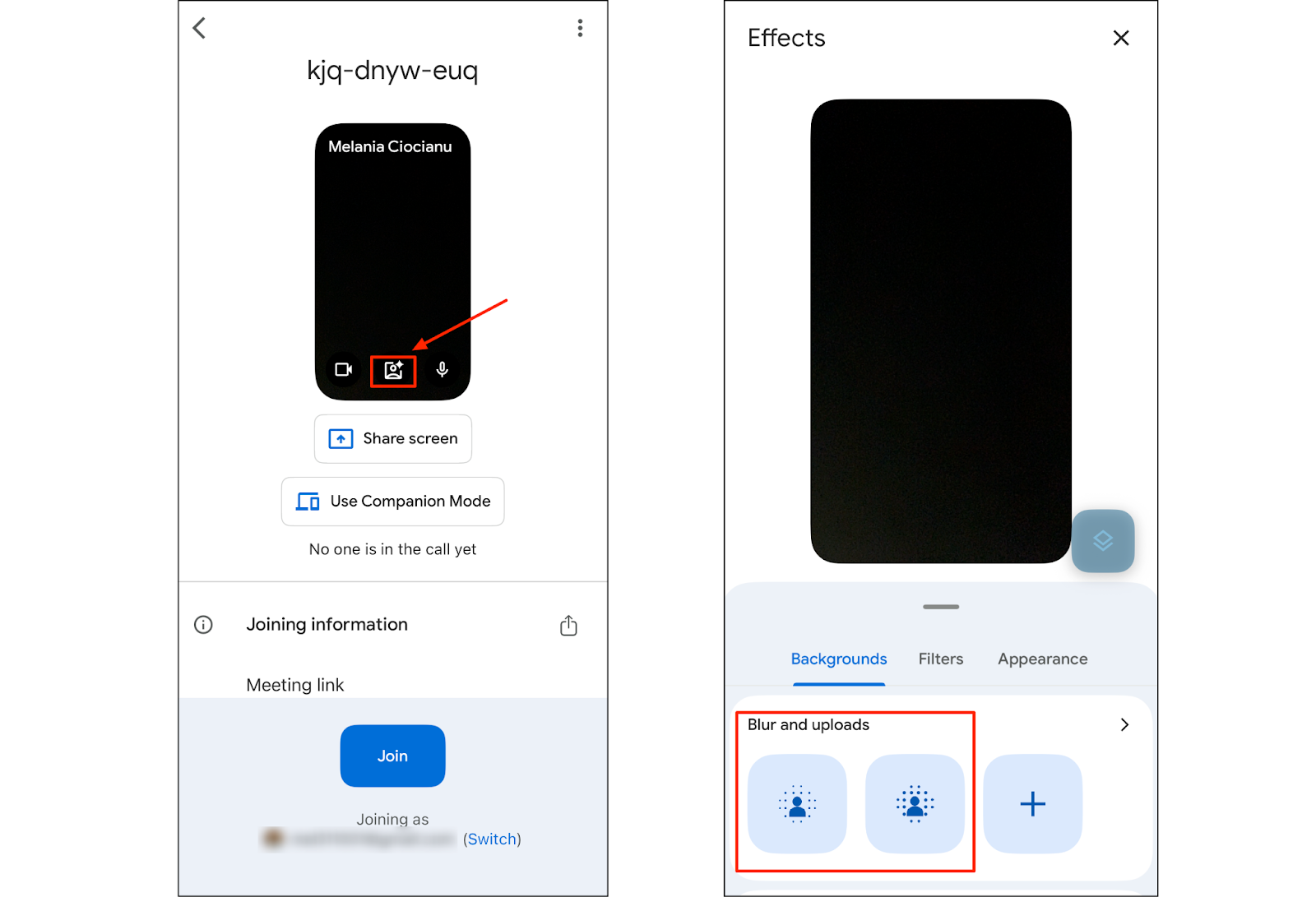
La mise à jour de l'application Meet garantit le bon fonctionnement des derniers effets d'arrière-plan, en particulier sur les appareils plus anciens.
Comment flouter votre arrière-plan lors d'un appel Google Meet
Si vous participez à une réunion et que vous vous rendez compte que vous souhaitez flouter votre arrière-plan, vous pouvez changer d'effet à tout moment sans quitter l'appel. Les ordinateurs de bureau et les appareils mobiles vous permettent de régler les effets visuels instantanément.
Sur ordinateur
- Cliquez sur flèche à côté de l'icône de la caméra.
- Tapez soit Arrière-plan flou ou Contexte et effets, et dans le panneau, choisissez :
- Légèrement flou
- Flou
- Vous pouvez également passer à arrière-plan virtuel ou téléchargez votre propre image.
- Fermez le panneau des effets pour revenir à votre vidéo.
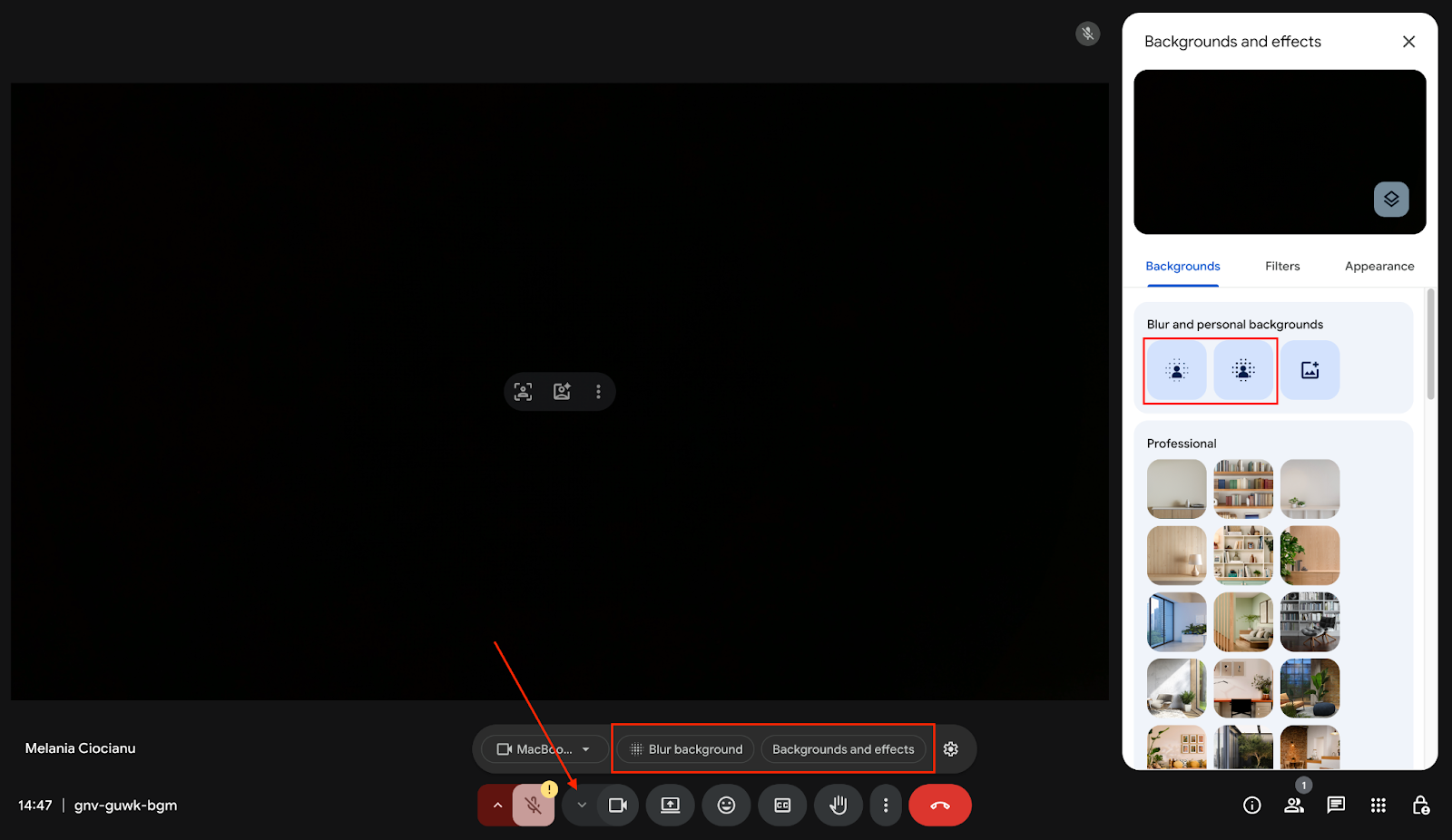
Les modifications s'appliquent immédiatement, bien que les effets de commutation puissent affecter brièvement la qualité vidéo sur les anciens appareils.
Sur mobile (Android et iPhone)
- Pendant l'appel vidéo, touchez Effets (en bas à gauche de votre écran dans la fenêtre avec la vue de votre caméra).
- Regardez ci-dessous Milieux.
- Sélectionnez Légèrement flou ou Flou, ou choisissez un arrière-plan personnalisé dans votre pellicule.
- Quittez la fenêtre pour poursuivre la réunion avec l'effet mis à jour.
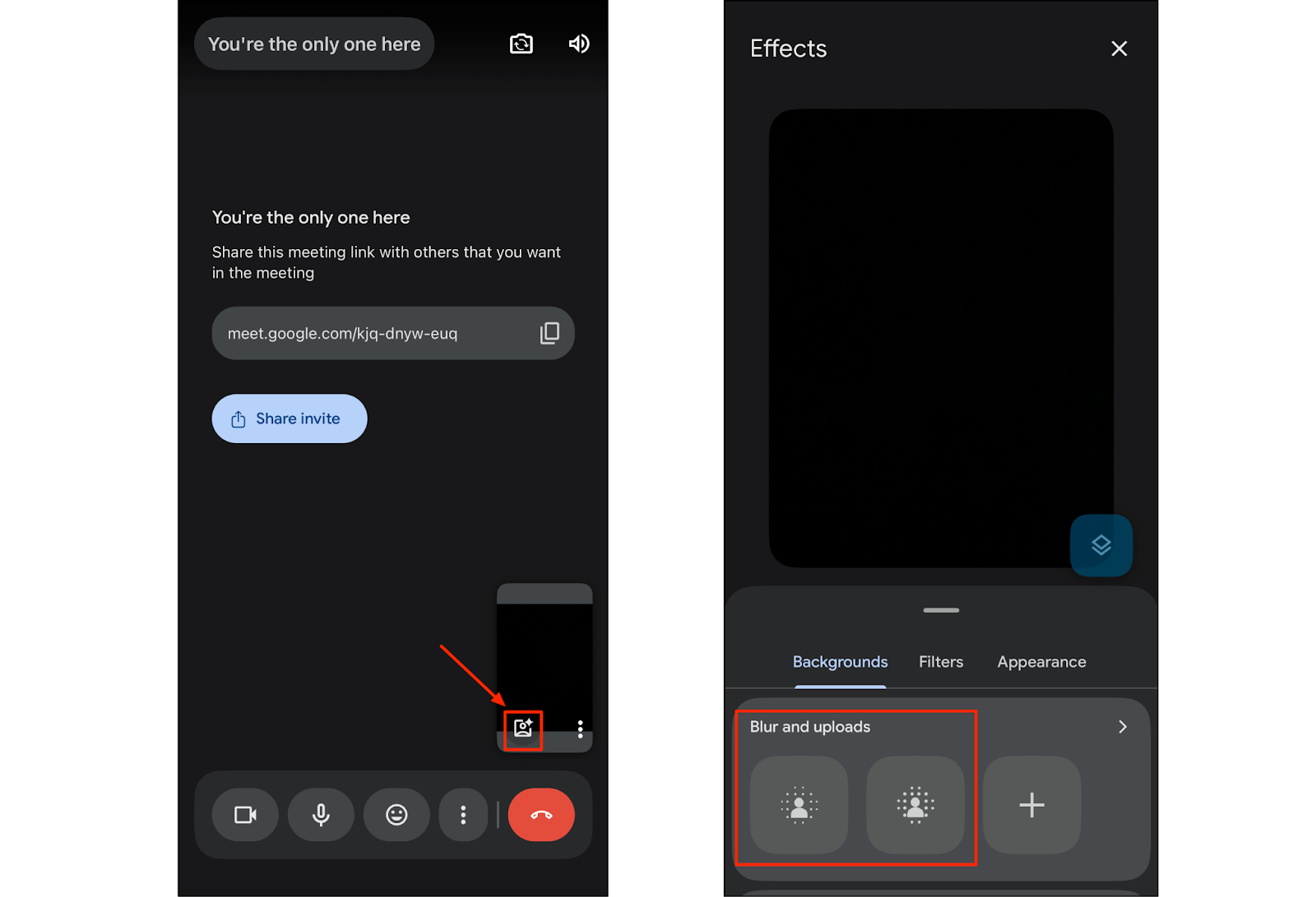
L'utilisation de plusieurs filtres ou effets de couleur sur un appareil mobile peut augmenter l'utilisation de la batterie, en particulier si celle-ci est faible.
Utilisation d'arrière-plans personnalisés et d'effets visuels supplémentaires
Google Meet offre bien plus qu'un simple flou. Vous pouvez également :
- Postulez filtres de couleur pour correspondre à votre style
- Utiliser effets visuels supplémentaires pour régler l'éclairage
- Définissez un arrière-plan virtuel à l'aide d'une image personnalisée
- Utiliser filtres amusants quand vous voulez un look plus ludique
- Empilez plusieurs effets ensemble
Google Meet propose diverses options, mais pour une qualité vidéo la plus stable possible, essayez de limiter le nombre d'effets visuels lourds que vous appliquez en même temps.
Faites en sorte que chaque appel Google Meet compte avec MeetGeek
Une fois que votre arrière-plan est parfait, l'étape suivante consiste à rendre votre réunion plus productive. MeetGeek vous permet d'aller au-delà des effets visuels en capturant automatiquement tout ce qui se dit lors de chaque réunion.
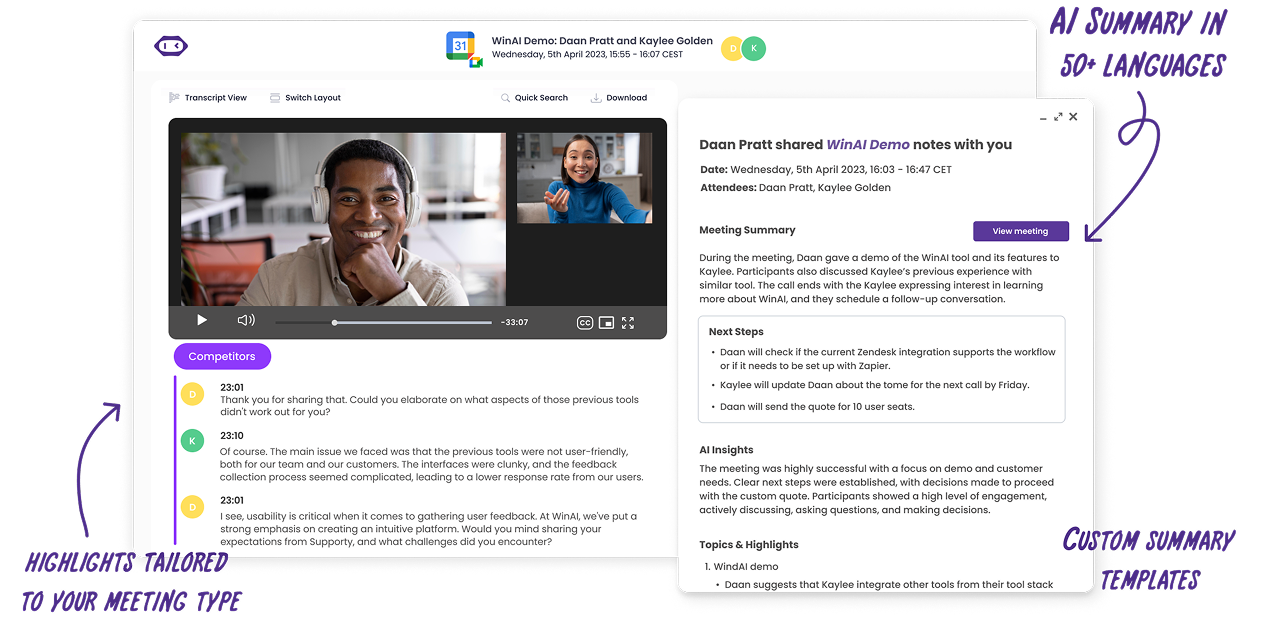
Avec MeetGeek, vous obtenez :
- Enregistrement et transcription automatiques pour chaque Appel Google Meet
- Résumés, points clés et actions générés par l'IA
- Transcriptions consultables pour tous les participants
- Compatibilité totale avec Google Workspace
- Une assistance allant au-delà de Google Meet pour Zoom, Teams et toute autre plateforme basée sur un navigateur grâce à l'extension de navigateur
- Agents vocaux IA qui peut vous parler et vous aider en direct pendant les appels
MeetGeek vous offre un moyen plus intelligent de communiquer, de rester organisé et de vous concentrer sur l'essentiel au lieu de jongler avec vos notes pendant vos appels vidéo.
Résolution des problèmes de flou d'arrière-plan
Si le flou d'arrière-plan ne fonctionne pas ou semble instable, ces étapes permettent généralement de résoudre le problème rapidement.
Assurez-vous que votre navigateur prend en charge les effets visuels
Google Meet a besoin d'un navigateur compatible pour charger des effets basés sur le cloud. Essayez d'ouvrir votre appel dans la dernière version de Chrome, Firefox ou Edge. Si vous utilisez un navigateur plus ancien ou quelque chose de moins courant, l'option de flou peut ne pas apparaître.
Mettre à jour l'application Google Meet sur mobile
Les effets d'arrière-plan sur mobile dépendent de la dernière version de l'application. Ouvrez le Play Store ou l'App Store, recherchez Google Meet, et installez toutes les mises à jour disponibles. De nombreux effets visuels ne fonctionnent que lorsque votre application est entièrement à jour.
Vérifiez si votre appareil peut gérer le flou d'arrière-plan
Certains appareils plus anciens ne prennent pas en charge le flou d'arrière-plan ou ne peuvent exécuter que l'option légèrement floue. Si le flou est absent sur votre téléphone ou votre ordinateur, c'est généralement pour cette raison. Les effets basés sur le cloud de Google Meet sont utiles, mais tous les matériels ne peuvent pas les traiter correctement.
Activez l'accélération matérielle dans votre navigateur
Si le flou semble instable ou ne se charge pas sur le bureau, assurez-vous que l'accélération matérielle est activée.
Dans Chrome: Accédez à Paramètres > Système > Utiliser l'accélération matérielle lorsqu'elle est disponible et activez-le, puis redémarrez le navigateur.
Améliorez votre éclairage
Un bon éclairage permet à Google Meet de vous séparer plus facilement de l'arrière-plan. Une lampe devant vous ou la lumière naturelle provenant d'une fenêtre peuvent améliorer instantanément le fonctionnement des effets d'arrière-plan.
Fermez les autres applications ou les onglets lourds du navigateur
Si la mémoire de votre appareil est insuffisante, les effets visuels peuvent être retardés ou ne pas se charger. La fermeture des applications ou des onglets inutilisés permet de libérer des ressources et de faciliter le fonctionnement du flou d'arrière-plan pendant votre appel vidéo.
Conseils pour créer un arrière-plan Google Meet propre et précis
- Utiliser bon éclairage pour que le flou soit lisse
- Gardez votre caméra stable pour une meilleure détection de l'arrière-plan
- Choisissez arrière-plans personnalisés simples pour des performances fiables
- Mettez à jour votre appareils, navigateur et application Meet régulièrement
- Utiliser traitement des effets basé sur le cloud lorsque disponible pour une meilleure stabilité
- Vérifiez votre connexion Internet et paramètres de l'appareil si les effets visuels sont en retard
- Ajustez votre paramètres d'apparence avant de vous inscrire afin de réduire le temps passé à résoudre les problèmes pendant l'appel
Flou d'arrière-plan est une petite fonctionnalité, mais elle améliore considérablement la façon dont vous apparaissez devant la caméra.
Associez Google Meet à MeetGeek
Le flou d'arrière-plan dans Google Meet est un moyen rapide de mettre de l'ordre dans votre vidéo et de vous concentrer sur ce qui compte le plus. Que vous estompiez légèrement votre arrière-plan, que vous passiez à une image personnalisée ou que vous essayiez d'autres effets visuels, Google Meet vous propose de nombreux outils simples qui fonctionnent sur ordinateur, navigateur et mobile. Grâce à un bon éclairage et à une configuration moderne, vous pouvez participer à n'importe quel appel en ayant l'air préparé.
Et tandis que Google Meet gère vos visuels, MeetGeek peut s'occuper de tout le reste. De l'enregistrement et de la transcription automatiques aux résumés d'IA et au nouvel agent vocal IA qui rejoint les réunions pour vous, MeetGeek vous aide à rester organisé sans lever le petit doigt. Essayez MeetGeek gratuitement aujourd'hui.
Questions fréquemment posées
Pourquoi l'option de flou n'apparaît-elle pas pour moi ?
L'option de flou est peut-être absente si votre navigateur ou votre application est obsolète, si votre appareil est plus ancien, si l'accélération matérielle est désactivée ou si vous n'utilisez pas de navigateur compatible tel que Chrome, Edge ou Firefox.
Puis-je télécharger ma propre image au lieu d'utiliser le flou ?
Oui Google Meet vous permet de télécharger une image personnalisée dans le panneau des effets d'arrière-plan. Vous pouvez choisir parmi des arrière-plans personnels, des arrière-plans virtuels ou toute autre image que vous téléchargez.
Le flou d'arrière-plan affecte-t-il la qualité de la vidéo ?
Le flou d'arrière-plan peut affecter légèrement la qualité vidéo sur les appareils plus anciens ou lorsque plusieurs effets visuels sont activés. L'utilisation d'une application à jour, d'un bon éclairage et d'une connexion solide permet de maintenir une vidéo stable.
Les appareils mobiles prennent-ils en charge le flou d'arrière-plan ?
La plupart des appareils Android et iPhone modernes équipés de la dernière version de l'application Google Meet prennent en charge le flou d'arrière-plan et d'autres effets visuels.




.avif)