



Virtuelle Meetings sind aus unserem Alltag nicht mehr wegzudenken – sei es für berufliche Besprechungen, digitale Familientreffen oder Online-Kurse.
Trotz zahlreicher technologischer Fortschritte kann der Zugang zu Meetings manchmal noch eine Herausforderung darstellen. Dieser Artikel soll Licht ins Dunkel bringen und Ihnen eine Schritt-für-Schritt-Anleitung bieten, wie Sie von jedem Gerät aus an einem Zoom-Meeting teilnehmen können.
Legen wir direkt los und sorgen dafür, dass Ihre nächste virtuelle Begegnung nur wenige Klicks entfernt ist – ganz egal, welches Gerät Sie verwenden!
Voraussetzungen für die Teilnahme an einem Zoom-Meeting
Es gibt verschiedene Möglichkeiten, einem Zoom-Meeting beizutreten, doch ein paar Dinge sollten Sie dabei beachten.
Um an einem Zoom-Meeting teilzunehmen, müssen folgende organisatorische Voraussetzungen erfüllt sein:
- Sie benötigen eine Einladung vom Meeting-Host, die die Meeting-ID, das Kennwort (falls festgelegt) und die Startzeit enthält.
- Für den Zugriff über den Browser muss die Option „Link 'Im Browser teilnehmen' anzeigen“ im Zoom-Webportal aktiviert sein.
- Wenn Sie per Telefon am Meeting teilnehmen möchten, benötigen Sie eine Einwahlnummer.
Aus technischer Sicht benötigen Sie für die Teilnahme an einem Zoom-Meeting Folgendes:
- Eine stabile Internetverbindung mit ausreichender Bandbreite ist für reibungsloses Video- und Audio-Streaming unerlässlich. Für grundlegende Funktionen werden eine Download-Geschwindigkeit von mindestens 2 Mbit/s und eine Upload-Geschwindigkeit von 1 Mbit/s empfohlen; für eine bessere Qualität sind 5 Mbit/s bzw. 3 Mbit/s ratsam.
- Zoom unterstützt eine Vielzahl von Betriebssystemen und Geräten, darunter Windows, macOS, Linux, iOS, Android und Chrome OS. Die aktuelle Kompatibilitätsliste finden Sie auf der Zoom-Website.
- Für ein reibungsloses Zoom-Erlebnis benötigen Sie einwandfrei funktionierende Audio- und Videogeräte. Dazu gehören Lautsprecher, Kopfhörer, ein Mikrofon und eine Webcam.
HINWEIS: Integrierte Geräte sind in der Regel ausreichend, je nach Bedarf sollten Sie jedoch externe Peripheriegeräte für eine bessere Leistung in Betracht ziehen.
7 Wege, um an Zoom-Meetings teilzunehmen
Hier sind die verschiedenen Möglichkeiten, wie Sie an Zoom-Meetingsteilnehmen können:
- Zoom Desktop-Client
- Zoom Mobile App
- Über den Webbrowser
- Team-Chat-Einladung
- Einwahlnummer
- H.323/SIP
- Ohne Konto
1. So nehmen Sie über den Zoom Desktop Client an einem Meeting teil
Um über den Desktop Client an einem Zoom-Meeting teilzunehmen, stellen Sie sicher, dass die neueste Version des Zoom Desktop Clients auf Ihrem Computer installiert ist.
So treten Sie einem Meeting über einen Link oder eine Meeting-ID bei:
- Starten Sie den Zoom Desktop Client auf Ihrem Windows- oder macOS-Computer.
- Wählen Sie 'An einem Meeting teilnehmen', wenn Sie sich nicht anmelden möchten. Alternativ können Sie sich anmelden und auf dem Startbildschirm 'Beitreten' auswählen.
- Geben Sie den Link oder die Meeting-ID ein, die Ihnen der Meeting-Gastgeber per E-Mail gesendet hat, sowie Ihren bevorzugten Anzeigenamen.
- Passen Sie Ihre Audio- und Videoeinstellungen nach Ihren Wünschen an und klicken Sie auf 'Beitreten.'
- Geben Sie das Passwort aus Ihrer E-Mail-Einladung in das Feld 'Meeting-Kenncode eingeben' ein, das auf dem Bildschirm erscheint, und klicken Sie auf 'Beitreten', um am Meeting teilzunehmen.
2. So nehmen Sie über die Zoom Mobile App an einem Zoom-Meeting teil
Bevor Sie versuchen, Zoom-Meetings von einem Mobilgerät aus zu öffnen, laden Sie die neueste Version der Zoom-App herunter. Diese ist im App Store für iOS-Geräte und im Google Play Store für Android-Geräte verfügbar. Die App ist mit den meisten Smartphones und Tablets kompatibel.
So nehmen Sie über die Zoom Mobile App an einem Zoom-Meeting teil:
- Starten Sie die Zoom-App auf Ihrem Android- oder iOS-Gerät.
- Wenn Sie nicht angemeldet sind, wählen Sie die Option 'An einem Meeting teilnehmen'. Wenn Sie bereits in Ihrem Zoom-Konto angemeldet sind, tippen Sie alternativ auf 'Beitreten'.
- Geben Sie auf dem nächsten Bildschirm die Meeting-ID und Ihren gewünschten Anzeigenamen.
- Passen Sie Ihre Audio- und Videoeinstellungen nach Ihren Wünschen an.
- Wählen Sie 'Beitreten' und geben Sie den Ihnen mitgeteilten Meeting-Passcode ein, um Zugang zum Zoom-Meeting zu erhalten.
3. So nehmen Sie über das Web an einem Zoom-Meeting teil
Die Teilnahme an einem Zoom-Meeting über den Browser ist eine praktische Option, wenn Sie keine Software herunterladen oder installieren möchten. Diese Funktion macht Zoom von nahezu jedem internetfähigen Gerät aus zugänglich.
So nehmen Sie über das Web an einem Zoom-Meeting teil:
- Suchen Sie den Einladungslink für das Zoom-Meeting in Ihrer E-Mail oder Ihrem Kalender und klicken Sie darauf, um zur Zoom-Beitrittsseite weitergeleitet zu werden.
- Suchen Sie die Option 'Über Browser beitreten', die sich normalerweise unten auf der Seite befindet, und wählen Sie diese aus.
- Falls Sie die Option 'Über Browser beitreten' nicht sehen, klicken Sie in der Eingabeaufforderung auf 'Abbrechen' und wählen Sie 'Meeting starten-Option stattdessen.
- Möglicherweise erscheint ein Pop-up-Fenster mit der Aufforderung: „zoom.us öffnen.“ Klicken Sie darauf, um mit der Zoom-Sitzung fortzufahren.
4. So nehmen Sie über eine Team-Chat-Einladung an einem Zoom-Meeting teil
Wenn Sie die Desktop- oder Mobil-App von Zoom verwenden, können Ihre Kontakte Ihnen eine Sofortnachricht mit einer Einladung zu einem Live-Meeting senden.
So nehmen Sie über eine Team-Chat-Einladung an einem Live-Zoom-Meeting teil:
- Sie erhalten eine Benachrichtigung mit einem Hinweiston, in der der Name der Person angezeigt wird, die Sie zu ihrem Meeting einlädt.
- Um dem Meeting mit der Person beizutreten, die Sie angerufen hat, wählen Sie die Option „Annehmen“.
5. So nehmen Sie über eine Telefonkonferenznummer an einem Zoom-Meeting teil
So nehmen Sie über ein herkömmliches Telefon an einem Zoom-Meeting teil:
- Suchen Sie die Telefonkonferenznummer in Ihrer Zoom-Meeting-Einladung. Wählen Sie diese Nummer mit Ihrem Telefon.
- Geben Sie bei Aufforderung die Meeting-ID ein, um am Meeting teilzunehmen.
6. So nehmen Sie über H.323/SIP an einem Zoom-Meeting teil
Die Teilnahme an einem Zoom-Meeting über H.323/SIP-Geräte erfordert nur wenige einfache Schritte:
- Suchen Sie die in der Meeting-Einladung angegebene IP-Adresse und wählen Sie diese.
- Sobald die Verbindung hergestellt ist, geben Sie die Meeting-ID mithilfe von DTMF -Tönen (Dual Tone Multi-Frequency) ein, gefolgt von der #-Taste. Alternativ können Sie die Verbindung auch über ein Format herstellen, das die IP-Adresse und die Meeting-ID kombiniert, wie hier: [IP-Adresse]##[Meeting-ID].
Diese Methode ist besonders nützlich für Nutzer von Konferenzgeräten oder Systemen, die H.323- oder SIP-Protokolle unterstützen.
7. So nehmen Sie ohne Konto an einem Zoom-Meeting teil
Zoom bietet die Flexibilität, an Meetings teilzunehmen, ohne ein Konto erstellen zu müssen – eine Funktion, die den Prozess für Gelegenheitsnutzer erheblich vereinfacht.
So können Sie als Gast über einen Meeting-Link an einem Zoom-Meeting teilnehmen:
- Klicken Sie auf den Meeting-Link, den der Gastgeber bereitgestellt hat und den Sie in Ihrer E-Mail- oder Kalendereinladung finden.
- Wählen Sie im erscheinenden Pop-up-FensterAbbrechen.'
- Suchen und wählen Sie auf der nächsten Seite die 'Über den Browser teilnehmen'-Option aus.
HINWEIS: Falls diese Option nicht verfügbar ist, wurde sie möglicherweise vom Gastgeber deaktiviert. In diesem Fall müssen Sie den Zoom-Client herunterladen, um fortzufahren.
- Sobald Sie die Teilnahme über den Browser wählen, werden Sie in einem Pop-up-Fenster um Zugriff auf Ihr Mikrofon und Ihre Kamera gebeten. Klicken Sie auf 'Zulassen', um diese Berechtigungen zu erteilen.
- Geben Sie das Meeting-Passwort und Ihren Namen in die entsprechenden Felder ein. Es gibt zudem die Option 'Meinen Namen für zukünftige Meetings speichern', die Sie zur Vereinfachung auswählen können.
- Wählen Sie 'Teilnehmen', um als Gast an der Zoom-Sitzung teilzunehmen.
Alternativ können Sie wie folgt als Gast mit einer Meeting-ID und einem Passwort an einem Zoom-Meeting teilnehmen:
- Öffnen Sie Ihren Webbrowser und rufen Sie zoom.us/join
- Geben Sie die Meeting-ID ein, die Sie vom Gastgeber erhalten haben, und klicken Sie dann auf „Beitreten“. Ein neues Fenster öffnet sich.
- Falls die Zoom-App auf Ihrem Gerät installiert ist, klicken Sie im Pop-up-Fenster auf „Abbrechen“ und wählen Sie dann „Meeting starten“. Falls dies nicht der Fall ist, wählen Sie „zoom.us öffnen“.
- Erteilen Sie Zoom Zugriff auf Ihr Mikrofon und Ihre Kamera.
- Geben Sie Ihren Namen in das vorgesehene Feld ein. Es gibt zudem die Option „Meinen Namen für zukünftige Meetings speichern“.
- Geben Sie bei Bedarf den Meeting-Passcode ein und klicken Sie auf „Beitreten“. Sie werden anschließend als Gast zur Zoom-Sitzung zugelassen.
Was tun, wenn Sie einem Zoom-Meeting nicht beitreten können
In einer Welt, in der virtuelle Meetings zur Norm gehören, kommt es nicht selten vor, dass man doppelt gebucht ist oder an einem wichtigen Zoom-Meeting nicht teilnehmen kann.
Ein verpasstes Meeting bedeutet jedoch nicht, dass Ihnen die wertvollen Informationen entgehen. Hier kommt eine Meeting-Automatisierungsplattform wie MeetGeek ins Spiel.
MeetGeek ist ein KI-Notizassistent für Zoom , der entwickelt wurde, um in Ihrem Namen an Meetings teilzunehmen. So stellen Sie sicher, dass Sie keine wichtigen Details verpassen, selbst wenn Sie nicht persönlich anwesend sein können.
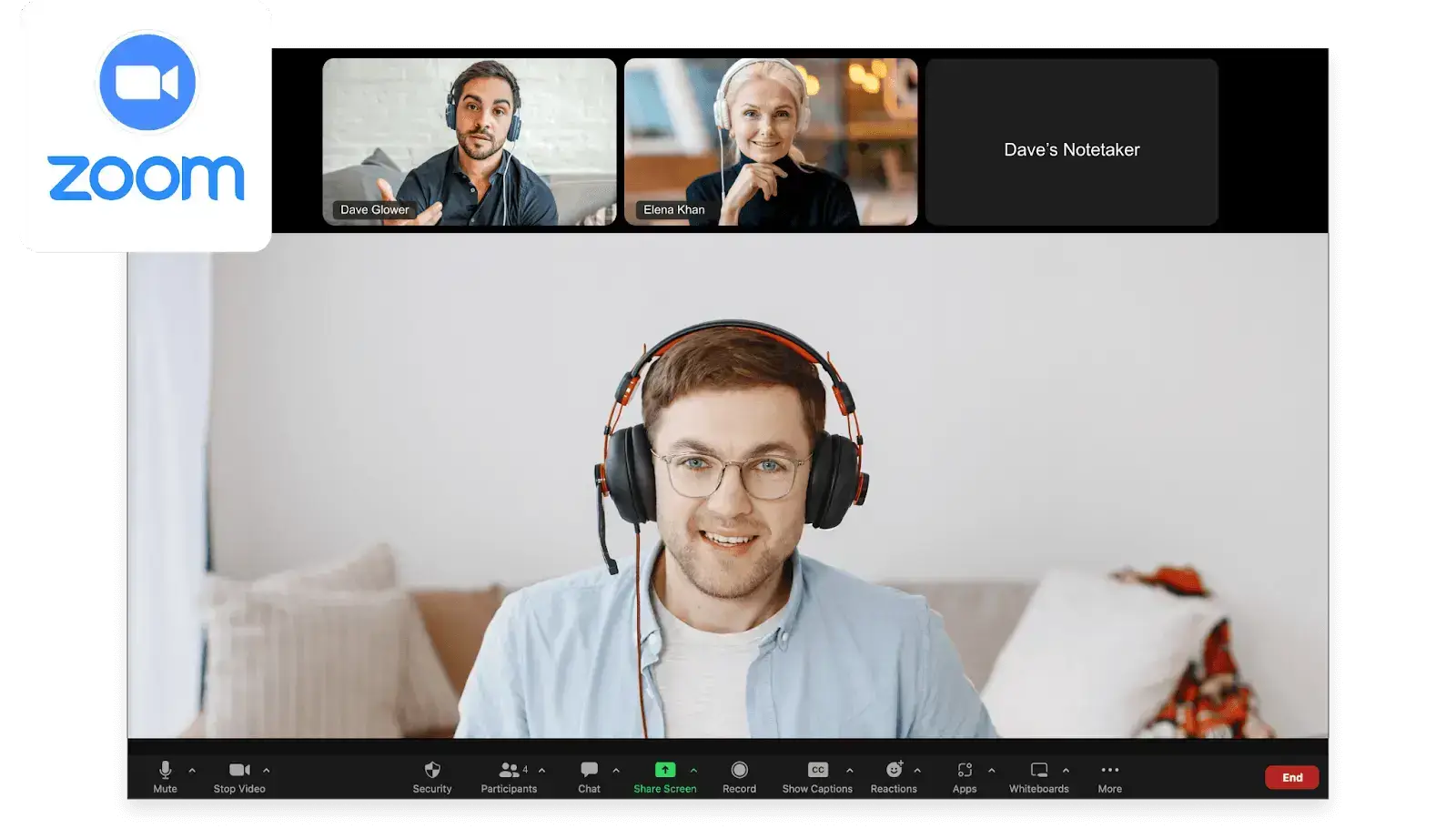
So verändert MeetGeek Ihre Meeting-Erfahrung:
- Automatisierte Teilnahme: Sobald Sie Ihren Meeting-Kalender mit der Plattform synchronisiert haben, tritt MeetGeek automatisch Ihren Zoom-Meetings bei, unabhängig von Ihrer tatsächlichen Anwesenheit. Diese Funktion unterliegt vollständig Ihrer Kontrolle, da Sie entscheiden, an welchen Meetings MeetGeek teilnehmen darf.
- Präzise Transkription und Zusammenfassung: Während das Meeting läuft, zeichnet MeetGeek das gesamte Gespräch im Hintergrund auf. Nach dem Meeting erstellt es ein vollständiges Transkript sowie eine prägnante, handlungsorientierte Zusammenfassung. Diese Funktion ist von unschätzbarem Wert, um Kernpunkte, getroffene Entscheidungen und Aufgaben zu überprüfen, die während des Meetings besprochen wurden.
- KI-Einblicke: MeetGeek bietet Einblicke in die Meeting-Dynamik, wie etwa die Verteilung der Redezeit und die behandelten Hauptthemen. Dies ist besonders nützlich, um den Ablauf des Meetings und wichtige Diskussionspunkte besser zu verstehen.
- Einfaches Teilen und Zusammenarbeiten: Die Plattform ermöglicht das einfache Teilen von Meeting-Notizen und Zusammenfassungen mit Teammitgliedern. Wenn Sie an einem Teamprojekt arbeiten, bleibt jeder informiert und auf dem gleichen Stand, unabhängig davon, wer am Meeting teilnehmen konnte oder nicht.
- Nahtlose Integration: MeetGeek lässt sich reibungslos mit einer Vielzahl von Tools verbinden, von Projektmanagement-Software und Aufgabenboards bis hin zu Wissensdatenbanken und CRM-Plattformen
Egal, ob Sie gerade in einem anderen Termin sind, auf Reisen sind oder einfach Ihre Zeit effizienter einteilen möchten: MeetGeek fungiert als Ihr persönlicher Meeting-Assistent und hält Sie mit minimalem Aufwand auf dem Laufenden.
Häufig gestellte Fragen
1. Warum kann ich einem Zoom-Meeting nicht beitreten?
Wenn Sie Probleme beim Beitritt zu einem Zoom-Meeting haben, kann dies verschiedene Gründe haben:
- Überprüfen Sie, ob Sie die korrekte Meeting-ID und das Passwort eingegeben haben. Wenn diese korrekt sind, stellen Sie sicher, dass Ihre Internetverbindung stabil ist.
- Manchmal können bestimmte Antiviren- oder Firewall-Einstellungen Zoom blockieren; eine Anpassung dieser Einstellungen kann helfen.
- Wenn der Gastgeber einen Warteraum aktiviert hat, müssen Sie möglicherweise warten, bis er Ihren Beitritt genehmigt.
- Stellen Sie sicher, dass die Zoom-App auf dem neuesten Stand ist, da veraltete Versionen zu Problemen führen können.
2. Kann man an zwei verschiedenen Zoom-Meetings gleichzeitig teilnehmen?
Ja, es ist möglich, gleichzeitig an zwei Zoom-Meetings teilzunehmen, allerdings gibt es dabei einige Einschränkungen.
Dazu müssen Sie zwei verschiedene Geräte verwenden oder für ein Meeting den Zoom Desktop Client und für das andere einen Browser nutzen.
HINWEIS: Obwohl Sie bei beiden Meetings zuhören und teilnehmen können, kann es schwierig sein, Ihre Aufmerksamkeit und Ihr Engagement effektiv zu steuern. Prüfen Sie außerdem, ob Ihr Zoom-Kontotyp diese Funktion unterstützt, da dies variieren kann.
3. Wie wechsle ich bei Zoom-Meetings zwischen Geräten?
Um ein Zoom-Meeting von einem Gerät auf ein anderes zu übertragen, müssen Sie das Meeting auf Ihrem aktuellen Gerät verlassen und anschließend auf dem neuen Gerät mit derselben Meeting-ID und dem dazugehörigen Kenncode beitreten.
Bevor Sie das Meeting auf dem ersten Gerät verlassen, stellen Sie sicher, dass Sie die Meeting-Details für einen reibungslosen Wechsel auf dem zweiten Gerät griffbereit haben.
Meistern Sie alle Ihre zukünftigen Meetings mit MeetGeek!
Die Teilnahme an einem Zoom-Meeting ist im Jahr 2026 zugänglicher und vielseitiger denn je, mit Optionen für jedes Gerät – sei es Ihr Smartphone, Tablet, Laptop oder sogar spezielle Konferenzsysteme.
Egal, ob Sie ein erfahrener Profi oder ein Neuling sind, der Prozess ist unkompliziert und benutzerfreundlich. Wenn Sie jedoch Ihr Zoom-Meeting-Erlebnis weiter verbessern möchten, sollten Sie MeetGeeknutzen.
Durch die Integration von MeetGeek können Sie aktiv an virtuellen Gesprächen teilnehmen, anstatt sich Gedanken über Notizen machen zu müssen oder wichtige Punkte zu verpassen. Testen Sie MeetGeek kostenlos und gestalten Sie Ihre Meetings im Jahr 2026 nahtlos!






.avif)