



Bildquelle: rawpixel.com auf Freepik
Fest steht: Wer weiß, wie man ein Zoom-Meeting aufzeichnet, kann seinen Arbeitstag deutlich effizienter gestalten, zumal 89 % der Zoom-Nutzer das Tool für geschäftliche Meetings verwenden.
Warum? Weil es in Meetings, in denen es um Wissensaustausch oder Entscheidungen geht, unerlässlich ist, jeden Schritt zu dokumentieren, um danach handeln zu können.
In anderen Fällen müssen Sie Meeting-Inhalte vielleicht mit anderen teilen und haben keine Zeit, eine zehnseitige Zusammenfassung zu schreiben, die das Wie und das Warum von allem erklärt, was besprochen wurde.
Wenn Sie erfahren möchten, wie Sie Ihre Zoom-Meetings ohne Host- und Aufzeichnungsrechte aufzeichnen, speichern, teilen und abrufen, sind Sie hier genau richtig. Lesen Sie weiter und bringen Sie Ihre Meetings auf das nächste Level!
Kann man ein Zoom-Meeting aufzeichnen?
Ja, Sie können ein Zoom-Meeting aufzeichnen. Als Host nutzen Sie die integrierten Aufzeichnungsfunktionen, um Ihre Sitzung festzuhalten. Wenn Sie nicht der Host sind, muss der Host Ihnen die Aufzeichnung des Meetings erlauben, oder Sie verwenden Lösungen von Drittanbietern.
In jedem Fall gilt: Welche Schritte beim Aufzeichnen von Zoom-Meetings nötig sind, hängt von bestimmten Faktoren ab.
Nutzer der kostenlosen Version können Zoom-Meetings zum Beispiel zwar mit Erlaubnis des Hosts direkt im Videokonferenz-Tool aufzeichnen, die aufgezeichneten Dateien können aber wertvollen Speicherplatz belegen, und Meetings lassen sich nicht direkt vom Smartphone aufzeichnen.
Ein kostenpflichtiges Konto hilft bei den Berechtigungen, die Sie für die Aufzeichnung Ihrer Meetings brauchen, kaum weiter. Diese Option bietet Ihnen jedoch Cloud-Speicher, über den Sie auf Ihre Zoom-Aufzeichnung zugreifen können, und die Möglichkeit, direkt von Ihrem Mobilgerät aus aufzuzeichnen.
Was also tun? Sie können ein Zoom-Meeting jederzeit mit einem Bildschirmrekorder eines Drittanbieters aufzeichnen, etwa mit MeetGeek. Hier sehen Sie ein kurzes Erklärvideo dazu, wie Sie Zoom-Anrufe aufzeichnen, egal ob Sie Host oder Teilnehmer sind. Alternativ können Sie die ausführlichen Schritte weiter unten lesen.
Wie kann ich ein Zoom-Meeting aufzeichnen, wenn ich nicht der Host bin?
Es gibt zwei Möglichkeiten, ein Zoom-Meeting aufzuzeichnen, wenn Sie nicht der Host sind:
- Manuell, mit Erlaubnis des Meeting-Hosts
- Automatisch, mit einer Software zur Bildschirmaufzeichnung
Bevor Sie Ihr Meeting aufzeichnen, müssen Sie jedoch den Unterschied zwischen lokaler Aufzeichnung und Cloud-Aufzeichnung verstehen:
- Die Option „Lokale Aufzeichnung“ (Local Recording) ermöglicht es Ihnen, direkt auf Ihrem Gerät aufzuzeichnen und dort auf die lokalen Aufzeichnungen zuzugreifen. Um aufgezeichnete Zoom-Meetings mit anderen Teammitgliedern zu teilen, können Sie die Dateien bei Diensten wie Google Drive, Dropbox, iCloud usw. hochladen.
- Die Option „Cloud-Aufzeichnung“ (Cloud Recording) zeichnet das Meeting in der Zoom-Cloud auf; nach dem Ende des Meetings können Sie die Aufzeichnung herunterladen. Cloud-Aufzeichnungen stehen allerdings nur Hosts und Co-Hosts zur Verfügung, die zugleich zahlende Abonnenten sind. Wenn Sie die Cloud-Aufzeichnung aktiviert haben, erscheint ein Pop-up-Fenster mit der Frage, wo Sie Ihre Aufzeichnung speichern möchten.
HINWEIS: Bestimmte Funktionen wie aktiven Sprecher, Galerieansicht und freigegebenen Bildschirm separat aufzeichnen (Record active speaker, gallery view and shared screen separately) sind nur für Cloud-Aufzeichnungen verfügbar.
Methode 1: Ein Zoom-Meeting manuell aufzeichnen
Wenn Sie als Teilnehmer ein Zoom-Meeting manuell aufzeichnen, nutzen Sie dafür die integrierte Aufzeichnungsfunktion von Zoom.
Der Haken dabei: Nur Hosts von Zoom-Meetings können Meeting-Teilnehmern die Erlaubnis zum Aufzeichnen erteilen. Stimmen Sie sich daher mit dem Organisator ab, damit alles reibungslos läuft. Außerdem können Sie die Aufzeichnungen nur lokal herunterladen und abrufen.

So zeichnen Sie als Teilnehmer ein Zoom-Meeting mit der integrierten Funktion von Zoom auf:
- Sobald der Host Ihnen die Aufzeichnung des Meetings erlaubt hat, klicken Sie auf die Registerkarte „Aufzeichnung“ (Recording). Wählen Sie „Aufzeichnen“ (Record).

- Sobald Sie die Aufzeichnung beenden oder das Meeting endet, konvertiert Zoom die Aufzeichnung, damit Sie auf die Dateien zugreifen können. Fahren Sie Ihren Computer nicht herunter und starten Sie ihn nicht neu, denn das unterbricht die Konvertierung und kann dazu führen, dass Ihre Dateien beschädigt werden oder sich nicht wiederherstellen lassen.
- Sobald die Aufzeichnung konvertiert ist, öffnet sich der Ordner mit der Datei. Zoom speichert Ihre Bildschirmaufzeichnung als MP4-Videodatei oder als reine M4A-Audiodatei.
HINWEIS: Bei der lokalen Aufzeichnung können Sie mehrere Audiodateien aufzeichnen. So können Sie anschließend gezielt nur die relevanten Audiodateien Ihrer Zoom-Aufzeichnungen mit anderen Teilnehmern teilen.
Methode 2: Ein Zoom-Meeting automatisch aufzeichnen
Wenn Sie nach einer einfacheren Möglichkeit suchen, jeden Zoom-Anruf kostenlos und automatisch aufzuzeichnen, auch wenn Sie über Ihr iPhone oder Android-Gerät teilnehmen, ist eine Plattform für Meeting-Automatisierung wie MeetGeek genau das Richtige für Sie.
MeetGeek ist ein cloudbasierter Meeting-Assistent, mit dem Sie Zoom-Meetings erfolgreich verwalten und aufzeichnen, ohne selbst viel dafür tun zu müssen.
Wie das geht? MeetGeek zeichnet Ihre Zoom-Meetings nicht nur automatisch auf, sondern bietet auch Funktionen, mit denen Sie Meetings transkribieren, zusammenfassen und analysieren sowie die wichtigsten Momente mit anderen teilen.
So läuft die Aufzeichnung eines Zoom-Meetings mit MeetGeek ab, egal ob Sie Host sind oder nicht. Der virtuelle Meeting-Assistent fügt sich mit nur wenigen Klicks nahtlos in Ihre Meetings ein!
Schritt 1: Ein Konto erstellen
Um ein Zoom-Meeting mit MeetGeek aufzuzeichnen, müssen Sie zunächst ein MeetGeek-Konto erstellen. Das ist kostenlos, einfach und dauert nur wenige Sekunden. Entscheiden Sie, ob Sie sich mit Ihrem Google-Konto oder mit Ihrem Microsoft-Konto anmelden möchten, und schon kann es losgehen.

Erstellen eines MeetGeek-Kontos
Schritt 2: Ihren Kalender synchronisieren
Sobald Sie Ihren Kalender mit MeetGeek verbinden, erscheinen alle geplanten und anstehenden Termine aus Ihrem Kalender in der App. Sie können jederzeit auswählen, welche Meetings aufgezeichnet werden sollen. So weiß Ihr MeetGeek-Assistent, an welchen Meetings er teilnehmen und welche er auslassen soll.
HINWEIS: Wenn Ihr Meeting spontan stattfindet oder Sie nur über einen Konferenzlink teilnehmen können, fügen Sie den Link in die Leiste „Add to live ad-hoc meeting“ ein, und schon ist alles bereit.
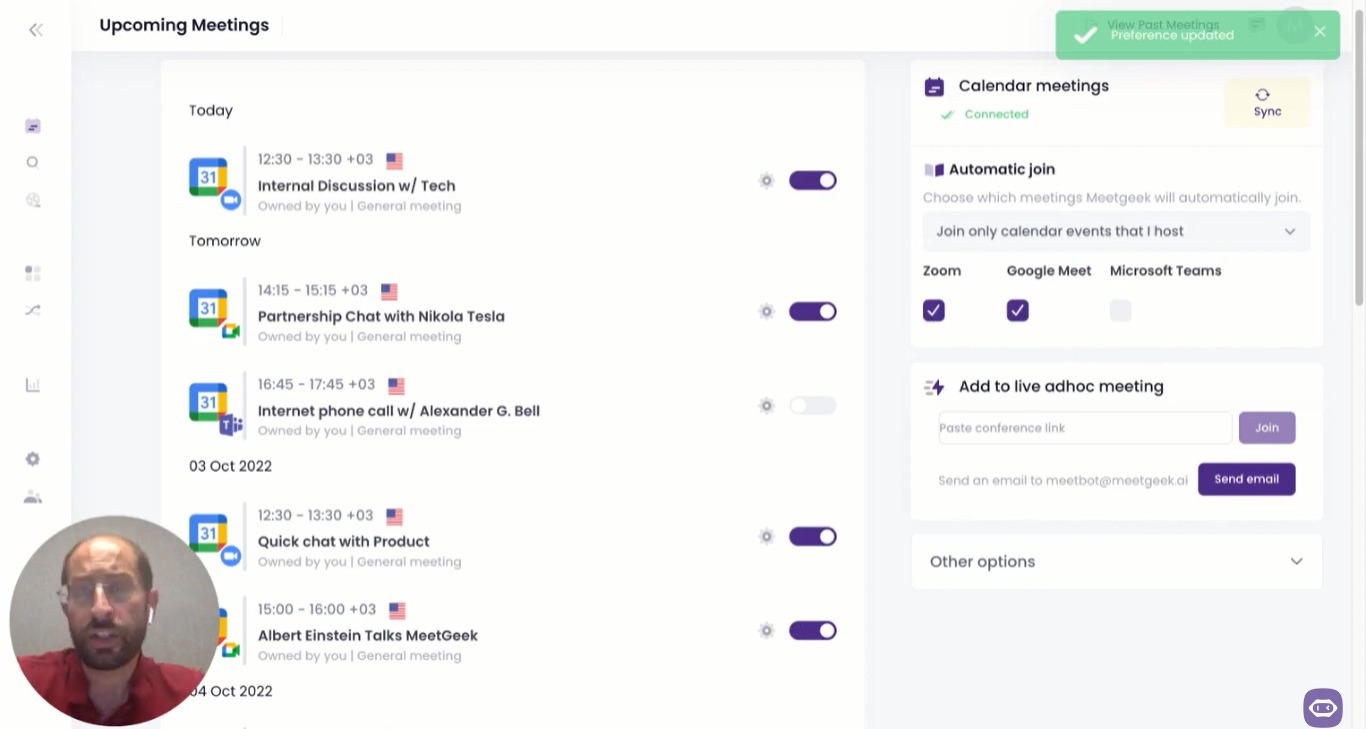
Synchronisieren Ihres Kalenders mit MeetGeek
Schritt 3: Ihrem Zoom-Meeting beitreten
Sobald Ihr Meeting beginnt, tritt Ihr MeetGeek-Assistent automatisch bei und startet die Aufzeichnung, allerdings erst, nachdem der Meeting-Host benachrichtigt wurde und die Anfrage akzeptiert hat. Der Vorteil: Der Host kann das mit einem Klick erledigen, ohne erneut die Kontoeinstellungen aufrufen zu müssen.
Während Sie sich auf wichtige Gespräche mit Ihrem Team konzentrieren, nimmt Ihr MeetGeek-Assistent automatisch als Teilnehmer am Anruf teil. Seine einzige Aufgabe: aufzeichnen und Ihre Zoom-Meetings transkribieren.
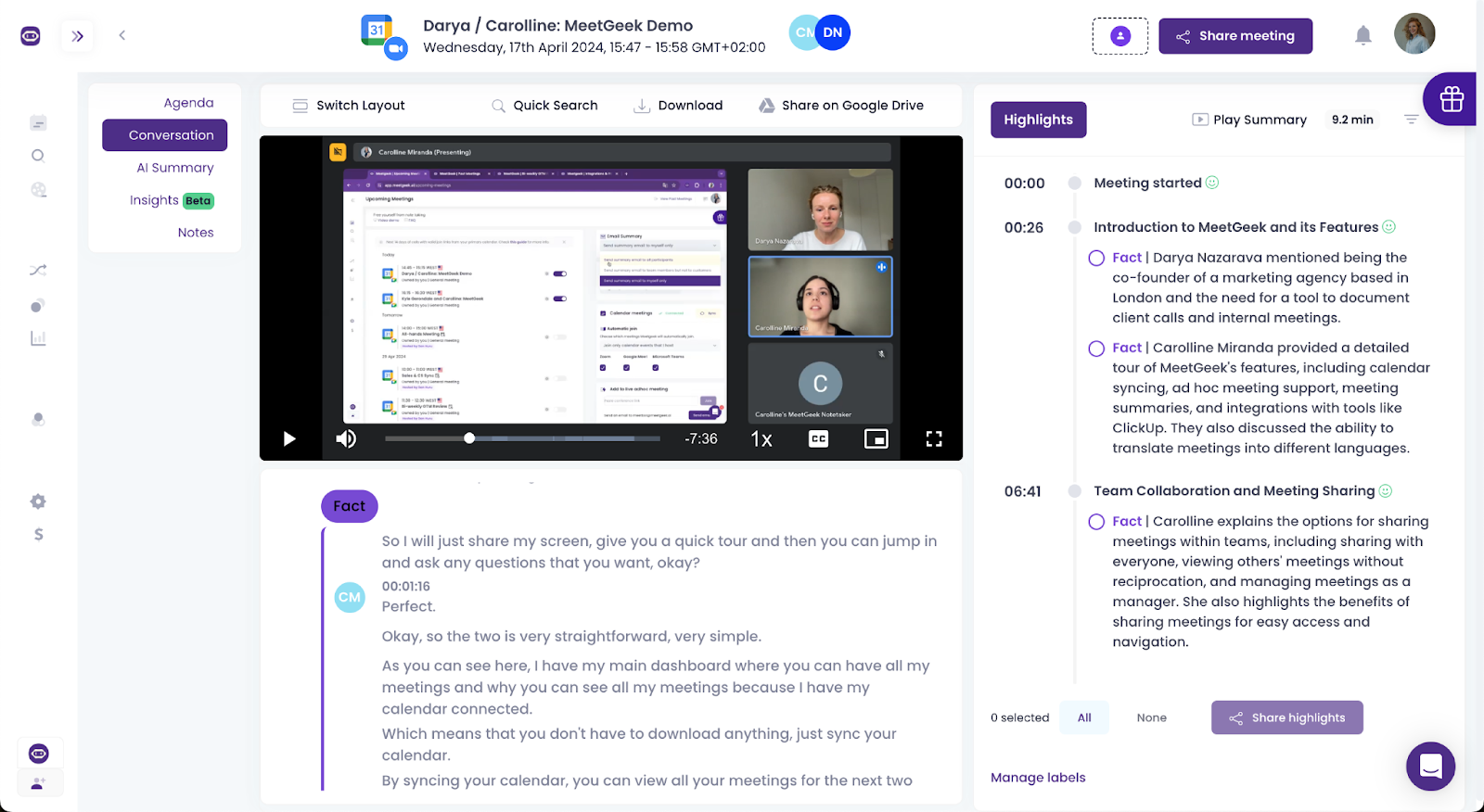
Nehmen Sie wie gewohnt an Ihren Meetings teil, ohne Ihre Gespräche manuell aufzeichnen oder Notizen machen zu müssen!
HINWEIS: MeetGeek erledigt das zuverlässig, unabhängig davon, welches Gerät oder welche Plattform Sie nutzen, ob Zoom-Webportal, Zoom-Desktop-App oder Mobilgerät (funktioniert auf iOS- und Android-Geräten).
Schritt 4: Ihre Zoom-Meetings teilen
Kurz nach dem Ende des Meetings (5 bis 10 Minuten) erhalten die Teilnehmer eine E-Mail mit der Meeting-Zusammenfassung, die von den KI-Algorithmen von MeetGeek automatisch erstellt wird. Die Videoaufzeichnung Ihres Meetings wird automatisch in Ihrem MeetGeek-Konto gespeichert und kann bei Bedarf abgerufen werden.
MeetGeek fasst außerdem die Inhalte Ihres Meetings zusammen, sodass Sie bestimmte Teile überspringen und nur zu den wichtigen zurückkehren können.
PROFI-TIPP: Wenn Sie Ihr Meeting bereits mit der integrierten Zoom-Funktion aufgezeichnet haben, aber trotzdem die Conversation-Intelligence-Funktionen von MeetGeek nutzen möchten, laden Sie die Aufzeichnung in Ihr Konto hoch und überlassen Sie unserem Assistenten den Rest.
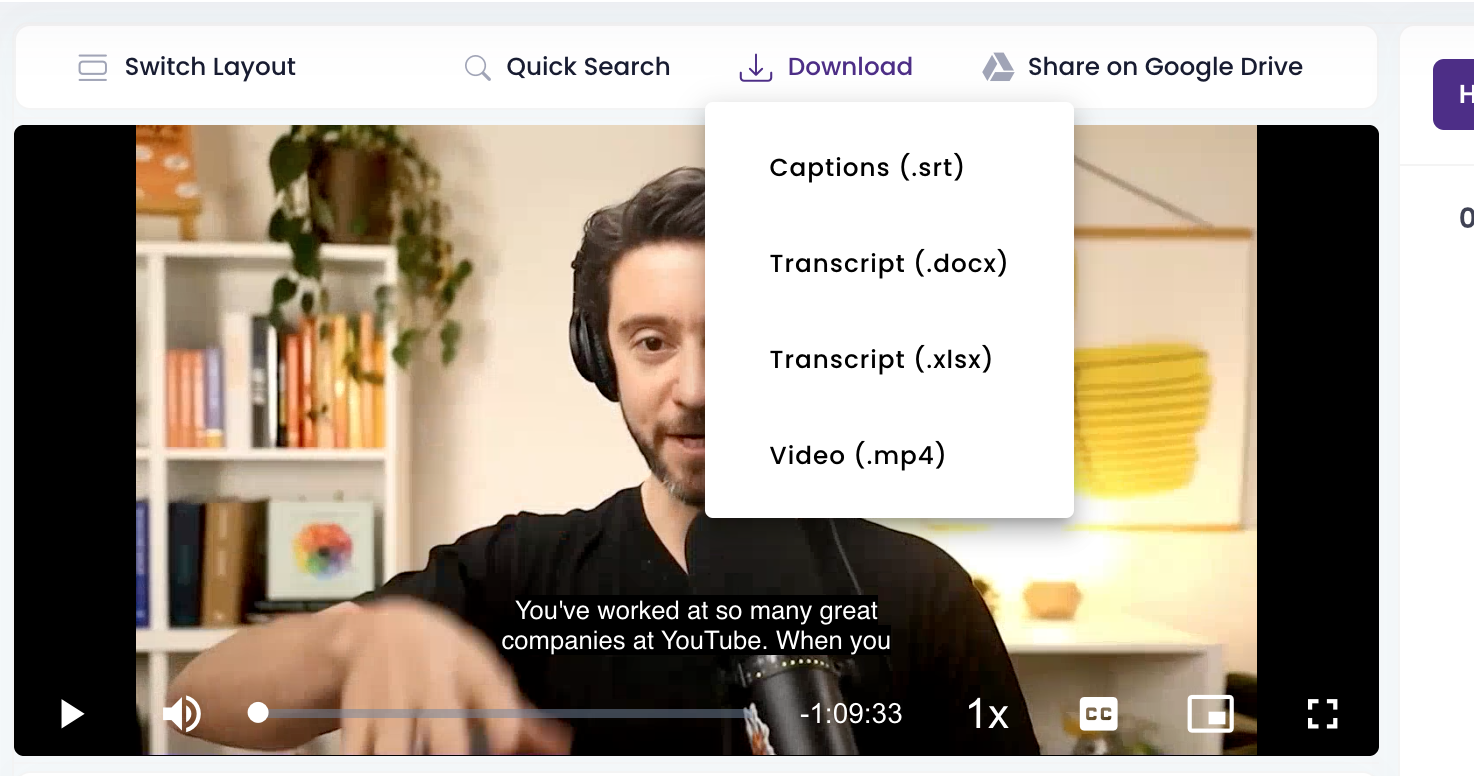
Das sind die Vorteile, wenn Sie Ihre bereits aufgezeichneten Zoom-Meetings mit MeetGeek transkribieren:
- Transkription in über 100 Sprachen
- Stichwortsuche, um bestimmte Momente zu finden
- KI-Zusammenfassung Ihrer Meetings
- Die Möglichkeit, die gesamte Aufzeichnung oder Teile davon mit Ihrem Team zu teilen
HINWEIS: MeetGeek nimmt Datensicherheit ernst und erfüllt die Vorgaben von SOC und HIPAA, um Verschlüsselung und Datenschutz zu gewährleisten.
Kann man ein Zoom-Meeting ohne Erlaubnis aufzeichnen?
Es gibt zwar Möglichkeiten, Zoom-Meetings heimlich aufzuzeichnen, doch das kann in bestimmten Teilen der Welt ernste rechtliche Folgen haben, denn es drohen zivilrechtliche Schadensersatzforderungen oder in manchen Fällen strafrechtliche Sanktionen.
In den USA verlangen mehrere Bundesstaaten die „Zustimmung aller Beteiligten“ (all-party consent), während sich die EU-Staaten auf die DSGVO stützen, um den Schutz personenbezogener Daten durchzusetzen.
Bevor Sie ein Zoom-Meeting aufzeichnen, müssen Sie unbedingt sicherstellen, dass Sie die nötigen Berechtigungen haben und dass alle Teilnehmer wissen, dass das Meeting aufgezeichnet wird.
Am einfachsten informieren Sie die anderen Teilnehmer in der Einladungs-E-Mail zum Meeting darüber, dass Sie die Sitzung aufzeichnen möchten und wie Sie die Zoom-Aufzeichnung verwenden wollen.
Es kann sinnvoll sein, gleich zu Beginn des Zoom-Meetings noch einmal zu erklären, wie das gesamte Team davon profitiert, dass das Gespräch aufgezeichnet und automatisch transkribiert wird. Falls Sie nicht sicher sind, wie Sie das angehen sollen: Wir haben diese 15 fertigen Hinweistexte vorbereitet, mit denen Sie Ihren MeetGeek-Notizassistenten vorstellen können.
Sobald die Teilnehmer die Vorteile von Zoom-Aufzeichnungen verstehen und sehen, wie sich die festgehaltenen Informationen für mehr Transparenz und Wissensaustausch nutzen lassen, werden sie sich wahrscheinlich schnell mit der Idee anfreunden.
Tatsächlich gilt: 45 % der Beschäftigten fühlen sich von der Anzahl der Meetings, an denen sie teilnehmen müssen, überfordert. Umso wichtiger ist es, unnötige Meetings zu vermeiden, in denen Sie ein Thema noch einmal ganz von vorn besprechen müssen, nur weil es nirgendwo festgehalten wurde.
Mehr erreichen mit MeetGeek
Jetzt, da Sie wissen, wie Sie ein Zoom-Meeting auch dann aufzeichnen, wenn Sie nicht der Host sind, ist es Zeit, die weiteren Vorteile von MeetGeek kennenzulernen, dem virtuellen KI-Meeting-Assistenten, der sich nahtlos in Ihren Arbeitsalltag einfügt!
A. Meeting-Vorlagen & Meeting-Agenda
Die Funktion Meeting Templates erkennt und kategorisiert automatisch jeden Abschnitt Ihres Zoom-Meetings anhand der Stichwörter, die Sie MeetGeek vorgeben.
So müssen Sie nach dem Meeting keine Zeit damit verbringen, die gesamte Zoom-Aufzeichnung noch einmal anzusehen, denn Sie springen direkt zu den Stellen, die Sie brauchen, ganz ohne Aufwand!

Testen Sie MeetGeek kostenlos und sehen Sie, wie Meeting Templates Ihre Meetings von Grund auf verändern können!
Außerdem können Sie mit dieser Funktion Ihre Meeting-Agenda hinzufügen, sodass alle benötigten Informationen an einem Ort verfügbar sind!
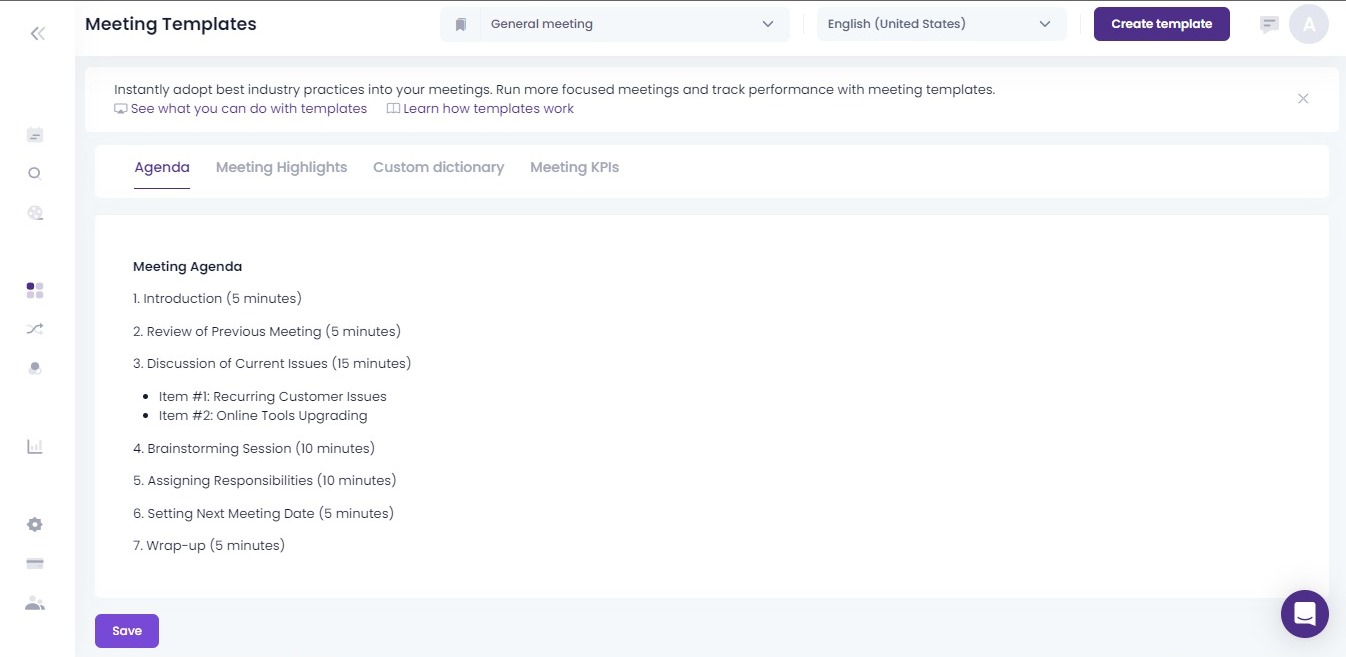
Testen Sie unsere Funktion Meeting Agenda kostenlos!
B. Gesprächsarchiv
Mit MeetGeek können Sie Ihr Meeting-Archiv durchsuchen, um Informationen zu finden, die Ihnen vielleicht entgangen sind, oder um vor dem nächsten Meeting Ihr Gedächtnis aufzufrischen und bestens vorbereitet zu sein.
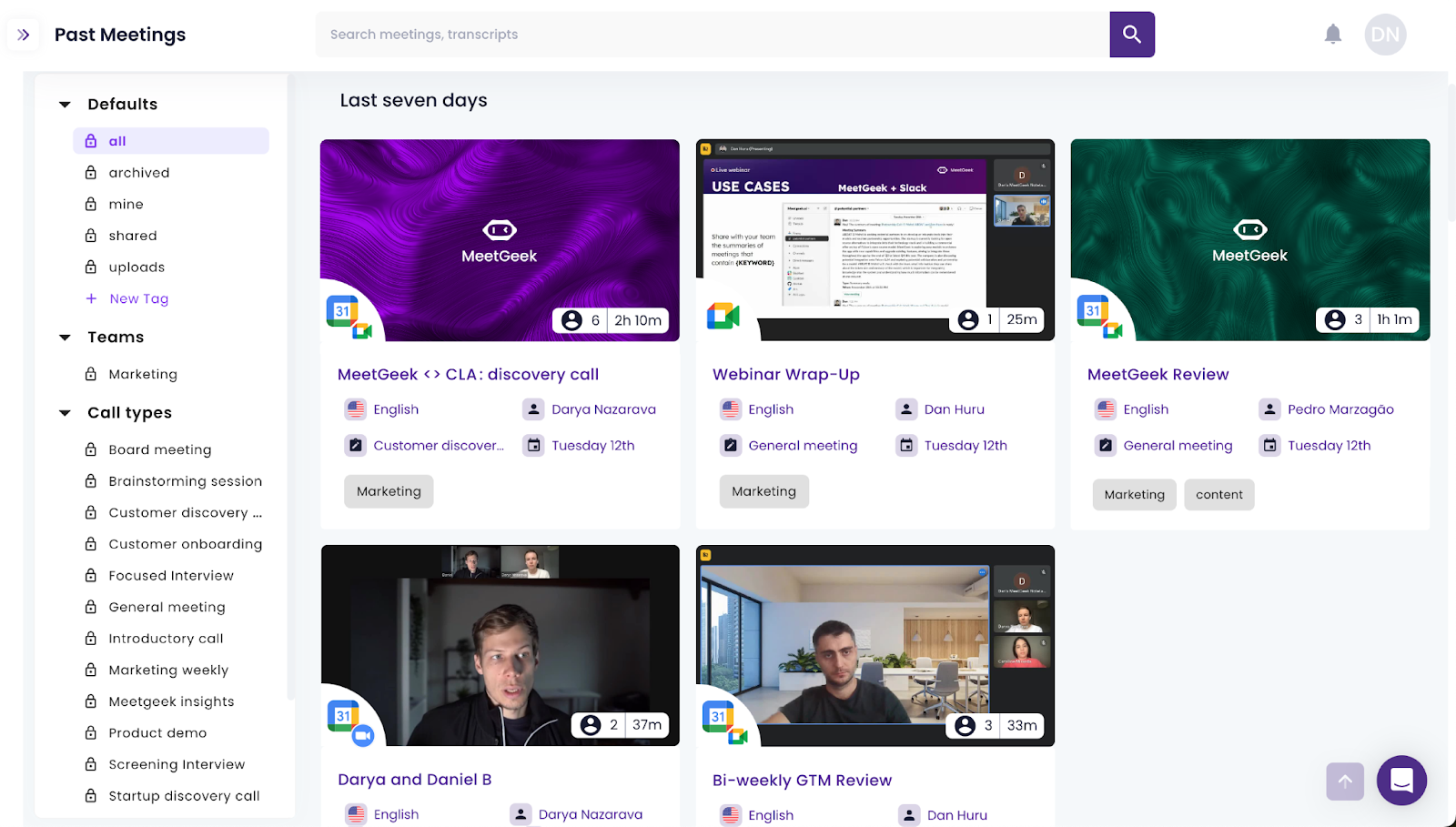
MeetGeek speichert alle Ihre bisherigen Meetings an einem Ort
Außerdem können Sie die Aufzeichnung jedes Meetings automatisch mit anderen Teammitgliedern teilen, egal ob sie am Meeting teilgenommen haben oder nicht.
Wenn Sie frühere Gespräche jederzeit noch einmal aufrufen können, hilft das, Reibungen zwischen Ihnen und Ihrem Team zu vermeiden. Außerdem entfallen unzählige Sitzungen zur Wissensweitergabe, die nur dazu dienen, Informationen zu teilen oder einen Standpunkt zu vermitteln.
C. KI-Meeting-Notizen
MeetGeek bietet KI-Meeting-Protokolle mit mehreren Funktionen, zum Beispiel:
- Eine Zusammenfassung der wichtigsten Themen, die nach jedem Gespräch in Ihrem Posteingang landet

MeetGeek erstellt automatisch Zusammenfassungen Ihrer Meetings
- Transkripte des Anrufs mit Zeitstempeln, damit sich die Sprecher leicht zuordnen lassen
MeetGeek erstellt automatisch Meeting-Transkripte
- Integration mit anderen Tools (Notion, Slack, HubSpot usw.)
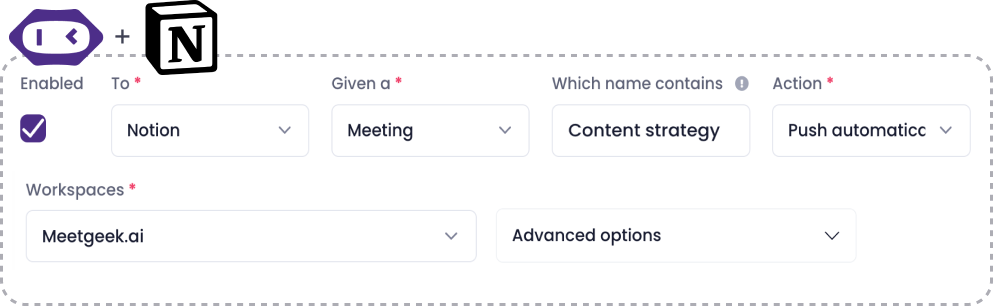
MeetGeek lässt sich nahtlos mit anderen Tools verbinden
D. Meeting Insights
In Meetings die Kontrolle zu behalten, ist entscheidend. Dazu gehört, die eigene Meeting-Leistung auszuwerten und sich so auf künftige Meetings vorzubereiten. Das ist keine leichte Aufgabe, und deshalb stellen wir nach jedem Zoom-Meeting Meeting Insights bereit.
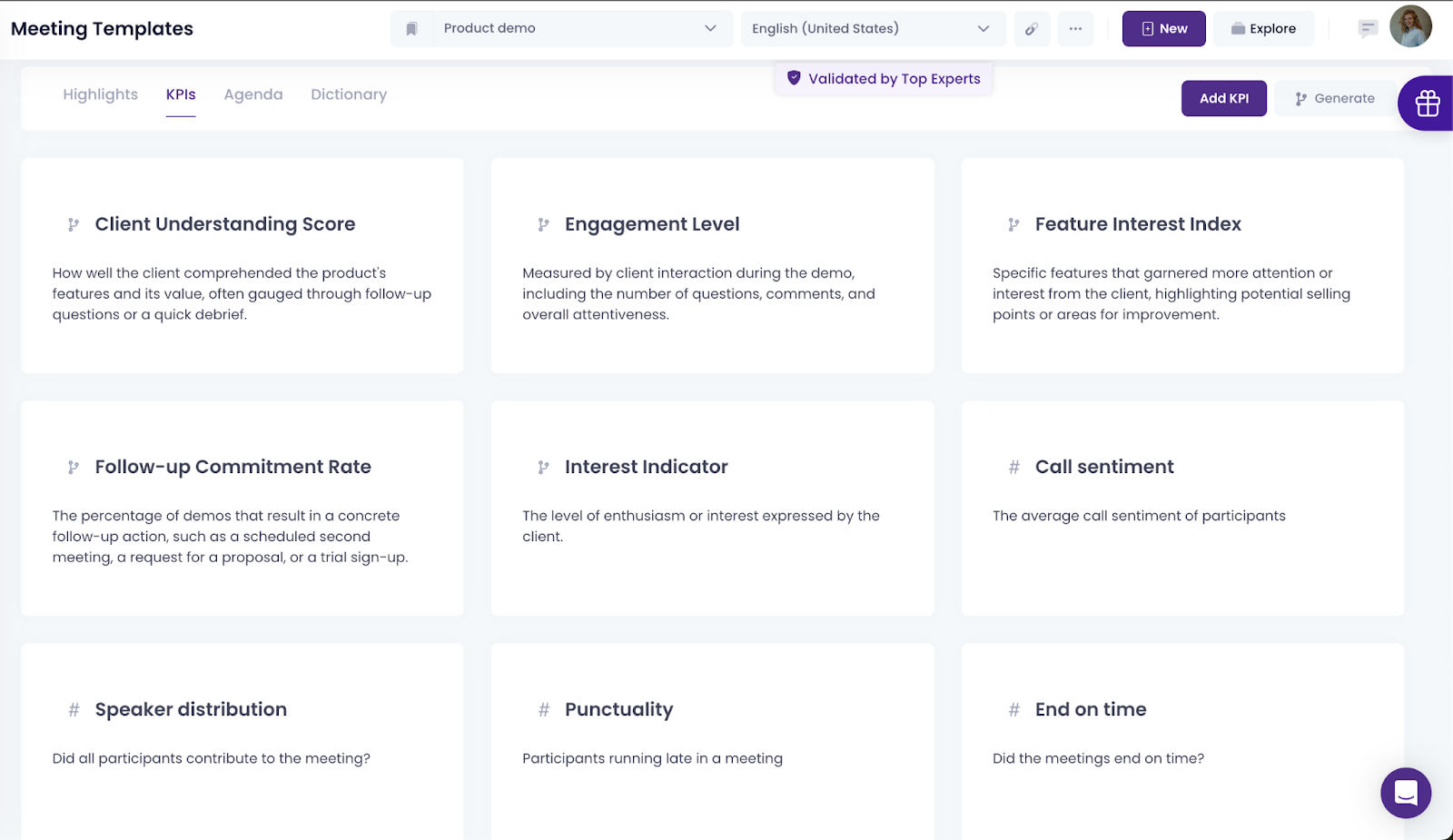
MeetGeek liefert Meeting Insights zu jedem Meeting
Mit dieser Funktion erfahren Sie objektiv, wie gut Sie und Ihr Team in Meetings abschneiden.
Häufig gestellte Fragen zur Aufzeichnung von Zoom-Meetings
1. Wie teile ich eine Zoom-Aufzeichnung?
Wenn Sie lokal aufgezeichnet haben, können Sie die Aufzeichnung per E-Mail versenden oder über einen Cloud-Dienst wie Dropbox teilen.
Nutzer eines kostenpflichtigen Zoom-Kontos können ihr Zoom-Meeting über einen Link zur Cloud-Aufzeichnung teilen, den sie per E-Mail erhalten. Falls Sie die E-Mail verpasst haben, melden Sie sich einfach bei Zoom an und gehen Sie zum Bereich „Meine Aufzeichnungen“ (My Recordings).
Dort klicken Sie neben der gewünschten Aufzeichnung auf die Schaltfläche „Teilen“ (Share) und erhalten im Pop-up-Fenster einen Link.
Mit MeetGeek ist das Aufzeichnen von Meetings einfacher. Gehen Sie zu Past Meetings, wählen Sie das Meeting aus, das Sie teilen möchten, und klicken Sie auf die Schaltfläche Share Meeting, um festzulegen, wer Zugriff auf die Meeting-Aufzeichnung und das Transkript erhält.
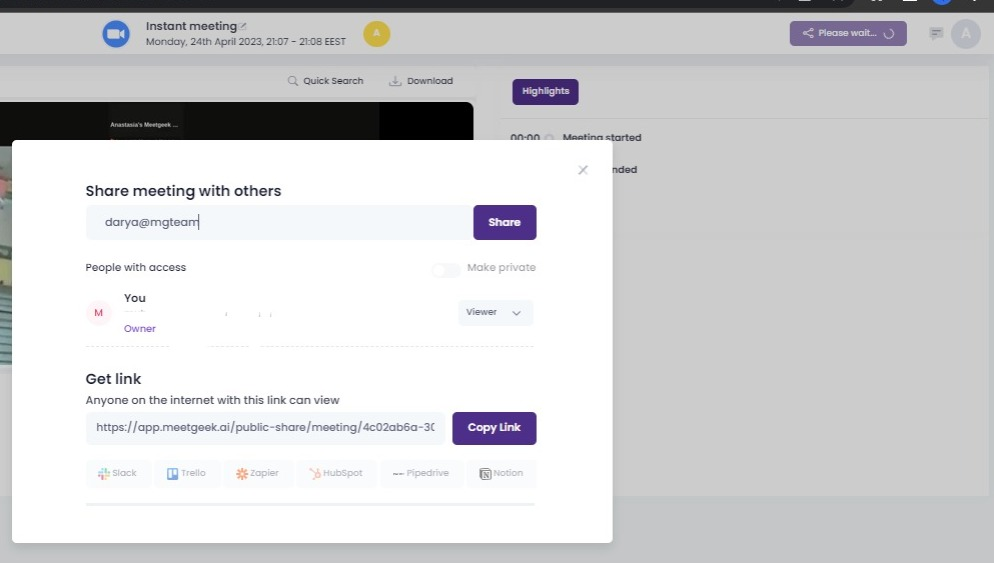
MeetGeek macht es einfach, Meetings mit anderen zu teilen
HINWEIS: Die Aufzeichnung mit MeetGeek funktioniert unabhängig davon, wie Sie am Meeting teilnehmen: über die Zoom-Desktop-App, Ihr Mobilgerät oder das Zoom-Webportal.
2. Wo finde ich meine bisherigen Zoom-Meetings?
Um alle Ihre bisherigen Zoom-Meetings zu sehen, müssen Sie in Ihrer Zoom-App angemeldet sein. Wechseln Sie dann zur Registerkarte „Meetings“ oben auf der Seite.
Wenn Sie sehr viele Meetings haben und es unmöglich scheint, die gesuchte Zoom-Aufzeichnung zu finden, können Sie das Meeting einfach über die Suchleiste suchen.
Mit MeetGeek ist es genauso einfach. Gehen Sie zum Bereich Past Meeting, in dem die Aufzeichnungen Ihrer Zoom-Meetings chronologisch geordnet gespeichert sind.
3. Wissen die anderen Teilnehmer, dass ich das Meeting aufzeichne?
Unabhängig davon, wie Sie Ihre Zoom-Meetings aufzeichnen und ob dafür eine Aufnahmetaste nötig ist oder nicht: Ihre Teamkollegen werden wissen, dass Sie das Meeting aufzeichnen, und das sollten sie auch.
Sowohl die integrierte Aufzeichnungsfunktion von Zoom als auch Ihr MeetGeek-Assistent senden automatisch einen Aufzeichnungshinweis in den Zoom-Chat, sodass Sie sich neben Ihren anderen Meeting-Aufgaben nicht auch noch darum kümmern müssen!
4. Wie kann ich in Zoom mehrere Audiodateien aufzeichnen?
So zeichnen Sie in Zoom mehrere Audiodateien auf:
- Starten Sie den Zoom-Client und gehen Sie zu Einstellungen (Settings).
- Wählen Sie die Registerkarte Aufzeichnung (Recording) aus.
- Schalten Sie die Option Für jeden Teilnehmer eine separate Audiodatei aufzeichnen (Record a separate audio file for each participant) ein.
- Zeichnen Sie Ihr Zoom-Meeting auf und speichern Sie es auf Ihrem Computer.
- Sobald Ihr Meeting beendet und die Aufzeichnung fertig ist, öffnen Sie den Aufzeichnungsordner.
- Darin finden Sie einen Ordner namens Audio Record. Dort liegt für jeden Teilnehmer eine eigene Audiodatei; jede reine Audiospur beginnt mit dem Namen des jeweiligen Teilnehmers.
5. Wie erlaube ich Teilnehmern, in Zoom lokal aufzuzeichnen?
So aktivieren und starten Sie lokale Zoom-Aufzeichnungen für alle Nutzer des Kontos:
- Melden Sie sich im Zoom-Webportal als Administrator an. Stellen Sie sicher, dass Sie die Berechtigung haben, Kontoeinstellungen zu bearbeiten.
- Klicken Sie im Navigationsmenü im Bereich Kontoverwaltung (Account Management) auf Kontoeinstellungen (Account Settings).
- Wechseln Sie zur Registerkarte Aufzeichnung.
- Aktivieren oder deaktivieren Sie diese Funktion im Bereich Aufzeichnung über den Schalter Lokale Aufzeichnung (Local Recording).
- Klicken Sie bei entsprechender Aufforderung auf Aktivieren (Enable) oder Deaktivieren (Disable), um Ihre Auswahl zu bestätigen.
- Um weitere Funktionen zu aktivieren, markieren Sie die gewünschten Kontrollkästchen und klicken Sie dann auf Speichern (Save):
- Chatnachrichten speichern (Save chat messages): Mit dieser Option können Hosts die Chatnachrichten aus dem Meeting in die lokalen Aufzeichnungsdateien aufnehmen.
- Untertitel als VTT-Datei speichern (Save closed captions as a VTT file): Damit können Hosts Untertitel in den lokalen Aufzeichnungen speichern.
- Hosts können Meeting-Teilnehmern die lokale Aufzeichnung erlauben (Hosts can allow meeting participants to record locally): Mit dieser Einstellung können Hosts den Teilnehmern erlauben, lokal aufzuzeichnen.
- Um diese Einstellung für alle Nutzer Ihres Kontos zu übernehmen, klicken Sie auf das Schlosssymbol und wählen Sie dann Sperren (Lock), damit die Einstellung überall gilt.
Nutzen Sie MeetGeek ab heute für reibungslose Meetings!
Die Video- und Audioqualität von Zoom macht das Tool für die Zusammenarbeit unverzichtbar. Wirklich effektiv werden Ihre Meetings aber erst, wenn Sie sie aufzeichnen.
Wenn Sie den Ablauf vereinfachen möchten, übernimmt der KI-Assistent von MeetGeek automatisch alle Aufgaben rund um Aufzeichnung und Notizen, sodass Sie in Ihren Meetings ganz bei der Sache sein können.
Testen Sie MeetGeek kostenlos und erleben Sie selbst alle Vorteile eines eigenen virtuellen KI-Meeting-Assistenten!




.avif)