



Egal, ob Sie ein Team-Meeting, ein virtuelles Familientreffen oder einen Online-Kurs organisieren: Zu wissen, wie man den Host in Zoom wechselt, ist äußerst praktisch.
Dieser Artikel führt Sie Schritt für Schritt durch den Prozess, damit Ihre Meetings reibungslos und effizient ablaufen – ganz gleich, wer gerade die Leitung hat. Legen wir direkt los!
💡 Sie suchen nach einer einfacheren Möglichkeit, Ihre Zoom-Meetings zu verwalten und aufzuzeichnen, ohne den Host zu wechseln? MeetGeek zeichnet Ihre Anrufe automatisch auf, transkribiert sie und fasst sie zusammen, damit Sie keine wichtigen Details verpassen – testen Sie es kostenlos.
Warum braucht man einen Host in einem Zoom-Meeting?
Die Rolle des Hosts in einem Zoom-Meeting ist vielseitig und entscheidend. Mit der richtigen Person am Steuer wird jedes Zoom-Meeting zu einer effizienten, ansprechenden und angenehmen Erfahrung für alle Teilnehmer.
Die Aufgaben eines Hosts in einem Zoom-Meeting sind:
- Verwaltung der Meeting-Einstellungen und Teilnehmer
- Moderation von Diskussionen und Präsentationen
- Sicherstellung eines reibungslosen und produktiven Meeting-Ablaufs
A. Verwaltung der Meeting-Einstellungen und Teilnehmer
Nur der Host kann die Meeting-Einstellungen an die Anforderungen der Sitzung anpassen. Dazu gehören das Einrichten eines Warteraums für Teilnehmer, das Aktivieren oder Deaktivieren von Videos beim Beitritt sowie die Verwaltung der Berechtigungen für die Bildschirmfreigabe.
Darüber hinaus können Zoom-Hosts die Meeting-Aufzeichnungaktivieren, was den Ablauf des Meetings weiter optimieren kann.
Zudem ist der Host für die Verwaltung der Teilnehmer verantwortlich: Er lässt Personen aus dem Warteraum zu, schaltet Teilnehmer stumm oder hebt die Stummschaltung auf und entfernt störende Personen. Ein effektives Teilnehmermanagement stellt sicher, dass das Meeting fokussiert bleibt und unnötige Unterbrechungen vermieden werden.
B. Diskussionen und Präsentationen moderieren
Ein Host ist nicht nur ein technischer Aufseher, sondern auch ein Wegweiser. Er leitet den Ablauf des Meetings, indem er Redner vorstellt, Fragerunden moderiert und sicherstellt, dass die Diskussion beim Thema bleibt.
Bei Meetings mit Präsentationen koordiniert der Host, wer wann präsentiert. Er kann die Host-Rechte vorübergehend übertragen, damit andere ihren Bildschirm teilen können, was einen reibungslosen Übergang zwischen Rednern und Präsentierenden gewährleistet.
Wenn Teilnehmer Medien präsentieren müssen, muss der Host zudem die Bildschirmfreigabe für Videoclips optimieren, damit die Teilnehmer den Ton des Videos hören können.
C. Für ein reibungsloses und produktives Meeting-Erlebnis sorgen
Technische Probleme sind unvermeidlich. Der Host ist oft die erste Anlaufstelle, um diese zu lösen – sei es bei der Unterstützung von Teilnehmern mit Audioproblemen oder bei der Fehlerbehebung anderer typischer Zoom-Schwierigkeiten.
Das vielleicht Wichtigste ist, dass der Host eine entscheidende Rolle dabei spielt, den Ton des Meetings vorzugeben. Er schafft eine einladende und inklusive Atmosphäre, fördert die Beteiligung und stellt sicher, dass jeder zu Wort kommt.
Voraussetzungen für die Zuweisung eines alternativen Hosts
Wenn es darum geht, Meetings reibungslos und effektiv zu gestalten, kann ein alternativer Host oder Co-Host den entscheidenden Unterschied machen. Bevor Sie jedoch Host-Rechte übertragen können, müssen bestimmte Voraussetzungen erfüllt sein.
Um erfolgreich einen alternativen Host für Ihr Zoom-Meeting zuzuweisen, müssen Sie Folgendes beachten:
- Die richtige Lizenz besitzen: Die Möglichkeit, einen alternativen Host zuzuweisen, steht primär Nutzern mit Zoom Pro-, Business- oder Education-Konten zur Verfügung. Denken Sie daran, dass Sie als Co-Host nur einen lizenzierten Nutzer aus demselben Konto festlegen können.
- Die erforderlichen Kontoberechtigungen haben: Manchmal ist das Hinzufügen alternativer Hosts eingeschränkt und erfordert eine administrative Genehmigung. Stellen Sie sicher, dass Ihr Zoom-Konto über die notwendigen Berechtigungen verfügt, die vom Administrator aktiviert wurden (falls Sie Teil einer Organisation sind).
- Die neueste Zoom-Version herunterladen: Stellen Sie sicher, dass sowohl Sie als ursprünglicher Host als auch der alternative Host die neueste Version von Zoom verwenden, um Kompatibilitätsprobleme bei den Hosting-Funktionen zu vermeiden.
MeetGeek bietet eine nahtlose Lösung für die Verwaltung und Aufzeichnung von Zoom-Meetings, ohne den Host wechseln oder auf einen höheren Zoom-Tarif upgraden zu müssen. Dies ist besonders vorteilhaft, wenn ein Host-Wechsel nur für Aufzeichnungszwecke unpraktisch oder störend wäre.
Und so funktioniert es: MeetGeek nimmt als eigenständiger Teilnehmer an Ihren Zoom-Meetings teil. Selbst wenn Sie das Meeting früher verlassen müssen oder nicht teilnehmen können, zeichnet der virtuelle Meeting-Assistent den Rest des Meetings weiter auf und transkribiert ihn.
Auf diese Weise können Sie – oder jeder andere, der nicht teilnehmen konnte – alles Versäumte ganz bequem nachholen.
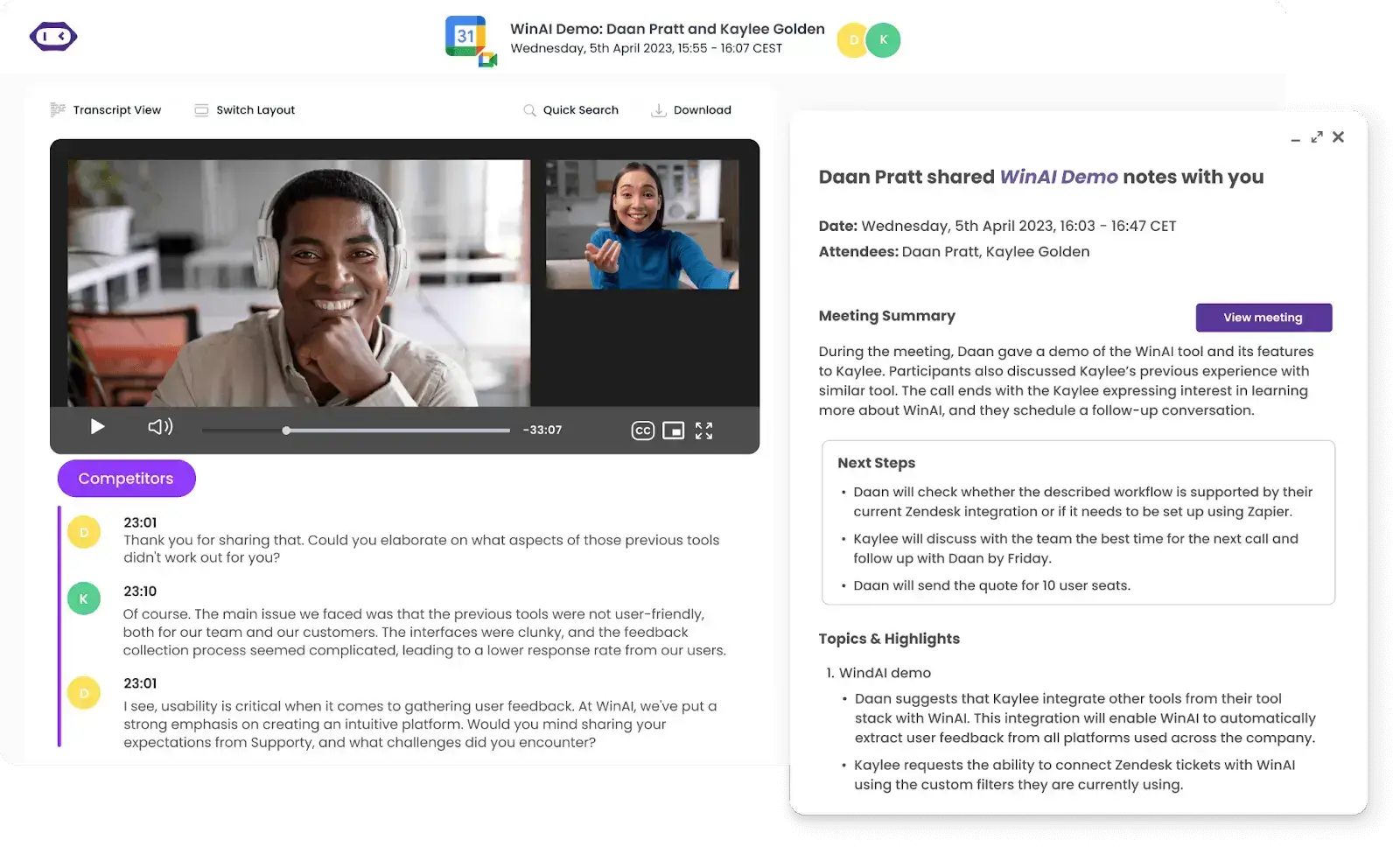
Das kann MeetGeek für Ihre Zoom-Meetings tun:
- Automatisierte Aufzeichnung: MeetGeek ist ein automatisierter KI-Notizassistent für Zoom , der die manuelle Einrichtung in Zoom überflüssig macht. Sie müssen nicht einmal persönlich am Meeting teilnehmen, damit es aufgezeichnet und transkribiert wird. Das ist besonders praktisch, wenn es unpraktisch oder störend wäre, den Host nur für die Aufzeichnung zu wechseln.
- Meeting-Highlights: Das Tool erkennt und markiert wichtige Momente und Highlights innerhalb eines Meetings, was die Nachbereitung und das Follow-up erheblich beschleunigt.
- Handlungsrelevante Erkenntnisse: Erhalten Sie präzise Analysen und Einblicke aus Ihren Meetings, wie etwa zur Teilnehmerbeteiligung oder zu thematischen Trends, die für die Planung zukünftiger Meetings wertvoll sind.
- KI-Meeting-Zusammenfassungen: Teilen Sie mühelos KI-Meeting-Notizen, inklusive Highlights und Aufgabenlisten, damit nach dem Meeting alle auf dem gleichen Stand sind.
- Integration in Workflow-Tools: MeetGeek lässt sich in verschiedene Workflow- und Produktivitätstools integrieren, wodurch Meeting-Informationen nahtlos in bestehende Arbeitsprozesse einfließen können.
- Anpassungsoptionen: Benutzer können Einstellungen an ihre spezifischen Meeting-Anforderungen anpassen, wie etwa selektive Aufzeichnung oder gezielte Transkription.
I. So ändern Sie den Host vor einem Zoom-Meeting
Die Zuweisung eines alternativen Hosts für zukünftige Zoom-Meetings ist eine effiziente Methode, um Hosting-Aufgaben zu verwalten.
A. So fügen Sie alternative Hosts für ein neues Zoom-Meeting hinzu
Sie können Hosting-Rechte über verschiedene Geräte hinweg teilen:
- Mac oder Windows-Gerät
- Zoom Web-App
- iOS- und Android-Geräte
1. Für Windows oder Mac
So weisen Sie auf Ihrem Windows- oder Mac-Computer einen alternativen Zoom-Host zu:
- Starten Sie Ihre Zoom-Anwendung. Falls Sie Zoom noch nicht heruntergeladen haben, können Sie dies über die Zoom-Website tun und die Anwendung auf Ihrem Gerät installieren.
- Klicken Sie auf „Planen”-Symbol, das normalerweise wie ein Kalender aussieht.
- Im Planungsfenster geben Sie die erforderlichen Informationen zu Ihrem Meeting ein. Überprüfen Sie alles sorgfältig, da Ihre Teilnehmer diese Angaben sehen werden:
- Thema: Geben Sie Ihrem Meeting einen klaren und aussagekräftigen Namen.
- Datum und Uhrzeit: Wählen Sie aus, wann Ihr Meeting stattfinden soll.
- Dauer: Dies hilft den Teilnehmern bei der Zeitplanung (Hinweis: Das Meeting kann bei Bedarf über diese Zeit hinaus fortgesetzt werden).
- Scrollen Sie nach unten zum Feld „Alternative Gastgeber“. Geben Sie hier die E-Mail-Adresse des alternativen Gastgebers ein. Sie können mehrere E-Mail-Adressen hinzufügen, indem Sie diese durch Kommas trennen.
- Klicken Sie an dieser Stelle auf „Erweiterte Optionen“, um die folgenden Funktionen zu entdecken:
- Beitritt vor Gastgeber ermöglichen: Erlaubt Teilnehmern, dem Meeting beizutreten, bevor der Gastgeber oder ein alternativer Gastgeber eintrifft.
- Teilnehmer beim Beitritt stummschalten: Hilft dabei, größere Meetings von Anfang an reibungsloser zu verwalten.
- Meeting automatisch aufzeichnen: Wenn Sie ein Protokoll des Meetings benötigen, können Sie festlegen, dass es automatisch in der Cloud oder auf Ihrem lokalen Computer aufgezeichnet wird.

- Sobald Sie alles eingerichtet haben, klicken Sie auf „Planen, um Ihr Meeting abzuschließen. Dadurch wird Zoom außerdem dazu veranlasst, die Teilnehmer per E-Mail zu Ihrem Meeting einzuladen.
- Zoom bietet Ihnen anschließend die Möglichkeit, das Meeting zu Ihrem Kalender (z. B. Google Kalender, Outlook usw.) hinzuzufügen, damit Sie und Ihre alternativen Gastgeber den Überblick über das Meeting behalten.
HINWEIS: Denken Sie daran, dass der alternative Gastgeber das Meeting im Namen des Gastgebers starten kann. Informieren Sie Ihre alternativen Gastgeber vor dem Meeting darüber, dass sie hinzugefügt wurden, damit sie bereit sind, das Meeting in Ihrer Abwesenheit zu leiten.
2. Für die Zoom Web-App
So legen Sie einen alternativen Zoom-Gastgeber über das Zoom-Webportal fest:
- Gehen Sie auf die Zoom-Website und melden Sie sich mit den Zugangsdaten an, die über Gastgeberrechte verfügen.
- Sobald Sie angemeldet sind, suchen Sie das Navigationsmenü auf der linken Seite des Bildschirms und klicken Sie auf „Meetings“.
- Klicken Sie oben rechts auf der Meeting-Seite auf die Schaltfläche „Neues Meeting planen“.
- Geben Sie die erforderlichen Informationen zu Ihrem Meeting ein. Überprüfen Sie alles sorgfältig, da Ihre Teilnehmer diese Informationen sehen werden:
- Thema: Geben Sie Ihrem Meeting einen klaren und aussagekräftigen Namen.
- Datum und Uhrzeit: Wählen Sie aus, wann Ihr Meeting stattfinden soll.
- Dauer: Dies hilft den Teilnehmern bei der Zeitplanung (Hinweis: Das Meeting kann bei Bedarf länger dauern).
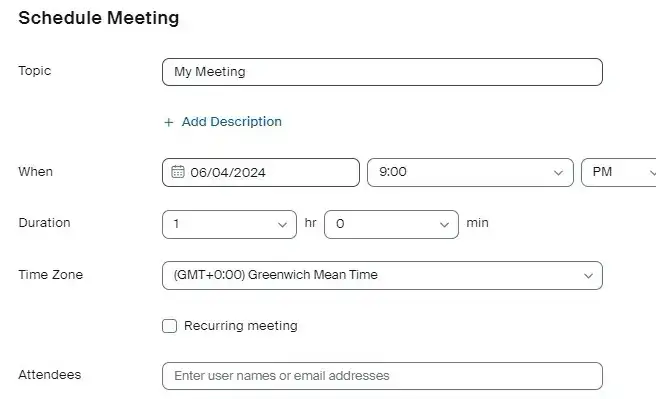
- Scrollen Sie beim Einrichten oder Bearbeiten Ihrer Meeting-Details nach unten, um das Feld „Alternativer Host“ im Bereich der Meeting-Optionen zu finden. Geben Sie die E-Mail-Adressen der Personen ein, die Sie als alternative Hosts festlegen möchten.
HINWEIS: Sie können mehrere E-Mail-Adressen durch Kommas getrennt eingeben. Denken Sie daran, dass die E-Mail-Adressen mit einem aktiven Zoom-Konto verknüpft sein müssen.
- Erwägen Sie während der Einrichtung, Optionen zu aktivieren wie:
- Beitritt vor Host erlauben , damit Teilnehmer den Meetingraum betreten können, bevor ein Host eintrifft.
- Teilnehmer beim Beitritt stummschalten kann dazu beitragen, das Meeting bis zum offiziellen Beginn geordnet zu halten.
- Sobald alle Details korrekt ausgefüllt sind, klicken Sie unten auf der Seite auf „Speichern“, um alle Meeting- und Host-Einstellungen zu bestätigen. Fügen Sie das Meeting bei entsprechender Aufforderung Ihrem digitalen Kalender hinzu, um den Überblick zu behalten, und teilen Sie die Meeting-ID sowie den Link mit Ihren alternativen Hosts und Teilnehmern.
3. Für iOS- und Android-Geräte
So bestimmen Sie einen alternativen Zoom-Host auf iOS- oder Android-Geräten:
- Stellen Sie sicher, dass die Zoom-App auf Ihrem iOS- oder Android-Gerät installiert ist. Falls sie noch nicht installiert ist, können Sie sie aus dem Apple App Store oder Google Play Store herunterladen.
- Öffnen Sie nach der Installation die App und melden Sie sich mit Ihren Zoom-Zugangsdaten an.
- Am unteren Rand der Zoom-App sehen Sie die Navigationsleiste. Tippen Sie auf „Meetings“, um Ihre Liste der anstehenden Meetings anzuzeigen. Hier sind alle Ihre geplanten Meetings organisiert.
- Um einem neuen Meeting einen alternativen Host hinzuzufügen, tippen Sie auf die Schaltfläche „Planen“ (meist durch ein „+“- oder Kalendersymbol dargestellt), wodurch sich ein Formular für ein neues Meeting öffnet.
- Geben Sie alle relevanten Details für Ihr Meeting ein, wie z. B. Thema, Datum, Uhrzeit und eventuelle Wiederholungen.
- Scrollen Sie durch die Meeting-Optionen, bis Sie den Bereich „Alternative Hosts“ finden. Geben Sie die E-Mail-Adressen der Personen ein, die Sie als alternative Hosts bestimmen möchten. Diese erhalten eine E-Mail mit der Benachrichtigung, dass sie als alternativer Host hinzugefügt wurden, sowie einen Link zum Starten des Meetings.
- Sobald Sie die alternativen Hosts hinzugefügt und alle anderen Meeting-Details konfiguriert haben, tippen Sie auf „Fertig“ oder „Speichern“, um die Meeting-Details abzuschließen und die Kalendereinladung an den Co-Host und die Meeting-Teilnehmer zu senden.
B. So ändern Sie die Host-Einstellungen für ein Zoom-Meeting
Wenn Sie einen alternativen Host für ein Zoom-Meeting festlegen, sollten Sie einige Einschränkungen beachten, damit Ihr Meeting reibungslos abläuft:
- Starten des Meetings als alternativer Host: Alternative Hosts können das Meeting über den Link in der E-Mail oder der Kalendereinladung des ursprünglichen Hosts starten. Das Meeting erscheint jedoch nicht in ihrer Liste „Bevorstehende Meetings“ im Zoom-Desktop-Client, in der mobilen App oder auf der Website.
- Einschränkungen bei der Terminplanung für den Host: Ein alternativer Host kann keine Meetings im Namen des ursprünglichen Hosts planen. Wenn Sie jemanden benötigen, der Meetings für Sie plant, ist die Funktion „Planungsberechtigung“ die bessere Wahl.
- Dynamik der Host-Rechte: Wenn der ursprüngliche Host dem Meeting beitritt, nachdem der alternative Host es bereits gestartet hat, wird der ursprüngliche Host gefragt, ob er die Kontrolle über das Meeting zurückerhalten möchte. Wenn er dies bestätigt, wird der alternative Host wieder zum Teilnehmer.
- Zeitpunkt der Zuweisung: Alternative Hosts müssen während der Planung oder vor der geplanten Startzeit des Meetings zugewiesen werden. Wenn ein Host während eines Meetings Unterstützung benötigt, sollte er einen Co-Host anstelle eines alternativen Hosts ernennen.
- Einhaltung der Einstellungen des ursprünglichen Hosts: Das Meeting unterliegt den Einschränkungen oder Add-ons des ursprünglichen Hosts.
So ändern Sie die Host-Einstellungen für ein geplantes Meeting in Zoom:
- Stellen Sie sicher, dass Sie in Ihrem Zoom-Konto angemeldet sind. Dies können Sie je nach Gerät über den Zoom-Desktop-Client, die mobile App oder das Webportal tun.
- Klicken Sie nach der Anmeldung auf „Meetings“ im Navigationsmenü. Dort sehen Sie eine Liste all Ihrer bevorstehenden Meetings.
- Tippen Sie auf das Meeting, dessen Host-Einstellungen Sie ändern möchten, um die Details zu öffnen. Klicken Sie auf den Titel des Meetings und dann auf „Bearbeiten”.
- Im Bereich zur Bearbeitung von Meetings finden Sie verschiedene Optionen, mit denen Sie festlegen, wie das Meeting gehostet und gesteuert wird:
- Co-Hosts: Über die Funktion für alternative Hosts können Sie Zoom-Co-Hosts oder alternative Hosts hinzufügen, indem Sie deren E-Mail-Adressen eingeben. Co-Hosts können die Teilnehmerverwaltung genauso wie der Host übernehmen.
- Sicherheitseinstellungen: Passen Sie Einstellungen an, wie z. B. das Erfordernis eines Meeting-Passworts, die Aktivierung eines Warteraums oder die Beschränkung auf authentifizierte Benutzer.
- Meeting-Optionen: Hier können Sie verschiedene Aspekte steuern, wie das Aktivieren/Deaktivieren von Video und Audio der Teilnehmer sowie erweiterte Funktionen wie das Erstellen von Breakout-Räumen, Umfragen oder das Erteilen von Aufzeichnungsberechtigungen.
- Nachdem Sie die erforderlichen Anpassungen vorgenommen haben, tippen Sie auf „Fertig“ oder „Speichern“, um die Meeting-Einstellungen zu aktualisieren.
HINWEIS: Wenn wesentliche Änderungen an den Meeting-Einstellungen vorgenommen wurden, insbesondere in Bezug auf die Interaktion der Teilnehmer, sollten Sie alle Co-Hosts und Teilnehmer über diese Aktualisierungen informieren. So stellen Sie sicher, dass alle vorbereitet sind und wissen, was sie erwartet.
II. So ändern Sie den Host während eines Zoom-Meetings
Wenn Sie als Host das Zoom-Meeting verlassen müssen und kein alternativer Host festgelegt wurde, verlieren die verbleibenden Teilnehmer den Zugriff auf die Host-spezifischen Steuerelemente. Aber keine Sorge, wir helfen Ihnen weiter!
A. So fügen Sie während eines Zoom-Meetings einen Co-Host hinzu
In Zoom ist die Co-Host-Funktion ein leistungsstarkes Werkzeug, mit dem der Host während eines Anrufs administrative Aufgaben teilen kann. Co-Hosts können wichtige Aspekte verwalten, wie z. B. die Teilnehmerverwaltung oder das Starten und Stoppen von Sitzungsaufzeichnungen.
So aktivieren Sie die Co-Host-Funktion von Zoom für Ihr Unternehmen:
- Melden Sie sich in Ihrem Webbrowser mit Administratorrechten bei Ihrem Zoom-Konto an, um die Kontoeinstellungen zu konfigurieren.
- Klicken Sie im Navigationsbereich auf „Kontoverwaltung“und anschließend auf „Kontoeinstellungen“.
- Stellen Sie auf der Registerkarte „Meeting“ sicher, dass die Co-Host-Einstellung aktiviert ist. Falls nicht, klicken Sie auf den Schalter, um sie zu aktivieren.
HINWEIS: Nur der Haupt-Host ist berechtigt, einen Co-Host zuzuweisen.
So fügen Sie während eines Zoom-Meetings Co-Hosts hinzu:
- Starten Sie Ihr Zoom-Meeting.
- Klicken Sie auf die Schaltfläche „Teilnehmer verwalten“.
- Fahren Sie mit der Maus über den Namen des Teilnehmers, den Sie zum Co-Host ernennen möchten.
- Klicken Sie auf „Mehr“ und wählen Sie dann „Zum Co-Host ernennen“ aus dem Dropdown-Menü aus.
- Bestätigen Sie die darauf folgende Abfrage.
Mit diesen Schritten können Sie Co-Hosts in Ihren Zoom-Meetings problemlos zuweisen und so für einen reibungslosen und effizienten Ablauf Ihrer virtuellen Besprechungen sorgen.
WICHTIG: Um die Co-Host-Funktion in Zoom nutzen zu können, stellen Sie sicher, dass Sie die folgenden oder neuere Versionen verwenden.
| Zoom Desktop Client | Zoom Mobile App |
|---|---|
|
|
B. So weisen Sie einen alternativen Host zu und verlassen das Meeting
Der Host eines Zoom-Meetings kann die Host-Rechte flexibel an einen anderen Teilnehmer übertragen und das Meeting verlassen, sodass es unter der Leitung des neuen Hosts reibungslos fortgesetzt werden kann.
Nachfolgend finden Sie eine Schritt-für-Schritt-Anleitung zur Übertragung der Meeting-Steuerung auf verschiedenen Geräten:
- Windows, macOS und Linux
- die Zoom Web App
- iOS- und Android-Geräte
1. Zoom Client für Windows, macOS und Linux
So weisen Sie als Nutzer von Windows, macOS oder Linux einen alternativen Host zu und verlassen ein Zoom-Meeting:
- Melden Sie sich in Ihrer Zoom -Desktop-App an.
- Starten Sie das Meeting als Host.
- Wählen Sie in den Host-Steuerelementen 'Meeting beenden' und anschließend 'Meeting verlassen'.
- Wählen Sie einen Teilnehmer aus, der der neue Host werden soll.
- Klicken Sie auf 'Zuweisen und verlassen'.
2. Für die Zoom Web App
So weisen Sie als Nutzer der Zoom Web App einen alternativen Host zu und verlassen das Meeting:
- Wählen Sie in den Host-Steuerelementen 'Verwalten', um die Teilnehmerliste anzuzeigen.
- Fahren Sie mit der Maus über den Namen des Teilnehmers, klicken Sie auf 'Mehr' und dann auf 'Zum Host ernennen'.
- Klicken Sie auf 'Ja', um Ihre Auswahl zu bestätigen.
- Verlassen Sie das Meeting.
3. Für iOS- und Android-Geräte
So weisen Sie als iOS- oder Android-Nutzer einen alternativen Zoom-Host zu und verlassen das Meeting:
- Tippen Sie unten im Zoom-Fenster auf die Schaltfläche 'Teilnehmer'.
- Wählen Sie aus der Liste den Teilnehmer aus, den Sie zum Host ernennen möchten.
- Tippen Sie auf 'Hostund dannOK, um den neuen Host zu bestätigen.
Diese Schritte gewährleisten einen reibungslosen Übergang der Host-Verantwortlichkeiten, damit Ihre Zoom-Meetings effizient und ohne Unterbrechungen ablaufen.
Flexibles Zoom-Host-Management mit MeetGeek!
Das Ändern der Host-Rolle in Zoom-Meetings, egal ob vor oder während der Sitzung, erfordert ein wenig Planung und Koordination.
Denken Sie daran: Effektive Kommunikation und technische Vorbereitung sind der Schlüssel zu einem erfolgreichen Host-Management. Nutzen Sie diese Vorgehensweisen und erleben Sie, wie Ihre Zoom-Meetings durch Flexibilität und Leichtigkeit noch erfolgreicher werden.
Und wenn Sie Ihre Zoom-Meetings auf die nächste Stufe heben möchten, testen Sie MeetGeek kostenlos!






.avif)