


Remote-Arbeit wird schwierig, wenn Unterhaltungen, Aufgaben, Dateien, Entscheidungen und Updates an zu vielen verschiedenen Orten verstreut sind.
Die besten Tools für die Remote-Zusammenarbeit lösen spezifische Teile dieses Problems. Einige halten die Kommunikation am Laufen, andere organisieren Projekte, erleichtern die gemeinsame Bearbeitung von Dokumenten oder bewahren Wissen, das nach einem Meeting sonst verloren ginge.
Kurz gefasst
- Die besten Kollaborationstools für die Remote-Arbeit decken unterschiedliche Bedürfnisse ab, darunter Kommunikation, Projektmanagement, Meetings, Dokumente und Wissensaustausch.
- Slack ist eine starke Wahl für Team-Chats, Asana für strukturiertes Projektmanagement und Google Workspace für die gemeinsame Bearbeitung von Dokumenten.
- Die meisten Remote-Teams benötigen einen kleinen, vernetzten Tech-Stack mit so wenig Überschneidungen wie möglich.
- Kostenlose Versionen können für kleine Teams gut funktionieren, aber wachsende Unternehmen sollten auf Speicherplatz, Integrationen, Sicherheit, Automatisierung und Zugriffskontrollen achten.
- Die richtigen Tools sollten den Koordinationsaufwand verringern, anstatt Ihrem Team noch mehr Apps zu bescheren, die überprüft werden müssen.
Was sind Tools für die Remote-Zusammenarbeit?
Tools für die Remote-Zusammenarbeit sind digitale Werkzeuge, die Menschen dabei unterstützen, gemeinsam zu arbeiten, wenn sie sich nicht am selben Ort befinden.
Diese Kategorie umfasst weit mehr als nur Videokonferenzsoftware. Ein Remote-Team nutzt Kollaborationssoftware, um in Echtzeit zu kommunizieren, Dateien auszutauschen, Aufgaben zu erstellen, Dokumente zu bearbeiten, den Projektstatus zu verfolgen, Ideen zu sammeln, virtuelle Meetings zu planen und Unternehmenswissen zu sichern.
Für verteilte Teams ersetzen diese Tools effektiv Teile des physischen Raums, den man früher gemeinsam nutzte. Anstatt zum Schreibtisch eines Kollegen zu gehen, ein Projektboard zu prüfen oder eine Idee in einem Konferenzraum zu besprechen, benötigen Remote-Mitarbeiter digitale Wege, um genau das zu tun.
Das bedeutet jedoch nicht, für jede erdenkliche Aktivität eine neue App hinzuzufügen. Tatsächlich verlieren Mitarbeiter laut Untersuchungen des Asana’s Work Innovation Labjeden Tag 57 Minuten allein durch den Wechsel zwischen verschiedenen Kollaborationstools – plus weitere 30 Minuten, um zu entscheiden, welches Tool für welche Aufgabe überhaupt das richtige ist.
Wenn eine Entscheidung in Slack getroffen wird, eine andere in einer Meeting-Aufzeichnung vergraben ist, der Projektzeitplan in einer Projektmanagement-App liegt und das aktuellste Dokument irgendwo in Google Drive schlummert, wird es zur Vollzeitaufgabe, überhaupt auf dem gleichen Stand zu bleiben.
Warum Remote-Teams mehr als ein Kollaborationstool benötigen
Es gibt nicht das eine „Kollaborationsproblem“.
Remote-Teams müssen schnell kommunizieren, Projekte verwalten, Meetings abhalten, an Dokumenten arbeiten, Wissen teilen und Verantwortlichkeiten im Blick behalten. Diese Aktivitäten erfordern unterschiedliche Kollaborationsfunktionen.
- Eine Team-Chat-App mag hervorragend für die Echtzeitkommunikation geeignet sein, ist aber oft unzureichend, wenn es darum geht, Aufgaben über ein dreimonatiges Projekt hinweg zu organisieren.
- Eine Projektmanagement-Plattform kann zwar Fortschritte und Zeitpläne nachverfolgen, ist aber selten der beste Ort für eine spontane Diskussion.
- Plattformen für virtuelle Meetings erleichtern zwar komplexe Gespräche, können aber dazu führen, dass diejenigen, die das Meeting verpasst haben, ohne Kontext zurückbleiben.
Die Lösung besteht darin, die richtigen Werkzeuge für die tatsächlichen Aufgaben Ihres Teams zu wählen und sicherzustellen, dass Informationen nahtlos zwischen ihnen fließen können.
Die 12 besten Tools für die Remote-Zusammenarbeit im Jahr 2026
Es gibt keine universelle Software für die Zusammenarbeit, die für alles perfekt ist. Daher haben wir die Tools basierend auf den Aufgaben ausgewählt, die sie besonders gut lösen.
| Tool | Best for | Free version | Key strength |
|---|---|---|---|
| Slack | Team communication | Yes | Channels and messaging |
| Asana | Project management | Yes | Structured work management |
| Google Workspace | Document collaboration | Limited/free consumer apps | Real-time document editing |
| MeetGeek | Meeting collaboration | Yes | AI meeting knowledge |
| Microsoft Teams | Microsoft-based organizations | Yes | Microsoft 365 collaboration |
| ClickUp | All-in-one work management | Yes | Customizable project management |
| Trello | Simple task management | Yes | Visual boards |
| Notion | Documentation and knowledge | Yes | Flexible team workspace |
| Miro | Visual collaboration | Yes | Whiteboards and brainstorming |
| Zoom | Video conferencing | Yes | Virtual meetings |
| Loom | Async video | Yes | Recorded video updates |
| Confluence | Structured knowledge | Yes | Team documentation |
1. Slack: Am besten für die Teamkommunikation
Ideal für: Remote-Teams, die eine schnelle und strukturierte Kommunikation benötigen.
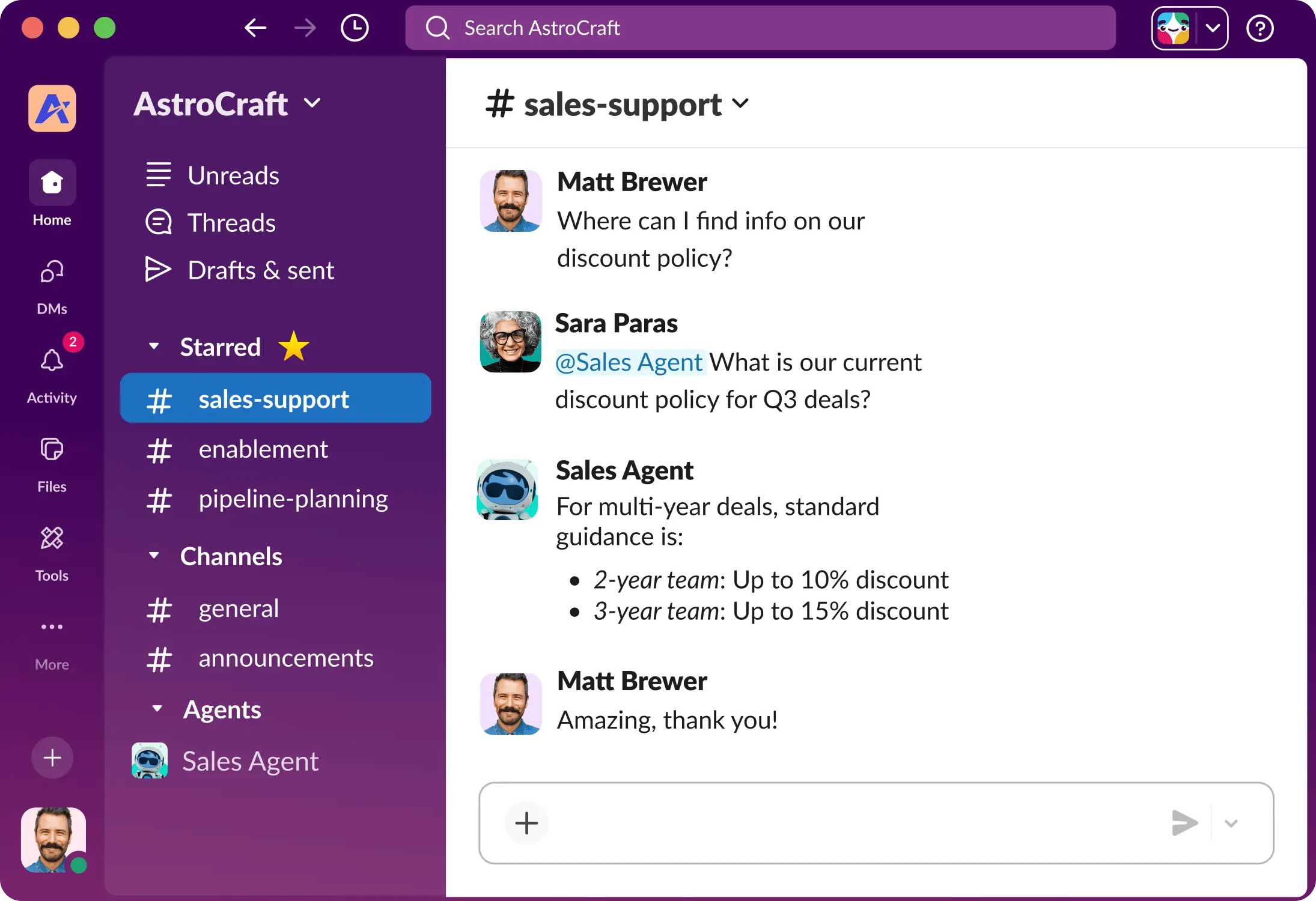
Slack bleibt eines der besten Tools für die Teamzusammenarbeit, um die ständige Flut an internen E-Mails zu ersetzen.
Teams können Kanäle für Abteilungen, Kunden, Projekte oder spezifische Themen erstellen, während Direktnachrichten für Unterhaltungen genutzt werden, die kein größeres Publikum erfordern. Threads, Suchfunktionen, Dateifreigabe, Huddles und Integrationen mit Drittanbieter-Apps machen es zu einer wertvollen Kommunikationsebene für den gesamten Remote-Arbeitsalltag.
Die größte Stärke kann jedoch auch zur Schwäche werden. Wenn jedes Update im Team-Chat erfolgt, verschwinden wichtige Entscheidungen schnell unter neuen Nachrichten. Remote-Teams benötigen klare Regeln darüber, was in Slack gehört und was in eine Projektmanagement-Software oder eine interne Wissensdatenbank übertragen werden sollte.
Vorteile:
- Hervorragende Echtzeit-Kommunikation
- Viele Tools bieten eine Slack-Integration
- Übersichtliche Kanäle
Nachteile:
- Das hohe Nachrichtenaufkommen kann ablenken
- Wichtige Informationen können untergehen.
Preise: Slack bietet eine kostenlose Version an; kostenpflichtige Pläne beginnen bei 8,25 € pro Nutzer/Monat bei monatlicher Zahlung.
2. Asana: Ideal für strukturiertes Projektmanagement
Ideal für: Teams, die Projekte mit mehreren Verantwortlichen, Fristen und Abhängigkeiten verwalten.
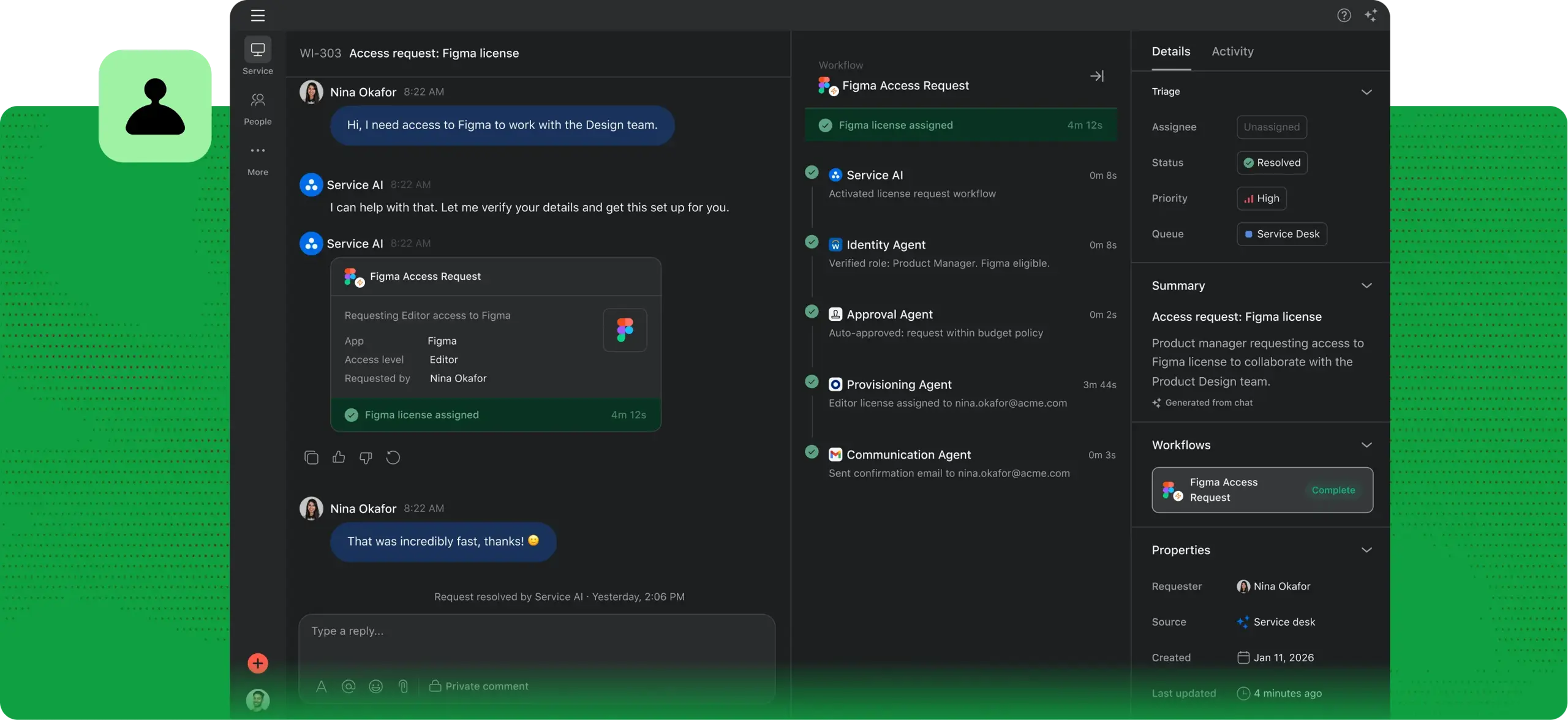
Asana verlagert die Zusammenarbeit weg von der Frage „Wer sollte das eigentlich machen?“ hin zu klar zugewiesenen Aufgaben.
Teams können Aufgaben erstellen, Verantwortliche zuweisen, Fristen festlegen, Projekte organisieren, den Projektstatus überwachen und die Arbeit mithilfe von Listen, Boards, Kalendern und Zeitplänen visualisieren. Diese Projektmanagement-Funktionen sind besonders nützlich, wenn Arbeitsabläufe einen definierten Prozess durchlaufen müssen.
Im Gegensatz zu einer einfachen To-do-Listen-App bietet Asana Managern und Teammitgliedern einen Überblick darüber, wie einzelne Aufgaben mit größeren Projekten zusammenhängen.
Der Nachteil ist der Einrichtungsaufwand. Kleine Teams mit sehr einfachen Arbeitsabläufen könnten feststellen, dass sie mehr Zeit mit der Organisation von Aufgaben verbringen als nötig.
Vorteile:
- Starkes Aufgabenmanagement
- Mehrere Projektansichten
- Abhängigkeiten
- Automatisierung
- Viele Apps verfügen über eine Asana-Integration.
Nachteile:
- Kann für Teams mit einfachen Projekten zu strukturiert wirken.
Preise: Eine kostenlose Version für grundlegende Anforderungen ist verfügbar; kostenpflichtige Tarife beginnen bei 13,49 € pro Nutzer/Monat bei monatlicher Zahlung.
3. Google Workspace: Ideal für die gemeinsame Dokumentenbearbeitung
Ideal für: Teams, die häufig gemeinsam an Dokumenten, Tabellen, Präsentationen und Dateien arbeiten.

Google Workspace löst eines der grundlegendsten Probleme der Zusammenarbeit aus der Ferne hervorragend: Mehrere Personen müssen an derselben Sache arbeiten, ohne dabei Endfassung_v7_WIRKLICH_FINAL.docxzu erstellen.
Google Docs, Sheets und Slides unterstützen die gemeinsame Bearbeitung von Dokumenten in Echtzeit – inklusive Kommentaren, Änderungsvorschlägen, Versionsverlauf und Freigabesteuerung. Google Drive bildet dabei die Basis für die Dateifreigabe und Speicherung.
Ein weiterer Vorteil ist die Vertrautheit mit der Anwendung. Die meisten Teammitglieder können Google Docs oder Google Drive ohne große Einarbeitung nutzen, was die Zusammenarbeit mit Kunden, Auftragnehmern oder externen Partnern deutlich reibungsloser gestaltet.
Google Workspace ist weniger für Aufgabenmanagement und komplexe Projektzeitpläne geeignet, weshalb Teams es häufig mit speziellen Projektmanagement-Tools kombinieren.
Vorteile:
- Einfache Benutzeroberfläche
- Hervorragende Echtzeit-Bearbeitung
- Einfache Dateifreigabe
- Starke plattformübergreifende Kompatibilität.
Nachteile:
- Eingeschränkte Funktionen für Projekt- und Aufgabenmanagement.
Preise: Einzelne Google-Apps sind in kostenlosen Versionen für Privatnutzer verfügbar, während Unternehmen aus kostenpflichtigen Google Workspace-Tarifen wählen können, die bei monatlicher Zahlung ab 8,40 $/Nutzer/Monat beginnen.
4. MeetGeek: Am besten für die Zusammenarbeit bei Meetings
Ideal für: Remote-Teams, die möchten, dass Meetings auch nach dem Anruf noch einen Mehrwert bieten.
%20(2).webp)
Meetings enthalten eine enorme Menge an Wissen für Remote-Teams – von Kundenfeedback und Projektentscheidungen bis hin zu Verpflichtungen, die in Aufgaben umgewandelt werden müssen.
MeetGeek nimmt dank der Integrationen für Zoom, Google Meet und Microsoft Teams atomatisch an Meetings teil und zeichnet Gespräche auf, transkribiert sie und fasst sie zusammen. Anstatt sich darauf zu verlassen, dass jemand manuell Notizen macht, erhalten Teams strukturierte Zusammenfassungen mit Highlights, Entscheidungen, Themen und Aufgaben.
Der größte Vorteil für die Zusammenarbeit in Remote-Teams zeigt sich jedoch erst im Nachhinein. Der „State of Teams“-Bericht 2025 von Atlassian hat ergeben, dass Teams ein Viertel ihrer Zeit allein mit der Suche nach Antworten verbringen – und genau das löst MeetGeek.
MeetGeek verwandelt vergangene Gespräche in eine durchsuchbare Wissensdatenbank. Teammitglieder können Meetings nach Stichworten, Teilnehmern, Datum, Team oder Meeting-Typ durchsuchen, der KI Fragen zu früheren Anrufen stellen und direkt zu der Stelle in der Aufnahme springen, an der ein bestimmtes Thema besprochen wurde.
.webp)
Für verteilte Teams, die über verschiedene Zeitzonen hinweg arbeiten, unterstützt dies auch die asynchrone Zusammenarbeit . Wer nicht teilnehmen konnte, kann die Zusammenfassung, das Transkript oder den relevanten Aufnahmeabschnitt prüfen, anstatt ein weiteres Meeting für ein Update zu vereinbaren.
MeetGeek kann Meeting-Erkenntnisse und Aufgaben zudem mit anderen Kollaborations-Apps synchronisieren, darunter Slack, Notion, Trello, Asana, ClickUp, Google Drive, HubSpot und über 10.000 weitere Anwendungen durch Automatisierungsintegrationen.
.webp)
Vorteile:
- Automatisierte Besprechungsnotizen
- Durchsuchbare Besprechungshistorie
- Extraktion von Aufgaben
- KI-Zusammenfassungen und Analysen
- Integrationen mit Ihrem restlichen Remote-Work-Stack
Nachteile:
- Es ergänzt eine dedizierte Team-Chat- oder Projektmanagement-Plattform, ersetzt diese jedoch nicht.
Preise: MeetGeek bietet einen kostenlosen Plan sowie kostenpflichtige Tarife ab 15,99 $/Nutzer/Monat bei monatlicher Zahlung.
5. Microsoft Teams: Am besten für Microsoft 365-Nutzer
Ideal für: Organisationen, die bereits im Microsoft-Ökosystem arbeiten.
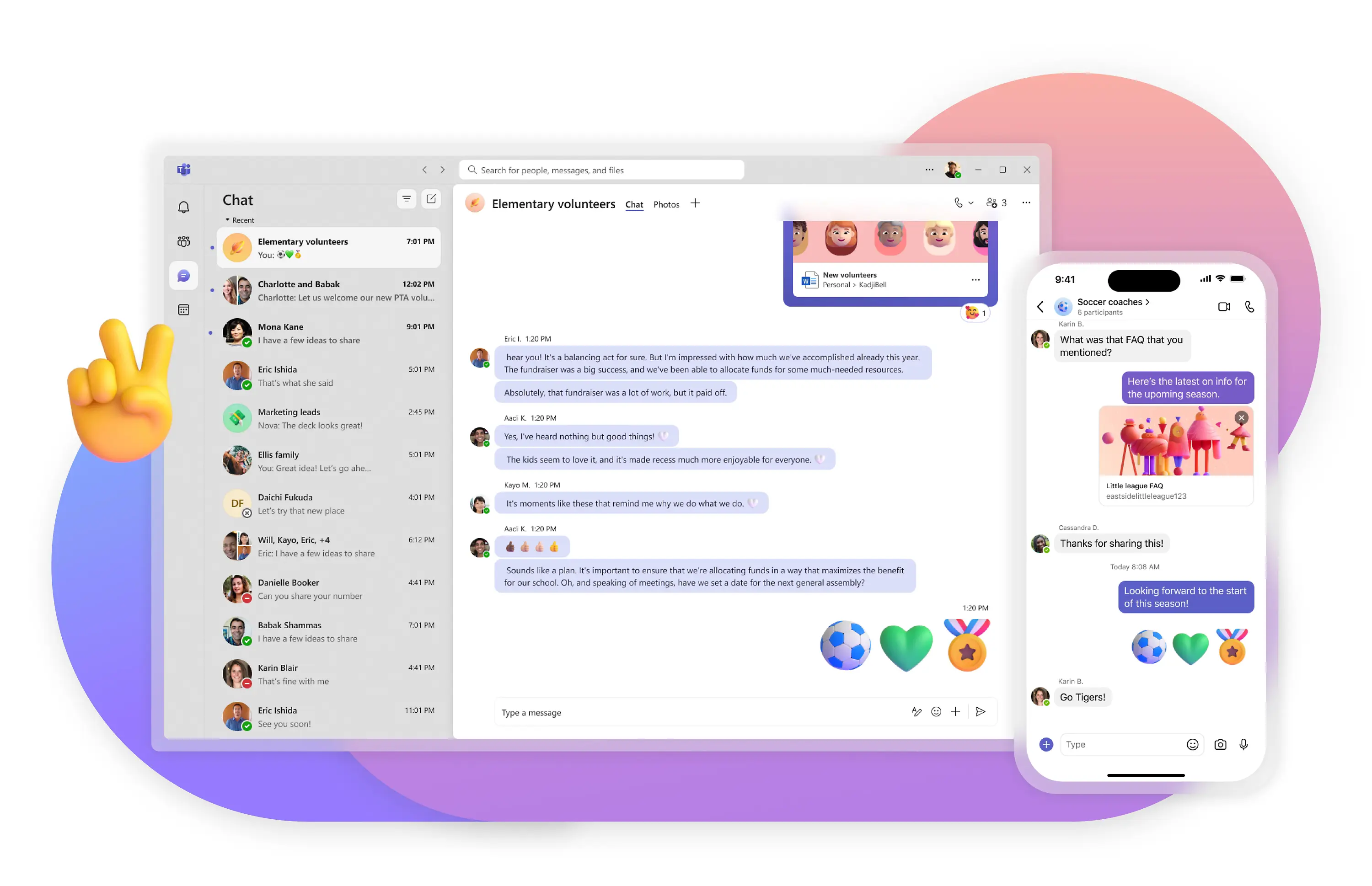
Microsoft Teams vereint Team-Chat, Videokonferenzen, Meetings, Kanäle, Dateifreigabe und die Zusammenarbeit innerhalb von Microsoft 365.
Microsoft hat herausgefunden, dass der durchschnittliche Mitarbeiter 57 % seiner Zeit mit Kommunikation in Meetings, E-Mails und Chats verbringt, während 68 % angeben, nicht genug Zeit für ungestörtes Arbeiten zu haben. Das Tool soll diese Zahlen senken, indem es Meetings effizienter gestaltet.
Für Unternehmen, die bereits Outlook, OneDrive, SharePoint, Word, Excel und PowerPoint nutzen, ist die Integration der Hauptvorteil. Mitarbeiter können zwischen Unterhaltungen, Meetings, Dokumenten und Kalendern wechseln, ohne eine völlig neue Arbeitsumgebung einführen zu müssen.
Teams ermöglicht das Erstellen von Kanälen für Abteilungen und Projekte, das Planen von Meetings, das Teilen von Dateien und die gemeinsame Arbeit an Microsoft-Dokumenten.
Für kleinere Teams außerhalb des Microsoft-Ökosystems kann Teams jedoch schwerfälliger wirken als einfachere Messaging-Apps.
Vorteile:
- Tiefe Microsoft 365-Integration
- Chat, Meetings, gemeinsame Dateibearbeitung
- Funktionen für Unternehmen.
Nachteile:
- Die Benutzeroberfläche und der Funktionsumfang können auf kleinere Teams komplex wirken.
Preise: Es ist eine kostenlose Version verfügbar; kostenpflichtige Tarife beginnen bei 8,40 $/Nutzer/Monat bei monatlicher Zahlung.
6. ClickUp: Das beste All-in-One-Projektmanagement-Tool
Ideal für: Teams, die mehrere Produktivitätstools zusammenführen möchten.
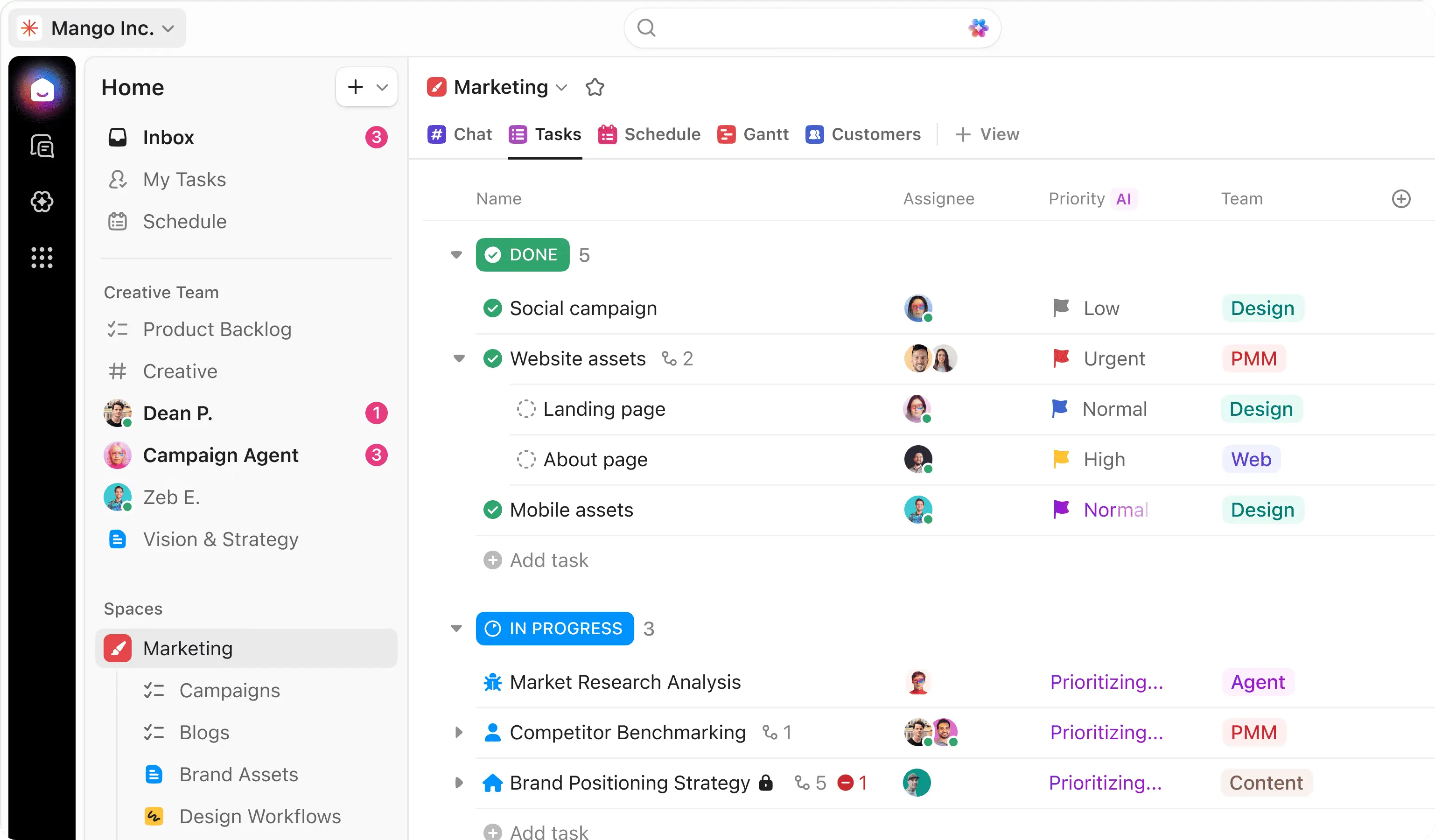
ClickUp verfolgt einen umfassenden Ansatz beim Projektmanagement. Aufgaben, Dokumente, Ziele, Dashboards, Kalender, Zeitmanagement, Whiteboards und Automatisierungen können alle innerhalb derselben Projektmanagement-Plattform verwaltet werden, oder Sie nutzen eine ClickUp-Integration in Ihren anderen Kollaborationstools.
Das macht es attraktiv für Remote-Teams, die die Anzahl ihrer genutzten Apps reduzieren möchten.
Teams können Aufgaben erstellen, Arbeit zuweisen, benutzerdefinierte Workflows aufbauen, Fortschritte verfolgen und zwischen verschiedenen Projektansichten wechseln. Der hohe Grad an Anpassbarkeit ist nützlich für Unternehmen mit mehreren Abteilungen oder unterschiedlichen Arbeitsweisen.
Der Nachteil ist, dass diese Flexibilität Komplexität mit sich bringt. Teams müssen in der Regel Zeit in die Konfiguration von ClickUp investieren, bevor es wirklich effizient genutzt werden kann.
Vorteile:
- Umfangreiche Projektmanagement-Funktionen
- Anpassbare Workflows
- Mehrere Ansichten, Automatisierung
- Integrierte Tools für die Zusammenarbeit
Nachteile:
- Kann im Vergleich zu einfacheren Aufgabenverwaltungen überfordernd wirken.
Preise: ClickUp bietet eine kostenlose Version sowie verschiedene kostenpflichtige Tarife ab 10 $/Nutzer/Monat bei monatlicher Zahlung.
7. Trello: Am besten für einfaches, visuelles Aufgabenmanagement
Ideal für: Kleine Teams, die eine einfache Möglichkeit zur Arbeitsorganisation suchen.
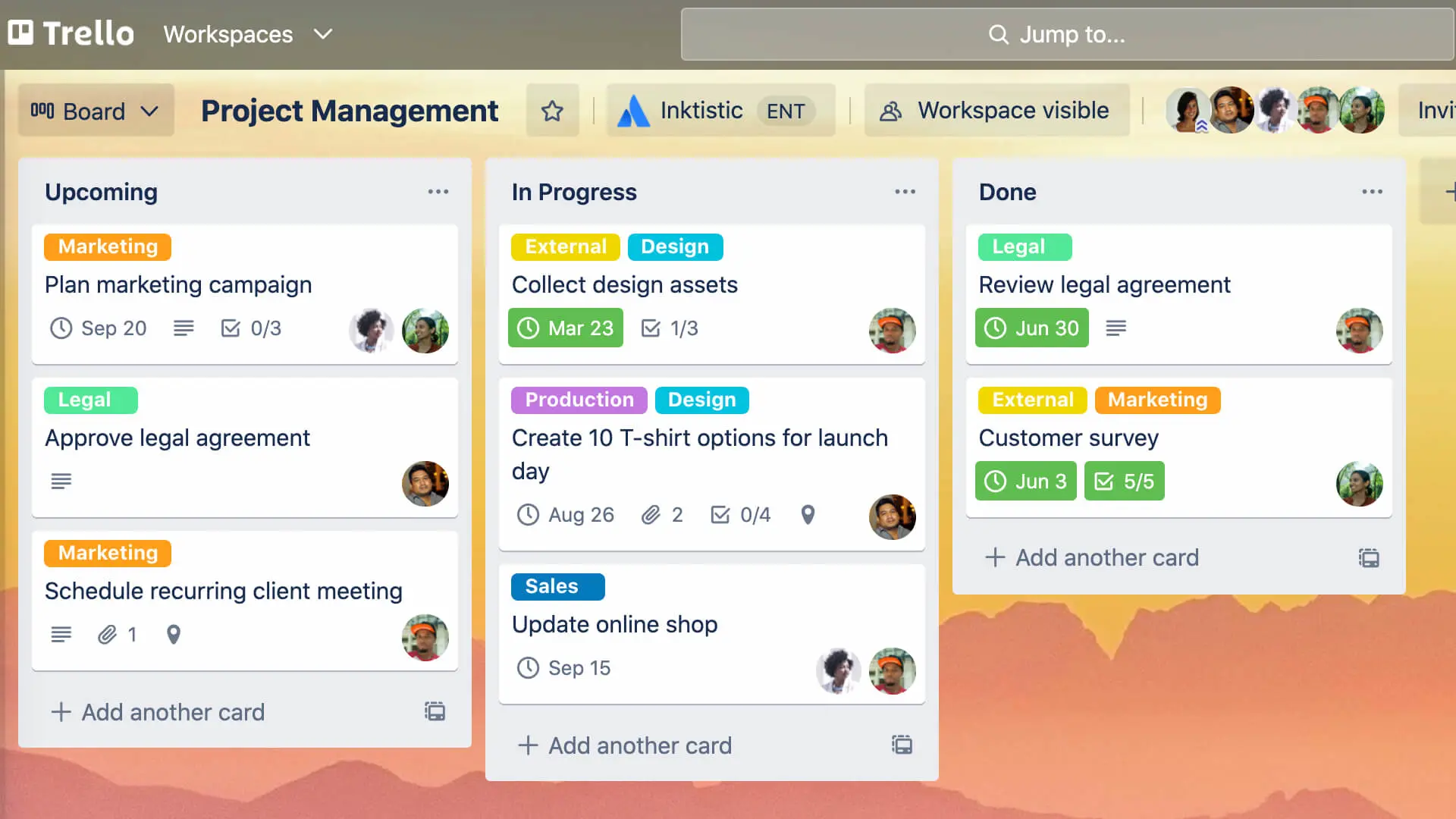
Trello basiert auf Boards, Listen und Karten.
Eine Karte kann eine Aufgabe darstellen, die verschiedene Phasen durchläuft, wie zum Beispiel Zu erledigen, In Bearbeitung, sowie Erledigt, wodurch das gesamte Team einen schnellen visuellen Überblick über den Projektstatus erhält.
Diese Einfachheit macht Trello besonders nützlich für Redaktionspläne, unkomplizierte Arbeitsabläufe, kleine Projekte und Teams, die zum ersten Mal über eine einfache To-Do-Listen-App hinauswachsen.
Weniger effektiv ist es, wenn Projekte komplexe Abhängigkeiten, Ressourcenmanagement oder umfangreiche Berichte erfordern.
Vorteile:
- Einfach zu erlernen
- Visuelle Aufgabenverwaltung
- Flexible Boards
- Nützliche Automatisierungen
- Verbindungen zu Tools, die Trello-Integration
Nachteile:
- Eingeschränkt bei komplexem Projektmanagement.
Preise: Trello bietet eine kostenlose Version an; kostenpflichtige Tarife beginnen bei 6 $/Nutzer/Monat bei monatlicher Zahlung.
8. Notion: Am besten für Dokumentation und Teamwissen
Ideal für: Teams, die eine flexible interne Wissensdatenbank suchen.
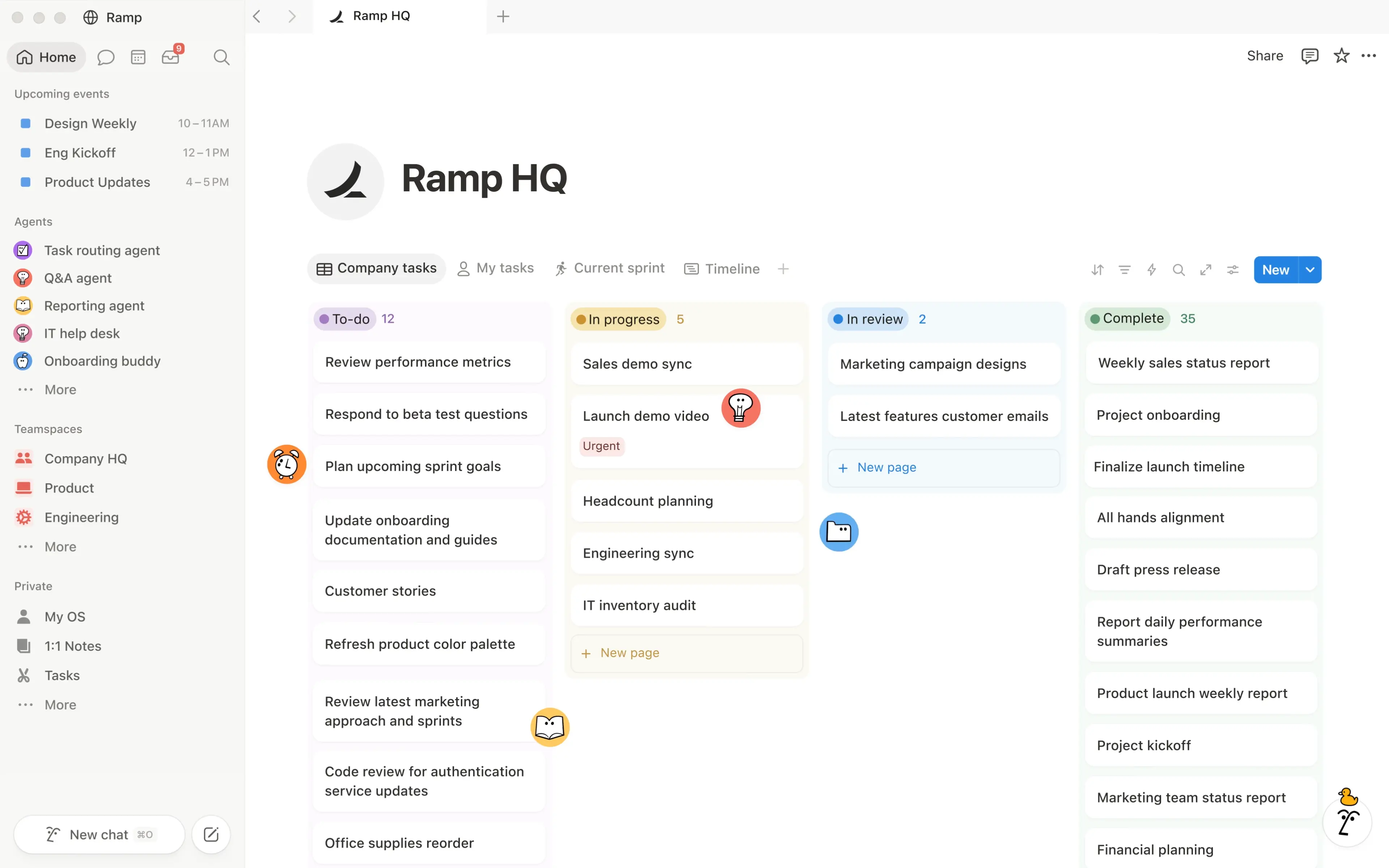
Eine Notion-Integration in Ihren Workflow kann als Wiki, Dokumentationsplattform, schlanke Aufgabenverwaltung, Projektarbeitsbereich oder eine Kombination aus all dem dienen.
Remote-Teams können Unternehmens-Wikis, Prozessdokumentationen, Projektseiten, Meeting-Ressourcen, Onboarding-Materialien und gemeinsame Datenbanken in einem Arbeitsbereich erstellen.
Die Flexibilität ist der Hauptgrund, warum sich Teams dafür entscheiden, aber auch der Grund, warum Notion unübersichtlich werden kann. Ohne klare Zuständigkeiten und Strukturen kann sich eine interne Wissensdatenbank schnell in Hunderte von Seiten verwandeln, in denen sich niemand mehr zurechtfindet.
Vorteile:
- Flexible Dokumentation
- Datenbanken
- Vorlagen
- Gemeinsame Bearbeitung
- KI-Tools
Nachteile:
- Erfordert mit wachsendem Workspace eine gute Informationsarchitektur.
Preise: Notion bietet eine kostenlose Version sowie kostenpflichtige Pläne ab 11,50 € pro Mitglied/Monat bei monatlicher Zahlung.
9. Miro: Am besten für visuelle Zusammenarbeit
Ideal für: Remote-Teams, die gemeinsam Ideen entwickeln, planen und visuell aufbereiten.
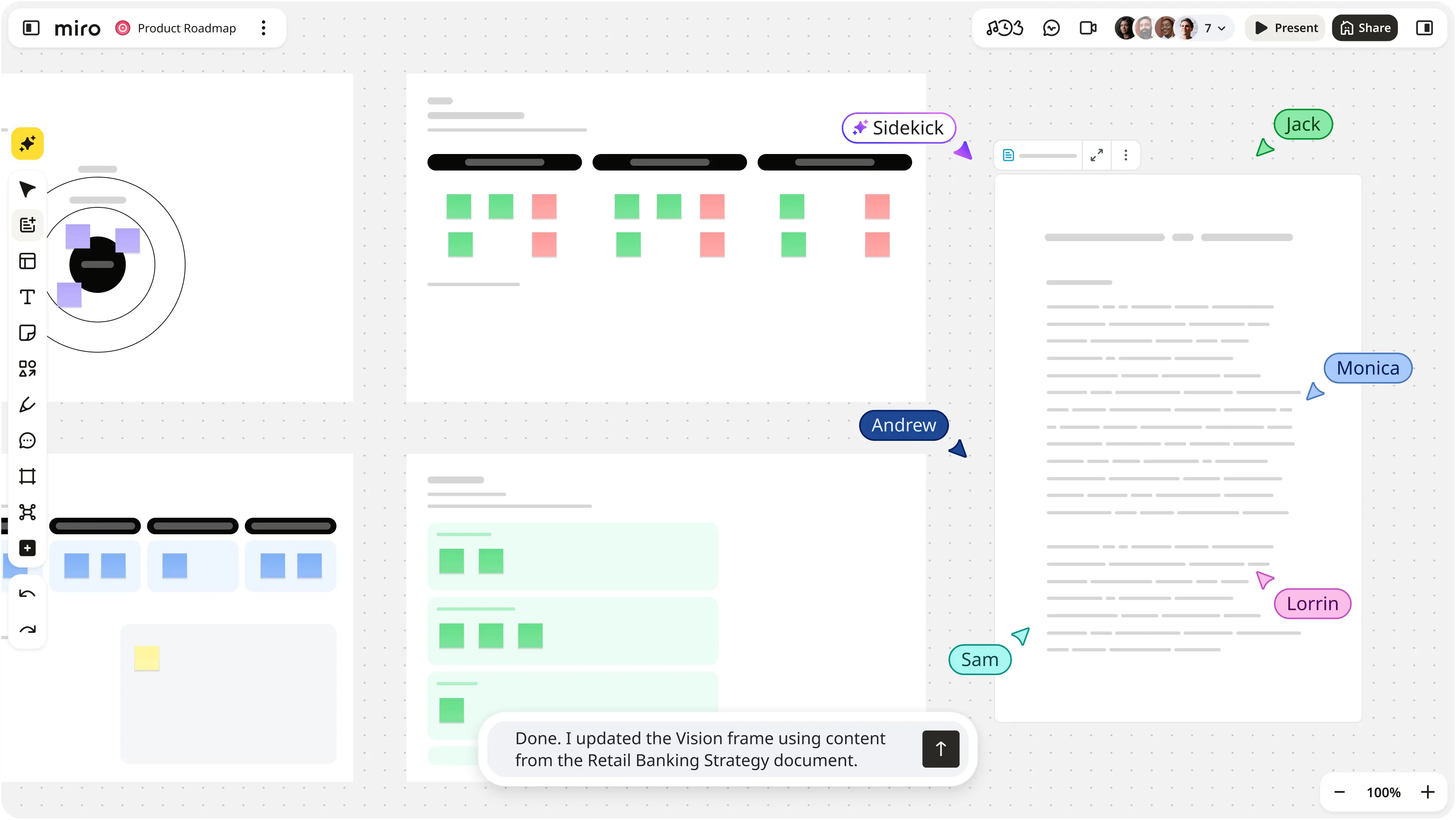
Miro bietet verteilten Teams eine gemeinsame digitale Arbeitsfläche für Aufgaben, die sich nur schwer allein über Nachrichten oder Dokumente vermitteln lassen.
Teams können die Online-Whiteboards für Brainstormings, Workshops, Diagramme, User Journeys, Planungsrunden und andere virtuelle Teambuilding-Aktivitäten nutzen. Da mehrere Teammitglieder gleichzeitig in Echtzeit daran arbeiten können, eignet sich das Tool besonders gut für Produkt-, Design- und Strategiearbeit.
Miro ist weniger als dauerhafter Speicherort für Aufgaben oder Dokumentationen geeignet und funktioniert daher am besten in Ergänzung zu anderen Kollaborationstools, anstatt diese zu ersetzen.
Vorteile:
- Flexible Whiteboards
- Echtzeit-Zusammenarbeit
- Vorlagen
- Integrationen
Nachteile:
- Große Boards können unübersichtlich werden und erfordern eine gewisse Struktur.
Preise: Miro bietet eine kostenlose Version sowie kostenpflichtige Tarife ab 10 € pro Mitglied/Monat bei monatlicher Zahlung.
10. Zoom: Ideal für Videokonferenzen
Ideal für: Teams, die zuverlässige virtuelle Meetings benötigen.
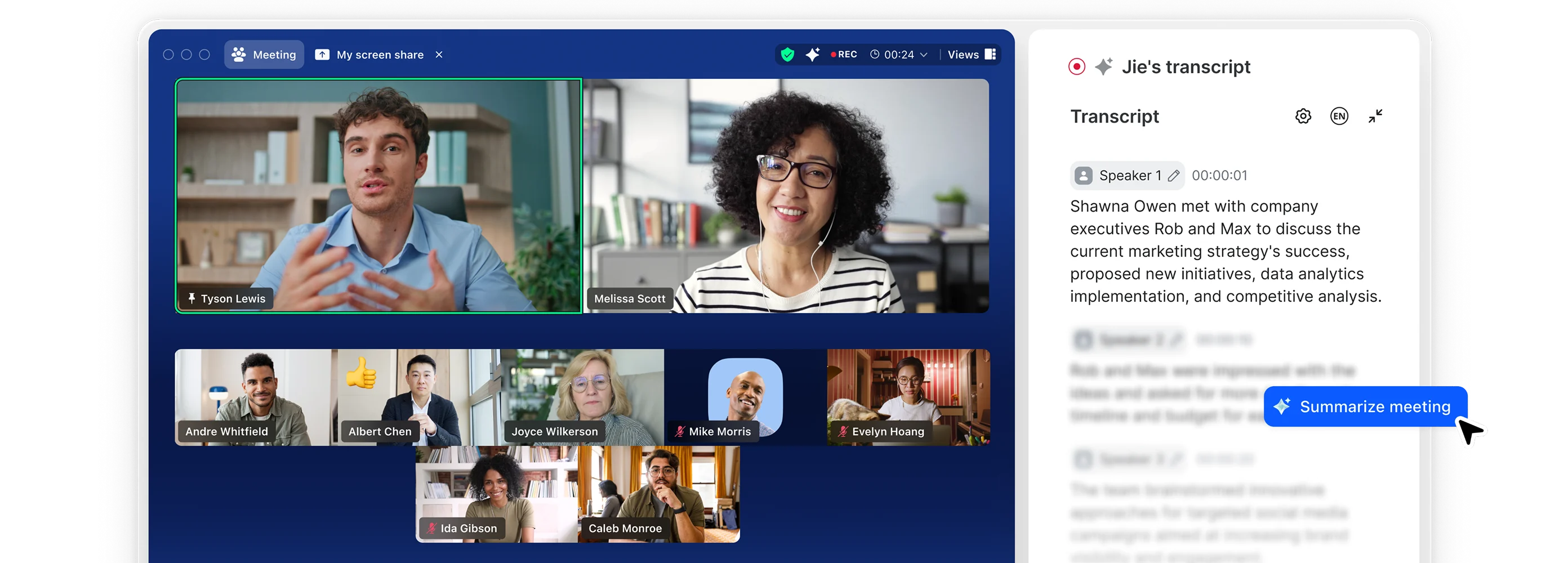
Zoom ist nach wie vor eines der bekanntesten Videokonferenz-Tools für die Arbeit im Homeoffice.
Teams können es für Einzelgespräche, Gruppentreffen, Kundengespräche, Webinare und größere Firmenveranstaltungen nutzen. Funktionen wie Bildschirmfreigabe, Breakout-Räume, Chat und die Terminplanung decken die meisten Anforderungen der täglichen Video-Zusammenarbeit ab.
Doch Videokonferenzen allein sorgen noch nicht für eine reibungslose Zusammenarbeit. Meetings benötigen klare Ergebnisse, und die daraus gewonnenen Informationen müssen im Anschluss irgendwo festgehalten werden. Deshalb ist eine Zoom-Integration oft dann am nützlichsten, wenn sie mit Tools für Projektmanagement, Dokumentation und Meeting-Produktivität verknüpft ist.
Vorteile:
- Vertraute Benutzeroberfläche
- Zuverlässige Videokonferenzen
- Bildschirmfreigabe
- Breakout-Räume
- Breite Geräteunterstützung
Nachteile:
- Häufige Videomeetings können zu einer Überlastung führen, wenn Teams Anrufe nutzen, obwohl asynchrone Kommunikation besser geeignet wäre.
Preise: Zoom bietet eine kostenlose Version mit Einschränkungen sowie verschiedene kostenpflichtige Tarife an.
11. Loom: Am besten für asynchrone Videos
Ideal für: Verteilte Teams, die unnötige Meetings ersetzen möchten.
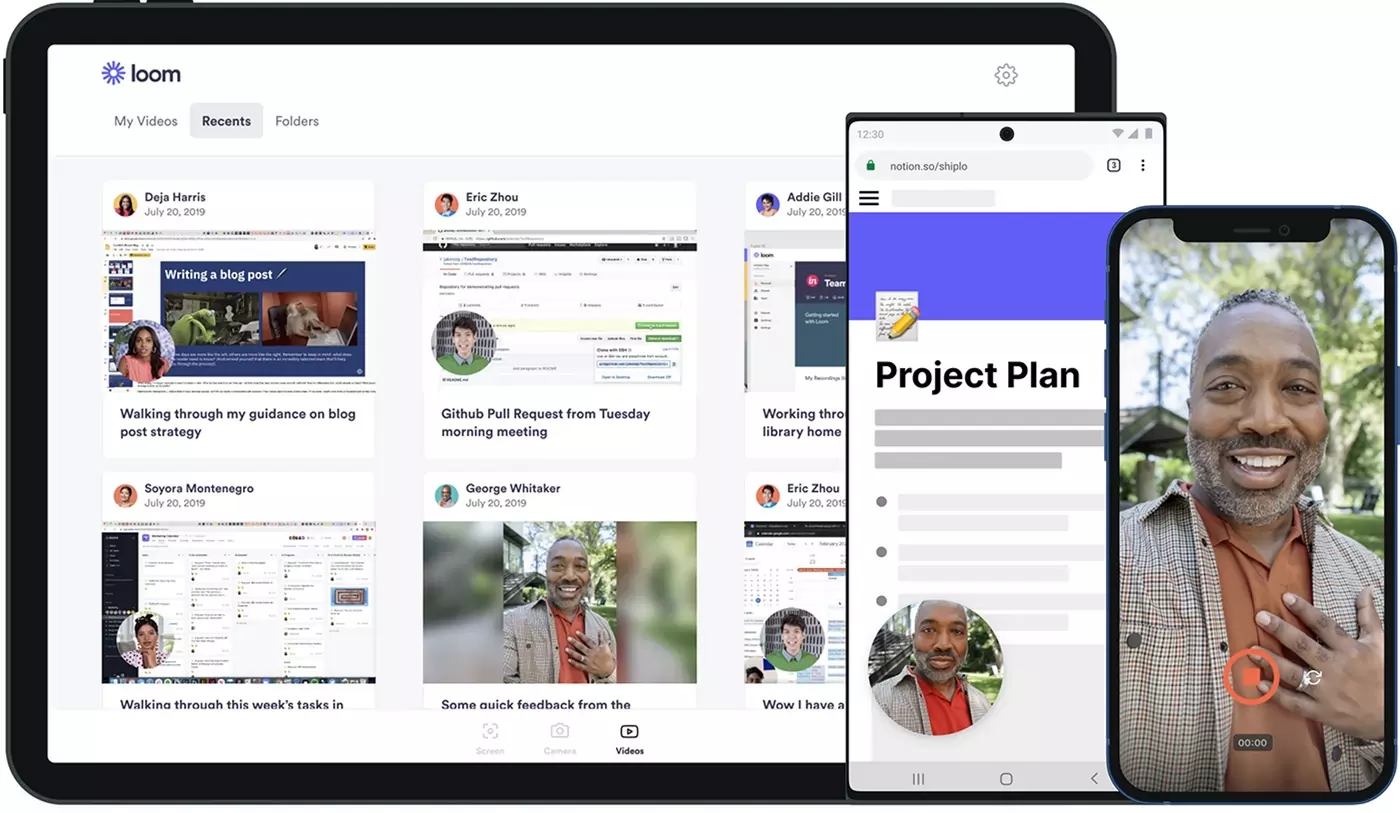
Nicht für jede Erklärung ist eine neue Kalendereinladung erforderlich.
Mit Loom können Teammitglieder ihren Bildschirm, ihre Kamera und ihre Stimme aufzeichnen und das Video einfach per Link teilen. Das ist ideal für Produktdemos, Design-Feedback, Projekt-Updates, Schulungen und Erklärungen, die im Team-Chat zu viel Zeit in Anspruch nehmen würden.
Für Remote-Teams, die über verschiedene Zeitzonen hinweg arbeiten, ermöglichen Videoaufzeichnungen es den Teammitgliedern zudem, Updates dann abzurufen, wenn es ihr Zeitplan zulässt.
Vorteile:
- Schnelle Aufnahme und Freigabe
- Bildschirmaufnahme
- Kommentarfunktion und effiziente asynchrone Arbeitsabläufe.
Nachteile:
- Videoaufzeichnungen sind weniger geeignet für Diskussionen, die sofortige Entscheidungen oder einen direkten Austausch erfordern.
Preise: Loom bietet eine kostenlose Version sowie kostenpflichtige Tarife ab 18 $/Nutzer/Monat bei monatlicher Abrechnung und ist damit teurer als mehrere Loom-Alternativen für die Bildschirmaufnahme.
12. Confluence: Ideal für strukturiertes Teamwissen
Am besten geeignet für: Größere Teams, die eine strukturierte, langfristige Dokumentation benötigen.
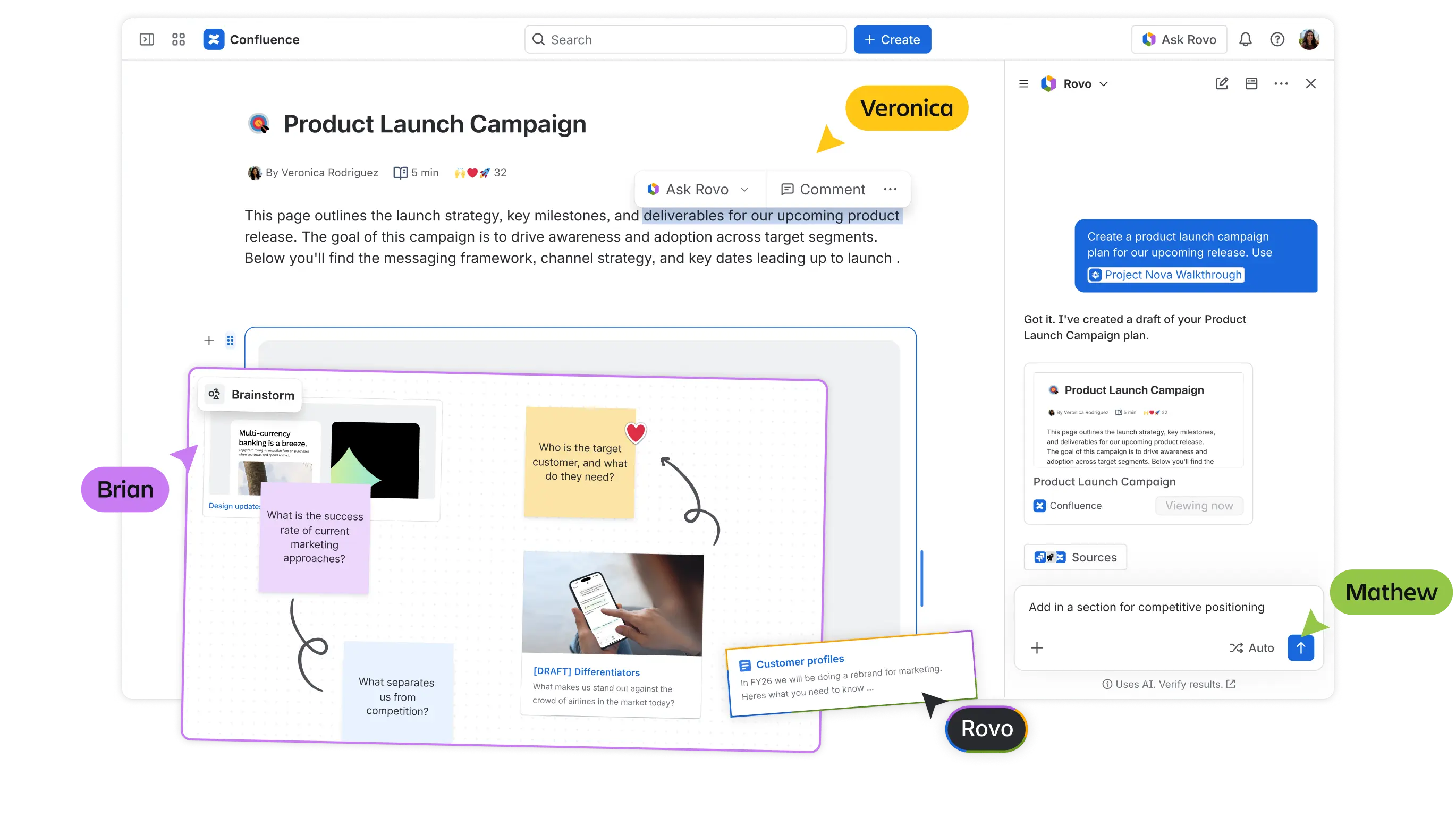
Confluence bietet Teams einen zentralen Ort für die Dokumentation von Prozessen, Entscheidungen, Projektinformationen, Richtlinien, technischem Wissen und anderen Ressourcen, die nicht dauerhaft im Team-Chat verbleiben sollten.
Es ist besonders nützlich für Unternehmen, die bereits andere Atlassian-Tools einsetzen, da die Dokumentation hier direkt neben den Projekt- und Entwicklungsabläufen liegen kann.
Im Vergleich zu Notion eignet sich Confluence eher für strukturiertes Unternehmenswissen. Das kann für größere Unternehmen ein Vorteil sein, während kleinere Teams möglicherweise eine schlankere Kollaborations-App bevorzugen statt Confluence-Integration.
Vorteile:
- Starkes Wissensmanagement
- Strukturierte Dokumentation
- Berechtigungsoptionen
- Vorlagen und Integrationen
Nachteile:
- Kann für kleine Teams mit geringem Dokumentationsbedarf überladen wirken.
Preise: Confluence bietet eine kostenlose Version für kleine Teams sowie kostenpflichtige Pläne ab 5,42 $/Nutzer/Monat bei monatlicher Abrechnung.
Wie sieht ein guter Tech-Stack für die Remote-Zusammenarbeit aus?
Die meisten Teams benötigen nicht alle 12 Tools auf dieser Liste.
Ein kleines Remote-Unternehmen könnte zum Beispiel Slack für die Kommunikation, Google Workspace für Dateien und gemeinsame Bearbeitung, Trello für die Aufgabenorganisation und MeetGeek für das Meeting-Wissen kombinieren.
Ein Unternehmen, das bereits in Microsoft 365 investiert hat, könnte Microsoft Teams für Kommunikation und Videokonferenzen, Microsoft 365 für Dokumente, MeetGeek für die Meeting-Aufzeichnung und asynchrone Nachbereitung sowie Asana oder ClickUp für ein fortgeschritteneres Projektmanagement nutzen.
Ein verteiltes Team, das asynchron arbeitet, könnte stattdessen Slack, Notion, Loom, MeetGeek und Asana kombinieren, wodurch weniger Gespräche gleichzeitig die Anwesenheit aller Beteiligten erfordern.
Es ist weniger wichtig, welche Apps Sie genau nutzen, als vielmehr, dass jede davon einen klaren Zweck erfüllt.
So wählen Sie Tools für die Remote-Zusammenarbeit aus
Bevor Sie eine weitere App in Ihren Workflow aufnehmen, gehen Sie diese Fragen durch:
- Wo geht Arbeit verloren? In Chats, Meetings, bei der Aufgabenübergabe, in geteilten Dateien oder in der Dokumentation?
- Muss das live stattfinden? Nicht jedes Update erfordert einen Anruf oder ein Gespräch in Echtzeit.
- Lässt es sich in Ihre bestehenden Tools integrieren? Prüfen Sie die Integrationen mit Ihrem Kalender, Ihrer Projektmanagement-Plattform, Ihrem Dateispeicher und Ihrem Team-Chat.
- Haben die richtigen Personen Zugriff auf die richtigen Inhalte? Achten Sie auf Gastberechtigungen, Admin-Steuerungen, Authentifizierung und Datensicherheit.
- Bezahlen Sie bereits an anderer Stelle für diese Funktionalität? Sich überschneidende Tools bedeuten nur mehr Orte, an denen Mitarbeiter nachsehen müssen.
- Wird das Tool auch wirklich genutzt? Eine leistungsstarke Plattform, deren Einarbeitung Wochen dauert, ist oft die schlechtere Wahl als ein einfacheres Tool, das sich nahtlos in die Arbeitsweise Ihres Teams einfügt.
Stellen Sie ein Remote-Stack zusammen, das Arbeit reduziert, statt sie zu vermehren
Die besten Tools für die Remote-Zusammenarbeit machen es einfacher zu sehen, was gerade passiert, was als Nächstes ansteht und wo Sie die Informationen finden, die Sie für Ihre Arbeit benötigen.
Achten Sie besonders darauf, was nach den Gesprächen passiert. Meetings enthalten oft Entscheidungen, Kundeneinblicke, Feedback und Zusagen, die später nur schwer wiederzufinden sind.
MeetGeek erfasst und organisiert diese Informationen automatisch über Zoom, Microsoft Teams und Google Meet. So werden aus Meetings durchsuchbare Transkripte, Zusammenfassungen, Entscheidungen und Aufgaben, die Ihr Remote-Team asynchron nutzen kann.
Testen Sie MeetGeek kostenlos und machen Sie die Meetings Ihres Teams zu einem festen Bestandteil Ihrer Zusammenarbeit, anstatt sie zu einem weiteren Ort zu machen, an dem Informationen verloren gehen.
Wichtige Erkenntnisse
- Weisen Sie jeder Kollaborations-App eine klare Rolle zu, damit die Mitarbeiter wissen, wo Gespräche, Aufgaben, Dateien und dauerhaftes Wissen hingehören.
- Asynchrone Kommunikation wird immer wertvoller, je mehr Teams über verschiedene Standorte und Zeitzonen hinweg verteilt sind.
- Integrationen sind entscheidend, da die Zusammenarbeit leidet, wenn Mitarbeiter Informationen manuell zwischen verschiedenen Tools übertragen müssen.
- Bewerten Sie Software auf Basis Ihres bestehenden Workflows, bevor Sie Funktionsumfänge oder kostenpflichtige Tarife vergleichen.
Häufig gestellte Fragen
Was sind die besten Kollaborations-Tools für Remote-Teams?
Die beste Option hängt davon ab, was Sie verbessern möchten. Slack ist stark für Team-Chats, Asana und ClickUp für das Projektmanagement, Google Workspace für die gemeinsame Dokumentenbearbeitung, MeetGeek für die Meeting-Kollaboration, Miro für visuelle Arbeit und Loom für asynchrone Videos.
Die meisten Remote-Teams profitieren mehr von der Kombination einiger ergänzender Tools als von der Wahl einer einzigen Plattform.
Was sind die besten kostenlosen Tools für die Zusammenarbeit aus der Ferne?
Viele führende Kollaborations-Apps bieten kostenlose Versionen an, darunter Slack, Asana, Trello, MeetGeek, Notion, Miro, Zoom und andere. Die beste kostenlose Option hängt davon ab, ob Sie Funktionen für Kommunikation, Aufgabenverwaltung, Meetings, Dokumentation oder andere spezifische Anforderungen benötigen.
Überprüfen Sie immer die aktuellen Limits, bevor Sie sich mit Ihrem Team für einen kostenlosen Plan entscheiden.
Was ist die sicherste Software für die Zusammenarbeit aus der Ferne?
Es gibt nicht die eine sicherste Plattform für jedes Unternehmen. Achten Sie auf Verschlüsselung, Zugriffskontrollen, Authentifizierungsoptionen, Compliance-Zertifizierungen, administrative Berechtigungen und klare Richtlinien zum Umgang mit Daten.
Die Sicherheitsanforderungen sollten auch die Art der Informationen widerspiegeln, mit denen Ihr Team arbeitet. Ein kleines internes Projekt und ein regulierter Unternehmens-Workflow erfordern möglicherweise sehr unterschiedliche Kontrollmechanismen.
Wie viele Kollaborationstools sollte ein Remote-Team verwenden?
Es gibt keine ideale Anzahl. Nutzen Sie so viele Tools wie nötig, um Ihre Kernprozesse abzudecken, ohne unnötige Überschneidungen zu schaffen.
Ein praktischer Tech-Stack umfasst häufig Lösungen für Kommunikation, Projekt- oder Aufgabenmanagement, gemeinsame Dokumentenbearbeitung sowie Meeting- oder Wissensmanagement. Fügen Sie erst dann eine weitere Plattform hinzu, wenn sie ein klares Problem löst, das mit dem bestehenden Stack nicht angemessen bewältigt werden kann.





.avif)