


Virtuelle Meetings sind unverzichtbar geworden, und Zoom nimmt mit seiner Benutzerfreundlichkeit und seinen umfassenden Funktionen eine Vorreiterrolle ein. Doch während das Aufsetzen eines Zoom-Meetings einfach ist, erfordert die Durchführung eines ansprechenden und effektiven Meetings mehr als nur die Grundlagen.
In diesem Artikel erfahren Sie, wie Sie mühelos ein Zoom-Meeting einrichten und erhalten Tipps für Fortgeschrittene, um die Interaktion zu steigern. Von interaktiven Funktionen bis hin zur Etikette bei virtuellen Meetings zeigen wir Ihnen, wie Sie Ihre Meetings nicht nur produktiv, sondern auch lebendig und mitreißend gestalten.
Egal, ob Sie Ihre Zoom-Kenntnisse vertiefen oder ganz neu anfangen: Dieser Leitfaden hilft Ihnen dabei, herausragende virtuelle Meetings zu veranstalten, bei denen alle Teilnehmer aktiv und interessiert bleiben. Fangen wir an!
Die besten Zoom-Funktionen für ansprechende Meetings
Im Bereich der virtuellen Kommunikation hat sich Zoom einen festen Platz erarbeitet und bietet eine Reihe von Funktionen, die nicht nur reibungslose Online-Meetings ermöglichen, sondern auch die Zusammenarbeit und das Engagement der Teilnehmer fördern.
Hier sind die besten Zoom-Funktionen für ansprechende Meetings:
- Online-Meetings: Die hochwertige Audio- und Videoqualität der Plattform sorgt für eine klare Kommunikation, während Funktionen wie Bildschirmfreigabe und Meeting-Aufzeichnung für zusätzliche Interaktivität und Klarheit sorgen. Dies schafft eine Umgebung, in der Ideen auch bei geringer Bandbreite leicht ausgetauscht und verstanden werden können.
- Zoom Team Chat: Der Zoom Team Chat erweitert die Funktionalität über Videotelefonate hinaus und bietet einen Raum für kontinuierliche Echtzeit-Kommunikation innerhalb von Teams. Dieses integrierte Messaging-Tool unterstützt den Dateiaustausch und dedizierte Kanäle für spezifische Projekte, wodurch ein nahtloser Informationsfluss in allen Phasen der Zusammenarbeit gewährleistet wird.
- Zoom Whiteboard: Für Brainstorming und gemeinsame Projekte ist das Zoom Whiteboard von unschätzbarem Wert. Es ist eine digitale Leinwand für den Austausch von Ideen, Skizzen und Anmerkungen in Echtzeit – perfekt für die visuelle Kommunikation. Da Whiteboards gespeichert und geteilt werden können, können Teams die Kontinuität ihrer kreativen Prozesse wahren.
- Smart Gallery: Die Smart Gallery-Funktion nutzt KI, um die Inklusivität bei hybriden Meetings zu verbessern, indem sie aus einer einzigen Kamera im Konferenzraum individuelle Video-Feeds erstellt. So sind alle Teilnehmer, egal ob remote oder vor Ort, gut sichtbar und aktiv eingebunden, was für eine natürlichere und inklusivere Meeting-Atmosphäre sorgt.
- Zoom Kalender: Mit der Zoom Kalender-Integration wird das Planen und Beitreten von Meetings zum Kinderspiel – direkt aus Ihrer bevorzugten Kalender-App. Diese Funktion erspart Ihnen das ständige Wechseln zwischen Anwendungen, damit Sie den Überblick über Ihre Termine behalten und nichts verpassen.
- Meeting-Planer: Die Plattform bietet detaillierte Kontrolle über die Meeting-Einrichtung, von der Planung wiederkehrender Meetings bis hin zur Vorab-Zuweisung von Breakout-Räumen. Diese Anpassungsmöglichkeiten sorgen dafür, dass Meetings gut organisiert, sicher und genau auf die Bedürfnisse Ihres Teams zugeschnitten sind, was die Produktivität und das Engagement steigert.
- Integration mit anderen Apps: Zoom lässt sich mit Drittanbieter-Tools wie MeetGeek verknüpfen, um den Funktionsumfang über Videokonferenzen hinaus zu erweitern – etwa durch Meeting-Aufzeichnungen, Transkriptionen, KI-Zusammenfassungen und Analysen.
- Zoom Huddles: Zoom Huddles schaffen einen virtuellen Raum für zwanglose Gespräche und bilden so die spontanen Interaktionen eines Büroumfelds nach. Diese Funktion ist besonders wertvoll für Remote- und Hybrid-Teams, da sie das Gemeinschaftsgefühl stärkt.
Voraussetzungen für das Einrichten von Zoom-Meetings
Um an einem Zoom-Meeting teilzunehmen, ist nicht zwingend ein Konto erforderlich, aber die Einrichtung als Gastgeber ist eine andere Sache.
Um ein Zoom-Meeting einzurichten, müssen Sie die folgenden Voraussetzungen erfüllen:
- Stellen Sie sicher, dass Sie ein Zoom-Konto eingerichtet haben.
- Wenn Sie Desktop-PCs oder Laptops bevorzugen, stellen Sie sicher, dass Sie den Zoom Desktop Client in Version 5.0.0 oder höher installiert haben, der mit Windows-, macOS- oder Linux-Systemen kompatibel ist.
- Wenn Sie mobile Geräte bevorzugen, stellen Sie sicher, dass die Zoom Mobile App in Version 5.0.0 oder höher auf Ihrem Android- oder iOS-Gerät installiert ist.
- Kompatibilität ist entscheidend. Stellen Sie daher sicher, dass Ihr Gerät und Ihr Betriebssystem von Zoom unterstützt werden. Dies umfasst eine breite Palette an Plattformen, von Windows und macOS bis hin zu mobilen Systemen wie iOS und Android sowie Chrome OS.
- Eine angemessene Audio- und Videoausstattung ist unerlässlich. In der Regel reichen integrierte Mikrofone und Kameras aus, für eine bessere Qualität sollten Sie jedoch externe Geräte in Betracht ziehen.
HINWEIS: Denken Sie daran, dass diese Voraussetzungen Ihnen nicht nur dabei helfen, Ihr virtuelles Meeting ordnungsgemäß einzurichten, sondern auch die Qualität Ihrer Teilnahme erheblich verbessern und das Erlebnis für alle Beteiligten angenehmer und produktiver gestalten.
So erstellen Sie Zoom-Meetings auf jedem Gerät
Egal, ob Sie im Voraus planen oder ein sofortiges Zoom-Meeting einrichten möchten – die flexiblen Funktionen der Plattform ermöglichen es Ihnen, mühelos mit Ihrem Team, Kunden oder Freunden in Verbindung zu bleiben.
Lesen Sie weiter, um zu erfahren, wie Sie ein Zoom-Meeting auf jedem beliebigen Gerät einrichten!
A. So richten Sie ein Meeting über das Zoom-Webportal ein
So richten Sie ein Meeting über das Zoom-Webportal ein:
- Rufen Sie das Zoom Web-Portal auf und melden Sie sich bei Ihrem Konto an. Falls Sie die Plattform noch nicht nutzen, müssen Sie zunächst ein kostenloses Konto erstellen.

- Sobald Sie angemeldet sind, gehen Sie auf den Tab „Meetings“ auf der linken Seite, um zu Ihrem Meeting-Dashboard zu gelangen.

- Suchen Sie nach der Schaltfläche „Ein neues Meeting planen“ in Ihrem Dashboard und klicken Sie darauf, um mit der Planung Ihres Meetings zu beginnen.

- Sie werden aufgefordert, die Details für Ihr Meetingeinzugeben:
- Name: Geben Sie Ihrem Meeting einen klaren und prägnanten Titel.
- Beschreibung (optional): Geben Sie einen kurzen Überblick über die Agenda oder den Zweck des Meetings.
- Wann: Wählen Sie Datum und Uhrzeit für Ihr Meeting aus.
- Dauer: Schätzen Sie die voraussichtliche Dauer des Meetings ein. Beachten Sie, dass dies die tatsächliche Meetingzeit nicht begrenzt.
- Zeitzone: Stellen Sie sicher, dass die richtige Zeitzone ausgewählt ist, insbesondere wenn Teilnehmer aus verschiedenen Regionen beitreten.
- Teilnehmer: Laden Sie Teilnehmer zu Ihrem geplanten Meeting ein, indem Sie deren E-Mail-Adressen in das dafür vorgesehene Feld eingeben.
- Meeting-ID: Wählen Sie aus, ob Sie eine zufällige Meeting-ID generieren oder Ihre persönliche Meeting-ID (PMI) verwenden möchten.

- Scrollen Sie nach unten, um die Meeting-Einstellungen an Ihre Bedürfnisse anzupassen. Zu den Optionen gehören das Aktivieren eines Warteraums, das Festlegen eines Meeting-Passcodessowie die Entscheidung über Video-/Audioeinstellungen für Gastgeber und Teilnehmer.

- Entdecken Sie Erweiterte Optionen für noch mehr Anpassungsmöglichkeiten, wie zum Beispiel Teilnahme vor dem Gastgeber, Stummschaltung der Teilnehmer beim Beitrittoder automatische Aufzeichnung des Meetings.

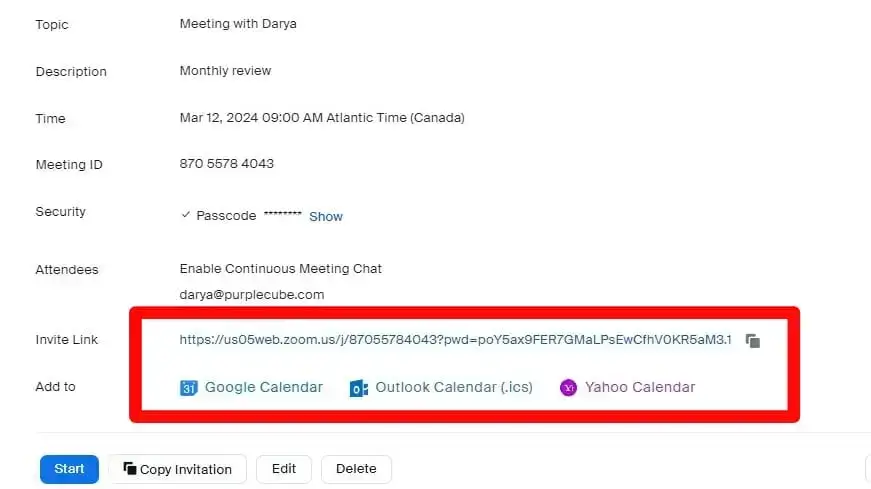
- Klicken Sie nach dem Einrichten Ihres Meetings auf „Speichern“. Sie werden zu einer Bestätigungsseite weitergeleitet, auf der Sie die Möglichkeit haben, das Meeting einem Kalender hinzuzufügen oder den Einladungslink für das Meeting zu kopieren.
B. So richten Sie ein Meeting in der Zoom-Desktop-App ein
So richten Sie ein Meeting im Zoom-Desktop-Client ein:
- Öffnen Sie die Zoom Desktop-Client-App auf Ihrem Desktop. Sie können sie ganz einfach von der Zoom-Websiteherunterladen.
- Melden Sie sich in der App bei Ihrem Zoom-Konto an. Falls Sie noch kein Konto haben, müssen Sie zunächst eines erstellen.
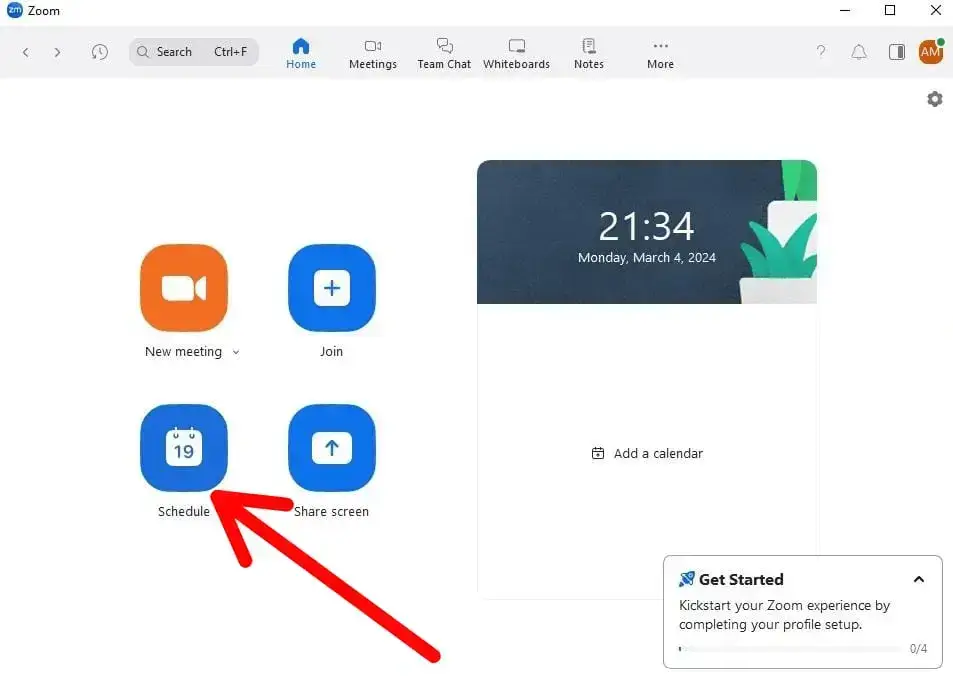
- Auf dem Hauptbildschirm sehen Sie Optionen wie „Neues Meeting“, „Beitreten“, „Planen“ und „Bildschirm freigeben“. Klicken Sie auf „Planen“ , um das Fenster zur Meeting-Planung zu öffnen.
- Geben Sie im Planungsfenster die erforderlichen Details für Ihr Meetingein:
- Name: Geben Sie Ihrem Meeting einen eindeutigen Titel.
- Teilnehmer: Laden Sie Teilnehmer zu Ihrem geplanten Meeting ein, indem Sie deren E-Mail-Adressen in das dafür vorgesehene Feld eingeben.
- Start: Geben Sie Datum und Uhrzeit für das Meeting ein.
- Dauer: Wählen Sie aus, wie lange das Meeting voraussichtlich dauern wird. Dies dient nur der Planung und beendet das Meeting nicht automatisch.
- Zeitzone: Stellen Sie sicher, dass die richtige Zeitzone ausgewählt ist, insbesondere bei Teams in verschiedenen Regionen.
- Wiederkehrendes Meeting: Aktivieren Sie dieses Kontrollkästchen, wenn das Meeting regelmäßig stattfindet, und legen Sie das Wiederholungsmuster fest.

- Entscheiden Sie, ob Sie eine eindeutige Meeting-ID automatisch generieren oder Ihre persönliche Meeting-IDverwenden möchten. Bei Bedarf können Sie für zusätzliche Sicherheit auch einen Passcode festlegen.

- Wählen Sie aus, ob das Video des Gastgebers und der Teilnehmer beim Beitritt zum Meeting standardmäßig ein- oder ausgeschaltet sein soll.

- Sie können das Meeting zu Ihrem bevorzugten Kalender hinzufügen (Outlook, Google Kalender usw.). Der Kalendereintrag enthält die Zoom-Meeting-Details sowie den Meeting-Link.

- Klicken Sie auf „Erweiterte Optionen“ für detailliertere Einstellungen, wie zum Beispiel das Blockieren des Zugangs für bestimmte Benutzer, Warteraum aktivieren, Teilnehmern den Beitritt vor dem Gastgeber erlauben, Teilnehmer beim Beitritt stummschaltensowie das Meeting automatisch aufzeichnen.

- Klicken Sie nach der Konfiguration Ihres Meetings auf „Speichern“.
C. So richten Sie ein Meeting in der Zoom-App für Mobilgeräte ein
So richten Sie ein Meeting in der Zoom-App für Mobilgeräte ein:
- Starten Sie die Zoom-App auf Ihrem Mobilgerät. Wenn Sie die App noch nicht haben, finden Sie sie im App Store (für iOS-Geräte) oder Google Play Store (für Android-Geräte) und installieren Sie die App.
- Tippen Sie auf „Anmelden“ und geben Sie Ihre Zoom-Zugangsdaten ein. Falls Sie noch kein Zoom-Konto haben, können Sie sich direkt in der App registrieren.
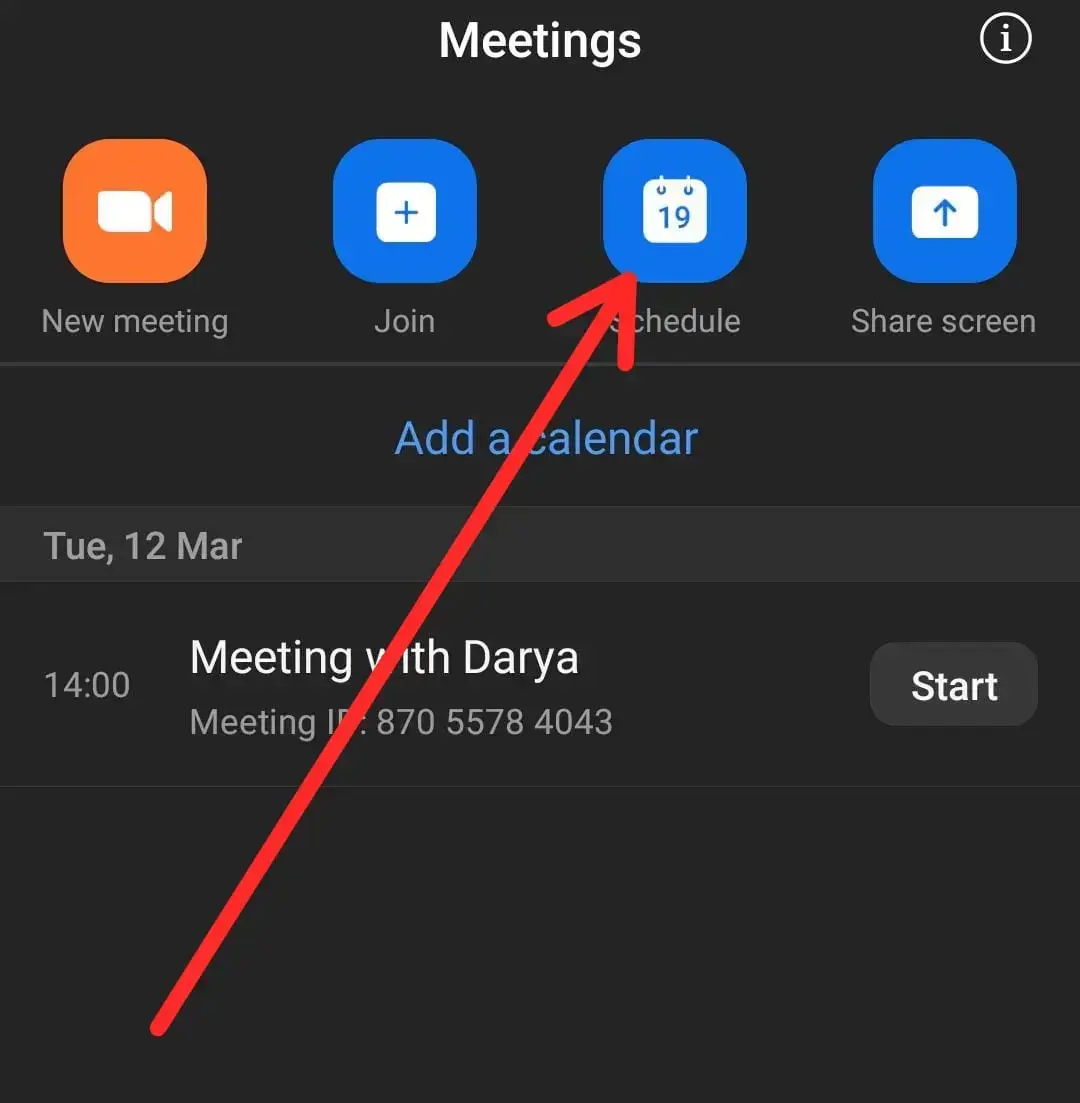
- Im Hauptmenü finden Sie Optionen wie „Neues Meeting“, „Beitreten“, „Planen“ und „Bildschirm freigeben“. Tippen Sie auf „Planen“ um mit der Einrichtung Ihres Meetings zu beginnen.
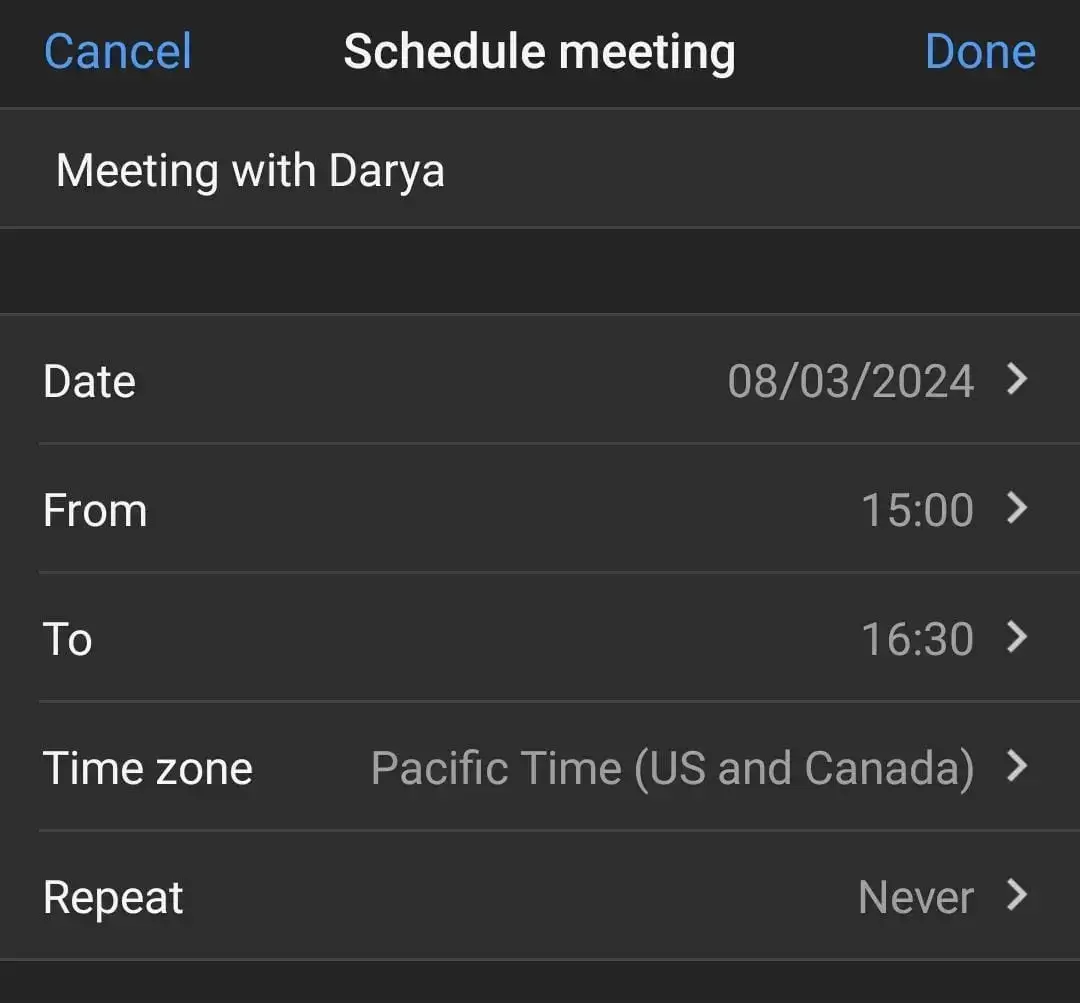
- Geben Sie auf dem Planungsbildschirm die Details für Ihr Meeting ein:
- Name: Vergeben Sie einen aussagekräftigen Titel für Ihr Meeting.
- Start: Wählen Sie das Datum und die Uhrzeit für den Beginn aus.
- Dauer: Legen Sie die voraussichtliche Dauer fest. Dies dient lediglich der Planung und beendet das Meeting nicht automatisch.
- Zeitzone: Achten Sie darauf, die korrekte Zeitzone auszuwählen, insbesondere wenn Teilnehmer aus verschiedenen Regionen dabei sind.
- Wiederkehrendes Meeting: Aktivieren Sie dieses Kontrollkästchen, wenn das Meeting regelmäßig stattfindet, und legen Sie das Wiederholungsmuster fest.
- Scrollen Sie durch die Optionen, um Ihre Meeting-Einstellungen:
- Meeting-ID: Wählen Sie, ob Sie eine eindeutige Meeting-ID generieren oder Ihre persönliche Meeting-IDverwenden möchten.
- Passcode und Warteraum aktivieren: Fügen Sie zur Sicherheit einen Passcode und für eine bessere Kontrolle über den Beitritt der Teilnehmer einen Warteraum hinzu.
- Video und Audio: Legen Sie fest, ob das Video des Gastgebers und der Teilnehmer beim Beitritt ein- oder ausgeschaltet sein soll, und stellen Sie sicher, dass die Audiooptionen sowohl Telefon- als auch Computeraudio zulassen.

- Am Ende der Seite finden Sie ein Dropdown-Menü mit weiteren Einstellungen, die Sie aktivieren können, wie zum Beispiel Teilnehmern den Beitritt vor dem Gastgeber zu erlauben oder das Meeting automatisch in der Cloud aufzuzeichnen.

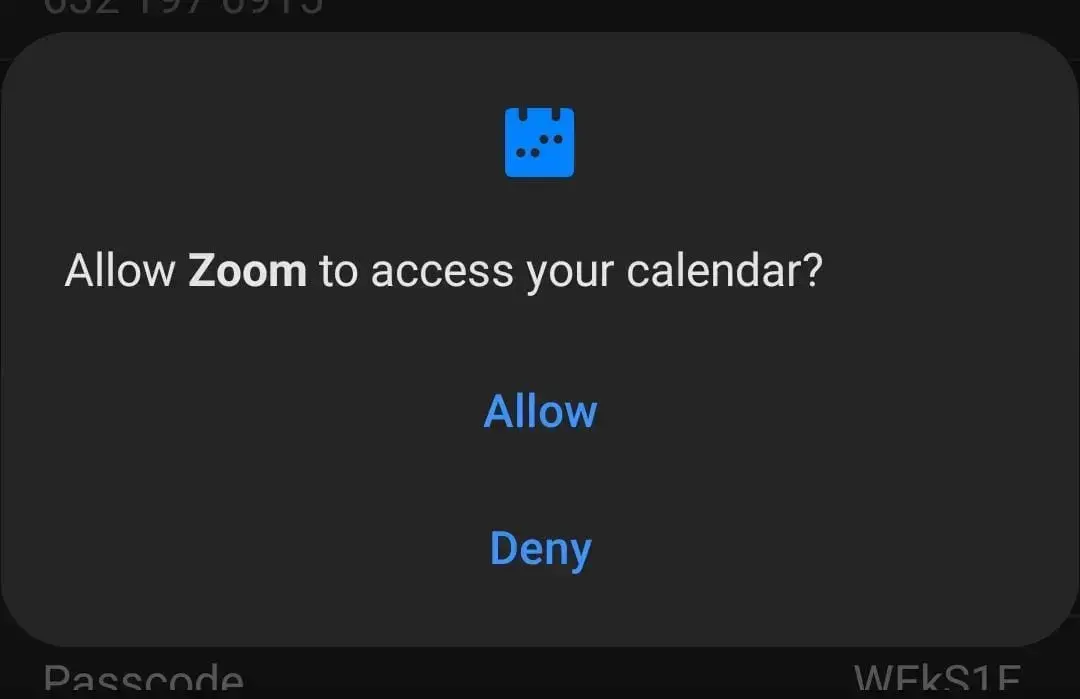
- Sobald Sie Ihre Meeting-Einstellungen vorgenommen haben, tippen Sie auf Fertig oder Speichern (je nach Gerät). Die App fordert Sie dazu auf, das Meeting zum Kalender Ihres Geräts hinzuzufügen, wo Sie das Ereignis teilen oder weitere Informationen zum geplanten Meeting bearbeiten können.
Tipps für mitreißende Zoom-Meetings
Nachdem die Einrichtung nun abgeschlossen ist, kommen wir zu einigen zusätzlichen Tipps, die Ihnen bei der Vorbereitung und Durchführung Ihres geplanten Zoom-Meetings helfen.
Hier sind einige Tipps für interaktive Zoom-Meetings:
- Technik vorbereiten
- Mit den Host-Steuerelementen vertraut machen
- Warteraum-Funktion nutzen
- Teilnehmer durch Umfragen und Reaktionen einbinden
- Videonutzung fördern, um die Interaktion zu steigern
- Breakout-Räume für kleinere Diskussionen verwenden
- Meeting-Einstellungen anpassen
- Klare Anweisungen für Teilnehmer bereitstellen
- Nachbereitung nach dem Meeting
1. Technik vorbereiten
Eine stabile Internetverbindung, ein hochwertiges Mikrofon und eine HD-Kamera sind die Grundpfeiler für ein reibungsloses Zoom-Erlebnis.
PROFI-TIPP: Führen Sie vor Ihren geplanten Meetings immer einen Technik-Check durch. Testen Sie Ihre Internetgeschwindigkeit (streben Sie mindestens 10 Mbit/s für Up- und Downloads an), die Audioqualität und die Bildqualität. Passen Sie Beleuchtung und Kamerawinkel an, um gut sichtbar zu sein und einen professionellen sowie ansprechenden Eindruck zu hinterlassen.
2. Machen Sie sich mit den Gastgeber-Steuerelementen vertraut
Nutzen Sie die Tutorial-Ressourcen von Zoom, um zu lernen, wie Sie Teilnehmerberechtigungen verwalten, die Bildschirmfreigabe steuern und durch die erweiterten Einstellungen navigieren.
Wenn Sie diese Funktionen beherrschen, können Sie den Ablauf des Meetings nahtlos steuern und technische Probleme mühelos lösen.
3. Nutzen Sie die Warteraum-Funktion
Setzen Sie den Warteraum nicht nur als Sicherheitsmaßnahme ein, sondern als kuratierten Empfangsbereich.
PROFI-TIPP: Passen Sie den Warteraum mit einer Nachricht an, die den Ton für das Meeting vorgibt, einen Überblick über die Agendabietet oder ein interessantes Detail oder eine Frage zum Nachdenken enthält. Diese persönliche Note steigert die Vorfreude und gibt den Teilnehmern von Anfang an das Gefühl, willkommen zu sein.
4. Binden Sie Teilnehmer durch Umfragen und Reaktionen ein
Interaktivität ist der Schlüssel zum Engagement. Planen Sie den Einsatz der Zoom-Umfragefunktion an strategischen Punkten Ihres Meetings ein, um Feedback einzuholen, Entscheidungen zu treffen oder die Gruppe zu aktivieren.
Ermutigen Sie zur Nutzung von Reaktionen (Daumen hoch, Klatschen), um das Gemeinschaftsgefühl und die aktive Teilnahme zu fördern. Wenn diese Funktionen gezielt eingesetzt werden, verwandeln sie passives Zuhören in aktives Mitwirken.
5. Fördern Sie die Nutzung der Kamera für mehr Engagement
Mimik und Körpersprache sind wesentliche Bestandteile der Kommunikation. Bitten Sie die Teilnehmer, ihre Kameras eingeschaltet zu lassen, und betonen Sie, wie wichtig die visuelle Verbindung für eine kollaborative Atmosphäre ist.
PROFI-TIPP: Berücksichtigen Sie, dass Meeting-Müdigkeit ein reales Phänomen ist, und bieten Sie bei längeren Meetings kurze Pausen ohne Kamera an, um das Wohlbefinden und die Aufmerksamkeit zu fördern.
6. Nutzen Sie Breakout-Rooms für kleinere Diskussionen
Breakout-Rooms sind die Lösung von Zoom für Nebengespräche und die Zusammenarbeit in kleinen Gruppen. Planen Sie Ihre Agenda so, dass sie Breakout-Sessions enthält, in denen die Teilnehmer spezifische Themen in einem vertrauteren Rahmen vertiefen können.
Geben Sie klare Anweisungen und Ziele für jeden Breakout-Room vor und ziehen Sie in Betracht, die Gruppen durchzumischen, um die Vernetzung und Zusammenarbeit zu maximieren.
7. Passen Sie Ihre Meeting-Einstellungen an
Mit den Anpassungsoptionen von Zoom können Sie die Meeting-Umgebung genau auf Ihre Bedürfnisse zuschneiden. Entdecken Sie Funktionen wie virtuelle Hintergründe für ein einheitliches Erscheinungsbild, erweiterte Audioeinstellungen für klareren Klang und Barrierefreiheitsfunktionen, um Inklusivität zu gewährleisten.
Diese Anpassungen können das Teilnehmererlebnis erheblich verbessern und Ihre virtuellen Zusammenkünfte genauso professionell und ansprechend gestalten wie persönliche Treffen.
8. Geben Sie den Teilnehmern klare Anweisungen
Geben Sie zu Beginn Ihres Meetings einen kurzen Überblick über die verwendeten Zoom-Funktionen (z. B. Chat, Hand heben, Reaktionen) und erklären Sie, wie sich die Teilnehmer effektiv einbringen können. So stellen Sie sicher, dass alle Anwesenden unabhängig von ihrer Zoom-Erfahrung voll teilnehmen und einen Beitrag leisten können.
9. Nachbereitung nach dem Meeting
Das Gespräch sollte nicht enden, wenn das Meeting vorbei ist. Senden Sie eine Nachfass-E-Mail mit allen wichtigen Punkten, Aufgabensowie allen relevanten Dokumenten oder Aufzeichnungen aus dem Meeting.
Dies festigt nicht nur die besprochenen Inhalte, sondern hält auch den Schwung aufrecht und fördert die kontinuierliche Zusammenarbeit und das Engagement der Teilnehmer.
So nehmen Sie ein Zoom-Meeting auf jedem Gerät auf
Die Aufzeichnung von Zoom-Meetings bietet zahlreiche Vorteile und steigert die Effizienz und Effektivität der virtuellen Kommunikation.
MeetGeek zeichnet Ihre virtuellen Treffen nicht nur automatisch auf und transkribiert sie, sondern sorgt auch dafür, dass jeder Aspekt Ihres Meetings präzise und mühelos gehandhabt wird. So können Sie sich auf Ihre Arbeit konzentrieren, ohne in administrativen Aufgaben unterzugehen.
Hier sind einige der herausragenden Funktionen von MeetGeek:
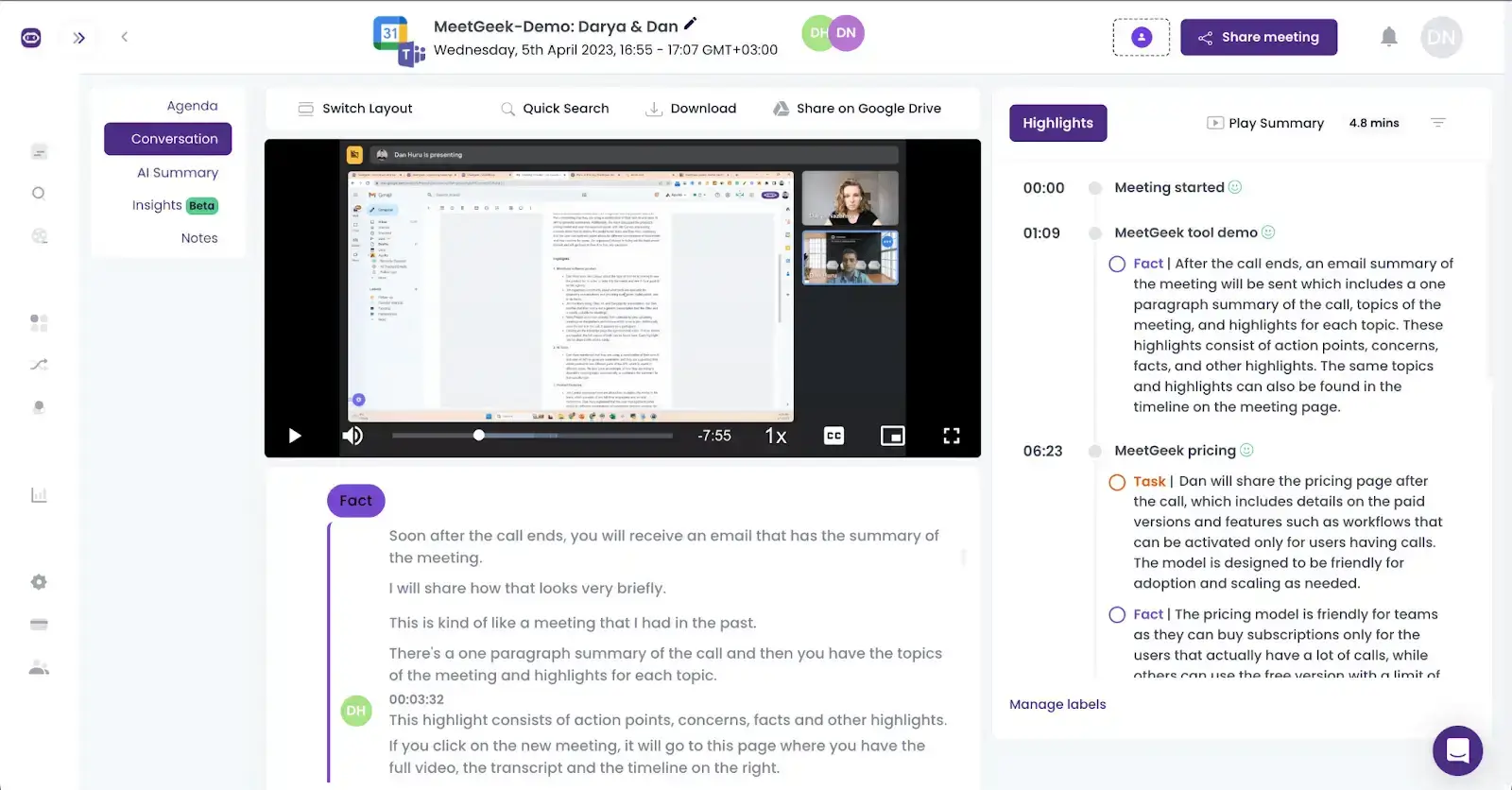
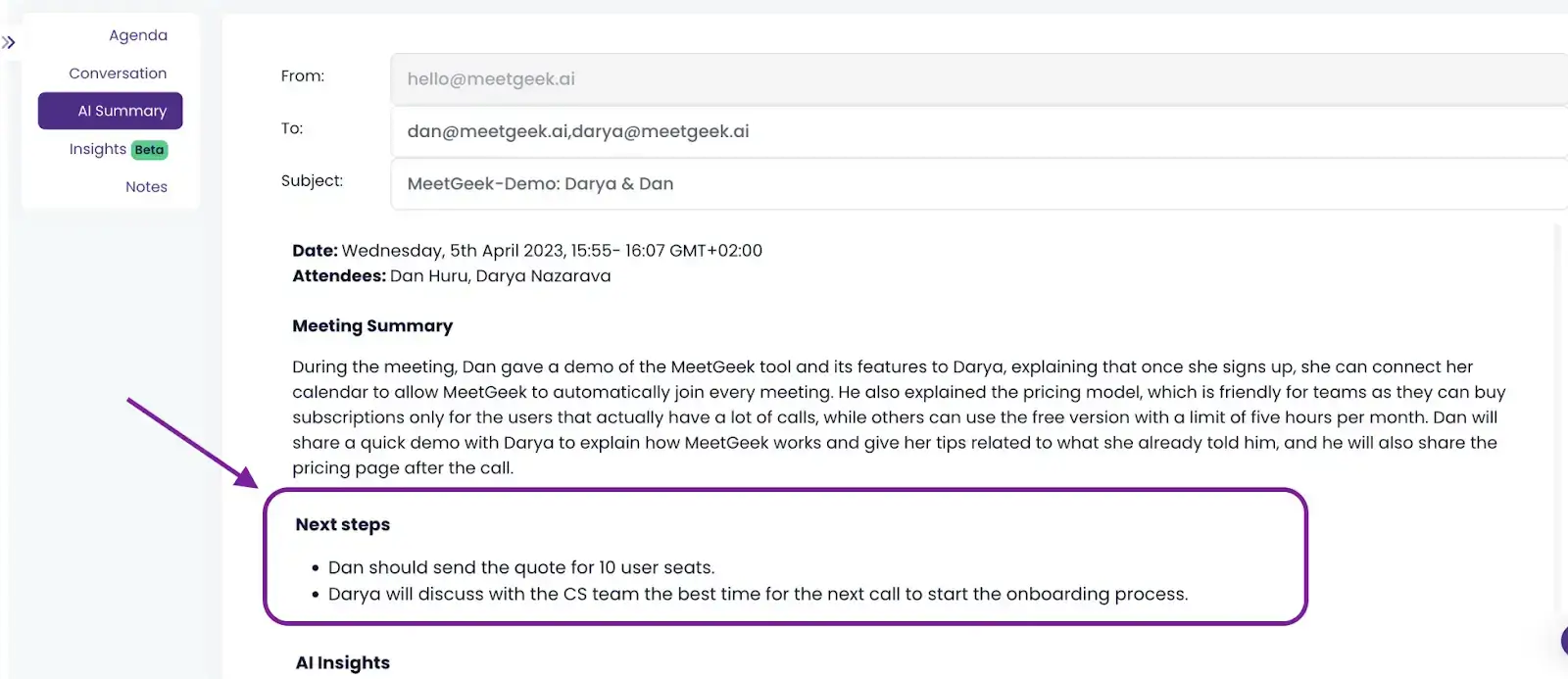
- KI-Zusammenfassungen mit Freigabeoptionen: MeetGeek verändert die Art und Weise, wie Sie Meetings abschließen, indem es KI-Meeting-Notizen erstellt, die alle wichtigen Punkte, Entscheidungen und besprochenen Aufgaben enthalten. Anschließend können Sie diese Erkenntnisse automatisch mit den Teilnehmern oder relevanten Stakeholdern teilen, damit niemand wichtige Informationen verpasst.
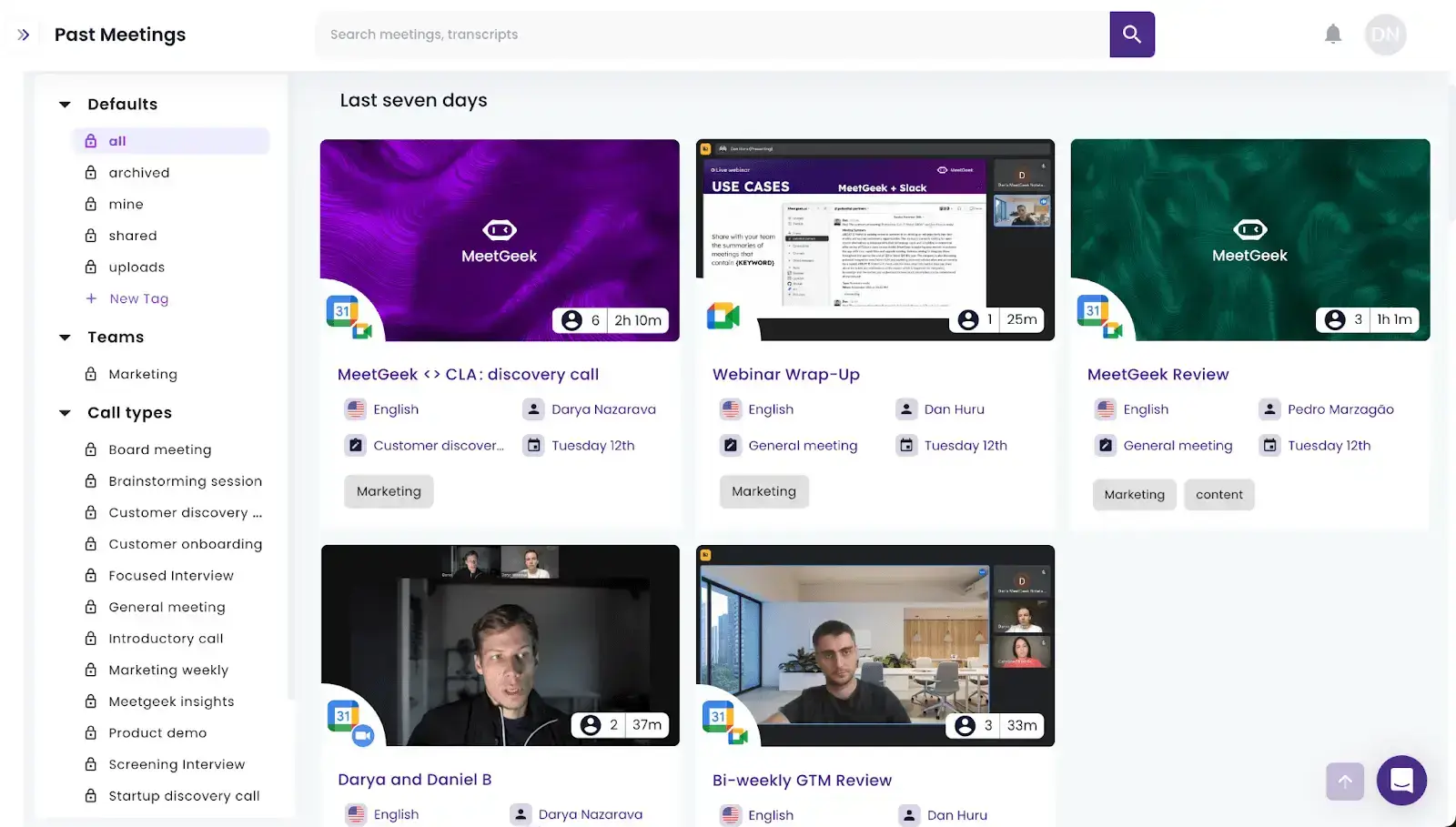
- Zentrales Meeting-Archiv: Behalten Sie alle Ihre Meetings an einem Ort im Blick mit MeetGeek. Ob Sie eine Diskussion noch einmal aufrufen, für später herunterladen oder sicher teilen möchten – alles ist nur wenige Klicks entfernt und für alle Beteiligten leicht zugänglich.
- Extraktion von Aufgaben: Die Aufgabenerkennung von MeetGeek identifiziert und extrahiert alle anstehenden Aufgaben aus Ihren Gesprächen und reduziert so Ihren Nachbereitungsaufwand erheblich.
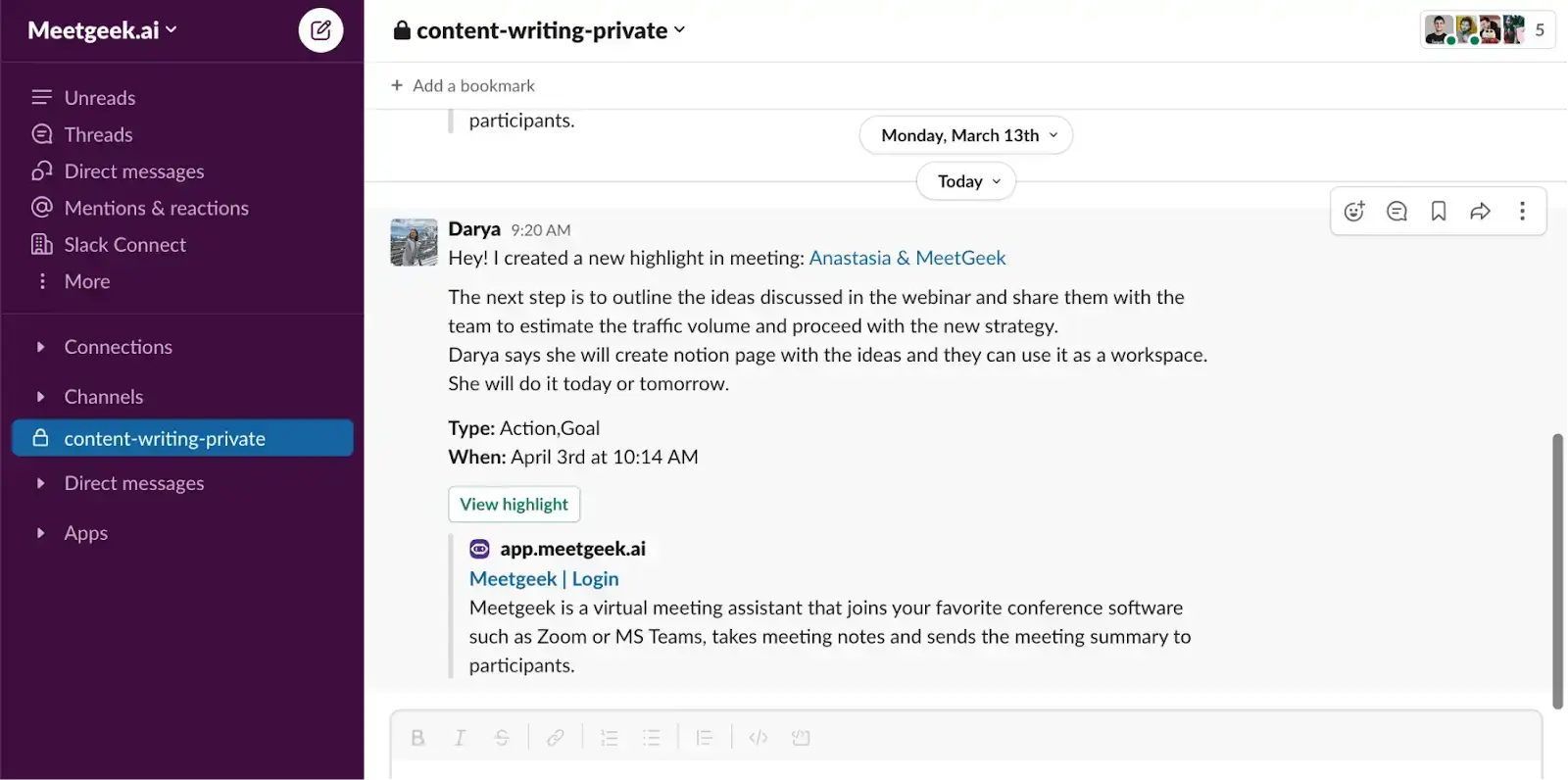
- Automatisierte Workflows: MeetGeek organisiert nicht nur Ihre Aufgaben, sondern integriert sie dank seiner Meeting-Automatisierungsfunktionen direkt in Ihre bestehenden digitalen ArbeitsbereicheSo bleiben Ihre Arbeitsbereiche dauerhaft mit neuen Aufgaben aktualisiert, sodass alle auf dem Laufenden bleiben und Sie Herausforderungen zeitnah angehen können.
- Meeting-Analyse leicht gemacht: Nicht alle Meetings sind gleich, und das weiß auch MeetGeek. Es liefert für jedes Meeting einen individuellen Leistungs-Score basierend auf Ihren gewählten KPIs, damit Sie die Effektivität besser einschätzen können.

Zudem erhalten Sie durch monatliche und teamweite Auswertungenein klares Bild der Gesamtleistung und stellen sicher, dass Ihre Meetings stets auf Ihre Ziele ausgerichtet sind.
So beheben Sie häufige Probleme bei Zoom-Meetings
Manchmal laufen Zoom-Meetings nicht ganz nach Plan. Zum Glück sind wir hier, um Sie erfolgreich durch solche Situationen zu führen.
So beheben Sie häufige Probleme bei Zoom-Meetings:
- Audioprobleme
- Stellen Sie sicher, dass Ihre Mikrofon- und Lautsprechereinstellungen in Zoom korrekt ausgewählt und konfiguriert sind. Manchmal ist standardmäßig das falsche Gerät ausgewählt.
- Nutzen Sie die Audiotest-Funktion in Zoom, um sicherzustellen, dass Ihr Mikrofon und Ihre Lautsprecher bzw. Kopfhörer einwandfrei funktionieren.
- Überprüfen Sie die Lautstärkeeinstellungen Ihres Geräts. Ein stummgeschaltetes Mikrofon oder eine zu leise eingestellte Lautstärke werden leicht übersehen.
- Videoprobleme
- Stellen Sie wie beim Audio sicher, dass in den Videoeinstellungen von Zoom die richtige Kamera ausgewählt ist. Wenn Sie mehrere Videoquellen haben, verwendet Zoom möglicherweise nicht die gewünschte.
- Überprüfen Sie, ob Zoom die Berechtigung zur Nutzung Ihrer Kamera hat. Dies ist ein häufiges Problem, insbesondere bei Neuinstallationen oder der ersten Verwendung.
- Schließen Sie alle Anwendungen, die Ihre Kamera im Hintergrund verwenden könnten, da diese den Zugriff von Zoom auf die Kamera blockieren können.
- Verbindungsprobleme
- Eine schlechte oder instabile Internetverbindung ist oft die Ursache. Wechseln Sie zu einer kabelgebundenen Verbindung, gehen Sie näher an Ihren WLAN-Router oder versuchen Sie es mit einem WLAN-Verstärker.
- Manchmal kann ein Neustart Ihres Routers die Verbindungsstabilität verbessern.
- Reduzieren Sie nach Möglichkeit die Anzahl der Geräte, die während des Meetings Ihr Netzwerk nutzen, oder pausieren Sie laufende Downloads oder Streams.
- Schwierigkeiten beim Meeting-Zugang
- Stellen Sie sicher, dass Sie die korrekte Meeting-ID und das Passwort eingegeben haben. Zahlendreher passieren schnell.
- Bestätigen Sie beim Gastgeber, dass das Meeting noch wie geplant stattfindet und nicht abgesagt oder verschoben wurde.
- Wenn Sie im Warteraum feststecken, hat der Gastgeber Ihre Ankunft möglicherweise nicht bemerkt. Eine kurze Nachricht an den Gastgeber kann hier Abhilfe schaffen.
- Echo oder Rückkopplungen während des Anrufs
- Kopfhörer können Echos und Rückkopplungen deutlich reduzieren und sorgen so für eine klarere Audioqualität für alle Beteiligten.
- Bitten Sie alle Teilnehmer, ihr Mikrofon stummzuschalten, wenn sie gerade nicht sprechen, um Hintergrundgeräusche und Rückkopplungen zu minimieren.
- Zoom aktualisieren
- Regelmäßige Updates für Zoom können viele potenzielle Probleme beheben. Die neueste Version enthält oft Fehlerbehebungen und Leistungsverbesserungen.
Hinweis: Die meisten Probleme mit Zoom lassen sich mit wenigen Handgriffen lösen. Sollten Sie jedoch auf komplexere Schwierigkeiten stoßen, können Sie sich jederzeit an den Zoom-Support wenden. Dort hilft man Ihnen gerne weiter.
Häufig gestellte Fragen
1. Kann man ein Zoom-Meeting planen, ohne der Gastgeber zu sein?
Um ein Zoom-Meeting im Namen einer anderen Person zu planen, muss Ihnen der Gastgeber Planungsrechte zuweisen. Dies kann der Gastgeber in seinen Zoom-Einstellungen tun, indem er Ihre E-Mail-Adresse unter dem Punkt 'Planungsberechtigung' einträgt.
Sobald Sie diese Berechtigungen haben, können Sie Zoom-Meetings planen. Diese erscheinen dann in der Meeting-Liste des Gastgebers, der während der Sitzung die volle Kontrolle behält.
2. Kann ich ein Zoom-Meeting so planen, dass die Sitzung automatisch aufgezeichnet wird?
Ja, es ist möglich, ein Zoom-Meeting so einzurichten, dass es automatisch aufgezeichnet wird. Wenn Sie das Meeting planen, finden Sie im Bereich 'Meeting-Optionen' Bereich, wählen Sie 'Meeting automatisch aufzeichnen' und entscheiden Sie, ob die Aufzeichnung lokal auf Ihrem Computer oder in der Cloud gespeichert werden soll. Diese Einstellung stellt sicher, dass die Aufnahme sofort mit Beginn des Meetings startet, ohne dass ein manueller Eingriff erforderlich ist.
Wenn Sie jedoch nicht bei jedem Meeting in Ihrem Kalender diese Optionen überprüfen möchten, nutzen Sie eine KI-Plattform zur Meeting-Automatisierung wie MeetGeek , um Ihre Meetings automatisch aufzuzeichnen, zu transkribieren, zusammenzufassen und zu analysieren – egal, ob Sie der Gastgeber sind oder nicht!
3. Kann ich ein Meeting ohne Zoom-Konto planen?
Das Planen von Zoom-Meetings ist ohne Konto nicht möglich. Teilnehmer, die zum Meeting eingeladen werden, benötigen jedoch kein Zoom-Konto, um beizutreten; sie benötigen lediglich den Einladungslink oder die ID und das Passwort, die vom Gastgeber bereitgestellt werden.
Machen Sie jedes Zoom-Meeting wertvoll mit MeetGeek!
Von der technischen Einrichtung auf verschiedenen Geräten bis hin zu den differenzierten Strategien für interaktive und inklusive Umgebungen haben wir das gesamte Spektrum abgedeckt, damit Ihr nächstes Zoom-Meeting nicht nur erfolgreich, sondern wirklich unvergesslich wird.
Wenn Sie die Effizienz und das Engagement Ihrer Meetings auf die nächste Stufe heben möchten, sollten Sie MeetGeek in Ihren Arbeitsablauf integrieren. Mit seinen KI-gestützten Funktionen zur Automatisierung von Meeting-Zusammenfassungen, Aufgabenerkennung und umsetzbaren Erkenntnissen kann MeetGeek Ihre Prozesse nach dem Meeting erheblich rationalisieren und die allgemeine Produktivität steigern.
Auf viele weitere dynamische, ansprechende und produktive virtuelle Zusammenkünfte!




.avif)