


Die Hand in Zoom zu heben bedeutet, über die integrierte Reaktion Hand heben zu signalisieren, dass Sie sprechen möchten, ohne die Stummschaltung aufzuheben oder jemandem ins Wort zu fallen. Neben Ihrem Namen in der Teilnehmerliste erscheint ein kleines Handsymbol, das der Host und die Co-Hosts sehen, und sie holen Sie dazu, wenn Sie an der Reihe sind. Die Funktion gibt es in der Desktop-App, der mobilen App, im Webbrowser und sogar bei der Einwahl per Telefon, mit jeweils leicht abweichenden Schritten.
Dieses kleine Signal ist es, das ein voll besetztes Meeting davor bewahrt, im Durcheinander zu enden. Es lässt Sie mitwirken, ohne zu unterbrechen, hält Diskussionen geordnet und macht es der Person, die das Meeting leitet, leicht zu steuern, wer als Nächstes spricht. Gute Etikette für virtuelle Meetings beginnt damit, genau zu wissen, wie und wann Sie sie einsetzen.
Dieser Leitfaden behandelt jede Methode, die Tastenkürzel und die häufigsten Gründe, warum der Button verschwindet. Wenn Sie außerdem festhalten möchten, was gesagt wurde, nachdem alle die Hand wieder gesenkt haben, ist MeetGeek ein KI-Notiztool, das Ihren Zoom-Anrufen beitritt und sie in Transkripte und Zusammenfassungen verwandelt, worauf wir gegen Ende eingehen.
Was Macht die Funktion Hand Heben in Einem Zoom-Meeting?
Mit der Funktion Hand heben signalisieren Sie, dass Sie sprechen möchten, ohne Ihre Stimme einzusetzen. Wenn Sie die Hand heben, erscheint neben Ihrem Namen in der Teilnehmerliste ein Handsymbol, und der Host oder Co-Host kann Sie im richtigen Moment in das Gespräch holen.
Am wichtigsten ist das in größeren Meetings, strukturierten Diskussionen, Schulungen und Webinaren. Statt jemandem ins Wort zu fallen oder im falschen Moment dazwischenzureden, heben Sie die Hand und warten, bis Sie aufgerufen werden. Es ist eine kleine Funktion, die viel dazu beiträgt, Meetings respektvoll und fokussiert zu halten.
Wie Heben Sie in Zoom die Hand am Desktop (Windows und Mac)?
In der Zoom-Desktop-App sind für das Handheben ein paar Klicks nötig:
- Treten Sie dem Meeting über die Zoom-Desktop-Anwendung bei.
- Bewegen Sie den Mauszeiger, um die Meeting-Steuerung am unteren Bildschirmrand einzublenden.
- Öffnen Sie Reaktionen.
- Wählen Sie Hand heben.
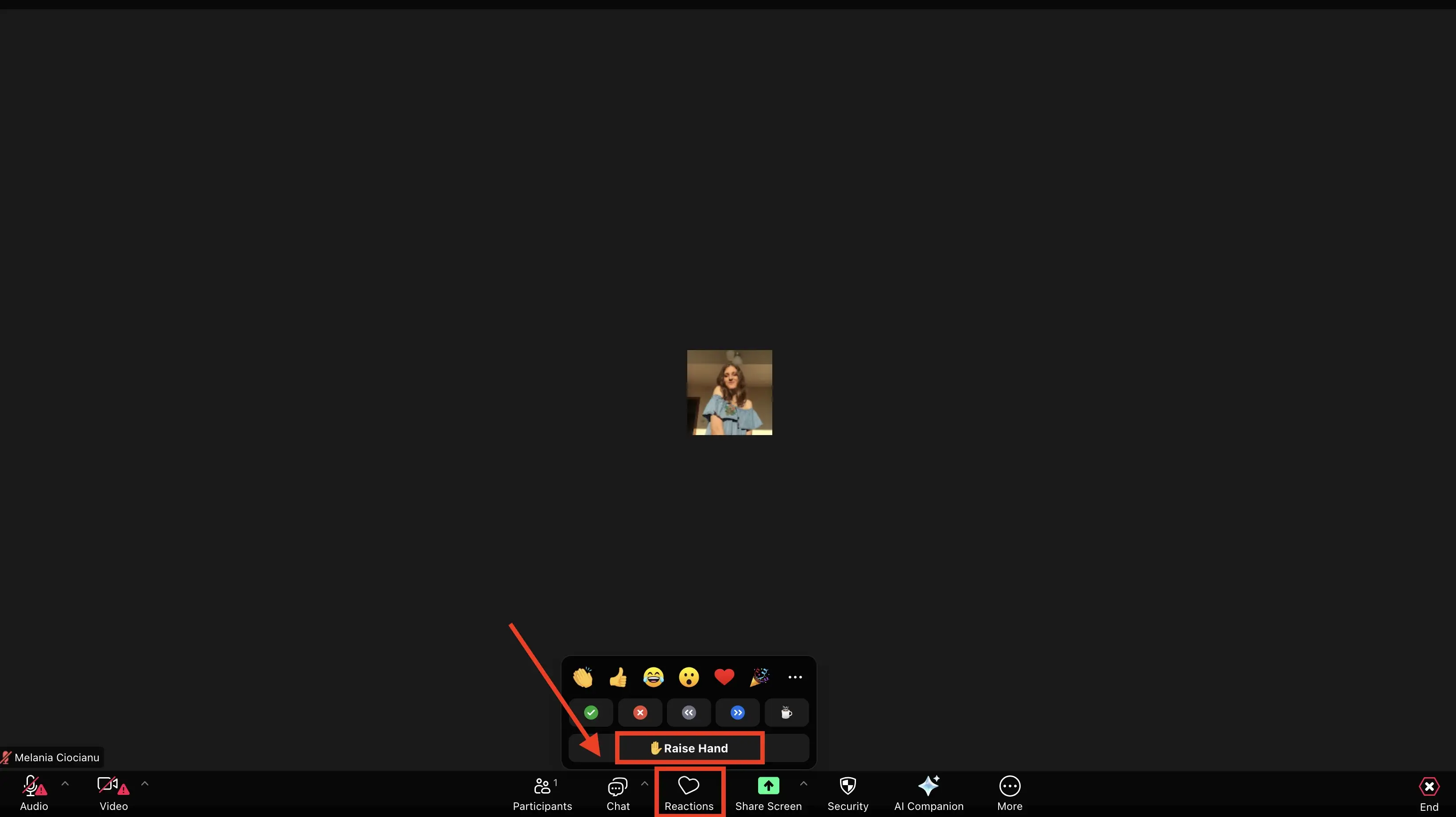
Neben Ihrem Namen erscheint dann ein Handsymbol in der Teilnehmerliste. Ihre Hand bleibt gehoben, bis Sie sie senken oder der Host sie zurücksetzt.
Um die Hand zu senken, öffnen Sie erneut Reaktionen und wählen Hand senken.
Lieber die Tastatur? Sie können Ihre Hand sofort umschalten:
- Windows: drücken Sie Alt + Y
- Mac: drücken Sie Option + Y
Wie Heben Sie in Zoom die Hand auf dem Handy (iOS und Android)?
Auf Smartphones und Tablets sind die Schritte leicht anders, aber genauso schnell:
- Treten Sie dem Zoom-Meeting über die mobile App bei.
- Tippen Sie auf den Bildschirm, um die Meeting-Steuerung anzuzeigen.
- Tippen Sie auf Reaktionen.
- Wählen Sie Hand heben.
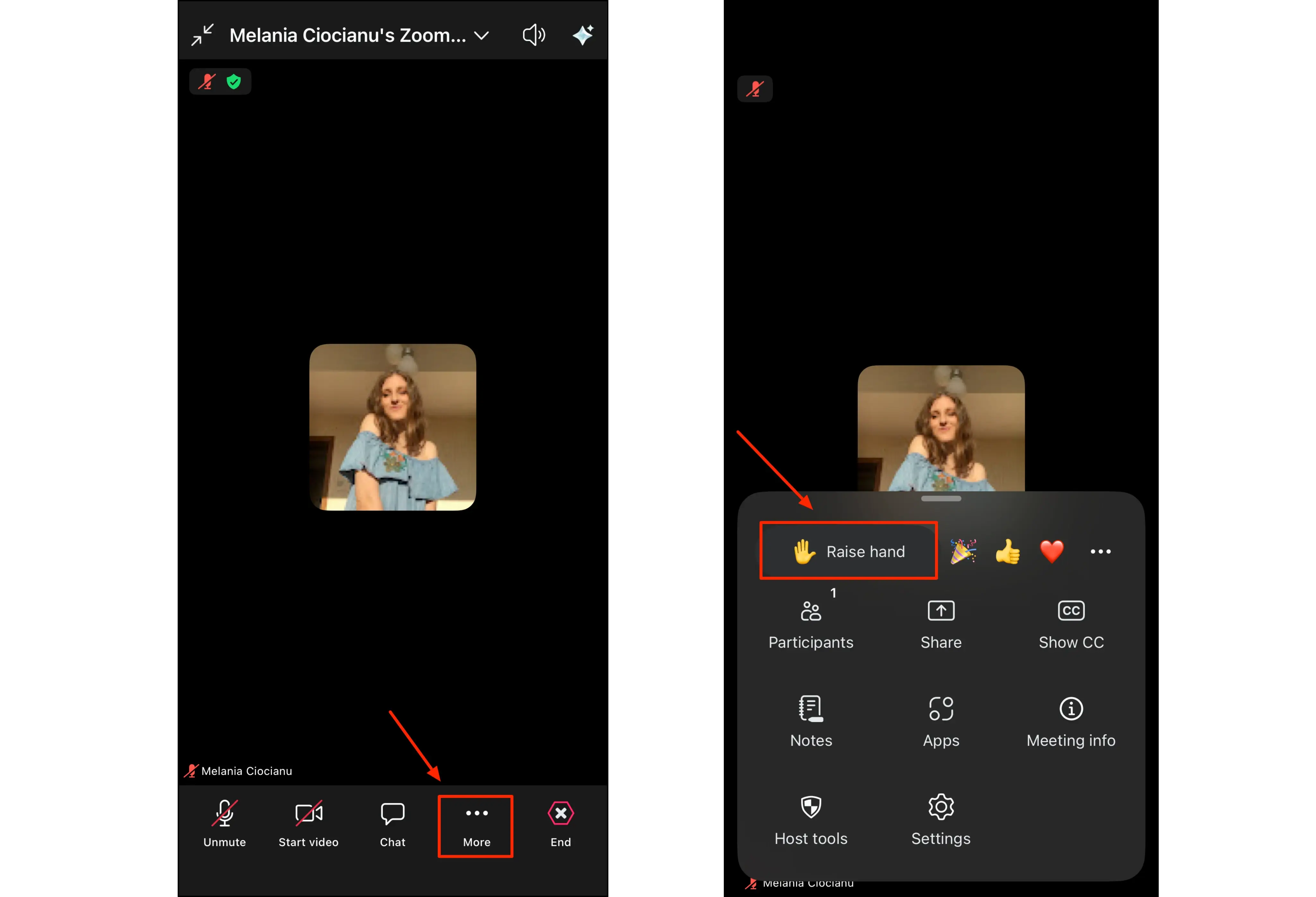
Das Handsymbol erscheint neben Ihrem Namen, genau wie am Desktop. Um die Hand zu senken, tippen Sie erneut auf Reaktionen und wählen Hand senken. Das funktioniert unter iOS und Android gleich, solange die App aktuell ist. In älteren App-Versionen liegt die Option unter dem Menü Mehr (drei Punkte) statt unter Reaktionen.
Wie Heben Sie in Zoom die Hand über den Browser?
Wenn Sie über einen Webbrowser teilnehmen, sind die Schritte nahezu identisch mit der Desktop-App:
- Treten Sie dem Meeting in Ihrem Browser bei.
- Suchen Sie die Steuerungsleiste am unteren Rand des Meeting-Fensters.
- Klicken Sie auf Reaktionen.
- Wählen Sie Hand heben.
Zoom zeigt das Symbol der erhobenen Hand neben Ihrem Namen in der Teilnehmerliste. Um sie zu senken, klicken Sie erneut auf Reaktionen und wählen Hand senken. Wenn Sie über einen Link statt über die App beigetreten sind, erklärt unser Leitfaden zum Beitreten eines Zoom-Meetings mit einer ID, wie Sie überhaupt in den Anruf gelangen.
Wie Heben Sie bei Einem Zoom-Anruf per Telefon die Hand?
Wenn Sie sich per Telefon ohne Video eingewählt haben, können Sie die Hand trotzdem über die Tastatur heben:
- Drücken Sie *9, um die Hand zu heben.
- Drücken Sie erneut *9, um sie zu senken.
Das ist die Option, die reine Audio-Teilnehmer nutzen, um sich ohne Bildschirm an der Diskussion zu beteiligen.
Wie Funktionieren Handgesten und Gestenerkennung in Zoom?
Zoom kann auch physische Handgesten erkennen und in Reaktionen auf dem Bildschirm umwandeln. Bei aktivierter Gestenerkennung löst das Heben der Hand vor der Kamera oder ein erhobener Daumen automatisch die passende Reaktion aus, ganz ohne Klicken.
Um die Funktion zu aktivieren, öffnen Sie Ihre Zoom-Einstellungen, gehen Sie zum Bereich Reaktionen oder In Meeting und aktivieren Sie Gestenerkennung. Wenn Zoom immer wieder Ihre Hand hebt, obwohl Sie nichts angeklickt haben, ist fast immer diese Einstellung der Grund.
Wie Verwalten Hosts und Co-Hosts Erhobene Hände?
Für Hosts und Co-Hosts erscheint jede erhobene Hand als Handsymbol neben dem Namen des Teilnehmers in der Teilnehmerliste, und Zoom benachrichtigt den Host, dass eine Hand gehoben wurde.
Von dort aus kann der Host jemanden zum Sprechen auffordern, die Stummschaltung aufheben oder die Hand senken, sobald der Punkt geklärt ist. In größeren Meetings hält das alles geordnet und gibt jedem eine faire Chance, gehört zu werden.
Von Erhobenen Händen zur Umsetzung
Die Hand zu heben bringt Sie ins Gespräch. Sich zu erinnern, was nach dem Anruf entschieden wurde, ist der Punkt, an dem die meisten Meetings scheitern. Genau diese Lücke füllt ein KI-Notiztool: Sobald es mit Ihrem Kalender verbunden ist, kann MeetGeek mit Erlaubnis über seine Zoom-Integration ausgewählten Zoom-Anrufen beitreten, sie in über 100 Sprachen aufzeichnen und transkribieren und Ihnen am Ende des Meetings eine Zusammenfassung mit den wichtigsten Punkten und Aufgaben liefern.
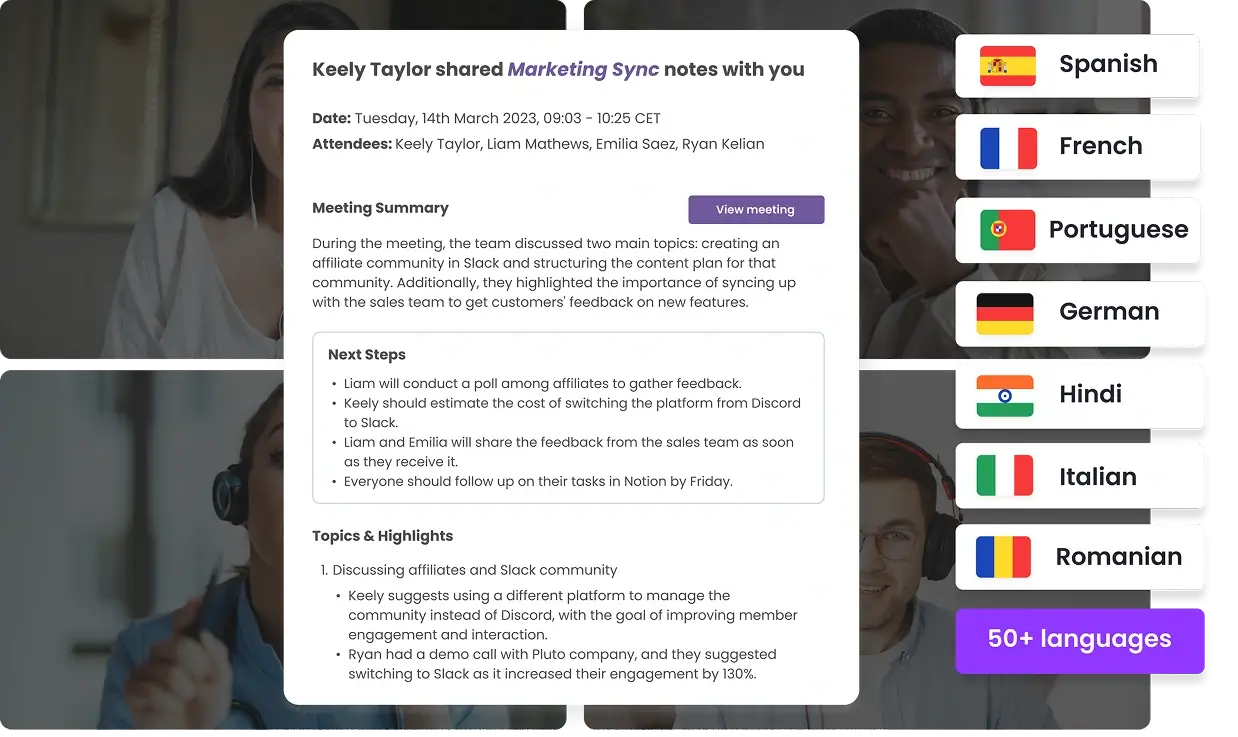
Statt Ihre Aufmerksamkeit zwischen dem Notieren und der Entscheidung, wann Sie sprechen, aufzuteilen, können Sie sich auf die Diskussion konzentrieren und die Zusammenfassung sich selbst schreiben lassen. Es erfasst auch alles, was Sie verpasst haben, nützlich für Teammitglieder, die zu spät dazugekommen sind, und seine KI-Sprachagenten können sogar dabei helfen, Teile des Meetings für Sie zu leiten.
Wenn Ihre Zoom-Anrufe mit klaren Notizen statt halb erinnerten Entscheidungen enden sollen, testen Sie MeetGeek kostenlos.
Wichtigste Erkenntnisse
- Die Hand in Zoom zu heben signalisiert, dass Sie sprechen möchten, ohne die Stummschaltung aufzuheben oder zu unterbrechen; neben Ihrem Namen erscheint ein Handsymbol, das der Host sieht.
- Der Weg ist Reaktionen > Hand heben am Desktop und im Browser und genauso auf dem Handy (in älteren App-Versionen Mehr).
- Tastenkürzel: Alt + Y unter Windows, Option + Y unter Mac. Bei der Einwahl per Telefon drücken Sie *9.
- Fehlt der Button, hat der Host meist die Reaktionen deaktiviert oder Ihre App braucht ein Update.
- Die Gestenerkennung kann Ihre Hand automatisch durch eine Kamerabewegung heben, was erhobene Phantomhände erklärt.
Häufig Gestellte Fragen
Warum Kann Ich bei Zoom die Hand Nicht Heben?
Das bedeutet meist, dass der Host die Reaktionen deaktiviert hat oder Sie eine veraltete App nutzen. Aktualisieren Sie Zoom auf die neueste Version und prüfen Sie das Menü Reaktionen, in dem der Button Hand heben manchmal zusammengefasst ist. Wenn Sie im Browser sind und ihn trotzdem nicht sehen, treten Sie erneut über die Desktop-App bei.
Was Ist das Tastenkürzel zum Hand Heben in Zoom?
Unter Windows drücken Sie Alt + Y. Unter Mac drücken Sie Option + Y. Das Kürzel schaltet zwischen Hand heben und Hand senken um.
Wie Hebe Ich in der Zoom-App die Hand?
Tippen Sie in der mobilen Zoom-App auf den Bildschirm, tippen Sie auf Reaktionen und wählen Sie dann Hand heben (in älteren App-Versionen liegt das unter dem Menü Mehr). Wenn Sie sich per Telefon ohne App eingewählt haben, drücken Sie *9 auf der Tastatur, um die Hand zu heben, und erneut *9, um sie zu senken.
Wie Aktiviere Ich Handgesten in Zoom?
Öffnen Sie die Zoom-Einstellungen, gehen Sie zum Bereich Reaktionen oder In Meeting und aktivieren Sie Gestenerkennung. Danach erkennt Zoom eine erhobene Hand oder einen erhobenen Daumen über Ihre Kamera und löst die Reaktion automatisch aus.
Wo Erscheinen Erhobene Hände in Zoom?
Eine erhobene Hand erscheint als Handsymbol neben dem Namen des Teilnehmers in der Teilnehmerliste und ist für den Host und die Co-Hosts sichtbar.




.avif)