



Egal, ob Sie im Homeoffice arbeiten, ein globales Team leiten oder einfach nur mit Kollegen in Kontakt bleiben möchten – Microsoft Teams ist die ideale Lösung für eine reibungslose Kommunikation.
Doch wie überbrücken Sie die Lücke zwischen dem Wunsch nach Austausch und dem Starten von genau diesem Meeting? Die Antwort liegt darin, zu wissen, wie man eine Teams-Besprechungseinladung versendet. Dank der intuitiven Plattform von Microsoft können Sie dies von jedem Gerät aus erledigen.
Wir zeigen Ihnen die einfachen Schritte zum Versenden einer Teams-Einladung, damit Sie stets vernetzt, produktiv und in engem Austausch bleiben. Fangen wir an.
Was enthält eine Microsoft Teams-Besprechungseinladung?
Wenn Sie eine Teams-Besprechung planen, ist das Versenden der Einladung ein wesentlicher Bestandteil des Prozesses. Da die Einladung selbst die Teilnehmerquote maßgeblich beeinflussen kann, sollten Sie sie nutzen, um die Teilnehmer über den Ablauf zu informieren und Vorfreude zu wecken.
Glücklicherweise ermöglicht Microsoft es Organisatoren, alle wichtigen Details direkt in die Einladung aufzunehmen, damit die Teilnehmer informiert, vorbereitet und bereit für den Austausch zum Meeting erscheinen.
Das enthält eine Teams-Besprechungseinladung:
- Besprechungstitel: Betrachten Sie ihn wie die Betreffzeile einer E-Mail – er sollte prägnant und dennoch aussagekräftig genug sein, um den Teilnehmern den Zweck des Meetings klar zu vermitteln.
- Datum und Uhrzeit: Der Planungsassistent von Microsoft Teams passt die Zeit automatisch an verschiedene Zeitzonen an, sodass jeder die Startzeit in seiner lokalen Ortszeit sieht. Dies vermeidet Missverständnisse und hilft Ihnen dabei, die Teilnehmerzahlen zu steigern.
- Meeting-Link: Der Link ist gut sichtbar in der Einladungs-E-Mail für das Teams-Meeting platziert, sodass Teilnehmer ihn bei Meeting-Beginn sofort finden. Sie müssen nicht erst durch Apps navigieren oder Meeting-Codes eingeben, damit jedes neue Teams-Meeting reibungslos starten kann.
- Meeting-Details: Wenn Sie sich die Zeit nehmen, die Details Ihres Teams-Meetings präzise auszufüllen, können Sie die Ergebnisse Ihres Treffens deutlich verbessern. Fügen Sie die Agenda hinzu, um Rollen zuzuweisen und Ihrem Team eine gezielte Vorbereitung zu ermöglichen.
- Anhänge oder relevante Informationen (optional): Manchmal reicht eine Agenda allein nicht aus. Für solche Fälle können Sie bei Teams-Einladungen Dateien anhängen oder Links zu relevanten Dokumenten, Tabellen oder Präsentationen einfügen. Das ist eine hervorragende Möglichkeit, die Zusammenarbeit von Anfang an zu fördern.
So laden Sie Personen zu einem Microsoft Teams-Meeting ein
Kollegen oder Kunden zu einem Microsoft Teams-Meeting einzuladen, ist ein unkomplizierter Vorgang, der sich nahtlos in Ihren Arbeitsalltag integriert – egal, ob Sie im Büro sind oder unterwegs.
A. So senden Sie eine Teams-Meeting-Einladung am Desktop
Wenn Sie bevorzugt am Desktop arbeiten, ist der Prozess intuitiv und Sie können die Einladung in wenigen Minuten erstellen.
So senden Sie eine Teams-Meeting-Einladung über Ihren Desktop:
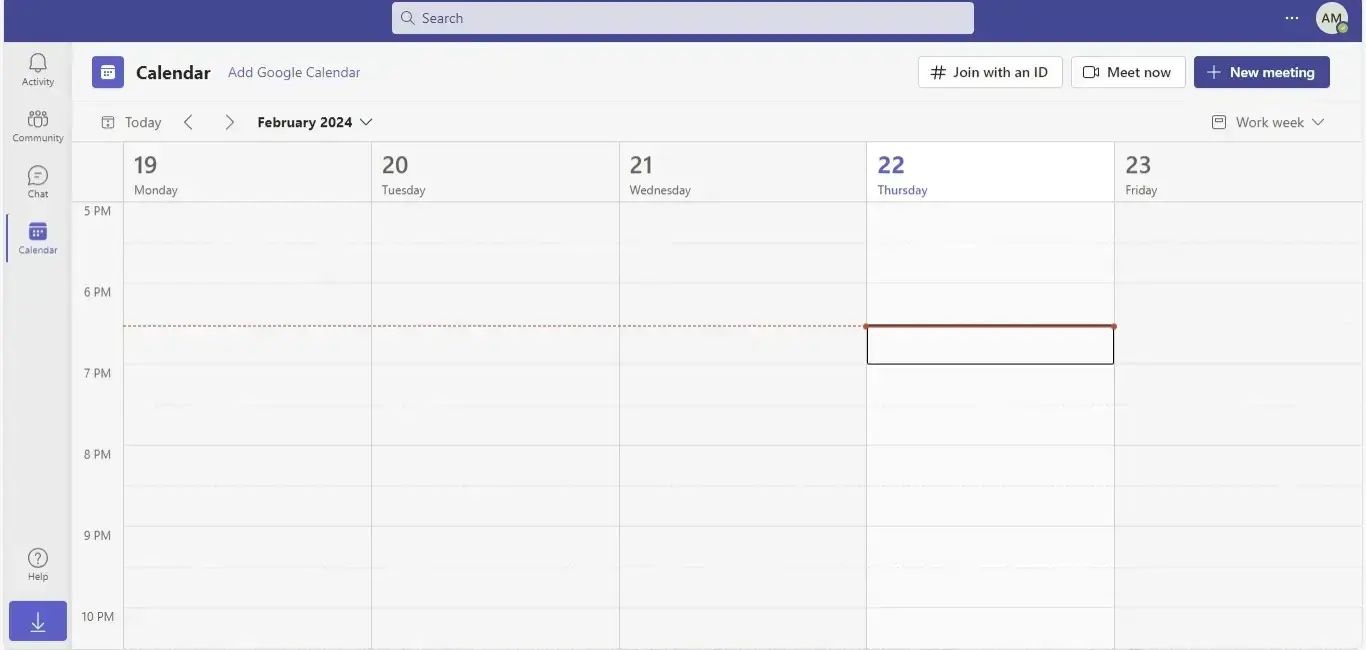
- Öffnen Sie den Outlook-Kalender oder die Teams-App auf Ihrem Desktop. Klicken Sie in der linken Seitenleiste auf das Kalendersymbol.
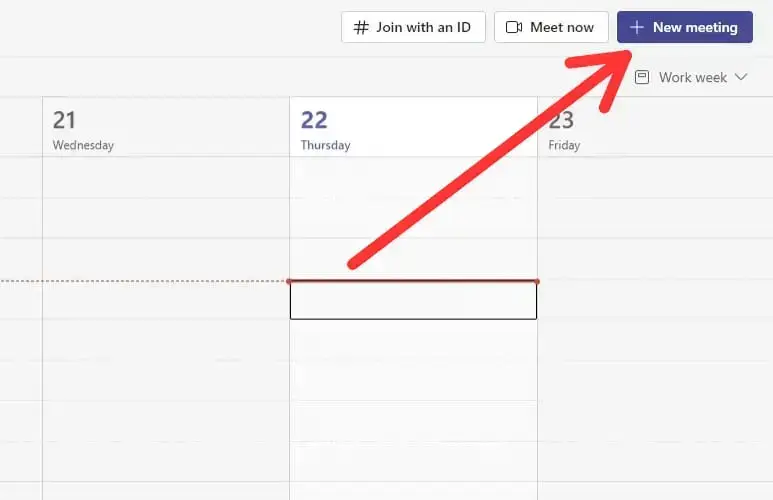
- In der oberen rechten Ecke Ihres Kalenders finden Sie eine „Neue Besprechung“-Schaltfläche. Klicken Sie darauf, um das Formular zur Besprechungsplanung zu öffnen.
- Geben Sie die wichtigsten Informationen ein: den Besprechungstitel, Datum, Uhrzeitsowie eine Beschreibung oder Tagesordnung , die Sie hinzufügen möchten. Das Formular entspricht dem Aufbau einer herkömmlichen Besprechungseinladung, sodass Sie Ihre Besprechung zentral an einem Ort organisieren können.
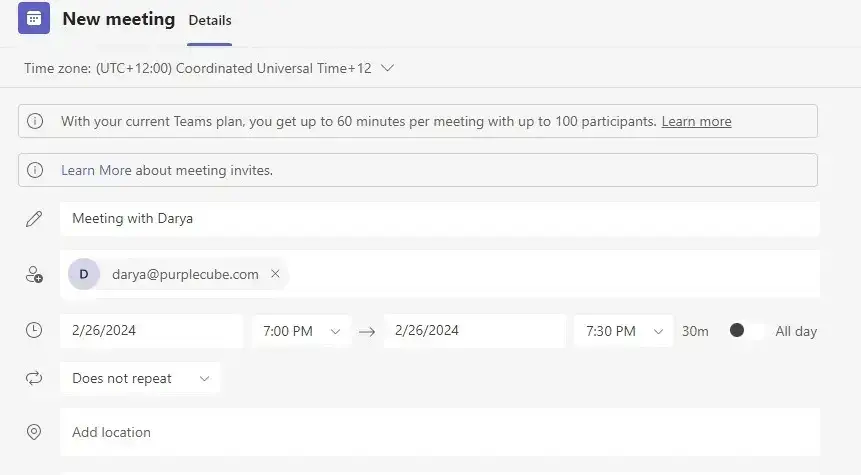
- Im Feld „Erforderliche Teilnehmer hinzufügen” Feld geben Sie die Namen oder E-Mail-Adressen der Personen ein, die Sie einladen möchten. Teams schlägt Mitglieder aus Ihrem Team vor, Sie können aber auch Teilnehmer außerhalb Ihrer Organisation einladen, indem Sie deren vollständige E-Mail-Adressen eingeben.
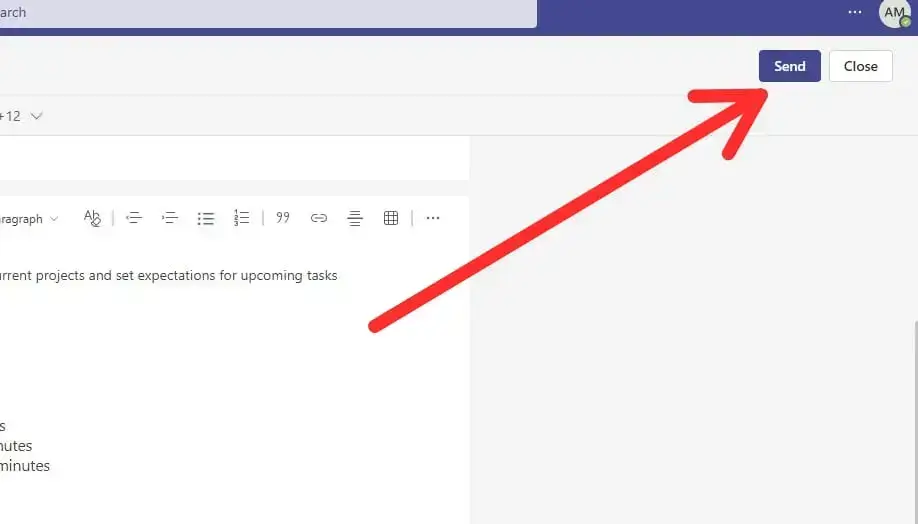
- Sobald alles bereit ist, klicken Sie auf die Senden -Schaltfläche oben rechts in der App, um das Meeting zu speichern und die Teilnehmer einzuladen. Das Meeting erscheint dann sowohl im Outlook-Kalender als auch im Teams-Kalender aller Teilnehmer.
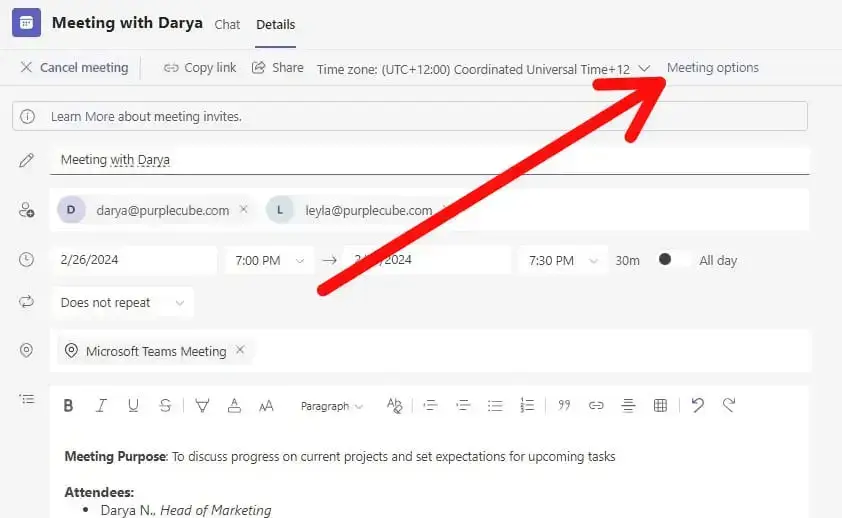
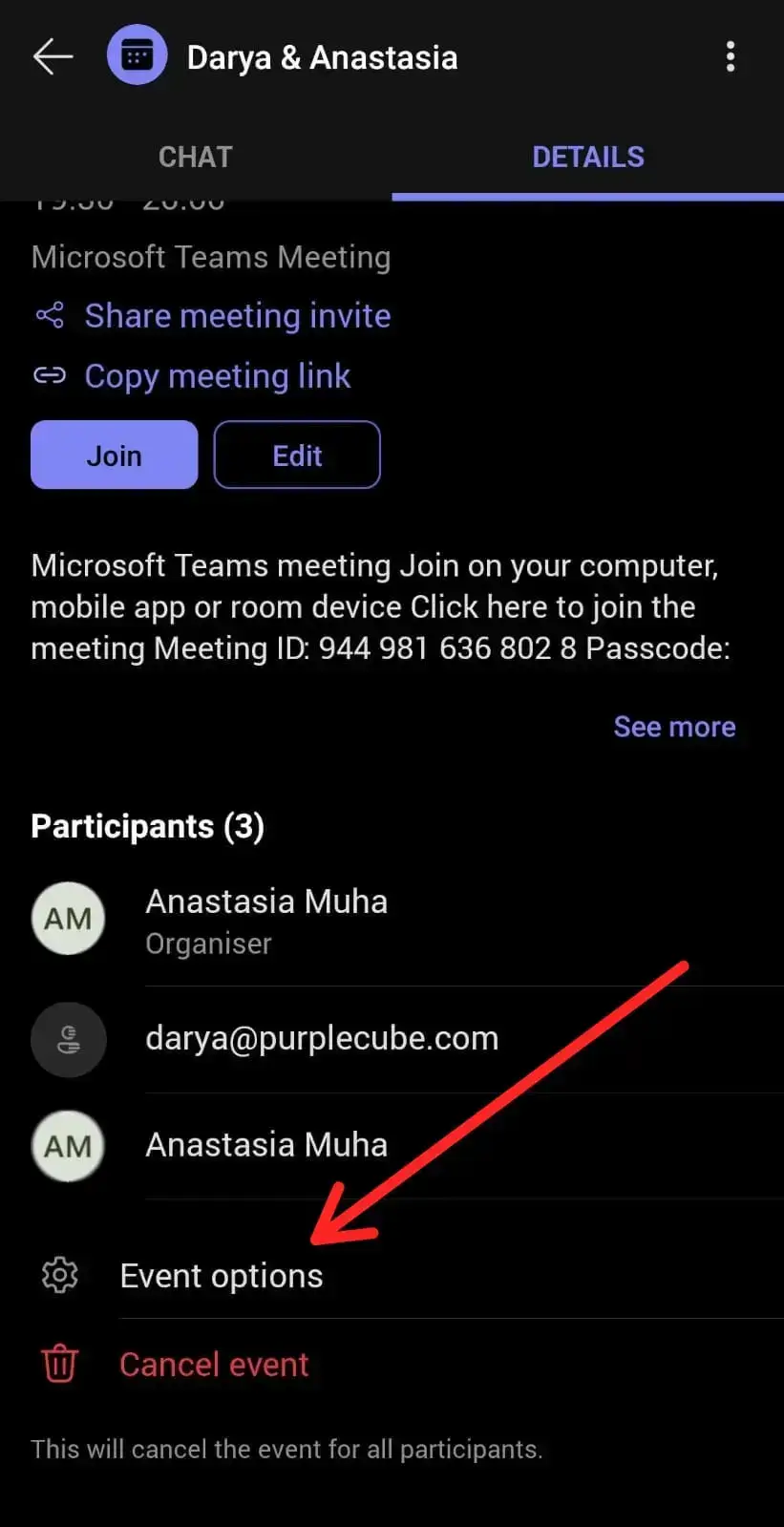
- Nachdem Sie die Einladung zum geplanten Meeting versendet haben, können Sie weitere Einstellungen anpassen, wie zum Beispiel, wer Referentenrechte hat und ob Teilnehmer die Lobby umgehen dürfen. Klicken Sie auf „Besprechungsoptionen“, um diese Einstellungen an die Anforderungen Ihres Meetings anzupassen.
B. So senden Sie eine Teams-Meeting-Einladung über Mobilgeräte
Wenn Sie lieber mobil arbeiten, sorgt die mobile Teams-App dafür, dass Sie zum Planen eines Meetings nicht an Ihren Schreibtisch gebunden sind.
So senden Sie eine Teams-Meeting-Einladung über Ihr Mobilgerät:
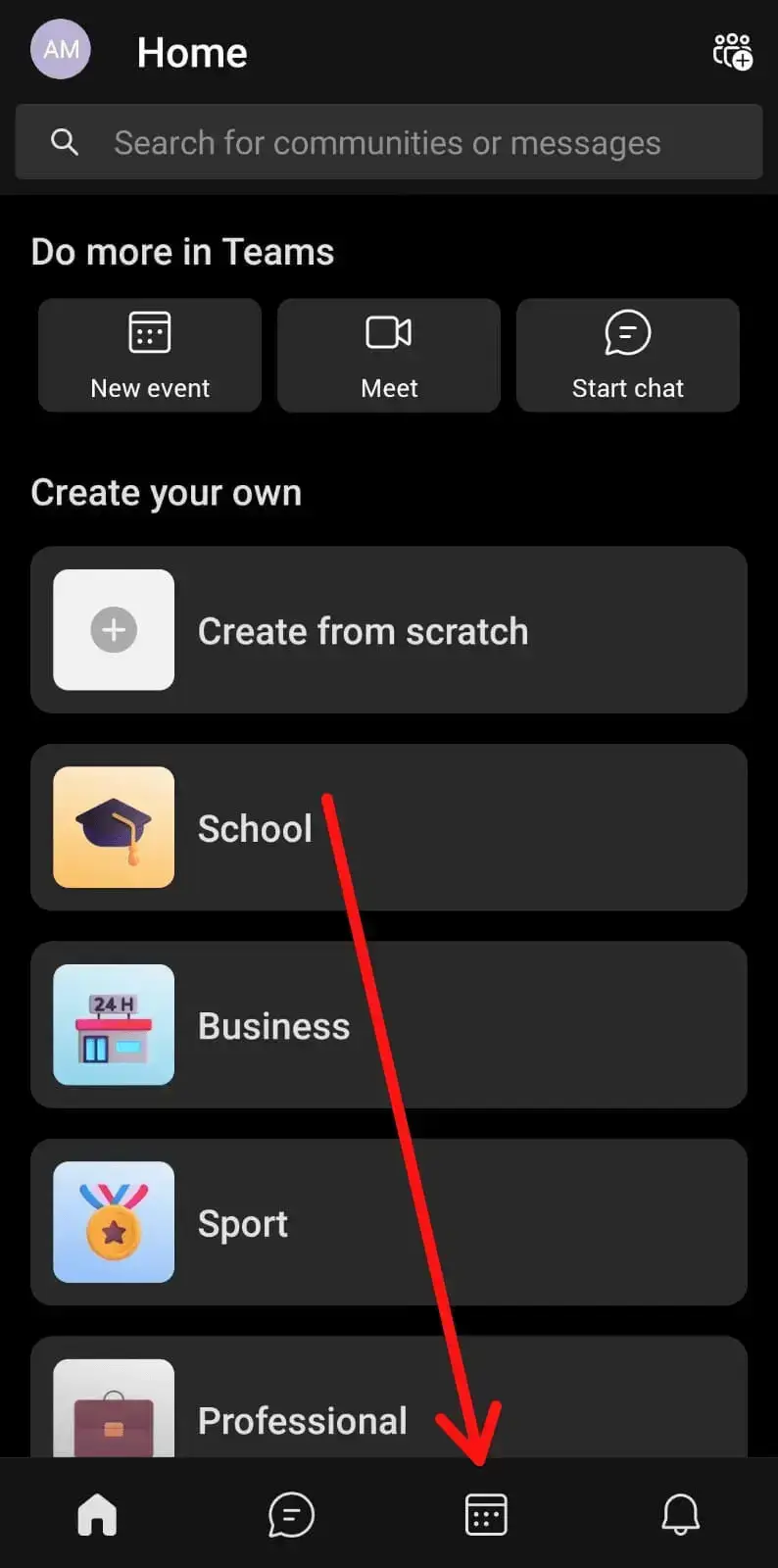
- Starten Sie die Teams-App auf Ihrem Mobilgerät. Klicken Sie unten auf das Symbol „Kalender“, um zur Kalenderansicht zu gelangen.
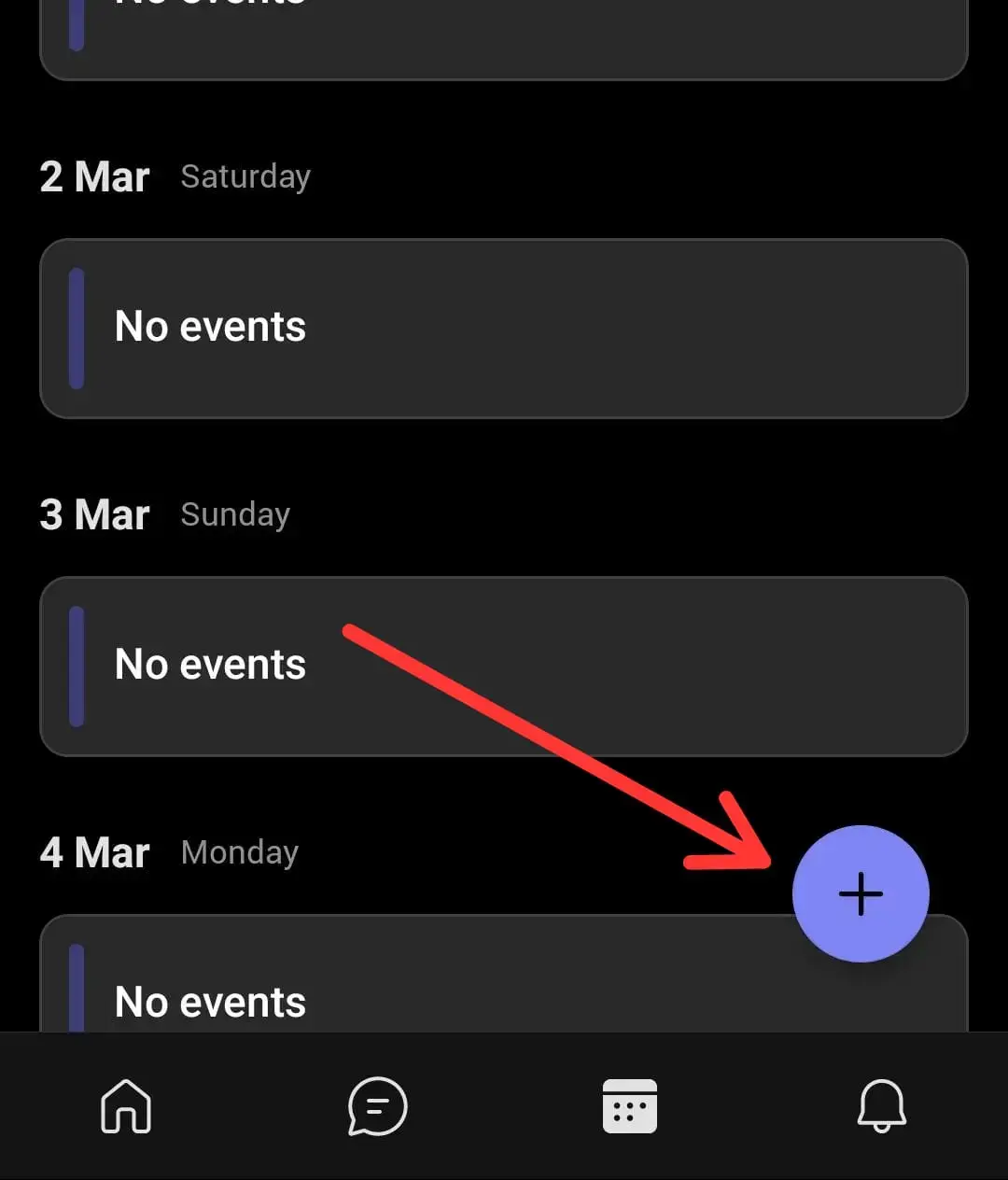
- Um ein neues Meeting zu planen, suchen Sie nach der Schaltfläche „Besprechung planen“ („+“ Symbol), das Sie unten rechts auf Ihrem Bildschirm finden.
- Wie bei der Desktop-Version werden Sie aufgefordert, Titel, Teilnehmer, Datumsowie Uhrzeitund alle weiteren relevanten Detailseinzugeben. Wenn Sie planen, Ihre Teams-Besprechung aufzuzeichnen, erwähnen Sie dies bitte im Reiter für die Besprechungsbeschreibung.
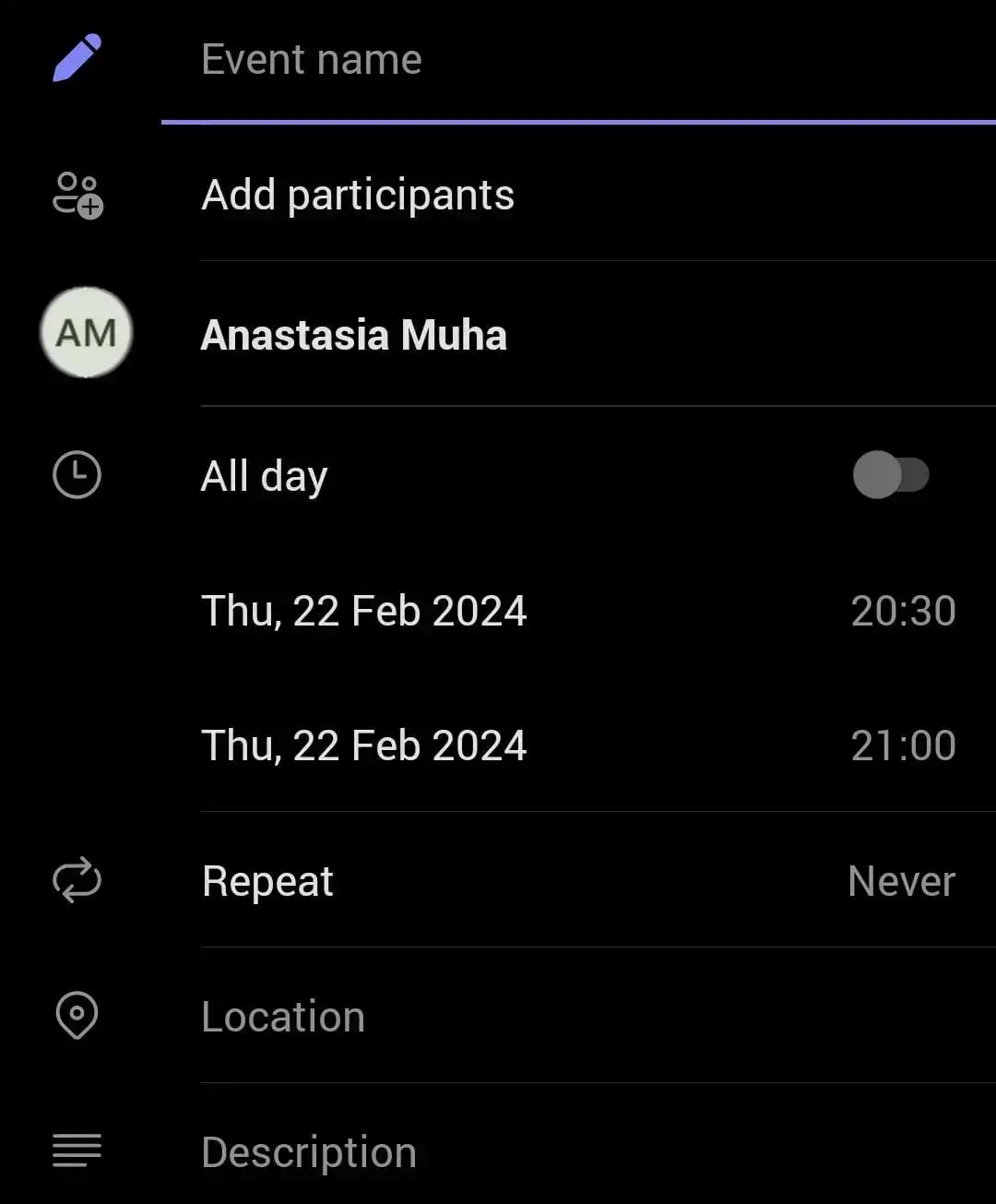
- Geben Sie im Feld „Teilnehmer hinzufügen“ die Namen der Personen ein. Während Sie Teilnehmer hinzufügen, schlägt Teams Kontakte aus Ihrer Organisation vor. Für externe Gäste geben Sie einfach deren E-Mail-Adresse ein.
- Sobald Sie alle erforderlichen Informationen eingegeben haben, überprüfen Sie die Besprechungsdetails noch einmal. Tippen Sie anschließend auf „Fertig“ oder „Senden”, um Ihre Einladung zu versenden. Die Teilnehmer erhalten eine E-Mail-Einladung sowie eine Benachrichtigung in der Teams-App.
- Nachdem Sie die Einladung verschickt haben, können Sie weitere Einstellungen vornehmen, wie z. B. Referentenrechte zuweisen oder festlegen, wer die Lobby umgehen darf. Klicken Sie auf „Besprechungsoptionen”, um diese Einstellungen an die Anforderungen Ihres Meetings anzupassen.
So folgen Sie jedem Teams-Meeting in 3 Schritten nach
Sie haben Ihr Meeting geplant und durchgeführt… was nun? Sie müssen bei den Teilnehmern nachfassen. Das können Sie zwar manuell erledigen, aber eine MeetGeek-Meeting-Automatisierungsplattform kann Ihnen helfen, alle Aufgaben nach dem Meeting zu automatisieren.
Das erledigt MeetGeek nach jedem Meeting für Sie:
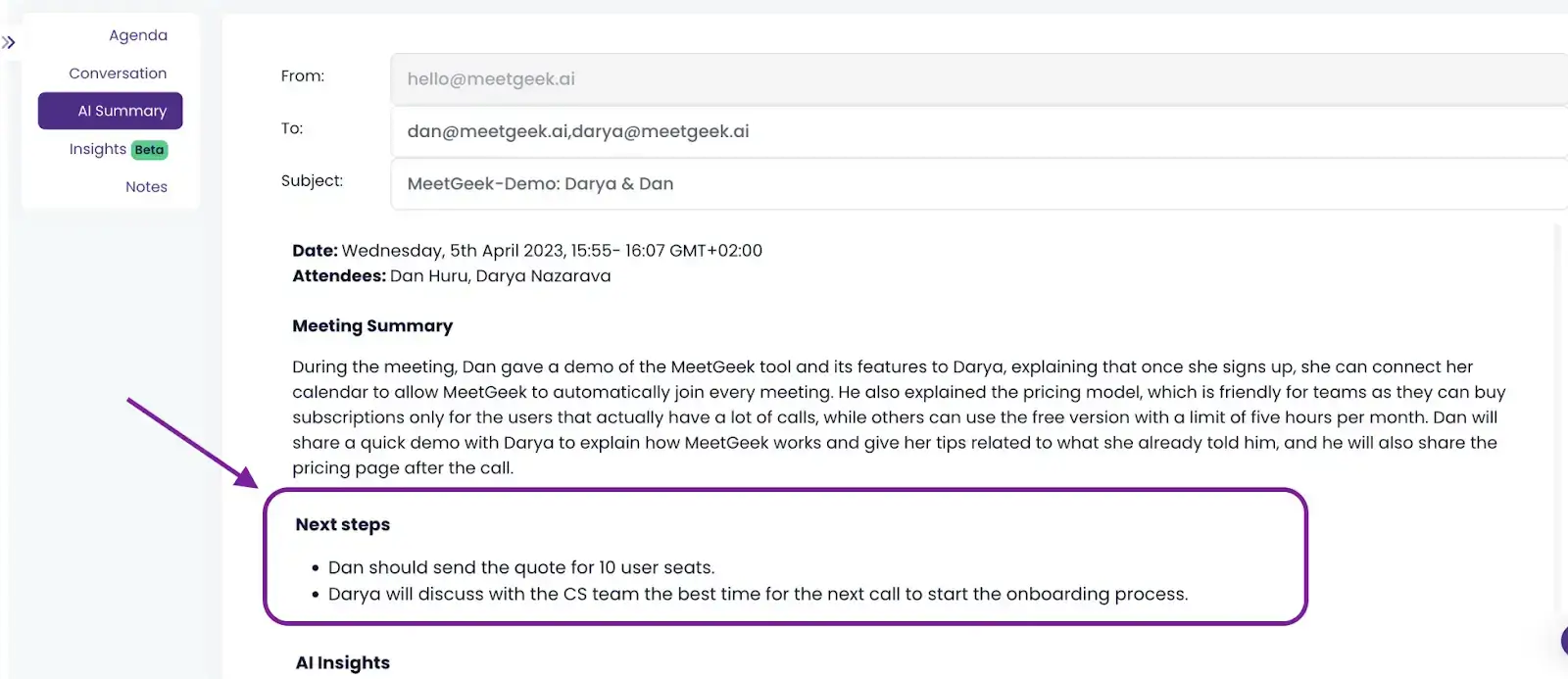
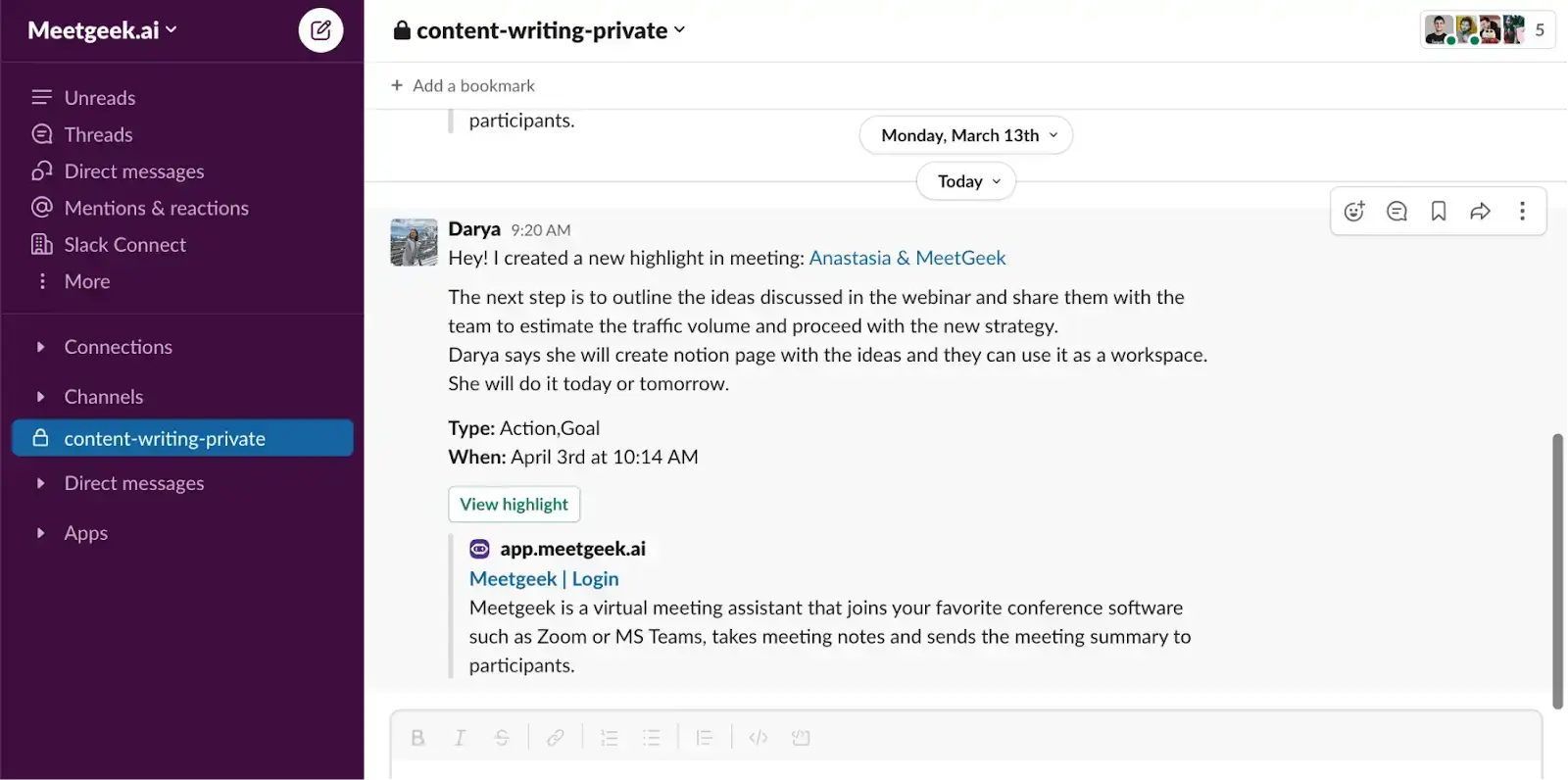
- KI-gestützte Meeting-Zusammenfassung und -Freigabe: Lassen Sie alle Ihre Teams-Sitzungen automatisch zusammenfassen – inklusive der wichtigsten Punkte, Entscheidungen und Aufgaben – und teilen Sie diese mit Ihren Teammitgliedern. Zusätzlich können Sie die Zusammenfassungen manuell an externe Personen senden, für die der Inhalt Ihrer Meetings relevant ist.
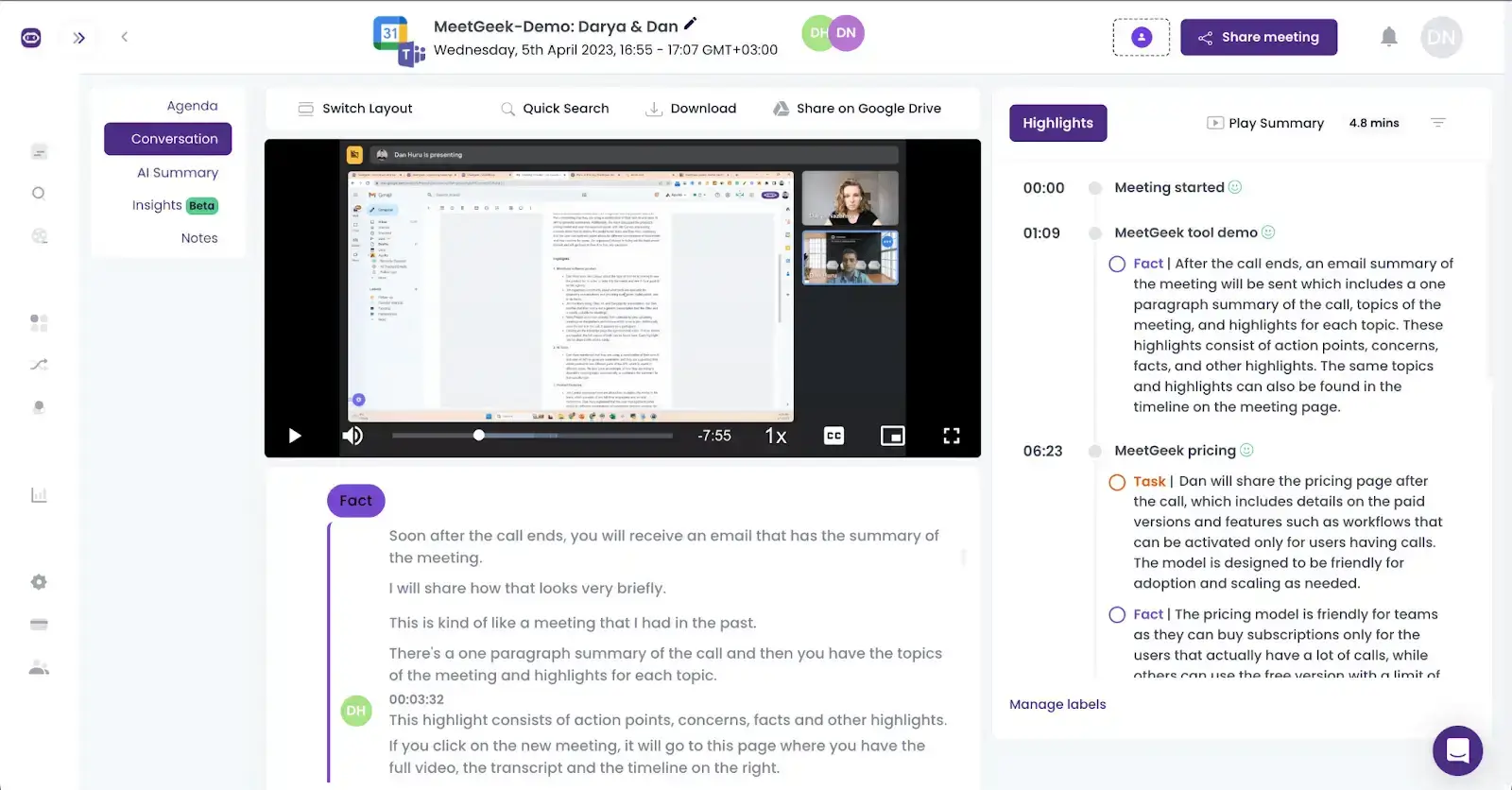
- Meeting-Archiv: Greifen Sie auf Ihre Teams-Meetings in einem zentralisiert Meeting-Hub, um Ihre Online-Meetings anzusehen, herunterzuladen oder über einen sicheren Link zu teilen. Dies ermöglicht nicht nur einen zentralen Ansatz für den Wissensaustausch, sondern erlaubt es den Empfängern auch, in ihrem eigenen Tempo zu arbeiten.
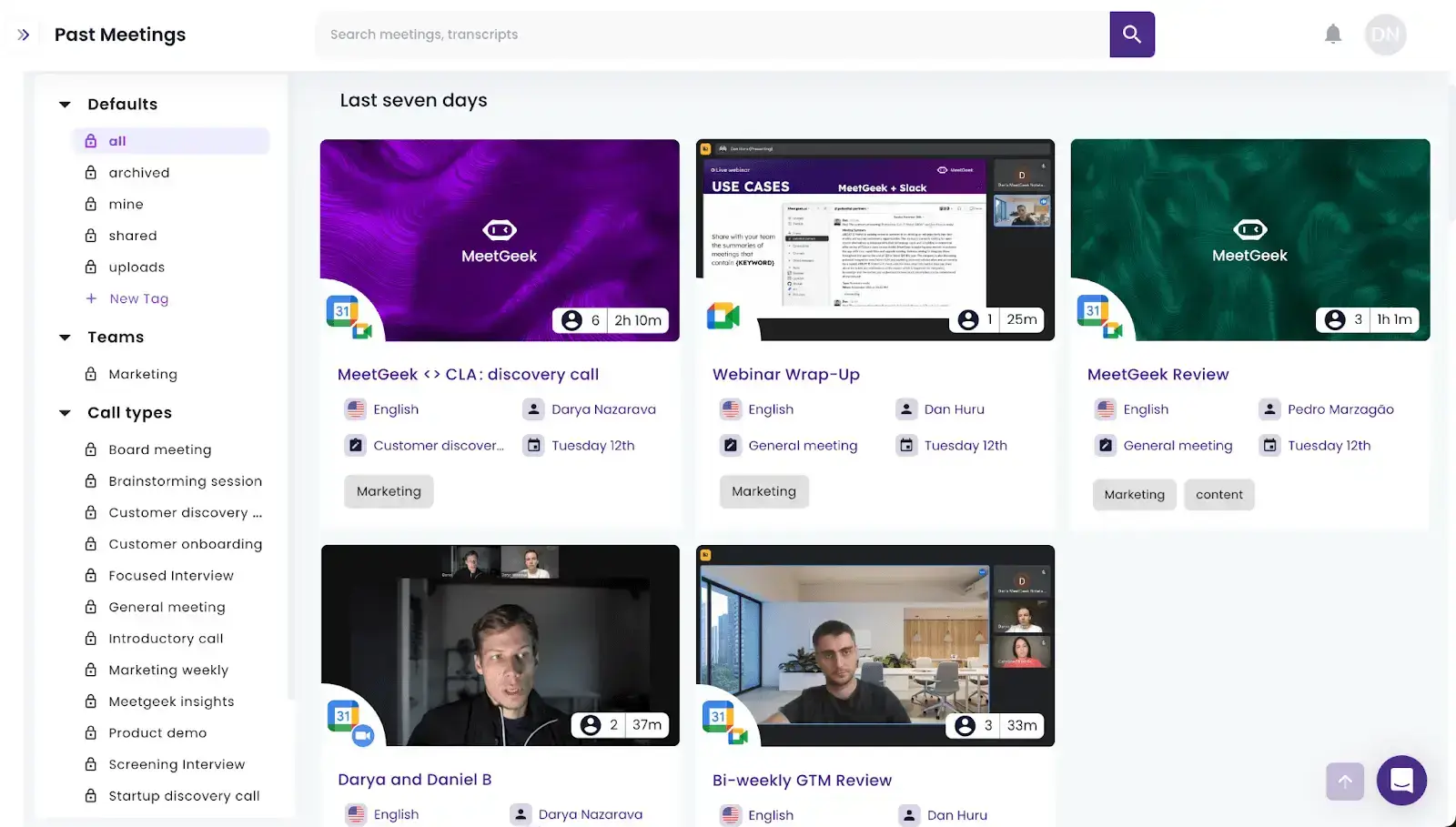
- Erkennung von Aufgaben: Die Aufgaben-Erkennungsfunktion von MeetGeek identifiziert und extrahiert Aktionspunkte aus Ihren Meetings, damit nichts Wichtiges untergeht. Dies bietet ein schriftliches Protokoll der vereinbarten und zugewiesenen Aufgaben und sorgt für Verbindlichkeit bei allen Beteiligten.
- Nahtlose Workflows: Richten Sie eine Automatisierung Ihrer Meeting-Workflows ein, die den Arbeitsbereich Ihres Unternehmens direkt mit den Aufgaben aktualisiert, damit alle direkt nach dem Meeting produktiv weiterarbeiten können. So können Sie den Projektfortschritt überwachen, sicherstellen, dass alles vorankommt, und Probleme lösen, bevor sie eskalieren.
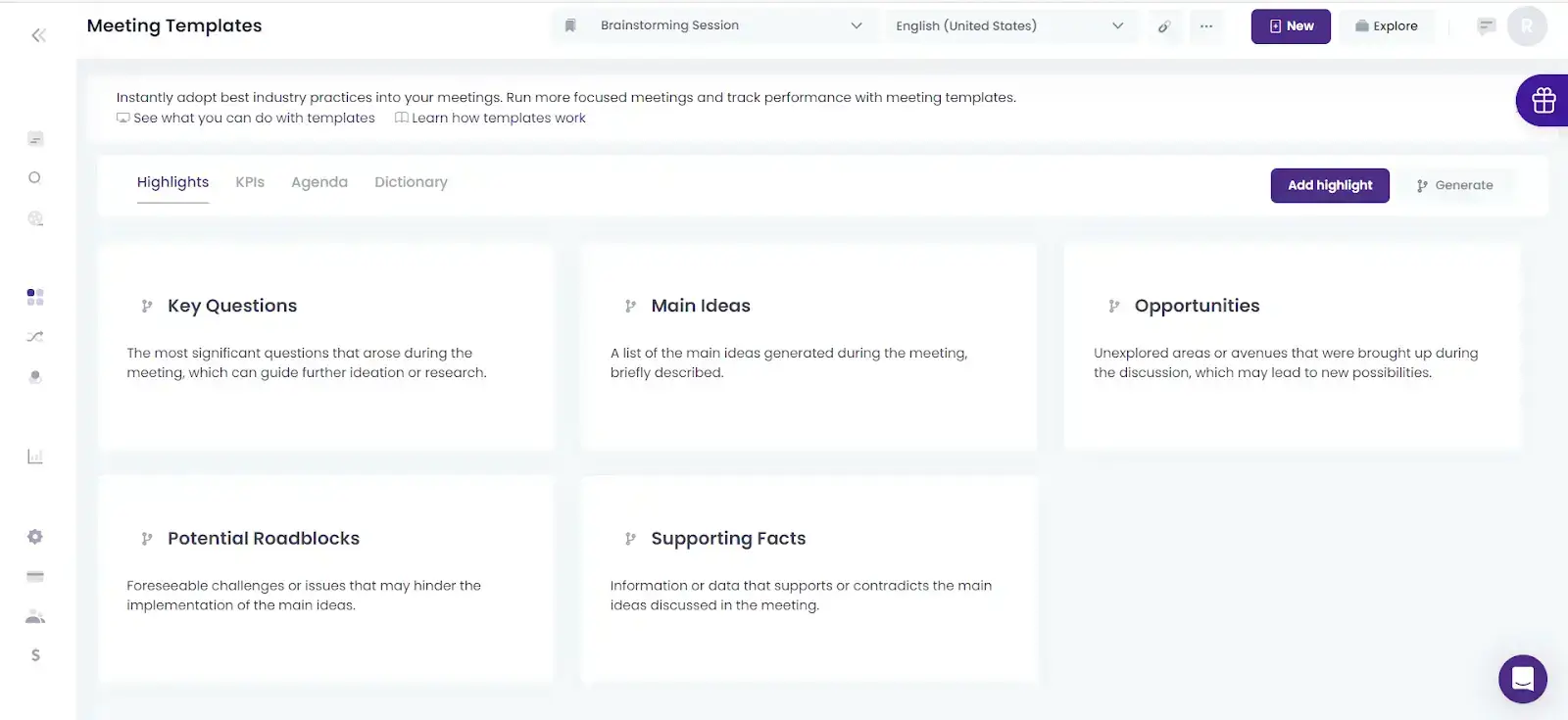
- KI-gestützte Gesprächsanalyse : Um die Effektivität Ihrer Teams-Meetings zu bewerten, weist MeetGeek jeder Ihrer Sitzungen eine individuelle Punktzahl zu, die auf den von Ihnen gewählten KPIs basiert.
Wie richte ich ein MeetGeek-Konto ein?
Die Nutzung von MeetGeek mit Microsoft Teams optimiert nicht nur Ihre Nachbereitung von Meetings, sondern auch zeichnet Teams-Meetings automatisch auf und transkribiert sie.
So richten Sie Ihr MeetGeek-Konto ein:
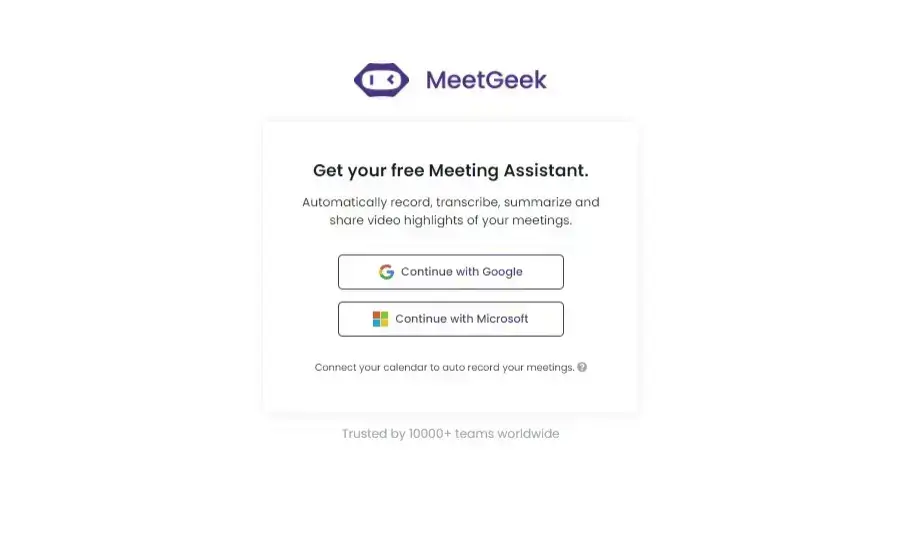
- Erstellen Sie ein kostenloses MeetGeek-Konto, indem Sie sich mit Ihrem Microsoft-Konto anmelden.
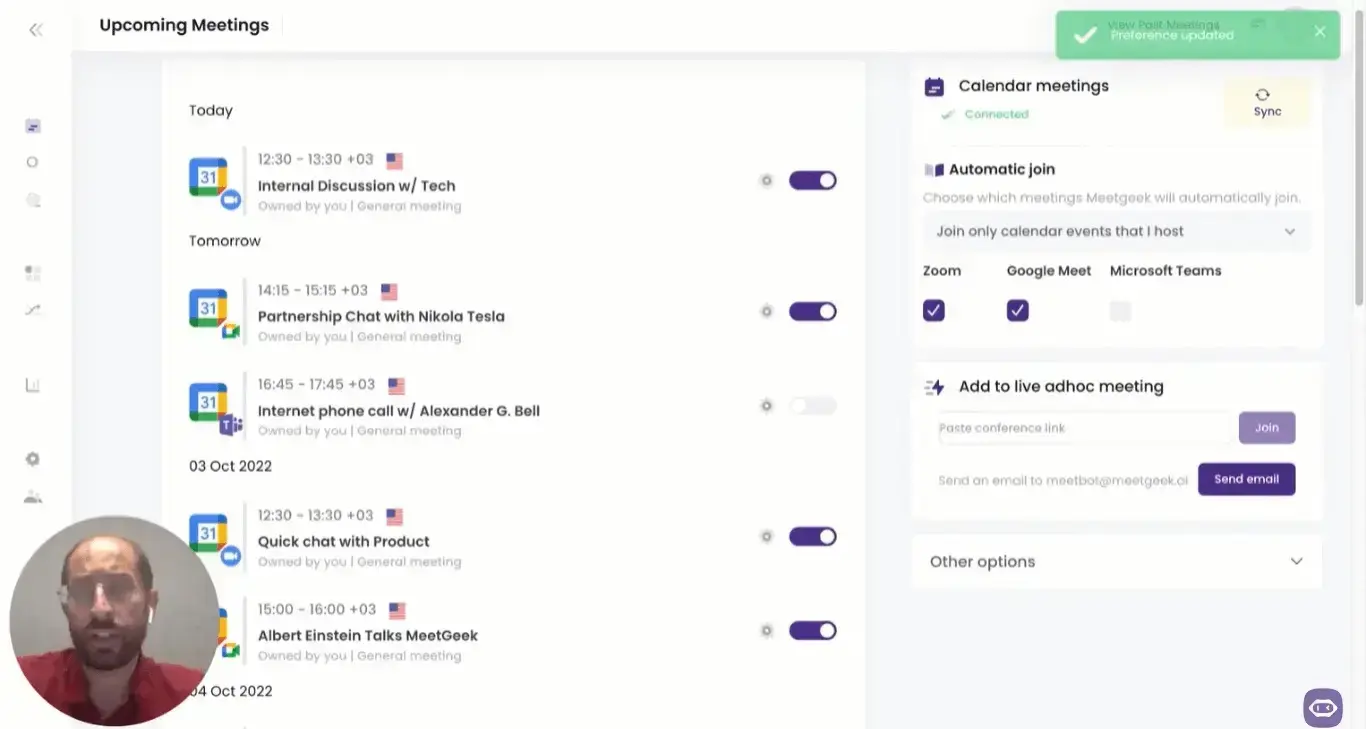
- Synchronisieren Sie Ihren Microsoft-Kalender mit der App, damit unser virtueller Assistent automatisch an Ihren Meetings teilnehmen kann. Fügen Sie bei spontanen Meetings einfach den Teams-Meeting-Link in die Leiste „Live Ad-hoc-Meeting“ ein.
- Sobald Ihr Meeting beginnt, tritt MeetGeek als eigenständiger Teilnehmer bei, zeichnet diskret Video und Audio auf und hält dabei alle Datenschutz- und Einwilligungsstandards ein.
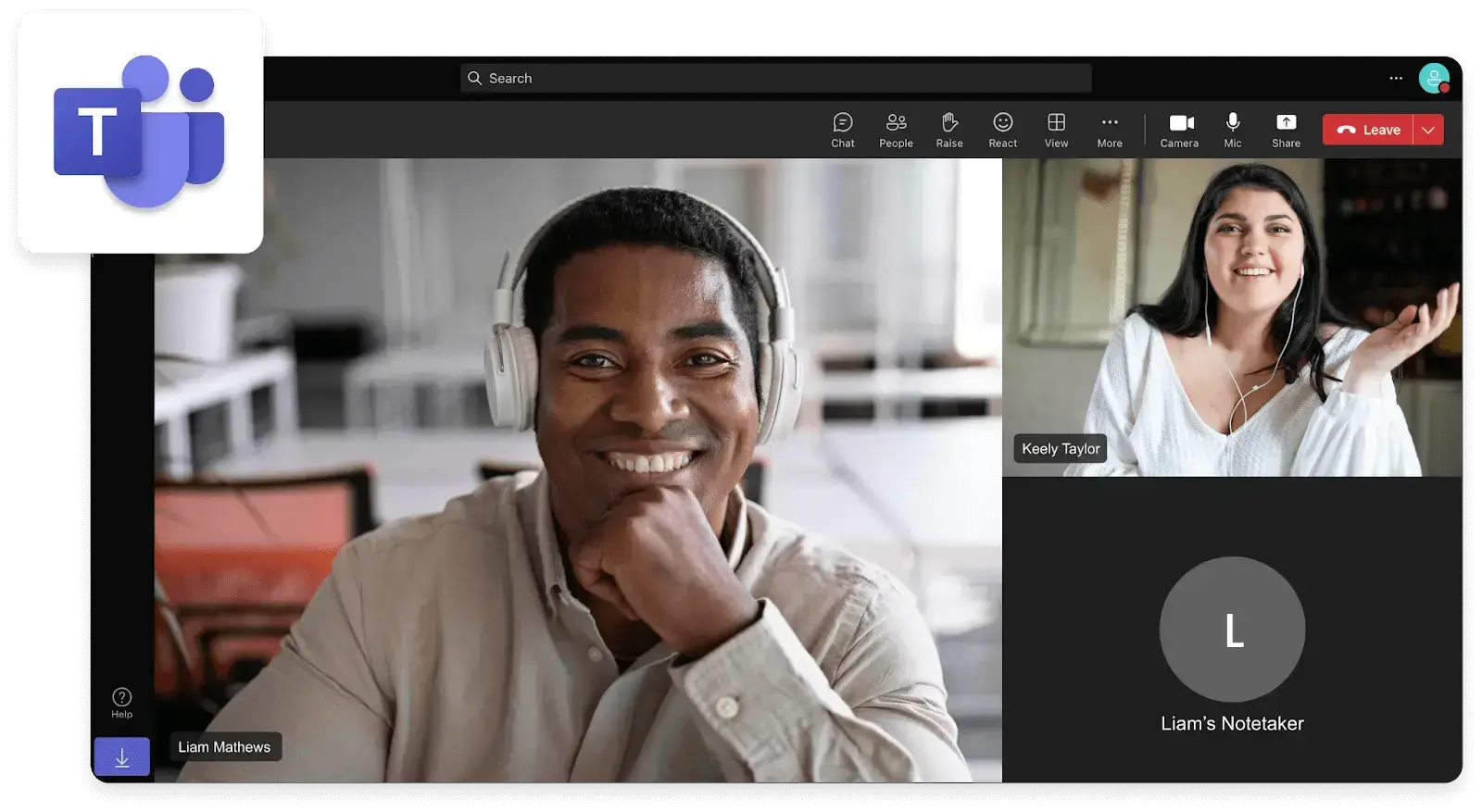
PROFI-TIPP: Sie können an einem Teams-Meeting nicht teilnehmen? Lassen Sie MeetGeek für sich teilnehmen und schauen Sie sich die Aufzeichnung bequem direkt in Ihrem MeetGeek-Konto an.
Bewährte Methoden für die perfekte Teams-Meeting-Einladung
1. Wichtige Informationen angeben
Sorgen Sie für die Grundlagen: Stellen Sie sicher, dass Ihre Einladung den Meeting-Titel, das Datum, die Uhrzeit (inklusive Zeitzonen) und den Link zur Teilnahme enthält. Achten Sie gegebenenfalls auch auf Zeitumstellungen.
Denken Sie daran: Klarheit ist entscheidend. Halten Sie diese Informationen daher prägnant und leicht verständlich. Wenn Sie weitere Details hinzufügen möchten, nutzen Sie den dafür vorgesehenen Bereich Meeting-Details Abschnitt, anstatt zu versuchen, alles in den Besprechungstitel Leiste.
2. Besprechungsagenda festlegen
Eine klare Agenda ist das Herzstück jeder produktiven Besprechung. Sie leitet die Diskussion, stellt sicher, dass alle wichtigen Themen behandelt werden, und hilft bei einem effektiven Zeitmanagement. Auch wenn Sie versucht sein könnten, diesen Schritt zu überspringen – besonders bei regelmäßigen Meetings –, tun Sie es nicht.
Verwenden Sie stattdessen eine anpassbare Vorlage und passen Sie diese an Ihre individuellen Anforderungen an. Die Agenda informiert die Teilnehmer nicht nur über den Zweck des Meetings, sondern ermöglicht es ihnen auch, Fragen oder Anmerkungen vorab vorzubereiten.
3. Relevante Dokumente bereitstellen
Wenn die Teilnehmer vorab Dokumente, Präsentationen oder andere Materialien prüfen müssen, hängen Sie diese direkt an die Einladung an oder fügen Sie entsprechende Links hinzu.
Dieser Schritt stellt sicher, dass alle vorbereitet erscheinen, was zu einem reibungsloseren und effizienteren Meeting führt. Es ist eine einfache Ergänzung, die den Beitrag der Teilnehmer maximiert.
4. Rollen und Verantwortlichkeiten klären
Wenn bestimmte Teilnehmer während des Meetings spezielle Rollen übernehmen müssen (z. B. Referent, Zeitwächter, Protokollführer), geben Sie dies in der Einladung an. Ein proaktiver Ansatz gibt den Teilnehmern genügend Zeit, sich auf ihre Aufgaben vorzubereiten, und vermeidet Verwirrung in letzter Minute.
5. Technische Voraussetzungen hervorheben
Für Teilnehmer, die mit Microsoft Teams nicht vertraut sind oder von verschiedenen Geräten aus teilnehmen, sollten Sie kurz auf technische Anforderungen oder Anweisungen zum Beitritt zum Meeting hinweisen.
Es ist zudem hilfreich zu erwähnen, ob vorab Software oder Apps heruntergeladen werden müssen, damit alle startklar sind, wenn das Meeting beginnt.
6. Zusage bestätigen lassen
Bitten Sie die Teilnehmer um eine Rückmeldung zur Meeting-Einladung. Zu wissen, wer teilnimmt, kann die Struktur und den Inhalt Ihres Meetings beeinflussen und es für die Anwesenden relevanter und ansprechender gestalten.
Sollte ein wichtiger Teilnehmer verhindert sein, haben Sie zudem genügend Zeit, alternative Teammitglieder mit der entsprechenden Expertise oder den nötigen Kompetenzen zu finden.
7. Mit Erinnerungen nachfassen
Der Alltag ist oft hektisch und Meetings geraten leicht in Vergessenheit. Senden Sie ein oder zwei Tage vor dem Termin eine Erinnerung mit dem Meeting-Link und allen kurzfristigen Details. Dieser kleine Hinweis kann die Teilnehmerzahl deutlich erhöhen und zeigt, dass Sie gut organisiert sind und sich auf den Beitrag der Teilnehmer freuen.
8. Kontaktinformationen bereitstellen
Geben Sie eine Kontaktperson an, die bei technischen Schwierigkeiten behilflich sein oder Fragen zum Meeting beantworten kann.
Ob es sich um Ihre eigenen Kontaktdaten oder die einer zuständigen Support-Person handelt – diese Informationen nehmen die Sorge vor technischen Problemen und stellen sicher, dass alle reibungslos teilnehmen können.
9. Aufzeichnung des Meetings ankündigen
Wenn Sie planen, das Teams-Meeting aufzuzeichnenaus Gründen des Datenschutzes und der Einwilligung ist es wichtig, die Teilnehmer vorab zu informieren. Erwähnen Sie dies in Ihrer Einladung und erläutern Sie kurz, wofür die Aufzeichnung verwendet wird (z. B. für das Protokoll oder zur Weitergabe an Personen, die nicht teilnehmen können).
Wiederholen Sie zu Beginn des Meetings zudem Ihre Absicht, das Gespräch aufzuzeichnen. Diese Transparenz schafft Vertrauen und stellt sicher, dass alle auf dem gleichen Stand sind.
Bessere Teams-Meetings mit MeetGeek!
Nachdem wir uns nun mit allen Details zum Versenden einer Microsoft Teams-Einladung von jedem Gerät aus vertraut gemacht haben, wird deutlich, dass die Möglichkeiten zur Vernetzung, Zusammenarbeit und Gestaltung buchstäblich in unseren Händen liegen. Denken Sie daran: Der Schlüssel zu einem erfolgreichen virtuellen Meeting liegt weit vor dem eigentlichen Termin – er beginnt mit einer gut durchdachten Einladung.
Während Sie die spannenden Funktionen von Microsoft Teams weiter erkunden, MeetGeek fungiert als Ihr KI-gestützter Meeting-Assistent und bietet Funktionen wie Echtzeit-Transkription, die Extraktion von Aufgaben sowie eine Stimmungsanalyse, damit keine wichtigen Informationen verloren gehen.
Es ist an der Zeit, Ihre Meetings zu transformieren und jedes virtuelle Treffen wirkungsvoller und effizienter zu gestalten!






.avif)