

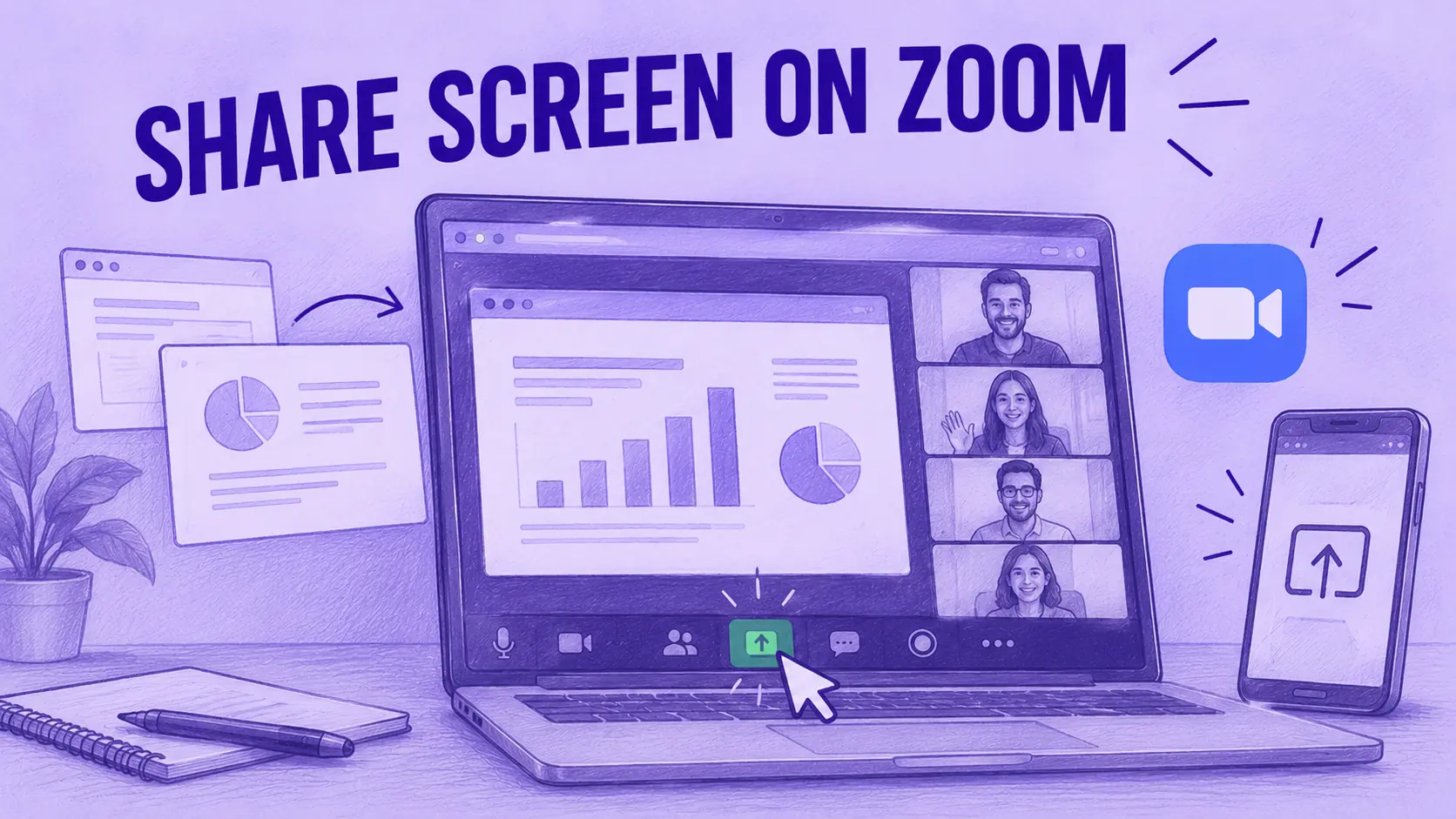

- Klicken Sie am Computer auf Share, auf iPhone oder iPad auf Share Content und unter Android auf Share.
- Bei kostenlosen Zoom-Basic-Konten kann standardmäßig nur der Host teilen, und der Host kann das unter Host tools for share ändern.
- Am Mac braucht Zoom die Berechtigung Screen & System Audio Recording, sonst sehen andere möglicherweise einen schwarzen Bildschirm.
- Um ein Video mit Ton zu teilen, aktivieren Sie Share sound, bevor Sie die Freigabe starten.
- Die Bildschirmfreigabe unter Android erfordert Android 10 oder höher.
Um Ihren Bildschirm in Zoom zu teilen, klicken Sie in der Meeting-Steuerleiste auf Share, wählen den Bildschirm oder das Fenster aus, das Sie zeigen möchten, und klicken erneut auf Share. Auf einem iPhone oder iPad heißt die Schaltfläche Share Content. Unter Android heißt sie Share. Zum Beenden klicken Sie auf Stop share.
Ist die Share-Schaltfläche ausgegraut oder fehlt sie, hat der Host das Teilen wahrscheinlich eingeschränkt. Bei kostenlosen Zoom-Basic-Konten ist die Bildschirmfreigabe standardmäßig nur für den Host aktiviert; Teilnehmer können also erst teilen, wenn der Host es erlaubt.
Falls Sie noch nicht im Meeting sind, lesen Sie, wie Sie von jedem Gerät aus an einem Zoom-Meeting teilnehmen. Schaltflächen und Menüs nennen wir wie in den Screenshots mit ihren englischen Namen, während eine auf Deutsch eingestellte Zoom-App die entsprechende deutsche Bezeichnung anzeigt.
Was können Sie in Zoom teilen?
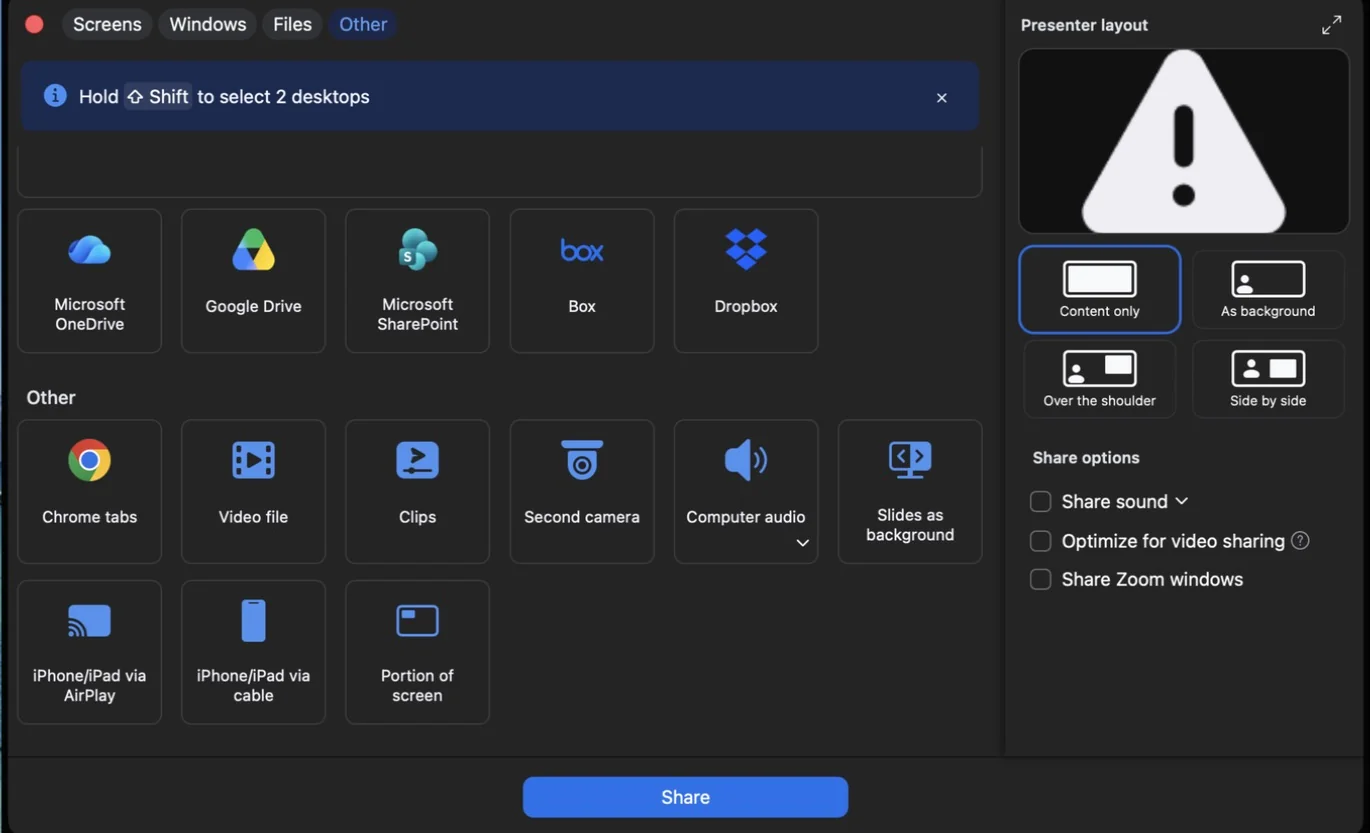
Im Freigabefenster der Desktop-App ordnet Zoom alles, was Sie teilen können, vier Registerkarten zu:
- Screens: Ihr gesamter Bildschirm oder ein einzelnes App-Fenster, das darunter aufgeführt ist;
- Windows: jeweils ein App-Fenster;
- Files: ein Zoom Whiteboard oder eine andere Zoom-Datei oder eine Datei aus OneDrive, Google Drive, SharePoint, Box oder Dropbox;
- Other: Chrome-Tabs, eine Videodatei, ein Zoom Clip, eine zweite Kamera, nur Ihr Computer-Audio, Folien als Ihr virtueller Hintergrund, der Bildschirm eines iPhones oder iPads oder ein Ausschnitt Ihres Bildschirms.
Häufig geteilt werden in Meetings zum Beispiel:
- Präsentationen und Dokumente: Ihre PowerPoint-Folien zeigen, Word-Dokumente, Tabellen oder PDFs;
- Webseiten und Apps: ein Browser-Tab, eine Produktdemo, ein Design-Tool oder ein Code-Editor;
- Whiteboard: Ideen sammeln, zeichnen oder ein Konzept anschaulich erklären, während alle zusehen;
- Video und Audio: ein Clip mit seinem Ton oder Musik, über die Option Share sound.
So teilen Sie Ihren Bildschirm in Zoom (PC, Mac und Handy)
Die folgenden Schritte beziehen sich auf die aktuelle Zoom-Workplace-App. Sieht eine Schaltfläche auf Ihrem Gerät anders aus, aktualisieren Sie zuerst die App. Zoom unterstützt keine App-Versionen, die älter als die erforderliche Mindestversion sind.
Unter Windows und Mac
So teilen Sie Ihren Bildschirm in einem Zoom-Meeting am Computer:
- Meeting öffnen: Starten Sie ein Meeting in der Desktop-App Zoom Workplace oder nehmen Sie daran teil. Sie können die App von der Website von Zoom herunterladen;
- Auf Share klicken: Suchen Sie Share in der Meeting-Steuerleiste am unteren Fensterrand;
- Inhalt auswählen: Wählen Sie im Freigabefenster einen Bildschirm auf der Registerkarte Screens oder eine App auf der Registerkarte Windows oder öffnen Sie Files oder Other für alles andere;
- Optionen festlegen: Aktivieren Sie Share sound, wenn ein Video oder Audio zu hören sein soll, und Optimize for video sharing nur dann, wenn Sie ein Video im Vollbild abspielen. Im Bereich Presenter layout können Sie Ihre Kamera neben oder über dem geteilten Inhalt einblenden;
- Freigabe starten: Klicken Sie auf Share. Sobald die Geräte der meisten Teilnehmer die Freigabe empfangen haben, zeigt Zoom die Meldung „Participants can now see your shared screen“ an;
- Beenden: Klicken Sie auf Stop share in der schwebenden Symbolleiste oben auf Ihrem Bildschirm.

Während Sie teilen, wandert die Meeting-Steuerleiste in eine schwebende Symbolleiste. Dort können Sie die Freigabe pausieren, Anmerkungen machen, den Chat öffnen oder eine neue Freigabe starten, ohne das Meeting zu beenden.
Am Mac: Zuerst die Bildschirmaufnahme erlauben
Wenn Sie zum ersten Mal am Mac teilen, fragt macOS nach einer Berechtigung. Ohne diese Berechtigung sehen die anderen Teilnehmer möglicherweise einen schwarzen Bildschirm oder nur Ihr Hintergrundbild. Im Freigabefenster zeigt dann jeder Bildschirm und jedes Fenster statt einer Vorschau ein Warnsymbol:
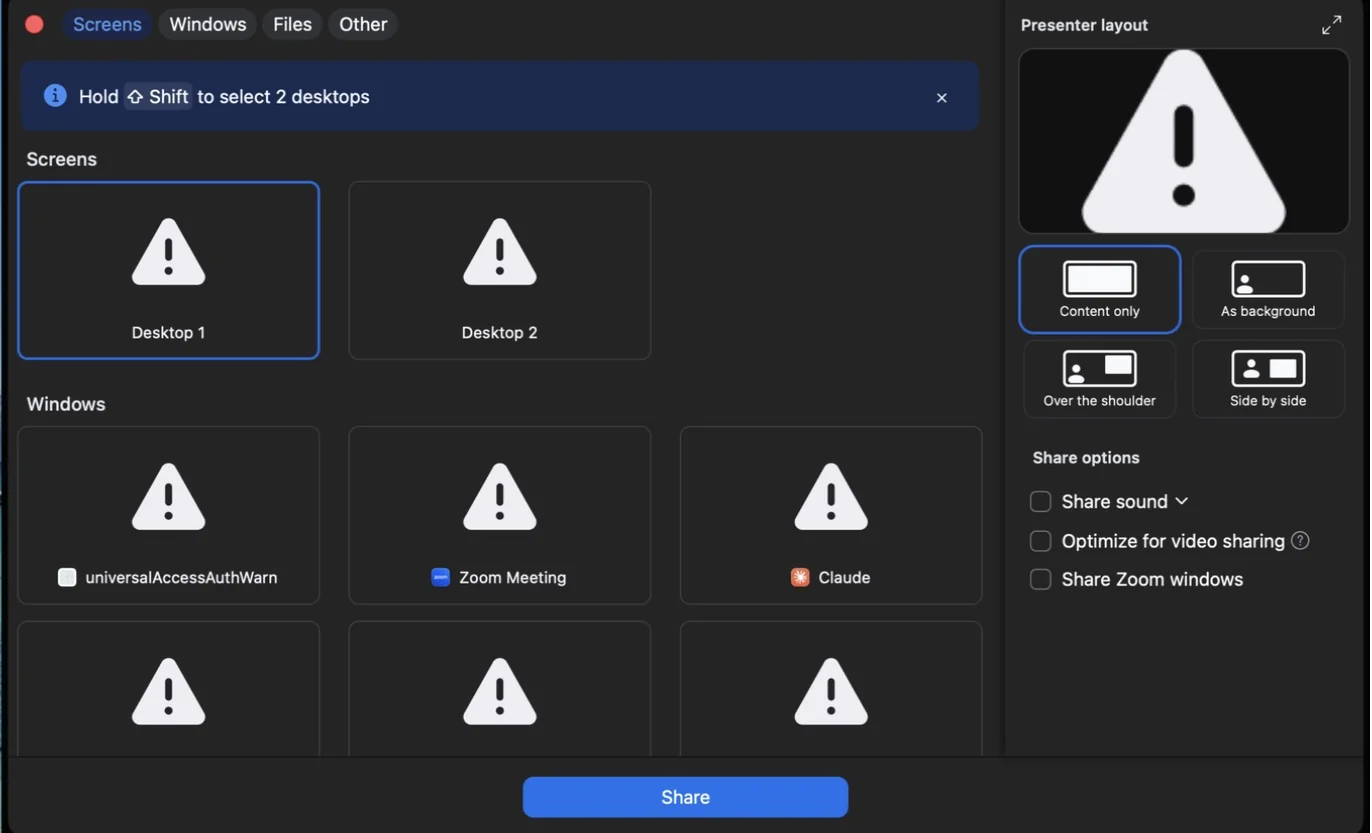
So erteilen Sie Zoom diese Berechtigung:
- Einstellung öffnen: Gehen Sie zu Apple-Menü > System Settings > Privacy & Security > Screen & System Audio Recording;
- Zoom erlauben: Suchen Sie Zoom in der Liste und aktivieren Sie den Zugriff auf die Bildschirmaufnahme. Wenn Zoom nicht aufgeführt ist, kehren Sie zur App zurück und versuchen Sie, Ihren Bildschirm zu teilen, damit die Berechtigungsanfrage erscheint;
- Zoom neu starten: Beenden Sie Zoom, öffnen Sie die App erneut und treten Sie dem Meeting wieder bei.
Apples Anleitung zur Bildschirm- und Systemaudioaufnahme beschreibt denselben Weg. In älteren macOS-Versionen heißt die Einstellung Screen Recording.
Im Browser (Zoom-Web-App)
Wenn Sie statt über die App über einen Browser teilnehmen, klicken Sie in der Symbolleiste auf Share und wählen einen Browser-Tab, ein App-Fenster oder Ihren gesamten Bildschirm. Aktivieren Sie Also share tab audio, wenn der Tab Ton abspielt. Diese Option gibt es nur in Google Chrome.
Auf iPhone und iPad
Auf einem iPhone oder iPad gehen Sie so vor:
- Mitteilungen stummschalten: Aktivieren Sie „Nicht stören“, damit keine Nachrichten auf Ihrem geteilten Bildschirm auftauchen;
- Freigabemenü öffnen: Tippen Sie im Meeting in der Meeting-Steuerleiste auf Share Content;
- Screen wählen: Tippen Sie auf Screen. Sie können auch Fotos, Dateien aus iCloud Drive oder einem Cloud-Dienst, eine Website-URL oder auf dem iPad ein Whiteboard teilen;
- Mikrofon einstellen: Wählen Sie auf dem Übertragungsbildschirm Microphone On oder Microphone Off. Nach dem Start der Freigabe können Sie mit Share Device Audio in Zoom steuern, ob die Teilnehmer den Ton hören, der auf Ihrem Gerät abgespielt wird;
- Übertragung starten: Tippen Sie auf Start Broadcast. Die Freigabe beginnt nach einem Countdown von 3 Sekunden;
- Zum Inhalt wechseln: Wischen Sie nach oben oder drücken Sie die Home-Taste und öffnen Sie die App, die Sie zeigen möchten.
Zum Beenden öffnen Sie die Zoom-App und tippen auf Stop Share oder Sie tippen oben auf dem Bildschirm auf die rote Anzeige und dann auf Stop. Während Sie Ihren gesamten iOS-Bildschirm teilen, sind keine Anmerkungen möglich. Wenn Sie Ihr iPhone im Raum auf einem größeren Display zeigen möchten, können Sie auch den iPhone-Bildschirm auf den Fernseher spiegeln.
Unter Android
In der Android-App gehen Sie so vor:
- Freigabemenü öffnen: Tippen Sie im Meeting in der Meeting-Steuerleiste auf Share;
- Screen wählen: Tippen Sie auf Screen. Das Menü bietet außerdem Fotos, Dokumente, eine Website-URL, ein Lesezeichen, Ihre Kamera oder ein Whiteboard;
- Aufnahme erlauben: Bestätigen Sie die Android-Abfrage, mit der Zoom Ihren Bildschirm aufnehmen darf;
- Bei Bedarf Ton teilen: Tippen Sie auf Share Audio, um den Ton Ihres Geräts zu teilen, und tippen Sie erneut darauf, um ihn auszuschalten;
- Beenden: Tippen Sie auf Stop Share, wenn Sie fertig sind.
Für die Bildschirmfreigabe unter Android ist Android 10 oder höher erforderlich.
Einstellungen und Profi-Tipps zur Bildschirmfreigabe in Zoom-Meetings
Während Sie Ihren Bildschirm teilen, steuern Sie mit einigen Funktionen, was die Teilnehmer sehen.
1. Optionen für Teilnehmer als Zuschauer
Wenn jemand anderes teilt, können Sie:
- Die Ansicht ändern: Klicken Sie oben rechts auf View und wählen Sie das Layout Side-by-side, um den geteilten Bildschirm und die Sprecher gleichzeitig zu sehen. Mit der Trennlinie können Sie die Größe beider Seiten anpassen;
- Die Steuerung anfordern: Wenn die Fernsteuerung aktiviert ist, können Sie über die Freigabeoptionen die Steuerung des geteilten Bildschirms anfordern. Die teilende Person muss Ihre Anfrage bestätigen und kann die Steuerung jederzeit zurücknehmen;
- Chatten oder die Hand heben: Stellen Sie Fragen im Chat oder heben Sie in Zoom die Hand, um sich zu Wort zu melden, ohne zu unterbrechen.
2. Ton teilen
Wenn Sie ein Video oder einen Audioclip abspielen, hören die anderen ihn nur, wenn Sie den Ton Ihres Computers teilen. Unter Windows und Mac aktivieren Sie im Freigabefenster Share sound, bevor Sie auf Share klicken. Wenn Sie bereits teilen, öffnen Sie in der schwebenden Symbolleiste More und wählen Share computer sounds.
Im Browser verwenden Sie Also share tab audio (nur in Chrome). Auf dem iPhone tippen Sie auf Share Device Audio, unter Android auf Share Audio. Die anderen hören den Ton unter Umständen mit einer kleinen Verzögerung.
3. Bildschirmfreigabe beenden
Um die Freigabe zu beenden, klicken Sie in der schwebenden Symbolleiste auf Stop share (Windows und Mac) oder nutzen die entsprechende Schaltfläche im Browser oder in der mobilen App. Danach kehren Sie zur normalen Meeting-Ansicht zurück.
4. Neue Bildschirmfreigabe starten
Um zu einem anderen Fenster oder Bildschirm zu wechseln, klicken Sie in der schwebenden Symbolleiste auf Share und wählen den Inhalt, den Sie als Nächstes zeigen möchten.
5. Bildschirmfreigabe pausieren und fortsetzen
Klicken Sie in der schwebenden Symbolleiste auf Pause, um das Bild für die anderen einzufrieren, während Sie eine Datei suchen oder eine Frage beantworten. Mit Resume geht es weiter. Beim Pausieren bleibt die Freigabe offen, sodass Sie sie nicht neu einrichten müssen.
6. Anmerkungen
Klicken Sie in der schwebenden Symbolleiste auf Annotate, um auf Ihrem geteilten Bildschirm zu zeichnen, etwas hervorzuheben oder Text hinzuzufügen. Auch die Teilnehmer können Anmerkungen machen, wenn der Host es erlaubt. Wenn Sie Ihren gesamten Bildschirm von einem iPhone oder iPad teilen, sind keine Anmerkungen möglich.
7. Teilnehmer den Bildschirm teilen lassen
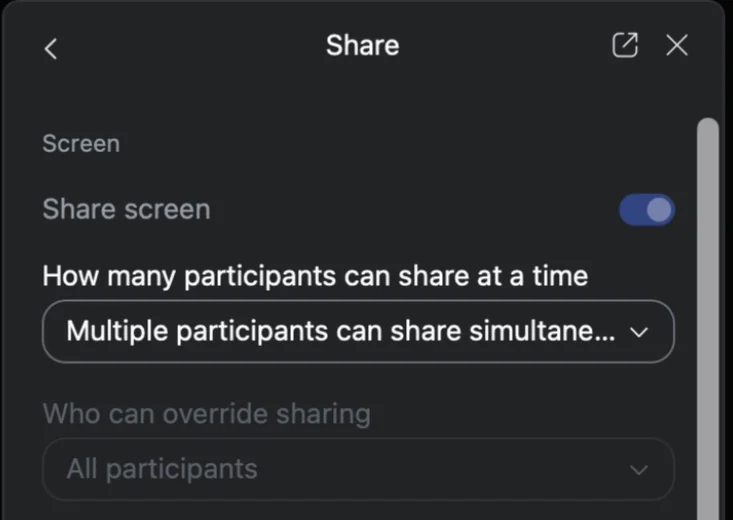
Als Host legen Sie fest, wer seinen Bildschirm teilen darf. Klicken Sie in der Zoom-Desktop-App auf den Pfeil neben Share und öffnen Sie Host tools for share. Dort können Sie:
- Die Bildschirmfreigabe ein- oder ausschalten: mit dem Schalter Share screen;
- Mehreren Personen gleichzeitig das Teilen erlauben: unter How many participants can share at a time;
- Festlegen, wer eine Freigabe übernehmen darf: unter Who can override sharing.
Um die Standardeinstellung für alle Ihre Meetings zu ändern, öffnen Sie die Einstellung zur Bildschirmfreigabe in Ihren Zoom-Einstellungen im Web. Denken Sie daran, dass bei Basic-Konten standardmäßig nur der Host teilen kann. Zu Co-Hosts und anderen Rollen lesen Sie, wie Sie den Host in Zoom ändern.
8. Tastenkürzel
Tastenkürzel sparen während einer Präsentation ein paar Klicks. Das sind die Tastenkürzel, die Zoom selbst für die Bildschirmfreigabe vorsieht:
| Aktion | Windows | Mac |
|---|---|---|
| Bildschirmfreigabe starten oder beenden | Alt + S | Command + Shift + S |
| Bildschirmfreigabe pausieren oder fortsetzen | Alt + T | Command + Shift + T |
| Fernsteuerung starten | Alt + Shift + R | Ctrl + Shift + R |
| Fernsteuerung abgeben oder entziehen | Alt + Shift + G | Ctrl + Shift + G |
Unter Windows funktionieren Alt + S und Alt + T nur, wenn die Meeting-Steuerleiste im Fokus ist. Alle Tastenkürzel können Sie in der Zoom-App unter Settings > Keyboard Shortcuts prüfen oder ändern.
Zoom-Bildschirmfreigabe aufzeichnen
Wenn niemand aufgezeichnet hat, kann es nach dem Meeting schwer sein, sich an das Gezeigte zu erinnern, etwa an eine Demo, die Zahlen auf einer Folie oder eine Entscheidung, die fiel, während alle darauf schauten.
Die Zoom-eigene Aufzeichnung erfasst den geteilten Bildschirm zusammen mit dem Ton. Mit einem kostenlosen Konto können Sie auf Ihrem Computer aufzeichnen und kostenpflichtige Tarife bieten zusätzlich die Cloud-Aufzeichnung. Unsere Anleitungen erklären, wo Zoom-Aufzeichnungen gespeichert werden und wie Sie sich selbst in Zoom aufnehmen, ganz ohne Meeting.
Mit einer Aufzeichnung können Sie das Meeting erneut ansehen, doch eine bestimmte Diskussion oder Entscheidung darin zu finden, kann dauern. Der KI-Notetaker von MeetGeek für Zoom kann an Ihren geplanten Meetings teilnehmen, auch wenn Sie nicht der Host sind, und das Video mit Transkript aufzeichnen, sodass Sie sich das Meeting später noch einmal ansehen können.
Schon gewusst? MeetGeek zeichnet Meetings in Zoom, Google Meet, Microsoft Teams und auf anderen Plattformen auf. Offizielle MeetGeek-Daten aus dem ersten Halbjahr 2026 zeigen, dass 24,7 % der Zoom-Meetings länger als eine Stunde dauern, gegenüber 23,7 % bei Microsoft Teams und 19,9 % bei Google Meet.
Nachdem das Meeting verarbeitet wurde, erstellt MeetGeek eine Zusammenfassung und erkennt offene Aufgaben. Mit AI Chat können Sie Fragen zum Besprochenen stellen, Entscheidungen wiederfinden und wichtige Details erneut aufrufen. Außerdem können Sie Workflows einrichten, die Meeting-Notizen automatisch an Tools wie Ihr CRM, Notion, Slack oder Google Drive senden.

Warum kann ich meinen Bildschirm in Zoom nicht teilen? Tipps zur Fehlerbehebung
Probleme beim Teilen liegen oft an einer Einstellung. Prüfen Sie Folgendes der Reihe nach:
- Die Share-Schaltfläche ist ausgegraut: Der Host hat das Teilen wahrscheinlich auf sich selbst beschränkt, was bei Basic-Konten die Standardeinstellung ist. Bitten Sie den Host, Share screen unter Host tools for share zu aktivieren;
- Jemand anderes teilt gerade: Es kann immer nur eine Person teilen, es sei denn, der Host ändert das. Warten Sie, bis die Person aufhört, oder bitten Sie den Host, mehreren Teilnehmern das Teilen zu erlauben;
- Andere sehen am Mac einen schwarzen Bildschirm: Zoom fehlt wahrscheinlich die Berechtigung Screen & System Audio Recording. Aktivieren Sie sie in den System Settings und starten Sie Zoom neu;
- Niemand hört das Video: Share sound war wahrscheinlich nicht aktiviert. Schalten Sie Share computer sounds über More in der schwebenden Symbolleiste ein;
- Keine Option Screen unter Android: Die Bildschirmfreigabe erfordert Android 10 oder höher;
- Unter Linux lässt sich nur der ganze Desktop teilen: Das passiert unter Wayland. Starten Sie Ihre Sitzung mit Xorg, um eine einzelne App zu teilen;
- Die App ist veraltet: Aktualisieren Sie Zoom, denn Zoom unterstützt keine App-Versionen, die älter als die erforderliche Mindestversion sind. Auch eine stabile Verbindung hilft, besonders wenn Sie Videos teilen.
Wenn nichts davon hilft, starten Sie vor Ihrem nächsten Meeting ein Testmeeting in Zoom, damit Sie das Teilen ohne Zuschauer ausprobieren können.
Häufig gestellte Fragen
Können mehrere Teilnehmer gleichzeitig den Bildschirm teilen?
Ja, wenn der Host es erlaubt. Der Host öffnet über den Pfeil neben Share die Host tools for share und legt unter How many participants can share at a time fest, dass mehrere Teilnehmer gleichzeitig teilen können. Jeder Teilnehmer klickt dann wie gewohnt auf Share.
Kann ich ein Video mit Ton in Zoom teilen?
Ja. Aktivieren Sie im Freigabefenster Share sound, bevor Sie auf Share klicken, und aktivieren Sie Optimize for video sharing, wenn das Video im Vollbild läuft. Wenn Sie bereits teilen, wählen Sie Share computer sounds unter More in der schwebenden Symbolleiste.
Wie teile ich meinen Bildschirm in Zoom, wenn ich nicht der Host bin?
Klicken Sie genauso auf Share wie der Host. Ist die Schaltfläche ausgegraut oder meldet Zoom, dass der Host die Bildschirmfreigabe für Teilnehmer deaktiviert hat, bitten Sie den Host, Share screen unter Host tools for share zu aktivieren.
Wie beende ich die Bildschirmfreigabe in Zoom?
Unter Windows oder Mac klicken Sie auf Stop share in der schwebenden Symbolleiste oben auf Ihrem Bildschirm. Im Browser klicken Sie auf Stop Share. Auf iPhone, iPad und Android tippen Sie auf Stop Share.
Wie teile ich meinen Bildschirm stattdessen in Google Meet?
Die Schritte sind ähnlich, aber die Schaltflächen sind anders. Lesen Sie dazu unsere Anleitung, wie Sie in Google Meet den Bildschirm teilen.




.avif)