


EIN Zoom-Testtreffen ist der schnellste Weg, um Ihre Audio-, Video- und Internetverbindung zu überprüfen, bevor Sie an einem Live-Anruf teilnehmen. Damit können Sie Ihre Mikrofon-, Lautsprecher-, Kamera-, Internet- und Geräteeinstellungen überprüfen, damit Sie als Nächstes Zoom-Besprechung läuft reibungslos.
Zoom-Testtreffen: TL; DR
- EIN Zoom-Testtreffen überprüft Ihre Audio-, Video- und Internetverbindung vor einem tatsächlichen Meeting
- Du kannst an einem Testmeeting teilnehmen beim https://zoom.us/test ohne Zoom-Account
- Es lässt dich Testen Sie den Lautsprecher, testen Sie das Mikrofon und schauen Sie sich eine Vorschau Ihrer Kamera an
- Du kannst auch Geräteeinstellungen manuell testen in der Zoom-App
- Die Durchführung eines Testmeetings hilft, technische Probleme zu vermeiden und verbessert die Professionalität
Warum ist ein Zoom-Testmeeting unerlässlich?
Ein Zoom-Testmeeting ist unerlässlich, da es sicherstellt, dass Ihr Setup funktioniert, bevor Sie an einem echten Meeting teilnehmen. Es entfernt technische Unbekannte, sodass Sie sich auf das Gespräch konzentrieren können, anstatt sich auf die Problembehandlung zu konzentrieren.
Das Testen Ihres Setups vor einem Meeting hilft Ihnen dabei:
- Vermeiden Sie Probleme mit Ihrem Mikrofon, Lautsprecher oder Webcam
- Bestätigen Sie Ihre Internetverbindung ist stabil
- Reduzieren Sie Hintergrundgeräusche und verbessern Sie die Klangqualität
- Machen Sie sich vertraut mit Zoom-Funktionen vor Ihrem nächsten Zoom-Meeting
- Sorgen Sie mit der richtigen Beleuchtung und Kamerarahmung für eine professionelle Präsenz
Bei Telefongesprächen, bei denen viel auf dem Spiel steht, wie Interviews, Verkaufsdemos oder Präsentationen, kann ein schnelles Testmeeting den Unterschied zwischen einem reibungslosen und einem unterbrochenen Erlebnis ausmachen.
Ähnliche Testfunktionen gibt es in Google Meet und Microsoft Teams, wo Sie vor dem Beitritt eine Vorschau Ihrer Kamera und Ihres Audios anzeigen können. Sie sind jedoch in den Bildschirm vor dem Beitritt integriert und nicht in ein spezielles geführtes Testmeeting wie Zoom.
Wie nehmen Sie an einem Zoom-Testmeeting teil?
Du kannst an einem Zoom-Testmeeting teilnehmen mithilfe der offiziellen Testmeeting-Seite von Zoom. Dies ist die zuverlässigste Methode, um Ihr Setup zu testen und sich mit den Videokonferenzfunktionen von Zoom vertraut zu machen.
Schrittweise Anleitung zur Teilnahme an einem Testmeeting
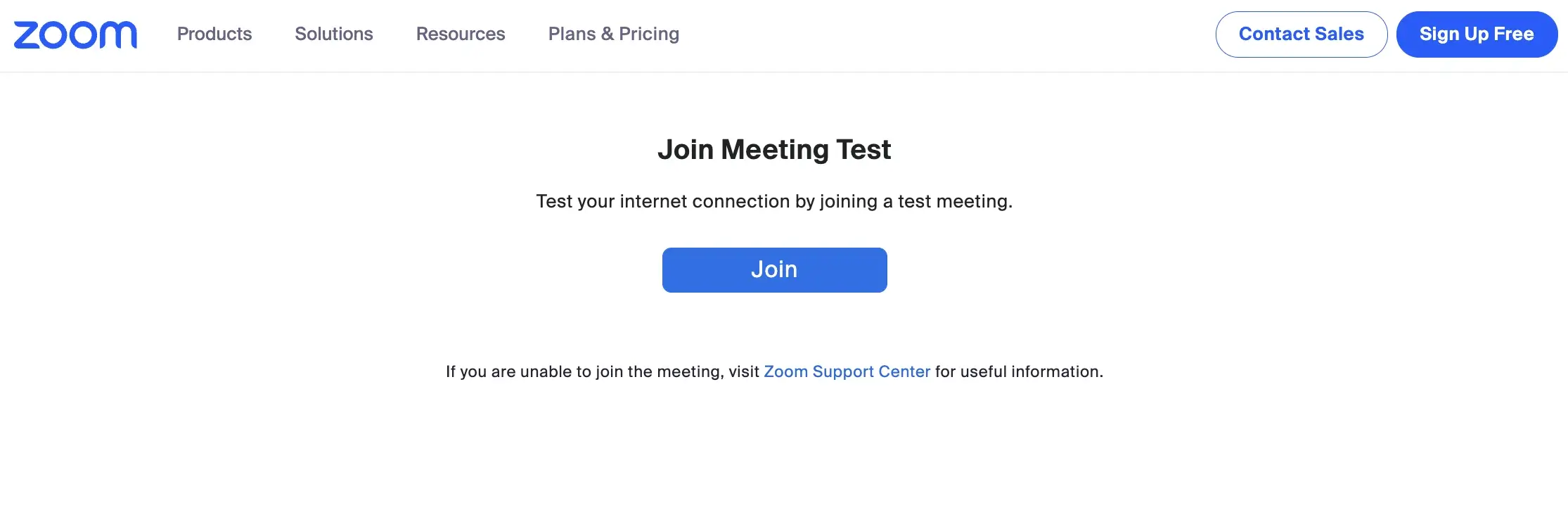
- Besuchen Sie die Zoom-Testmeeting-Seite. Gehe zu https://zoom.us/test in Ihrem Browser.
- Klicken Sie auf die Schaltfläche „Beitreten“. Dadurch wird der Zoom-Testaufruf gestartet.
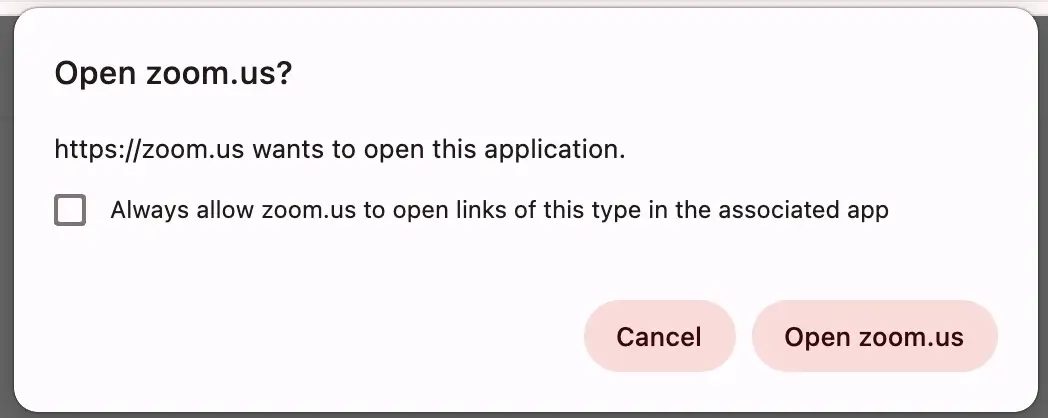
- Starten Sie Zoom. In einem Popup-Fenster werden Sie aufgefordert, Zoom zu öffnen. Klicken Sie auf „Zoom öffnen“, um die Zoom-App zu starten, wenn Sie die Zoom-Desktop-App installiert haben, oder wählen Sie die Teilnahme über Ihren Browser aus.
- Nehmen Sie am Meeting-Test teil. Geben Sie Ihren Namen ein und klicken Sie auf Beitreten.
- Erlauben Sie den Zugriff auf Geräte. Geben Sie Zoom Zugriff auf Ihre Kamera, Mikrofon und Audio.
- Folgen Sie den Anweisungen. Zoom führt Sie zu:
- Testen Sie Ihr Video (Kameravorschau)
- Lautsprecher testen (einen Klingelton hören)
- Testmikrofon (Stimme aufnehmen und abspielen)
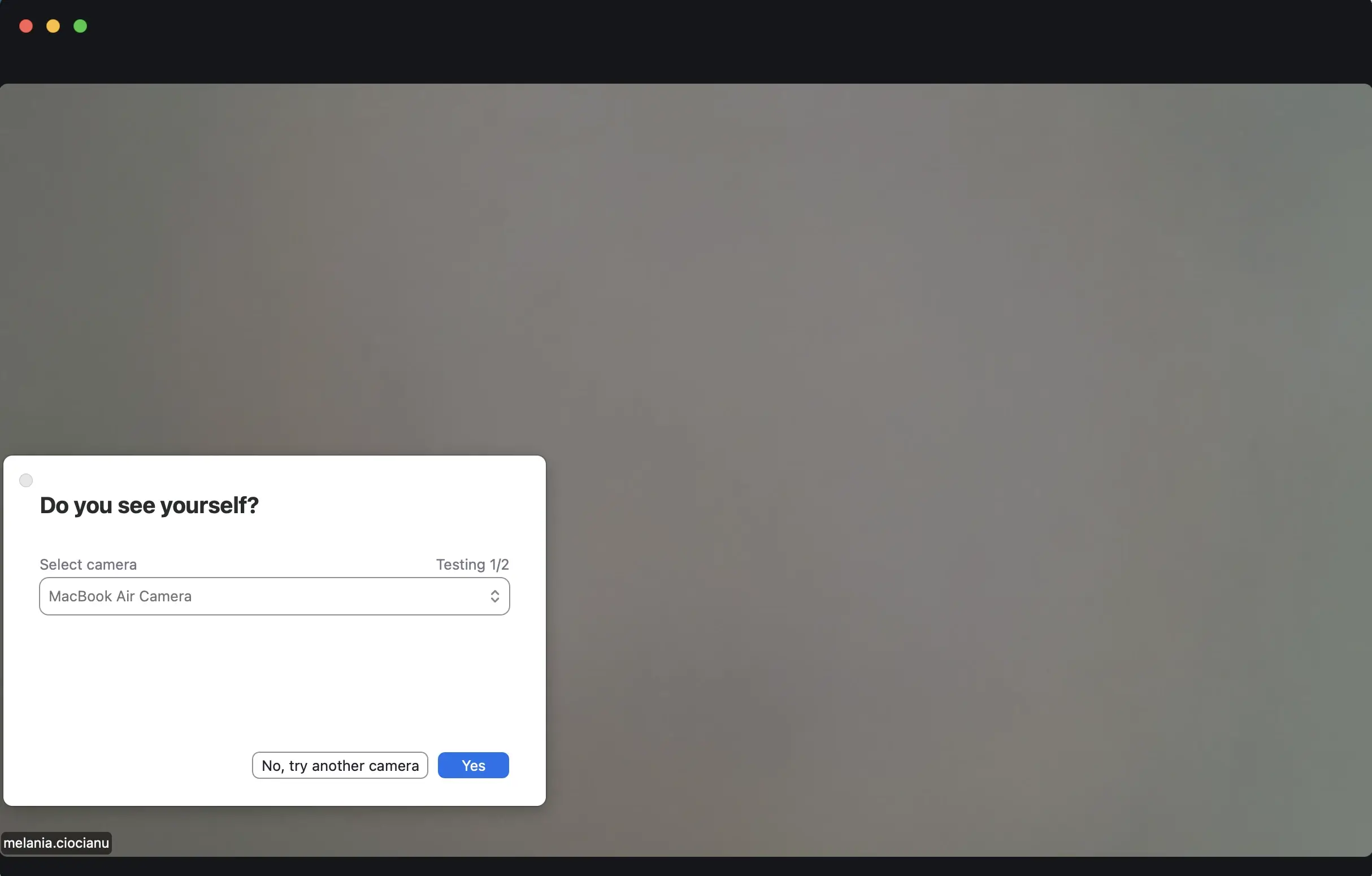
Nachdem Sie alles getestet haben und alles reibungslos verlaufen ist oder Sie alle Probleme behoben haben, können Sie den Testanruf beenden.
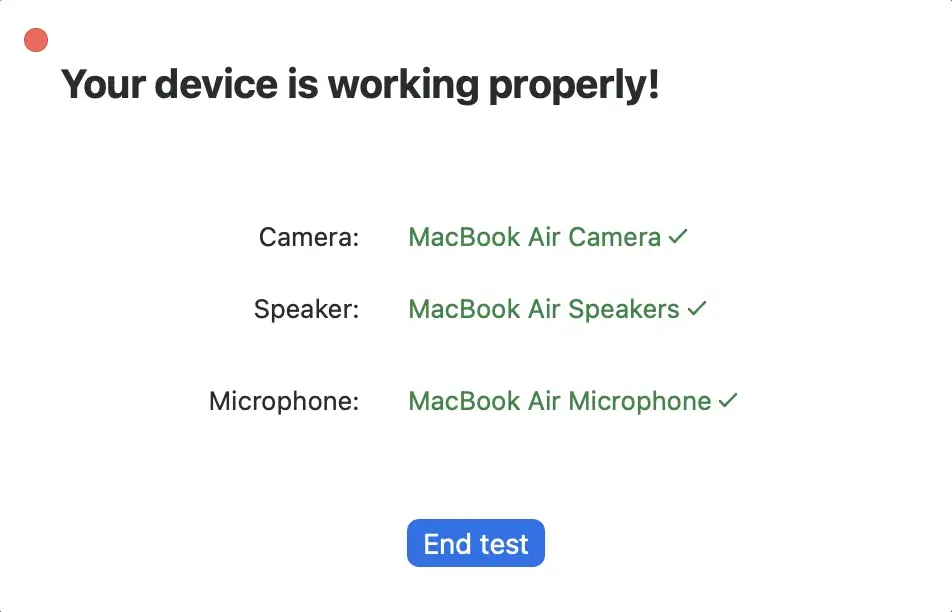
Dieser Vorgang funktioniert auf dem Desktop, in einem Browser oder in der mobilen Zoom-App, sofern Ihr Gerät über einen Internetzugang verfügt.
Was passiert während eines Zoom-Meeting-Tests?
In einem Zoom-Testmeeting werden Sie Schritt für Schritt durch Ihr Kern-Setup geführt, sodass Sie vor bevorstehenden Zoom-Meetings überprüfen können, ob alles ordnungsgemäß funktioniert.
Während des Testvideoanrufs werden Sie:
- Vorschau Ihrer Kamera um Rahmen, Beleuchtung und Sichtbarkeit des Gesichts zu überprüfen
- Lautsprecherausgang testen durch Anhören eines Sounds oder Klingeltons
- Mikrofoneingang testen durch Sprechen und Hörwiedergabe
- Passen Sie Ihre an Ausgangslautstärke und Eingangspegel
- Wählen Sie Geräte aus Drop-down-Menü bei Bedarf
Wenn etwas nicht funktioniert, werden Sie von Zoom aufgefordert, das Problem zu beheben, bevor Sie fortfahren.
Wie testet man Zoom manuell, ohne an einem Meeting teilzunehmen?
Du kannst auch Testen Sie Ihr Setup manuell direkt in der Zoom-App, ohne an einem Testmeeting teilzunehmen.
So testen Sie Ihr Video (Kamera)
- Zoom-Besprechungen öffnen
- Klicken Sie auf Ihr Profilbild in der oberen Ecke
- Gehe zu Einstellungen → Video
- Überprüfe das Vorschaufenster
Hier kannst du:
- Wählen Sie eine andere Webcam
- Passen Sie Beleuchtung und Kamerawinkel an
- Stellen Sie sicher, dass Ihr Video ordnungsgemäß funktioniert
So testen Sie Ihren Lautsprecher und Ihr Mikrofon
- Zoom öffnen
- Gehe zu Einstellungen → Audio
- Klicken Sie Lautsprecher testen
- Klicken Sie Testmikrofon und sprich
Du solltest:
- Beim Testen des Lautsprechers ein Geräusch hören
- Höre deine Sprachwiedergabe, wenn du das Mikrofon testest
Wenn nicht, verwenden Sie das Drop-down-Menü, um das richtige Eingabe-/Ausgabegerät auszuwählen.
Was sollten Sie vor Ihrem nächsten Zoom-Meeting überprüfen?
Bevor Sie ein Zoom-Testmeeting durchführen, ist es wichtig, dass Sie Ihre Internet-, Audio- und Videodaten schnell überprüfen, um sicherzustellen, dass alles ordnungsgemäß funktioniert und Sie technische Probleme vermeiden können, sobald das Meeting beginnt.
Unverzichtbare Checkliste für das Testmeeting
- Internetverbindung: Verwenden Sie ein stabiles Netzwerk (wenn möglich verkabelt) und testen Sie die Verbindung vor dem Treffen
- Audio-Einstellungen: Testen Sie Mikrofon, Lautsprecher und Kopfhörer
- Kamera-Setup: Prüfe Rahmen, Beleuchtung und Hintergrund
- Einstellungen des Geräts: Wählen Sie die richtigen Eingabe-/Ausgabegeräte
- Aktualisierungen der Zoom-App: Installieren Sie die neueste Version
- Hintergrundgeräusche: Minimiere Ablenkungen
- Leistung des Computers: Unnötige Apps schließen
So machen Sie Ihre Zoom-Meetings mit MeetGeek produktiver
Ein Zoom-Testmeeting stellt sicher, dass Ihr Setup funktioniert, aber es hilft Ihnen nicht, das, was besprochen wurde, nach Ende des Meetings beizubehalten oder wiederzuverwenden.
Nach dem, was ich in echten Workflows gesehen habe, taucht das Problem danach auf. Die Notizen sind unvollständig, Aktionspunkte werden nicht eindeutig verfolgt und wertvolle Informationen werden in Aufzeichnungen vergraben, die niemand erneut aufruft.
MeetGeek löst dieses Problem, indem jedes Zoom-Meeting in strukturiertes, durchsuchbares Wissen umgewandelt wird.
Es zeichnet Ihre Besprechungen automatisch auf und generiert genaue Transkriptionen. Anschließend organisiert es sie in übersichtlichen Notizen, in denen die wichtigsten Punkte und Aktionspunkte bereits identifiziert wurden.
.webp)
Anstatt Dateien zu durchsuchen, erhalten Sie eine durchsuchbare Bibliothek aller vergangenen Besprechungen, sodass Sie Entscheidungen, Diskussionen oder bestimmte Momente in Ihrem gesamten Verlauf sofort finden können.
.webp)
Der KI-Chat geht noch einen Schritt weiter. Sie können zu jedem Meeting Fragen stellen und erhalten direkte Antworten aus dem Protokoll, ohne dass Sie Notizen manuell scannen oder abspielen müssen.
.webp)
MeetGeek verbindet sich auch mit Über 10.000 Integrationen, was bedeutet, dass Ihre Meeting-Daten nicht isoliert bleiben. Notizen, Aufzeichnungen und Aktionspunkte können direkt in Ihre vorhandenen Tools einfließen, sodass alles auf die aktuelle Arbeitsweise Ihres Teams abgestimmt ist.
.webp)
In der Praxis wird Zoom dadurch von einem Ort, an dem Konversationen stattfinden, zu einem System, in dem Informationen erfasst, organisiert und anschließend tatsächlich verwendet werden.
So beheben Sie häufig auftretende Probleme mit Zoom-Testmeetings
Auch nach einem Test können Probleme auftreten. Hier erfahren Sie, wie Sie die häufigsten Probleme beheben können.
Mikrofon funktioniert nicht
Wenn Ihr Mikrofon während eines Zoom-Testmeetings nicht funktioniert, überprüfen Sie zunächst, ob es entweder in Zoom oder auf Ihrem physischen Gerät stummgeschaltet ist. Öffnen Sie dann Ihre Audioeinstellungen und wählen Sie das richtige Mikrofon aus dem Drop-down-Menü aus.
Wenn Ihre Stimme zu leise klingt oder nicht erkannt wird, passen Sie die Eingangslautstärke an. Es ist auch wichtig, in Ihren Systemeinstellungen zu bestätigen, dass Zoom die Erlaubnis hat, auf Ihr Mikrofon zuzugreifen. Wenn Sie ein externes Mikrofon verwenden, versuchen Sie, es erneut anzuschließen oder die Anschlüsse zu wechseln.
Probleme mit dem Lautsprecher (Ton kann nicht gehört werden)
Wenn Sie keinen Ton hören können, erhöhen Sie zunächst die Ausgangslautstärke sowohl in Zoom als auch auf Ihrem Computer. Stellen Sie dann sicher, dass in den Audioeinstellungen der richtige Lautsprecher oder die richtigen Kopfhörer ausgewählt sind.
Wenn das Problem weiterhin besteht, überprüfen Sie Ihre Soundeinstellungen auf Systemebene unter Windows oder Mac, um sicherzustellen, dass das richtige Ausgabegerät aktiv ist. Durch einen Neustart der Zoom-App können auch vorübergehende Störungen behoben werden.
Kamera funktioniert nicht
Wenn Ihre Kamera nicht funktioniert, gehen Sie in die Zoom-Einstellungen und stellen Sie sicher, dass die richtige Webcam ausgewählt ist. Wenn Sie mehrere Kameras angeschlossen haben, wechseln Sie mithilfe des Dropdownmenüs zwischen ihnen. Sie sollten auch überprüfen, ob Ihr Betriebssystem Zoom den Zugriff auf Ihre Kamera ermöglicht. Wenn Sie gerade eine Webcam angeschlossen haben, hilft ein Neustart von Zoom häufig dabei, das Gerät richtig zu erkennen.
Probleme mit der Internetverbindung
Wenn Sie während eines Zoom-Meeting-Tests Verbindungsprobleme haben, versuchen Sie, zu einem stärkeren und stabileren Netzwerk zu wechseln. Eine kabelgebundene Ethernet-Verbindung ist in der Regel zuverlässiger als eine Wi-Fi-Verbindung. Es hilft auch, alle Apps oder Browser-Tabs zu schließen, die viel Bandbreite verbrauchen, da sie die Leistung von Zoom beeinträchtigen können.
Profi-Tipps für ein erfolgreiches Zoom-Testmeeting
Neben den Grundlagen können ein paar einfache Tricks dein Spielerlebnis verbessern:
- Testen Sie 10—15 Minuten vor Ihrem Meeting
- Benutzen nach vorne gerichtete Beleuchtung um dein Gesicht deutlich zu zeigen
- Halte deinen Hintergrund sauber oder verwende einen virtuellen Hintergrund
- Benutzen Kopfhörer um das Echo zu reduzieren und den Klang zu verbessern
- Mache dich mit den Funktionen zum Stummschalten, Chatten und Bildschirmteilen vertraut
- Lauf schnell am Meeting-Test teilnehmen wenn Sie einen Meeting-Link erhalten haben
Diese kleinen Anpassungen können einen großen Unterschied darin machen, wie Sie klingen und aussehen.
Führen Sie vor jedem wichtigen Anruf ein Zoom-Testmeeting durch
Ein Zoom-Testmeeting dauert nur wenige Minuten, kann Sie jedoch vor technischen Problemen bewahren, die Ihr Meeting stören könnten.
Indem Sie Ihre Audio-, Video- und Internetverbindung im Voraus testen, sorgen Sie für ein reibungsloseres und professionelleres Erlebnis für jeden Teilnehmer.
Und sobald Ihr Setup solide ist, helfen Ihnen Tools wie MeetGeek dabei, aus jedem erfolgreichen Meeting klare Notizen, strukturierte Einblicke und umsetzbare Ergebnisse zu machen.
Testen Sie MeetGeek kostenlos und machen Sie jedes Zoom-Meeting produktiver.
Häufig gestellte Fragen
Können Sie ohne Konto an einem Zoom-Testmeeting teilnehmen?
Ja, Sie können an einem Zoom-Testmeeting teilnehmen, ohne ein Konto zu erstellen oder sich dort anzumelden. Gehen Sie einfach zur Zoom-Testmeeting-Seite unter https://zoom.us/test, klicken Sie auf „Beitreten“ und folgen Sie den Anweisungen auf dem Bildschirm, um Ihre Audio- und Videoeinstellungen zu überprüfen.
Wie teste ich mein Zoom-Meeting, bevor ich beitrete?
Verwenden Sie dieselbe Seite, um Ihr Zoom-Meeting zu testen, bevor Sie an einem tatsächlichen Anruf teilnehmen. Klicken Sie auf „Teilnehmen“ und folgen Sie dann den Anweisungen, um sicherzustellen, dass Ihre Kamera, Ihr Mikrofon und Ihre Lautsprecher ordnungsgemäß funktionieren. Sie können Ihre Geräteeinstellungen auch manuell in der Zoom-App testen.
Was überprüft ein Zoom-Testmeeting?
Bei einem Zoom-Testmeeting werden Ihre Kamera, Ihr Mikrofon, Ihre Lautsprecher und Ihre Internetverbindung überprüft. Außerdem können Sie damit Ihre Audio- und Videoeinstellungen anpassen und vor einem Live-Meeting überprüfen, ob alles ordnungsgemäß funktioniert.
Kann ich Zoom testen, ohne an einem Meeting teilzunehmen?
Ja, Sie können Zoom manuell testen, ohne an einem Meeting teilzunehmen, indem Sie die Zoom-App öffnen, zu den Einstellungen gehen und Ihr Video und Audio unter den entsprechenden Tabs überprüfen.
Warum funktioniert mein Mikrofon oder mein Lautsprecher bei Zoom nicht?
Wenn dein Mikrofon oder dein Lautsprecher nicht funktioniert, liegt das in der Regel an einer falschen Geräteauswahl, stummgeschalteten Einstellungen oder fehlenden Berechtigungen. Verwenden Sie das Dropdownmenü in den Zoom-Einstellungen, um das richtige Gerät auszuwählen und erneut zu testen.




.avif)