


Kurze Antwort: Für eine Zoom-Bildschirmaufnahme von sich selbst brauchen Sie kein Meeting: Sie nehmen einen Zoom-Clip auf, der Ihr Kamerabild, Ihren Bildschirm oder beides erfasst. Alternativ starten Sie ein Meeting allein und klicken auf Record. Das Video landet dann auf Ihrem Computer. Beides funktioniert im Gratis-Tarif.
Damit ist Zoom ein brauchbares Aufnahmewerkzeug für eine Unterrichtsstunde, einen Pitch-Probelauf, ein asynchrones Update oder ein Video, das Sie später teilen möchten.
Die Meetings selbst aufzunehmen, ist ein anderer Anwendungsfall. Die Zoom-Integration von MeetGeek kann automatisch an geplanten Meetings aus Ihrem Kalender teilnehmen und daraus ein Transkript, Notizen, Aufgaben und Meeting-Analysen machen.
Können Sie Sich Selbst bei Zoom Aufnehmen?
Ja. Sie können ein Meeting starten, in dem nur Sie selbst sind, und das Ganze mit Video und Audio aufnehmen. Die Aufnahme auf dem Computer ist in jedem Zoom-Konto kostenlos.
Nur die Cloud-Aufnahme setzt einen kostenpflichtigen Zoom-Tarif voraus.
Es gibt drei Methoden, und welche davon Sie wollen, hängt davon ab, wie lang die Aufnahme ist und ob Sie am Ende einen Link brauchen.
| Methode | Was Sie brauchen | Längenbegrenzung | Wo die Datei gespeichert wird |
|---|---|---|---|
| Zoom-Clip | Clips, vom Administrator Ihres Kontos freigeschaltet | 2 Minuten pro Clip, 5 Clips pro Nutzer bei Clips Basic | Ihre Clips-Bibliothek, mit einem Freigabe-Link |
| Solo-Meeting, auf dem Computer aufgenommen | Zoom-Desktop-App, jedes Konto | Kein 40-Minuten-Limit, solange Sie der einzige Teilnehmer bleiben | MP4 in Dokumente > Zoom auf Ihrer eigenen Festplatte |
| Videonachricht im Team Chat | Zoom-Desktop unter Windows oder macOS | 3 Minuten pro Nachricht | Direkt in einen Thread im Team Chat |
Tabelle zuletzt aktualisiert am 14. September 2026.
Ein Clip ist die schnellste der drei Methoden und die eingeschränkteste. Ein Solo-Meeting unterliegt nicht dem 40-Minuten-Limit, solange Sie der einzige Teilnehmer bleiben, und das macht es zur Wahl für alles, was länger als ein paar Minuten dauert.
Zoom-Meetings Automatisch Aufnehmen
Bei einer Aufnahme, in der nur Sie zu sehen sind, genügt es meist, sie von Hand zu starten. Bei Meetings mit anderen Personen vergisst man es leichter, und ein Meeting, das niemand aufgenommen hat, ist unwiederbringlich verloren.
MeetGeek kann seinen Notetaker zu den geplanten Zoom-Meetings in Ihrem Kalender schicken, sodass die Aufnahme nicht davon abhängt, dass Sie daran denken, sie zu starten. Der Notetaker ist im Meeting ein eigener Teilnehmer. Wenn Sie lieber ohne einen Bot im Meeting aufnehmen, nimmt MeetGeek Ihre Zoom-Meetings auch über die Desktop-App oder den Browser-Recorder von MeetGeek auf.
Beide Methoden liefern Ihnen dieselben Notizen, und jedes Meeting, das Sie aufnehmen, bleibt danach durchsuchbar.
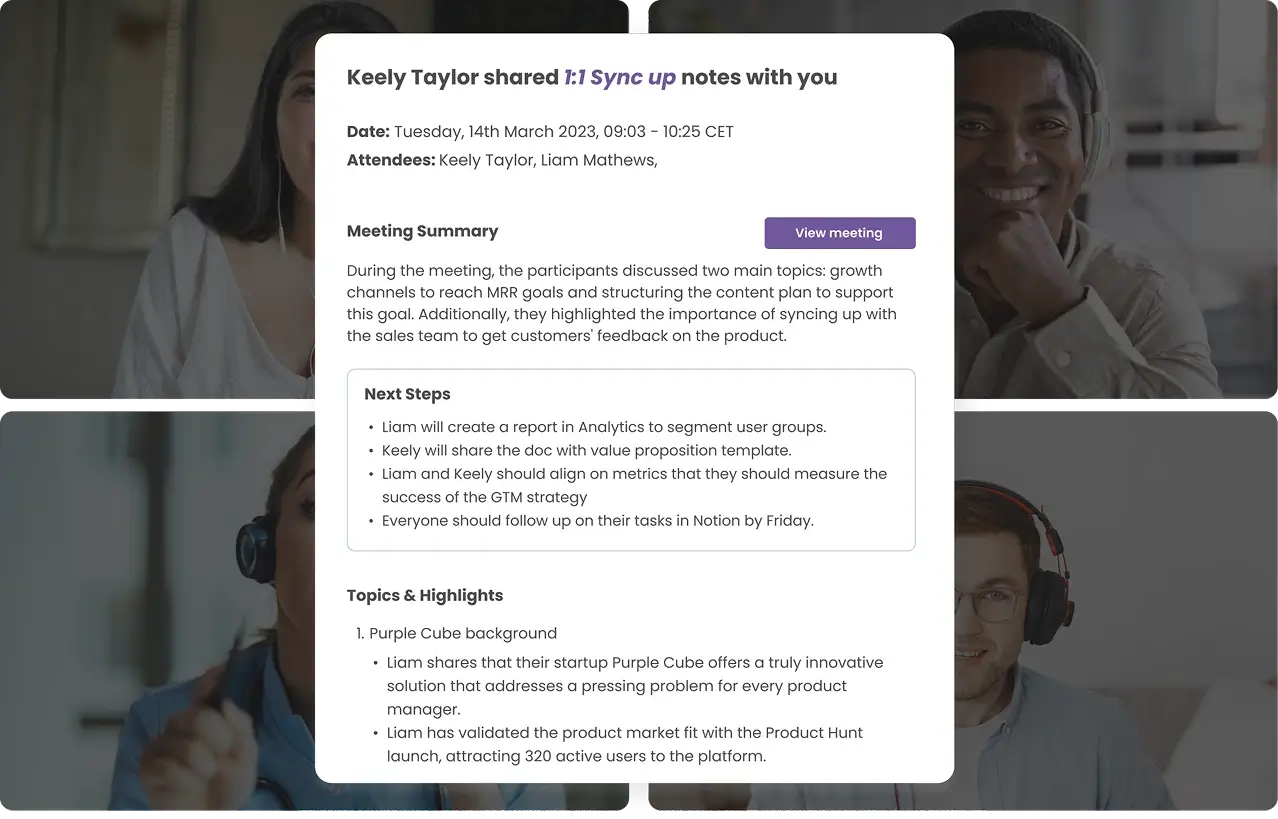
MeetGeek hat einen Gratis-Tarif, sodass Sie es im nächsten Zoom-Meeting ausprobieren und das Ergebnis ansehen können.
Zoom-Bildschirmaufnahme ohne Meeting: Zoom Clips
Zoom Clips nimmt Sie auf, ohne dass Sie ein Meeting starten. Die Funktion erfasst Ihr Kamerabild, Ihren Bildschirm oder beides, und für eine reine Bildschirmaufnahme wählen Sie einfach den Bildschirm. Clips funktioniert im Gratis-Tarif Basic, sobald der Administrator Ihres Kontos Clips freigeschaltet hat.
So nehmen Sie in der Desktop-App einen Clip auf:
- Melden Sie sich in der Zoom-Desktop-App an.
- Klicken Sie auf den Tab Clips.
- Klicken Sie auf Record clip.
- Wählen Sie, was aufgenommen wird: Screenshare and video für Bildschirm und Kamerabild, Screenshare only für eine reine Bildschirmaufnahme oder Video only für das Kamerabild allein.
- Klicken Sie auf Start recording und nutzen Sie die schwebende Leiste, während Sie aufnehmen.
- Klicken Sie zum Abschluss auf Stop.
Der Clip wird in Ihrer Clips-Bibliothek gespeichert, wo Sie ihn mit Schiebereglern zuschneiden, das Vorschaubild ändern, einen Freigabe-Link kopieren oder die MP4 herunterladen können.
Der Gratis-Tarif begrenzt sowohl die Anzahl der Clips als auch ihre Länge. Clips Basic erlaubt 5 Clips pro Nutzer mit je 2 Minuten, und Clips Plus hebt beide Grenzen auf. Ein Clip passt also zu einer kurzen Erklärung am Bildschirm oder zu allem, wofür Sie einen Freigabe-Link wollen, und ein Solo-Meeting passt zu einer ganzen Unterrichtsstunde.
Eine Videonachricht im Team Chat ist stärker eingeschränkt, weil sie direkt in einen Chat-Thread geht, statt Ihnen einen eigenständigen Link zu geben. Sie hilft also nur, wenn Ihr Gegenüber schon in Ihrem Zoom Team Chat ist. Sie nimmt bis zu 3 Minuten von Ihrer Standardkamera und Ihrem Standardmikrofon auf, und Zoom dokumentiert das nur für Windows und macOS.
Wie Nehmen Sie Sich bei Zoom auf dem Computer Auf?
In der Zoom-Desktop-App für Windows oder Mac:
- Öffnen Sie Zoom, melden Sie sich an und klicken Sie dann auf New Meeting.
- Schalten Sie Ihre Kamera ein und prüfen Sie Ihr Mikrofon.
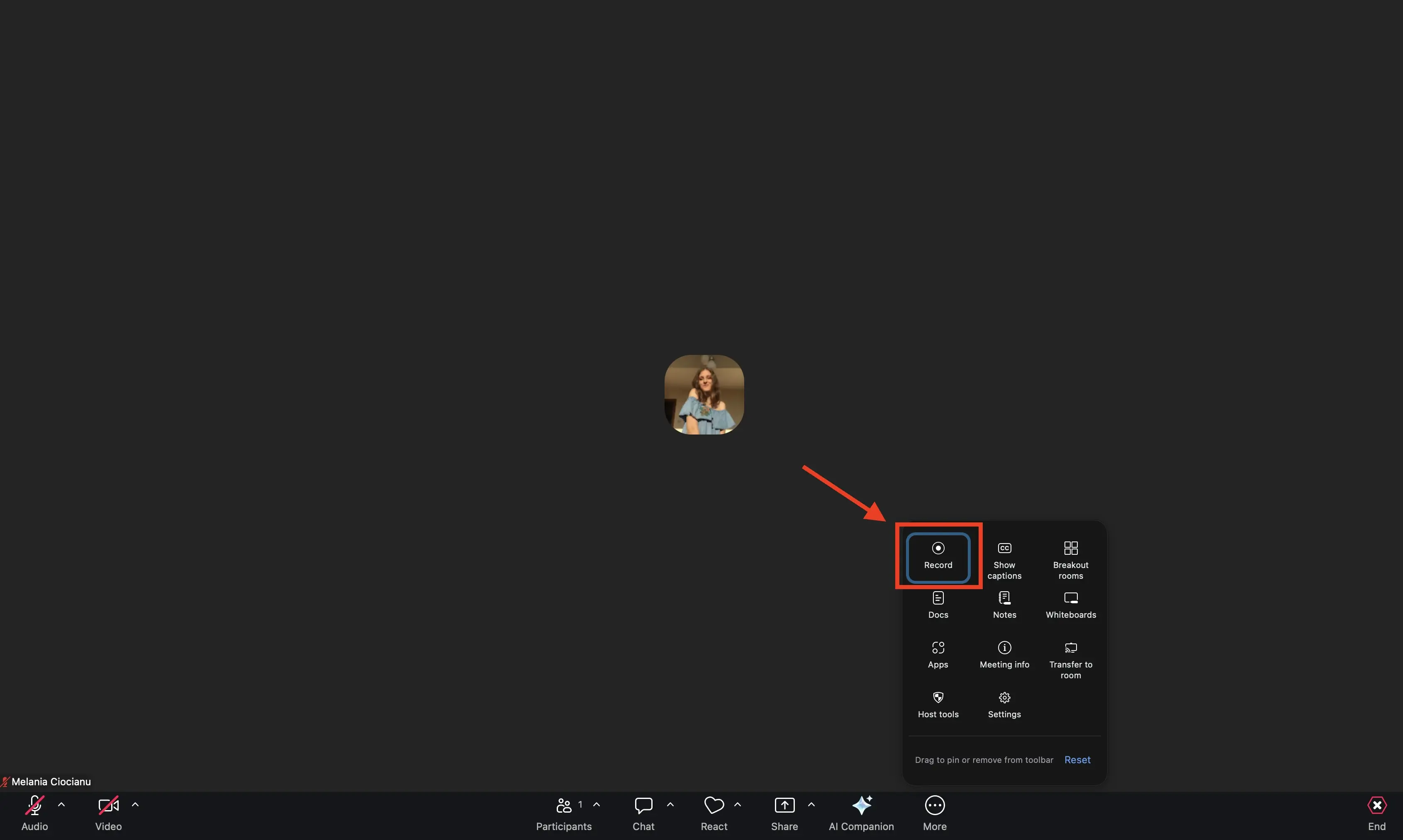
- Klicken Sie in der Meeting-Symbolleiste auf Record.
- Wenn ein Menü erscheint, wählen Sie Record on this Computer.
- Oben links im Meeting-Fenster erscheint eine Aufnahmeanzeige. Präsentieren Sie dann Ihre Inhalte oder sprechen Sie frei.
- Klicken Sie auf Stop Recording, wenn Sie fertig sind, oder beenden Sie das Meeting. Zoom konvertiert die Datei und speichert sie.
Mit Tastenkürzeln geht es schneller als über die Symbolleiste. Unter Windows startet und stoppt Alt + R eine Aufnahme auf dem Computer, Alt + P pausiert sie und setzt sie fort, und Alt + C startet eine Cloud-Aufnahme. Auf dem Mac lauten die Kürzel Cmd + Shift + R, Cmd + Shift + P und Cmd + Shift + C.
Pausieren hält alles in einer Datei. Stoppen und neu Starten erzeugt eine zweite.
Wie Nehmen Sie eine Präsentation bei Zoom Allein Auf?
Eine kommentierte Präsentation ist im Kern eine Zoom-Bildschirmaufnahme mit Ihrer Stimme als Kommentar. Die oben beschriebene Aufnahme auf dem Computer braucht dafür einen zusätzlichen Schritt: Geben Sie Ihre Folien frei, bevor Sie auf Record klicken.
- Öffnen Sie Ihre Folien oder die Datei, die Sie präsentieren möchten.
- Starten Sie ein New Meeting, klicken Sie dann auf Share Screen und wählen Sie das Fenster, die Anwendung oder den Tab mit Ihren Folien.
- Klicken Sie auf Record, dann auf Record on this Computer, und sprechen Sie Ihre Folien durch. Zoom erfasst den freigegebenen Bildschirm, Ihre Stimme und Ihr Kamerabild, falls die Kamera eingeschaltet ist.
So gehen Sie für eine Unterrichtsstunde, eine PowerPoint-Vorführung oder eine Produktdemo vor, die Sie einmal aufnehmen und wiederverwenden. Ein Zoom-Clip im Modus Screenshare and video deckt dasselbe ohne Meeting ab, und für eine kurze Präsentation ist er die bessere Option.
Können Sie Sich bei Zoom mit dem Smartphone Aufnehmen?
Ja, aber nicht auf dem Smartphone selbst. Zoom gibt an, dass eine Aufnahme auf einem iOS- oder Android-Gerät selbst nicht möglich ist; es bleiben also die Cloud-Aufnahme oder ein Clip.
Die Cloud-Aufnahme aus der mobilen App braucht ein Pro-, Business-, Education- oder Enterprise-Konto und einen lizenzierten Nutzer mit Host- oder Co-Host-Rechten. Wenn Sie das haben, tippen Sie in der Meeting-Symbolleiste auf das Record-Symbol und dann auf Start Recording. Die Aufnahme wird nach dem Ende des Meetings verarbeitet. Danach melden Sie sich im Browser in Ihrem Zoom-Konto an und rufen die Aufnahme dort ab.
In einem kostenlosen Konto haben Sie zwei Möglichkeiten. Nehmen Sie einen Clip in der mobilen App auf, wo der Weg über More, dann Clips und dann New clip führt, oder wechseln Sie zur Desktop-App und nehmen Sie dort auf Ihrem Computer auf.
Wo Werden Zoom-Aufnahmen Gespeichert und in Welchem Format?
Aufnahmen auf dem Computer landen standardmäßig im Ordner Zoom in Ihrem Dokumente-Verzeichnis, unter Windows wie unter Mac, und Sie können diesen Pfad in den Zoom-Einstellungen unter Recording ändern. Zoom dokumentiert fünf Dateiformate für Aufnahmen, und je nach Ihren Einstellungen entstehen dabei nur einige dieser Dateien:
- video[number].mp4, die vollständige Audio- und Videodatei;
- audio[number].m4a, eine Version nur mit Audio, die Sie verwenden, wenn Sie nur die Sprachspur für einen Podcast oder ein Voiceover brauchen;
- playback[number].m3u, eine Playlist-Datei, die die einzelnen MP4-Dateien abspielt, nur unter Windows;
- chat.txt, der Chat im Meeting, wenn der Chat gespeichert wurde;
- audio[Name][number].m4a, eine Spur pro Teilnehmer, wenn die getrennte Audioaufnahme eingeschaltet ist.
Cloud-Aufnahmen bleiben auf den Servern von Zoom und werden über das Webportal verwaltet, wo Sie sie ansehen, herunterladen oder teilen können. Unser Leitfaden dazu, wo Zoom-Aufnahmen landen, geht beide Orte durch.
Sollten Sie auf dem Computer oder in der Cloud Aufnehmen?
Nehmen Sie auf dem Computer auf, wenn Sie eine kostenlose Lösung wollen, die Datei auf Ihrer eigenen Festplatte liegen soll und es Ihnen nichts ausmacht, sie selbst zu verschieben. Nehmen Sie in der Cloud auf, wenn Sie sofort einen Link zum Versenden brauchen, mit dem Smartphone aufnehmen wollen oder die Datei nicht auf Ihrem Gerät haben möchten. Voraussetzung dafür ist ein kostenpflichtiger Zoom-Tarif.
In der Praxis unterscheiden sich die beiden Methoden beim Speicherplatz. Eine Aufnahme auf dem Computer nutzt nur Ihre eigene Festplatte, während der Cloud-Speicher in den Tarifen Pro, Pro Plus und Business bei 10 GB pro lizenziertem Nutzer liegt.
Dieser Speicher wird auf Kontoebene gebündelt, nicht pro Person reserviert. Wer viel aufnimmt, kann deshalb Kapazität verbrauchen, die dem übrigen Team sonst zur Verfügung stünde.
Cloud-Aufnahmen können Sie außerdem direkt im Webportal zuschneiden, ohne sie vorher herunterzuladen, und Sie können das Original danach trotzdem wiederherstellen, bis zu 5-mal pro Aufnahme alle 12 Stunden.
Das Zuschneiden funktioniert nicht in einem mobilen Browser, und das getrennte Teilnehmer-Audio sowie das Chat-Protokoll lassen sich nicht zuschneiden. Für die meisten Soloaufnahmen ist das Speichern auf dem Computer weiterhin die einfachere Wahl.
Wichtigste Erkenntnisse
- Ein Solo-Meeting in einem kostenlosen Konto unterliegt nicht dem üblichen 40-Minuten-Limit, solange Sie der einzige Teilnehmer bleiben;
- Mit Zoom Clips nehmen Sie ganz ohne Meeting auf, im Gratis-Tarif Basic bis zu 5 Clips mit je 2 Minuten;
- Die Aufnahme auf dem Computer ist in jedem Zoom-Konto kostenlos. Die Cloud-Aufnahme braucht einen kostenpflichtigen Tarif, während kostenlose Clips Ihnen für kurze Aufnahmen einen Freigabe-Link geben;
- Die Dateien werden in Dokumente > Zoom als MP4 plus einer separaten M4A-Audiospur gespeichert;
- Auf dem Smartphone können Sie nicht auf dem Gerät selbst aufnehmen, nutzen Sie also einen Clip, oder wechseln Sie zur Desktop-App.
Häufig Gestellte Fragen
Warum Kann Ich bei Zoom Nicht Aufnehmen?
Die üblichen Gründe sind Berechtigungen oder Ihr Tarif. In einem Meeting, das jemand anderes hostet, erscheint die Schaltfläche Record nur, wenn der Host Ihnen die Aufnahmeberechtigung gegeben oder Sie zum Co-Host gemacht hat.
Die Cloud-Aufnahme braucht außerdem einen kostenpflichtigen Tarif mit aktivierter Cloud-Aufnahme, sodass in einem kostenlosen Konto Record on this Computer die einzige Aufnahmeoption im Meeting ist. Wenn die Schaltfläche in Ihrem eigenen Solo-Meeting fehlt, wurde die Aufnahme auf dem Computer für das Konto im Webportal höchstwahrscheinlich abgeschaltet.
Wie Nehme Ich Mein Persönliches Zoom-Meeting Auf?
Starten Sie ein Meeting mit Ihrer persönlichen Meeting-ID und nehmen Sie es dann wie jedes andere auf: Klicken Sie auf Record und dann auf Record on this Computer. Ansonsten läuft die Aufnahme genauso.
Wie Lange Kann Ich bei Zoom Kostenlos Aufnehmen?
Ein Solo-Meeting in einem kostenlosen Zoom-Konto unterliegt nicht dem üblichen 40-Minuten-Limit, solange Sie der einzige Teilnehmer bleiben. Die Bedingung von Zoom ist, dass das Meeting aktiv bleiben muss. Sobald jemand anderes dazukommt, gilt das 40-Minuten-Limit für das Meeting und damit für die Aufnahme. Ein Clip stoppt bei Clips Basic nach 2 Minuten und eine Nachricht im Team Chat nach 3 Minuten.
Kann Ich Mich bei Zoom Aufnehmen, ohne Mein Gesicht zu Zeigen?
Ja. Schalten Sie Ihre Kamera aus, bevor Sie aufnehmen. Ihre Stimme wird trotzdem aufgenommen, und wenn Sie präsentieren, kann Zoom auch Ihren freigegebenen Bildschirm erfassen. So nehmen Sie eine vertonte Präsentation auf, und die M4A-Datei liefert Ihnen die Sprachspur separat. Ein Zoom-Clip im Modus Screenshare only macht dasselbe und liefert eine reine Bildschirmaufnahme.
Kann Ich eine Zoom-Aufnahme Zuschneiden oder Bearbeiten?
Die Zuschneide-Werkzeuge von Zoom decken Cloud-Aufnahmen und Clips ab, und eine zugeschnittene Cloud-Aufnahme lässt sich danach wiederherstellen. Eine auf Ihrem Computer gespeicherte Aufnahme bearbeiten Sie als MP4 in einem beliebigen Videoeditor.
Benachrichtigt Zoom Teilnehmer, Wenn die Aufnahme Startet?
Ja. Zoom zeigt den Teilnehmern eine Aufnahmeanzeige, während eine Aufnahme läuft, und wer sich per Telefon einwählt, hört einen gesprochenen Hinweis. Je nach den Konto-Einstellungen sehen Teilnehmer außerdem möglicherweise eine Zustimmungsabfrage, in der sie der Aufnahme zustimmen oder das Meeting verlassen können. Wenn Sie allein im Meeting sind, sieht niemand sonst die Anzeige.




.avif)