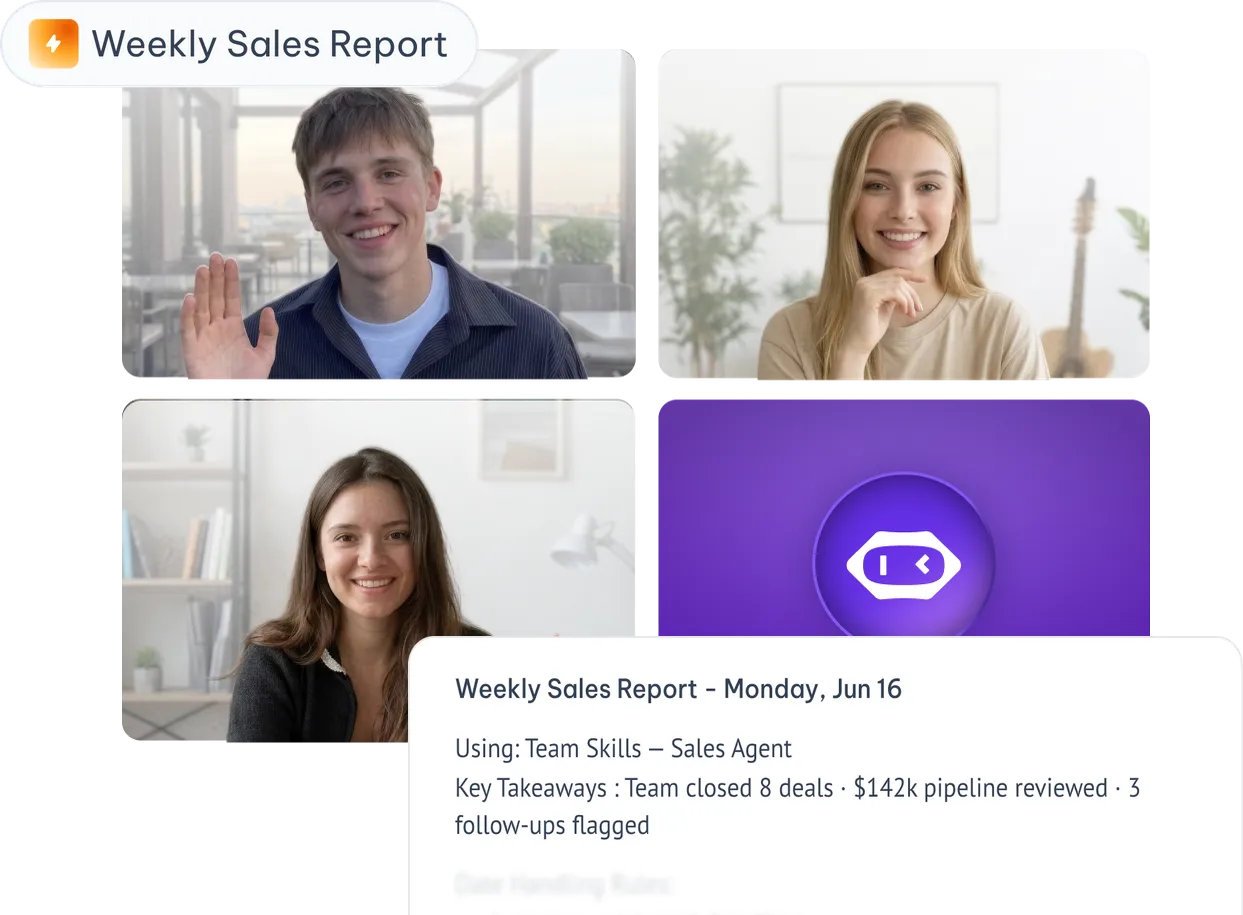
Same meeting, different jobs.
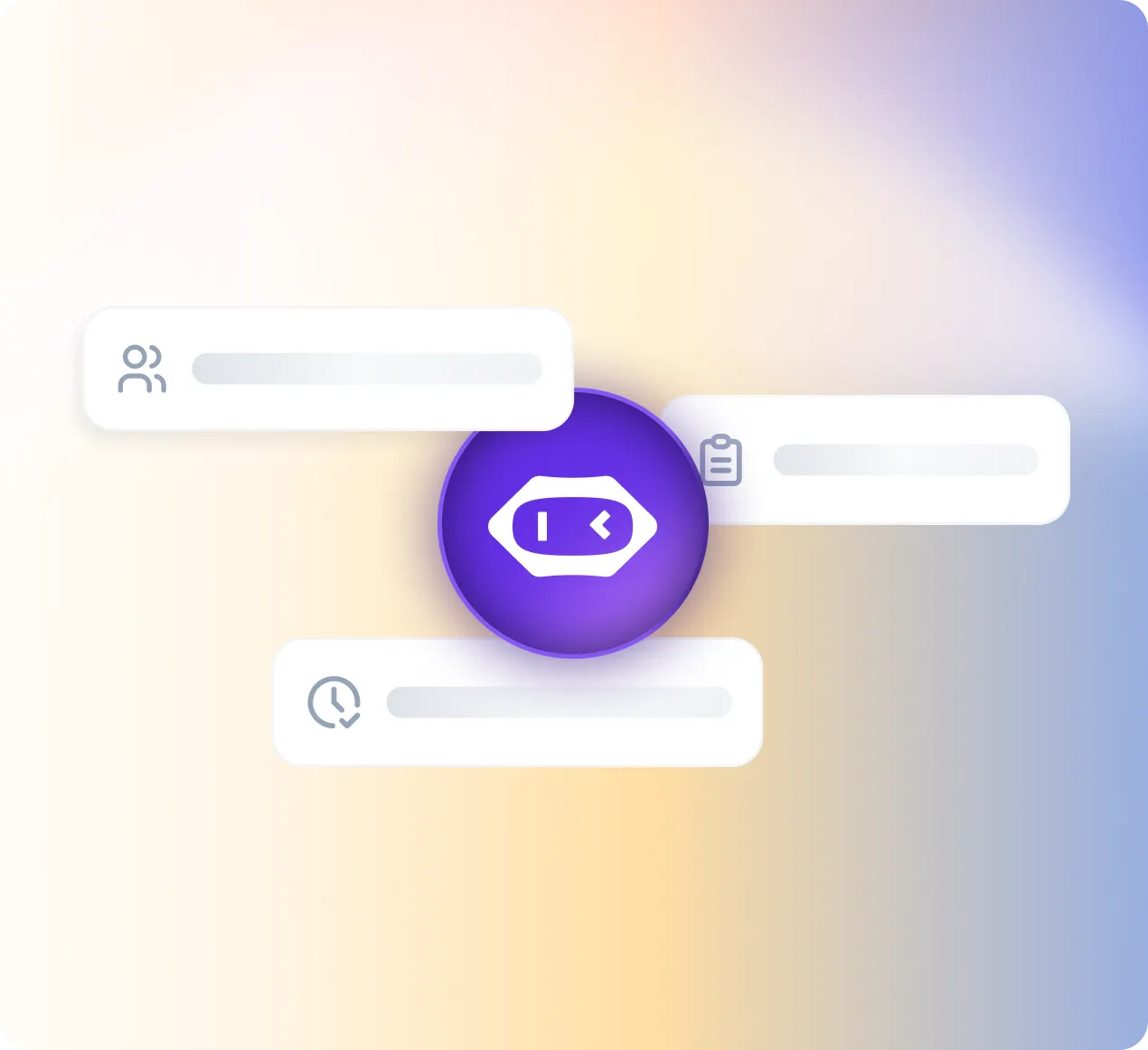
MeetGeek meeting assistant handles the meeting. Skills tell it exactly what to do in each one.
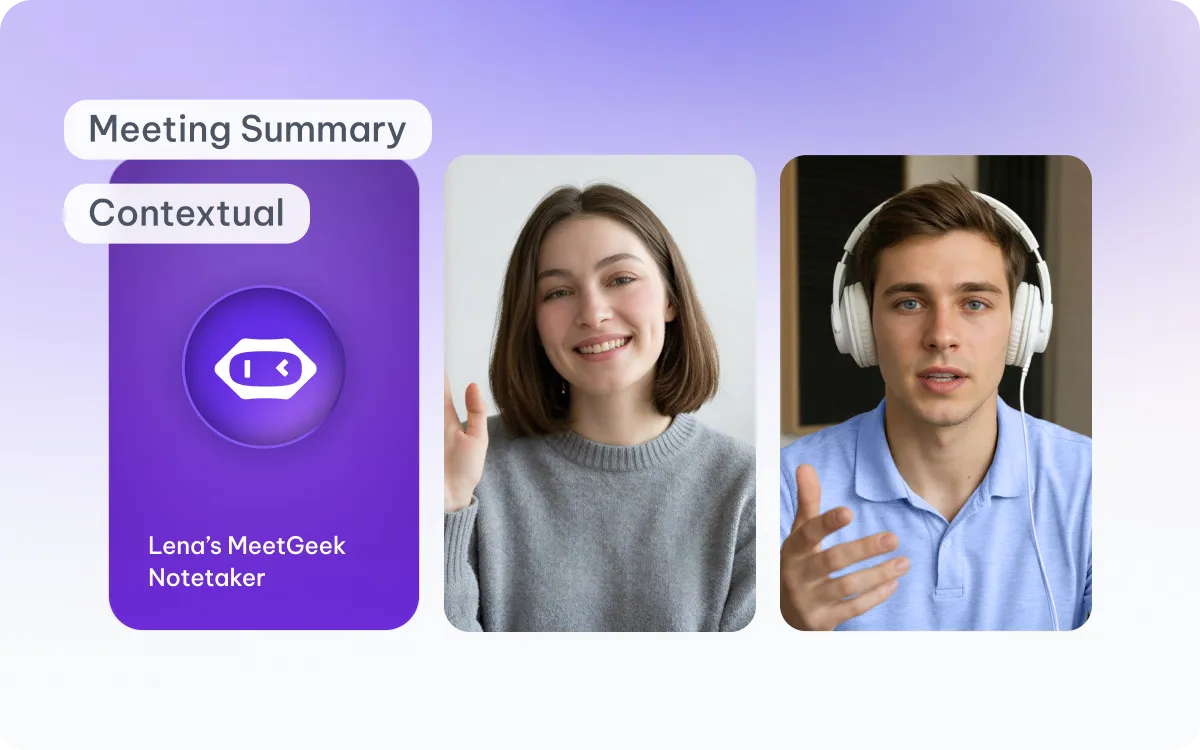
Agent
Your AI notetaker on every call. Joins automatically, learns how your team works, and takes care of notes so you can stay focused on the conversation.
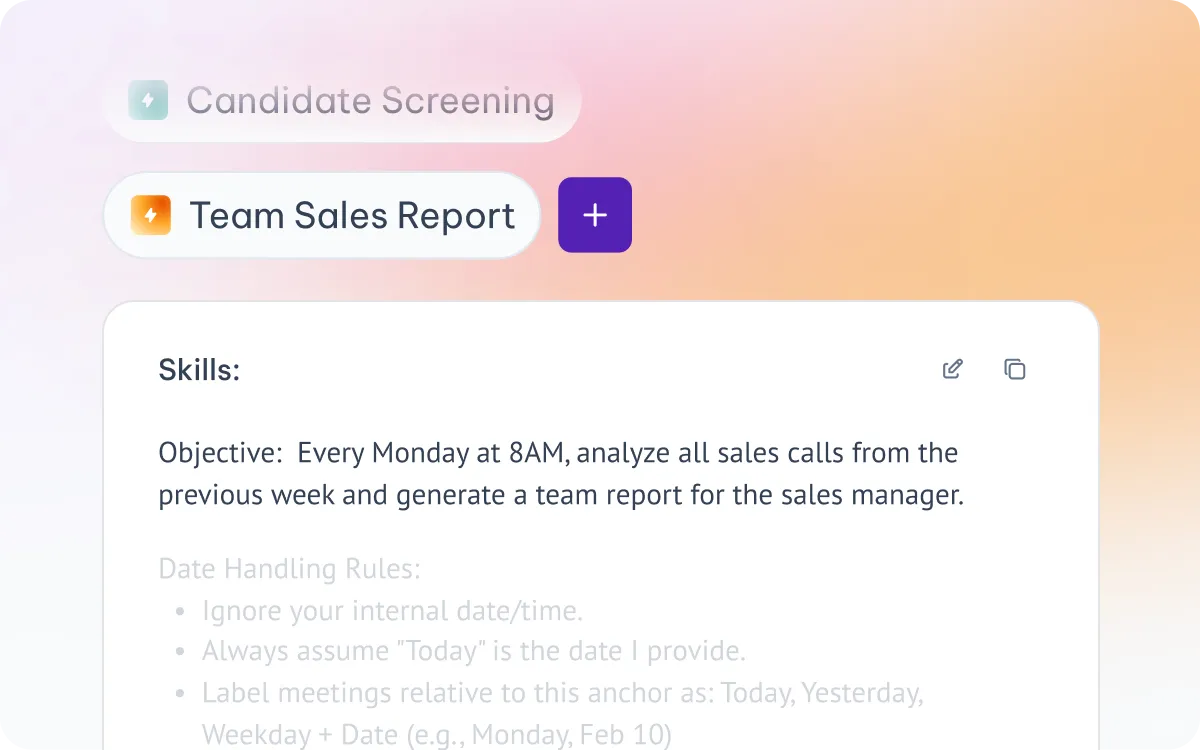
Skills
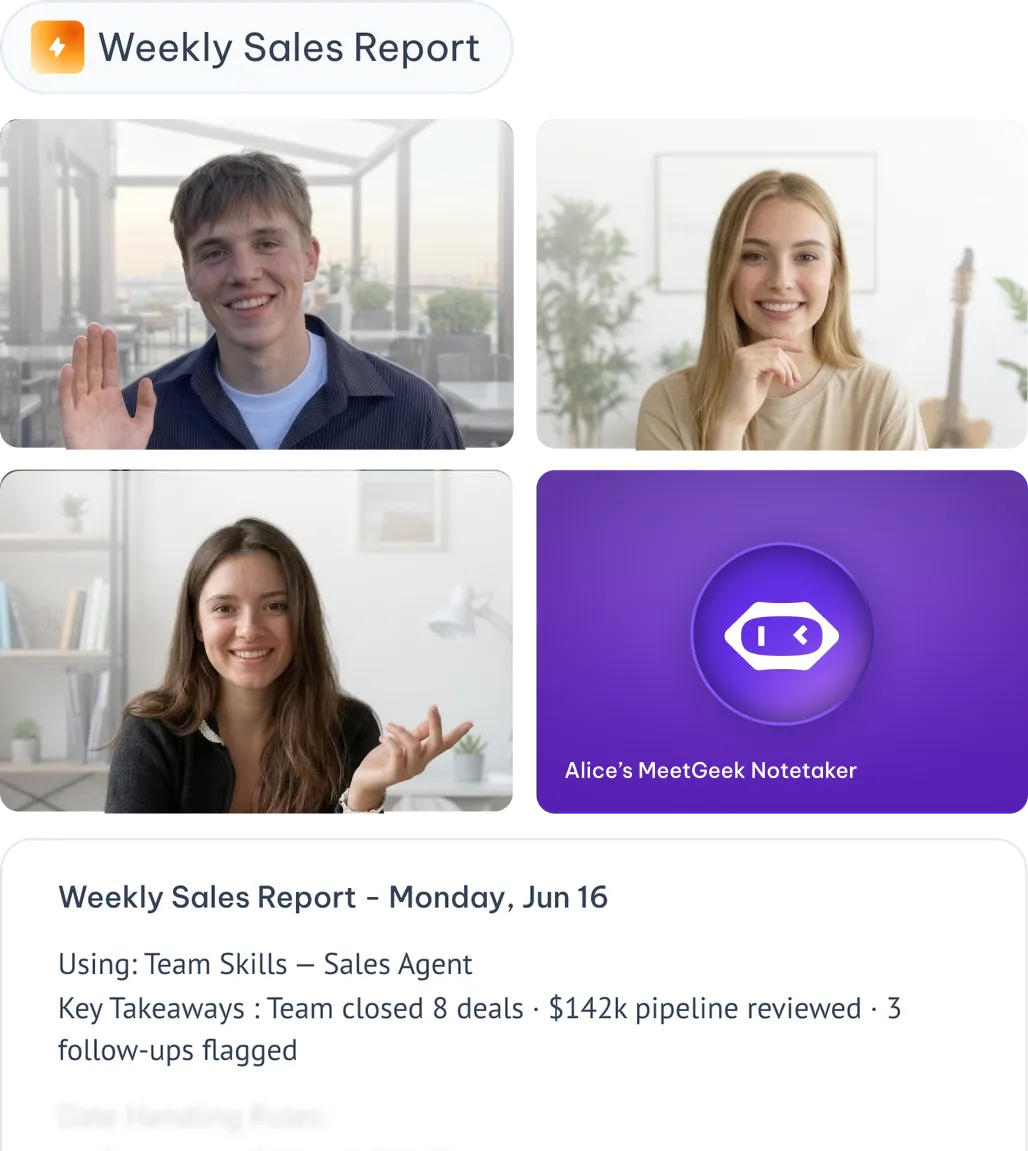
Reusable instructions for every meeting type. Teach the meeting assistant exactly what to do for each kind of call — from candidate screens to sales reports.
From notes that sit, to work that moves.
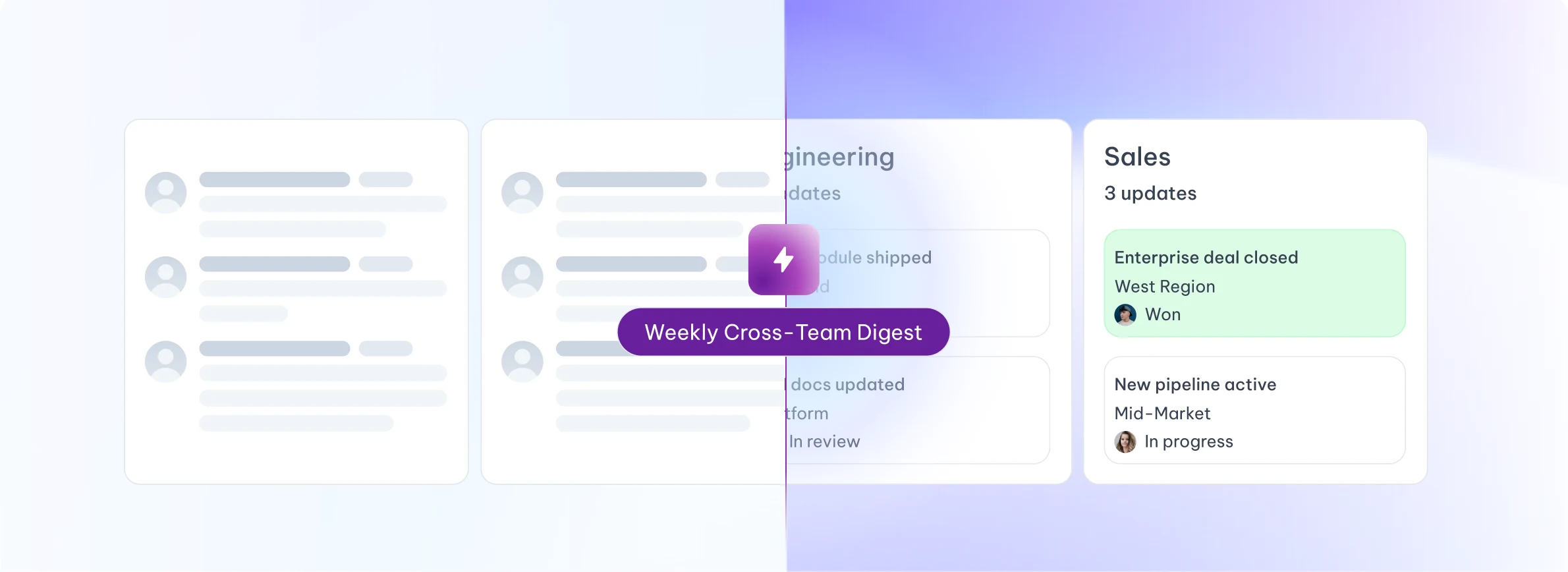
One view of everything that happened across all your meetings this week


The call ends. The work begins.
Pick the one that matches how your team actually works.
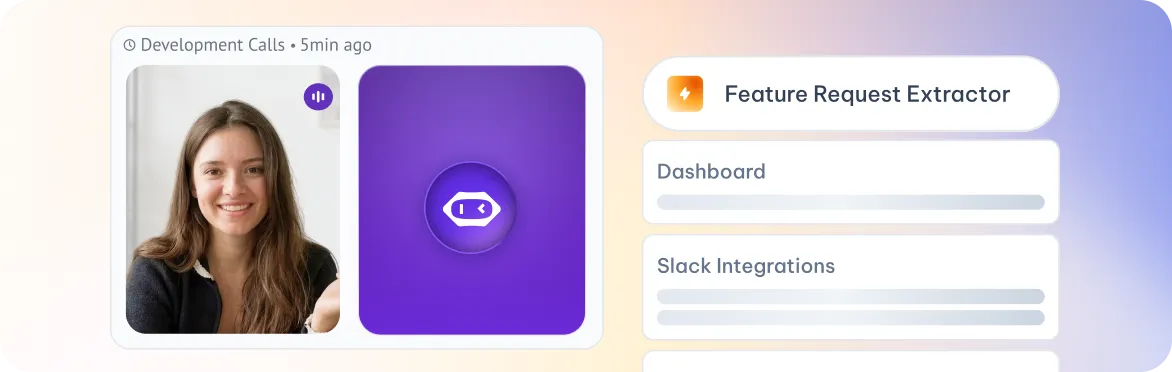
After every call
Runs automatically the moment a meeting ends. Standardizes team-wide follow-up.
“After every discovery call, send extracted feature requests to Productboard.”
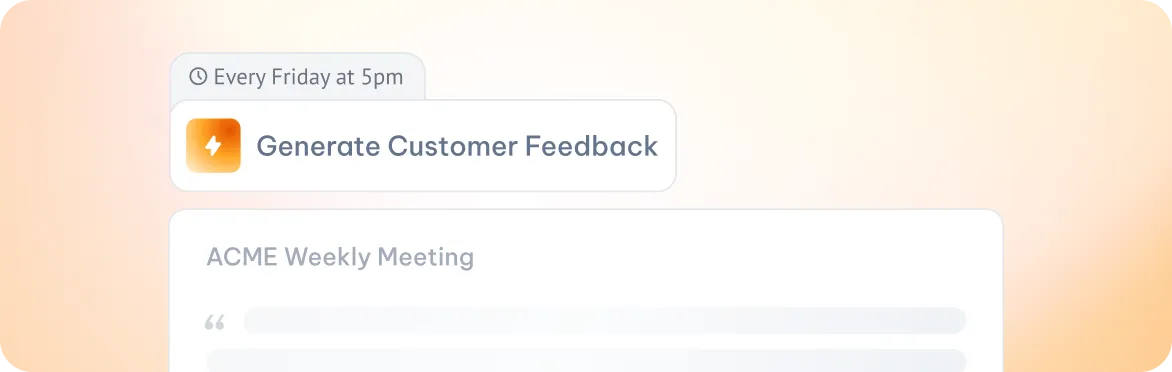
At a set time
Runs at a specific date and time. Built for weekly reports and recurring reviews.
“Every Friday at 5pm, generate a customer-feedback digest from the week's calls.”
When signals appear
Fires the moment a topic, intent, risk or decision is detected in a live or finished meeting.
“When 'cancellation' is mentioned, flag the account as at-risk and ping the CSM.”

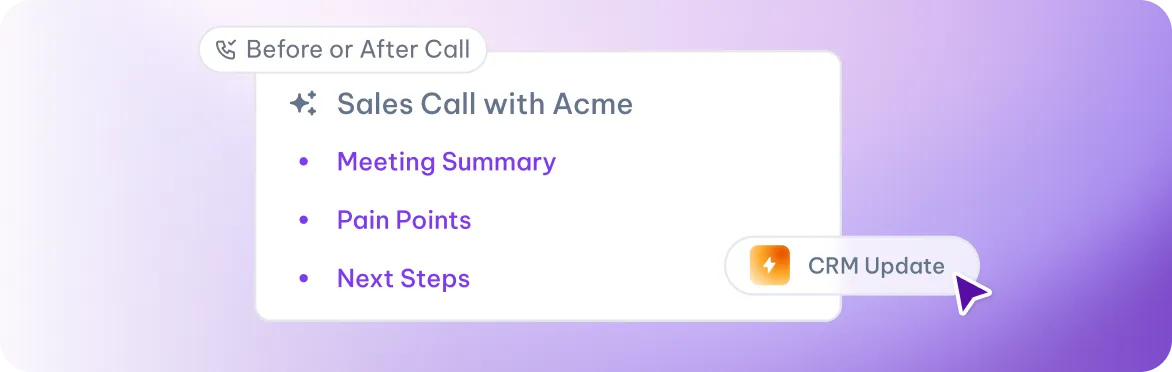
Whenever you decide
User clicks to run the Skill when needed. Best for sensitive or high-control actions.
“After a sales call, click 'Generate CRM update' to prepare a structured HubSpot note.”
From a sentence in a
call to a tracked task.


Built for every team in the building.
Sales Call Scorer
Scores prospect on buying signals. Scorecard + tier + next step.
Weekly Pipeline Pulse
Patterns across sales calls: objections, conversion signals, deal movement.
Objection Library Builder
Clusters recurring objections from calls into a ranked library with suggested counters.
Competitor Mention Tracker
Flags competitor names, comparisons, and switching intent surfaced in sales calls.
Talk-Track Coach
Evaluates talk-to-listen ratio and messaging alignment per rep. Flags drift from playbook.
Deal Risk Alert
Detects churn language, stalled momentum, or misaligned expectations in late-stage calls.
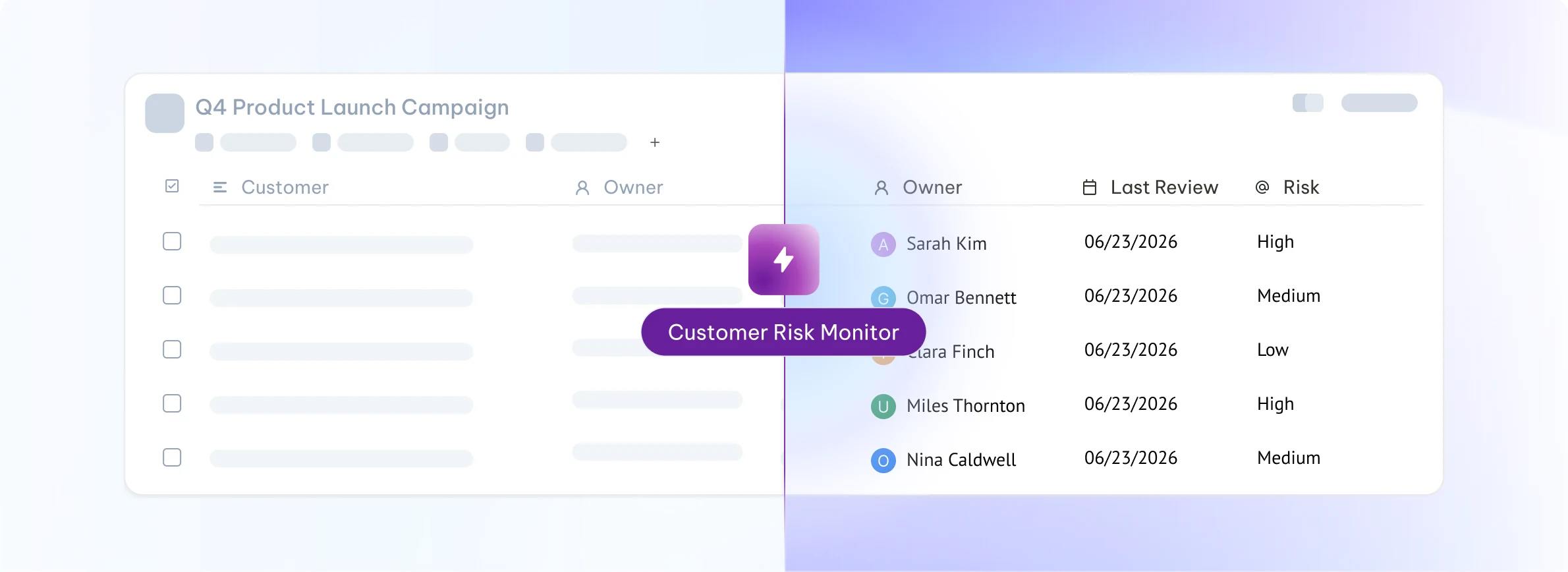
Customer Risk Monitor
Consolidated risk signals: churn language, competitor mentions, escalations. Mon covers Fri-Sun.
Weekly Rep Coaching Report
Behavioral patterns per rep: talk-to-listen, action item confirmation, recurring issues.
Renewal Readiness Tracker
Flags accounts with <90d to renewal that show risk signals or low engagement in recent calls.
Account Sentiment Trend
Tracks sentiment shifts per account over rolling 4 weeks. Highlights deteriorating relationships.
Escalation Catcher
Behavioral patterns per rep: talk-to-listen, action item confirmation, recurring issues.
QBR Prep Brief Generator
Auto-generates a client-ready QBR brief using outcomes, open issues, and goals from recent calls.
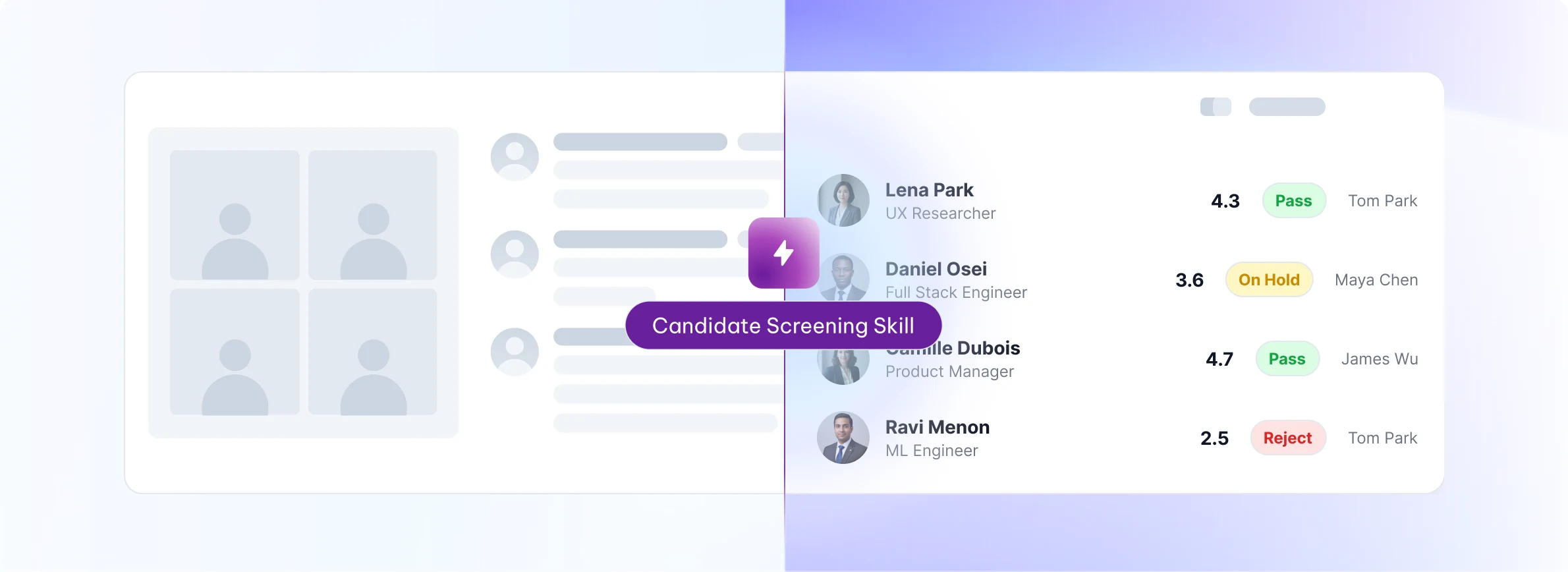
Candidate Screening Agent
Scores interview transcripts on role criteria. A/B/C tier + ranked digest. Mon covers Fri-Sun.
Weekly Hiring Pipeline Digest
Pipeline health, interviewer consistency, common disqualifiers, time-to-decision.
Weekly Recap & Action Digest
Weekly summary of all your meetings: one-line recaps, action items with owners, and unresolved items from prior weeks.
Interviewer Calibration Report
Compares scoring patterns across interviewers. Flags outliers and inconsistency by role.
Offer Decline Analyzer
Extracts reasons from post-offer calls and debriefs. Clusters themes for offer strategy improvement.
Onboarding Signal Tracker
Monitors onboarding call sentiment and open questions per new hire. Mon covers Fri–Sun.
Weekly Time Allocation Mirror
How you spent your meeting hours by category. Pure data, no coaching.
Weekly Cross-Team Digest
Decisions, blockers, unowned items, what shipped across all teams.
Investor Meeting Debrief
Structures key investor questions, commitments, follow-ups, and sentiment from board or VC calls.
Strategic Signal Monitor
Surfaces emerging themes, risks, and opportunities from cross-functional leadership meetings.
Hiring Pulse Report
Condensed view of hiring pipeline health, offer velocity, and top-of-funnel quality.
Leadership Accountability Tracker
Tracks open commitments made by leadership across all meetings. Flags overdue items by owner.
Voice of Customer Digest
Customer language, pain points, positioning clues from customer-facing calls.
Competitive Intel Monitor
Competitor mentions from calls: names, feature comparisons, switching intent. Mon covers Fri–Sun.
Campaign Feedback Aggregator
Extracts unprompted campaign mentions and reactions from sales and CS calls. Ranked by theme.
Messaging & Positioning Audit
Flags mismatches between brand messaging and language prospects and customers actually use.
Event Debrief Agent
Captures follow-ups, leads, and sentiment from post-event team calls. Formats for campaign handoff.
Content Signal Tracker
Surfaces frequently asked questions and knowledge gaps that map to content opportunities.
Feature & Feedback Tracker
Feature requests and pain points from customer calls. Clustered by theme, ranked by frequency.
Product Meeting Pattern Report
Recurring topics across sprints, deferred decisions, discussion frequency.
Decision Log Builder
Extracts product decisions and rationale from each meeting. Appends to a living decision log.
User Discovery Digest
Aggregates user language and pain points from discovery calls into prioritized insight clusters.
Sprint Risk Monitor
Flags unresolved blockers and scope creep signals from sprint standups and planning calls.
Roadmap Signal Tracker
Identifies alignment gaps and shifting priorities across product, engineering, and stakeholder calls.
Meeting Hygiene Guard
Flags overruns, missing transcripts, meetings losing productivity over time.
Weekly Engineering Digest
Unresolved items, cross-team dependencies, unconfirmed assignments.
Weekly Recap & Action Digest
Weekly summary of your meetings: one-line recaps, action items, and unresolved items.
Decision Log Keeper
Captures key decisions made in each call and flags meetings that ended without a clear decision.
Eng Onboarding Monitor
Tracks onboarding session quality and open questions for new engineers. Mon covers Fri-Sun.
Tech Debt Signal Catcher
Flags recurring technical debt mentions across sprint calls. Clusters by system or team.
26 agents · 13 departments · 4 per-call triggers · 5 daily monitors · 17 weekly digests
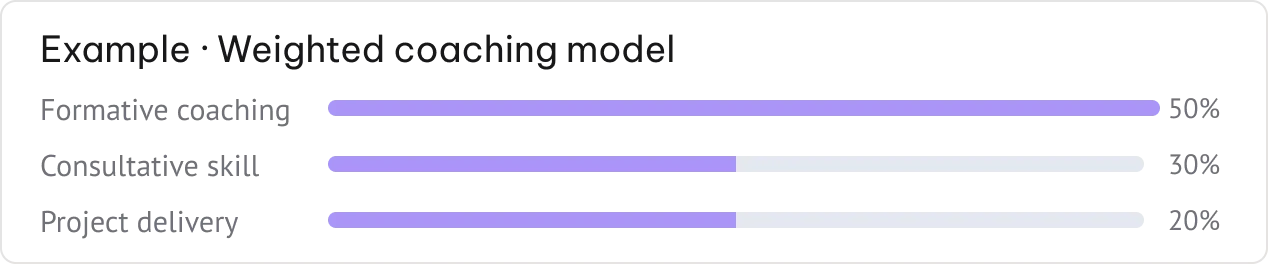
Team-Based Skills
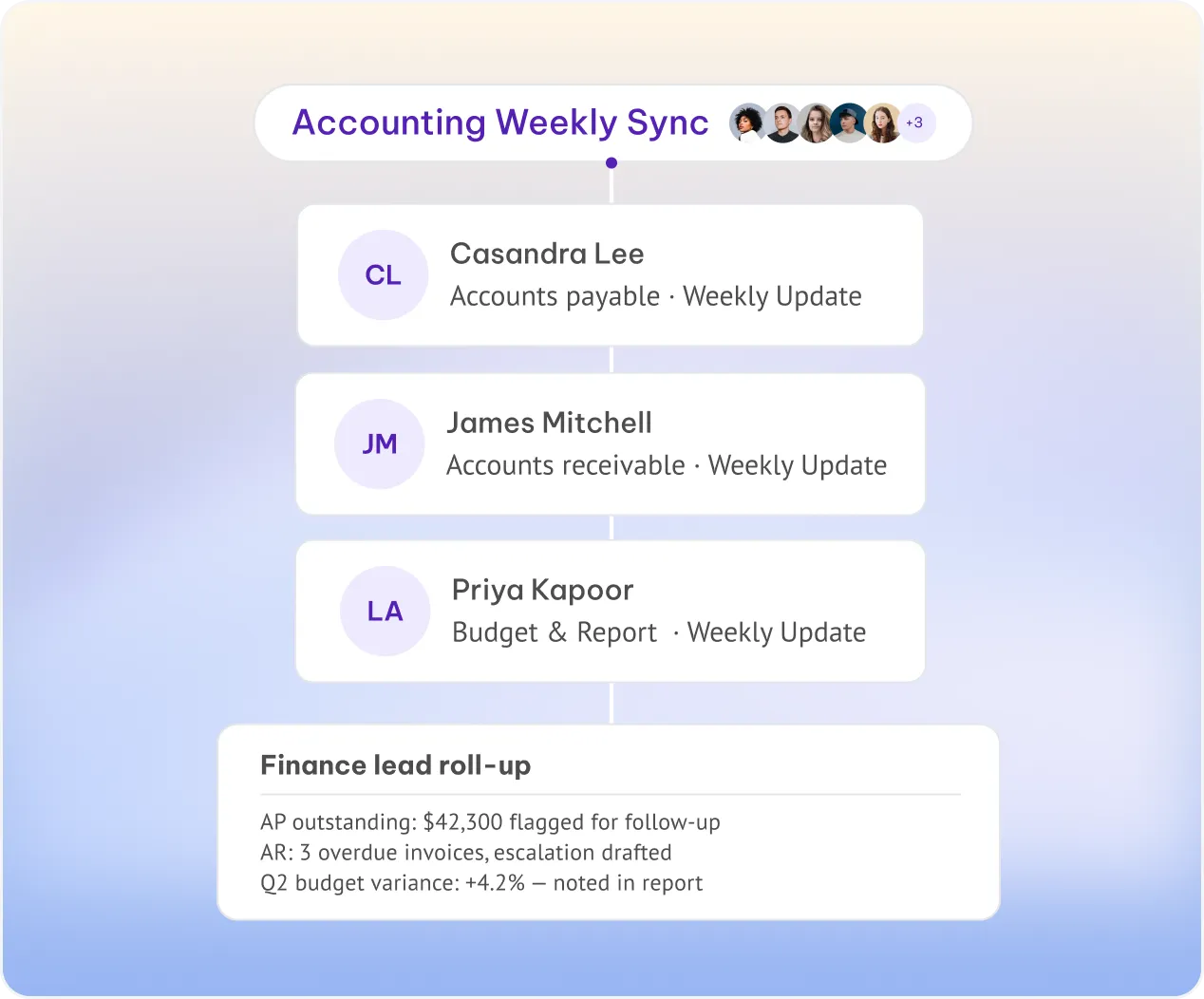
One skill per person, all rolling up to the lead — coaching is just one example our team can build with you.
Consistent evaluation
The same model applied to every member — reports are comparable across the whole team.
Per-member language
Each report delivered in the recipient's own language — Spanish for one team, French for another.
Manager roll-up
Every individual report is also sent to the team lead for a single weekly view of the group.

Enterprise-grade by default. Not an upgrade.
Every workspace is built on the same foundation. Your data never trains our models.
Certifications & frameworks
Built to Scale
Org-wide settings & locks
SSO, SCIM
Custom Avatars & Voice Agents
Zero / custom data retention policies
On-premise storage options
Dedicated onboarding & account manager



The questions procurement asks
What exactly does MeetGeek do?
MeetGeek is an AI meeting intelligence platform that records, transcribes, summarizes, and analyzes your meetings — then turns those conversations into structured knowledge and automated follow-up work.
Beyond notes, MeetGeek helps teams act on meeting context: it extracts action items, updates connected tools, shares outputs with the right people, powers searchable company knowledge, and supports agentic workflows that automate productivity after every meeting.
Do I have to use a bot in my meetings?
No, you don’t have to. MeetGeek supports both bot-based and bot-free recording options. Besides using the bot, you can record meetings through the desktop app, mobile app, browser extension, or by uploading an existing audio or video file. The bot is useful for automatic, hands-free calendar recording, while bot-free options are ideal when you want a more private or flexible setup.
Which meeting platforms are supported?
MeetGeek supports Zoom, Google Meet, and Microsoft Teams through bot-based recording.
For other meeting platforms, MeetGeek can still capture the conversation using the desktop app or browser extension. This means you can record virtually any online meeting, even when the platform is not supported by the bot directly.
In-person meetings are supported through the mobile app or desktop app, and hybrid meetings are supported as well. If part of the team is in the room and others join online, you can use the local recorder that best fits the situation.
Can I customize the meeting summaries?
Yes. You can create custom summary templates for different meeting types, such as sales calls, standups, interviews, client reviews, hiring conversations, or leadership meetings.
Each template can structure the output around the information that matters most to your team, so MeetGeek does not just summarize the meeting — it produces the kind of structured output your workflow needs.
Does MeetGeek detect speakers automatically?
Yes. MeetGeek automatically identifies and labels speakers in the transcript, so quotes, action items, insights, and key moments can be attributed to the right person.
This makes transcripts easier to review and helps teams understand who said what, who committed to what, and where follow-up is needed.
Can I search across all my past meetings?
Yes. Your meeting history is indexed and searchable by keyword, speaker, topic, date, and other meeting properties, depending on your plan and retention settings. You can also search in a conversational way using AI chat. Instead of only filtering manually, you can ask questions across one or multiple past meetings, such as “What did this customer say about pricing?” or “What blockers came up in my last calls with this account?”
Does MeetGeek auto-share notes after meetings?
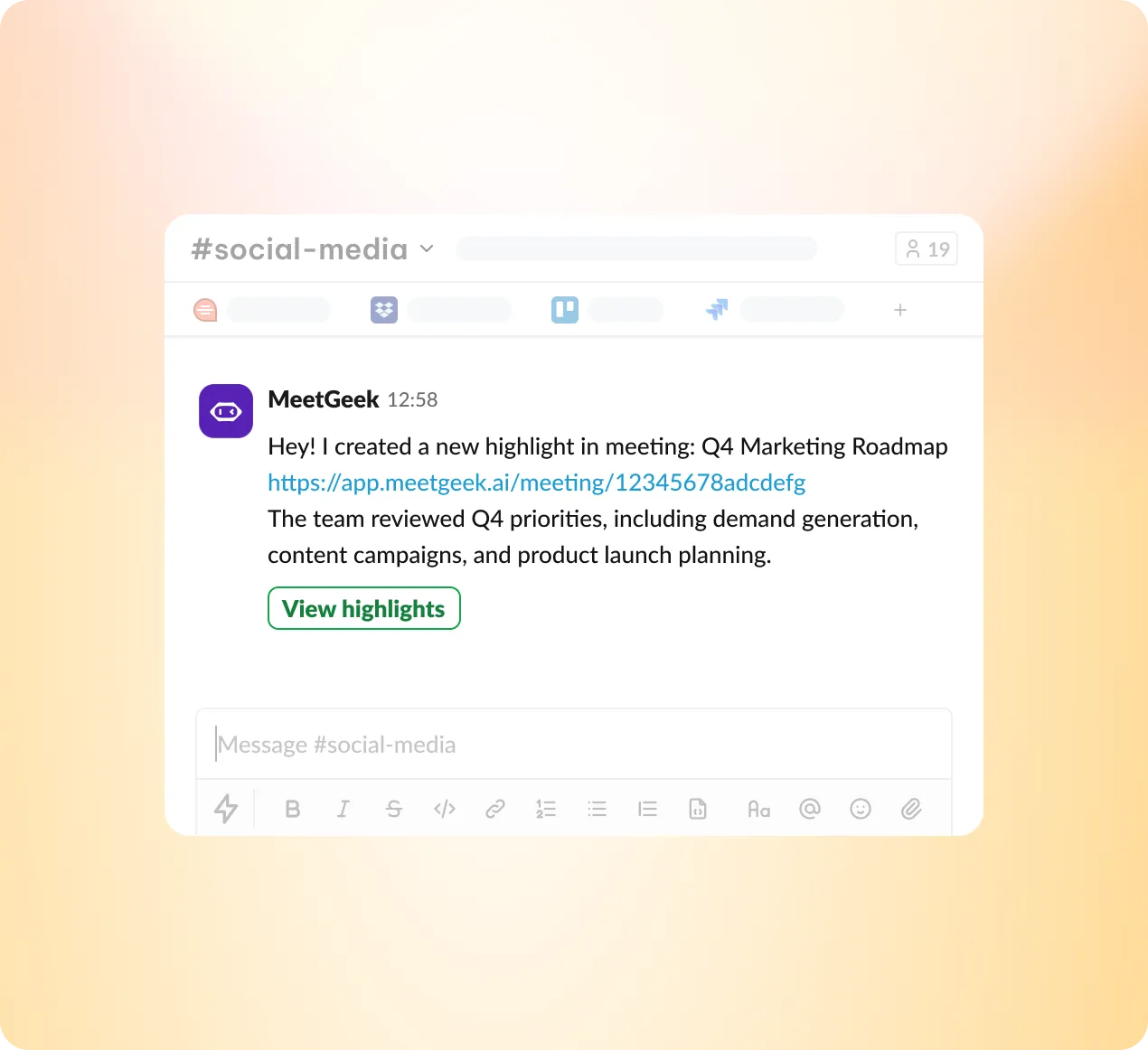
Yes. You can configure sharing rules so MeetGeek automatically sends meeting summaries to participants, selected teammates, Slack channels, or connected tools after the meeting ends. This lets each team define its own follow-up flow, so sales calls, standups, customer interviews, leadership meetings, and internal reviews can each be routed differently.
Can I upload existing audio or video files?
Yes. You can upload existing audio or video recordings and MeetGeek will generate a transcript, summary, highlights, and action items, just like it does for live meetings. This is useful when a meeting was recorded elsewhere, when you want to process legacy recordings, or when the conversation happened outside your normal MeetGeek setup.
What can I do with MeetGeek on mobile?
The mobile app is useful for in-person meetings, field conversations, client visits, interviews, walk-and-talk discussions, and on-the-go review.
You can record conversations directly from your phone, access transcripts and summaries, review past meetings, and keep meeting intelligence available even when you are away from your desk.
Some MeetGeek capabilities are cross-app, so your workflow can move between web, desktop, browser, and mobile depending on the situation.
Does MeetGeek extract action items automatically?
Yes. MeetGeek identifies commitments, task assignments, follow-up promises, decisions, and next steps from the conversation.
Action items can be reviewed inside MeetGeek, attributed to the right person when possible, and pushed into connected tools so meeting decisions can become actual work instead of staying buried in a transcript.
What AI models and technology power MeetGeek under the hood?
MeetGeek combines proprietary speech recognition technology with frontier AI models to deliver accurate transcription, structured summarization, contextual insights, and intelligent meeting analysis.
The platform is designed for business use and operates with strong privacy and compliance standards, including GDPR compliance and strict controls around customer data.
How does transcription accuracy hold up across accents and languages?
MeetGeek delivers industry-leading transcription accuracy across supported languages and a wide range of accents.
Accuracy depends on factors such as audio quality, background noise, speaker overlap, microphone setup, and domain-specific terminology, but MeetGeek is designed to perform reliably across real business conversations, not only ideal recording conditions.
How does MeetGeek know what type of meeting it's recording?
MeetGeek analyzes signals such as the meeting title, participants, conversation structure, vocabulary, and discussion flow to understand the meeting context. Based on that context, it can apply the most relevant templates, insights, and outputs, helping each meeting produce a result that fits its actual purpose.
What specific coaching insights does the AI surface after a call?
MeetGeek can surface coaching metrics such as talk-to-listen ratio, monologue length, filler word usage, engagement levels, sentiment shifts, and conversational pacing. It can also provide proactive coaching suggestions based on the specific call, helping individuals and managers understand what worked, what created friction, and what could be improved next time.
How does the AI meeting chat work and what can I ask it?
You can ask MeetGeek questions about a specific meeting or across multiple meetings.
For a single meeting, you might ask what was agreed, what objections came up, what the client said about pricing, or what next steps were assigned. Across multiple meetings, you can ask broader questions such as “What topics keep coming up with this customer?”, “What did I discuss with this teammate over the last month?”, or “Which objections appeared most often in recent sales calls?” This turns your meeting history into a conversational knowledge base, not just a searchable archive.
How does multilingual detection and summarization work?
MeetGeek automatically detects the language spoken during the meeting and delivers the transcript and summary in that language, supporting teams across different regions without manual setup.
How does MeetGeek decide which moments are worth highlighting?
MeetGeek identifies moments where key decisions were made, commitments were given, important topics were raised, objections appeared, sentiment shifted, or follow-up was needed. These highlights help users review the most important parts of a meeting quickly, without having to replay the full recording or scan the entire transcript.
How deep does sentiment analysis go during a conversation?
MeetGeek can identify emotional tone and sentiment shifts during a conversation, helping teams understand where a meeting became positive, neutral, tense, uncertain, or more engaged.
For deeper analysis, teams can also create dedicated prompts, templates, or skills to evaluate sentiment across one meeting or multiple meetings together. This makes it possible to build more customized sentiment analysis workflows around sales calls, customer feedback, internal discussions, or leadership reviews.
How do I teach the AI my company's specific terminology?
You can add custom vocabulary, product names, customer names, acronyms, and industry-specific terminology to your workspace settings. This helps MeetGeek better recognize and transcribe the language your company actually uses.
How does speaker attribution work in fast-paced group conversations?
MeetGeek uses speaker recognition and conversation analysis to separate and attribute speech across multi-person meetings.
In fast-paced or overlapping conversations, speaker attribution can be affected by audio quality and interruptions, but MeetGeek is designed to keep transcripts readable and correctly attributed wherever possible.
How does MeetGeek ensure my meeting data is never used for AI training?
MeetGeek has a strict policy of never using customer meeting data to train or fine-tune AI models. Your conversations, transcripts, summaries, recordings, and meeting outputs remain your data and are not used to improve general AI systems.
What does SOC 2 Type II certification mean for my data?
SOC 2 Type II means MeetGeek has been independently audited and verified against rigorous standards for security, availability, and confidentiality. It shows that MeetGeek’s security practices are not only documented as policies, but also tested over time in real operational conditions.
How does MeetGeek support HIPAA compliance for healthcare teams?
MeetGeek supports HIPAA-compliant data handling for eligible healthcare organizations, including appropriate controls and Business Associate Agreements where applicable. This helps healthcare teams manage sensitive meeting information with stronger compliance safeguards.
What does GDPR compliance look like in practice for EU users?
For EU users, GDPR compliance includes transparent data processing practices, user rights to access and delete data, data portability, appropriate security measures, and data residency options. MeetGeek is designed to support organizations that need meeting intelligence while maintaining control over personal and business data.
Where exactly is my data stored and can I choose the region?
MeetGeek offers EU and US data hosting options, allowing teams to select the region that best matches their legal, compliance, and operational requirements.
How granular are the access controls for team recordings?
Workspace admins can manage who can access which meetings, restrict access by team or role, and configure sharing permissions at both workspace and meeting level. This helps companies keep sensitive conversations visible only to the people who need them.
What encryption standards are applied to recordings and transcripts?
MeetGeek encrypts recordings and transcripts at rest and in transit using enterprise-grade security standards.
This protects meeting data while it is stored, processed, and transmitted across the platform.
How do I permanently delete my data and what happens after?
You can delete individual meetings or your account from your settings. Once deleted, the data is permanently removed according to MeetGeek’s data deletion policy and applicable retention requirements.
What is MeetGeek's policy on third-party data sharing?
MeetGeek does not sell meeting data to advertisers or external organizations. Data is shared with third-party integrations only when authorized by the user or workspace admin, and only for the purpose of enabling the connected workflow.
How do enterprise teams configure custom data retention policies?
Enterprise teams can configure retention rules, archive policies, deletion timelines, and access expiration settings.
This gives larger organizations more control over how long meeting data is stored and how it is governed across departments.
How does MeetGeek pricing scale as my team grows?
MeetGeek is designed to scale with your workspace without forcing every user into the same paid plan.
You can grow your team, invite unlimited free users to collaborate in the workspace, and control which plan is assigned to each user. This gives admins more flexibility over cost, access, and scalability as the company expands.
What are the real limitations of the free plan in daily use?
The free plan mainly limits the number of transcription minutes available each month.
It is still useful for individuals and teams because free users can participate in a workspace, access shared meeting knowledge, and experience key MeetGeek functionality without a credit card, commitment, or upfront payment.
You can start for free, test the product in real workflows, and decide whether a paid plan is needed based on actual usage.
What features unlock when I move from free to a paid plan?
Paid plans unlock higher transcription limits, more advanced AI capabilities, custom templates, integrations, collaboration features, automation options, longer retention, and support levels depending on the plan.
The main difference is not only more usage, but more control over how meeting intelligence is structured, shared, automated, and connected to the rest of your workflow.
How long can I trial paid features before being charged?
MeetGeek offers a 14-day trial for paid features.
This gives you two weeks to test the full product experience before committing to a subscription.
How much do I actually save by switching to annual billing?
Annual billing can save around 40% compared to monthly billing.
For teams that expect to use MeetGeek continuously, annual billing is usually the more cost-efficient option.
Who qualifies for startup, nonprofit, or education discounts?
Eligible startups, registered nonprofits, and accredited educational institutions may qualify for special pricing.
Teams can apply through MeetGeek’s discount program or contact the sales team to confirm eligibility.
What happens to my meetings and data if I downgrade my plan?
When you downgrade, your past meetings and data become subject to the retention policy and limits of the new plan: 1 month (Basic), 6 months (Pro), or 1 year (Business). Contact our support team to confirm the exact retention period for your plan.
What does the Enterprise plan include that the standard plans don't?
Enterprise plans include advanced admin controls, custom data retention, SSO, dedicated account management, SLA options, assisted onboarding, stronger governance features, and support for larger organizational rollouts.
Enterprise is designed for companies that need more control, compliance, scalability, and implementation support.
How does MeetGeek update CRM records automatically after a sales call?
MeetGeek can connect with CRMs such as HubSpot and Salesforce to push meeting summaries, action items, notes, and relevant call insights into the correct deal, company, or contact record. This helps sales teams keep CRM data updated without manually rewriting what happened in every call.
How do task and project management integrations handle action items?
MeetGeek can sync action items into tools such as Notion, ClickUp, Asana, and other connected systems.
When action items are detected, they can be pushed into the appropriate workspace, project, database, or task list, with relevant context from the meeting and attribution when available.
How do I configure Slack to receive summaries from specific meeting types?
You can configure sharing rules that route specific meeting outputs to the right Slack channels.
For example, sales call summaries can go to a sales channel, customer feedback can go to a product channel, and team updates can go to an internal operations channel.
How does calendar sync work to detect and join meetings automatically?
MeetGeek connects to your Google Calendar or Outlook calendar to detect upcoming meetings and apply your recording rules.
Depending on your setup, MeetGeek can dispatch the bot, prepare the recording flow, or help automate your meeting capture process without requiring manual setup each time.
What's the difference between native integrations and Zapier connections?
Native integrations are purpose-built connections with specific tools, offering a deeper and more direct experience.
Zapier connections let you connect MeetGeek with 10,000+ apps through no-code trigger-action workflows. They are useful when you want to build workflows beyond MeetGeek’s native integration library.
What kind of custom workflows can I build through Make or Zapier?
You can use Make, Zapier, or n8n to connect MeetGeek with the rest of your stack and build multi-step automations around meeting data. For example, you can extract names, emails, decisions, objections, customer requests, internal blockers, or follow-up ideas from a meeting and route them into different systems. This can support workflows across CRM, support, project management, documentation, reporting, customer success, recruiting, operations, and internal knowledge management.
How does the Google Drive integration organize saved recordings?
MeetGeek can save recordings, transcripts, and summaries to a designated Google Drive folder.
Depending on your configuration, files can be organized by date, meeting type, workspace, or other rules that help your team keep meeting records accessible outside MeetGeek.
What can be pushed into connected integrations?
You can configure what gets pushed into connected tools.
Depending on the integration, this can include summaries, transcripts, action items, highlights, meeting notes, decisions, analytics, or selected structured fields. The goal is to let each team decide what information should move from the meeting into the tools where work actually happens.
What can developers build using the MeetGeek API?
Developers can use the MeetGeek API to pull transcripts, summaries, action items, highlights, analytics, and other meeting outputs into custom dashboards, internal tools, proprietary workflows, or company-specific systems.
This allows MeetGeek to become part of a broader meeting intelligence layer inside the company’s infrastructure.
Does MeetGeek support MCP?
Yes. MeetGeek offers a dedicated MCP server that allows MCP-compatible tools to access MeetGeek workspace data.
Teams can use the hosted option or self-host the MCP server, depending on their technical and security preferences.
With MCP, users can connect MeetGeek to tools such as Claude, ChatGPT, Cursor, VS Code agents, and other compatible clients, making it possible to ask questions about meeting data or build workflows on top of MeetGeek from third-party AI tools.
What happens step by step during the two-minute onboarding?
You sign up, connect your Google or Outlook calendar, choose your recording preferences, and configure your workspace based on your role and needs. From that point, MeetGeek is ready to support your next meetings and starts adapting to how you work: what meetings you attend, what outputs matter, what tools you connect, and how you want meeting intelligence to flow through your workspace.
What are the differences between the web, desktop, and mobile experiences?
The web app is the main hub for reviewing meetings, managing settings, searching your meeting history, configuring templates, and connecting integrations.
The desktop app enables bot-free recording directly from your computer and can support online, in-person, and hybrid conversations.
The browser extension supports browser-based recording and can be useful when you want a lightweight way to capture meetings without relying on a bot.
The mobile app supports in-person recording, field conversations, and on-the-go review.
Some capabilities are cross-app, so different parts of the workflow can be controlled from different MeetGeek applications.
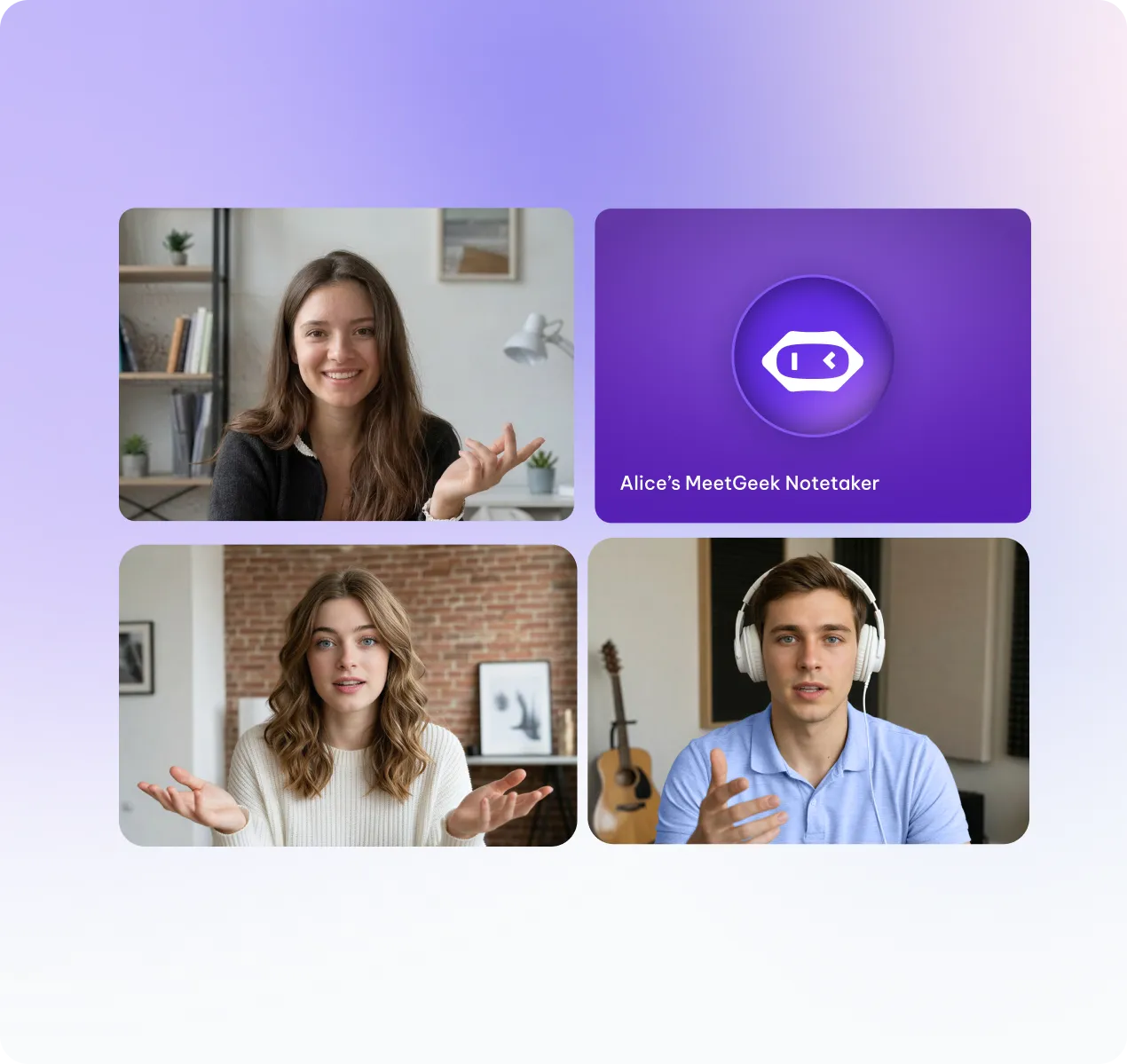
What does the MeetGeek bot look like to other participants in my meeting?
The bot appears as a named participant in your meeting, typically as “MeetGeek Notetaker.”
On paid plans, you can customize the bot’s display name so it better matches your company, team, or meeting context.
What IT permissions or admin approvals are needed for company-wide rollout?
For individual use, IT approval is usually not required.
For company-wide deployment, IT admins may need to approve calendar access, OAuth permissions, domain-level settings, security requirements, integrations, or data governance rules depending on your organization’s policies.
How do admins manage settings and permissions across a large team?
Workspace admins can manage users, roles, recording permissions, sharing rules, integrations, billing, retention policies, and access controls from a central workspace dashboard. This helps larger teams roll out MeetGeek consistently while maintaining control over privacy, compliance, and internal workflows.
What calendar permissions does MeetGeek actually need and why?
MeetGeek requests access to calendar events so it can detect upcoming meetings, apply recording rules, and support automatic capture. Calendar access helps MeetGeek understand when and where meetings happen, but it does not modify, delete, or create calendar events unless explicitly configured to do so through supported workflows.
How do I set rules so MeetGeek only records the meetings I want?
You can set inclusion and exclusion rules based on meeting title, participants, calendar, platform, or other conditions.This allows MeetGeek to record the meetings that matter while staying out of private, sensitive, or irrelevant conversations.
Can I still get a transcript if I forgot to record a meeting live?
Yes. If the meeting was recorded with another tool or by another participant, you can upload the audio or video file to MeetGeek. MeetGeek will process the file and generate the transcript, summary, highlights, and action items as it would for a live recording.
How do I configure templates and automations before my first meeting?
During or after onboarding, you can configure summary templates, sharing rules, integrations, notification preferences, recording rules, and automation triggers from your workspace settings. This means MeetGeek can be ready to produce structured outputs and trigger workflows from your first recorded meeting.
What onboarding resources and support are available for new enterprise teams?
Enterprise teams can access dedicated onboarding support, structured rollout planning, live training, priority support, documentation, and implementation guidance. This helps larger organizations deploy MeetGeek across teams while aligning security, adoption, integrations, and workflow automation from the beginning.


.avif)