Record every meeting
right from your browser
Record, transcribe in real time, and summarize calls on any meeting platform, without leaving Chrome.












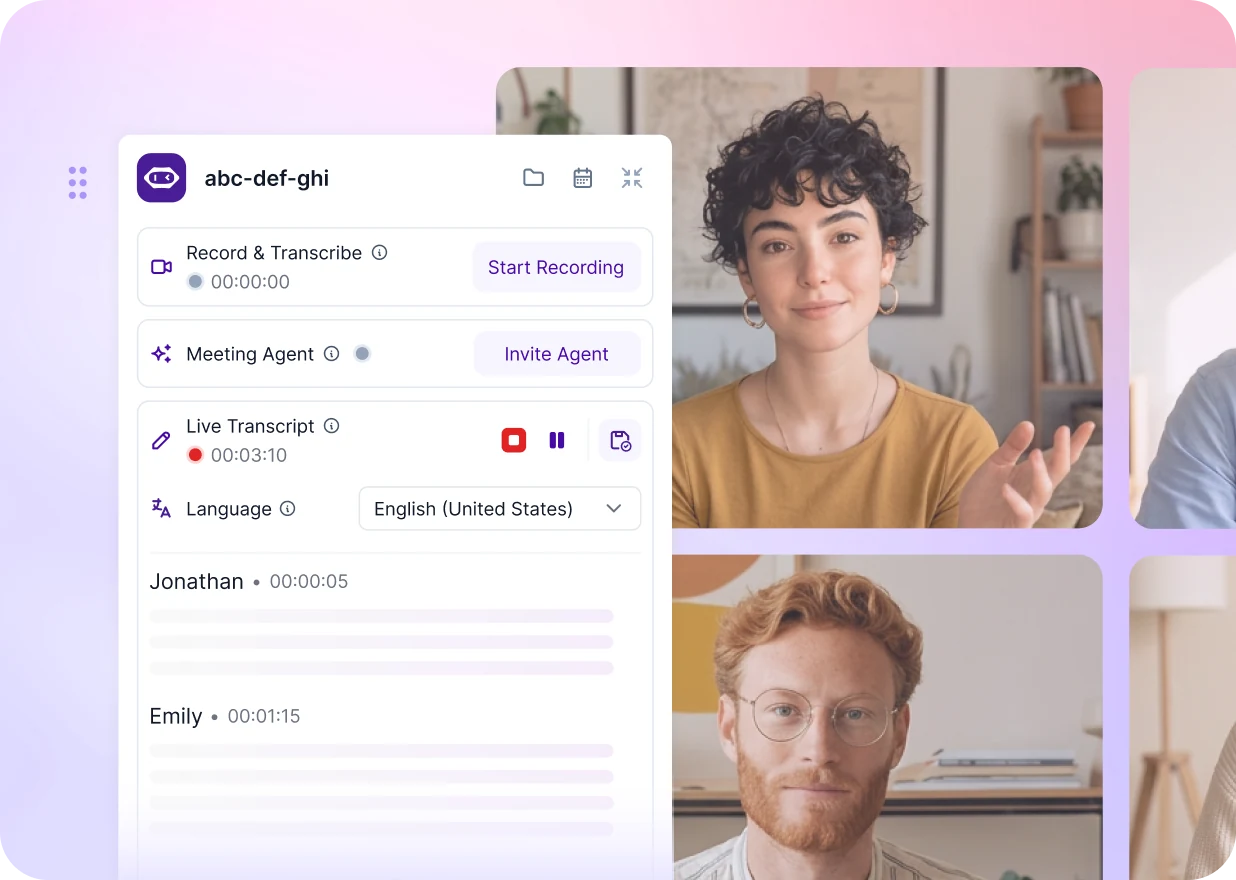
Transcription that adapts to every call

Automatic Language Detection
No setup needed — MeetGeek detects 100+ languages and adjusts your transcript and summary.

AI Highlights & Action Items
Automatically captures key moments, next steps, and decisions, letting you act and follow up faster.

AI Notes Tailored to Call Type
Whether it's a sales demo or a team sync, MeetGeek adapts your notes to match the purpose of your call.
Three ways to capture every meeting
01
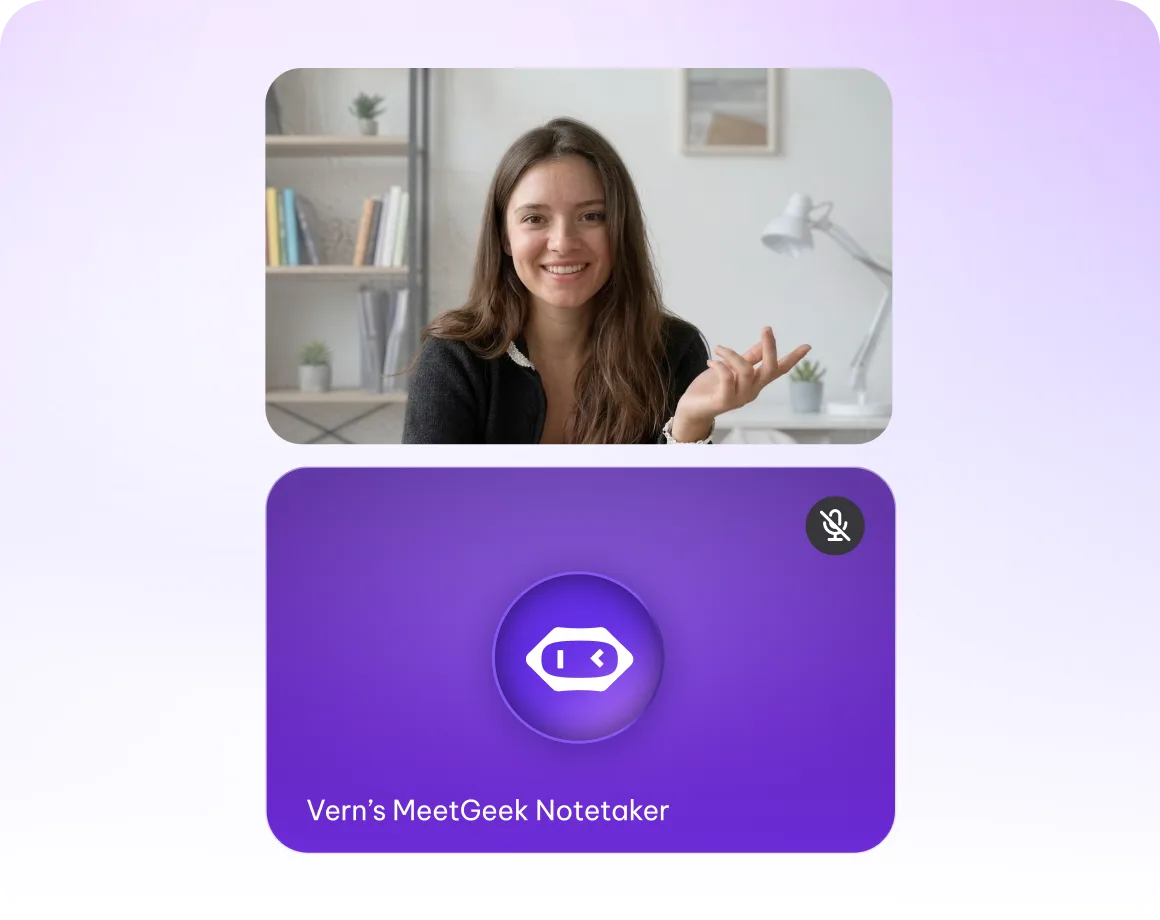
Meeting Agent
Joins your calls automatically from your calendar, so you never have to remember to hit record.
02
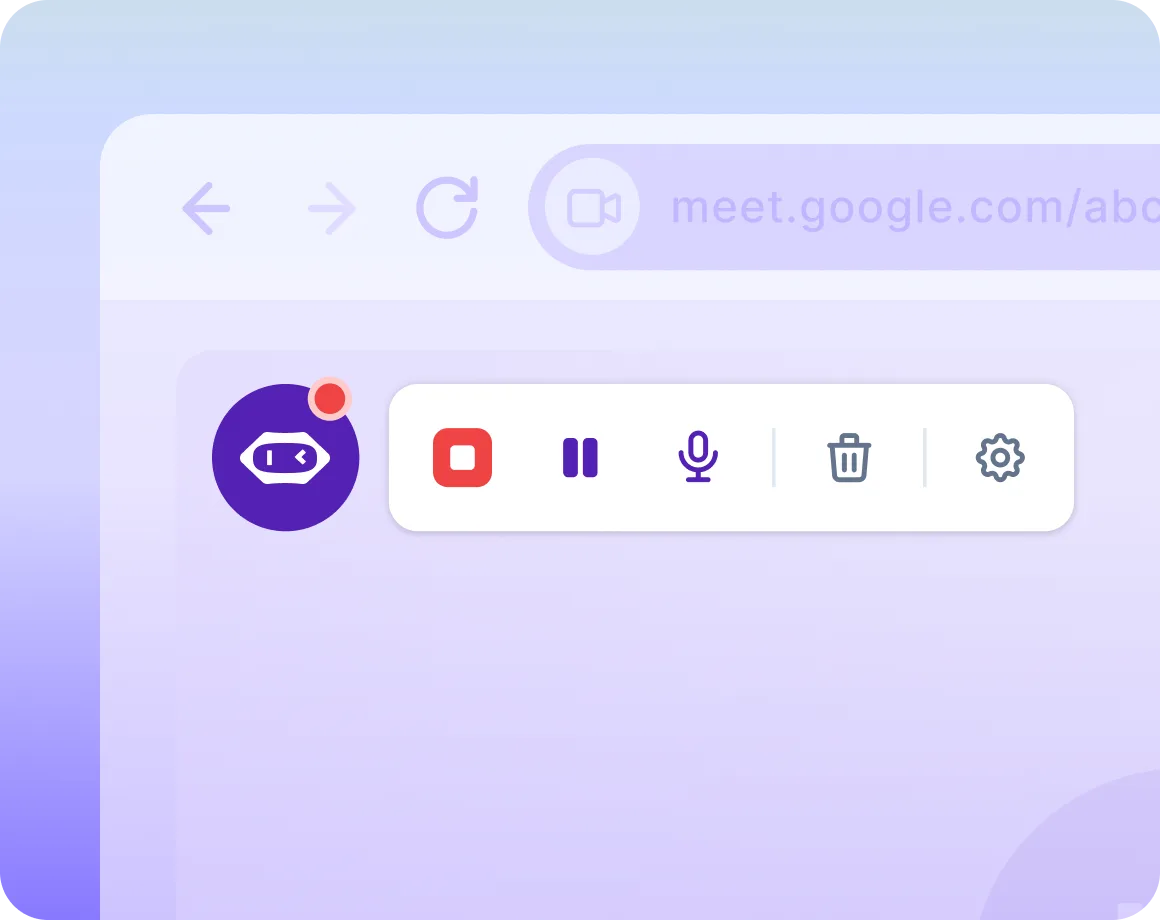
Screen Recording
Captures your screen and microphone directly from the extension — great for demos, presentations, or meetings where you control the recording.
03
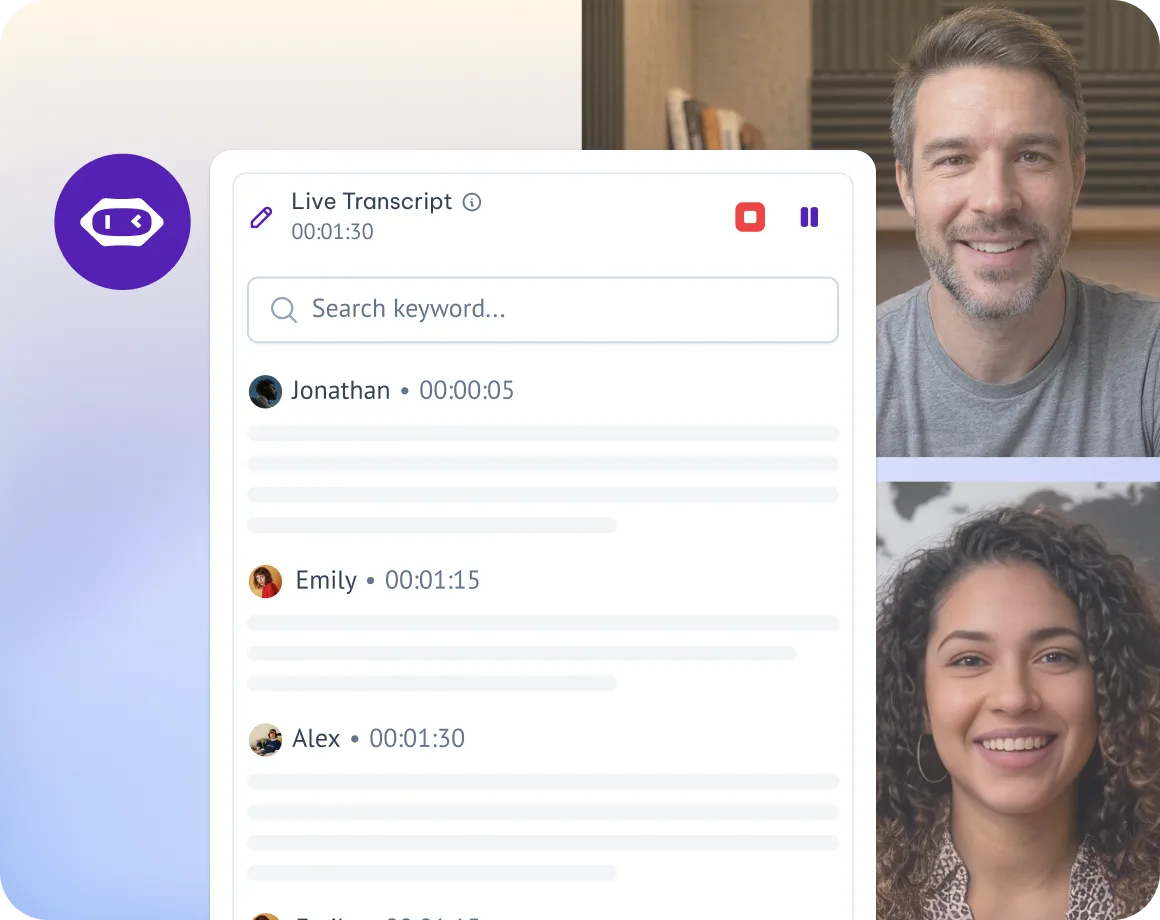
Live Transcript
Shows the transcript live as your meeting happens, so you can follow along and highlight key points in real time.






More than an AI meeting note taker
MeetGeek turns your meetings into instantly usable summaries, tasks, and insights — an AI meeting assistant built to boost productivity and team collaboration.
Automated Recording and Live Transcription
Capture meetings with a single click and leverage voice-to-text transcription to get instant access to searchable transcripts.
Searchable Meeting Library & AI Chat
All your meetings in one place: transcribed, summarized, and fully searchable by keyword, topic, or speaker. You can even chat with past meetings to get instant answers.
AI Workflows and Integrations
Push insights directly to your CRM, project tools, or 10,000+ connected apps and our Public API.
Add MeetGeek to Chrome
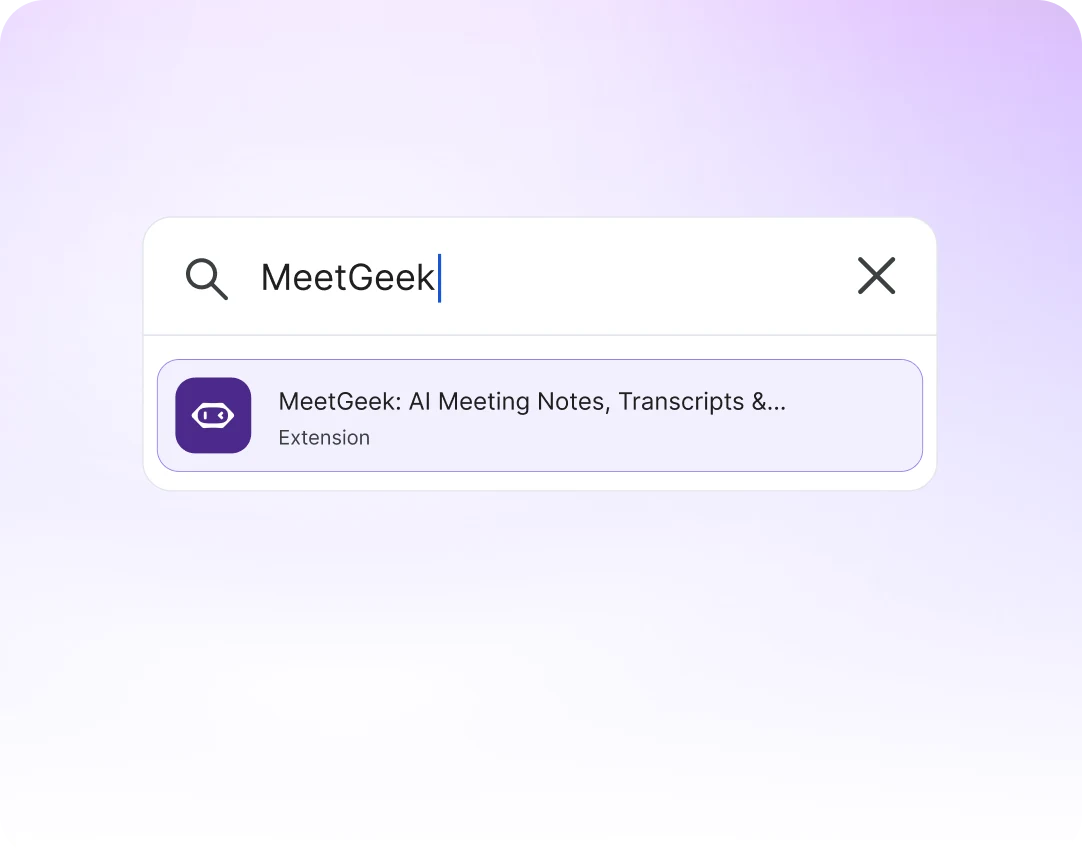
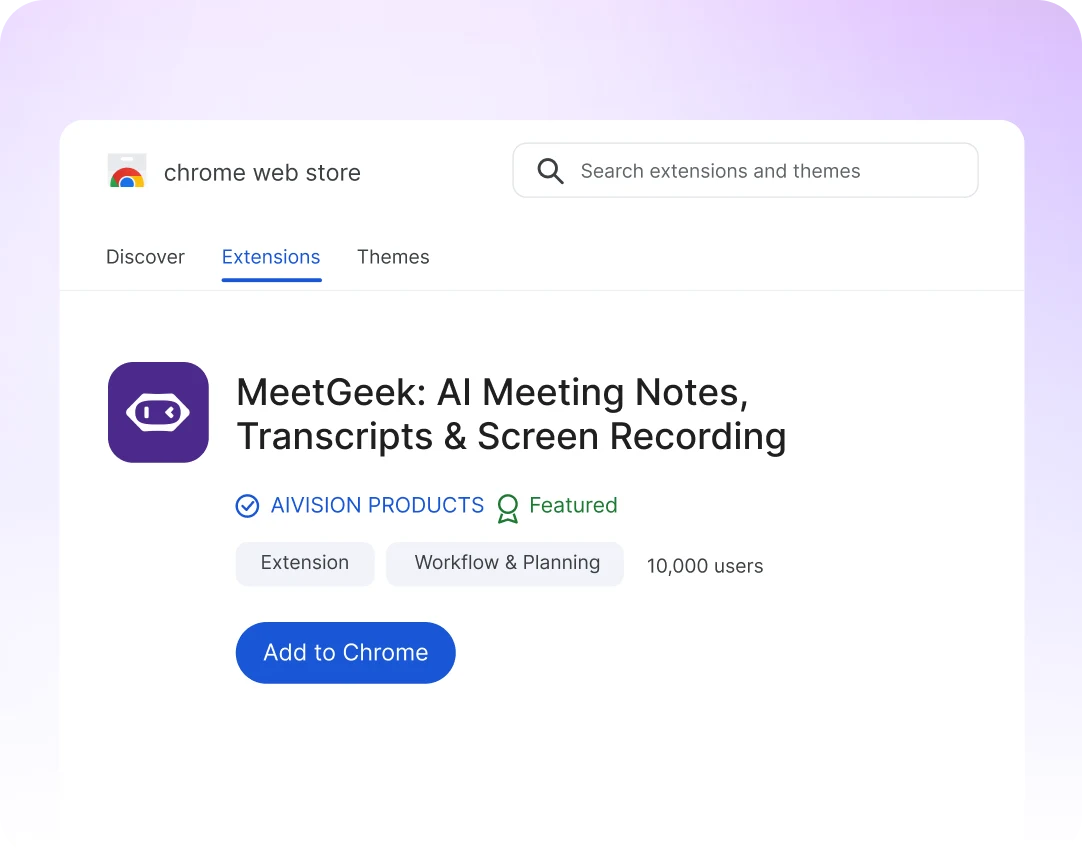
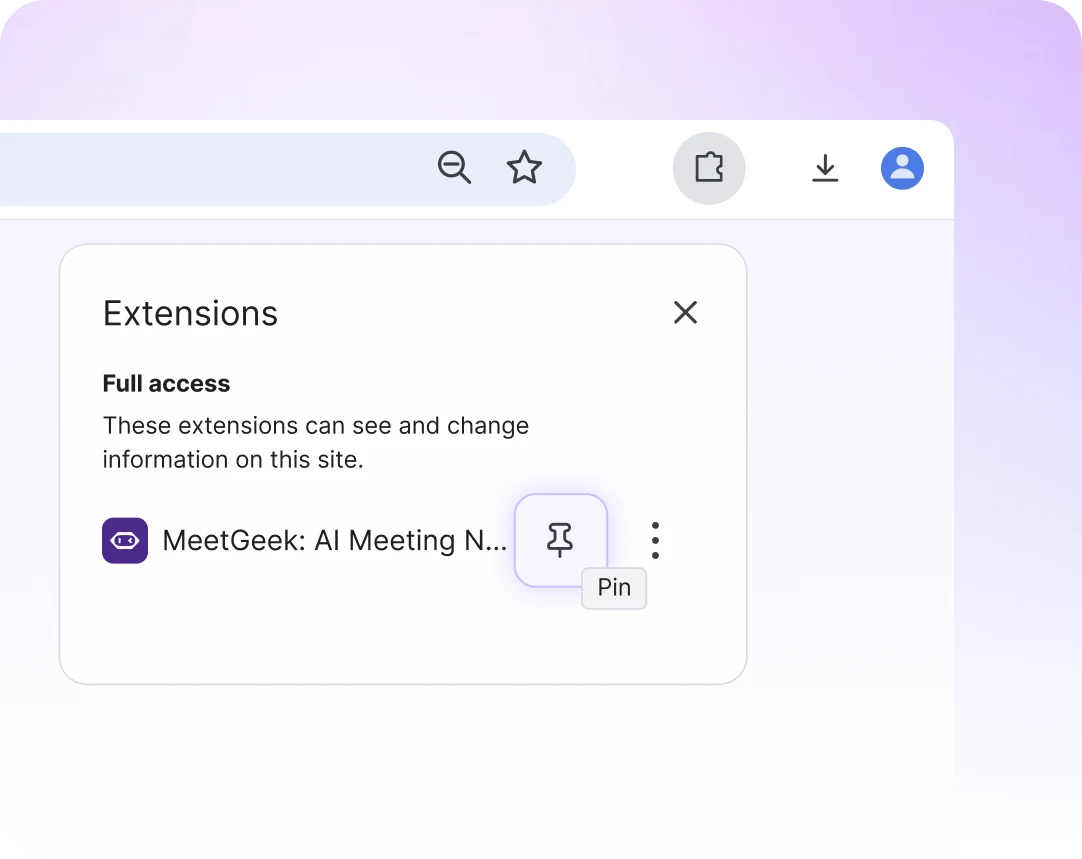
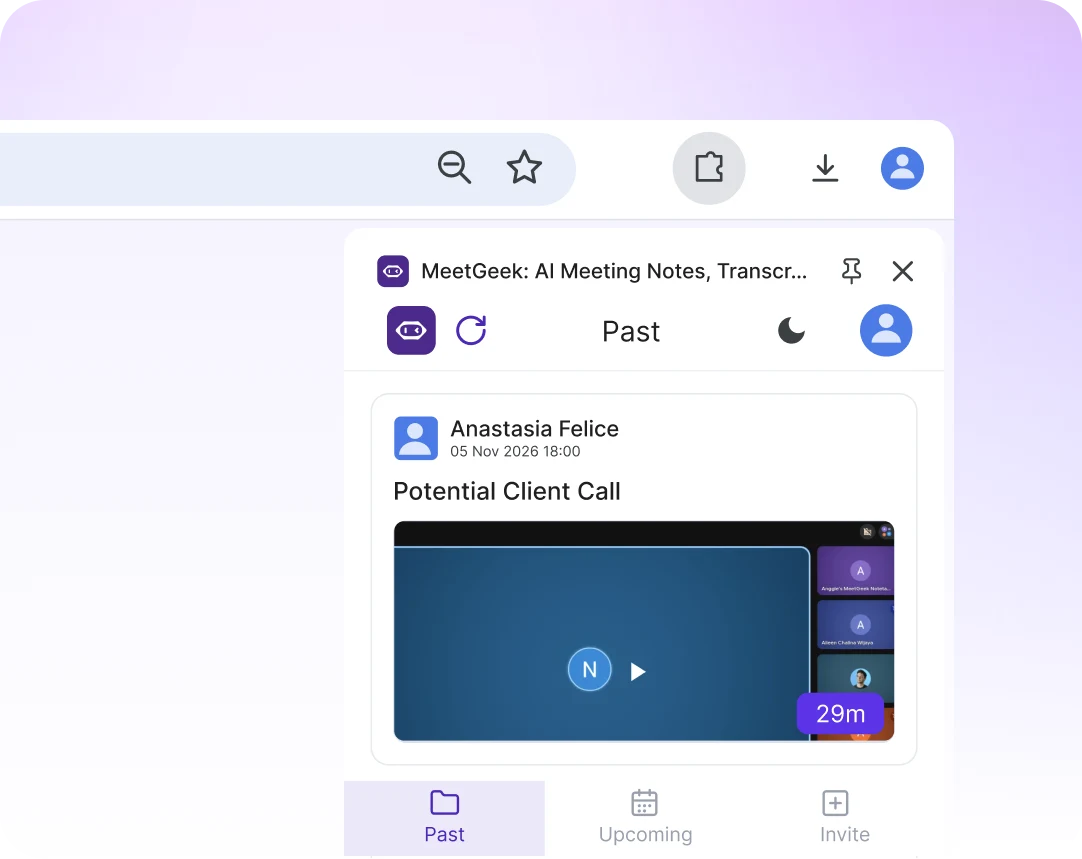
Search for MeetGeek in the Chrome Web Store
Open the Chrome Web Store and type MeetGeek in the search box.
Open the listing whose website is meetgeek.ai.
Want to skip the search? The button top right opens the listing directly.
Click Add to Chrome
On the MeetGeek listing, click Add to Chrome.
In the popup window, click Add extension.
Pin it to your toolbar
Click the puzzle-piece icon at the top right of Chrome.
Click the pin next to MeetGeek.
Now your meeting controls are one click away, in every call.
Open it and sign in
Click the MeetGeek icon in your toolbar. The extension opens on the right side of your window.
Log in, or sign up for a free MeetGeek account.
Capture your first meeting
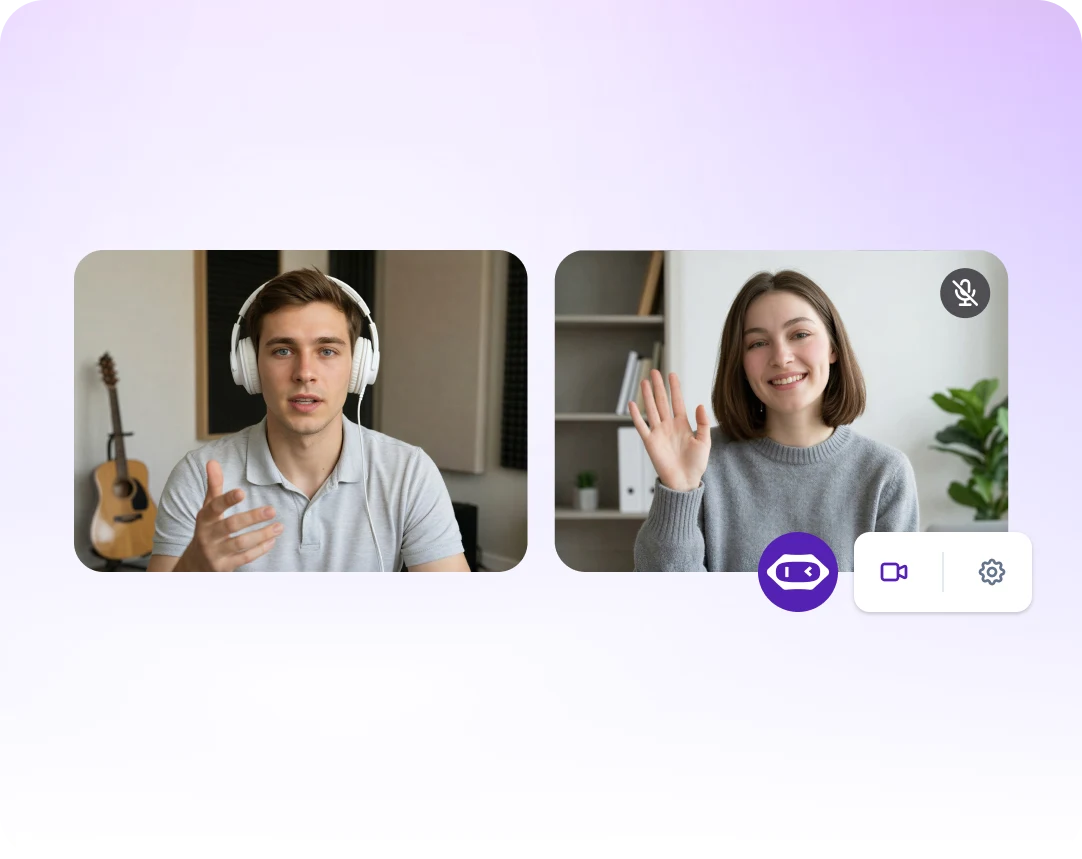
Join your meeting in Chrome. In the widget on the left, click the video camera icon to start recording.
The widget only shows up in the browser version of Google Meet, Zoom or Microsoft Teams.
Need help?
View setup guide →Integrate MeetGeek with your tech stack
MeetGeek connects with your apps and workflows, turning conversations into organized, searchable insights for the whole team.





Enterprise-grade by default. Not an upgrade.
Every workspace is built on the same foundation. Your data never trains our models.
Certifications & frameworks


Built to Scale
Org-wide settings & locks
SSO, SCIM
Custom Avatars & Voice Agents
Zero / custom data retention policies
On-premise storage options
Dedicated onboarding & account manager