


Sharing your screen on Google Meet means presenting a tab, a window, or your entire screen to everyone on the call so they see exactly what you see. On a computer you click Present now in the meeting controls and choose what to show; in the mobile app you tap the three-dot menu and select Share screen. The whole thing takes a few seconds once you know where the button is.
It is how you walk a team through slides, demo a product, review a document, or teach a class without emailing files around first. This guide covers the exact steps on every device, how to share a tab with its audio, and what to do when the Present now button is greyed out.
Once the call ends, the slides are shared but the discussion around them is gone unless someone wrote it down. MeetGeek is an AI notetaker that records and transcribes the meeting so the decisions made while you presented are not lost, which we come back to at the end.
How Do You Share Your Screen on Google Meet on a Computer?
On a computer (Windows, macOS, Linux, or ChromeOS), you present from the meeting controls:
- Join your Google Meet call.
- Click Present now in the bar at the bottom.
- Choose what to share: A tab, A window, or Your entire screen.
- Click Share.
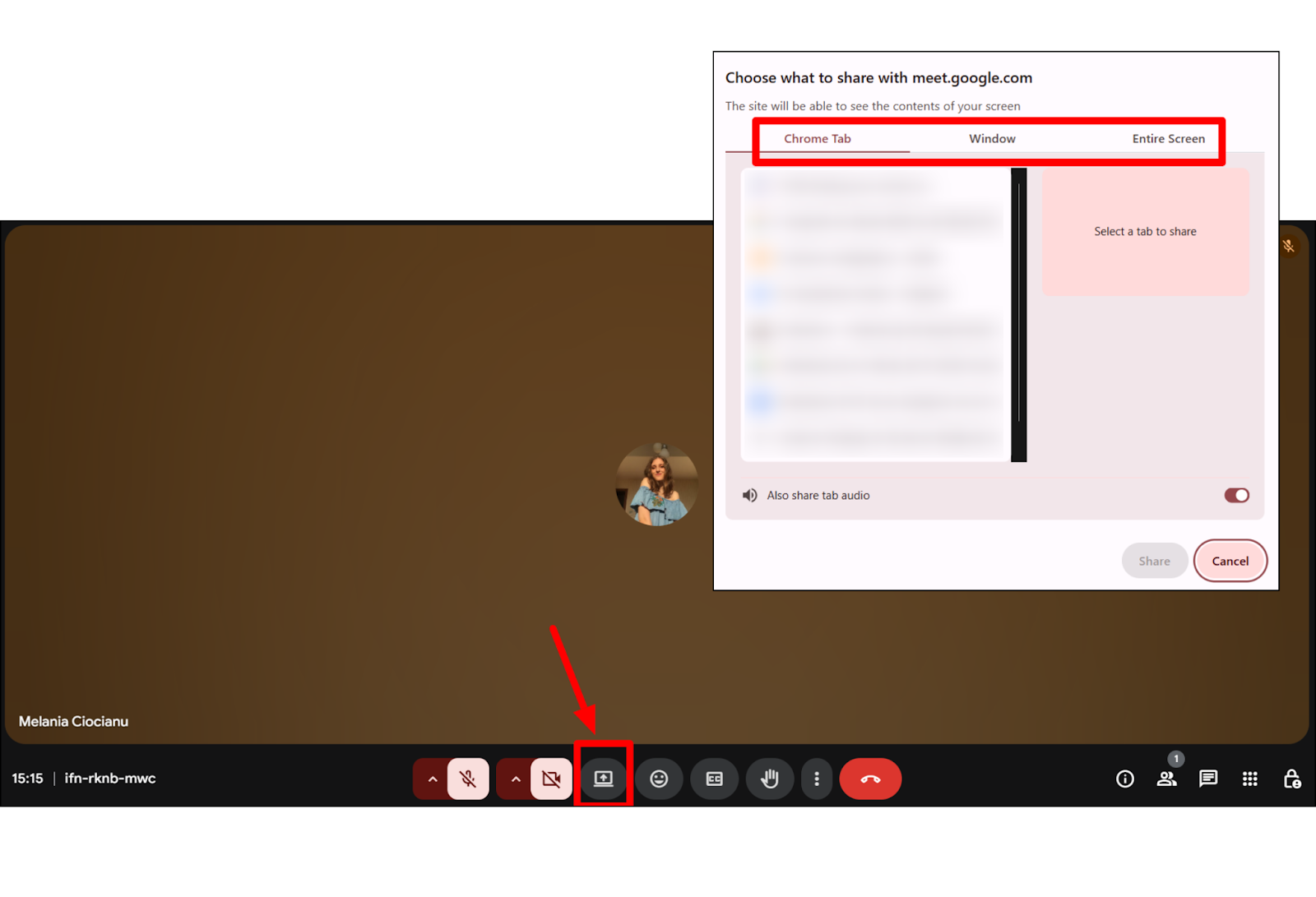
Pick A tab for a single Chrome tab (best for video and slides), A window for one app, or Your entire screen when you need to switch between apps. To stop, click Stop presenting in the Meet window, or open You are presenting at the bottom right and choose Stop presenting.
How Do You Share Your Screen on Google Meet on iPhone, iPad, or Android?
The mobile app shares your whole screen rather than a single window:
- Open the Google Meet app and join the call.
- Tap the three-dot menu (More).
- Tap Share screen.
- Confirm: on iPhone or iPad tap Start broadcast, and on Android tap Start (accept the permission prompt the first time).
Everything on your screen is now visible to the call, including notifications, so turn on Do Not Disturb before you begin. To stop, return to Meet and tap Stop sharing.
How Do You Share Screen With Audio on Google Meet?
Audio depends on what you present. If you share A tab, Google Meet sends that tab's audio automatically, which is why a tab is the right choice for playing a video or anything with sound. If you share a window or your entire screen, turn on the Also share system audio option so participants hear it too. Sharing a tab is the most reliable way to present video with clear, in-sync sound.
Why Can't I Share My Screen on Google Meet?
If Present now is missing, greyed out, or nothing appears for others, work through these in order:
- Someone else is presenting. Only one person shares at a time. Ask them to stop, or wait for the current share to end.
- Host or admin controls. In some meetings the host limits sharing to hosts only, and Workspace admins can disable it for the whole organization. Ask the host to allow it.
- Browser permission. Your browser may be blocking screen capture. On macOS, grant your browser access under System Settings, then Privacy and Security, then Screen Recording, and restart the browser.
- Wrong or outdated browser. Google Meet screen sharing is most reliable in an up-to-date Chrome. Update it, or switch browsers if the button still fails.
- Mobile permissions. On a phone, allow the screen-recording or broadcast permission when prompted, or enable it in your device settings.
Pro Tips for a Clean Google Meet Presentation
A few habits make a shared screen easier to follow:
- Turn on Do Not Disturb and close chat windows so private messages do not appear mid-presentation.
- Share a single tab or window instead of your entire screen when you can, so nothing extra is visible.
- Increase your font or zoom level; text that is comfortable for you is often too small for someone on a phone.
- Have the tab or file open before you click Present now, so there is no scramble once you are live.
From Screen Share to Shared Notes
Screen sharing keeps everyone looking at the same thing in the moment. What tends to get lost is everything said around it: the questions, the decisions, the next steps. That is where an AI notetaker helps. Once connected to your calendar, MeetGeek can join your Google Meet calls with permission, record and transcribe the session in 100+ languages, and send a summary with the key points and action items when the call ends.

So instead of presenting and trying to remember what was agreed, you can focus on the screen and let the recap write itself. It works the same way across Google Meet, Zoom, and Microsoft Teams, so you connect the one you already use.
If you want your Google Meet calls to end with clear notes, not just a closed tab, try MeetGeek free.
Key Takeaways
- On a computer, click Present now, then pick A tab, A window, or Your entire screen, and click Share.
- On mobile, tap the three-dot menu, then Share screen, then Start broadcast (iPhone/iPad) or Start (Android).
- Share A tab to include audio automatically; for a window or full screen, turn on Also share system audio.
- If you cannot share, check whether someone else is presenting, host or admin limits, or a blocked browser permission.
- Turn on Do Not Disturb and share a single tab or window to keep the view clean.
Frequently Asked Questions
Can I Share My Screen if I Am Not the Host?
Usually yes. By default any participant can present in Google Meet. Some hosts restrict sharing to hosts only, so if Present now is missing, ask the host to allow participants to share.
How Do I Share My Screen on Google Meet With Sound?
Share A tab, which sends that tab's audio automatically. If you share a window or your entire screen instead, enable Also share system audio so participants can hear it.
Will Participants See My Notifications or Pop-ups?
If you share your entire screen or your whole phone screen, yes. Turn on Do Not Disturb first, or share a single tab or window so only that content is visible.
How Do I Stop Sharing My Screen on Google Meet?
On a computer, click Stop presenting in the Meet window, or open You are presenting at the bottom right and choose Stop presenting. On mobile, return to Meet and tap Stop sharing.
Why Is My Shared Screen Blurry to Others?
Blurriness usually comes from a weak connection compressing the video. Close heavy tabs and apps, share a single window instead of full screen, and if it persists, turn off your camera to free up bandwidth.





.avif)