

.webp)

Zoom is one of the most widely used video meeting platforms for remote teams, webinars, and virtual collaboration. But there are plenty of reasons people eventually decide to cancel a Zoom subscription. Maybe your team switched tools, your meetings slowed down, or you simply don’t need the paid features anymore.
The good news is that the process is fairly straightforward once you know where to look. This step-by-step guide explains how to cancel Zoom subscription plans, depending on where you originally subscribed: the Zoom website, the Apple App Store, Google Play, or third-party providers.
Along the way, we’ll also cover what happens after cancellation, how billing works, and how to avoid additional charges.
Things to know before canceling a Zoom subscription
Before you start the cancellation process, it helps to review a few details about your Zoom account and how subscriptions work.
When you cancel a Zoom subscription, the change does not usually take effect immediately. Instead, your plan remains active until the end of your current billing period. This means you can continue to access the paid Zoom product, run meetings, and host webinars until the next billing cycle begins.
A few other important things to check before canceling:
- Your renewal date
- Whether you have additional active subscriptions like Zoom Phone or Zoom Webinars
- Whether you subscribed directly through the Zoom website or through another service
- Your payment method and billing details
If you’re unsure where your subscription came from, reviewing your billing history in the account management section will usually make it clear.
How to cancel Zoom subscription on the Zoom website
If you purchased your plan directly from Zoom, the cancellation happens inside the account management area of the Zoom website.
Here is the standard step-by-step guide.
1. Sign in to your Zoom account
Visit the Zoom web portal and sign in with the account that holds the paid subscription.
If the wrong account is used, the subscription will not appear in the billing dashboard.
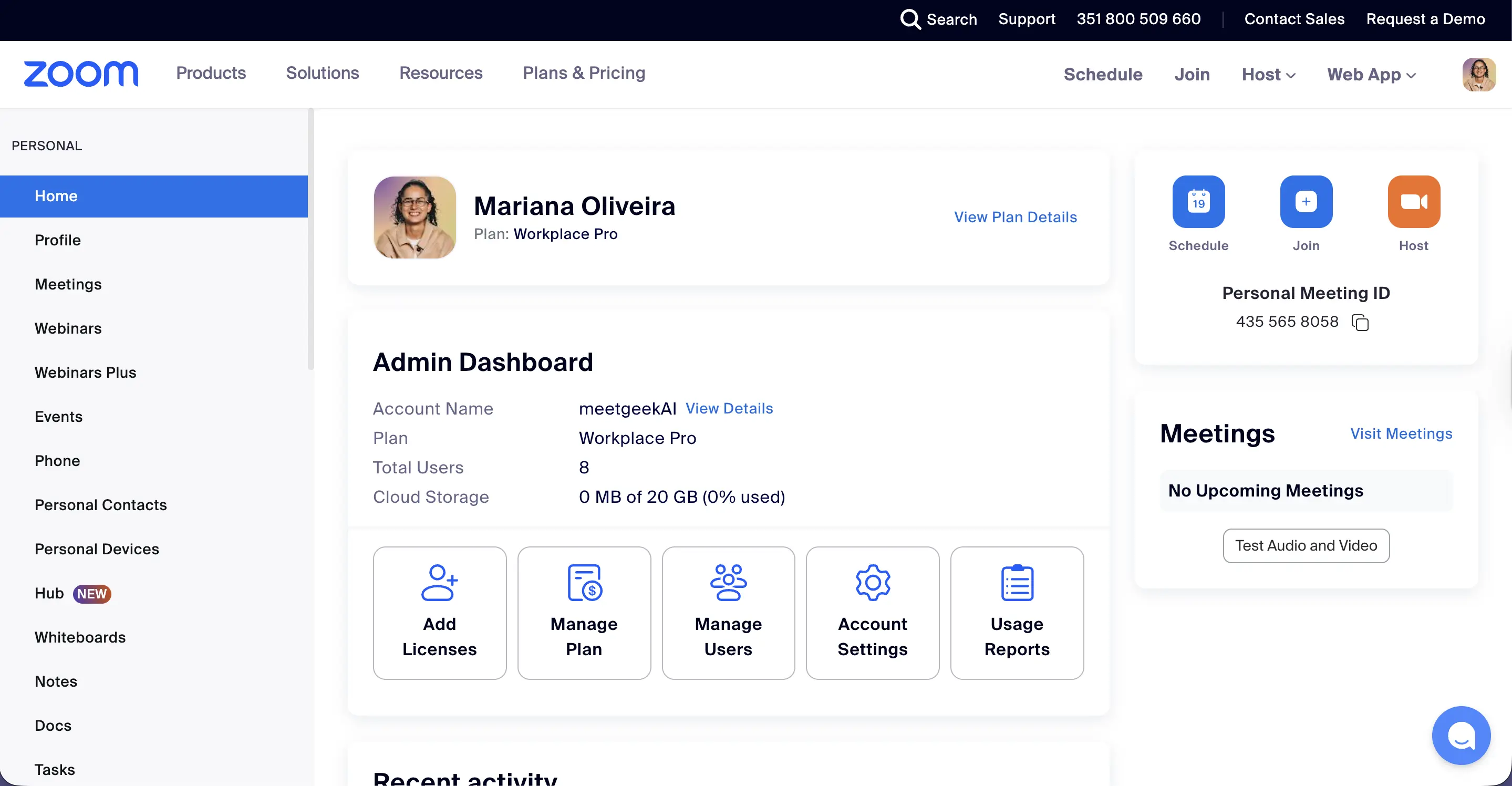
2. Open account management
After you log in:
- Open the settings menu
- Select Account Management
- Click Billing or Subscriptions
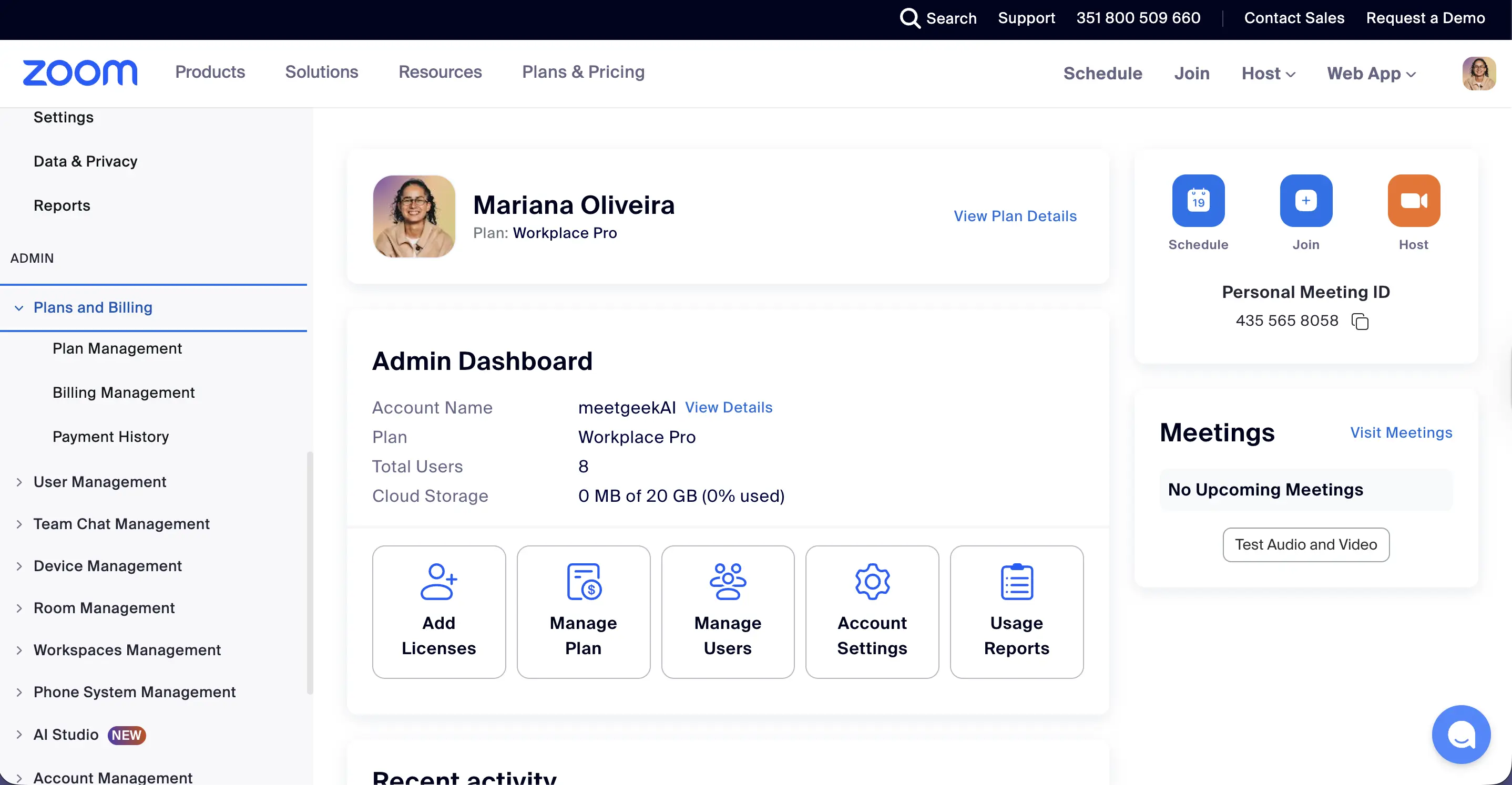
The subscriptions menu will display your active subscriptions and current Zoom plan in the Current Plans tab under Plan Management.
3. Locate your active subscription
You should see details about your paid Zoom subscription, including:
- plan name
- renewal date
- billing cycle
- payment method
- add-ons like Zoom Webinars or Zoom Phone
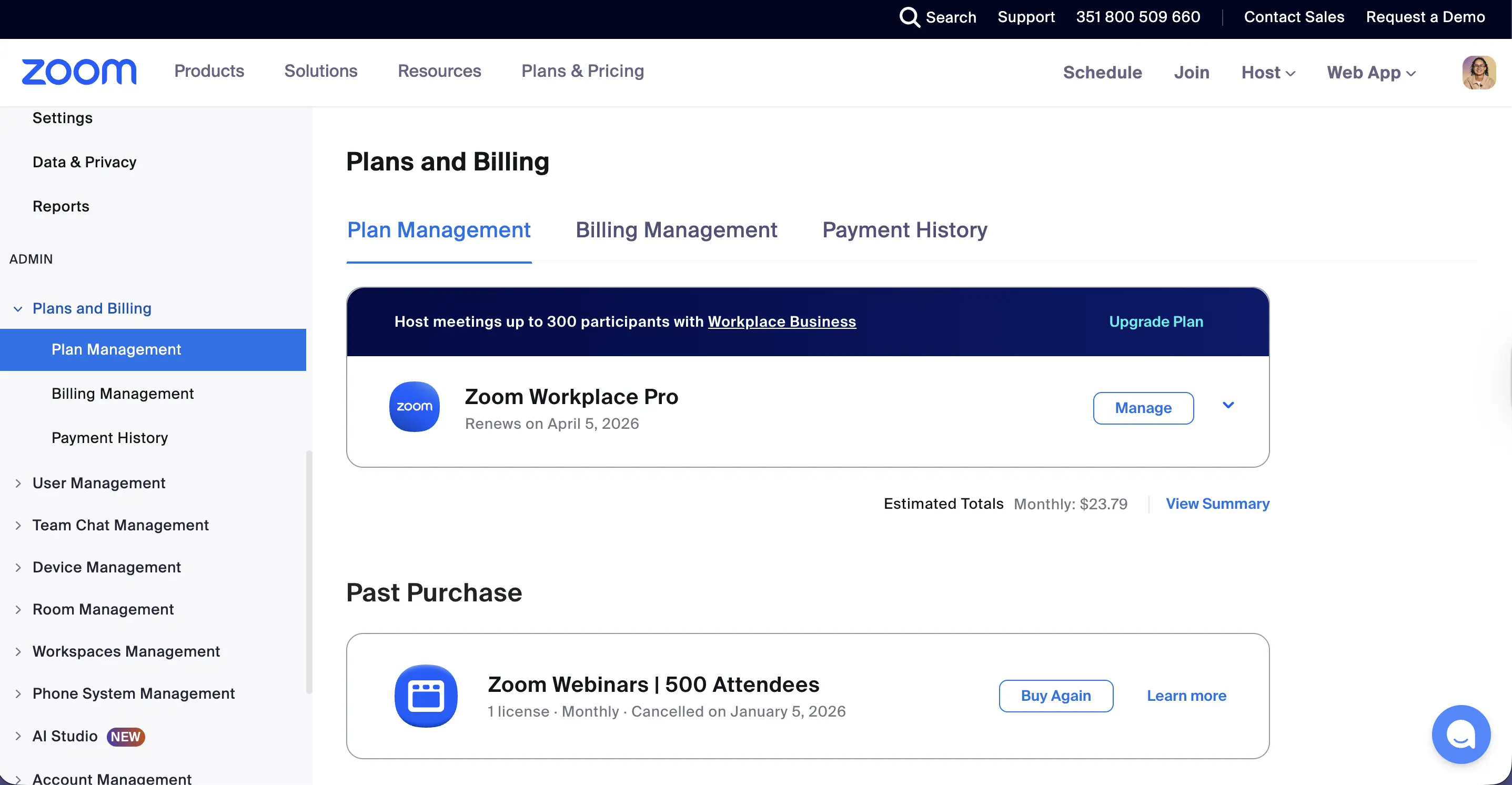
If you have a Zoom add-on subscription, it may appear separately.
4. Select Cancel Subscription
Next to the active plan, you will be able to select Cancel Plan.
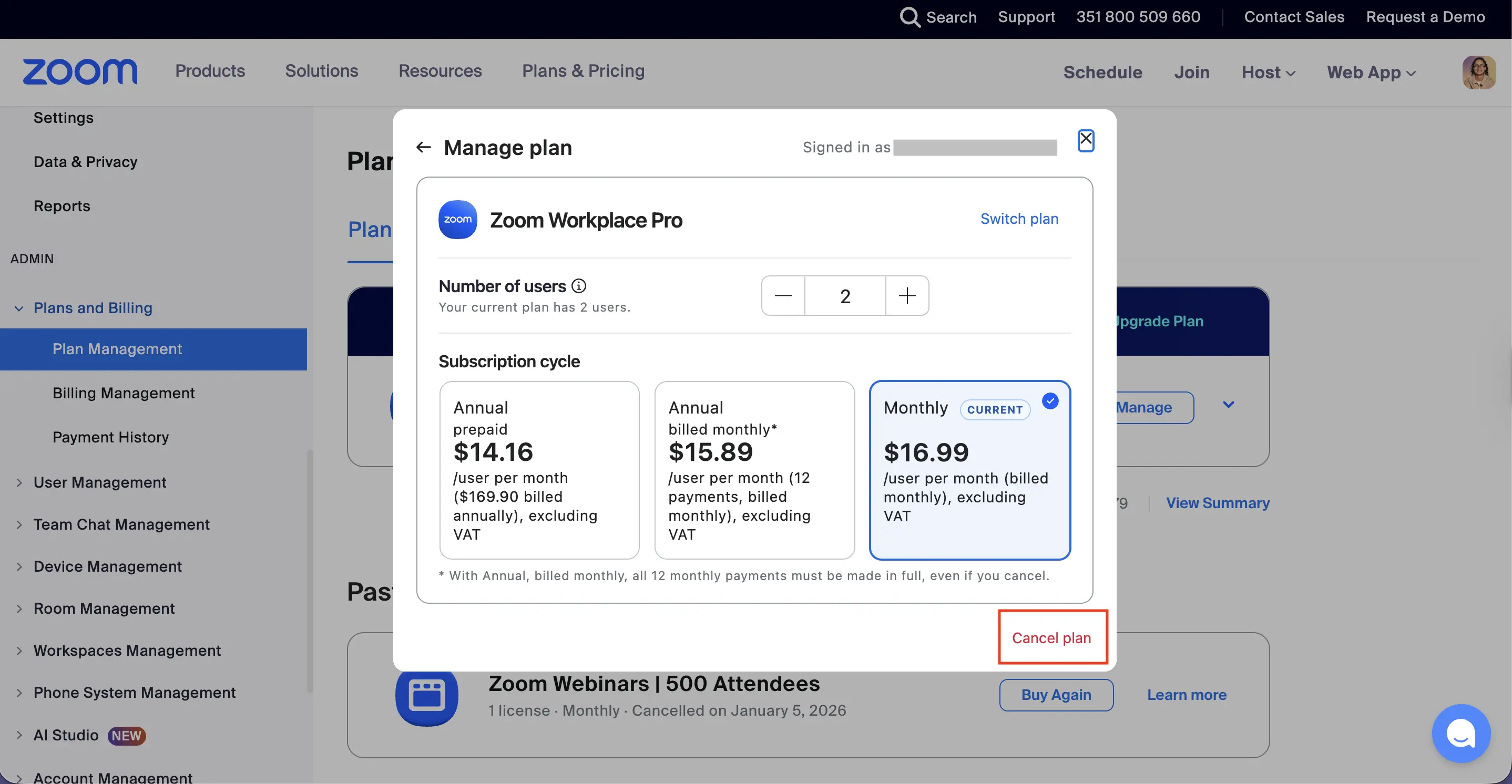
Clicking the button starts the cancellation process. Zoom may ask you to confirm the request and optionally provide feedback about why you’re leaving.
5. Confirm the cancellation
After you click Cancel Subscription, the page should display a notice showing that the subscription will expire at the end of the current billing cycle.
You will still be able to use paid features until that date.
Zoom typically sends an email confirmation once the cancellation is successful. It’s a good idea to keep that email for your records in case a billing issue or charge appears later.
Canceling Zoom if you subscribed through Apple App Store (iPhone or iPad)
If you created the subscription through the Apple App Store, the cancellation must be handled through your Apple ID, not through the Zoom website.
Follow these steps on your iPhone or iPad.
1. Open your device settings
Tap the Settings app on your phone.
At the top of the screen, tap your Apple ID profile.
2. Go to subscriptions
Inside the account menu, tap Subscriptions.
This section shows all active app subscriptions linked to your Apple ID.
3. Select Zoom
Scroll through the list until Zoom appears, then tap it to view the subscription details.
4. Tap cancel subscription
Tap Cancel Subscription and confirm the action when the confirmation screen appears.
Once confirmed, the Zoom subscription will remain active until the end of the current billing period, after which it will expire automatically.
If the cancellation button does not appear, it may mean the subscription has already been canceled or has expired.
Canceling Zoom through Google Play (Android)
If you subscribed using Google Play, the process is handled through your Google account.
Here’s how to cancel it.
1. Open Google Play
Launch the Google Play Store app on your Android device.
Tap your profile icon in the top corner.
2. Open subscriptions
Select Payments & Subscriptions → Subscriptions
You will see a list of active subscriptions linked to your Google account.
3. Choose Zoom
Find Zoom in the list and tap it to view the plan details.
4. Cancel the subscription
Tap Cancel Subscription and follow the prompts. Google may ask why you’re canceling before you confirm.
Once the request is complete, the subscription will remain active until the current billing cycle ends.
Canceling Zoom purchased through third-party providers
Some companies bundle Zoom licenses with other business services. In this case, Zoom does not manage the billing directly.
Examples include:
- telecom providers
- managed IT services
- software resellers
- enterprise bundles
If you subscribed this way, the Zoom website will not display a cancel option.
Instead, you’ll need to contact the provider directly.
Steps to cancel through a third-party provider
- Review your billing statements to verify where the subscription originated.
- Visit the provider’s website support page or contact them by phone or chat.
- Request cancellation of the Zoom subscription tied to your account.
- Ask for confirmation of the final billing date and cancellation status.
Depending on the provider, there may be a notice period or contract terms that affect when the subscription officially ends.
What happens after you cancel Zoom
Once the cancellation is confirmed, the Zoom account does not immediately lose access to paid features. Instead, the service remains active until the next billing cycle begins.
After that:
- the plan will downgrade to the free Zoom version
- paid features, such as extended meeting limits, may disappear
- add-ons like Zoom Phone or Webinars stop renewing
If you later decide to return, you can renew the subscription from the billing page.
If you're canceling Zoom, there’s an easier way to track meetings
Many teams cancel Zoom paid plans because they want a better way to capture and organize their virtual meetings.
MeetGeek automatically records, transcribes, and summarizes meetings across platforms like Zoom, Google Meet, and Microsoft Teams, without the need for a premium plan on any of them. Instead of manually reviewing recordings later, you get structured meeting notes, action items, and searchable transcripts.
%20(1).webp)
Teams use MeetGeek to:
- automatically record meetings and webinars
- generate AI meeting summaries
- track decisions and action items
- search past conversations
- share meeting highlights instantly
If your team still runs online meetings but wants a more organized workflow around them, MeetGeek helps turn conversations into clear, trackable outcomes.
Why people cancel Zoom subscriptions
Based on common user feedback and how teams actually use meeting tools, there are a few reasons people end up canceling a Zoom subscription:
- they only need the free plan for occasional meetings
- another meeting platform is already included in their workspace tools
- they want AI meeting summaries and notes built in
- billing management across multiple services becomes frustrating
- teams switch collaboration tools
Zoom is still a reliable platform, but many teams now combine it with AI tools that make meeting follow-ups easier.
Conclusion
Canceling a Zoom subscription is usually a quick process once you know where the subscription originated. Whether you signed up through the Zoom website, Apple App Store, Google Play, or a third-party provider, the key is accessing the right subscriptions menu or billing page.
Once canceled, your plan remains active until the end of the current billing cycle, so you won’t lose access immediately. Just remember to verify your cancellation confirmation and check your renewal date to avoid unexpected charges.
And if you’re still running online meetings but want a smarter way to manage them, tools like MeetGeek can help automate notes, recordings, and meeting insights.
Try MeetGeek for free and make every meeting easier to track, share, and review.
Frequently asked questions
Will I get a refund if I cancel Zoom?
In most cases, Zoom does not automatically issue refunds when you cancel a subscription. The plan stays active until the current billing period ends. If you believe you were charged in error, you can click Manage subscription and dispute the charge, or contact sales and request a refund.
Can I cancel Zoom on my phone?
Yes. If you subscribed through the Apple App Store or Google Play, you must cancel through those platforms. Open the subscriptions section in your Apple ID settings or Google Play account, select Zoom, and tap Cancel Subscription.
Can MeetGeek record Zoom meetings?
Yes, MeetGeek can automatically record Zoom meetings, generate transcripts, create AI summaries, and track action items. It works with Zoom, Google Meet, and Microsoft Teams to help teams organize conversations without manual note-taking.
Is MeetGeek free to use?
MeetGeek offers a free plan that lets users automatically record meetings, generate transcripts, and access AI meeting notes. Teams can upgrade to paid plans for advanced features like meeting analytics, integrations, and workflow automation.




.avif)