



The shortlist: The best Google Meet extensions in 2026 fix the things Meet doesn't do natively: automated notes, time control, noise cancellation, screen annotation, and large-room management. Top picks: MeetGeek (notes, summaries, AI Chat), Call Timer for Meet (time control), Google Meet Enhancement Suite (auto-join, push-to-talk), Noise Cancelling App (audio quality), Annotate (live screen markup), and Google Meet Breakout (room management without a Workspace upgrade).
Back-to-back Google Meets eat the day. By the fifth one, you can't remember who said what, and you're not alone. According to Microsoft's Work Trend Index, employees attend roughly three times more meetings than they did pre-pandemic, and on-camera fatigue compounds with each additional call.
The fix isn't fewer meetings (good luck). It's a Chrome extension or two that quietly removes the friction Google Meet leaves behind. We tested 30+ extensions and these eight made the cut.
What makes a Google Meet extension worth installing?
Three filters cut the list down fast:
- It solves a problem Meet doesn't already solve. Google added built-in transcription, blur, and reactions. An extension has to go further than that.
- It doesn't slow Meet down. Some extensions inject heavy scripts that lag the call. The picks below don't.
- It actually works on Meet's current architecture. Google updates Meet frequently; abandoned extensions break. Every tool below was tested in 2026 on the latest Chrome and Meet builds.
The 8 best Google Meet extensions in 2026
1. MeetGeek: best for automated notes, summaries, and meeting intelligence
MeetGeek is the AI meeting assistant most teams reach for once they realize Google Meet's built-in transcription is a flat doc with no speaker labels and no action items. MeetGeek joins your scheduled calls automatically (via calendar sync) or records right from your browser via the Google Chrome meeting extension. You choose. Either way, you walk away with a transcript with speaker labels, an AI summary, action items, decisions, and analytics.
Key features:
- Auto-joins scheduled Google Meet, Zoom, Teams, Webex, and Discord calls
- Bot-free Chrome recording option (no MeetGeek bot visible to other participants)
- Real-time transcription with speaker identification (95%+ accuracy)
- AI-generated meeting summary, action items, and decisions within minutes
- 100+ languages with automatic language detection
- AI Chat to ask questions across every past meeting (for agentic workflows that act on meeting content, the MeetGeek MCP Server plugs directly into Claude and ChatGPT)
- Native integrations with Notion, HubSpot, Salesforce, and Slack; 10,000+ apps via Zapier and Make
- Meeting analytics: talk-time, punctuality, sentiment, and Meeting Productivity Score
- SOC 2 Type II, HIPAA, and GDPR compliant
Pricing: Free (3 hours/month, all core features). Annual billing: Pro $9.99/user/month; Business $17/user/month; Enterprise custom. Monthly billing: Pro $15.99; Business $28. See full pricing.
Best for: Anyone who runs more than three meetings a week and wants the post-meeting work to disappear.
2. Call Timer for Meet: best for keeping calls on schedule
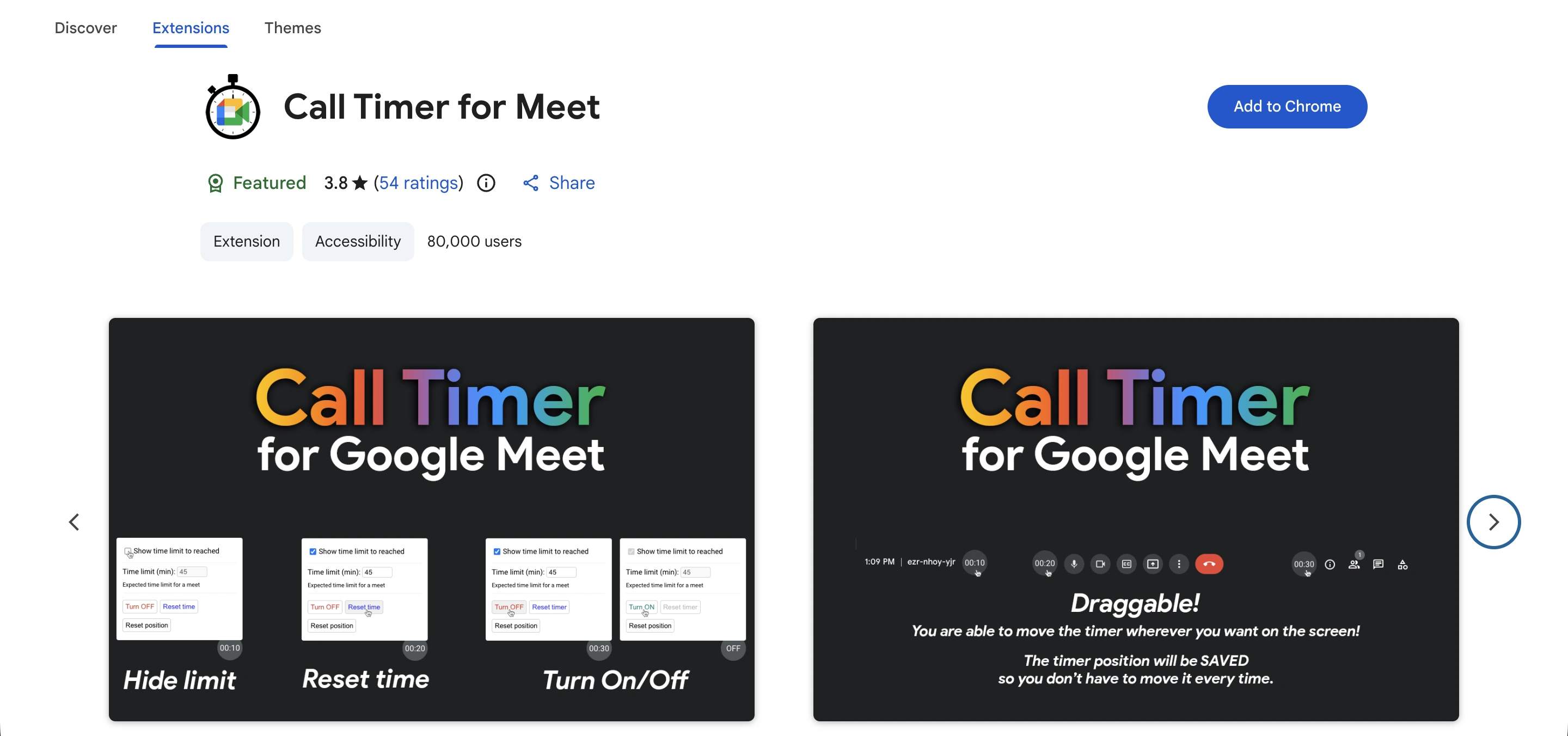
Call Timer for Meet adds a visible timer to your Meet window so the call ends when it's supposed to. Sounds small. Saves real time. The extension nudges you when you're approaching the end so you can wrap cleanly.
Key features:
- Visible elapsed/remaining timer inside the Meet UI
- End-of-meeting reminder before the scheduled stop
- One-click install, zero configuration
- No data collection; runs locally in your browser
Pricing: Free.
Best for: Anyone whose 30-minute call routinely runs 50.
3. Google Meet Enhancement Suite: best all-in-one control upgrade
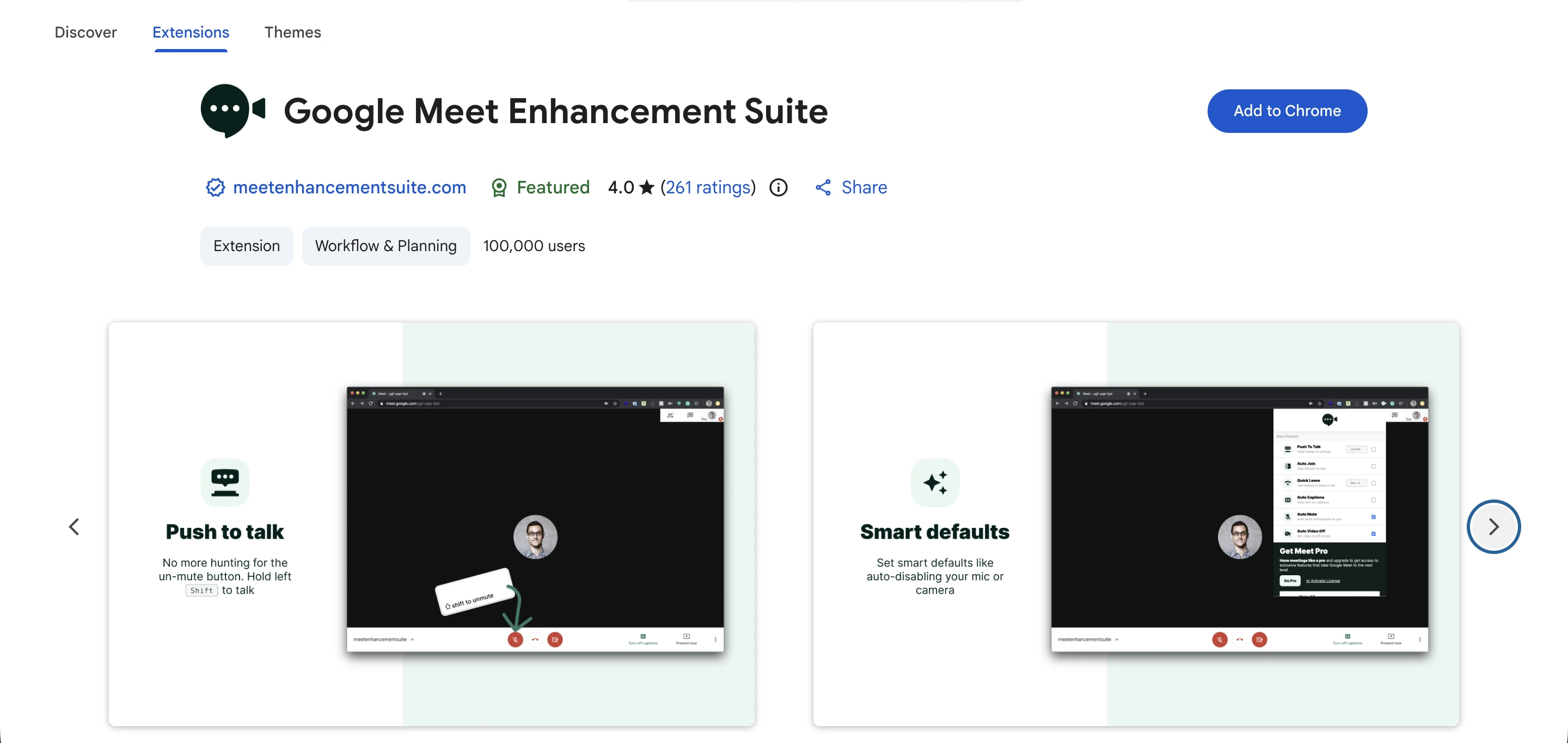
Google Meet Enhancement Suite packs 40+ tweaks Google never added: auto-join, push-to-talk, auto-mute on entry, one-click leave, attendance tracking, and a dark mode that's easier on the eyes after a long day.
Key features:
- Auto-join scheduled meetings; auto-mute on entry
- Push-to-talk (hold Shift to speak)
- Mirror video feed; emoji reactions; mute-all (host)
- Attendance reports with timestamps
- Dark mode and visual tweaks for marathon call days
Pricing: Free tier with the core 40+ features (push-to-talk, auto-join, auto-mute, etc.). Pro starts at $7/month and adds AI-based transcript saving, searching, summarization, attendance tracking, and automatic recording.
Best for: Power users, teachers, and trainers running large or recurring sessions.
4. Noise Cancelling App: best for distraction-free audio
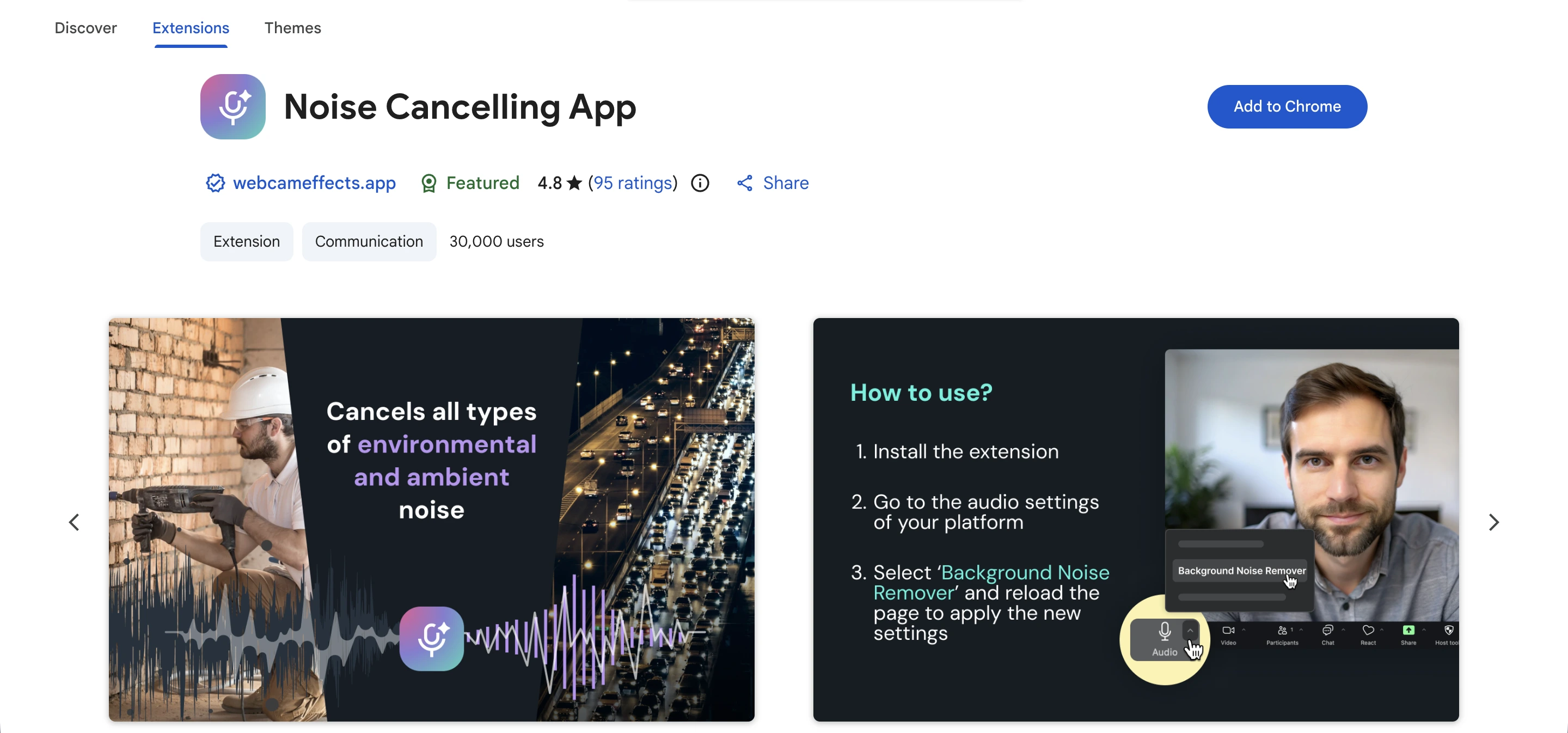
Noise Cancelling App by Effects SDK uses AI to strip background noise from your microphone in real time — keyboards, fans, traffic, barking dogs, even hardware hiss — so only your voice goes through. Google Meet has built-in noise cancellation, but it's tied to certain Workspace plans and devices; this extension works anywhere Chrome runs. Setup is plug-and-play: install it, then pick "Background Noise Remover" as your microphone in Meet's audio settings.
Key features:
- Real-time AI noise cancellation that filters voices, pet sounds, weather, and mechanical noise
- Works across Google Meet, Zoom, Discord, Twitch, YouTube Live, and any microphone-using site
- Microphone picker for multi-input setups (denoise the mic you choose, leave others untouched)
- Lightweight and free; no account or payment required
- 4.8-star average rating on the Chrome Web Store
Pricing: Free.
Best for: Anyone working from coffee shops, shared offices, or homes with thin walls.
5. Annotate: best for live screen markup during presentations
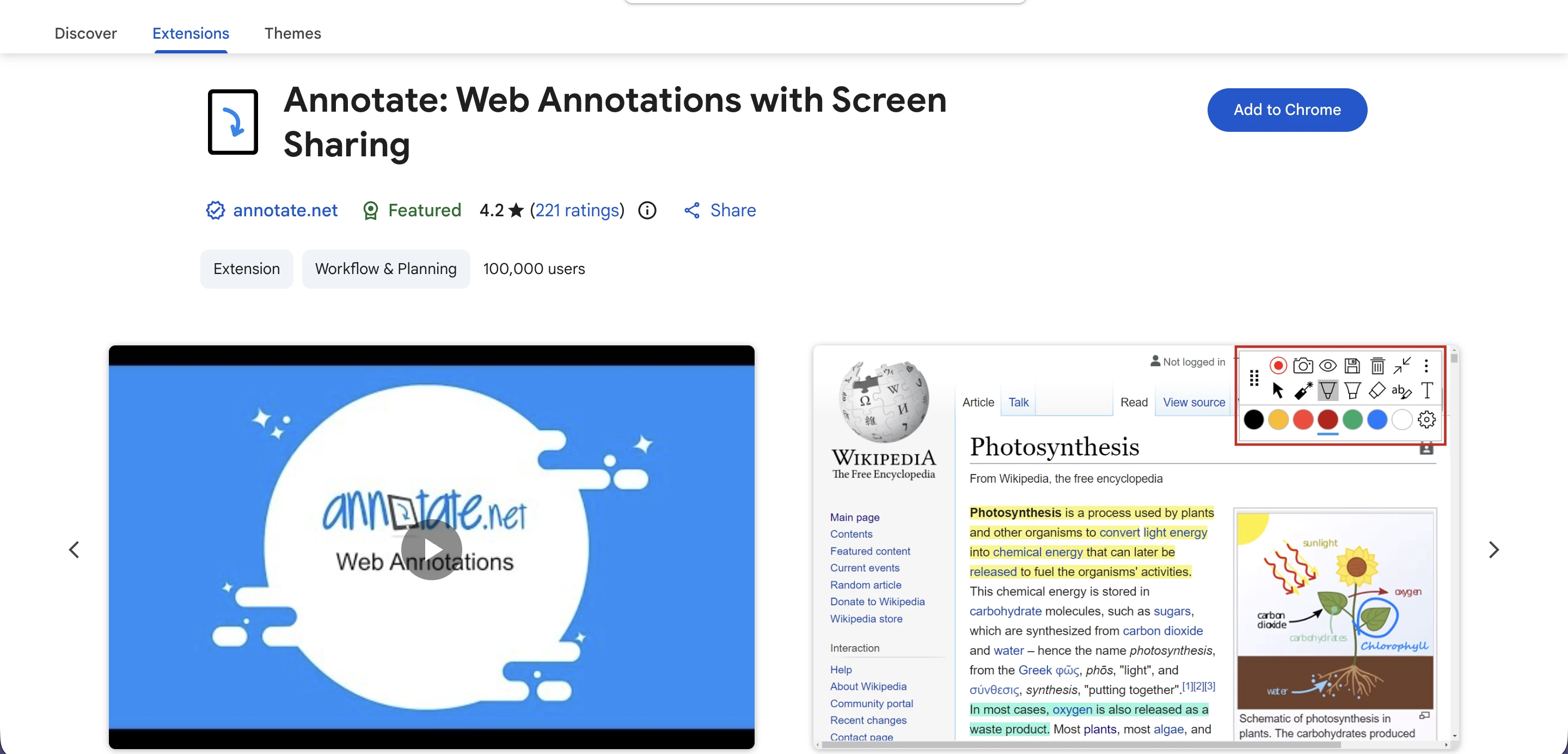
Annotate lets you draw, highlight, and add notes directly on a shared screen: web pages, PDFs, Google Slides, Docs. It's the closest thing to a digital whiteboard layered over whatever you're presenting.
Key features:
- Pen, highlighter, shape, and laser pointer tools
- Annotations stay anchored when you scroll or zoom
- Collaborative mode lets everyone in the meeting mark up the screen
- Save and share annotations after the call
Pricing: Free for basic tools. Instructor accounts $34.99/year ($27.99 with first-upgrade discount). Student accounts $19.99/year ($15.99 with first-upgrade discount). School/campus site licenses available on request.
Best for: Teachers, designers, product managers, and anyone presenting visual material.
6. Dualless: best for dual-screen workflow on a single monitor
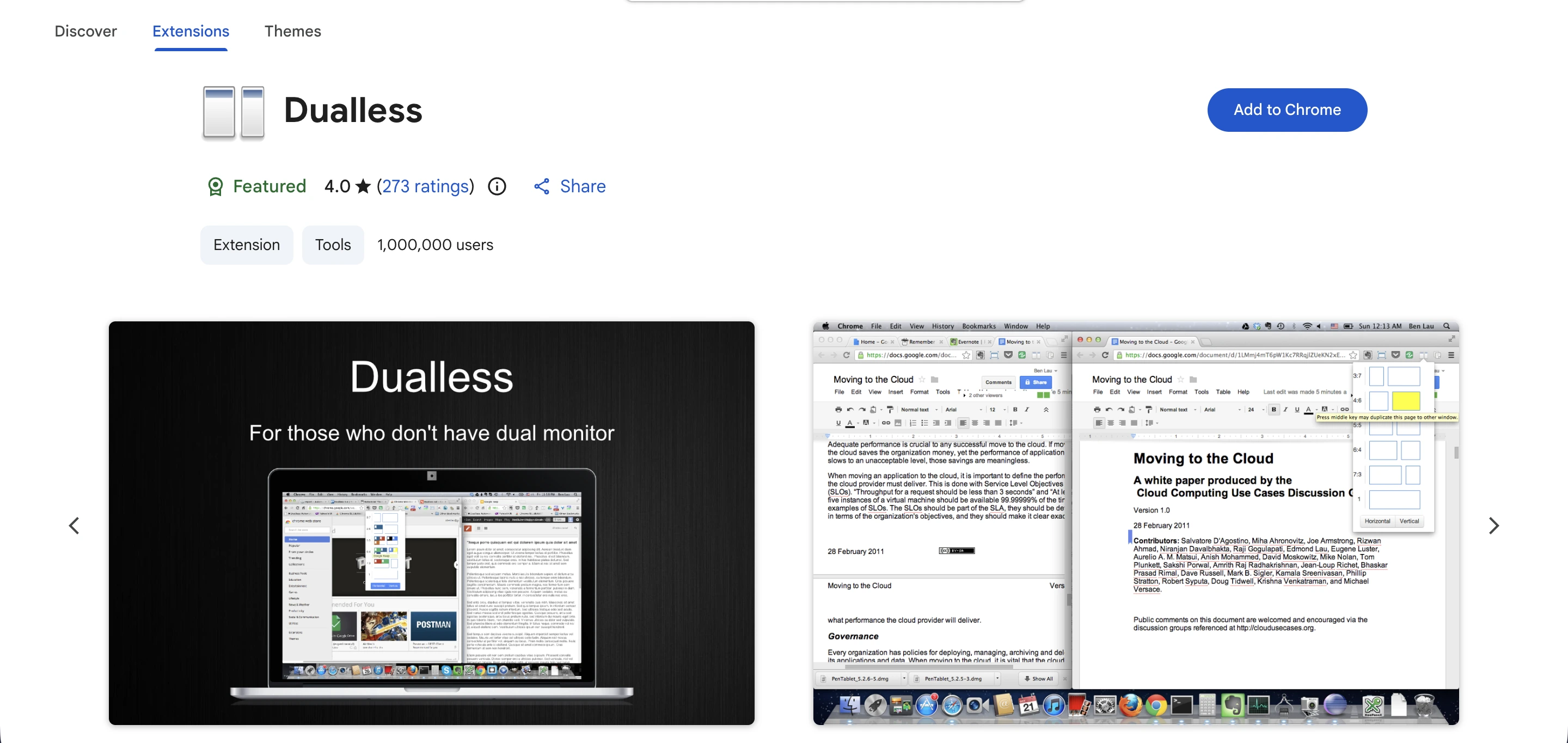
Dualless splits your browser into two panels with a single click: Meet on one side, your notes or docs on the other. It's not a true dual-monitor setup, but it removes the alt-tab tax during calls.
Key features:
- Customizable split ratios (3:7, 5:5, 7:3, etc.)
- Toggle on/off with one click
- Works with any web app, not just Meet
Pricing: Free.
Best for: Anyone working off a single laptop screen.
7. Google Meet Breakout Rooms (Robert Hudek): best for managing multiple breakout rooms
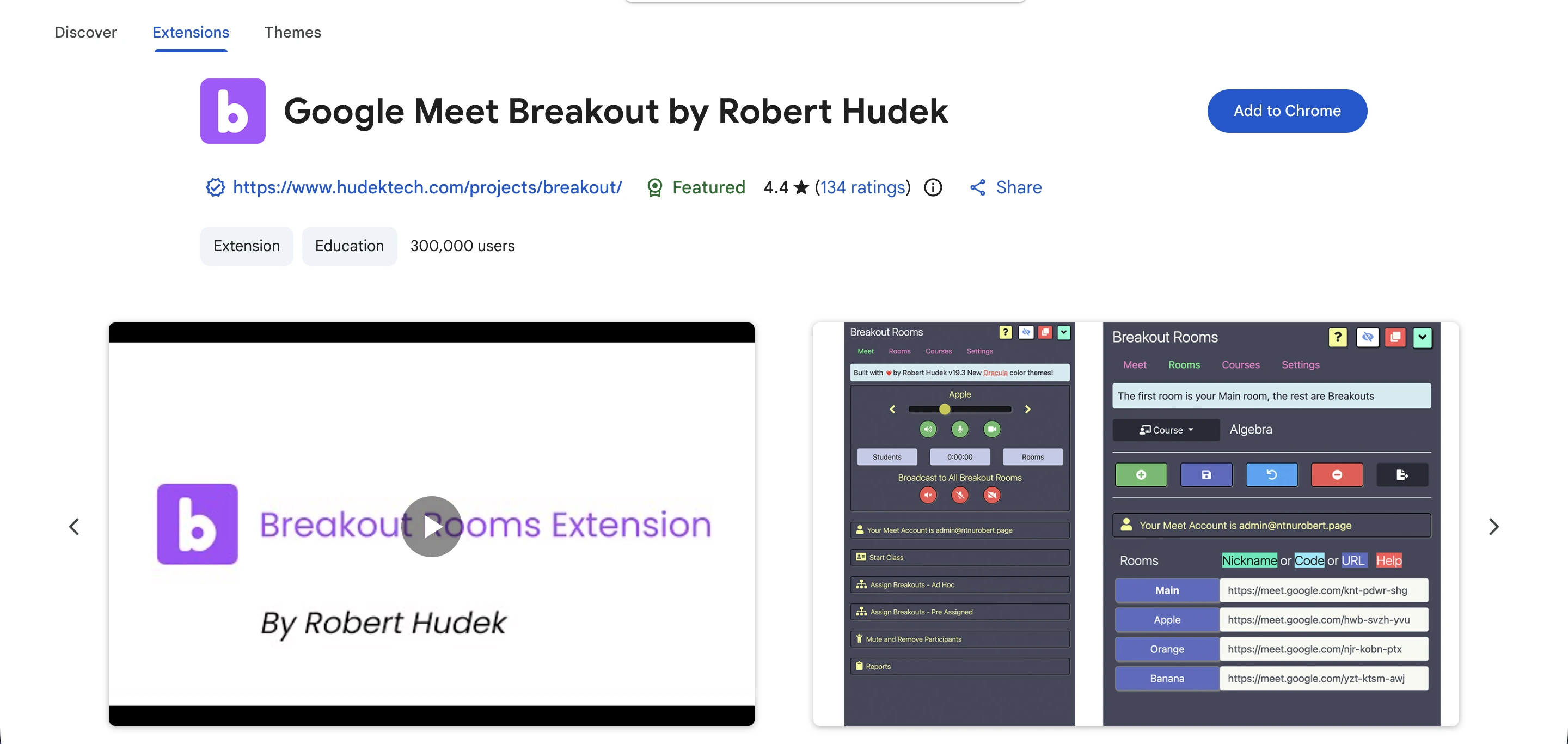
Google Meet Breakout Rooms by Robert Hudek fills a gap in Google's native breakout rooms: those require certain Workspace plans and offer limited control. This extension lets teachers and trainers see all rooms at once and manage them from a single window.
Key features:
- Create and manage multiple breakout rooms from your Meet tab
- Cross-room visibility (see all participants simultaneously)
- Quick navigation between sessions
- Mute, remove, or message across rooms
Pricing: Free.
Best for: Teachers, trainers, and workshop facilitators on free or basic Workspace plans.
8. Reactions for Google Meet: best for live engagement signals
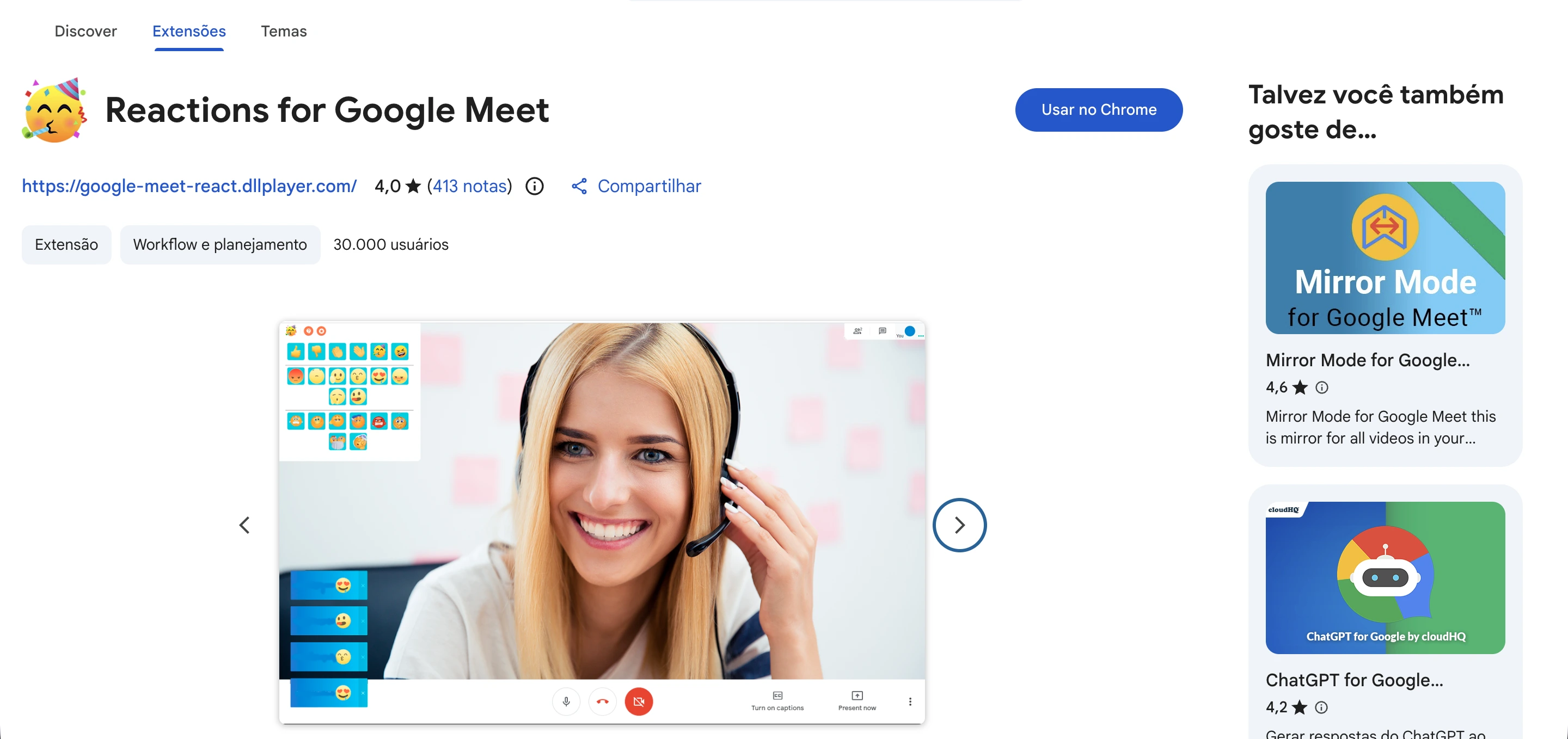
Reactions for Google Meet lets participants send emoji reactions during a call without interrupting the speaker. Google Meet now has native reactions (the full ~4,000-emoji library is available on most paid Workspace plans; personal Gmail accounts get a restricted set), so this extension is most useful for personal-account users who want broader reaction options without upgrading.
Key features:
- Quick emoji reactions (thumbs-up, clap, laugh, raised hand, more)
- Non-disruptive overlay during presentations
- Useful on personal Gmail accounts where Google's native reactions are restricted
Pricing: Free.
Best for: Large meetings, online classes, and town halls where you want feedback without crosstalk.
How to install a Google Meet extension
Installing any of these takes under a minute:
- Open the Chrome Web Store. Go to chromewebstore.google.com and search the extension name.
- Review permissions. Click the extension to see what data it accesses. Reputable extensions list this clearly.
- Click Add to Chrome. Confirm the install in the popup.
- Pin it (optional). Click the puzzle icon in your toolbar and pin the extension for one-click access.
- Refresh Google Meet. Reload your Meet tab. The extension activates on your next call.
To manage installed extensions later: type chrome://extensions in the address bar. From there you can disable, remove, or update any extension.
How to choose the right Google Meet extension stack
You don't need all eight. Pick based on your meeting style:
- For sales, customer success, or anyone who runs structured calls: MeetGeek + Call Timer + Noise Cancelling App.
- For teachers, trainers, and workshop hosts: Google Meet Enhancement Suite + Breakout Rooms + Annotate.
- For executives in back-to-back days: MeetGeek + Dualless + Call Timer.
- For internal team meetings: MeetGeek + Reactions + Call Timer.
Whatever combination you land on, MeetGeek is the one that compounds: every meeting it joins becomes searchable, queryable, and AI-actionable in your meeting library.
Frequently asked questions about Google Meet extensions
What are Google Meet extensions and how do they work?
Google Meet extensions are Chrome browser add-ons that extend what Google Meet can do: automated notes, timers, noise cancellation, screen annotation, and more. They work because Google Meet runs in the browser, so any extension that has the right permissions can read or modify the Meet interface during a call.
Are Google Meet extensions free to use?
Most are. Call Timer, Noise Cancelling App, Dualless, Breakout Rooms, and Reactions are fully free. MeetGeek, Google Meet Enhancement Suite, and Annotate offer free tiers with paid upgrades for advanced features (like AI summaries, attendance tracking, and unlimited annotations).
How do I add an extension to Google Meet?
Go to the Chrome Web Store, search for the extension, click Add to Chrome, confirm permissions, and refresh your Meet tab. The extension activates automatically on your next call.
Do Google Meet extensions work on Safari, Firefox, or Edge?
Most don't. They're built on Chrome's extension framework. Microsoft Edge supports many Chrome extensions because it runs on the same Chromium engine, but Safari and Firefox usually don't. If you need cross-browser support, MeetGeek's web app and mobile app work everywhere.
Which Google Meet extension is best for productivity?
MeetGeek. It's the only extension on this list that records, transcribes, summarizes, and pulls action items from every meeting automatically, and lets you query past meetings with AI Chat. Pair it with Call Timer for time control and Noise Cancelling App for clean audio, and you've covered 80% of the friction in a typical Google Meet day.
Do Google Meet extensions slow down my computer?
Some do. Heavier extensions (especially those that process video in real time) can spike CPU usage. The picks above were tested for performance and don't materially degrade Meet's audio or video quality on a modern laptop. If you notice lag, disable extensions one at a time to find the culprit at chrome://extensions.
Is there a Google Meet extension that takes notes for me?
Yes. MeetGeek is the most complete option. It transcribes the call, identifies speakers, generates an AI summary, extracts action items, and stores everything in a searchable library. You can also ask AI Chat questions across all your past meetings, or trigger automations through the MeetGeek MCP Server when paired with Claude or ChatGPT.





.avif)