


If your team builds AI agents in Dust, you can give them your recorded meetings to work from. An agent can then summarize decisions, identify who owns each next step and draft a follow-up email, without anyone pasting a transcript into the chat.
Dust connects to MeetGeek through MCP, an open standard that lets AI agents use external tools. MeetGeek records your meetings and creates transcripts and summaries. With Dust MCP support, you add the hosted MeetGeek MCP server to Dust, then enable it as a tool for your agent.
What Can a Dust Agent Do With Your Meetings?
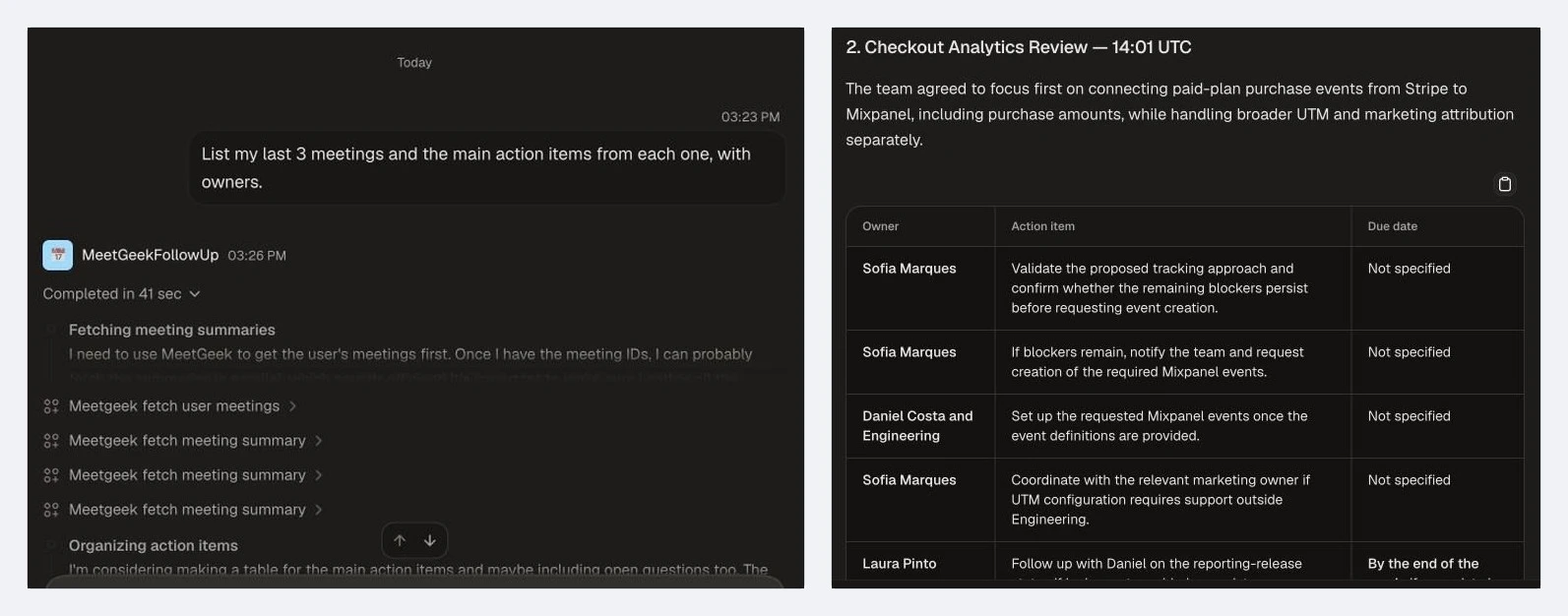
A Dust agent with the MeetGeek tool reads your meeting list, summaries and transcripts and works from them. We built an agent called MeetGeekFollowUp and asked it: "List my last 3 meetings and the main action items from each one, with owners."
The agent called MeetGeek's fetch user meetings tool once and fetch meeting summary once per meeting. In that run, the answer came back in 41 seconds, with each meeting's decisions, open questions and a table of action items by owner and due date. Where the meeting did not set a deadline, the agent wrote "Not specified" instead of inventing one.
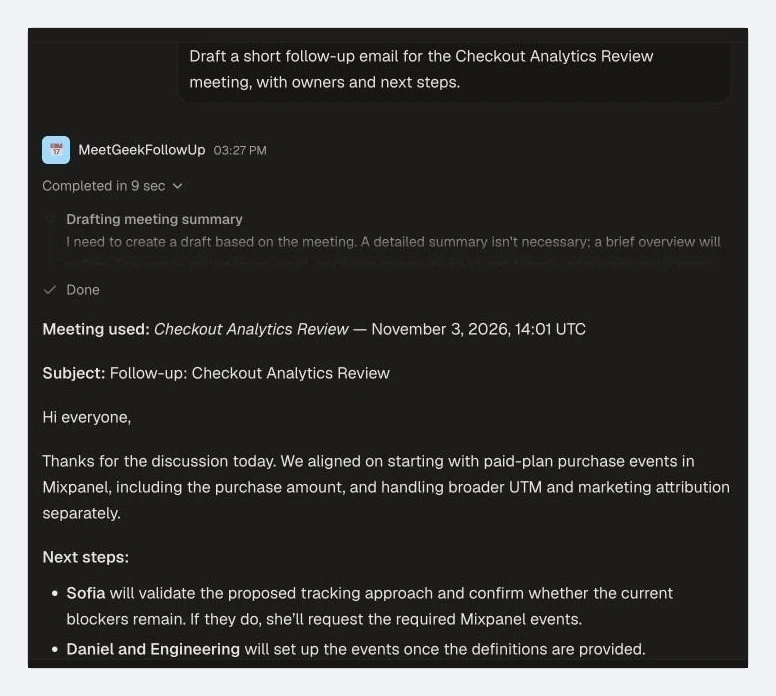
A follow-up in the same conversation, "Draft a short follow-up email for the Checkout Analytics Review meeting, with owners and next steps", returned a ready-to-edit email in 9 seconds. The agent named the meeting it used at the top of the draft, as its instructions asked.
That is one agent using a single MeetGeek connection. Because Dust agents can combine several tools and data sources, the same MeetGeek connection could also power agents such as:
- A meeting prep agent that pulls your past calls with a client before the next one and lists what was promised.
- A weekly digest agent that summarizes the decisions and open questions from your team's meetings. Dust's pricing page lists agent workflows that run on schedules and triggers, which suits this kind of recurring job.
- A transcript search agent that could answer "What did the client say about pricing last Tuesday?" by quoting the transcript.
We only built and ran the follow-up agent. The three above use the same MeetGeek tools, but we have not tested them.
What You Need Before You Start
You need a MeetGeek account with recorded meetings and a Dust workspace. MeetGeek's free plan is enough for the MCP connection, as you can check in the MeetGeek MCP setup guide. We used a free seat on Dust's Business plan. Dust's pricing page lists 500 credits for the lifetime of that seat.
Only a Dust administrator can add a remote MCP server to the workspace, as Dust's guide to adding an MCP server explains. Once the admin adds MeetGeek, anyone building agents in the workspace can use it.
Dust's pricing page lists 5 remote MCP servers on the Business plan and unlimited MCP servers on Enterprise, so MeetGeek takes one of those 5 slots on Business.
How to Connect MeetGeek to Dust
You add MeetGeek to Dust as a remote MCP server. You fill in one form, choose how members sign in and log in to MeetGeek once.
1. Open Tools in Spaces
In Dust, open Spaces in the top left and go to Tools. A new workspace shows "You don't have any tools yet". Click Add tools.
2. Choose Add MCP Server
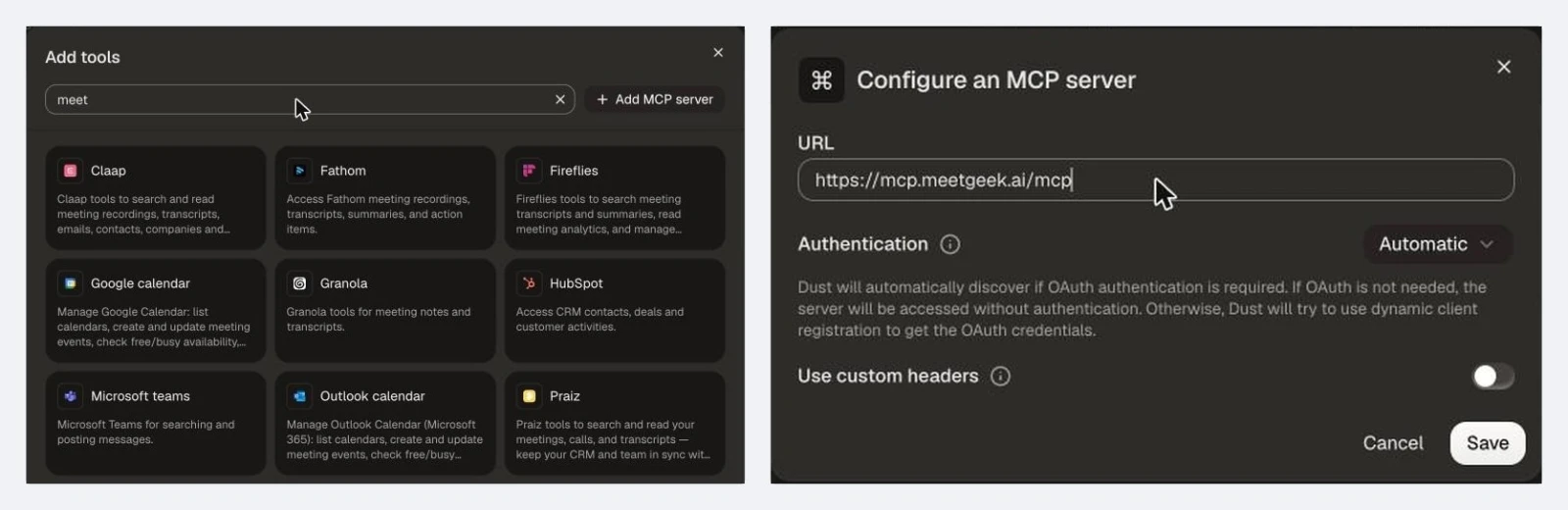
Add tools opens Dust's catalog, which lists some meeting tools natively, such as Claap, Fathom, Fireflies, Granola and Praiz. MeetGeek is added through Add MCP server, next to the search bar. It gives your agents the same kind of access: all 8 MeetGeek tools, from meeting lists and summaries to full transcripts.
3. Paste the MeetGeek Server URL
In Configure an MCP server, paste https://mcp.meetgeek.ai/mcp into URL. Leave Authentication on Automatic and Use custom headers off, then click Save.
With Automatic, Dust works out by itself that MeetGeek uses OAuth and registers the connection for you. You do not need an API key or a client ID. If you would rather run the server yourself with an API key, the MeetGeek MCP server explainer covers the self-hosted setup.
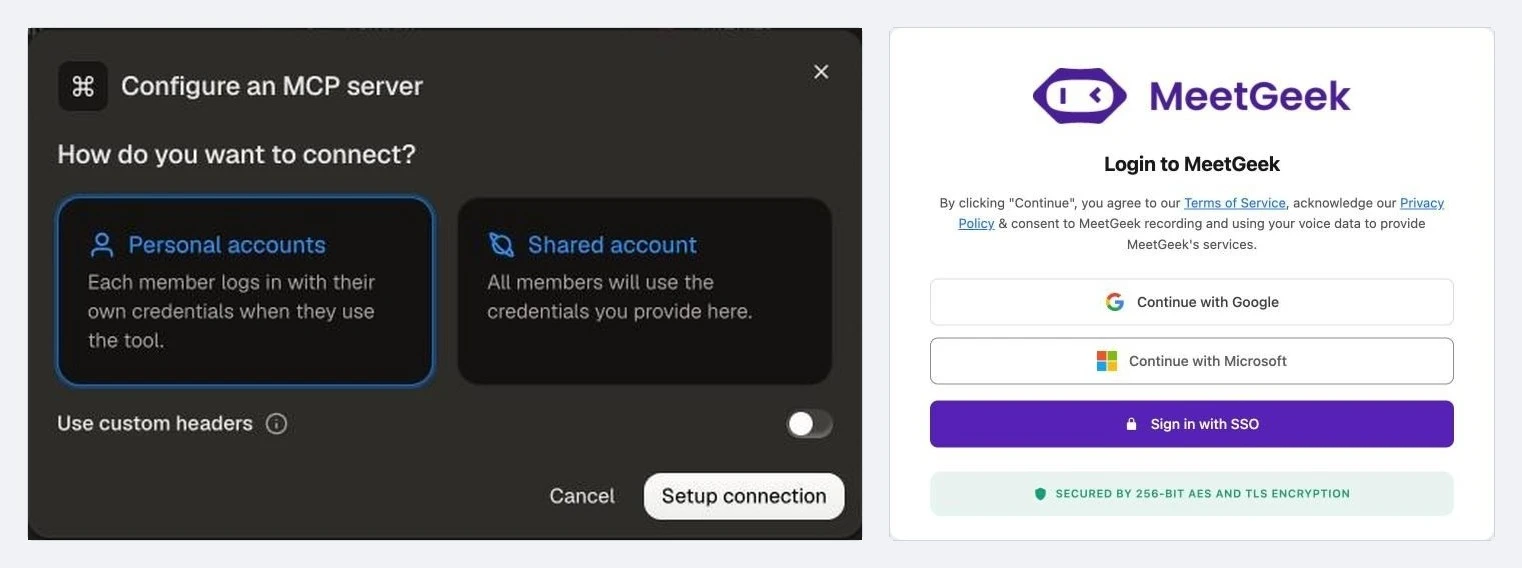
4. Choose Personal Accounts
Dust then asks "How do you want to connect?" with two options:
- Personal accounts: each member logs in with their own credentials when they use the tool.
- Shared account: all members use the credentials you provide here.
Choose Personal accounts for MeetGeek. With personal accounts, each person's agent reaches the meetings their own MeetGeek account can open. If that account belongs to a team in MeetGeek, this also includes the meetings of the other team members.
With a shared account, every agent using the connection reaches the meetings available to that one MeetGeek account, including its team members' meetings when it belongs to a team. Anyone in the Dust workspace who uses those agents could then retrieve them. Click Setup connection.
5. Sign In to MeetGeek
Dust opens the MeetGeek login page. Sign in with Google, Microsoft or SSO, using the MeetGeek account where your meetings are stored.
6. Name the Tool and Check It Is Active
Back in Dust, the tool panel shows "Authentication: Active" and "Credentials: Personal accounts". Dust names the tool Meetgeek MCP by default, so rename it to MeetGeek and give it a clear description, such as "Search MeetGeek meetings: transcripts, summaries, action items, highlights and insights from recorded calls." Agents read this description when they decide which tool to use. Click Save.
7. Set How Often Dust Asks for Approval
The Tools & stakes tab lists the 8 tools MeetGeek gives Dust. Each has a stake, which decides how often Dust asks before the agent uses it. All 8 started on "High (always ask for confirmation)" in our workspace.
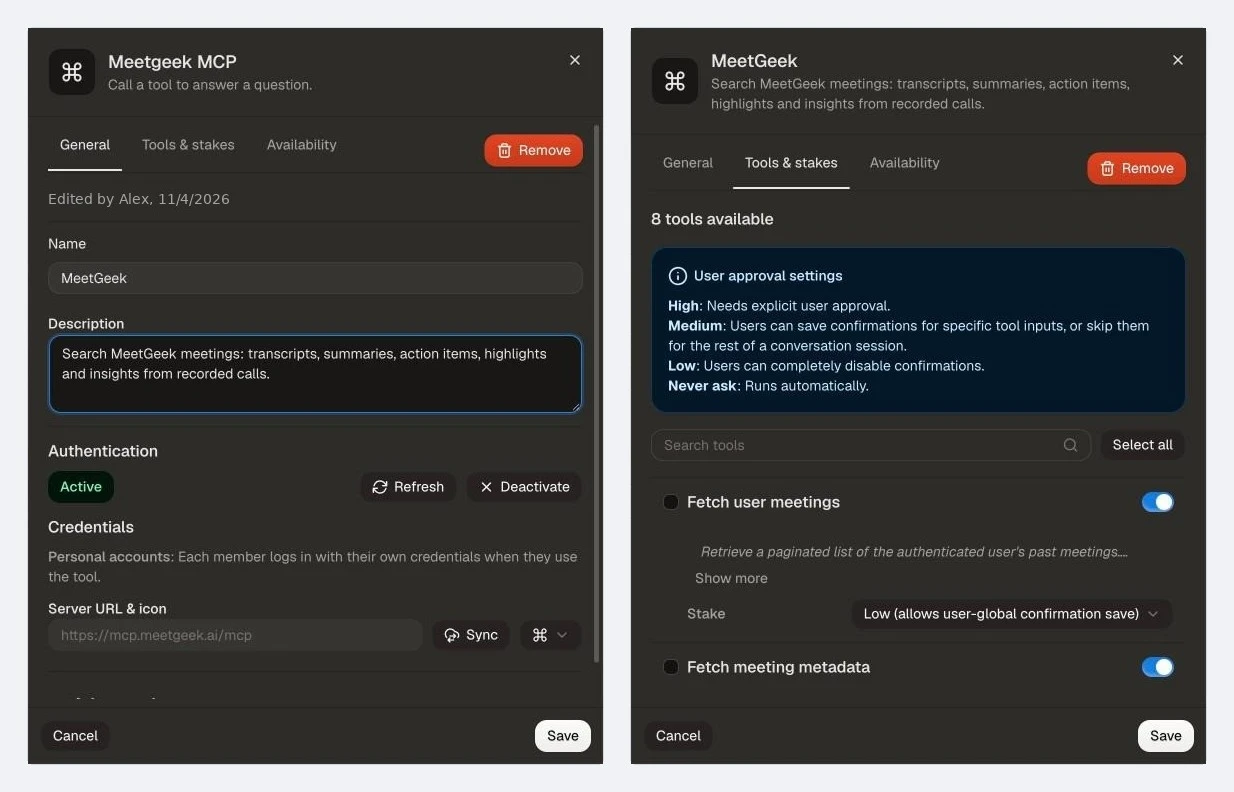
| Tool | What it does | Stake we chose |
|---|---|---|
| Fetch user meetings | Lists your past meetings | Low |
| Fetch meeting metadata | Returns a meeting's details | Low |
| Fetch meeting transcript | Returns the full transcript | Low |
| Fetch meeting highlights | Returns the AI highlights | Low |
| Fetch meeting summary | Returns the summary and next steps | Low |
| Fetch meeting insights | Returns the meeting insights | Low |
| Fetch team meetings | Lists your team's meetings | Low |
| Submit recording for analysis | Sends a recording to MeetGeek for processing | High |
Table last updated: November 4, 2026.
The 7 fetch tools only read data, so we set them to Low. With Low, each user can choose Always allow the first time a tool runs and is not asked again. We left Submit recording for analysis on High because it submits a recording to MeetGeek for processing. The stake menu also offers Never ask, which runs a tool with no confirmation at all.
The Availability tab controls who can use the tool. By default it is "Available to all workspace members". Turn on Restrict this tool to skills only if you want agents to use MeetGeek through a Dust skill rather than directly.
MeetGeek now appears in Tools, with "Availability: Workspace" and "Account: Personal".
How to Build a Meeting Follow-Up Agent in Dust
Next, give the tool to an agent. These are the steps we followed to build MeetGeekFollowUp.
1. Write the Agent's Instructions
Go to Agents, click Create agent and choose From scratch. Under Instructions, describe the job. Ours:
You help me follow up on my meetings. Use the MeetGeek tools to find the right meeting, then read its summary and, when you need exact wording, its transcript. For each request, list the decisions made, the action items with owners and due dates and any open questions. When I ask for a follow-up email, write a short, friendly draft for the participants with the next steps. Only use information from MeetGeek. Say which meeting you used and say clearly when something is not in the meeting record.
The last two sentences tell the agent to identify its source and flag missing information. In our test, it named the meeting and marked missing deadlines as "Not specified".

2. Add MeetGeek as a Capability
Under Capabilities and knowledge, click Add capabilities, search for MeetGeek, click Add and confirm with Add 1 capability.
3. Name and Save the Agent
Dust suggested the name MeetGeekFollowUp and a description from the instructions. Who can use the agent is set under Editors & access. A new agent starts "Unpublished", which means only its editors can use it. Click Save.
Because MeetGeek uses personal accounts, Dust shows "Connection required for personal tools" on save. You can connect your MeetGeek account here, or save and connect the first time you use the agent.
4. Approve the First Run
On the first question, Dust asks "Allow MeetGeekFollowUp to use Meetgeek?" with Decline, Always allow and Allow once. Always allow stops the question for that tool, which is possible because of the Low stake set earlier.
If you have not connected your own MeetGeek account yet, Dust asks for it here with Connect Meetgeek MCP. You sign in once and the connection stays for future requests.

From then on, the agent works as shown at the top of this guide.
What Happens to Your Meeting Data?
The MeetGeek connection signs in through OAuth, with the personal-account setup from step 4 of the connection guide. Each agent reaches only what the signed-in MeetGeek account can open, team meetings included when that account belongs to a team.
On Dust's side, its security page states that your data is never used to train models and that Dust offers hosting in the EU or the US. Our test workspace ran in the EU region. On MeetGeek's side, the MeetGeek MCP server page lists EU and US data residency, SOC 2 Type II and GDPR compliance and no training on your data. Both services offer EU hosting. Check the hosting region and model-processing location separately.
Limits Worth Knowing
The connection worked end to end in our test. A few things to plan for:
- Each member connects their own MeetGeek account. With personal accounts, a colleague using your agent is asked to sign in to MeetGeek the first time.
- On the default High stake, Dust asks before every tool call. To reduce repeated prompts, you can set the read-only tools to Low and let each user select Always allow.
- Answers can be wrong. Check important details against the meeting in MeetGeek before you send anything to a client.
Other Ways to Work With Your Meetings
MeetGeek connects to other AI assistants through the same MCP server, so you can use whichever one your team already works in. For Claude, see our guide to meeting notes in Claude. Mistral users can follow the guide to meeting notes in Mistral Le Chat.
You do not need an outside agent for every job either. Inside MeetGeek, AI Chat answers questions across your meetings, while MeetGeek's workflows send notes and follow-ups to your other tools after each call.
Once MeetGeek is a workspace tool, any agent you add it to can work from the meetings of the person using it. If you do not have meetings in MeetGeek yet, start with a free MeetGeek account and record a few calls before you build the agent.
Key Takeaways
- MeetGeek connects to Dust as a remote MCP server at
https://mcp.meetgeek.ai/mcp, with Automatic authentication and an OAuth sign-in. - Choose Personal accounts so each person's agent only reads the meetings their own MeetGeek account can open, including their team's meetings when they belong to a team.
- MeetGeek gives Dust 8 tools: 7 that read meetings and 1 that submits a recording. Each tool has its own approval stake.
- You can use the connection for free: we used a free seat on Dust's Business plan and MeetGeek's free plan supports MCP.
- In our one test run, a follow-up agent listed action items from 3 meetings in 41 seconds and drafted a follow-up email in 9.
Frequently Asked Questions
Does MeetGeek Work With Dust?
Yes. A Dust admin adds MeetGeek as a remote MCP server with the URL https://mcp.meetgeek.ai/mcp, then any agent in the workspace can use it as a tool.
Is MeetGeek in Dust's Tool Catalog?
You add MeetGeek through Add MCP server, which takes a few minutes and gives your Dust agents all 8 MeetGeek tools: meeting lists, metadata, summaries, transcripts, highlights, insights, team meetings and recording submission.
Should I Use Personal Accounts or a Shared Account?
Choose Personal accounts so each person uses their own MeetGeek access. With a shared account, every agent using the connection reaches the meetings of one MeetGeek account, including its team members' meetings if it belongs to a team.
Do I Need a Paid Plan?
No. We used a free seat on Dust's Business plan and MeetGeek's free plan supports the MCP connection. On Dust's Business plan, MeetGeek takes one of 5 remote MCP server slots.
Does Dust Train Its Models on My Meeting Data?
No, according to Dust's security page, which also states that Dust offers EU or US hosting.