
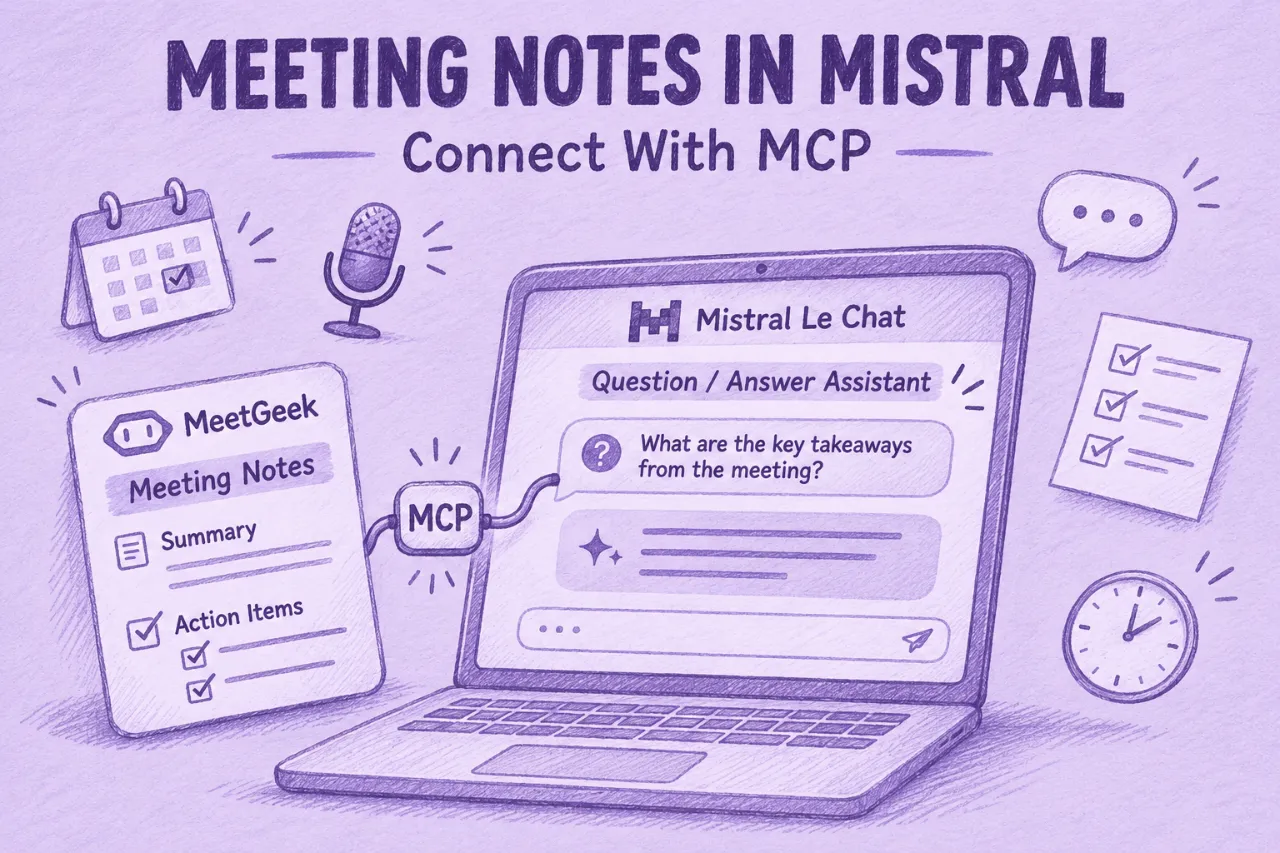

If your team uses Mistral Le Chat for writing and research, you can connect MeetGeek to ask questions about your recorded meetings. The connection uses MCP and lets Le Chat retrieve meeting transcripts and summaries without you copying them into the chat.
MCP, the Model Context Protocol, is the open standard Mistral uses for its connectors. Your meetings reach Le Chat through a tool that records and structures them. This guide uses MeetGeek and its hosted MeetGeek MCP server, which you add to Mistral as a custom connector.
We tested this setup on a free Mistral account in November 2026. The screenshots come from that test, with names and meeting details replaced by example data.
What Can You Ask Mistral Once Your Meetings Are Connected?
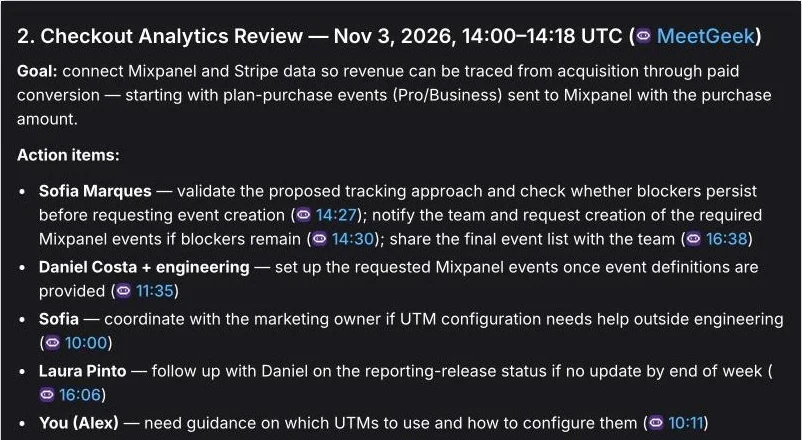
You ask in plain language and Le Chat decides which MeetGeek tools to call. In our test we asked: "List my last 3 meetings and the main action items from each one."
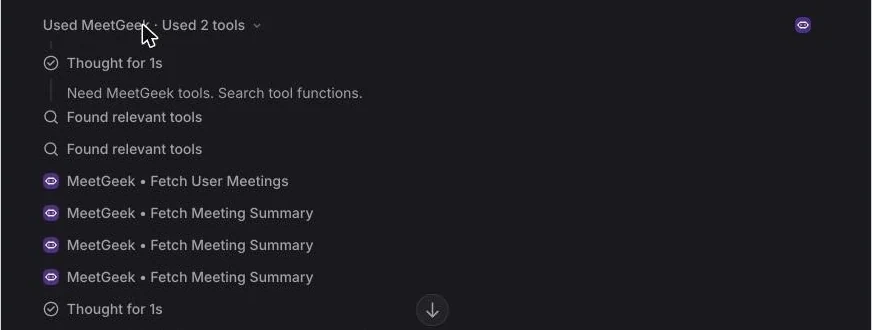
Le Chat called MeetGeek's Fetch User Meetings tool once and Fetch Meeting Summary once per meeting, then returned each meeting with its owners and next steps. In our test, each action item included a timestamped link to the MeetGeek transcript, so you can check the answer against the recording in one click.
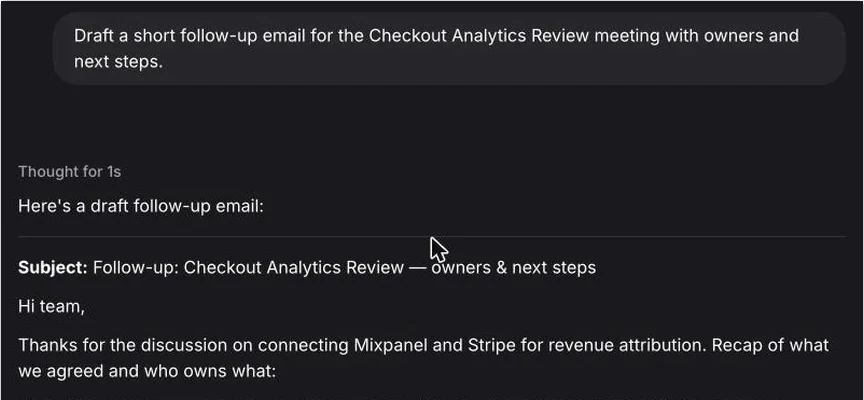
A follow-up in the same chat, "Draft a short follow-up email for the Checkout Analytics Review meeting with owners and next steps", produced a ready-to-edit email built from that meeting's summary. No transcript was pasted in at any point.
The connector exposes more than summaries. With the tools listed further down, Le Chat can also pull a full transcript, the highlights, the meeting insights and your team's meetings. That supports prompts such as:
- "What did the client say about pricing in last Tuesday's call? Quote the transcript."
- "Summarize the open questions across this week's team meetings."
- "Which decisions from the product review still have no owner?"
What You Need Before You Start
You need a MeetGeek account with recorded meetings and a Mistral account. MeetGeek's free plan is enough for the MCP connection, as you can check in the MeetGeek MCP setup guide. On the Mistral side, our setup ran on a free account.
Only an administrator can add a connector in Mistral. On the Free, Pro and Student plans the account owner is the administrator by default, as Mistral's MCP connector documentation explains. On a team workspace, ask your admin to add MeetGeek once so everyone can switch it on in their own chats.
How to Connect MeetGeek to Mistral Le Chat
You add MeetGeek to Mistral as a custom MCP connector. You fill in one form and sign in once.
1. Open Connectors in Mistral
We added the connector from Mistral Studio (console.mistral.ai), under Context → Connectors. Connectors added there show up in your Le Chat (Vibe) chats on the same account. Click New connector.
2. Choose a Custom Connector
The button opens Mistral's connector Marketplace. MeetGeek is added through New custom connector, at the top right or under the search results. It gives Le Chat the same kind of access as a listed connector: all 8 MeetGeek tools, from meeting lists and summaries to full transcripts.

3. Add the MeetGeek Server URL
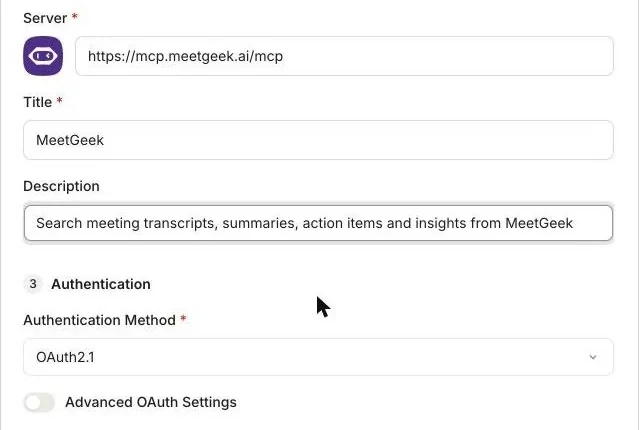
In Add custom connector, keep the protocol on MCP and fill in three fields:
- Server:
https://mcp.meetgeek.ai/mcp - Title: MeetGeek
- Description: a short line such as "Search meeting transcripts, summaries, action items and insights from MeetGeek"
As soon as you paste the URL, Mistral picks up the MeetGeek logo and sets the authentication method to OAuth2.1 by itself. Leave Advanced OAuth Settings off and click Create and connect.
4. Sign In to MeetGeek
Mistral sends you to the MeetGeek login page. Sign in with Google, Microsoft or SSO, using the MeetGeek account where your meetings are stored.
5. Check the Connection and Its Tools
Back in Mistral, the MeetGeek connector page shows the connection as Valid and lists the tools it can use. Ours had 8:
| Tool | Type | What it does |
|---|---|---|
| fetch_user_meetings | Read-only | Lists your meetings |
| fetch_meeting_metadata | Read-only | Returns a meeting's details |
| fetch_meeting_transcript | Read-only | Returns the full transcript |
| fetch_meeting_highlights | Read-only | Returns the highlights |
| fetch_meeting_summary | Read-only | Returns the summary and next steps |
| fetch_meeting_insights | Read-only | Returns the meeting insights |
| fetch_team_meetings | Read-only | Lists your team's meetings |
| submit_recording_for_analysis | Interactive | Sends a recording to MeetGeek for processing |
Table last updated: November 4, 2026.
Each tool has its own switch. A good default is to leave the 7 read-only tools allowed and keep the interactive one on manual approval, which is also what Mistral's documentation recommends for any function that changes something.
6. Turn On MeetGeek in a Chat and Ask
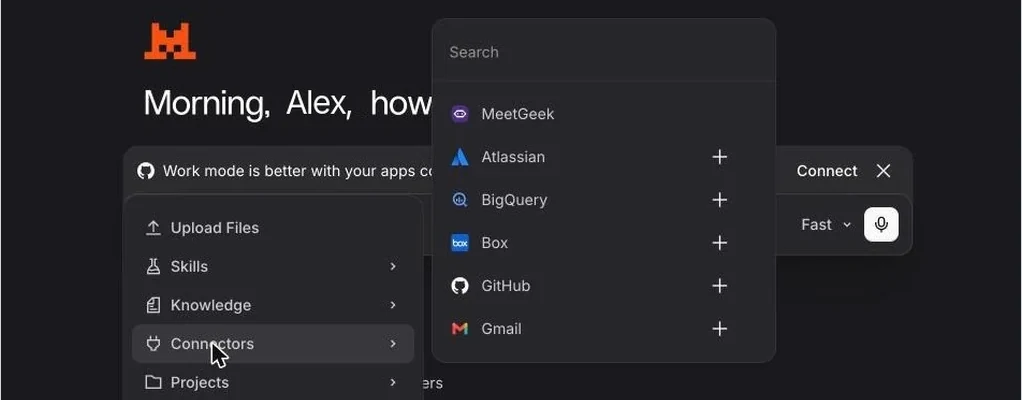
Open Le Chat (Vibe), click + in the message box, go to Connectors and pick MeetGeek. You can also type /MeetGeek. A MeetGeek tag appears in the message box, which means the next question can use your meetings.
Click Used MeetGeek above an answer to see which tools Le Chat used, what it requested and what MeetGeek returned.
What Happens to Your Meeting Data?
The OAuth connection gives Le Chat access to meetings your MeetGeek account is authorized to view. You can see each call it makes and block any tool from the connector page.
On Mistral's side, its help center states that data accessed through active connectors is "never used to train or fine-tune" its models, on every plan (Mistral Help Center). On MeetGeek's side, meeting data can be hosted in the EU or the US. MeetGeek holds SOC 2 Type II and GDPR compliance. For European teams that use Mistral and want their meeting data hosted in the EU, MeetGeek's EU residency option fits that setup.
Limits Worth Knowing
The connection works well for questions and drafts. It has a few limits:
- Custom MCP connectors in Mistral do not yet support resources or prompt templates, according to Mistral's documentation.
- Tools you have not set to always allow ask for approval each time, with the options Always Allow, Continue or Decline.
- Answers can be wrong. Mistral shows "Vibe can make mistakes" under the chat. Check important details against the original transcript, using timestamp links when provided.
Once connected, you can use Le Chat to find decisions, review action items and draft follow-ups from meetings recorded in MeetGeek.
Other Ways to Ask About Your Meetings
MeetGeek connects to other assistants through the same MCP server, so you can keep using whichever one your team already works in. For Claude, see meeting notes in Claude. For ChatGPT, see meeting notes in ChatGPT. If you are a developer and want to run the server locally with an API key instead of the hosted version, the MeetGeek MCP server explainer covers the self-hosted setup.
Inside MeetGeek itself, AI Chat answers the same kind of questions across your meetings without any connector.
Key Takeaways
- MeetGeek connects to Mistral Le Chat (Vibe) as a custom MCP connector using the server URL
https://mcp.meetgeek.ai/mcpand OAuth sign-in. - The connection works on free plans: our setup ran on a free Mistral account and MeetGeek's free plan supports MCP.
- The connector gives Le Chat 8 tools, 7 read-only and 1 that submits a recording. Each tool can be allowed or blocked on its own.
- In our test, the answers included timestamped links to the MeetGeek transcript, so you can check each action item against the meeting.
- Only a Mistral administrator can add the connector. On Free, Pro and Student plans that is the account owner.
Frequently Asked Questions
Does MeetGeek Work With Mistral Le Chat?
Yes. You add MeetGeek as a custom MCP connector in Mistral with the server URL https://mcp.meetgeek.ai/mcp, sign in to MeetGeek and turn it on in any chat.
Is MeetGeek in Mistral's Connector Marketplace?
You add MeetGeek through New custom connector, which takes a few minutes and gives Le Chat all 8 MeetGeek tools: meeting lists, metadata, summaries, transcripts, highlights, insights, team meetings and recording submission.
Do I Need a Paid Plan?
No. MeetGeek's free plan supports the MCP connection and our setup ran on a free Mistral account.
Will Mistral Train Its Models on My Meeting Data?
No, according to Mistral's help center.
Who Can Add the Connector on a Team Workspace?
A Mistral administrator adds it once. Everyone in the workspace can then switch MeetGeek on in their own chats.