

Most AI note takers send a bot into your Microsoft Teams meetings and Teams doesn't always let it in. By default, Teams holds detected bots in the lobby. Admins can also block them and calls started from Chat have no meeting link for a bot to join.
So the best AI note taker for Microsoft Teams depends on your meetings and where the notes need to go. If every meeting is internal, your company already pays for Copilot and the notes can stay in Teams, its built-in note taker may be enough. If you join client meetings or calls started from Chat, consider a tool that can also record without a bot. If you need automated follow-up in your CRM or Slack, check its integrations and workflows too.
MeetGeek is one of those tools: it records your Microsoft Teams meetings with or without a bot. Below, we compare it with Copilot and six other tools on how they record, what they cost and which languages they cover.
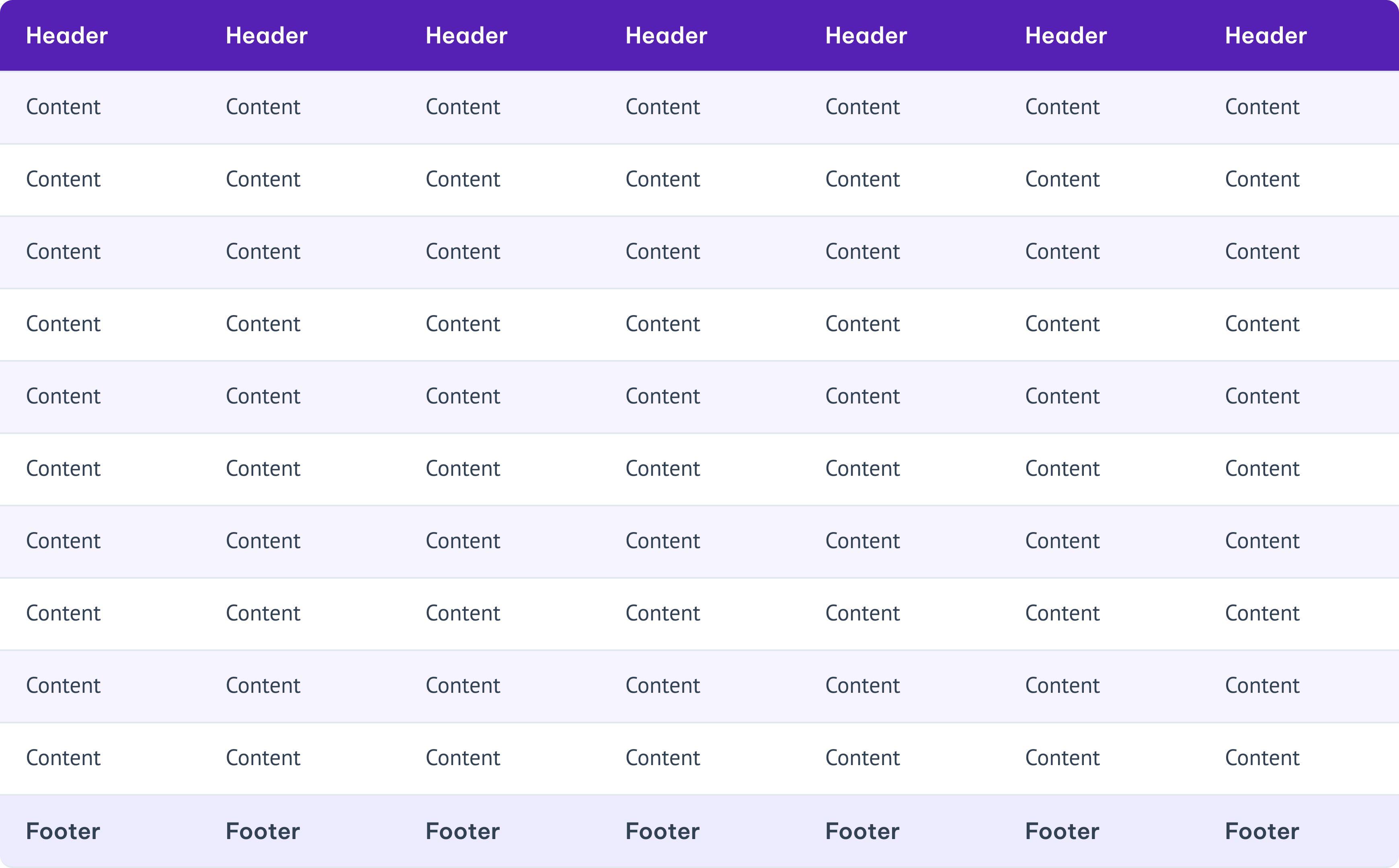
Microsoft Teams AI Note Takers Compared
We used vendor documentation and help centers to compare how each tool records Teams meetings, what happens when its bot stays in the lobby, which languages it transcribes, where it sends the notes and what it costs.
| Tool | Best for | Bot-free on Teams | Languages | Free plan limit | Paid from |
|---|---|---|---|---|---|
| Copilot (built in) | Notes that stay in Teams | No bot needed (built in) | See Microsoft docs | No free plan | $18 (Copilot Business add-on) |
| MeetGeek | Automated follow-up in your CRM and Slack | Desktop app + Chrome extension | 100+, auto-detected | 180 minutes/month | $9.99 |
| Fathom | Free unlimited recording | New app, Mac only | 38 | Unlimited recordings | $15 (Team, 2 seats minimum) |
| Fellow | Agendas and recurring meetings | Desktop app, Mac and Windows | 100 | 5 AI notes per user, lifetime | $7 |
| Fireflies | High call volume | Desktop app; no audio file or speaker names | 100+ | 400 minutes of storage per team | $10 |
| Krisp | Notes without ever adding a bot | Always (desktop app) | 17 | No free plan (7-day trial) | $8 |
| Otter | Reading the transcript live | Desktop app, Mac and Windows | 6 | 300 minutes/month, 30 per call | $8.33 |
| Read AI | Searching meetings, email and chat together | Desktop app | 16+ | 5 transcripts/month | $15 |
Copilot is listed first because it is built into Teams, then MeetGeek, our own tool, then the rest in alphabetical order. Prices per user per month, billed annually. Table last updated: November 10, 2026.
MeetGeek's free plan includes the bot, the desktop app and the Chrome extension, so you can try it on your next Teams call.
Does Microsoft Teams Have a Built-In AI Note Taker?
Yes. The built-in Microsoft Teams AI note taker is Facilitator, part of Microsoft 365 Copilot. It writes notes during the meeting and tracks decisions and open questions.
Everything is saved to a Microsoft Loop page, a shared document in Microsoft 365 that participants can edit before, during and after the call. Check it first, because your company may already pay for it. Our guide to Copilot in Teams meetings shows how to turn it on and find the notes afterwards.
Four limits matter when you compare it with the tools below:
- License. Microsoft's Facilitator help page says a Copilot license is required to add Facilitator to a meeting or turn it on. In November 2026, Microsoft lists the Copilot Business add-on at $18 per user per month, paid yearly, down from $21.
- Meeting type. Facilitator works in scheduled meetings only. Microsoft says it can't be added to channel meetings, instant meetings or Teams calls.
- External guests. Participants from outside your organization can't see Facilitator's real-time updates in Chat and Notes. Microsoft also says Copilot won't work in meetings hosted outside your organization, such as a call your client sets up.
- Recaps after the call. Facilitator takes notes during the call. Intelligent recap is a separate feature that summarizes the meeting afterwards. Intelligent recap, with AI notes and suggested tasks, comes with Teams Premium ($10 per user per month, paid yearly) or a Copilot license. The AI summary needs the meeting to be transcribed and to last 5 minutes or longer. Speaker and topic markers also need a recording.
- Choose it if: your company hosts the meetings, everyone in them works there, you already have Copilot licenses and the notes only need to live in Teams and Loop.
- Skip it if: you meet with clients, join meetings other companies host or need the notes in a CRM or Slack.
Comparing Copilot with a third-party tool? Our MeetGeek vs Teams AI comparison puts Teams Premium, Copilot and MeetGeek side by side.
Why Do AI Note Takers Get Stuck in the Teams Lobby?
Microsoft Teams now detects third-party meeting bots when they try to join a meeting. A note taker's bot is one of these: a separate participant that joins from the meeting link.
By default, a detected bot waits in the lobby until an organizer admits it, whatever the meeting's lobby settings say. Depending on the meeting options, presenters may be able to admit it too.
Admins control this with a meeting policy called "Manage external bots and their access to meetings". Microsoft's admin documentation and the policy's PowerShell reference describe three settings:
- Do not detect bots. Bots look like any other participant and normal lobby rules apply.
- Require approval when detected. The default. The bot is marked and stays in the lobby until someone admits it.
- Block detected bots. Detected third-party bots can't join meetings hosted in your organization at all.
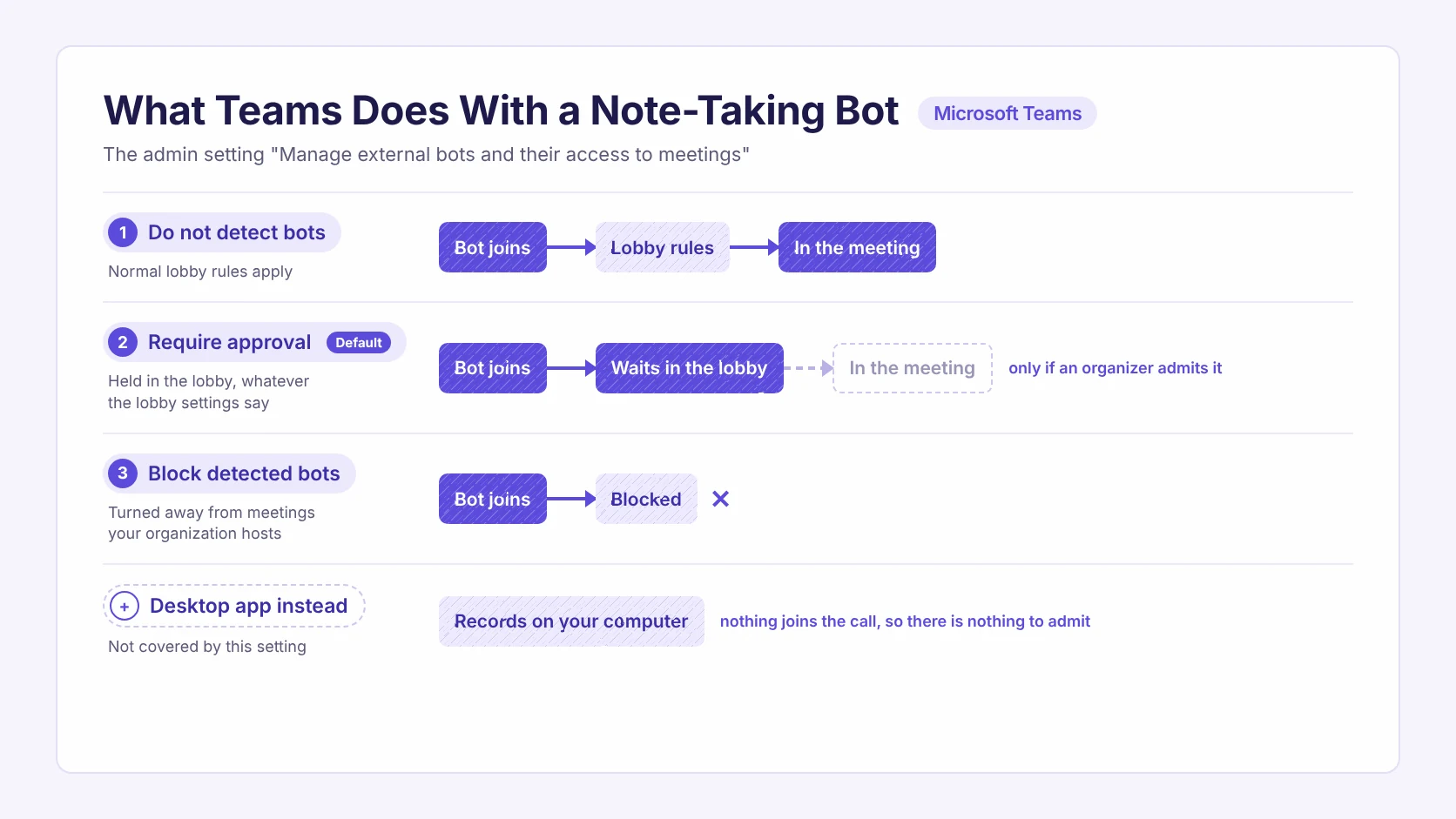
The policy covers every bot-based note taker in this comparison, MeetGeek's included.
Bot or Desktop App: What Works in Each Teams Meeting
Which way of recording works depends on who controls the meeting:
- You host the meeting: a bot from your calendar works. Admit it from the lobby when it arrives.
- Someone else hosts, or the call started from Chat: use a desktop app. It records on your own computer, so nothing joins the call and nobody has to admit it.
- Your admin blocks detected bots: use Copilot, or a desktop app if your company allows it.
Most tools in this comparison now offer a desktop app, but on different terms, so check the "Bot-free on Teams" column in the table above. MeetGeek includes both the bot and the desktop app on every plan, including Free.
MeetGeek: Best for Automated Follow-Up
MeetGeek records your Teams meetings and can automate follow-up tasks in the tools your team already uses, such as updating your CRM or sharing summaries in Slack.
For example, after a sales call on Teams, MeetGeek can add the notes to the HubSpot deal, create the next task in Jira and post a short summary in your team's Slack channel. You set this up once with a Meeting Skill, an instruction in plain English that runs after every call. It only acts in tools you approve and logs every action.
If the bot is stuck in the lobby or blocked by your admin, the MeetGeek desktop app for Mac and Windows records from your computer instead, on every plan, as long as your company allows the app.
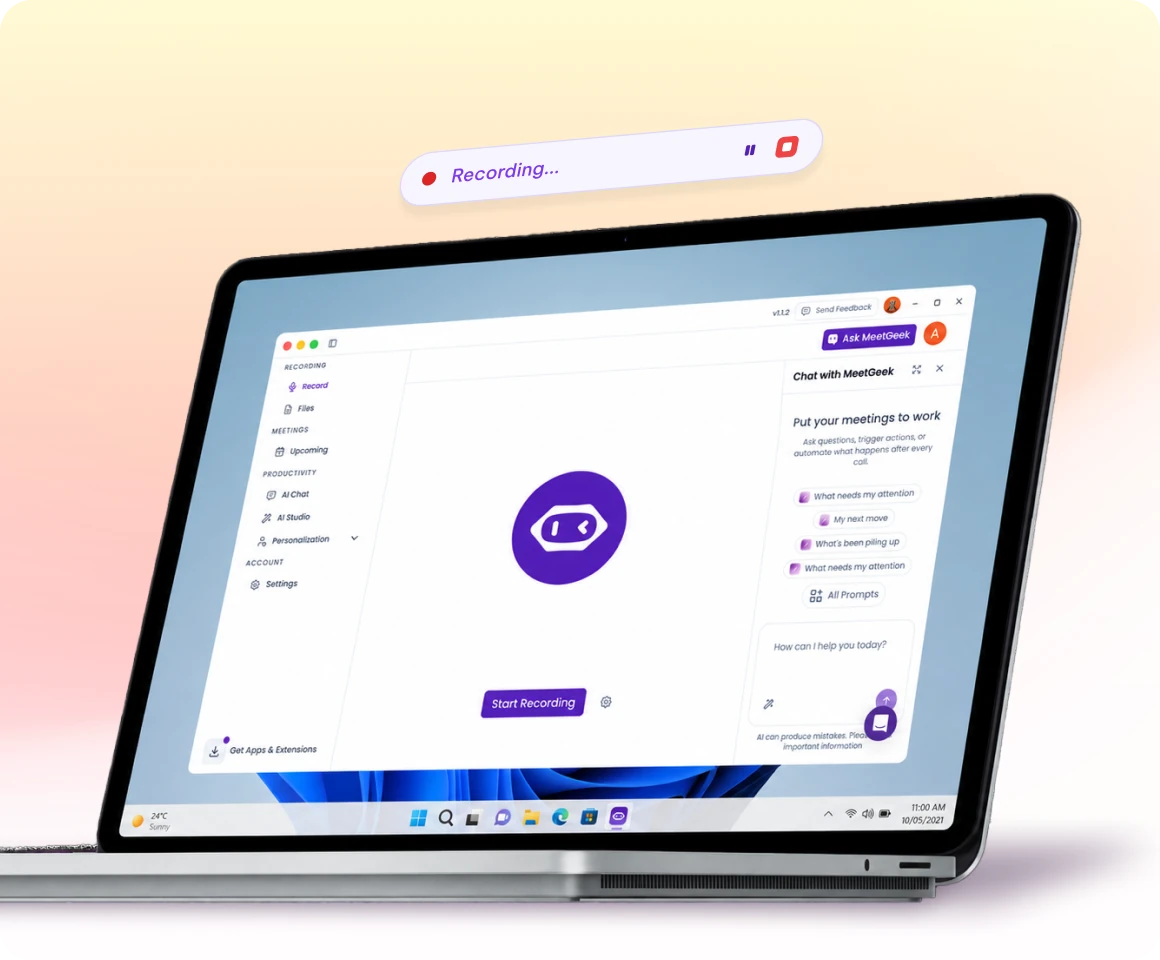
The free plan includes 3 hours a month with AI summaries and lets you ask ChatGPT, Claude or another AI assistant about your meetings. Integrations and Meeting Skills start on Pro at $9.99 per user per month, billed annually. Business is $17. MeetGeek is SOC 2 Type II, HIPAA, GDPR and CCPA compliant, with data kept in the EU or the US.
- Choose it if: you want the follow-up after Teams calls to happen on its own in a CRM, a tracker or Slack.
- Skip it if: every meeting is internal, you already pay for Copilot and nobody needs the notes outside Teams.
Start with MeetGeek's free plan to see what it writes from one of your own Teams calls.
Fathom: Best for Free Unlimited Recording
Fathom's bot joins Teams meetings and records full video, audio and a searchable transcript, with unlimited recordings on the free plan. Fathom is built for teams that want a complete free archive of their calls.
On Teams, three details from Fathom's help center shape how it works:
- The bot only records a Teams meeting you are also attending.
- Teams group chat instant meetings aren't supported.
- The bot-free experience runs on Mac only. Windows support is announced but not yet available, so on most Windows-based Teams setups the bot is the only way in.
Fathom transcribes 38 languages. Team is $15 per user per month, billed annually, with a 2-seat minimum. Business is $25.
- Choose it if: you want unlimited free recordings of the scheduled Teams meetings you attend.
- Skip it if: your team works on Windows and needs to record without a bot.
Our MeetGeek vs Fathom comparison puts the two side by side.
Fellow: Best for Agendas and Recurring Meetings
Fellow combines shared agendas with AI meeting notes, which suits recurring Teams meetings and 1:1s where you revisit the same topics each week.
It records Teams with a bot, or bot-free from its desktop app for Mac and Windows, which captures system audio and your microphone and saves an audio recording with the transcript and notes. Fellow's Help Center lists 100 transcription languages with automatic detection.
Check how many AI notes your plan includes. The free plan gives 5 AI notes and 5 AI recordings per user for the life of the account, not per month.
Team is $7 per user per month, billed annually, with 10 AI notes a month. Business is $15 with unlimited notes.
- Choose it if: you run recurring Teams meetings from a written agenda.
- Skip it if: you need more than 5 AI notes per user without paying.
For the full picture, see our MeetGeek vs Fellow comparison.
Fireflies: Best for High Call Volume
Fireflies transcribes 100+ languages and includes meeting search from the free plan up, so it suits a large team that records many Teams calls and needs to find them later.
Its desktop app for Mac and Windows records Teams calls from system audio without the bot. Fireflies' guide lists the trade-offs: that mode saves no audio or video file and shows speakers as Speaker 1 and Speaker 2 instead of names.
On Teams Business accounts, it can also post a consent message automatically when a bot-free recording starts.
Pro is $10 per seat per month, billed annually. The free plan caps storage at 400 minutes per team.
- Choose it if: your team meets in many languages and needs to search its recorded Teams meetings.
- Skip it if: you need speaker names or an audio file from bot-free recordings.
Our MeetGeek vs Fireflies comparison goes through the rest.
Krisp: Best for Notes Without Ever Adding a Bot
Krisp started as a noise cancellation tool and now writes meeting notes too. On Teams it works differently from every other tool here: you select Krisp as your microphone and speaker in Teams, switch on its note taker and Krisp transcribes the call from your device, so no bot joins the meeting.
That design suits people who take Teams calls from noisy places. It also avoids the lobby question entirely. Krisp's Teams page lists 17 transcription languages, so check whether it supports the languages your team uses.
There is no free plan, only a 7-day trial. Core is $8 per user per month, billed annually. Advanced is $15.
- Choose it if: you take Teams calls from noisy places and never want a bot in the meeting.
- Skip it if: you need a free plan or transcription in a language it doesn't support.
For a closer look, see our MeetGeek vs Krisp comparison.
Otter: Best for Reading the Transcript Live
Otter's strength on Teams is the live transcript that people can read and highlight during the call. Its desktop app for Mac and Windows also records Teams meetings without the bot, can post a message in the Teams chat when recording starts and saves screenshots of content shared in the meeting.
Check whether Otter supports the languages your team uses. Its pricing page names six transcription languages (English, Spanish, French, German, Japanese and Chinese), so a team that meets in Portuguese, Italian or Dutch needs a different tool.
The free plan includes 300 minutes a month with a 30-minute cap per conversation. Pro is $8.33 per user per month, billed annually.
- Choose it if: your team meets in English and likes to read and mark up the transcript live.
- Skip it if: your team meets in a language Otter doesn't support.
Our MeetGeek vs Otter comparison covers plans and features in more detail.
Read AI: Best for Searching Meetings, Email and Chat Together
Read AI's bot joins Teams meetings from your calendar. Its search reaches beyond meetings into email and chat, including summaries of Microsoft Teams and Slack messages.
On Teams, its help center is clear about one gap: the bot can't join a Teams call started from Chat, so those calls go through the desktop app for Mac and Windows. Reports made from the desktop app don't include video, coaching or some meeting metrics.
The free plan includes 5 meeting transcripts a month. Pro is $15 per user per month, billed annually. Its pricing table lists support for 16+ languages.
- Choose it if: you want one search across Teams meetings, email and messages.
- Skip it if: you need video or full meeting metrics from calls recorded with the desktop app.
How to Set Up an AI Note Taker in Microsoft Teams
Most bot-based tools on Teams are set up in four steps:
- Connect your Outlook or Google calendar, so the note taker knows which Teams meetings to join.
- Set auto-join rules, such as all meetings you organize or only meetings with external guests.
- Agree on who admits the bot. With the default policy, a detected bot waits in the lobby. Let the organizer know to expect it; presenters may also be able to admit it, depending on the meeting settings.
- Connect one destination, such as Slack, Notion or your CRM. One is enough to start.
Expert tip from MeetGeek
"Before you roll out a note taker, ask your Teams admin which bot setting your company uses. It tells you whether you also need a desktop app."
With a desktop app, you install it once and press record when the Teams call starts. Whichever route you use, let people know the meeting is being recorded. Recording rules vary by country and US state. Your organization may also have its own policy.
If you also want the Teams recording itself, our guide on how to record a Teams meeting covers the native route. When a recording goes missing, the guide to where Teams recordings are stored lists every location. If your team also meets on Google Meet, the Google Meet AI note taker comparison covers Gemini and the same third-party tools there.
To try AI summaries of your Teams meetings, with or without a bot, start with MeetGeek's free plan and connect the Microsoft Teams integration to your calendar. Sending notes to your CRM or Slack comes with Pro.
Key Takeaways
- Pick Copilot if every meeting is internal, you already have licenses and the notes can stay in Teams. Pick a tool with a desktop app if you join client calls or Chat calls, then narrow by language and where your notes need to go.
- Most tools here can now record without a bot, so compare what happens after the call: where the notes go and what gets done for you.
- Facilitator requires a Copilot license and works in scheduled meetings only. External participants can't see Facilitator's live notes. Copilot doesn't work in meetings hosted by another organization.
- Intelligent recap comes with Teams Premium or Copilot. Its AI summary only covers transcribed meetings of 5 minutes or longer.
- By default, Teams holds a detected third-party bot in the lobby until an organizer admits it. Admins can also block detected bots entirely, so check whether a tool records from a desktop app too.
- Language coverage narrows the list quickly: MeetGeek, Fireflies and Fellow cover 100 or more, Fathom 38, Krisp 17, Read AI 16+ and Otter 6.
Frequently Asked Questions
Is Copilot Free in Microsoft Teams?
No. Facilitator, the note taker in Copilot, needs a Microsoft 365 Copilot license, which Microsoft lists at $18 per user per month for the Copilot Business add-on, paid yearly. Intelligent recap comes with that license or with Teams Premium, at $10 per user per month, paid yearly.
Is There a Free AI Note Taker for Microsoft Teams?
Yes. MeetGeek, Fathom, Fellow, Fireflies, Otter and Read AI all have a free plan that works with Teams. On MeetGeek's free plan you get 3 hours a month, 100+ languages and a summary of each recorded meeting. Copilot has no free version. Krisp offers a 7-day trial. Our guide to free meeting note takers compares the free plans in more detail.
Can an AI Note Taker Record a Teams Meeting Without a Bot?
Yes. A desktop app records the meeting from your own computer, so no bot joins the meeting. MeetGeek, Fellow, Fireflies, Otter and Read AI have desktop apps for Mac and Windows. Krisp works only this way. Fathom's bot-free experience runs on Mac only.
Can My Admin Block AI Note Takers in Microsoft Teams?
Yes. The "Manage external bots and their access to meetings" policy holds detected third-party bots in the lobby by default and can block them entirely. The policy covers bots that join the meeting, not a desktop app recording on your own computer. Admins find the setting in the Teams admin center under Meeting policies, in the Meeting join and lobby section. Your company can still control which apps people install and whether recording is allowed, so check which route your organization approves.
Can an AI Note Taker Record a Teams Call Started From Chat?
Not with a bot. Calls started from Chat have no meeting link for a bot to join, which Read AI's help center confirms for its own bot. A desktop app records them from your computer. Copilot's Facilitator can't be added to Teams calls either.
Do Participants Have to Consent to Being Recorded in Teams?
Often, yes. Consent laws differ between countries and between US states. Teams shows when its own recording starts. Several note takers also post a message in the meeting chat or play a notice. MeetGeek's Business plan adds recording consent notifications. Check your local rules before recording customer calls.