


Funny Zoom backgrounds make online meetings less awkward, more engaging, and far more memorable. In this guide, you’ll find the best funny Zoom backgrounds for work calls, team meetings, and virtual hangouts, including memes, pop culture references, fake offices, and animated scenes.
We’ll also show you how to change your Zoom background on desktop and mobile, upload your own image or video, and avoid common performance issues.
Why are funny Zoom backgrounds so popular?
Back-to-back Zoom meetings can start to feel identical after a while. When every call looks the same, even short meetings can become mentally draining. Funny Zoom backgrounds help break that routine by adding personality and humor to virtual meetings.
A good virtual background can make conversations feel more relaxed, help coworkers warm up faster, and ease tension during stressful workdays. They also work surprisingly well as icebreakers, especially for remote teams or new hires who do not interact in person often.
The best results come from matching the background to the meeting itself. Subtle humor usually works better for client calls or professional presentations, while internal team meetings give you much more freedom to use something chaotic or completely absurd.
Best funny Zoom backgrounds to try
Here are some of the funniest and most popular ideas for your next Zoom call.
Simpsons living room
The Simpsons' living room is one of the most recognizable funny Zoom backgrounds online. It works because almost everyone immediately gets the reference.
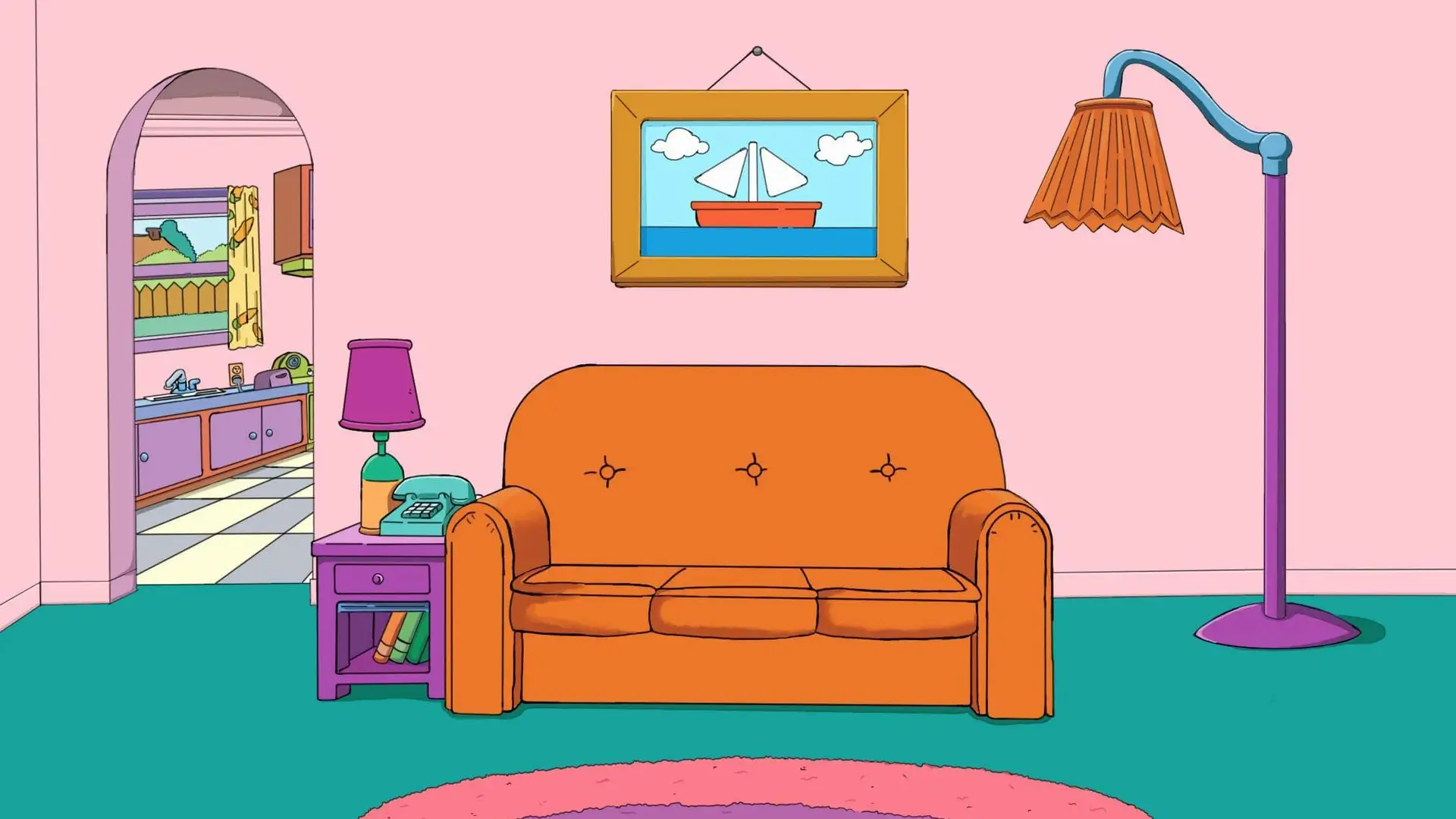
Perfect for:
- Casual team meetings
- Friday online calls
- Virtual happy hours
Bonus points if you wear yellow.
The Office conference room
Nothing says “corporate chaos” like pretending you work at Dunder Mifflin.
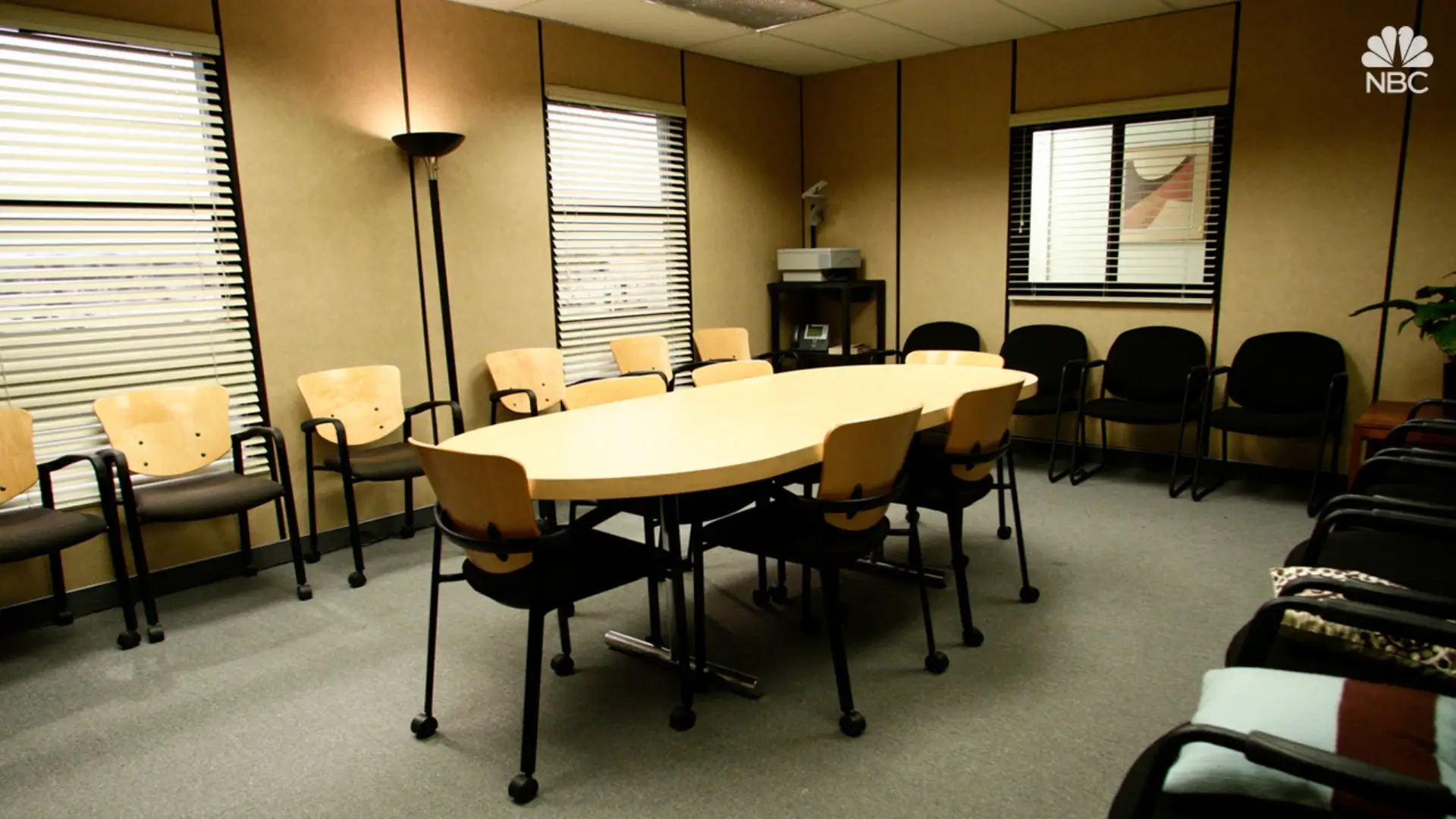
The Office remains one of the best Zoom backgrounds because it feels professional at first glance, until people notice Michael Scott staring from the corner.
Perfect for:
- Internal meetings
- Team icebreakers
- Work friends who love sitcoms
Friends apartment
A friend's Zoom background instantly makes online meetings feel more relaxed.
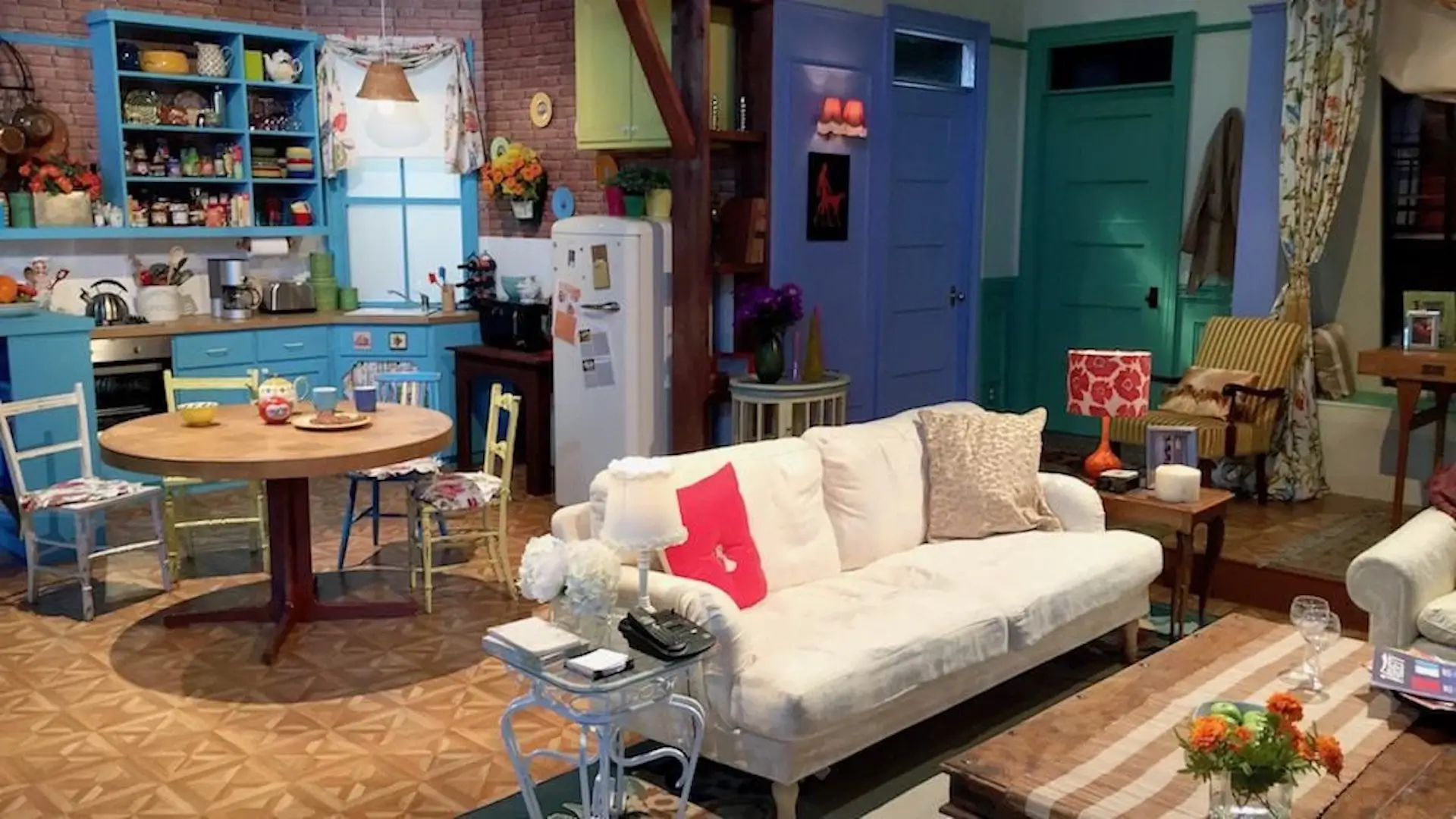
Monica’s apartment and Central Perk are especially popular because they’re cozy without being distracting.
Great for:
- Casual video calls
- Team socials
- Creative agencies
Iron Throne from Game of Thrones
Want to look like you’re leading the entire company? The Iron Throne Zoom background adds dramatic energy to any meeting.

It’s one of the best funny Zoom backgrounds for:
- Leadership meetings
- Presentations
- Mock-serious discussions
Just try not to look too power hungry.
“Everything is fine” meme
The fine meme background has become legendary for remote workers.
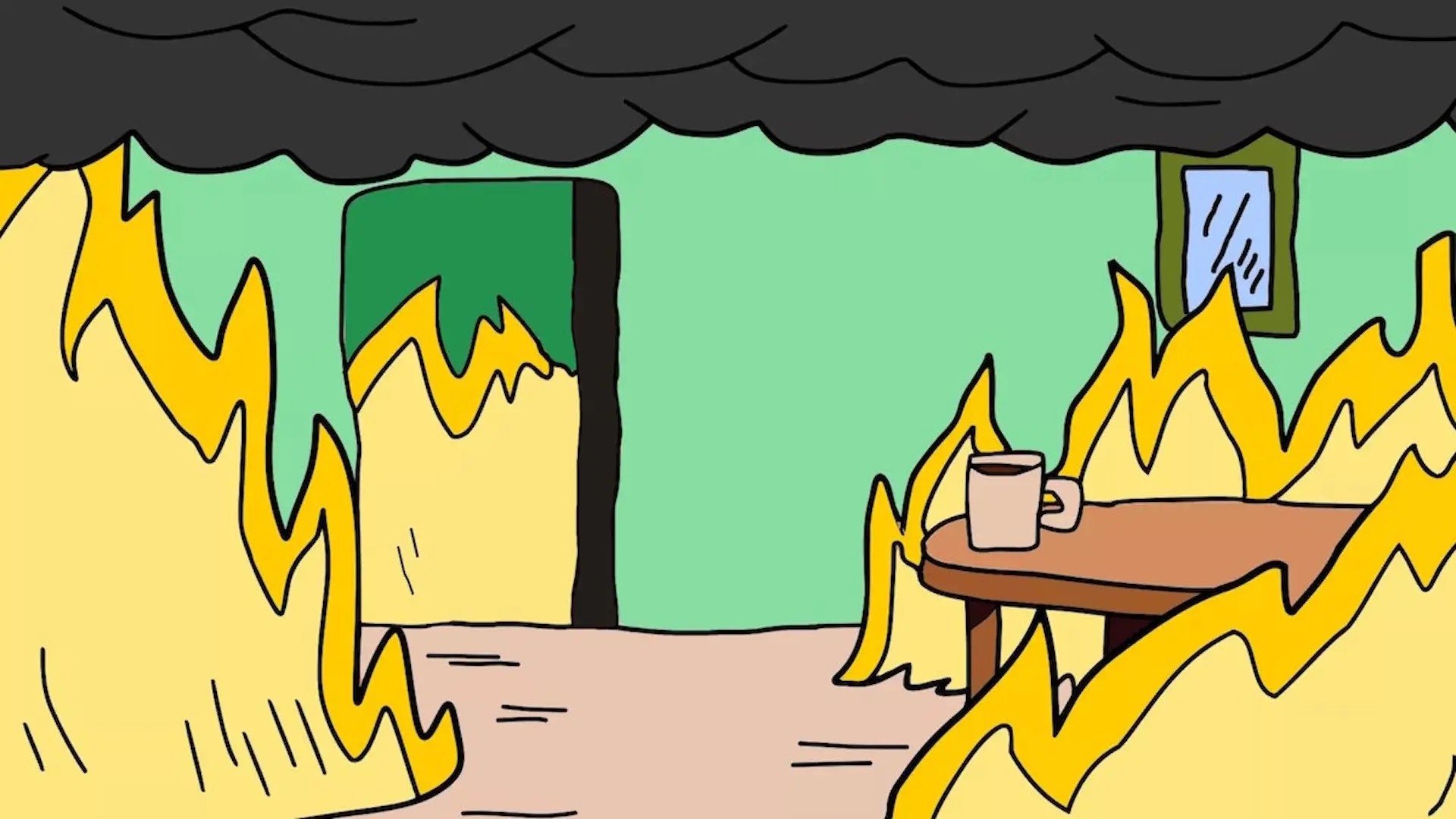
Using the famous “This is fine” scene during stressful deadlines or chaotic projects is relatable enough to get instant laughs without disrupting the meeting.
This one works especially well during:
- Monday morning meetings
- Crunch periods
- End-of-quarter reporting
Woman yelling at cat meme
The woman yelling meme is internet history at this point.

It’s chaotic, recognizable, and surprisingly effective at making people laugh during long Zoom calls.
Best used in:
- Informal team meetings
- Creative brainstorming sessions
- Social virtual meetings
Tropical island life backgrounds
Not every funny background needs to be a meme.

Sometimes pretending you’re working from a beach during a stressful day is funny enough.
Island life backgrounds work well because they:
- Improve mood
- Feel visually relaxing
- Make the online meeting experience more enjoyable
Animated beach video backgrounds are even better if your computer can handle them without performance issues.
Outer space and sci-fi scenes
Star Trek bridges, alien worlds, or floating through space remain popular virtual background choices.
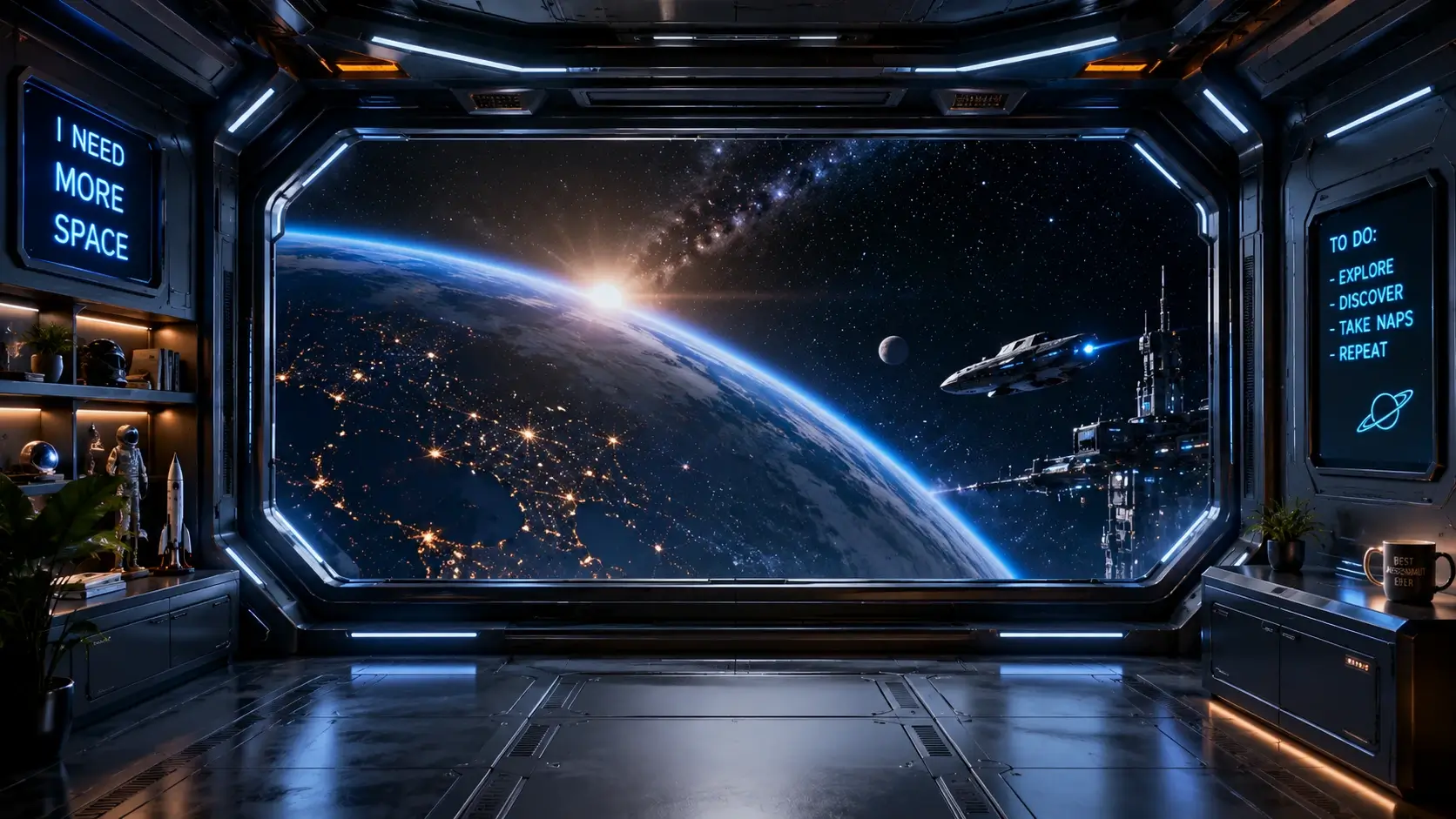
Sci-fi backgrounds are especially effective because:
- They’re visually interesting
- They don’t feel overly distracting
- They work in professional settings surprisingly well
Play makes Jack a dull boy
Fans of The Shining instantly recognize the “All work and no play makes Jack a dull boy” scene.

This is a niche but hilarious choice for overworked teams during long virtual meetings.
Use carefully, depending on your audience.
What makes a funny Zoom background actually work?
Not every funny Zoom background lands the same way. The best ones usually feel intentional instead of random, and they add humor without distracting from the meeting itself.
Here’s what separates a good virtual background from a bad one:
- Recognizable references tend to work best. Backgrounds inspired by The Office, Friends, the Simpsons' living room, or popular memes immediately give people something to react to and often start conversations naturally.
- The background should match the tone of the meeting. A subtle joke or clean pop culture reference works better for client-facing Zoom calls, while internal team meetings leave more room for chaotic or absurd humor.
- Simpler scenes usually look better on camera. Overly detailed images can make your video look messy or glitchy, especially during online meetings with weaker internet connections or older devices.
- The best funny backgrounds usually reflect your personality. Some people lean into nostalgic TV references, while others prefer gaming scenes, memes, fake offices, or ridiculous fantasy settings. The more natural the choice feels, the funnier it usually is.
Can you create your own funny Zoom background?
Yes, and custom backgrounds are usually much funnier than the recycled meme images everyone has already seen.
You can create your own funny Zoom background using AI image generators like ChatGPT, NanoBanana, Midjourney, or similar tools. The trick is giving the AI a prompt that feels specific enough to create a believable scene instead of a generic stock image.
| AI tool | Strength for Zoom backgrounds | Free option? |
|---|---|---|
| ChatGPT (image generation) | Fast, prompt-friendly, easy to iterate inside a chat | Free tier available (limited generations) |
| NanoBanana | Strong at realistic, photo-style scenes | Free with usage limits |
| Midjourney | Best for stylized, cinematic, high-impact backgrounds | No (paid subscription) |
For example, you could try prompts like:
- “A luxury corporate office at the top of a skyscraper, dramatic sunset view, slightly exaggerated startup founder energy, realistic”
- “A chaotic gamer bedroom turned into a professional home office, realistic lighting, funny but believable”
- “The Simpsons living room recreated as a realistic modern apartment”
- “An absurdly expensive boardroom with gold statues, marble floors, and a giant motivational poster”
- “A fake TED Talk stage with dramatic lighting and a huge audience”
- “A cozy island beach office setup with a laptop, tropical drinks, and suspiciously good Wi-Fi”
- “A retro 90s computer lab converted into a Zoom meeting setup”
- “A spaceship command center designed like a modern tech startup office”
The best AI-generated backgrounds usually feel realistic at first glance, then slowly reveal something ridiculous in the details. Those tend to get the biggest reactions during Zoom meetings because people notice new things throughout the call.
When creating your own image, make sure it:
- Uses a 1920x1080 resolution whenever possible
- Is bright enough to keep your face clearly visible
- Leaves enough empty space around your head and shoulders
- Avoids overly glossy or reflective colors
- Keeps details relatively clean, so the background does not look messy on camera
- Does not blend too closely with your clothes or hair
- Matches the tone of the meeting you plan to use it in
A good, funny Zoom background should feel intentional, not random. Even subtle jokes can work surprisingly well if the scene looks believable enough.
How to change your Zoom background on desktop
Changing your Zoom background only takes a few simple steps.
On Mac or Windows desktop
- Open the Zoom app
- Sign in to your Zoom account
- Click your profile picture
- Select Settings
- Open “Background & Effects” from the left menu
- Choose an existing background or upload your own image
- Your new background will appear automatically

You can also upload:
- PNG files
- JPEG images
- MP4 Zoom video backgrounds
- MOV files
If you use video backgrounds, make sure your system requirements can handle them to avoid performance issues.
How to change your Zoom background on a mobile device
You can also change your Zoom virtual background directly from your phone.
On iPhone or Android
- Open the Zoom app
- Join a meeting
- Tap the three dots in the bottom right corner
- Select “Background & Effects”
- Upload or select a background
- Apply your custom background
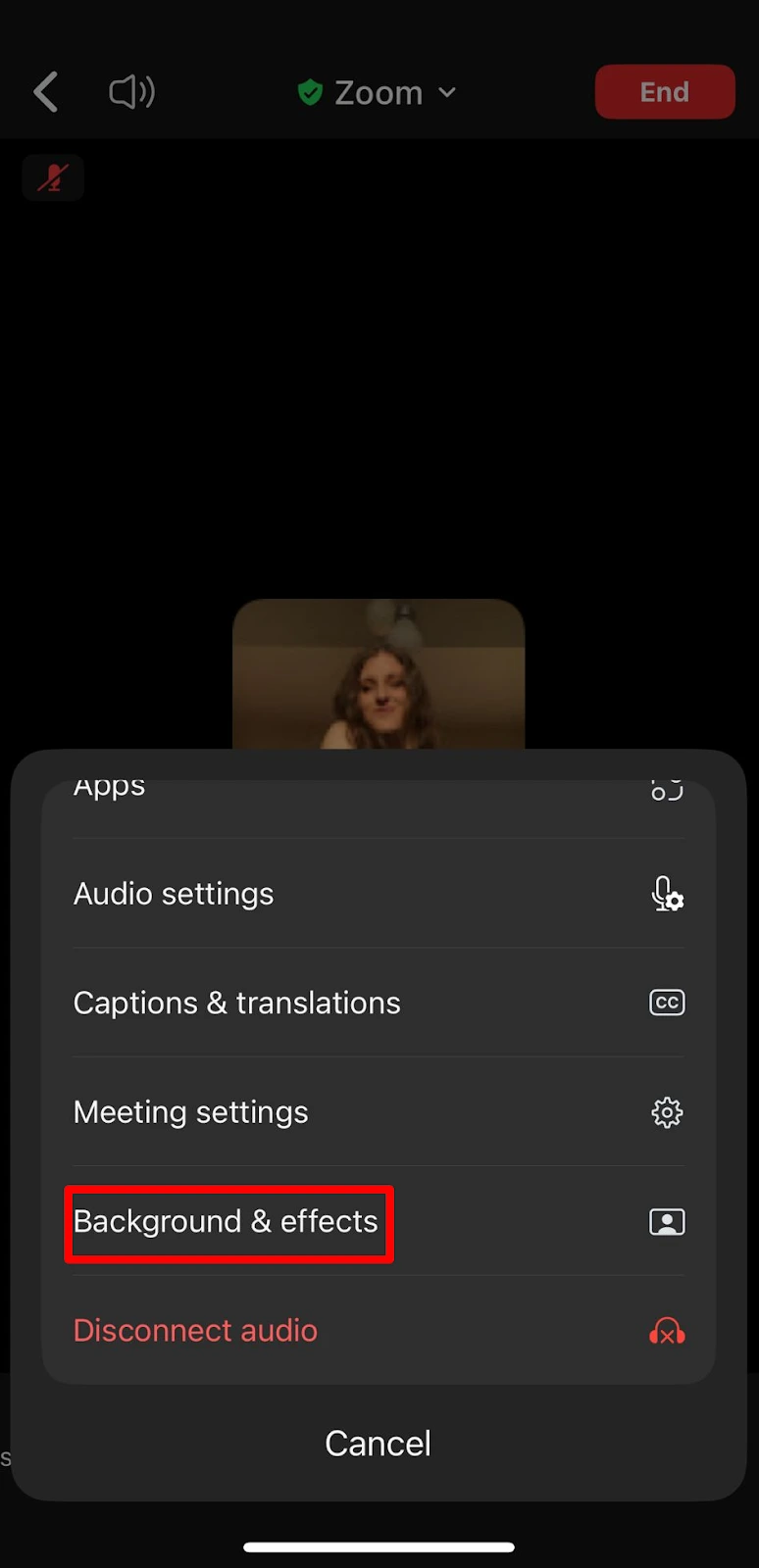
This process works for most modern versions of Zoom on mobile devices.
Make your online meetings more productive with MeetGeek
Funny backgrounds improve the mood, but they don’t solve the biggest problem with virtual meetings: people forget what was discussed.
MeetGeek automatically records, transcribes, summarizes, and organizes your Zoom meetings so you can focus on the conversation instead of taking notes manually. It supports Zoom, Google Meet, and Microsoft Teams, as well as platforms like Discord and Webex through the Chrome extension, and automatically generates meeting summaries and action items. This helps teams reduce manual effort across recurring online meetings.
It’s especially useful for:
- Remote teams
- Sales calls
- Customer meetings
- Interviews
- Team syncs
- Async collaboration
So while your funny Zoom background keeps everyone entertained, MeetGeek keeps every important detail searchable and organized.
Conclusion
Funny Zoom backgrounds are one of the easiest ways to make online meetings more engaging. Whether you prefer memes, pop culture references, fake offices, or relaxing island life scenes, the right virtual background can instantly improve the mood of your next call.
The best part is that Zoom makes it easy to upload your own image, use animated Zoom video backgrounds, or create completely custom scenes with AI tools.
And if you want to make your meetings productive as well as entertaining, try MeetGeek for free. It automatically records, summarizes, and organizes your Zoom meetings so you can spend less time on notes and more time actually participating in the conversation.
Frequently asked questions
What is the best size for a Zoom background?
The best Zoom background size is 1920x1080 pixels with a 16:9 aspect ratio. This resolution fits most desktop and laptop screens properly and helps your virtual background look sharp instead of blurry or stretched. Zoom also supports smaller image sizes, but higher-resolution backgrounds generally look cleaner during video calls and online meetings.
Can I use video as a Zoom background?
Yes, Zoom allows you to use video backgrounds on the desktop app for animated or looping scenes. Supported file formats include MP4 and MOV, ideally in a 16:9 aspect ratio with resolutions ranging from 480x360 pixels up to 1920x1080 pixels. A green screen is optional, but using one usually improves background quality and reduces visual glitches during Zoom meetings.
Why is my Zoom background glitching?
Zoom backgrounds usually glitch because of poor lighting, low webcam quality, weak computer performance, or background colors blending into your clothes or hair. Busy images and animated video backgrounds can also make performance issues worse. To improve background quality, try using better front lighting, a simpler image, a cleaner background setup, or a green screen.
Can I upload my own image as a Zoom background?
Yes, Zoom lets you upload your own image or video directly through the “Background & Effects” section in settings. You can use JPG, JPEG, or PNG files for static backgrounds, as well as MP4 or MOV files for video backgrounds. Many people create custom backgrounds using AI tools like ChatGPT, NanoBanana, or Midjourney to make their Zoom calls feel more personal and entertaining.
Do funny Zoom backgrounds work for professional meetings?
Yes, funny Zoom backgrounds can work well in professional meetings when used appropriately. Subtle humor, clean pop culture references, or polished fake office scenes can make video meetings feel more relaxed without becoming distracting. For client-facing calls or interviews, it is usually better to choose backgrounds that feel professional first and funny second.




.avif)