


Learning how to join Teams meetings with code is one of the simplest ways to enter a Microsoft Teams meeting without digging through old emails or searching your calendar. Whether you are using the Microsoft Teams app, a supported browser like Microsoft Edge or Google Chrome, or a mobile device, joining is quick once you know where to find the meeting code and where to enter it.
Meeting codes are often used by the meeting organizer to give participants fast access to Teams meetings. Instead of waiting for a meeting link or a calendar invite, you can join meetings directly by entering the meeting code inside the Microsoft Teams meeting window. This method works across the desktop app, web version, and mobile app, with no complicated steps.
If you are new to Microsoft Teams or joining a Teams meeting for the first time, this guide will walk you through everything. You will learn how to access your meeting details, how to join a meeting with a code, as well as other options you might encounter.
What is a Microsoft Teams meeting code
A meeting code is a short string of numbers or letters used to join a Microsoft Teams meeting. It works just like a meeting ID or conference ID. The meeting organizer may send you the code directly, include it inside the invitation email, place it in the meeting chat, or share it alongside the meeting link.
A meeting code:
- Allows quick joining without searching for a long link
- Makes it easier for participants who join directly from the Teams app
- Helps keep meetings secure
- Works for both personal accounts and organization accounts
- Lets participants join meetings even if they cannot find the original invite
You only need the code, an internet connection, and access to the Teams app or browser.
How to join a Teams meeting with code
Below is the full step-by-step guide that shows how to join a Microsoft Teams meeting with a code on desktop, web, and mobile.
Step 1: Open Microsoft Teams
To start, open Microsoft Teams on your device. You can do this by:
- Launching the desktop app
- Opening the Microsoft Teams web app in a supported browser
- Using the Microsoft Teams app on your mobile device
If you are on a computer and do not have the app installed, you can join a Teams meeting from the web without downloading anything. Just open Microsoft Teams in Google Chrome or Microsoft Edge and sign in.
Use Select Sign to log in with a Teams account or enter as a guest if the organization allows guest access.
Step 2: Go to your calendar
Once the Teams app opens, look for the Calendar tab on the left side of the screen. This is where you manage all scheduled meeting invites. Inside your calendar, you will find your upcoming meeting details, including the meeting host name, the meeting window, and any meeting link.
In the Calendar tab, you will also find the Join with a code option (Join with an ID). It usually appears near the top of the page or inside the section where you create or join a team.
Step 3: Enter the meeting code
Click Join with an ID. A field will appear where you can type or paste the meeting code.

Make sure the code matches exactly what the organizer shared. Avoid extra spaces or missing characters. If the code does not work, you can contact the meeting organizer and ask them to resend the correct one. The ID might also be joined by a passcode that you will need to enter.
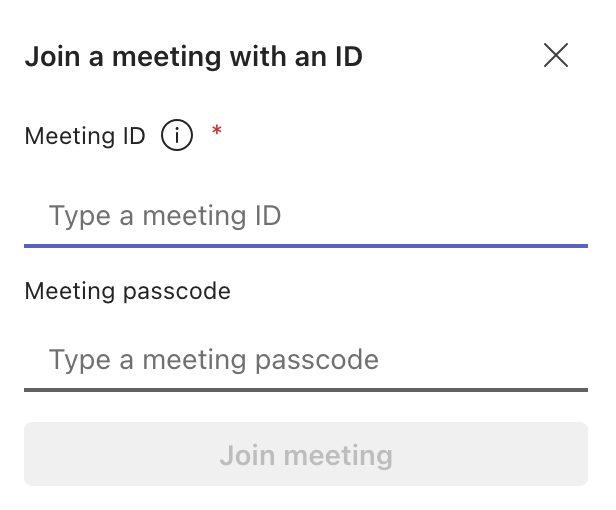
When ready, click Join.
Step 4: Check your meeting settings
Before you join the meeting directly, Teams will show you a preview screen. Here you can:
- Turn your camera on or off
- Adjust your microphone settings
- Choose your audio device
- Review meeting options
- Confirm if you want to join on more than one device
This is also the moment when Teams may place you in a lobby if the organizer has enabled it. When the host allows you in, the meeting window will open, and you will see other participants.
Make meetings more productive with MeetGeek
Joining a Teams meeting is only the first step. What happens inside the meeting is what matters most. MeetGeek helps you capture every point, track every decision, and make your Microsoft Teams meetings more productive.

MeetGeek automatically joins your Microsoft Teams meeting as your AI meeting assistant. It records the conversation, transcribes every detail, and generates clear meeting summaries that you can revisit anytime. Everything is saved and organized inside your MeetGeek workspace so your team can find information without watching full recordings.
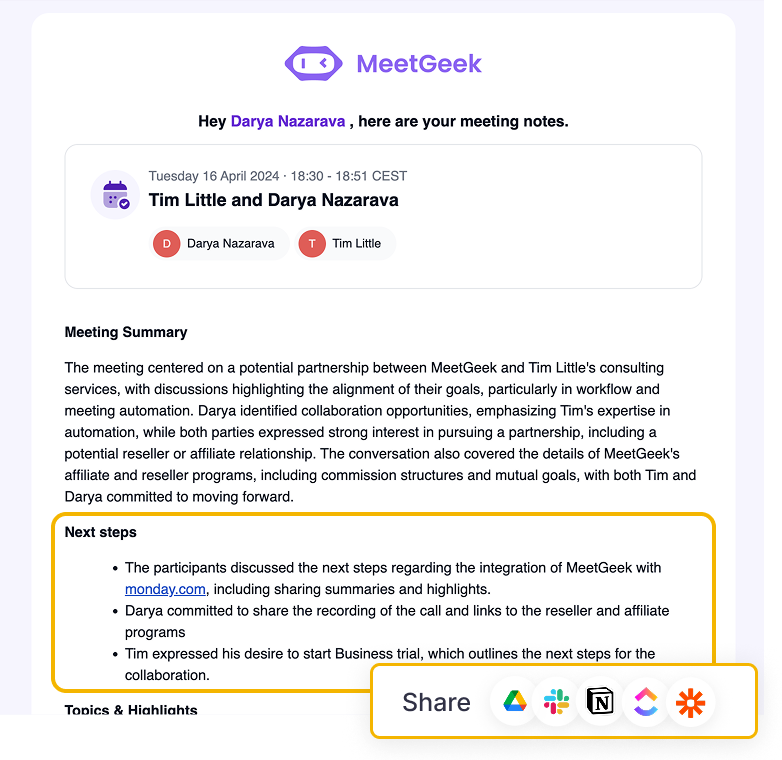
With MeetGeek you get:
- Automatic meeting recording directly in Microsoft Teams
- Accurate transcripts with speaker labeling
- AI-powered meeting summaries with action items
- AI Voice Agent that can talk and assist you live during calls
- Searchable meeting history
- Automated follow-ups
- Insights shared easily with your organization
Connect your calendar once, and MeetGeek will join your scheduled meeting sessions without extra setup. You can focus on the conversation while MeetGeek captures the full story.
Other ways to join Microsoft Teams meetings
Not every organizer uses a code. In most cases, you will receive a meeting link, calendar event, email invitation, or dial-in number. Below are all the ways you can join a Teams meeting.
Join a Teams meeting using a meeting link
A meeting link is the most common way to join Microsoft Teams meetings. Click the Teams meeting link, and Teams will open automatically. If you are on a browser, you can choose to join on the web or join inside the Teams app.

If you do not have the app installed, you can still join meetings directly from your supported browser.
Join a meeting through a calendar invite
If the meeting organizer added your email to the event, the meeting will appear inside your Outlook calendar and inside the Teams calendar.
To join:
- Open your calendar
- Select the scheduled meeting
- Click Join
This is often the simplest method when you are already working inside Microsoft Outlook or Microsoft Teams during the day.
Join a Teams meeting from an email invitation
If you received an invitation email, look for the Join Microsoft Teams Meeting link inside the message. This link takes you directly to the meeting. If the organizer enabled chat for external contacts, you may also see a link to open the meeting chat before the call begins.
If you do not see the message, check your spam folder. Sometimes external invites go there.
Join a Microsoft Teams meeting through a browser
You can join Microsoft Teams meetings without downloading the Teams app by using:
- Google Chrome
- Microsoft Edge
These browsers support the full web version of Microsoft Teams.
To join:
- Open the meeting link
- Select Continue on this browser
- Enter your name if you are joining as a guest
- Adjust your camera and microphone
- Click Join
This method is helpful when joining from a temporary computer or when using a device where you cannot install apps.
Join a Teams Meeting by phone
Some meetings include a dial in number in the invite.
To join:
- Dial the number
- Enter the conference ID
- Wait to be connected to the meeting
This is useful when you cannot join from a computer or when you have an unstable internet connection.
Join a Teams meeting from a chat
If the meeting was created inside a Microsoft Teams chat or group conversation, you will see a Join button appear at the top right of the chat window when the meeting starts.
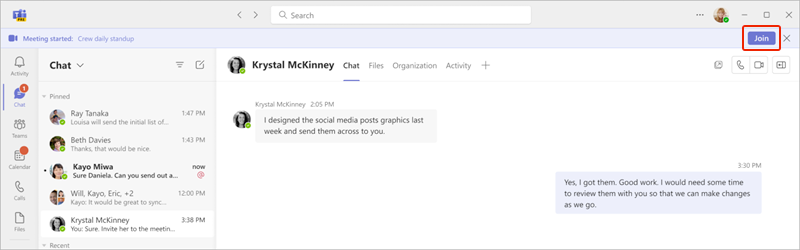
To join:
- Open the chat connected to the meeting
- Look for the Join button at the top right of the chat
- Click Join to enter the meeting directly
How to fix common issues when joining a Teams meeting
Sometimes joining a Teams meeting can fail due to technical issues. Below are the most frequent problems and how to solve them.
Browser compatibility problems
If you try joining from a browser that is not supported, the meeting window may not load. Make sure you use Google Chrome or Microsoft Edge. Safari and Firefox do not fully support joining Microsoft Teams meetings.
Permission issues with the camera and microphone
If Teams cannot access your camera or microphone, check your browser permission settings. Both Chrome and Edge allow you to enable or block audio and video access. You can also adjust permissions in your device settings.
Weak internet connection
A slow connection can prevent the meeting window from loading. If this happens:
- Move closer to your router
- Switch to another network
- Use your mobile hotspot
- Restart your device
A stable internet connection is required for video calls, especially when you want to participate fully.
Incorrect meeting code
If your meeting code does not work, confirm that you typed it exactly as the organizer shared it. A single incorrect character can prevent you from joining.
Organization blocks guest access
Some organizations block guest accounts for security reasons. If you cannot join as a guest, ask the meeting host to allow guest participation or sign in with a Teams account.
Conclusion
You now know how to join a Teams meeting with code on any device. The process is simple and works across the Teams app, web, and mobile. You can also join using a meeting link, a calendar invite, an email invitation, or a dial-in number. The important thing is to have the meeting details from the organizer and a stable internet connection.
Once inside the meeting, MeetGeek helps you stay organized by capturing everything automatically. With AI-powered summaries, transcripts, and searchable notes, you never miss important decisions from your Microsoft Teams meetings. Try MeetGeek for free today and let it take care of the heavy work while you focus on meaningful conversations.
Frequently asked questions
How do I join a Teams meeting without the app?
You can join through your browser by clicking the meeting link and selecting Continue on this browser. You will not need to download anything.
Can I join a Teams meeting without a Teams account?
Yes. If the organization allows guests, you can enter your name and join the meeting as a guest.
Where do I find the meeting code?
The meeting code can be shared by the meeting organizer in chat, inside the email invitation, or in the meeting details inside your calendar.
Can I join a Teams meeting on more than one device?
Yes. You can join from a computer and then connect from a mobile device. Teams lets you switch devices or join on multiple devices during the same meeting.
Why does Teams place me in the lobby?
The meeting organizer controls meeting options. If they want to approve attendees manually, you may wait in the lobby until they let you in.






.avif)