

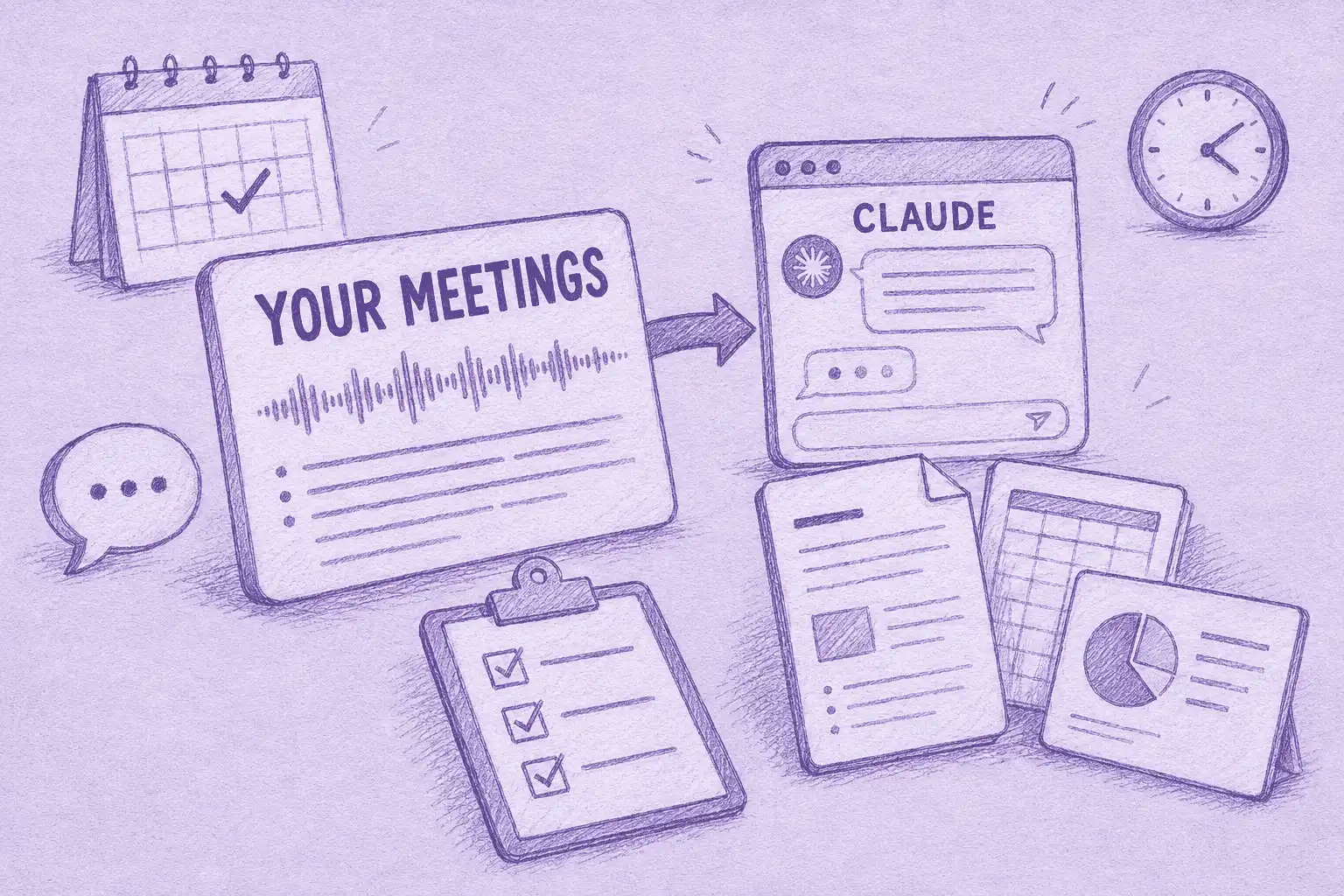

Meeting notes in Claude means connecting an AI notetaker to Claude so it can work from your real call history, not just what you remember. With that connection in place, Claude does more than answer questions: it drafts proposals, builds reports, and turns a dozen calls into one document, all grounded in the record.
Think about the last proposal or report you built from a run of meetings. Most of the work was just rereading calls for the details: what the client asked for, the number someone floated, the caveat raised in passing. It all sits in transcripts no one reopens.
Claude has no notetaker of its own, so your meetings reach it through a connected tool. This guide uses MeetGeek, which records and structures your calls and feeds them to Claude through a native integration. Here is the kind of work you can hand off.
What Changes When Claude Can See Your Meetings?
Claude starts working from the real record of what was said, and it is built to do something with it.
Out of the box, Claude is sharp but blind to your meetings. It can write a proposal, just not one that reflects what the client said last Tuesday. The specifics, the constraints, the exact phrasing all live in transcripts no one reopens, so even a strong model falls back on generic output.
That gap is what a connector closes. Where Claude pulls ahead is the step after the answer: in Claude Cowork it turns that context into a finished deliverable, and in Claude Code it folds meeting decisions into engineering work. Here is what that looks like in practice.
| What you want | Plain Claude | Claude with MeetGeek connected |
|---|---|---|
| An answer about a past call | You paste in the transcript first | Ask in plain language; the answer cites its source meeting |
| A finished document from a meeting | You assemble it yourself | Cowork produces a Word doc, deck, or PDF saved to your computer |
| Insight across dozens of calls | Not possible without manual input | Claude reasons over the whole set and synthesizes |
| Meeting context in engineering work | Copied by hand into a ticket | Claude Code pulls decisions straight into a spec or issue |
This is not about note-taking. MeetGeek already produces AI meeting notes on its own. What matters here is what Claude does next with them: turning a stack of calls into a document, a decision, or a shipped task.
Behind the scenes, Claude can draw on everything MeetGeek keeps for a call: the recording and transcript, the summary and highlights, the action items, and the meeting insights. That is the raw material it reasons over and builds from, so nothing needs pasting in.
The honest test is your own meetings. Connect MeetGeek free, point Claude at a recent call, and see what it produces.
What You Can Build Once Claude Can See Your Meetings
Claude is strongest when the goal is a finished piece of work, not just a quick answer. In Claude Cowork it produces real deliverables, and across connectors it can run several steps from a single prompt. Each example below is a prompt you could run, with the kind of output it gives back.
Sales and Deal Desk: Turn Calls Into a Finished Proposal
Ask: Using my last three calls with [client], draft a proposal in a Word doc that reflects their stated priorities and the objections they raised, and save it to my Proposals folder.
In Cowork, Claude pulls the deal's meetings, writes the proposal, and saves the file ready to send. What used to be an afternoon of rereading calls becomes one prompt.
Customer Success: A Health Report That Builds Itself
Ask: Pull this quarter's calls for my accounts, build a CS health report in Excel with risks and renewal dates per account, and post a summary to our Slack channel.
Claude produces the spreadsheet and chains it onward to Slack in one go. This is the kind of recurring, cross-tool work MeetGeek's customer success teams lean on.
Product and Research: Synthesis Across Dozens of Interviews
Claude's long-context reasoning is suited to reading many conversations at once.
Ask: Read every user interview from the last two months and write a research summary grouped by theme, with the strongest verbatim quote for each and the open questions we still have.
You get a structured document a PM can act on, drawn from the actual interviews rather than memory.
Engineering: Meeting Decisions Straight Into Claude Code
Ask: From yesterday's architecture review, turn the decisions and action items into a technical spec and open the matching issues.
For engineering teams, Claude Code can fold meeting context into the work itself, so a decision made out loud does not get lost on the way to the backlog.
How to Connect MeetGeek to Claude
The MeetGeek Claude connector works two ways, depending on where you use Claude, and both run on the same Claude MCP connection. The full step-by-step is in the MeetGeek Support Center.
In the Claude desktop app:
- Open Connectors → Browse Connectors and find MeetGeek.
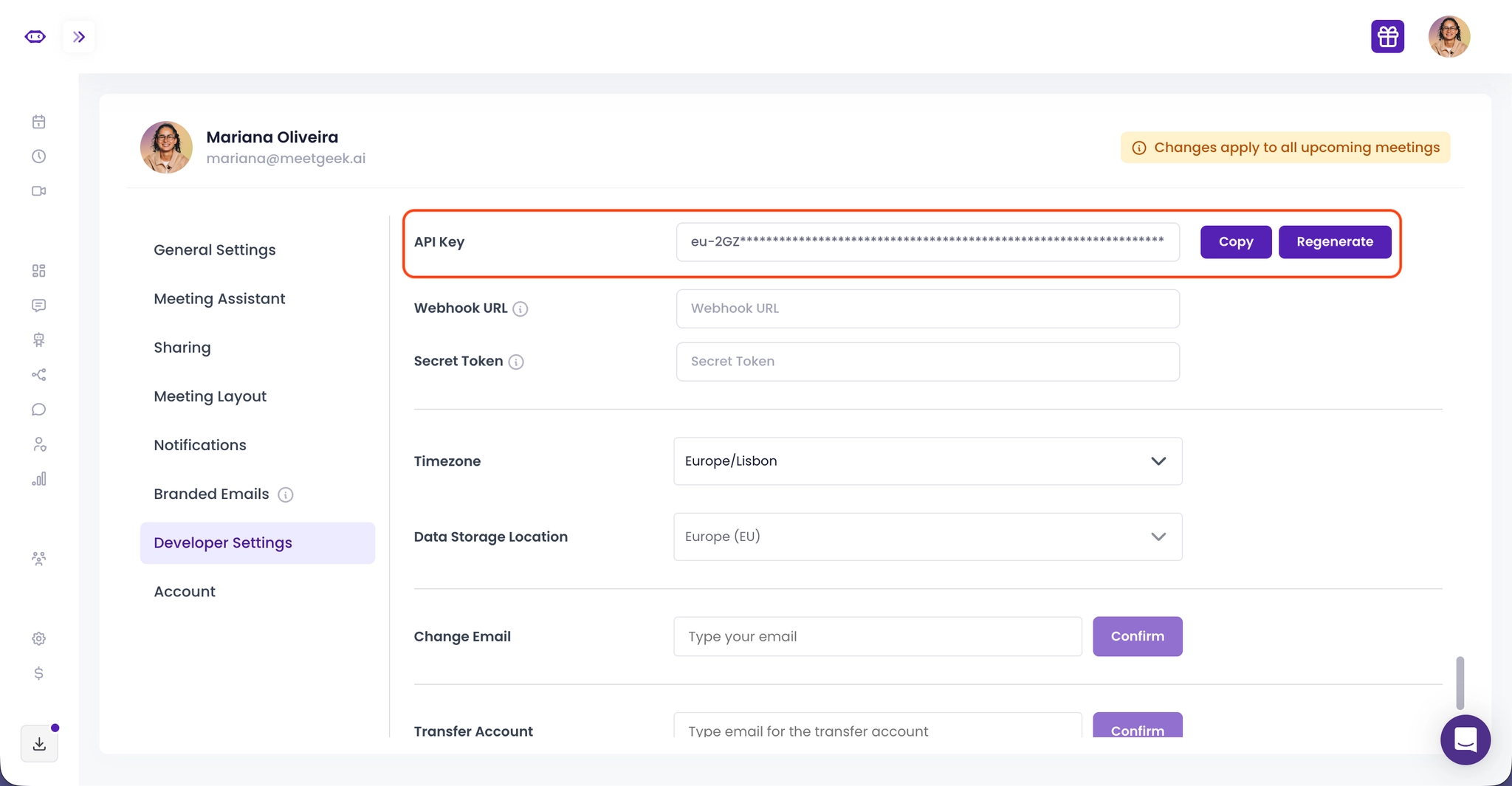
- Click Install, then paste your MeetGeek API key (in your MeetGeek account settings).
- Ask Claude about your meetings.
In the browser:
- Open Connectors → Add custom connector.
- Set the name to MeetGeek and the Remote MCP server URL to https://mcp.meetgeek.ai/mcp, then click Add.
- Log in to MeetGeek, and ask away.
You connect once, and every new meeting MeetGeek records becomes part of what Claude can reason over.
Is Your Meeting Data Safe in Claude?
Yes, and you stay in control. The connection is scoped to you, not an open door to everything.
Claude only sees what you already can: access is tied to your MeetGeek API key or account sign-in and limited to the meetings you are allowed to open, so nobody reaches calls they should not. The MeetGeek MCP server keeps none of your conversation data.
On compliance, MeetGeek holds SOC 2 Type II, offers a HIPAA BAA, and meets GDPR and CCPA, with data residency in the EU or US. Your meetings are not used to train Claude; they are read to answer you and nothing else.
Prefer ChatGPT?
MeetGeek connects to both assistants through the same MeetGeek MCP Server, so you can use whichever your team already works in. If that is ChatGPT, the setup is a one-click app and the strongest use cases lean on ChatGPT Agent automations. See the companion guide, meeting notes in ChatGPT.
Where This Is Heading
Asking questions is just the entry point. The bigger shift is meetings becoming the starting block for finished work, not a place you go to look things up.
MeetGeek's AI Chat already lets you ask and act across your full history, and Claude Cowork takes it further, turning a conversation into a document, a dashboard, or a chain of steps across your tools. The transcript stops being dead weight and becomes the start of the work.
Key Takeaways
- MeetGeek connects your meeting history to Claude through a native connector (the MeetGeek MCP Server), so Claude can reason over past calls in plain language.
- It can draw on the recording, transcript, summary, highlights, action items, and insights for any call.
- In Claude Cowork it turns meetings into finished documents (Word, Excel, PDF, slides) saved to your computer, and chains across your other connected tools.
- In Claude Code, engineering teams can pull meeting decisions straight into specs and issues.
- Access stays inside your existing MeetGeek permissions, the MCP server keeps no conversation data, and nothing trains the model.
Frequently Asked Questions
Is there an official MeetGeek connector for Claude?
Yes. The MeetGeek Claude connector runs on the Claude MCP Server. You add it in the Claude desktop app or as a custom connector in the browser.
Do I need a paid Claude plan?
No. You can connect MeetGeek with a free Claude account. Some capabilities, like Claude Cowork, need a paid Claude plan, so check the MeetGeek Support Center for what each plan covers.
What is the difference from using ChatGPT?
The meeting data is identical. Claude is suited to deeper reasoning and to producing finished work in Cowork and Claude Code; ChatGPT leans on broad adoption and autonomous Agent workflows. See the meeting notes in ChatGPT guide.
Will connecting my meetings train the AI on my data?
No. Your meetings are read to answer you, never used to train Claude, and access stays inside your existing MeetGeek permissions.
What can I ask once it is connected?
Recall a decision, draft a proposal or report from specific calls, synthesize themes across dozens of interviews, or turn a review's decisions into a spec.




.avif)