

Some calls you want to keep: a quote from a supplier, instructions from a doctor's office, an interview, an agreement you'll need to point back to. Many phones can record calls in the Phone app, but it depends on the model and the country: iPhone can't record calls in the EU, and on Android it depends on the phone and the carrier.
Jump to what you need:
- iPhone: record in the Phone app on iOS 18.1 or later, outside the EU.
- Android: Pixel, Samsung Galaxy and other Android phones.
- No record button: what works in the EU or on phones without a recorder.
- From a computer: Mac and Windows.
- Turn a recording into text: transcribe a file you already have.
- Is it legal?: consent rules to check before you record.
On iPhone, Google's Phone app and Samsung phones, the other person hears that the call is being recorded. Consent rules still differ by state and country, so check them before you record. Only need a voice memo or a screen recording? See how to record on your phone.
Which Call Recording Option Works for You?
Find your phone in the table. If it has no record button, or you have an iPhone in the EU, use one of the options under No record button.
| Your Phone | How to Start | Transcript | Tells the Other Person |
|---|---|---|---|
| Built into your phone | |||
| iPhone | More → Call Recording | Yes, in some languages | Yes |
| Pixel and other Android with Google's Phone app | Call Assist or Record | Pixel 9 and later only | Yes |
| Samsung Galaxy | Record on the call screen | Yes, with Galaxy AI | Yes, per Samsung US |
| Mac, via your iPhone | More → Call Recording | Not documented by Apple | Yes |
| Google Voice (US personal account) | Press 4 on incoming calls | Not documented | Yes |
| No record button | |||
| Second phone or laptop on speaker | Record with the other device | Upload the file | No, you tell them |
| Call recorder app | Merge the app's line into your call | Some apps | Depends on the app |
| MeetGeek Wave One | Call Mode, then press record | Yes, in MeetGeek | No, you tell them |
Table last updated: November 26, 2026.
None of these Phone-app recorders captures WhatsApp calls.
Whichever way you record, MeetGeek turns the call into a summary with action items and sends them to Slack, Notion or your CRM.
How to Record a Phone Call on iPhone
You can record a phone call or a FaceTime audio call on iPhone with the built-in Phone app on iOS 18.1 or later. Apple says call recording isn't offered in several countries and regions, including the European Union, Saudi Arabia, South Africa, Turkey and the United Arab Emirates. If you're in one of them, the button won't appear, whatever your iPhone model, so go to the section No Call Recording on Your Phone? What to Use Instead.
The steps below follow Apple's current guide. On older iOS versions the button may sit in a different place on the call screen.
- Start or answer the call: use the Phone app as usual.
- Open the call options: tap the More button on the call screen.
- Start recording: tap Call Recording. Both people hear an audio notice that the call is being recorded.
- Stop recording: tap the Stop button or hang up.

Illustration with dummy data. The Call Recording option only appears where Apple offers it.
The recording is saved to a Call Recordings folder in the Notes app. Right after the call you can tap View Saved Call to open it.
A transcript is a separate step that depends on the language. Apple transcribes calls in English (Australia, Canada, India, New Zealand, Singapore, UK and US), Portuguese (Brazil), Spanish (Mexico and US), Japanese, Korean, Mandarin Chinese and Cantonese. Where it's supported, the transcript appears next to the recording in Notes, with each speaker labeled. It can take a few minutes, and Apple recommends checking it for accuracy.
A summary is a third feature. It needs Apple Intelligence on a compatible iPhone, which means an iPhone 15 Pro, iPhone 15 Pro Max or an iPhone 16 model or later, and it isn't available in every language or region.
Call recording is on by default. To turn it off, open Settings, tap Apps, then Phone, then Audio Call Recording. Apple's guide to recording and transcribing a call on iPhone has the full steps and the list of regions.
How to Record a Phone Call on Android
On Android, the steps depend on which phone app your device uses. Most phones use either Phone by Google or a manufacturer's own app, such as the Samsung Phone app on Galaxy devices.
Google Pixel and Other Phones with Phone by Google
Google's Phone app records calls on Pixel 6 and later phones with Android 14 or later. On other phones, Google requires Android 9 or later and the latest version of the Phone app. In both cases, the device, the carrier and the country or region you're in must support the feature. Google doesn't publish a country list. Since February 2026, Pixel owners have reported the feature in Germany, Italy, Romania, Spain and France.
To record a call with Phone by Google:
- On a Pixel: tap Call Assist, then Call Recording. To stop, tap Call Assist, then Stop.
- On other Android phones: tap Record on the call screen and tap Stop recording when you're done.

Illustration with dummy data. On other phones with Google's Phone app, tap Record on the call screen.
Both people hear a disclosure when recording starts and when it stops. You can't record a call before it's answered, while it's on hold or when you create a conference call. Google says the recording stays on your phone and isn't backed up off the device.
You can also set the app to record calls automatically from numbers that aren't in your contacts, or from contacts you choose, although automatic recording isn't offered in every market. Google's help page on recording calls with the Phone app lists the current requirements.
Google's help page describes Call Recording as an audio recording and doesn't mention a transcript. For a transcript, Pixel 9 and later phones (excluding the Pixel A series) have Call Notes, a separate feature that saves a transcript, a summary and the recording in the call log.
Call Notes works in English in Australia, Canada, Ireland, the UK and the US, in Japanese in Japan and on the Pixel 10 series in India in Hindi and English. You also need a SIM card from that country or region. Summaries are in English only, and the call content stays on the phone.
To use it, turn it on once under More, Settings, Call Notes. During the call, tap Call Assist, then Call Notes. The other person is notified when Call Notes starts. Google's Call Notes help page has the full list of requirements.
Samsung Galaxy
Samsung's US guide documents call recording in the Samsung Phone app on Galaxy phones running One UI 7 or later. Availability and behavior can differ by model and region. During a call, tap Record (it may sit under More) and tap it again to stop. Ending the call also stops the recording.
In Samsung's US guide, participants hear an audio notification when recording starts and stops. People added to a group call after it starts are not notified, so Samsung asks you to tell them yourself. Recorded calls show a small microphone icon in the Recents tab, and you can also open them in the Samsung Voice Recorder app.
For a transcript, open the Phone app and go to More options, Settings, Record calls, Transcript assist. Turn on automatic transcription of recorded calls, choose a transcription language and download the language pack it needs. Summaries are a separate switch in the same menu, so turning them on doesn't turn on transcripts.
Transcript assist uses Galaxy AI and needs a Samsung account and an internet connection. Samsung says transcripts and summaries are not available on the Galaxy A56 5G, A36 5G, A26 5G or A17 5G. The steps are on Samsung's page on how to record phone calls on Galaxy phones.
Other Android Phones
Phones from other brands often ship their own dialer, with or without a record button. Installing a different dialer does not guarantee call recording. If you don't see a record button, updating the phone won't remove limits by model, carrier or country, so use one of the options in the next section.
No Call Recording on Your Phone? What to Use Instead
As of November 2026, iPhone call recording isn't available in the European Union, Saudi Arabia, South Africa, Turkey or the United Arab Emirates, according to Apple, and the same limits apply on Mac. Some Android phones have no built-in recorder either. Three options work anyway. A second device or Wave won't notify the other person. With a recording app, the notice depends on the app.
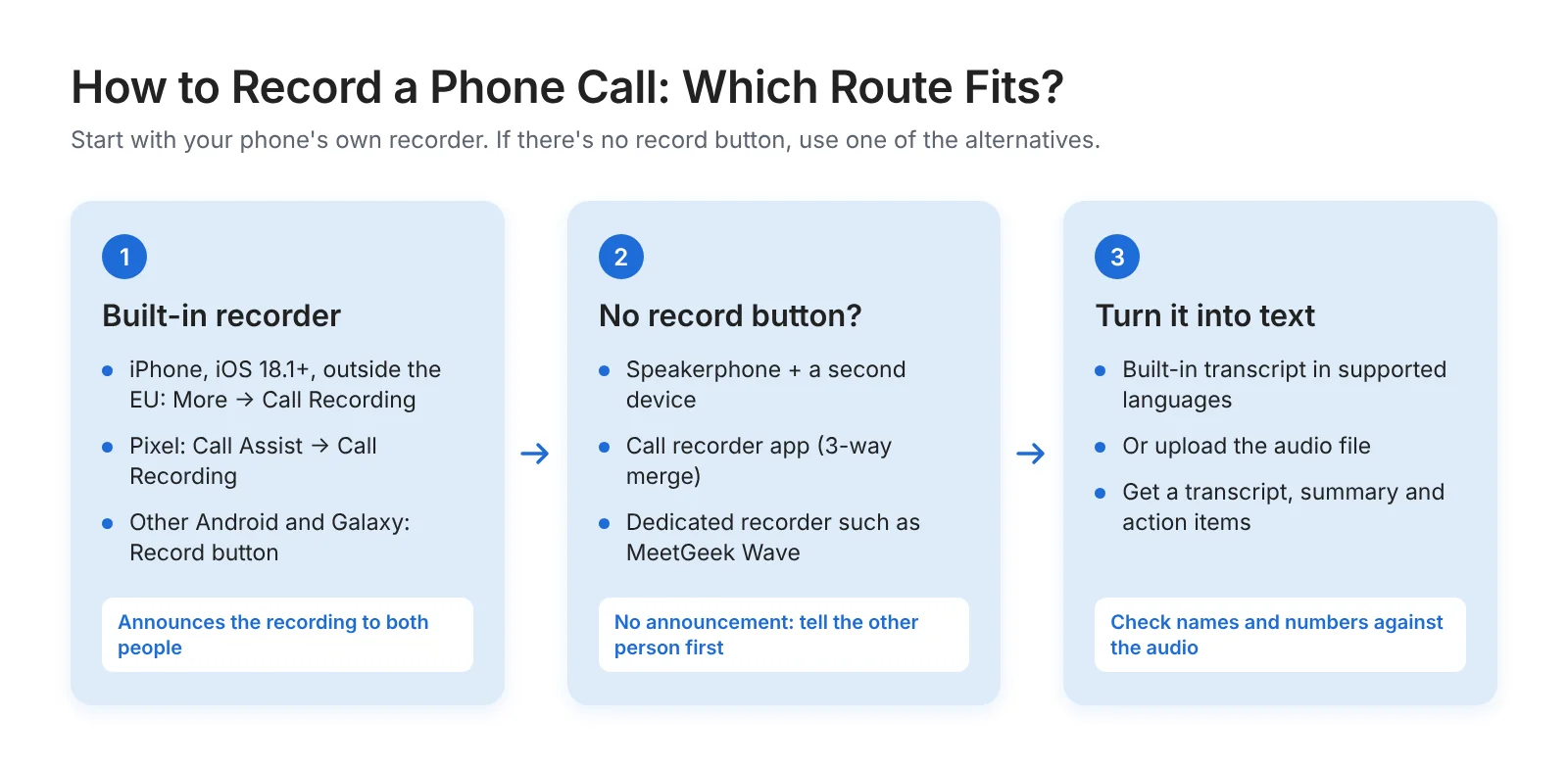
Each option gives you an audio file. To turn it into text with a summary, see How to Transcribe a Phone Call Recording You Already Have below.
Use Speakerphone and a Second Device
This is the free option and it works with any kind of call, including WhatsApp. Put the call on speaker and record it with another phone's voice recorder app or with a laptop. The other person's voice comes through the speaker, so background noise in the room also ends up in the recording. A quiet room helps. For calls inside apps there are other methods too, covered in our guide to recording WhatsApp calls.
When you're done, upload the file to MeetGeek to get a transcript, a summary and action items. The free plan includes 3 hours a month.
Use a Call Recorder App
On iPhone, most call recorder apps work through a three-way call. The app dials its own recording line, and you merge that line with your call so the service records the conversation. Some apps also let you place calls over the internet from inside the app and record those instead.
Before you pay for one, check two limits. Merging calls depends on your carrier, and some carriers don't allow it. A three-way call can also count as two calls on your plan, so it may use extra minutes. These apps record regular phone calls, not WhatsApp calls.
Use a Dedicated Recorder Like MeetGeek Wave
MeetGeek makes Wave One. It's a card-sized recorder that attaches to the back of your phone in a magnetic case, so it doesn't depend on your phone's software, your carrier or your country. Slide the switch to Call Mode and press the button to start; it only records when you press it.
Wave records both sides of the call, with the phone at your ear or on speaker, and writes it out for you. It works with regular phone calls and with calls on WhatsApp, FaceTime, Messenger, Telegram, LINE, WeChat and KakaoTalk. Recordings sync to MeetGeek, where you get a transcript in 100+ languages, a summary and action items, and can send the notes to your CRM, Slack or Notion.
Wave One costs $129 and includes three months of MeetGeek Pro for new accounts. After that, Pro renews at $15.99 a month. It makes most sense if you record calls every week. For an occasional call, the free speakerphone option above is enough.
Tell the Other Person First
A second device or Wave won't play an announcement, and with a recording app it depends on the app, so telling the other person is up to you. Ask before you start recording: "Is it OK if I record this call so I can take notes?" Consent rules differ by country, and in some places recording without it is a crime. The legal section below has the details.
How to Record a Phone Call from a Computer
On a Mac, you can use Apple's Phone app. On Windows or another computer, Google Voice is an option if you have a Google Voice number.
Mac
On a Mac with macOS Tahoe, the Phone app makes and receives calls through your iPhone. First set up calls from your iPhone on your Mac: both devices need the same Apple Account, Wi-Fi on the same network and FaceTime with your phone number turned on, as described in Apple's guide to making iPhone calls on your Mac.
During the call, click More, then Call Recording. Both people hear an announcement. The recording is saved to the Call Recordings folder in Notes. Apple asks you to check that call recording is available in your language and region first, and the same regional limits as on iPhone apply. Apple's guide to calls in the Phone app on Mac has the details.
Windows PC or Any Computer with Google Voice
Google Voice is a calling service, not a built-in Windows feature. If you have a Google Voice number, you can use it from voice.google.com in any browser, including on a Windows PC.
If your personal US Google Voice account shows an incoming call recording option, here's how to use it:
- Turn it on: in Settings, under Calls, switch on incoming call recording.
- Record: answer the call, wait until everyone has joined, then press 4 to start and press 4 again to stop.
- Find it: the recording appears in the Calls tab, where you can download it.
Everyone on the call hears an announcement when recording starts and ends. On Google Workspace accounts with a Google Voice license, you tap Record during the call instead, and admins on Voice Premier can turn on automatic recording. On the Voice Standard and Premier plans, Google's "Take notes for me" feature can also record, transcribe and summarize a call, in English only. Google's Google Voice recording help page has the details for each account type.
Without Google Voice, you can put the phone on speaker and record the call with your computer's microphone, then upload the file for a transcript. Ask the other person first, because nothing announces this kind of recording.
What About Zoom, Google Meet and Teams Calls?
Online meetings are a different case from phone calls, because each platform has its own recording and transcript features. Our guides to Zoom transcripts, Microsoft Teams transcription and how to record a Google Meet call cover each one. MeetGeek can also join these calls from your calendar and record them for you.
How to Transcribe a Phone Call Recording You Already Have
If you already have the audio file, from a second device, an app recorder, Google Voice or another source, you can turn it into text without recording again:
- Save the recording: save or export the call recording as an audio file.
- Upload it: use a transcription tool that supports the file format and language.
- Check the result: review names, dates and numbers against the audio before you share the transcript.
Before you upload anything, check whether your phone has already made a transcript. That depends on the model, the language and your transcription settings.
These guides help you choose a tool or handle a specific case:
- Compare free tools: our comparison of free transcription software shows what each free plan includes.
- Voice memos: if the call was saved as a voice memo, the steps in how to transcribe voice memos apply.
- Every method: our guide to transcribing audio to text covers everything from manual typing to AI tools.
A transcript on its own still leaves you to find the decisions and follow-ups in it. When you upload a call recording to MeetGeek, from the mobile app or on the web, you get the transcript together with a summary and a list of action items. Each MeetGeek workspace is hosted in one region, the EU or the US, and MeetGeek is GDPR compliant; the MeetGeek security page has the details. To try it with your own recording, create a free MeetGeek account and upload the file.
Recording Calls for Work
When calls are part of the job, as in sales, recruiting or customer support, the recording matters less than what happens after it: the notes in the CRM, the follow-up email and finding what a client said three weeks ago.
MeetGeek keeps phone calls, whether recorded with Wave or uploaded, in the same workspace as your Zoom, Google Meet and Teams meetings. You can ask AI Chat a question across all of them, and automations send the notes to tools such as HubSpot, Salesforce, Slack or Notion. Teams that use a cloud dialer can send call recordings to MeetGeek automatically through the API.
Is It Legal to Record a Phone Call?
It depends on where you and the other person are. In the US, federal law generally permits you to record a call you take part in (one-party consent), but some states, including California, Florida, Pennsylvania and Washington, generally require everyone on the call to agree.
The built-in recorders on iPhone, Android and Google Voice announce the recording, which tells the other person you're recording. What counts as consent varies by state. In Washington, for example, an announcement can satisfy the consent requirement if it effectively informs everyone and the announcement itself is recorded. If you're unsure which rule applies, ask everyone before you start. A second device or Wave doesn't announce anything, and with a call recorder app it depends on the app, so you need to tell people yourself.
Justia's 50-state survey of call recording laws lists the US state rules. Our guide on whether it's illegal to record someone without permission explains them in more detail.
Recording Calls Outside the US
Other countries set their own rules, and in many European countries recording a private conversation without the other person's agreement can be a criminal offence. In Germany, for example, Section 201 of the Criminal Code makes it a crime to record someone's privately spoken words without authorization. Check the rules in your country and ask for consent before you start.
This article provides general information, not legal advice.
Key Takeaways
- iPhone records phone and FaceTime audio calls in the Phone app on iOS 18.1 or later, but not in the EU and a few other regions. The recording is saved in Notes, and a transcript is added in English, Portuguese (Brazil), Spanish (Mexico, US) and a few other languages.
- On Android, Phone by Google and the Samsung Phone app record calls on supported devices and countries. Call Notes adds a transcript on Pixel 9 and later (excluding the Pixel A series), and Transcript assist does so on supported Galaxy models.
- No record button? Use speakerphone and a second device, a call recorder app or a dedicated recorder such as MeetGeek Wave, and tell the other person.
- The built-in recorders announce the recording. A second device or Wave doesn't, and recorder apps vary, so consent is up to you.
- A recording you already have can be uploaded to a transcription tool. Some tools add a summary and action items.
Frequently Asked Questions
Can You Record a Phone Call on iPhone?
Yes, on iOS 18.1 or later and in the regions where Apple offers it. During the call, tap More, then Call Recording. Both people hear an audio notice and the recording is saved in the Notes app. Call recording isn't available in the European Union, Saudi Arabia, South Africa, Turkey, the United Arab Emirates and some other places.
Why Don't I See Call Recording on My iPhone?
The most common reason is your region: as of November 2026, Apple doesn't offer call recording in the EU and several other countries. Also check that your iPhone runs iOS 18.1 or later and that Audio Call Recording is turned on in Settings, Apps, Phone. If it isn't offered where you are, see the section No Call Recording on Your Phone? What to Use Instead.
What Can I Use If My iPhone Can't Record Calls?
You have three options: record the call on speaker with a second device, use a call recorder app that merges your call with a recording line, or use a dedicated recorder such as MeetGeek Wave. A second device or Wave won't notify the other person, and with an app it depends on the app, so ask first.
Do Call Recorder Apps Work with Every Carrier?
No. Most iPhone call recorder apps rely on merging your call with the app's recording line, and some carriers don't allow merged calls. A merged call can also use extra minutes on your plan. Check with your carrier before you pay for an app.
Does MeetGeek Wave Tell the Other Person It's Recording?
No. Wave doesn't play an announcement, so you need to tell people before you record and get any consent the law requires where you and they are.
Can an iPhone Transcribe Phone Calls?
Yes, in supported languages. When you record a call in the Phone app, the iPhone can add a transcript next to the recording in Notes. Supported languages include English, Portuguese (Brazil), Spanish (Mexico, US), Japanese, Korean, Mandarin Chinese and Cantonese. Summaries are a separate feature that needs Apple Intelligence on a compatible iPhone.
Can Someone Record Your Phone Call Without You Knowing?
Yes. A separate recorder or a second device can capture a call without an announcement. The built-in methods described above announce recording, but the absence of an announcement does not prove that a call is not being recorded. Whoever records is responsible for following the consent rules where they and the other person are.
Is There a Free Way to Transcribe a Phone Call?
Yes. iPhone transcribes calls you record in the Phone app at no extra cost, in supported regions and languages. Pixel 9 and later phones (excluding the Pixel A series) include Call Notes, and Samsung says Galaxy AI basic features are free on supported models. For a recording you already have, many transcription apps offer a free plan with a monthly limit.
How Do I Turn a Phone Call Recording into a Transcript?
Save the call as an audio file, upload it to a transcription app or service and check the text against the audio when it's ready. First, check whether your phone already made a transcript. That depends on the model, the language and your transcription settings.
What Is the Best App for Transcribing Phone Calls?
It depends on what you need. If your phone has a built-in transcript, start there. If you need a summary and action items as well as the text, look for an AI meeting assistant that accepts uploaded audio files. To compare free options, see our guide to free transcription software.