


TL;DR
- Most modern smartphones include built-in tools for voice recording, screen recording, and, in some cases, call recording.
- iPhone users can use Voice Memos, Screen Recording, and newer call recording features available in supported iOS versions.
- Android users can record audio, screen activity, and phone calls through built-in features or third-party apps from the Google Play Store.
- Recording phone calls may be restricted by your device, region, carrier, or local laws.
- For meetings, interviews, and business conversations, dedicated tools like MeetGeek provide recordings, transcripts, summaries, and searchable notes automatically.
Need to record a phone call, save an important conversation, capture your phone screen, or create a voice recording?
Modern smartphones make it easier than ever to record audio, video, and phone conversations. Whether you're using an Android device or an iPhone, there are built-in recording features and third-party apps that can help you capture important moments.
The challenge is that recording phone calls works differently depending on your device, operating system, carrier, and local laws. Some Android phones include call recording out of the box, while iPhones have different options depending on your iOS version and region.
This guide explains how to record on a phone, including voice recording, screen recording, and recording phone calls on both Android and iPhone.
What can you record on a phone?
Most mobile devices can do much more than just make calls. Depending on your device and operating system, you can record voice notes, audio recordings, screen activity, videos with audio, phone calls, interviews, meetings, and other important conversations.
Some smartphones also support recording incoming and outgoing calls, although this feature isn't available on every device. The exact recording options and available features will vary depending on whether you're using an iPhone or an Android phone, as well as your software version and regional restrictions.
How to record audio on an Android phone
Most Android users can create a voice recording using built-in tools.
The process may vary depending on your Android version, but the steps are usually similar.
Use the built-in voice recorder
- Open the Recorder, Voice Recorder, or Sound Recorder app.
- Tap the record button.
- Speak into your phone's microphone.
- Tap pause if needed.
- Tap stop recording when finished.
- Save the file.
Most Android phones include built-in recording features that support:
- Voice recording
- Audio recording
- Playback controls
- Basic editing
- Sharing options
Samsung devices often include additional features such as speech-to-text transcription and bookmarks.
Improve recording quality
For better audio quality:
- Move to a quiet space.
- Reduce background noise.
- Hold the mobile phone close to the speaker.
- Use an external microphone when possible.
- Avoid covering the microphone with your hand or phone case.
An external microphone can significantly improve recording quality for interviews, podcasts, and business purposes.
How to record on iPhone with Voice Memos
If you want to record audio on an iPhone or iPad, the easiest option is the Voice Memos app.
Voice Memos comes pre-installed on every iOS device.
Record audio with Voice Memos
- Open the Voice Memos app.
- Tap the red record button.
- Begin recording.
- Tap pause if needed.
- Tap the red button again to stop recording.
- Save your recording.
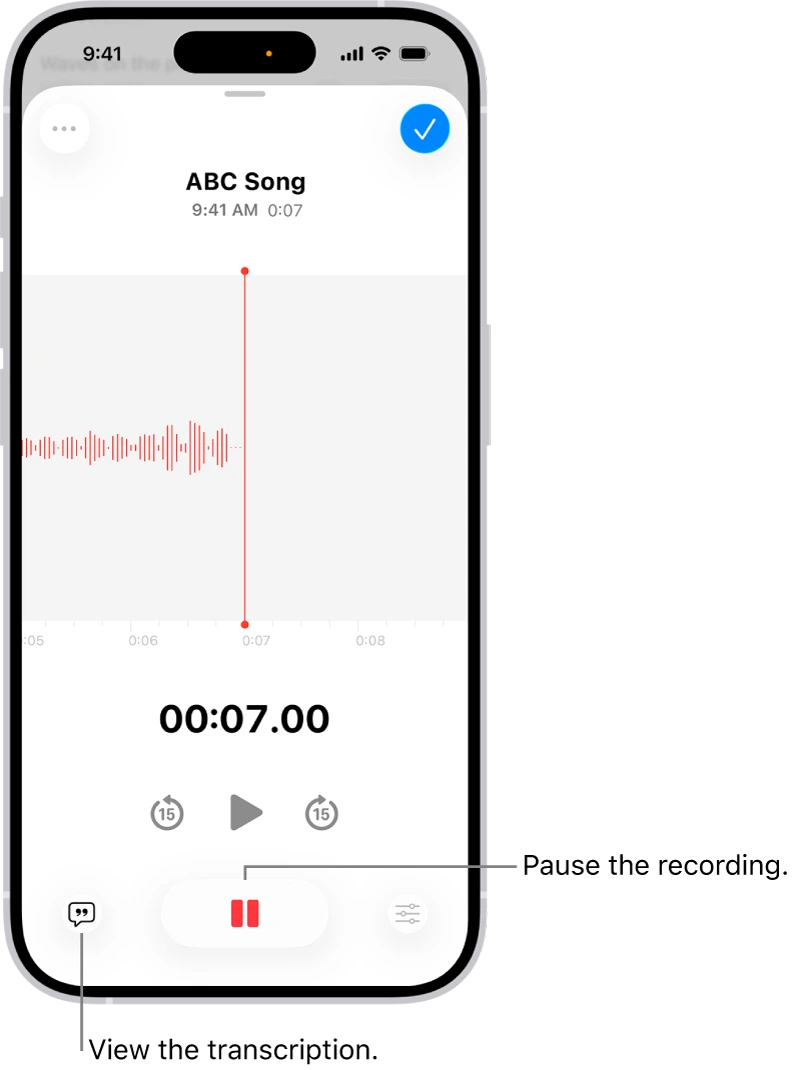
Voice Memos also includes several useful features beyond basic recording. Newer iPhones can reduce background sounds, improve voice clarity, and support advanced recording modes depending on the device model. Built-in editing tools allow you to trim recordings, replace sections, and enhance audio quality without using third-party apps.
Another advantage is seamless synchronization through iCloud. When enabled, recordings are automatically available across your iPhone, iPad, and Mac, making it easy to access them wherever you're working.
How to record your phone screen
Screen recording is useful when you want to capture tutorials, app walkthroughs, gameplay, troubleshooting steps, or video calls.
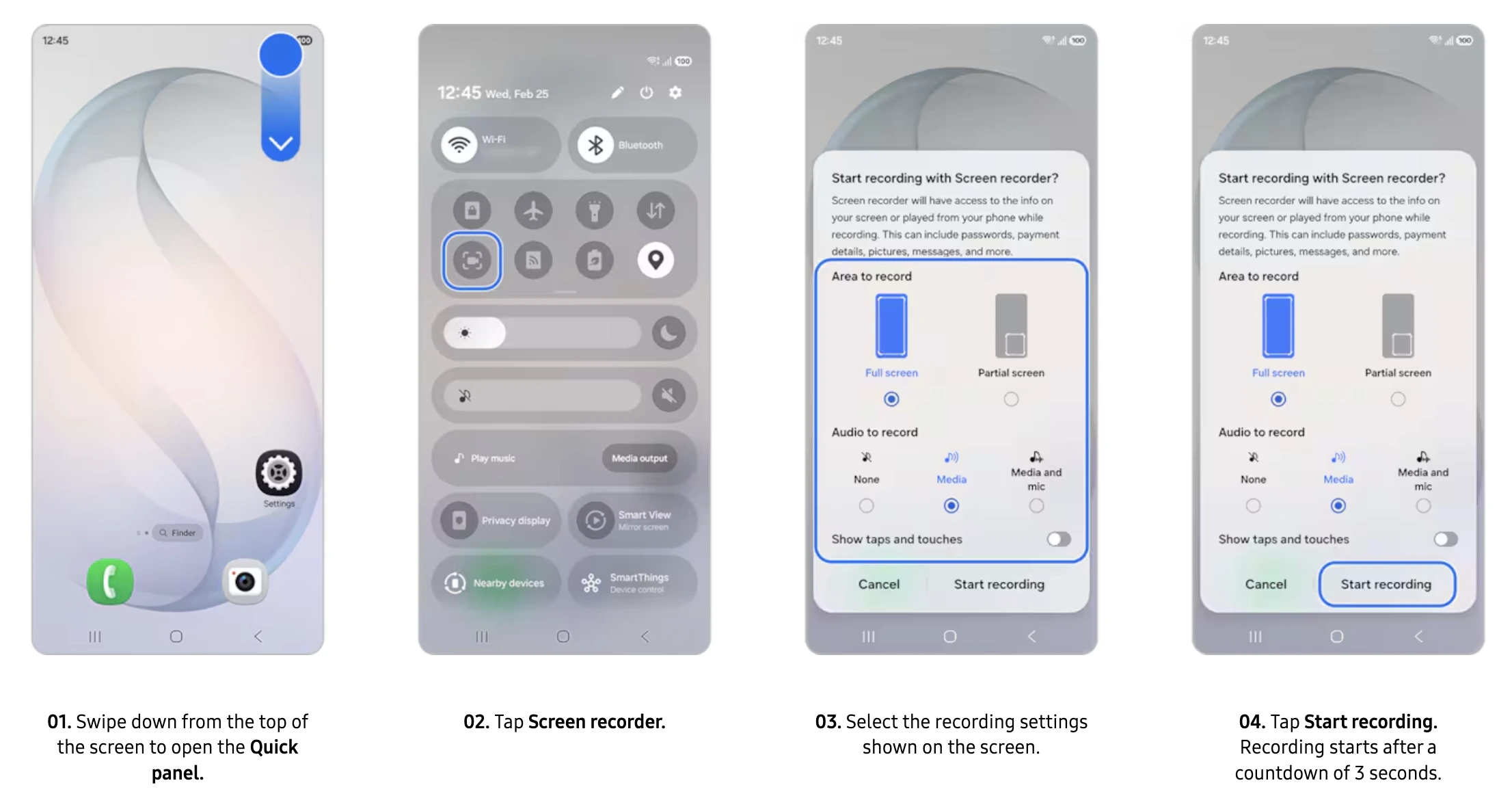
How to screen record on Android
Most Android devices include a screen recorder.
- Swipe down from the top of the screen.
- Find the Screen Recorder icon.
- Tap Screen Recorder.
- Select audio settings.
- Tap Start Recording.
- Wait for the countdown.
- Recording starts automatically.
- Tap Stop when finished.
This is a generic description, though Android devices are varied and can have different pathways to the screen record. Here is an example of what it looks like on Samsung Galaxy:
The file is usually saved to the Gallery app or Photos app.
How to screen record on iPhone
The screen recording feature is built directly into iOS.
- Open Control Center.
- Long-press the Screen Recording icon.
- Tap the microphone button if you want to record audio.
- Tap Start Recording.
- Wait for the countdown.
- Record your screen.
- Open Control Center again.
- Tap the stop button.
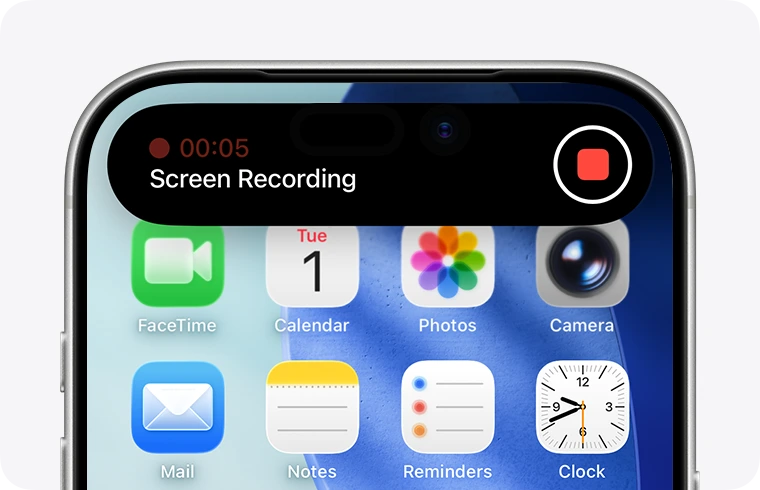
The recording is automatically saved to the Photos app.
How to record phone calls on Android
Recording phone calls on Android can be straightforward or complicated depending on your device.
Many Android phones include a built-in call recording option, while others require a third-party app.
Use built-in call recording
On supported devices:
- Open the Phone app.
- Make or answer a call.
- Tap Record.
- Recording begins automatically.
- Tap Stop when the conversation ends.
Many Android devices allow you to:
- Record incoming calls
- Record outgoing calls
- Enable automatic recording
- Record selected numbers
- Save important calls automatically
Samsung devices are among the most common phones with built-in recording features.
Enable automatic call recording
On supported devices:
- Open the Phone app.
- Tap the gear icon or upper right menu.
- Select Settings.
- Find the call recording option.
- Enable recording.
- Choose whether to record calls automatically or only selected numbers.
Use a third-party app
If your phone does not offer built-in recording, many apps are available through the Google Play Store.
Popular options include:
- Google Voice
- Cube ACR
- Automatic Call Recorder
Keep in mind that third-party apps may not work consistently across all Android versions because of Google's privacy restrictions.
How to record phone calls on iPhone
Recording phone calls on iPhone has traditionally been more restricted than on Android.
Depending on your region and iOS version, you may have access to built-in tools or need a third-party app.
Options may include:
- Native call recording features on supported versions of iOS
- Google Voice
- Third-party apps
- External recording devices
When available, the recording feature can automatically create transcripts and save recordings for later review.
Using Google Voice
Google Voice can record incoming calls.
- Install Google Voice.
- Open Settings.
- Enable call recording.
- During an incoming call, press 4.
- Press 4 again to stop recording.
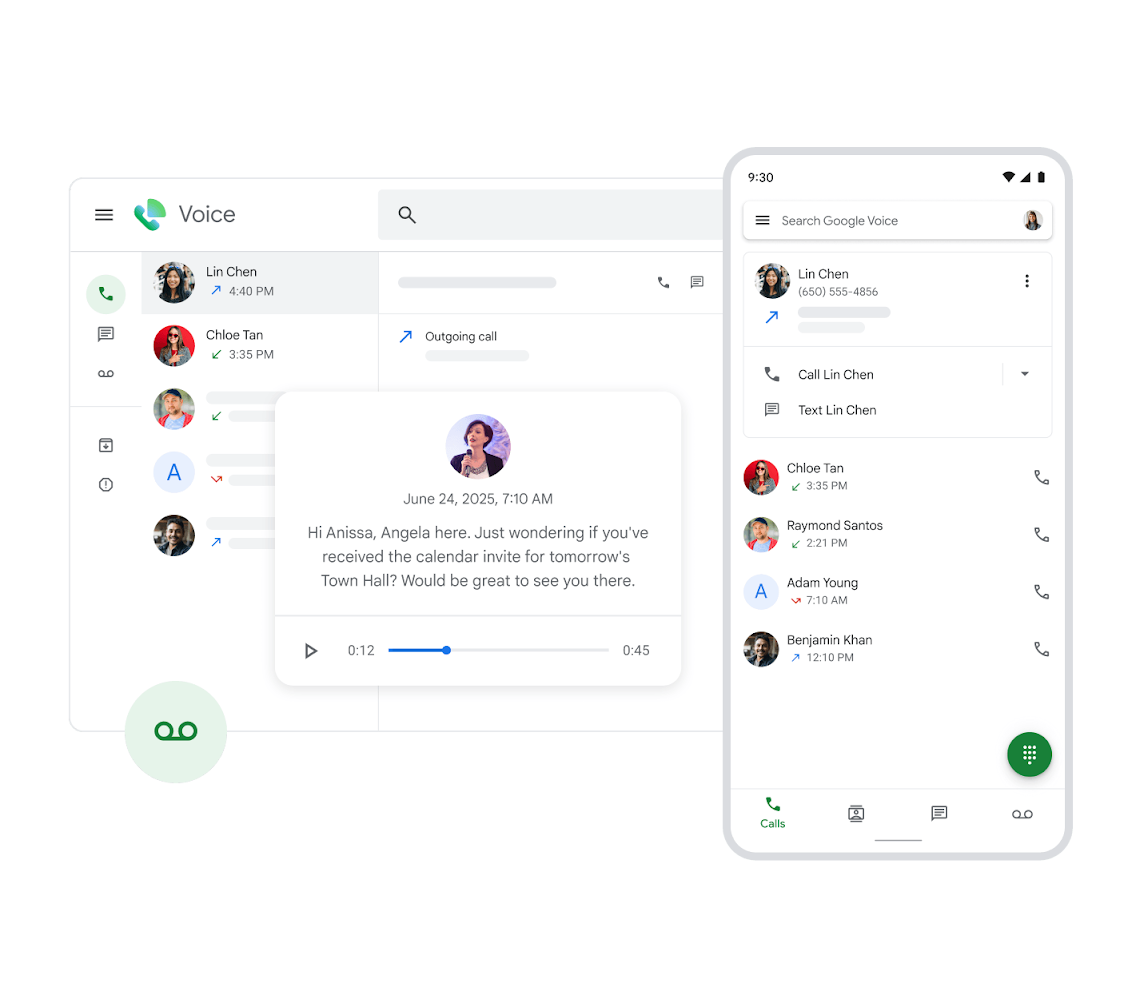
Note that Google Voice only supports incoming calls, not outgoing calls.
Using a second device
If your phone doesn't offer a built-in recording option, you can use a second device or external recording device instead.
Simply place the call on speakerphone and use another device to record the audio. While this method isn't as convenient as native call recording, it can be a reliable alternative when other options aren't available.
It's commonly used for interviews, important conversations, and business-related calls where keeping a record of the discussion is important.
Need searchable transcripts and meeting notes?
Recording is only the first step.
If you regularly record meetings, interviews, client calls, or team discussions, reviewing hours of audio can quickly become time-consuming.
MeetGeek helps you go beyond simple phone recording by automatically:
- Recording meetings
- Generating AI transcripts
- Creating meeting summaries
- Extracting action items
- Building searchable meeting archives
- Supporting Zoom, Microsoft Teams, Google Meet, and offline recordings through the mobile app
.webp)
Instead of manually listening to recordings, you can search conversations, find decisions, and generate follow-ups in seconds. MeetGeek also supports mobile recording, making it useful when important conversations happen away from your desk.
Is it legal to record phone calls?
Recording laws aren't the same everywhere, which means whether you can legally record a call depends on your location and the purpose of the recording. Requirements may differ between countries, states, and regions, and some rules apply specifically to business communications.
In certain jurisdictions, recording is permitted as long as one participant in the conversation has given consent. Because you're part of the call, your consent may be enough to legally record it. Other jurisdictions require everyone involved in the conversation to be notified and agree before any recording takes place.
Before recording phone calls, it's important to check the local laws that apply to your situation. You should understand whether one-party consent or all-party consent rules apply, inform the other party when required, and review any additional regulations that may affect business-related recordings.
Failing to obtain the necessary consent can lead to legal issues, so it's always best to verify the requirements before recording any conversation.
Best practices for phone recording
Recording conversations is easy. Getting long-term value from those recordings requires a little more planning.
1. Always understand the recording laws that apply to you
Before recording any phone conversation, make sure you're familiar with the laws in your country, state, or region.
Some regions allow call recording with the consent of just one participant, while others require everyone involved in the conversation to be informed and agree before recording starts. Because these requirements vary significantly between jurisdictions, it's a good idea to let the other party know you're recording whenever there's any uncertainty.
This is especially important for business purposes, customer calls, interviews, and professional conversations where additional compliance requirements may apply.
2. Organize recordings as soon as possible
Recordings become difficult to manage when every file has a generic name like "Recording 1" or "New Recording."
A simple naming convention can make a huge difference later. Including the date, topic, or participant name makes recordings easier to search and identify when you need them.
If you record frequently, consider creating separate folders for work conversations, interviews, meetings, personal notes, and other categories.
3. Back up important recordings
Phones can be lost, damaged, or replaced. If a recording contains important information, don't rely solely on local storage.
Services such as iCloud, Google Drive, and Dropbox can provide cloud backup for important files. Some recording apps also offer automatic synchronization to help protect recordings from accidental loss.
4. Use transcripts whenever possible
Audio recordings are useful, but transcripts are often more practical.
A transcript allows you to search for specific information, locate important moments quickly, and share key insights without asking someone to listen to an entire recording.
Many modern recording tools now include automatic transcription. MeetGeek, for example, automatically converts conversations into searchable transcripts and AI-generated summaries, making it easier to review discussions and follow up on action items.
5. Delete recordings you no longer need
Recordings can accumulate surprisingly quickly. Keeping unnecessary files creates storage issues and may increase privacy risks.
Once you've extracted the information you need, shared the recording, or created a transcript, consider deleting recordings that no longer serve a purpose.
6. Protect sensitive information
Some recordings contain personal, financial, medical, legal, or confidential business information.
For sensitive recordings, use secure storage options, password protection, and trusted cloud providers. You may also want to limit sharing permissions and avoid storing highly confidential recordings in unsecured locations.
7. Record with a clear purpose
Recording should help preserve important information, not replace active listening.
Before you start recording, ask yourself why you need the recording and how you'll use it later. Having a clear purpose makes it easier to stay organized, decide which conversations are worth keeping, and get more value from the recordings you create.
Conclusion
Whether you want to record audio, create a voice memo, capture your phone screen, or record phone calls, modern smartphones offer more recording options than ever.
Most Android users can access built-in recording features or third-party apps from the Play Store, while iPhone users can rely on Voice Memos, Screen Recording, and supported call recording tools.
For personal recordings, these built-in options are often enough. But if you're recording meetings, interviews, sales calls, customer conversations, or other professional discussions, you'll likely need more than just a saved audio file.
A recording is only useful if you can actually find and use the information later. MeetGeek goes beyond basic phone recording by automatically generating transcripts, summaries, action items, and searchable meeting notes from your conversations. Instead of manually reviewing recordings or taking notes during calls, you can quickly revisit key decisions, follow-ups, and insights whenever you need them.
Try MeetGeek for free to automatically record, transcribe, and summarize your meetings and important conversations.
Key takeaways
- Most smartphones include built-in tools for voice recording and screen recording.
- Call recording availability varies depending on your device, Android version, iPhone model, region, and carrier.
- Third-party apps such as Google Voice and Cube ACR can help when built-in options are unavailable.
- Better audio quality comes from reducing background noise and using an external microphone when needed.
- Always check local laws before recording phone calls or important conversations.
Frequently asked questions
Can I record phone calls on any Android phone?
No, call recording support varies depending on the manufacturer, Android version, carrier restrictions, and local laws. Some Android phones include built-in call recording, while others require third-party apps.
Does the iPhone have built-in call recording?
Some newer iPhone versions support call recording features, but availability depends on your iOS version and region. Other users may need third-party apps or external recording methods.
What is the best app for recording phone calls?
Popular options include Google Voice, Cube ACR, and Automatic Call Recorder. The best choice depends on your device, recording needs, and local restrictions.
Where are screen recordings saved?
On iPhone, screen recordings are saved to the Photos app. On Android, recordings are typically stored in the Gallery app or Photos app, depending on the manufacturer.
How can I improve recording quality on my phone?
Use a quiet environment, reduce background noise, keep the microphone close to the speaker, and consider using an external microphone for higher-quality recordings.





.avif)