


Video conferencing meetings depend on one condition more than any other: shared understanding across distributed participants.
When video conferencing connections are unstable, audio quality drops, or visual cues are missed, even well-planned video calls lose effectiveness.
These video conference tips focus on improving clarity and consistency in virtual meetings, conference calls, and hybrid meetings. The goal is to support effective video conferencing where remote participants and onsite participants experience the same level of access, visibility, and alignment.
Common failure points in video conferencing meetings
Despite improved video conferencing software, many teams still encounter the same issues:
- Weak internet connection or unstable video conferencing connection
- Background noise and audio feedback that disrupt discussion
- Missed visual or verbal cues that affect discussion understanding
- Uneven participation between onsite participants and those who participate remotely
As meetings scale across locations and equipment configurations, these problems compound. Strong habits help, but they rarely eliminate follow-up confusion on their own.
Practical video conference tips before the meeting
Preparation has a direct impact on whether a video conferencing meeting starts on time and stays focused. Most issues that derail virtual meetings can be traced back to rushed setup, weak network choices, or missing contingency plans.
1. Prepare meeting connections early
Establish online video conferencing connections a few minutes before the scheduled start time.
This buffer gives participants time to confirm that their video connection, audio connection, and screen sharing work as expected, without pulling attention away from other participants once the meeting begins.
Early setup is especially important when:
- Joining from a new conference room
- Switching between personal room setups and shared rooms
- Using unfamiliar video conferencing software
Examples for common meeting platforms:
- Zoom users can test both audio connection and video connection through the Zoom site before joining a live meeting.
- WebEx users should enter their WebEx Personal Room, open the audio pull-down menu to verify microphone input, and confirm camera output from the Personal Room screen.
Encouraging all participants to connect early reduces last-minute troubleshooting and helps the meeting facilitator maintain momentum from the start.
2. Use stable network connectivity options
Network stability has a greater effect on meeting quality than camera resolution or software features. A strong internet connection supports clearer audio, fewer freezes, and more reliable video conferencing connections.
Whenever possible:
- Use a wired Ethernet jack instead of Wi-Fi. Wired connections provide more consistent bandwidth and reduce interference that can affect video quality.
- Avoid switching networks mid-meeting, especially in offices with multiple access points.
For laptop users:
- Use laptop wall power before joining the call. Battery-saving modes can throttle system performance and adversely affect video quality during longer video calls.
- Close unnecessary applications that compete for bandwidth or processing power.
These steps reduce disruptions caused by fluctuating network conditions and help maintain a stable video conferencing connection for all participants.
3. Set a backup communication plan
Even well-prepared meetings can run into unexpected connection issues. A clear backup plan keeps meetings moving when someone experiences trouble connecting or loses their video connection.
Include backup details directly in the video conferencing invitation, such as:
- A backup phone number for audio-only conference calls
- Instructions for switching devices if a shared room setup fails
- A link to an online collaboration tool where notes or materials can be accessed
Defining these options in advance limits confusion, reduces downtime, and allows the meeting facilitator to keep the session on track even when remote connections fail.
Video conferencing best practices during the meeting
Once a meeting begins, structure and consistency matter more than tools. Clear roles, disciplined audio control, and deliberate visibility standards help virtual meetings stay focused and inclusive for both remote participants and onsite participants.
1. Assign a meeting facilitator
A meeting facilitator provides structure and ensures balanced participation throughout video conferencing meetings.
This role often falls to the person who scheduled the meeting, though it can be delegated when the facilitator also needs to present.
Key responsibilities include:
- Sharing the meeting agenda and confirming the planned outcome at the start of the meeting
- Managing turn-taking so that remote participants and onsite participants can contribute evenly
- Reinforcing visual or verbal cues used to signal when someone wants to speak
- Monitoring time and redirecting the conversation when the discussion drifts
In hybrid meetings, facilitation becomes even more important. Without active moderation, onsite participants tend to dominate while remote connections fade into the background.
Clear facilitation reduces side conversations, keeps focus on shared objectives, and improves discussion understanding across locations.
2. Optimize audio quality
Audio clarity determines whether participants stay engaged. Even brief audio issues can disrupt focus and slow progress in video conferencing meetings.
For conference rooms:
- Ensure conference room microphones are distributed appropriately to capture all speakers
- Test microphones in advance and confirm that they pick up voices evenly across the room
- Avoid placing microphones near laptops, speakers, or ventilation systems that introduce background noise
For individual participants:
- Ask participants mute when not speaking, especially in environments with excessive background noise
- Use headsets connected through a headphone jack when possible to avoid audio feedback
- Avoid using open speakers on all-in-one desktops or modern laptops when multiple microphones are active
These steps help maintain a stable audio connection and reduce interruptions caused by echo, feedback, or inconsistent volume levels.
3. Improve visibility and camera setup
Video quality supports engagement by providing visual cues that guide conversation. Poor visibility weakens attention and makes it harder to follow the active speaker.
Environmental setup:
- Choose a quiet location and minimize background noise
- Ensure location lighting comes from in front of the speaker rather than behind
- Avoid sitting in front of a bright window that silhouettes the speaker
Camera positioning:
- Adjust the camera angle so the participant’s face is centered and clearly visible
- Position the camera at eye level to support natural eye contact
- Maintain consistent framing so participants remain visible without constant adjustments
Good lighting and camera placement improve participants' visibility and help remote participants follow visual or verbal cues more easily, supporting effective video conferencing throughout the meeting.
Where even good video conference tips fall short
Strong preparation, facilitation, and etiquette improve the live experience of video conferencing meetings. They reduce background noise, improve video quality, and help participants stay engaged during the call.
Even so, a recurring issue remains once the meeting ends: critical information fades quickly without a proper meeting recap.
Key points, decisions, and action items often live in scattered notes, chat messages, or individual memories. In hybrid meetings, this problem becomes more pronounced.
Remote participants and onsite participants may hear different parts of the discussion, miss visual or verbal cues, or lose context when audio drops briefly.
When meetings involve multiple meeting connections, equipment configurations, and locations, follow-ups often depend on partial recall. Over time, this leads to misaligned expectations across virtual meetings, repeated discussions in future video calls, and extra clarification messages and follow-up conference calls.
Good video conferencing best practices improve how meetings run. They do not, on their own, guarantee shared understanding afterward.
How MeetGeek supports consistency after the meeting
MeetGeek addresses this gap by ensuring that what happens during video conferencing meetings remains accessible, structured, and usable after the call.
Instead of relying on manual note-taking, MeetGeek records video calls, captures audio connections accurately, and converts conversations into structured outputs designed for follow-up and collaboration. This creates a consistent reference point for all participants, regardless of how or where they joined the meeting.
Reliable transcription accuracy across participants
MeetGeek provides transcription in more than 100 languages and recognizes different accents, speakers, and speaking styles. It handles background noise, overlapping dialogue, and technical terminology with a high level of precision.
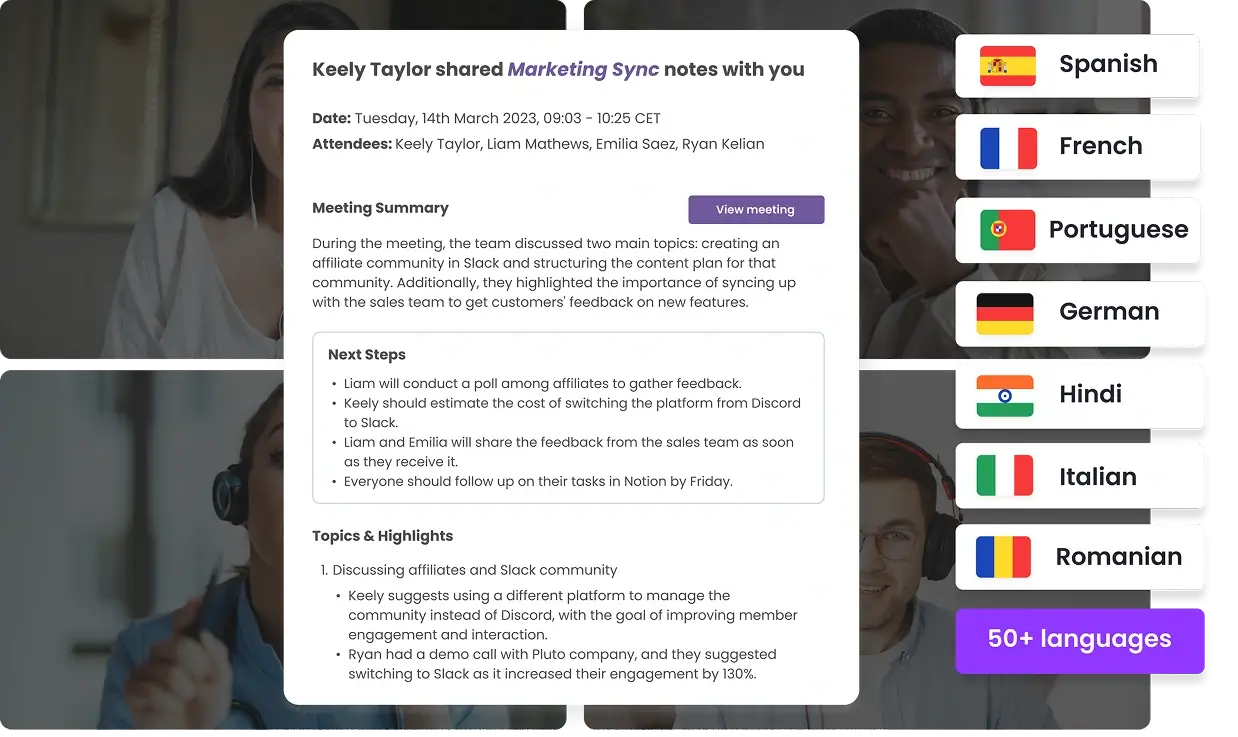
This accuracy matters in video conferencing meetings where:
- Conference room microphones capture multiple speakers
- Remote participants join with varying audio connection quality
- Hybrid meetings include interruptions or brief connection drops
Accurate transcripts reduce the need to revisit recordings or correct notes manually, supporting clearer follow-ups across teams.
Flexible meeting capture across platforms and locations
MeetGeek supports video conferencing software used across organizations. Its calendar bot can automatically join Zoom, Microsoft Teams, and Google Meet calls. A Chrome extension enables capture from platforms such as WebEx and Discord, including WebEx Personal Room sessions.
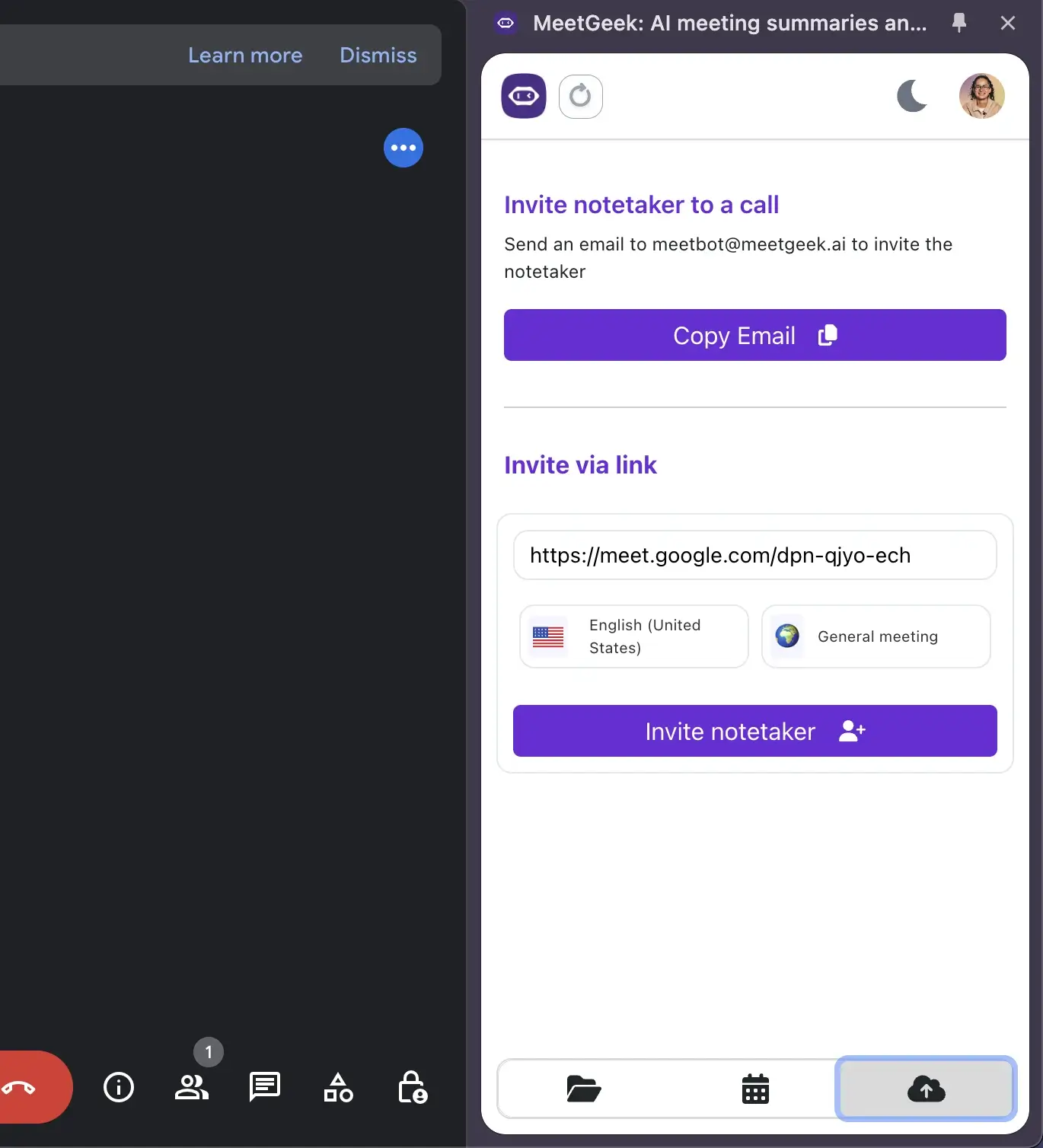
For in-person conversations, the mobile app records meetings with the same accuracy as virtual calls. This flexibility ensures that meeting content is captured consistently, even when teams switch between personal room setups, conference rooms, and remote connections.
Actionable summaries tied to meeting context
After each meeting, MeetGeek generates structured summaries that highlight:
- Key points discussed
- Decisions made
- Action items and next steps
.webp)
These summaries adapt to the meeting type, whether it is a client call, interview, internal team meeting, or hybrid discussion. This structure helps participants quickly review outcomes without scanning full transcripts or replaying video content.
For video conferencing meetings with many participants, summaries provide a shared understanding that reduces confusion and limits the need for clarification messages.
Searchable conversation library for ongoing reference
MeetGeek stores recordings, transcripts, and summaries in a searchable knowledge base. Participants can search for exact quotes or use a question-style search to locate specific moments, complete with timestamps.
.webp)
This capability is especially useful when:
- Reviewing prior decisions made in earlier video calls
- Onboarding new team members who were not present
- Clarifying details from meetings involving multiple remote connections
Instead of relying on memory, teams can reference prior discussions directly.
Insights that improve future video conferencing meetings
Beyond documentation, MeetGeek provides insights into how conversations unfold. Teams can review metrics such as speaking time distribution, interruptions, and communication patterns.
.webp)
These insights help meeting facilitators and team leads refine how they run virtual meetings, balance participation between onsite participants and remote participants, and improve engagement over time.
Want to learn more about some surprising insights that might be hiding in your meetings? Then check out this video: https://www.youtube.com/watch?v=ewyqmg9fdz0
Integrations that connect meetings to daily work
MeetGeek integrates with over 10,000 online tools, including Google Docs, Slack, Notion, Salesforce, and HubSpot. Meeting notes and action items can be sent directly to project boards, documents, or CRM records.
.webp)
This integration reduces manual follow-up work and keeps meeting outcomes connected to ongoing tasks, rather than isolated in recordings or emails.
Security built for sensitive conversations
MeetGeek includes SOC 2 Type II, GDPR, CCPA, and HIPAA compliance across all plans. This allows organizations to capture video conferencing meetings that involve sensitive discussions without adjusting security standards or negotiating separate agreements.
Video conferencing etiquette that supports engagement
Video conferencing etiquette plays a direct role in how engaged participants remain throughout virtual meetings. Clear expectations and consistent habits help remote participants and onsite participants follow the discussion and contribute effectively.
Materials should be shared directly within the video conferencing connection so content is distributed appropriately. This approach ensures equal access for remote connections and prevents side conversations based on information that only onsite participants can see.
Consistent participation cues reduce interruptions and confusion. Visual or verbal cues, such as raised hands or chat indicators, help identify the active speaker and make it easier for the meeting facilitator to manage turn-taking. Encouraging participants to actively contribute verbally, rather than relying solely on chat, supports clearer discussion understanding.
Staying present throughout the meeting improves focus and engagement. Participants muting microphones when not speaking helps avoid audio feedback and limits background noise. Reducing multitasking keeps attention on the conversation and supports better video calls for all participants.
Final thoughts
Successful video conferencing depends on preparation, etiquette, and reliable follow-through. Strong network connectivity options, thoughtful facilitation, and attention to audio and video quality improve meetings in real time. Clear documentation ensures those conversations retain value afterward.
Practical video conference tips help meetings run smoothly, but consistency after the call is what keeps teams aligned across virtual meetings, hybrid meetings, and ongoing projects. MeetGeek supports this continuity by capturing video calls, organizing key points and action items, and giving teams a shared reference they can rely on.
Teams that want successful video conferencing meetings beyond the live call can try MeetGeek for free to keep outcomes clear, accessible, and actionable across every meeting connection.
Frequently asked questions
How to prepare for a video conference?
For a smooth video conference, join a few minutes early and test your audio connection, video connection, and screen sharing. Use a strong internet connection, ideally through a wired ethernet jack, and plug in the laptop wall power since battery mode can adversely affect video quality.
Choose a quiet location to limit background noise, set your camera angle at eye level, and adjust location lighting so your face is visible without a bright window behind you. Review the video conferencing invitation for the correct link and any backup phone number, and keep a backup communication plan ready in case you have trouble connecting.
What are the do's and don'ts of video conferencing?
For effective video conferencing, DO join early, follow video conferencing etiquette, use clear visual or verbal cues, and keep participants muted when not speaking to avoid audio feedback and excessive background noise.
DO ensure conference room microphones are distributed appropriately and ensure location lighting supports participants’ visibility, especially in hybrid meetings with remote participants and onsite participants. DON’T multitask, interrupt the active speaker, hold side conversations, or rely on open speakers when headphones connected through a headphone jack can prevent echo and distractions.
What is the biggest challenge when using video conferencing?
The biggest challenge in video conferencing meetings is maintaining shared understanding after the call ends. Even with proper software, stable meeting connections, and good video quality, key points and decisions can fade, remote connections may miss context, and hybrid meetings can leave remote participants and onsite participants with different interpretations.
Clear facilitation helps during the meeting, but consistent documentation and shared follow-up are what keep successful video conferencing meeting outcomes aligned over time.




.avif)