


Resumo Rápido
- Quase todo celular atual já vem com ferramentas para gravar a tela, gravar áudio e, em alguns casos, gravar ligações.
- No iPhone, dá para usar a gravação de tela nativa, o app Gravador (Voice Memos) e, em versões recentes do iOS, a gravação de chamadas.
- No Android, você grava tela, áudio e chamadas por recursos nativos ou por apps da Google Play.
- A gravação de ligações pode ser limitada pelo aparelho, pela região, pela operadora ou pela lei local.
- Para reuniões, entrevistas e conversas de trabalho, ferramentas como o MeetGeek geram gravação, transcrição, resumo e notas pesquisáveis automaticamente.
Precisa gravar a tela do celular para um tutorial, salvar uma conversa importante, registrar um áudio ou gravar uma ligação?
Os celulares de hoje deixam isso mais fácil do que nunca. Seja num Android ou num iPhone, existem recursos nativos e apps que ajudam a capturar o que importa: imagem, som e chamadas.
O detalhe é que gravar ligação funciona de um jeito diferente conforme o aparelho, o sistema, a operadora e a lei. Alguns Android já vêm com gravação de chamada de fábrica, e no iPhone as opções mudam de acordo com a versão do iOS e a região.
Este guia mostra como gravar no celular: a tela, o áudio e as ligações, tanto no Android quanto no iPhone.
O Que Dá para Gravar no Celular?
O celular vai muito além de fazer chamadas. Dependendo do aparelho e do sistema, você grava a tela, áudios e notas de voz, vídeos com som, ligações, entrevistas, reuniões e outras conversas importantes.
Alguns celulares também gravam chamadas recebidas e feitas, mas esse recurso não existe em todos. As opções exatas mudam conforme você use iPhone ou Android, a versão do sistema e as restrições da sua região.
Como Gravar a Tela do Celular
Gravar a tela é útil para tutoriais, passo a passo de apps, gameplay, mostrar um erro para o suporte ou registrar uma videochamada. É, de longe, o que mais gente procura fazer no celular.
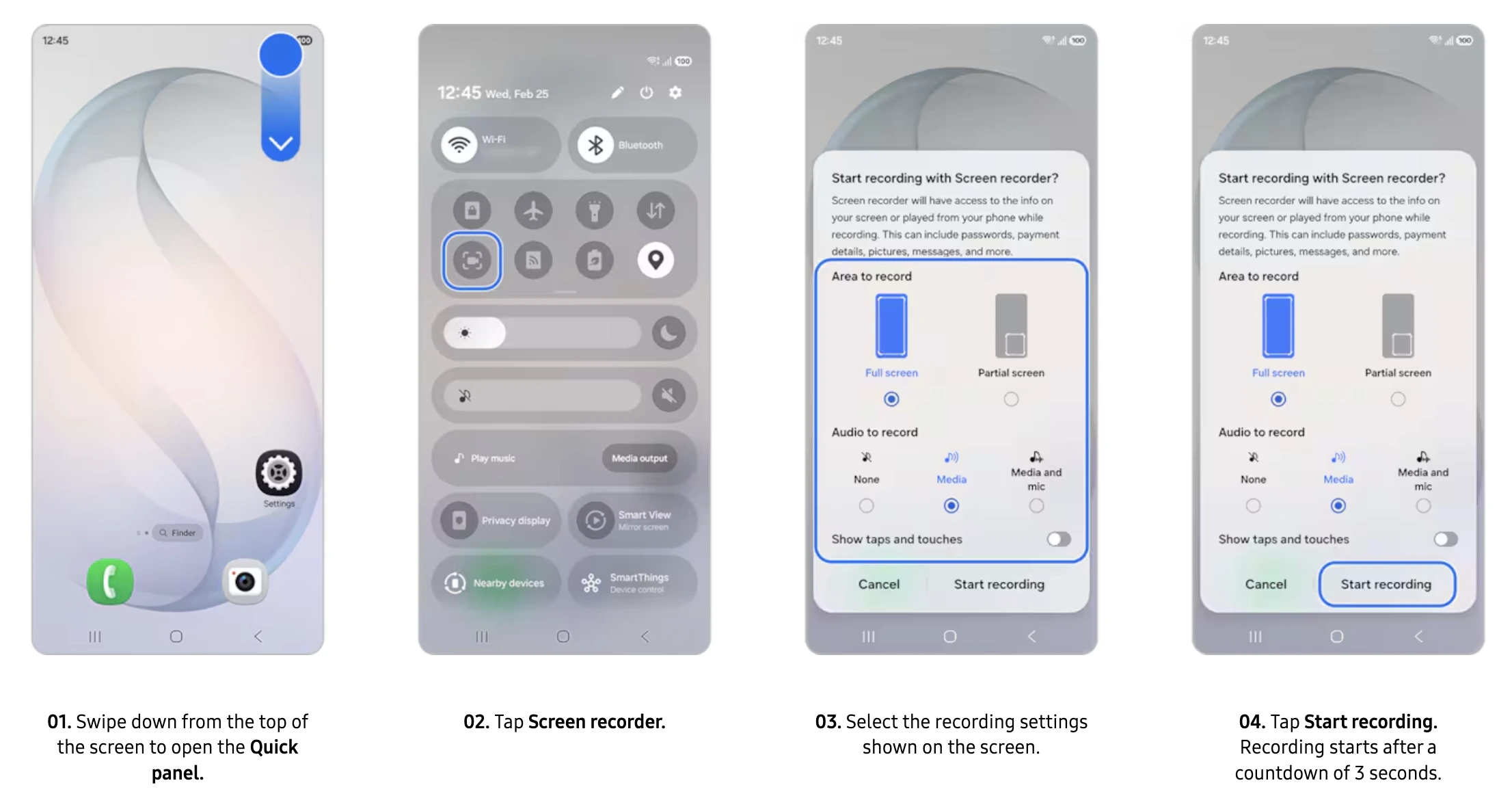
Como Gravar a Tela no Android
A maioria dos Android já tem um gravador de tela nativo.
- Deslize de cima para baixo para abrir os atalhos rápidos.
- Toque no ícone Gravador de Tela.
- Escolha as opções de áudio (som do celular, microfone ou os dois).
- Toque em Iniciar e espere a contagem regressiva.
- A gravação começa sozinha.
- Toque em Parar quando terminar.
Esse é o caminho geral, mas cada fabricante muda um pouco. Veja um exemplo em um Samsung Galaxy:
O arquivo costuma ir para a Galeria ou o app Fotos.
Como Gravar a Tela no iPhone
No iPhone, a gravação de tela já vem embutida no iOS.
- Abra a Central de Controle.
- Toque e segure o ícone de Gravação de Tela.
- Toque no microfone se quiser gravar o áudio junto.
- Toque em Iniciar Gravação e espere a contagem.
- Grave a tela normalmente.
- Abra a Central de Controle de novo e toque em parar.
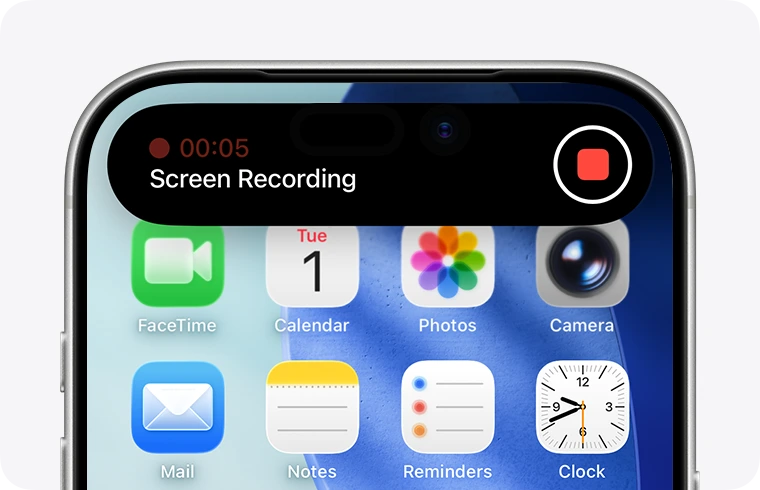
A gravação vai direto para o app Fotos.
Como Gravar Áudio no Celular
Além da tela, gravar áudio é ótimo para recados de voz, ideias rápidas, aulas, entrevistas e podcasts.
No Android: Use o Gravador Nativo
- Abra o app Gravador, Gravador de Voz ou Gravador de Som.
- Toque no botão de gravar.
- Fale perto do microfone do celular.
- Toque em pausar, se precisar.
- Toque em parar ao terminar.
- Salve o arquivo.
Os aparelhos Samsung, por exemplo, costumam trazer extras como transcrição de fala em texto e marcadores.
No iPhone: Use o App Gravador
Para gravar áudio no iPhone ou iPad, o jeito mais fácil é o app Gravador (Voice Memos), que já vem instalado em todo aparelho iOS.
- Abra o app Gravador.
- Toque no botão vermelho de gravar.
- Comece a gravação.
- Toque em pausar, se precisar.
- Toque no botão vermelho de novo para parar.
- Salve a gravação.
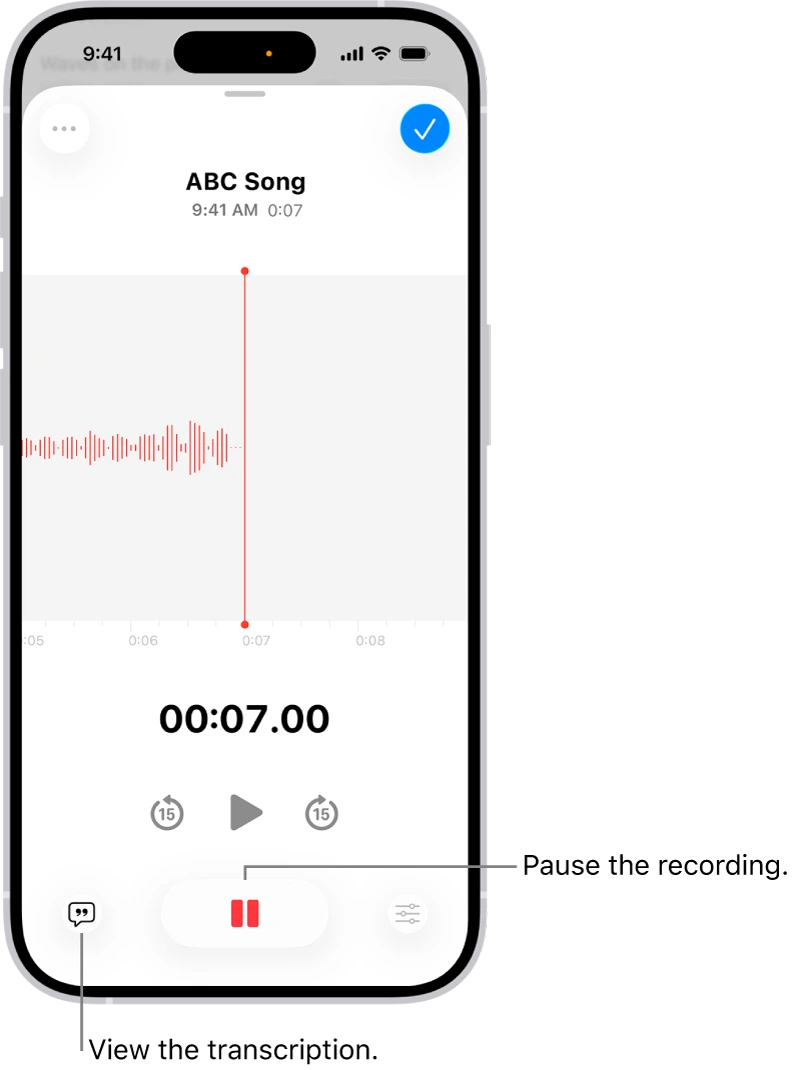
O app também tem editor para cortar trechos e melhorar o áudio, e sincroniza pelo iCloud, deixando as gravações disponíveis no iPhone, iPad e Mac.
Dicas para Melhorar a Qualidade
- Grave em um lugar silencioso.
- Reduza o ruído de fundo.
- Deixe o celular perto de quem fala.
- Use um microfone externo quando der.
- Não tampe o microfone com a mão ou a capinha.
Um microfone externo faz muita diferença em entrevistas, podcasts e gravações de trabalho.
Como Gravar Ligações no Celular
Gravar ligação pode ser simples ou complicado, dependendo do aparelho. Muitos Android já trazem a opção nativa; outros pedem um app.
No Android: Gravação Nativa de Chamada
Nos aparelhos compatíveis:
- Abra o app Telefone.
- Faça ou atenda uma chamada.
- Toque em Gravar.
- A gravação começa na hora.
- Toque em Parar ao fim da conversa.
Muitos Android deixam você gravar chamadas recebidas e feitas, ativar gravação automática e escolher gravar só números específicos. Os Samsung estão entre os mais comuns com esse recurso de fábrica.
Para ativar a gravação automática, abra o app Telefone, vá em Configurações, procure a opção de gravação de chamadas e escolha gravar todas ou apenas alguns contatos.
No Android: Apps de Terceiros
Se o seu celular não tem gravação nativa, dá para usar apps da Google Play, como Google Voice, Cube ACR e Automatic Call Recorder. Vale lembrar que, por causa das restrições de privacidade do Google, esses apps nem sempre funcionam igual em todas as versões do Android. Se é chamada de WhatsApp que você quer gravar, o caminho também muda.
No iPhone: Google Voice ou um Segundo Aparelho
No iPhone, gravar chamada sempre foi mais restrito que no Android. Conforme a região e a versão do iOS, você pode ter a gravação nativa ou precisar de um app.
O Google Voice grava chamadas recebidas:
- Instale o Google Voice.
- Abra as Configurações.
- Ative a gravação de chamadas.
- Durante uma chamada recebida, aperte 4.
- Aperte 4 de novo para parar.
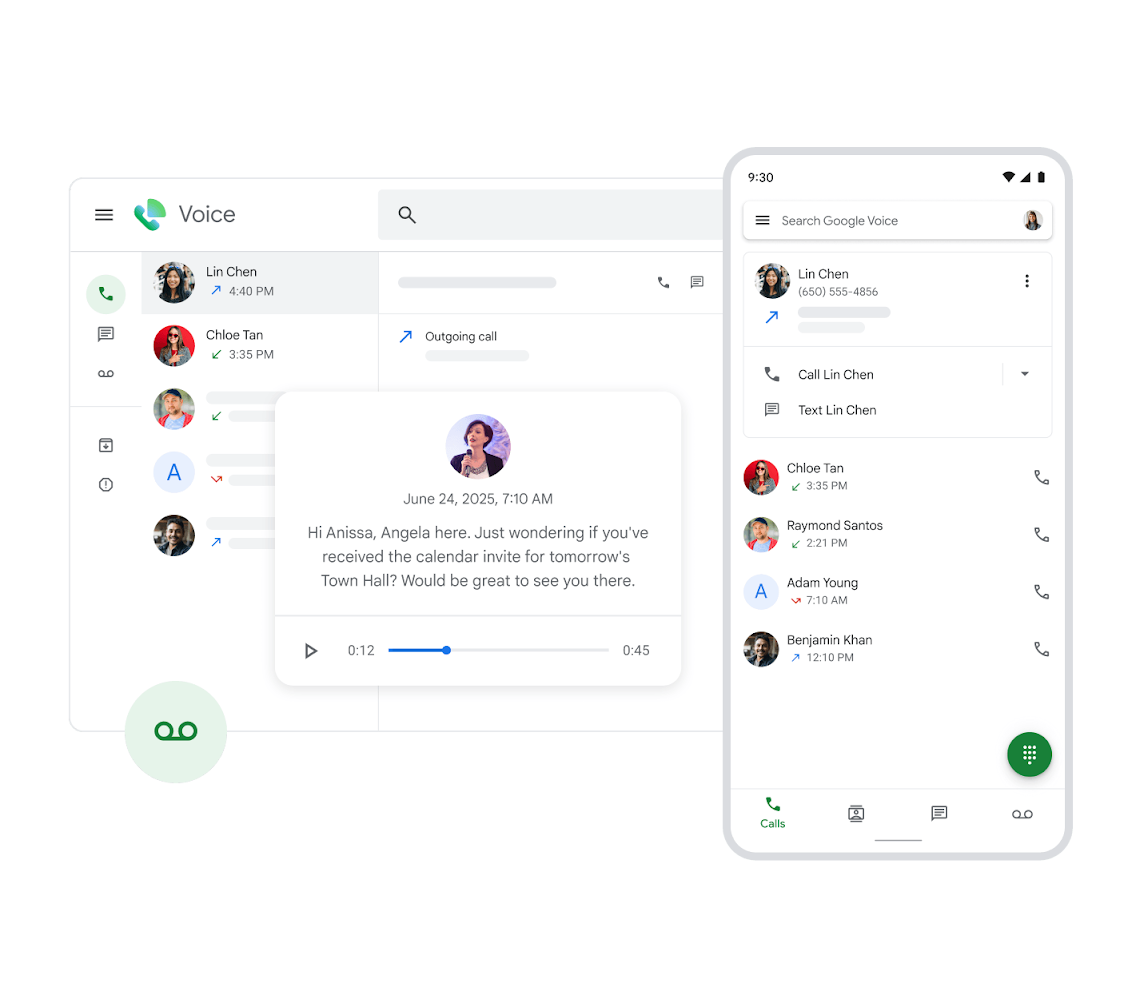
O Google Voice grava só chamadas recebidas, não as feitas. Uma alternativa simples é colocar a ligação no viva-voz e gravar com um segundo aparelho. Não é tão prático, mas quebra o galho para entrevistas e conversas de trabalho.
Precisa de Transcrições e Notas Pesquisáveis?
Gravar é só o primeiro passo. Se você grava reuniões, entrevistas e chamadas com clientes com frequência, ouvir horas de áudio depois vira um problema.
O MeetGeek vai além da gravação simples e faz automaticamente:
- Gravação das reuniões
- Transcrição com IA
- Resumos da reunião
- Extração de itens de ação
- Arquivo pesquisável de todas as conversas
- Suporte a Zoom, Microsoft Teams, Google Meet e gravações presenciais pelo app do celular
.webp)
Em vez de reouvir gravações, você pesquisa a conversa, encontra decisões e gera acompanhamentos em segundos.
É Legal Gravar Ligações?
As regras de gravação mudam de lugar para lugar, então gravar uma chamada legalmente depende de onde você está e da finalidade. As exigências variam entre países, estados e regiões, e algumas se aplicam só a comunicações de trabalho.
Em alguns lugares, basta o consentimento de um participante, e como você faz parte da conversa, o seu consentimento pode ser suficiente. Em outros, todos os participantes precisam ser avisados e concordar antes da gravação.
Antes de gravar, verifique a lei que se aplica ao seu caso: se vale a regra de uma parte ou de todas as partes, avise a outra pessoa quando for necessário e confira regras extras para gravações de trabalho. Não obter o consentimento necessário pode dar problema jurídico.
Boas Práticas para Gravar no Celular
Gravar é fácil. Tirar valor das gravações no longo prazo pede um pouco de organização.
1. Conheça a Lei que se Aplica a Você
Antes de gravar qualquer conversa, veja as regras do seu país, estado ou região. Na dúvida, avise a outra pessoa de que está gravando, principalmente em chamadas com clientes, entrevistas e conversas profissionais.
2. Organize as Gravações Logo
Fica difícil se achar quando tudo tem nome genérico como "Gravação 1". Inclua data, tema ou nome de quem participou, e crie pastas separadas para trabalho, entrevistas, reuniões e notas pessoais.
3. Faça Backup do que Importa
Celular pode ser perdido, danificado ou trocado. Se a gravação tem algo importante, não dependa só do armazenamento local: use iCloud, Google Drive ou Dropbox.
4. Prefira Transcrições
Transcrever o áudio em texto costuma ser mais prático do que reouvir tudo. Com a transcrição você pesquisa uma informação, acha o momento certo e compartilha os pontos principais sem pedir para alguém ouvir a gravação inteira. O MeetGeek, por exemplo, transforma as conversas em transcrições pesquisáveis e resumos com IA.
5. Apague o que Não Precisa Mais
As gravações se acumulam rápido. Depois de tirar a informação, compartilhar ou transcrever, apague o que não serve mais para liberar espaço e reduzir riscos de privacidade.
6. Proteja Informações Sensíveis
Algumas gravações têm dados pessoais, financeiros, médicos ou confidenciais. Use armazenamento seguro, senha e provedores de nuvem confiáveis, e limite quem pode acessar.
7. Grave com um Objetivo Claro
Gravar serve para guardar o que importa, não para substituir a atenção na conversa. Antes de começar, pense por que precisa da gravação e como vai usá-la depois.
Conclusão
Seja para gravar a tela, um áudio ou uma ligação, o celular de hoje oferece mais opções do que nunca. No Android, você usa os recursos nativos ou apps da Play Store; no iPhone, conta com a gravação de tela, o app Gravador e as ferramentas de chamada compatíveis.
Para uso pessoal, o que já vem no aparelho costuma bastar. Mas se você grava reuniões, entrevistas e conversas com clientes, um áudio salvo não é suficiente: você precisa achar a informação depois. O MeetGeek gera transcrições, resumos, itens de ação e notas pesquisáveis das suas conversas, para você revisitar decisões e acompanhamentos quando quiser.
Teste o MeetGeek de graça e grave, transcreva e resuma suas reuniões e conversas importantes automaticamente.
Principais Conclusões
- Quase todo celular tem ferramentas nativas para gravar a tela e o áudio.
- A gravação de ligação depende do aparelho, da versão do Android, do modelo do iPhone, da região e da operadora.
- Apps como Google Voice e Cube ACR ajudam quando não há opção nativa.
- A qualidade melhora reduzindo o ruído e usando um microfone externo quando possível.
- Confira sempre a lei local antes de gravar ligações ou conversas importantes.
Perguntas Frequentes
Como gravar a tela do celular com áudio?
Tanto no Android quanto no iPhone, ao iniciar a gravação de tela você escolhe se quer capturar o som do celular, o microfone ou os dois. No iPhone, toque e segure o ícone de Gravação de Tela e ative o microfone antes de começar.
Dá para gravar ligação em qualquer Android?
Não. O suporte varia conforme o fabricante, a versão do Android, as restrições da operadora e a lei local. Alguns Android já vêm com gravação de chamada; outros precisam de app.
O iPhone grava chamadas?
Algumas versões mais novas do iPhone têm gravação de chamada, mas depende do iOS e da região. Nos demais casos, dá para usar apps como o Google Voice ou um segundo aparelho.
Onde ficam salvas as gravações de tela?
No iPhone, vão para o app Fotos. No Android, costumam ir para a Galeria ou o app Fotos, dependendo do fabricante.
Como melhorar a qualidade da gravação no celular?
Grave em ambiente silencioso, reduza o ruído de fundo, mantenha o microfone perto de quem fala e use um microfone externo para uma qualidade melhor.





.avif)