

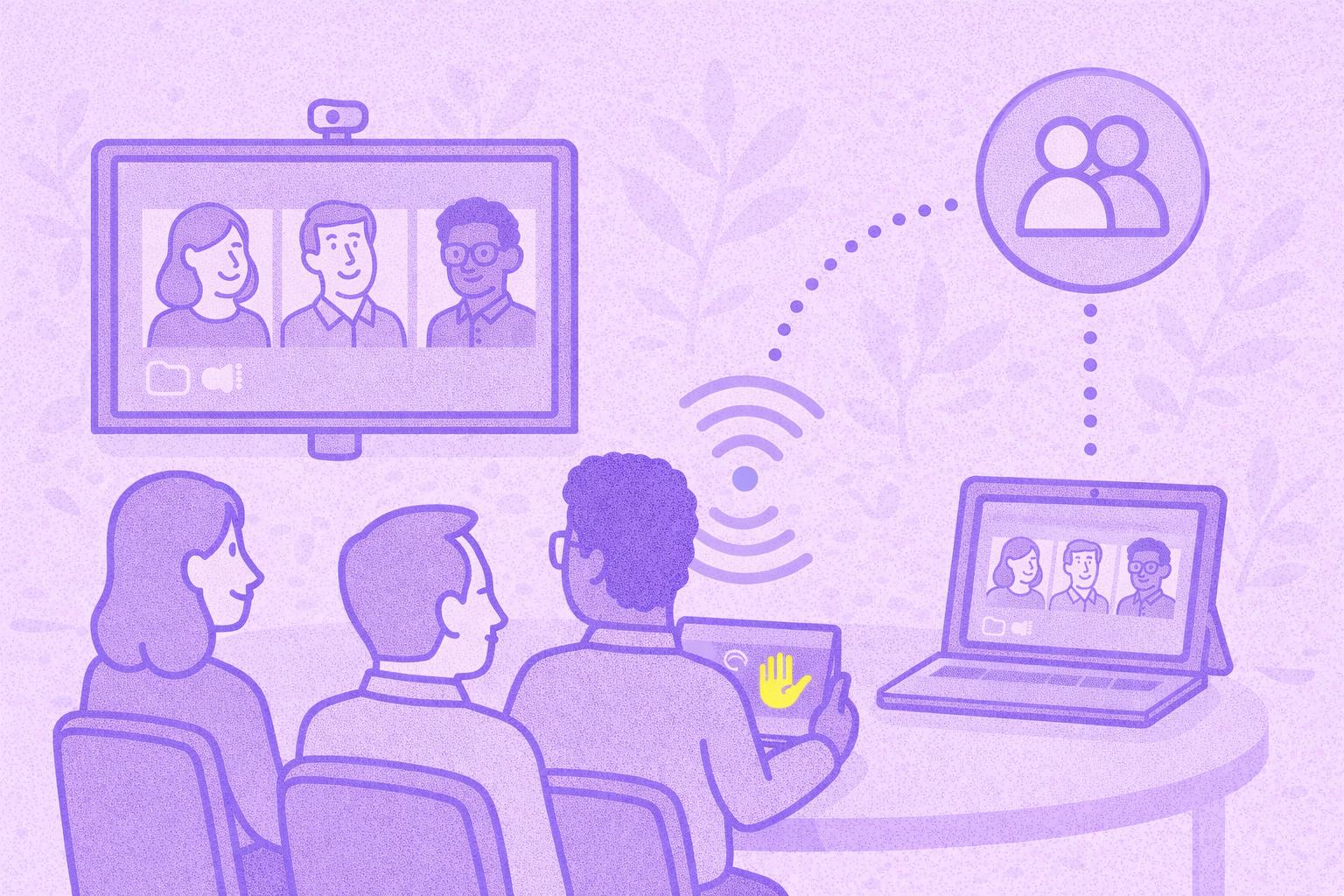

Les réunions hybrides sont censées être équitables. En réalité, ce n'est souvent pas le cas.
Les personnes présentes dans une salle de réunion finissent par partager une caméra, un micro et un ensemble de commandes, tandis que les participants à distance ont leur propre écran, leur propre chat, leurs sous-titres et tous les boutons. Le Companion Mode est le moyen utilisé par Google pour corriger ce déséquilibre.
Dans cet article, vous découvrirez ce qu'est le Companion Mode dans Google Meet, comment fonctionne le Companion Mode de Google Meet dans la vie réelle, comment activer le Companion Mode sur différents appareils, ce qu'il peut (et ne peut pas) faire et les meilleurs moyens de l'utiliser dans des réunions hybrides sans créer d'écho, de confusion ou de duplication de vignettes.
En cours de route, nous aborderons des détails pratiques tels que l'enregistrement des chambres, le nombre maximum de participants et le comportement du Companion Mode sur plusieurs appareils. Nous allons également vous montrer comment il s'intègre dans un flux de travail de réunion moderne où les notes et les suivis sont réellement effectués.
Qu'est-ce que le mode Companion dans Google Meet ?
Le mode Google Meet Companion permet de rejoindre un appel Google Meet depuis un appareil personnel (ordinateur portable, tablette ou téléphone, par exemple) tout en désactivant le son et la vidéo de votre appareil par défaut pour éviter tout retour audio.
Il est conçu pour les situations dans lesquelles :
- Vous êtes dans même chambre comme d'autres personnes (a salle de conférence ou en classe)
- La pièce est déjà connectée via matériel de salle de réunion
- Vous souhaitez toujours accéder à des outils de réunion tels que chat de réunion, des réactions, des questions-réponses ou partage d'écran
C'est pourquoi vous l'entendrez souvent décrire comme l'adhésion à un deuxième écran. Le système de salle gère la « grande » expérience audio/vidéo, tout en permettant à chaque participant d'interagir individuellement.
Google considère également cela comme une amélioration équité en matière de collaboration, en veillant à ce que les participants présents en salle et à distance disposent d'un accès comparable aux outils de réunion.
Quand devriez-vous utiliser le mode Companion
Le Companion Mode est particulièrement utile lorsque les trois conditions suivantes sont réunies :
1. Vous êtes dans une pièce avec partage audio/vidéo
Si votre réunion se déroule déjà via le matériel de la salle de réunion (par exemple, Google Meet matériel inclus dans un kit de salle), une connexion normale depuis votre ordinateur portable peut créer de l'écho et de la confusion.
Google utilise explicitement la détection de proximité et les signaux ultrasonores dans certaines configurations pour orienter les utilisateurs vers le Companion Mode dans une pièce, afin qu'ils ne puissent pas accéder accidentellement au mode audio complet.
2. Vous souhaitez toujours accéder aux fonctionnalités interactives
Les participants présents dans la salle ont souvent besoin des mêmes commandes que celles dont disposent les personnes à distance, comme :
- Échangez des messages dans le chat de la réunion
- Levez la main ou réagissez
- Sondages ouverts/Questions-réponses
- Activer les sous-titres pour des raisons d'accessibilité
Le Companion Mode est conçu pour que ces outils restent disponibles pour les participants à la salle de réunion et les autres participants en personne.
3. Vous voulez que votre nom soit associé à la vignette de la chambre
Lors de l'enregistrement dans la chambre, votre nom peut apparaître sur la vignette de la salle de conférence (la vignette de la salle) lors de l'appel, afin que d'autres personnes puissent savoir qui participe depuis l'intérieur de la salle.
Quelle est la place de MeetGeek avec le mode Companion
Le Companion Mode rend la participation plus équitable, mais il permet également de diffuser l'expérience de réunion sur plusieurs appareils :
- Le matériel de la salle de réunion gère la caméra principale et le microphone
- Les participants présents dans la salle utilisent des ordinateurs portables, des tablettes ou un téléphone portable pour envoyer des messages de discussion et des réactions
- Quelqu'un fait une présentation depuis un deuxième écran en utilisant le partage d'écran
- Les questions, les liens et les clarifications apparaissent dans le chat
- Les décisions sont prises verbalement, souvent sans trace écrite claire
Cette configuration fonctionne bien pendant la réunion, mais c'est aussi là que la clarté tombe souvent en panne par la suite.
Le contexte important est réparti entre les conversations orales, les messages de chat et les écrans partagés. À la fin de l'appel, les gens se souviennent de différentes choses, les mesures à prendre ne sont pas toujours claires et les suivis dépendent de la personne qui a pris des notes, le cas échéant.
C'est ici MeetGeek s'intègre naturellement au Companion Mode de Google Meet.
MeetGeek rejoint la réunion Google Meet en tant que participant IA et capture la réunion dans son ensemble, et pas seulement un appareil ou une perspective.
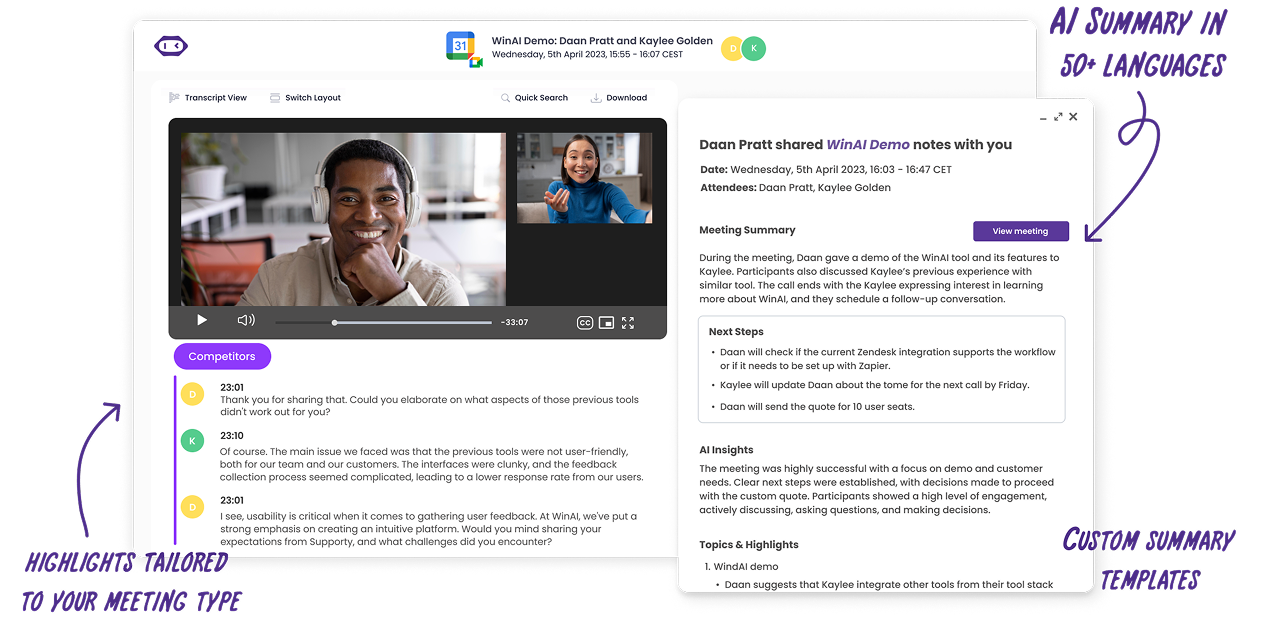
Plus précisément, MeetGeek aide en :
- Transcrire automatiquement l'intégralité de la conversation, y compris les discussions qui se déroulent via le micro de la salle, afin que les décisions prises oralement ne soient pas perdues simplement parce qu'elles n'ont pas été saisies dans le chat
- Identifier les moments clés, tels que des décisions, des questions et des actions, même lorsque ces moments se produisent pendant le partage d'écran ou lorsque plusieurs personnes interagissent via le Companion Mode
- Résumés structurants des réunions, les résultats sont donc clairs pour les deux participants à distance et participants à la salle de réunion, quel que soit leur mode d'adhésion
- Maintenir le contexte du chat connecté à la conversation, afin que les liens, les clarifications et les questions annexes ne soient pas séparés de la discussion principale
- Création d'un base de connaissances consultable auquel tout le monde peut se référer, ce qui est particulièrement utile lors de réunions avec de nombreux participants au Companion Mode, comme des assemblées publiques, des séances de stand up, des sessions de formation ou des ateliers
En bref, le mode Companion garantit que tout le monde peut participer à l'appel. MeetGeek s'assure que la réunion a toujours du sens après l'appel.
Au lieu de se fier à la mémoire, à des captures d'écran ou à des notes éparpillées sur différents appareils, les équipes repartent avec un résumé clair et consultable de ce qui a été dit, de ce qui a été décidé et de ce qui doit se passer ensuite, même lorsque la réunion elle-même était répartie sur un système de salle, des ordinateurs portables, des tablettes et des téléphones.
Comment fonctionne le mode Companion sous le capot
Lorsque vous rejoignez un Google Meet en Companion Mode, vous participez toujours à la même visioconférence, mais de manière « légère » :
- Votre appareil en Companion Mode se connecte en tant que participant
- Votre microphone et votre caméra sont désactivés par défaut pour éviter tout écho
- Vous pouvez toujours utiliser les fonctionnalités d'accès telles que le chat, les réactions, les sous-titres et la présentation
- Le comportement de vos vignettes est différent de celui d'une jointure complète : la caméra de la pièce reste la principale source de visibilité pour la présence dans la pièce
Google note que les connexions en Companion Mode sont prises en compte dans le calcul du nombre maximum de participants et que les notifications d'adhésion/de départ s'appliquent toujours.
En d'autres termes : il ne s'agit pas d'une « lecture seule ». C'est une participation active sans dupliquer le son de la pièce.
Principales fonctionnalités que vous obtenez en mode Companion
Voici les principales fonctionnalités que la plupart des équipes utilisent réellement au quotidien :
1. Messages de chat et interaction en direct
Vous pouvez envoyer et lire des messages de discussion, répondre à des questions et partager des liens sans interrompre le haut-parleur de la salle.
Cela est particulièrement utile lors de grandes réunions où une personne est l'orateur actif, mais de nombreuses personnes souhaitent tout de même contribuer discrètement.
2. Partage d'écran et présentation depuis votre appareil
Le mode Companion est un moyen simple de faire des présentations depuis votre propre ordinateur portable sans détourner la configuration de la salle.
Cela est important dans les salles hybrides, car il peut être difficile de faire passer des câbles ou de changer de présentateur sur le système de salle. Avec le Companion Mode, une personne peut maintenir la stabilité du son de la pièce pendant qu'une autre utilise le partage d'écran depuis son appareil personnel.
3. Sous-titres et fonctionnalités d'accessibilité
Le Companion Mode prend en charge les sous-titres personnels, ce qui est énorme pour l'accessibilité et la compréhension. Les conseils de Google pour le Companion Mode soulignent que vous pouvez l'utiliser pour participer à des activités hybrides d'apprentissage et de collaboration et accéder à des fonctionnalités telles que les sous-titres sur votre propre appareil.
4. Enregistrement de la chambre et identification sur la vignette de la chambre
Lorsque l'enregistrement est disponible, votre nom apparaît sur la vignette de la chambre et dans la liste des participants, ce qui permet aux autres participants d'identifier qui se trouve dans la chambre.
5. Fonctionne désormais sur plus de types d'appareils
Le mode Companion est disponible sur les téléphones, les tablettes et les appareils pliables dans les configurations prises en charge. Les mises à jour de Google Workspace ont annoncé l'extension de la prise en charge du Companion Mode aux iPad Apple, aux tablettes Android et aux appareils pliables.
Comment activer le Companion Mode dans Google Meet
Il existe plusieurs manières de accéder au Companion Mode, en fonction de votre appareil et de la manière dont vous vous inscrivez.
Option 1 : utiliser une invitation à une réunion (e-mail ou Google Agenda)
Il s'agit de la voie la plus courante pour un réunion planifiée.
- Ouvrez le invitation à une réunion dans Gmail ou dans votre Google Agenda
- Cliquez sur lien vers la réunion
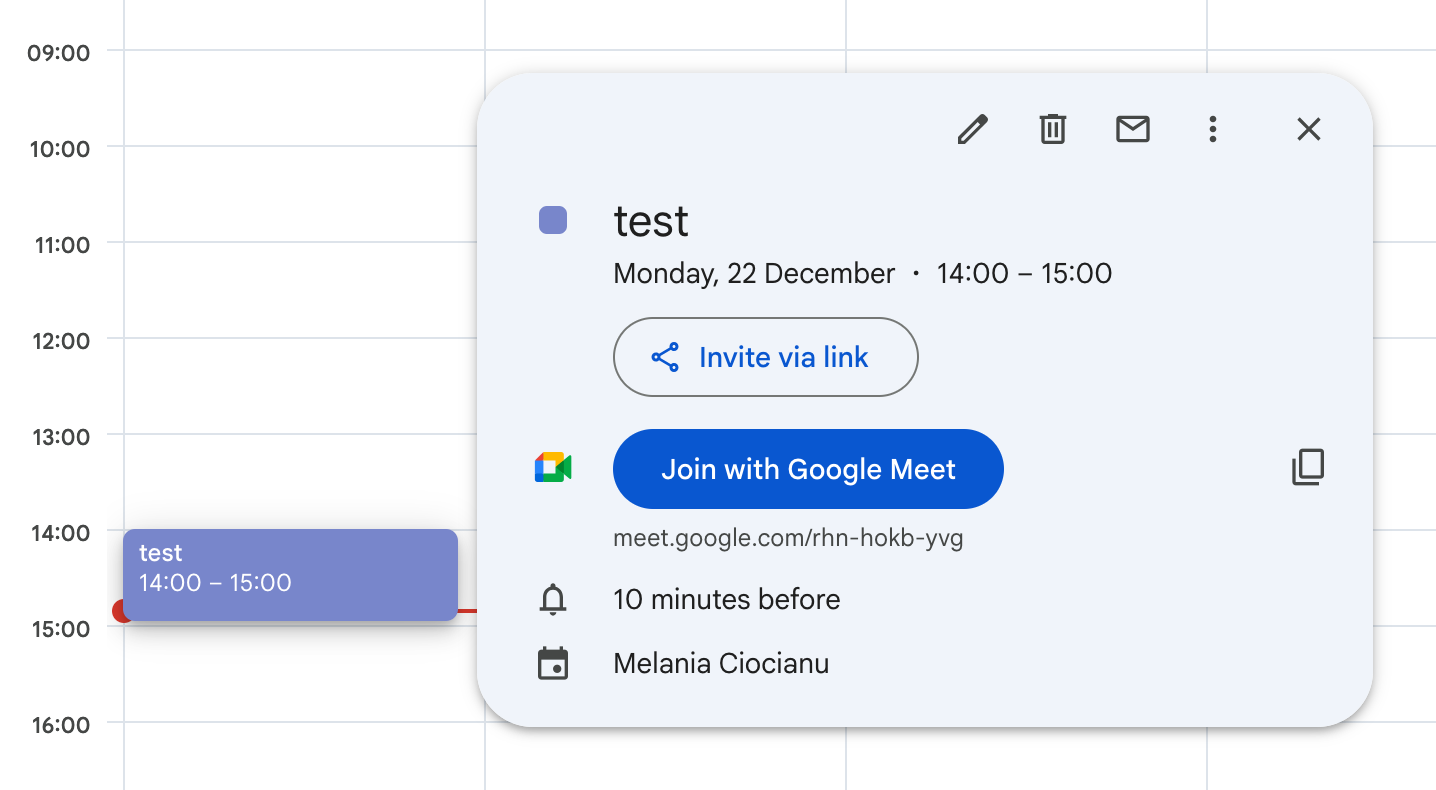
- Sur l'écran de pré-inscription (la « salle verte »), choisissez utiliser le Companion Mode
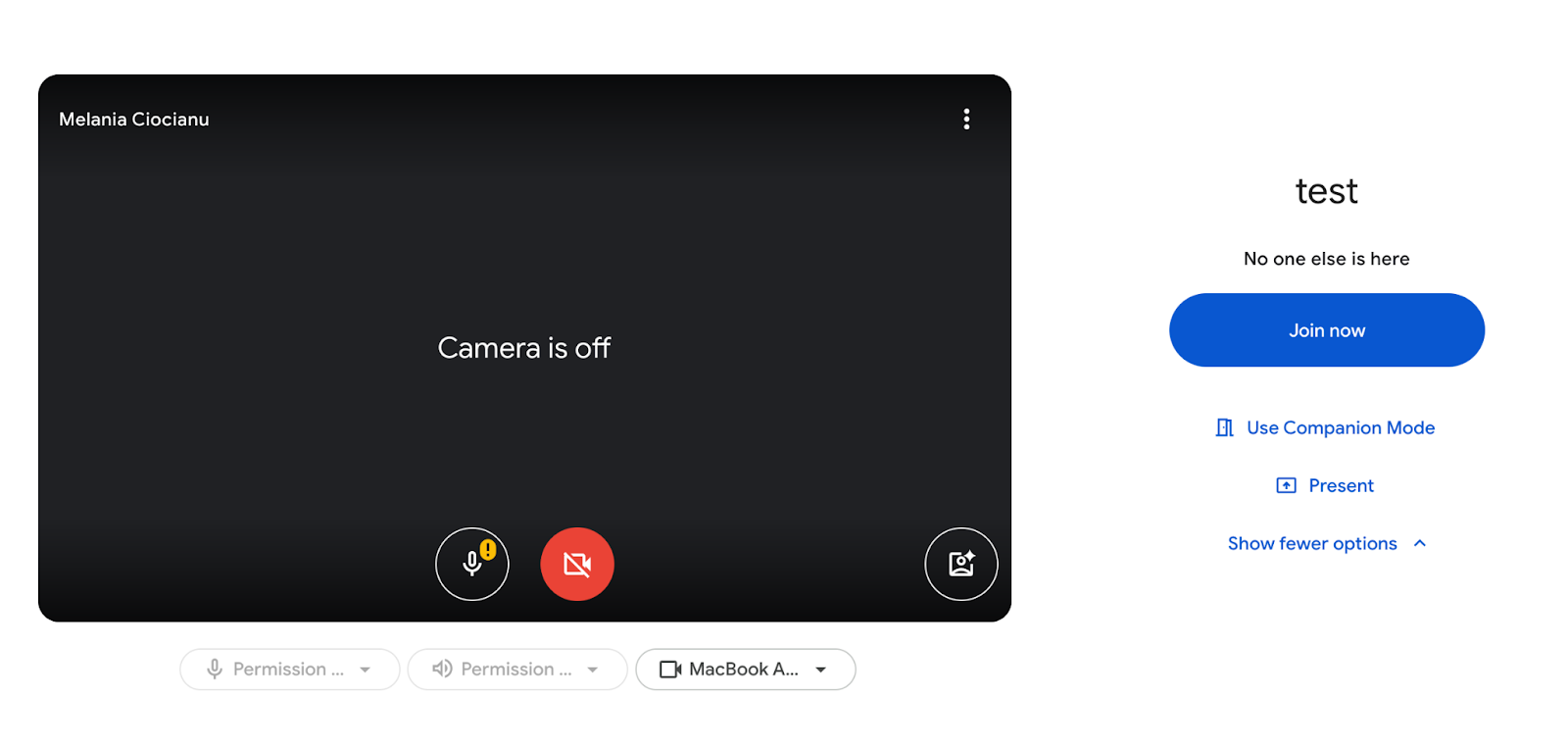
- Participez à la réunion
Le centre d'aide de Google décrit le Companion Mode pour participer à des réunions à venir et à des invitations, y compris lorsque le bouton « Utiliser le Companion Mode » apparaît sous votre propre écran sur mobile.
Option 2 : participer avec un code de réunion
Si vous n'avez pas le lien à portée de main :
- Ouvrez Google Meet
- Entrez le code de la réunion
- Sélectionnez le Companion Mode (ou « Utiliser le Companion Mode ») avant de vous inscrire
Option 3 : Utiliser g.co/companion (chemin rapide)
De nombreuses équipes utilisent g.co/compagnon comme point d'accès rapide au Companion Mode (en particulier sur les ordinateurs portables des salles de conférence). Google a fait référence à l'adhésion au Companion Mode via rencontre.google.com et g.co/companion dans Mises à jour de.
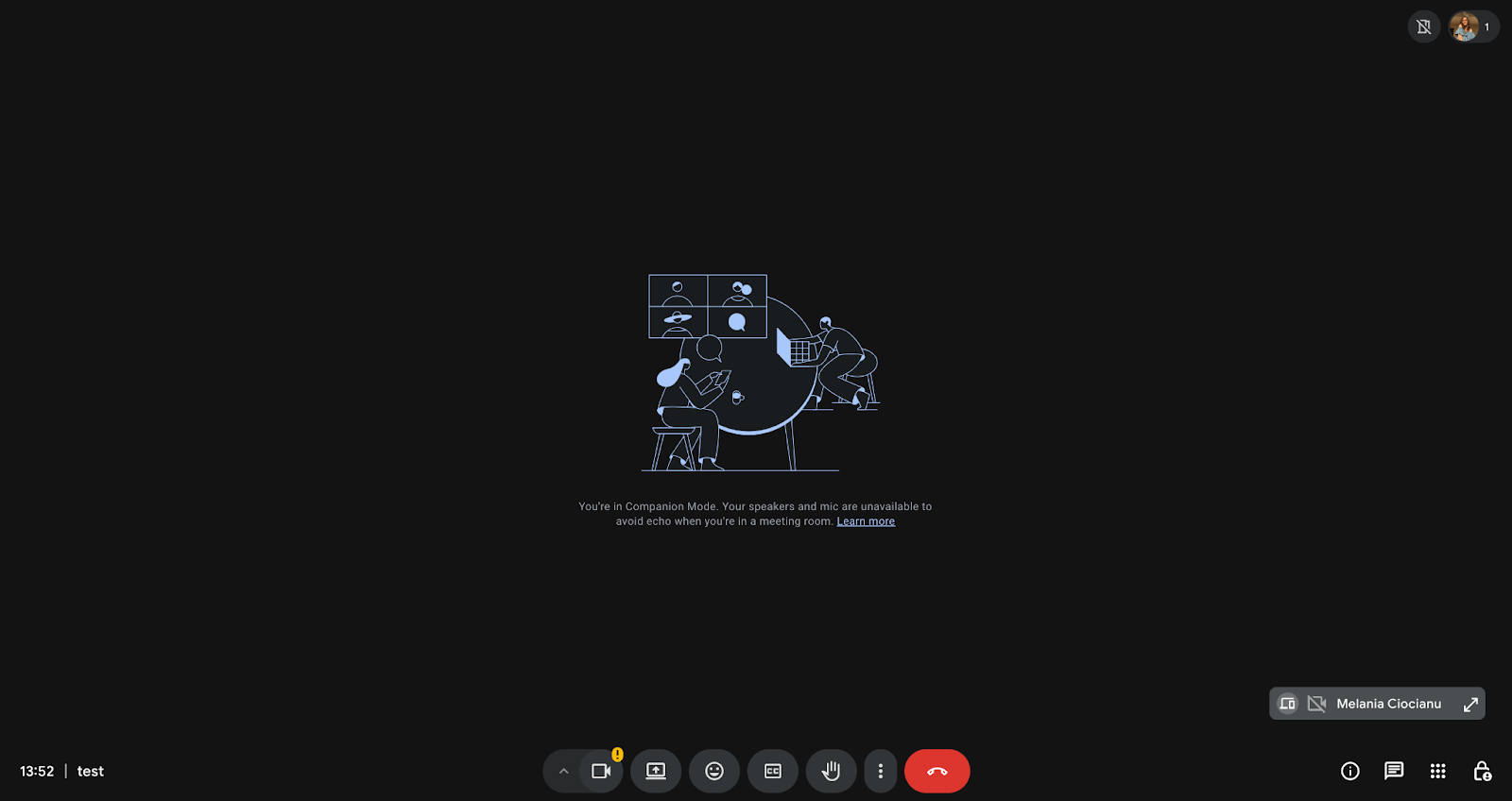
Option 4 : Inscrivez-vous depuis l'application Google Meet (mobile)
Sur le Application Google Meet:
- Ouvrez l'application Meet
- Choisissez parmi prochaines réunions (ou entrez un code)
- Sous votre vision de soi, touchez Utiliser le Companion Mode
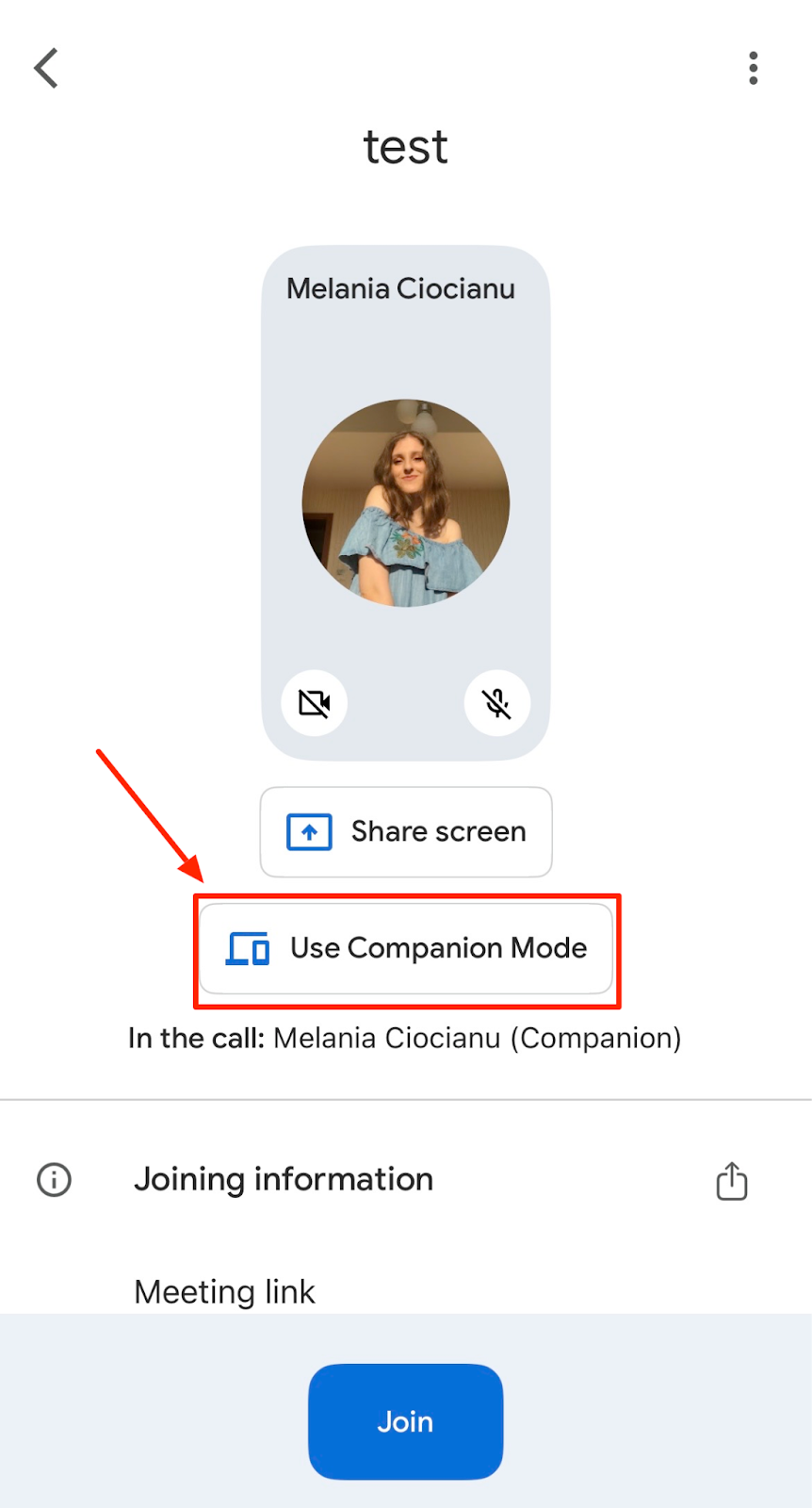
- Joignez-vous
Google note explicitement la disponibilité du mode Companion sur les appareils Android tels que les téléphones, les tablettes et les appareils pliables depuis l'application Meet. Et il a été étendu aux iPad et aux tablettes/appareils pliables Android dans les annonces de Google Workspace.
Détection de proximité et enregistrement automatique des chambres
Si vous avez déjà remarqué que Google Meet vous « poussait » vers le Companion Mode dans une salle de conférence, ce n'est pas un hasard. Google Meet peut détecter que vous vous trouvez dans une pièce à l'aide d'un signal ultrasonique émis par le matériel de la salle, puis propose une option « Utiliser le Companion Mode » pour éviter l'écho.
Google a également annoncé l'enregistrement automatique des chambres par détection de proximité par ultrasons, qui réduit les étapes d'enregistrement lorsque vous rejoignez une chambre équipée d'un matériel certifié. C'est pourquoi le Companion Mode semble souvent « intégré à l'expérience de la salle », et non pas simplement une option d'adhésion distincte.
Le Companion Mode en pratique : que faire dans la pièce
Voici la configuration la plus propre pour les chambres hybrides :
Si vous utilisez du matériel de salle de réunion (recommandé)
- Le système de salle rejoint l'appel et gère audio complet et vidéo
- Chaque personne présente dans la pièce rejoint le Companion Mode sur son propre appareil
- Les utilisateurs utilisent le Companion Mode pour :
- envoyer un chat
- lever la main
- réagir
- activer les sous-titres
- présents depuis leur ordinateur portable en cas de besoin
Cela permet de maintenir la stabilité de la réunion pour les participants à distance tout en donnant aux personnes présentes un contrôle total.
Si vous n'avez pas de matériel de chambre
Vous pouvez toujours utiliser le Companion Mode dans une pièce, mais vous avez besoin d'un appareil « principal » gérant le son. Par exemple :
- Un ordinateur portable se connecte normalement pour le son de la pièce
- Tous les autres rejoignent le Companion Mode pour éviter l'écho
Limites à connaître avant de vous fier au mode Companion
Le mode Companion est puissant, mais il n'est pas identique à une jointure normale.
Limite de participants et nombre de modes Companion
Les connexions en Companion Mode sont prises en compte dans le calcul de votre réunion limite de participants. Google indique explicitement que les connexions et les présentations en mode Companion sont prises en compte dans le nombre maximum de participants. Alors oui, nombre de modes compagnons est important, en particulier pour les grandes mairies où de nombreuses personnes présentes dans une pièce peuvent également se joindre à elles sur leurs propres appareils.
Les notifications d'adhésion/de départ sont toujours disponibles
Les utilisateurs peuvent voir quand les utilisateurs du Companion Mode rejoignent et quittent le site.
Les contrôles de l'hôte ne sont pas toujours les mêmes
L'hôte d'une réunion peut toujours utiliser le Companion Mode, mais pour certains flux de travail (comme la gestion de grandes tâches) salles de réunion ou gestion avancée des participants), il peut être plus facile de passer à une adhésion complète sur un ordinateur portable.
Le comportement des tuiles peut différer
Le mode Companion est conçu pour éviter l'encombrement visuel et éviter la duplication audio/vidéo de la pièce. La caméra de la pièce reste dominante. Le comportement de votre vignette vidéo personnelle peut différer de celui d'une participation standard, et vous ne deviendrez généralement pas la principale caméra visible de la réunion comme le fait un appareil à participation complète.
Conseils pour tirer le meilleur parti du mode Companion
- Utilisez le même compte sur tous les appareils : Si vous vous inscrivez depuis un ordinateur portable, une tablette ou un téléphone portable, assurez-vous d'être connecté avec le même compte. Cela permet de garantir la cohérence de votre présence, de vos autorisations et de vos fonctionnalités de réunion sur tous les appareils.
- Choisissez un seul appareil pour la présentation : Lorsque vous faites une présentation en Companion Mode, maintenez la stabilité du système de la salle de réunion pour le son et la vidéo, et utilisez un appareil de présentation transparent pour partage d'écran. Cela permet d'éviter toute confusion et toute interruption accidentelle.
- Utilisez le chat intentionnellement : Le Companion Mode permet d'échanger facilement des messages de chat tout au long de la réunion. Lors de réunions plus importantes, il est utile de se mettre d'accord sur quelques normes simples :
- Utilisez le chat pour les liens, les références et les questions de clarification
- Résumez les décisions verbalement afin qu'elles soient claires pour les participants à distance et qu'elles soient prises en compte lors de la conversation principale
- Activez les sous-titres si nécessaire : Les sous-titres sont l'une des fonctionnalités d'accessibilité les plus utiles du Companion Mode. Vous pouvez activer les sous-titres sur votre appareil personnel sans modifier ce qui s'affiche sur l'écran de la salle, ce qui facilite le suivi sans déranger les autres.
Résolution des problèmes liés au mode Companion
« Je ne vois pas l'option Utiliser le mode Companion. »
Essayez-les :
- Assurez-vous d'être au courant des dernières Application Google Meet (portable)
- Essayez Chrome sur ordinateur
- Si vous vous inscrivez à partir d'une invitation, ouvrez le lien vers la réunion à nouveau et vérifiez l'écran de pré-adhésion
« Nous recevons un écho de toute façon. »
Echo signifie presque toujours que plusieurs appareils gèrent le son.
Corriger :
- Assurez-vous que seul le système de la salle (ou un appareil principal) utilise le microphone/les haut-parleurs
- Toutes les autres participants au Companion Mode devrait rester muet
« L'enregistrement de la chambre ne s'affiche pas. »
L'enregistrement de la salle n'apparaît que lorsque la salle est réellement connectée à la réunion, et la disponibilité peut dépendre de la configuration de l'administrateur et de l'appareil. L'enregistrement de la salle Google Notes s'affiche lorsqu'une salle de conférence est connectée à votre réunion.
Comment quitter le mode Companion
Pour quitter le Companion Mode, cliquez ou appuyez sur Quitter sur cet appareil et rejoignez-le normalement si vous avez besoin d'un son complet.
N'oubliez pas: si vous quittez le Companion Mode, l'association avec l'enregistrement de votre chambre peut être supprimée. Par conséquent, si vous vous inscrivez à nouveau, vous devrez peut-être vous enregistrer à nouveau.
Réflexions finales
Le Companion Mode est l'une de ces fonctionnalités qui semblent petites jusqu'à ce que vous l'utilisiez en cas de forte affluence salle de conférence, et tout à coup, les réunions hybrides deviennent moins gênantes.
Il permet aux participants de la salle de réunion d'interagir comme des participants à distance, sans transformer la salle en chambre d'écho. Elle favorise l'équité en matière de collaboration, réduit les frictions liées au chat et aux présentations, et permet à chacun d'utiliser plus facilement les mêmes outils de réunion lors d'un même appel.
Si vos réunions restent compliquées après la fin de l'appel, c'est la prochaine étape à corriger : saisir les décisions, les mesures à prendre et le contexte de suivi. Le Companion Mode facilite la participation. Essayez MeetGeek gratuitement et assurez-vous que les résultats de la réunion ne disparaissent pas une fois que tout le monde clique sur Quitter.
Questions fréquemment posées
Le Companion Mode est-il pris en compte dans le calcul de la limite de participants ?
Oui Dans Google Meet, chaque connexion en Companion Mode est prise en compte dans le calcul du nombre total de participants, tout comme un participant normal. Cela s'applique même si le son et la vidéo sont désactivés par défaut pour éviter tout écho. Les inscriptions en Companion Mode apparaissent sous la forme d'une entrée de participant distincte, ce qui permet à Google de gérer la capacité de manière équitable lors des réunions hybrides.
Puis-je utiliser le Companion Mode sur des appareils mobiles ?
Oui Le Companion Mode est disponible sur les appareils mobiles, y compris les smartphones, et est pris en charge sur les tablettes Android et iOS, ainsi que sur les appareils pliables pour les comptes Google Workspace éligibles. Cela permet aux participants présents dans la salle de participer à partir d'un appareil personnel et d'accéder à des fonctionnalités de réunion interactives sans utiliser l'intégralité du son ou de la vidéo.
Les autres participants sauront-ils que j'utilise le mode Companion ?
Oui Les autres participants peuvent voir les utilisateurs du Companion Mode dans la liste des participants à la réunion, et les notifications standard d'adhésion et de départ s'appliquent toujours. Les connexions en Companion Mode apparaissent sous forme d'entrées distinctes, ce qui indique clairement qui participe à la réunion depuis un appareil secondaire.




.avif)