



L'apprentissage de l'enregistrement d'écran sur Mac prend moins d'une minute. Apple inclut un outil d'enregistrement d'écran intégré qui vous permet d'enregistrer la totalité de votre écran, de capturer une fenêtre sélectionnée, d'ajouter votre microphone et d'enregistrer gratuitement un fichier vidéo sur votre bureau.
Pour les didacticiels et les procédures pas à pas rapides, cette configuration fonctionne parfaitement.
Pour les appels récurrents, les réunions avec les clients et les synchronisations internes, l'enregistrement de fichiers vidéo bruts sur votre ordinateur crée des tensions à long terme.
Ce guide explique exactement comment enregistrer un écran sur un Mac, y compris les considérations relatives au son et au son du système, et explique où s'intègre un système d'enregistrement de réunion dédié tel que MeetGeek.
Méthode 1 : Comment enregistrer un écran sur Mac à l'aide de la barre d'outils de capture d'écran (méthode la plus rapide)
Si vous utilisez macOS Mojave (10.14) ou une version ultérieure, c'est la solution la plus simple.
Étape 1 : Ouvrez la barre d'outils d'enregistrement d'écran
Presse Shift + Commande + 5. Cette commande clavier ouvre le Barre d'outils de capture d'écran en bas de votre écran.
Des options s'offrent à vous pour :
- Capturez une capture d'écran
- Enregistrer la totalité de l'écran
- Enregistrer la partie sélectionnée
- Régler les options d'enregistrement
Étape 2 : Choisissez ce que vous voulez enregistrer
Vous disposez de trois options principales d'enregistrement d'écran :
- Enregistrer la totalité de l'écran — capture tout ce qui se trouve sur votre bureau
- Enregistrer la fenêtre sélectionnée (sur les nouvelles versions de macOS)
- Enregistrer la partie sélectionnée — faites glisser votre souris pour sélectionner une zone spécifique

Si vous choisissez d'enregistrer une partie sélectionnée, faites simplement glisser les bordures pour ajuster la taille.
Étape 3 : Régler les paramètres d'enregistrement (important)
Cliquez Options dans la barre d'outils avant d'appuyer sur bouton d'enregistrement.
Ici, vous pouvez :
- Sélectionnez un microphone (micro) pour enregistrer votre voix
- Afficher clics de souris
- Réglez une minuterie (attendez 5 à 10 secondes avant le début de l'enregistrement)
- Choisissez l'endroit où le fichier sera enregistré
- Régler le format et la résolution (sur les appareils Mac compatibles)
Si vous enregistrez un didacticiel, une présentation YouTube ou une formation, assurez-vous que le bon micro est sélectionné avant de commencer.
Étape 4 : démarrer l'enregistrement
Cliquez Record.
- Si vous avez sélectionné la totalité de l'écran, cliquez n'importe où pour commencer.
- Si vous avez sélectionné une partie, cliquez sur Commencer l'enregistrement à l'intérieur de cette sélection.
Votre Mac va commencer à enregistrer votre écran.
Étape 5 : arrêter l'enregistrement
Pour arrêter l'enregistrement :
- Cliquez sur Arrêter l'enregistrement bouton dans la barre de menu
OU - Presse Commande + Contrôle + Esc
Une fois que vous avez arrêté l'enregistrement, miniature flottante apparaît dans le coin de votre écran.
Vous pouvez :
- Cliquez dessus pour le modifier immédiatement
- Ou attendez quelques secondes qu'il disparaisse et sauvegardez automatiquement
Votre fichier vidéo sera enregistré à l'emplacement de votre choix.
Comment enregistrer le son du système sur Mac
C'est là que les choses se compliquent. Par défaut, macOS peut :
- Enregistrez votre microphone
- Enregistrez votre écran
Mais il n'enregistre pas le son du système (comme le son YouTube, l'audio de l'application ou le son interne du système).
Si vous devez enregistrer le son du système, vous devez :
- Téléchargez un pilote audio virtuel (comme BlackHole ou Loopback)
- Régler les paramètres audio du système
- Acheminer le son via cet outil
Cela fonctionne, mais ce n'est pas simple.
Si vous enregistrez un appel Zoom, un webinaire ou une réunion interne et que vous avez besoin d'un système audio sans configuration compliquée, continuez à lire, car MeetGeek est peut-être la meilleure solution.
Méthode 2 : Comment enregistrer un écran sur Mac à l'aide de QuickTime Player
Vous pouvez également utiliser Lecteur QuickTime.
Étape 1 : Ouvrez QuickTime
- Ouvrez le Finder
- Accédez aux applications
- Lancement Lecteur QuickTime
Ou appuyez sur Commande + Espace et recherchez-le.
Étape 2 : démarrer un nouvel enregistrement d'écran
Depuis la barre de menu :
Fichier → Nouvel enregistrement d'écran
Vous verrez une petite fenêtre d'enregistrement.
Cliquez sur la flèche à côté du bouton d'enregistrement pour :
- Sélectionnez votre microphone
- Régler le volume
- Activer les indicateurs de clic de souris
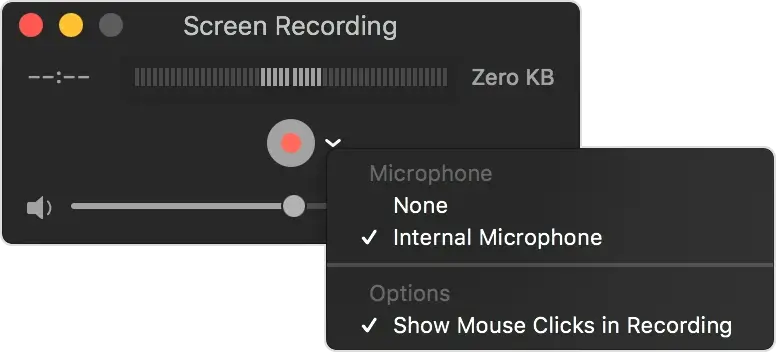
Cliquez ensuite sur Enregistrer.
Choisissez :
- Cliquez n'importe où pour enregistrer la totalité de l'écran
- Ou faites glisser le pointeur pour capturer une zone sélectionnée
Étape 3 : Arrêter et modifier
Cliquez sur le bouton d'arrêt dans la barre de menu.
QuickTime ouvre automatiquement le fichier vidéo.
Vous pouvez :
- Réduisez les secondes indésirables
- Rejouez-le
- Sauvegardez-le ou téléchargez-le
Ceci est utile pour les didacticiels vidéos de base ou pour une documentation interne rapide.
Méthode 3 : enregistrement d'écran avec MeetGeek
Si vous enregistrez des réunions récurrentes sur votre Mac, il arrive un moment où appuyer sur Shift + Command + 5 et enregistrer un autre fichier vidéo sur votre bureau cesse d'être pratique. Les appels aux clients, les démonstrations commerciales, les sessions de formation, les réunions de synchronisation hebdomadaires et les webinaires ne se limitent pas à une simple capture d'écran. Ils nécessitent une structure, une capacité de recherche et un suivi.
MeetGeek remplace l'enregistrement d'écran manuel par une capture automatique des réunions et des informations après les réunions.
Étape 1 : connectez MeetGeek à votre plateforme de réunion
- Connectez-vous à votre compte MeetGeek.
- Connectez votre compte Zoom, Google Meet ou Microsoft Teams.
- Choisissez vos préférences d'enregistrement dans les paramètres.
Une fois connecté, MeetGeek peut automatiquement rejoindre des réunions planifiées ou être invité en tant que participant. Il n'est pas nécessaire d'appuyer sur Enregistrer sur votre Mac, d'ouvrir QuickTime ou de configurer le routage audio du système.
Si vous souhaitez enregistrer sans bot ou étendre votre enregistrement à d'autres plateformes telles que Discord ou Webex, vous pouvez également ajouter l'extension MeetGeek Chrome pour enregistrer vos réunions.
Étape 2 : Laissez MeetGeek enregistrer la réunion
À l'heure prévue, MeetGeek rejoint l'appel et gère :
- Enregistrement vidéo de la séance.
- Capture audio claire sans vous fier aux paramètres du microphone de votre Mac.
- Stockage sécurisé de l'enregistrement dans le cloud.
Il n'est pas nécessaire de gérer les zones d'écran, de sélectionner la totalité de l'écran ou de régler la résolution de capture. La réunion est enregistrée directement dans l'environnement de la plateforme plutôt que sur l'écran de votre bureau.
Étape 3 : Accédez à la transcription et au résumé de l'IA
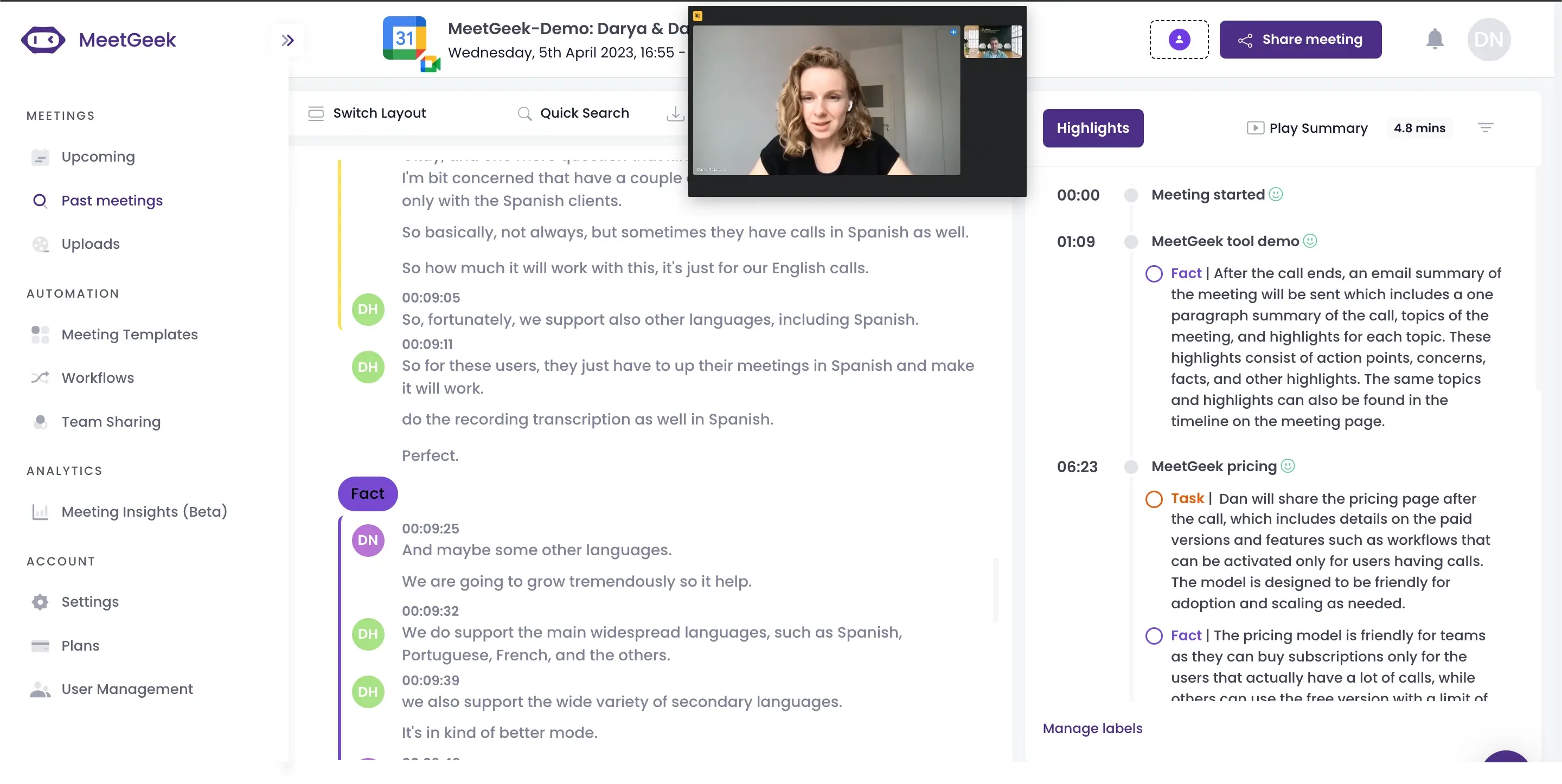
Une fois la réunion terminée, MeetGeek génère automatiquement :
- Une transcription complète.
- Un résumé structuré de l'IA.
- Principaux points de discussion.
- Eléments d'action identifiés.

Au lieu de revoir une vidéo complète pour trouver un détail, vous pouvez effectuer une recherche dans la transcription par mot clé et accéder au moment exact de l'enregistrement.
Cela change la façon dont les équipes utilisent les enregistrements des réunions. La valeur passe de « nous avons le fichier » à « nous pouvons retrouver instantanément ce qui a été dit ».
Étape 4 : partager, organiser et intégrer
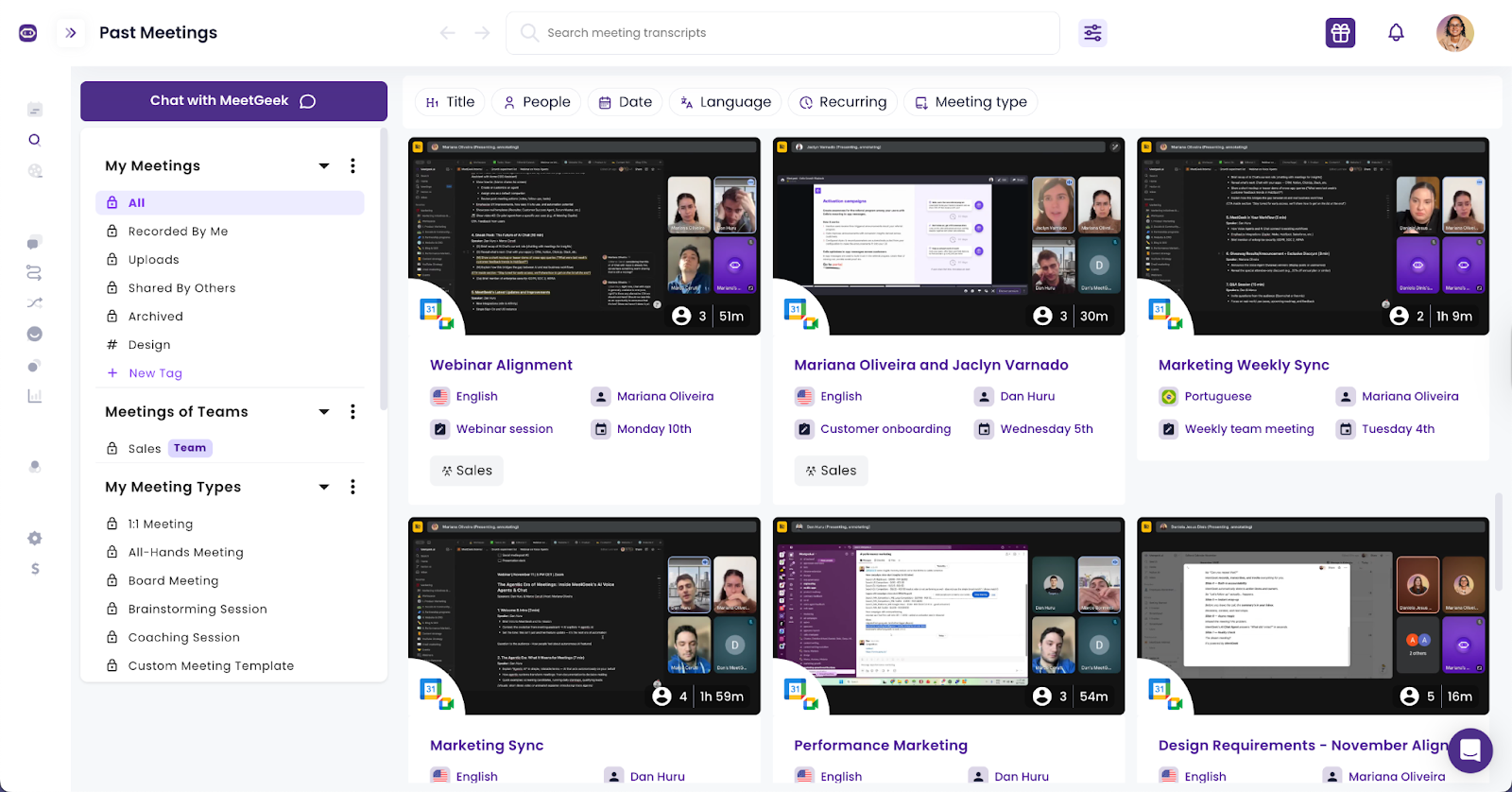
MeetGeek stocke les réunions dans un espace de travail centralisé. À partir de là, vous pouvez :
- Partagez un lien sécurisé avec vos collègues ou vos clients.
- Copiez les résumés dans la documentation.
- Filtrez les réunions par participant ou par thème.
- Intégrez-le à d'autres outils pour synchroniser les notes et les actions.
Plutôt que de télécharger un fichier, de le renommer, de le charger ailleurs et de rédiger manuellement des notes de suivi, le système maintient tout connecté.
Ce que vous pouvez faire au-delà de l'enregistrement avec MeetGeek
L'enregistrement d'écran manuel produit une vidéo. MeetGeek transforme chaque réunion en un actif structuré qui reste utile longtemps après la fin de l'appel.
Effectuez des recherches dans les conversations
Vous pouvez effectuer une recherche dans plusieurs réunions en fonction d'un terme, d'une demande de fonctionnalité ou d'un nom de client spécifique. Cela n'est pas possible avec des fichiers de bureau isolés, sauf si quelqu'un les transcrit manuellement.
Suivez les décisions et les mesures à prendre
MeetGeek met en évidence les tâches et les engagements afin qu'ils ne soient pas enterrés dans un long enregistrement vidéo. Les réunions de synchronisation hebdomadaires et les appels avec les clients deviennent plus faciles à suivre car les responsabilités sont visibles.
Revivez des moments spécifiques avec des chapitres
Au lieu de faire glisser une chronologie d'avant en arrière, vous pouvez accéder directement aux sections qui vous intéressent. Pour les sessions de formation et les webinaires, cela permet aux coequ ipiers de consulter uniquement les parties pertinentes.
Créez une bibliothèque de réunions à long terme
Au fil du temps, les enregistrements s'accumulent. Avec la capture d'écran manuelle, cette accumulation devient un encombrement. Avec MeetGeek, les réunions constituent un archive consultable qui prend en charge l'intégration, les évaluations des performances, les études de clientèle et la planification stratégique.
Conseils de pro pour un meilleur enregistrement d'écran sur Mac
L'outil d'enregistrement d'écran intégré sur Mac est simple, mais de petits ajustements font une différence notable en termes de qualité vidéo et audio. Quelques habitudes pratiques permettent d'éviter les problèmes courants et de réduire le temps de montage ultérieur.
Vérifiez votre micro avant de commencer
Avant d'appuyer sur Enregistrer, ouvrez le menu Options dans la barre d'outils de la capture d'écran et vérifiez que le bon microphone est sélectionné. De nombreux problèmes d'enregistrement se produisent parce que le mauvais micro est actif ou que les niveaux d'entrée sont trop faibles. Si possible, testez pendant quelques secondes et relisez-le pour vérifier que votre voix est claire et équilibrée.
Nettoyez votre bureau
Fermez les fenêtres inutiles et supprimez l'encombrement visuel de votre écran. Les notifications, les onglets d'arrière-plan et les icônes de bureau désordonnées distraient les spectateurs et réduisent la clarté. Si vous enregistrez un didacticiel ou une démonstration, ne laissez apparaître sur votre écran que la fenêtre ou l'application dont vous avez besoin.
Ajustez intentionnellement la résolution
Une résolution plus élevée crée des vidéos plus nettes, ce qui est utile pour les didacticiels détaillés et les procédures pas à pas de l'interface utilisateur. Cela augmente également la taille du fichier. Si vous envisagez de mettre en ligne sur YouTube ou de partager en externe, une résolution plus élevée peut améliorer la clarté. Pour le partage interne, une résolution modérée permet d'alléger les fichiers et de les stocker plus facilement.
Utiliser un casque pendant l'enregistrement
Si vous capturez le son d'un appel Zoom ou d'une autre application, les écouteurs réduisent l'écho et le feedback. Ils empêchent également votre microphone de capter le son du système émis par les haut-parleurs de votre ordinateur, ce qui améliore la qualité sonore globale.
Découper immédiatement après l'enregistrement
Dès que vous arrêtez l'enregistrement, visionnez la vidéo et réduisez les secondes inutiles depuis le début ou la fin. QuickTime simplifie les choses, et le découpage immédiat empêche les séquences inutilisées de s'accumuler dans plusieurs fichiers. Une vidéo finale plus propre fait gagner du temps à tous ceux qui la regarderont plus tard.
Où sont enregistrés vos enregistrements d'écran
Par défaut, les fichiers sont enregistrés sur votre bureau.
Pour modifier l'emplacement de sauvegarde :
- Appuyez sur Shift + Command + 5
- Cliquez sur Options
- Sélectionnez un nouveau lieu
Vous pouvez choisir :
- PC de bureau
- Documents
- Autre dossier
Comment prendre une capture d'écran à la place
Si vous n'avez pas besoin de vidéo, il suffit d'une capture d'écran :
- Presse Commande + Maj + 4
- Faites glisser pour sélectionner la zone
- Relâchez la souris
Pour une capture d'écran en plein écran :
- Presse Commande + Maj + 3
Réflexions finales
L'apprentissage de l'enregistrement d'écran sur Mac vous offre un moyen rapide et intégré de capturer des vidéos sur votre ordinateur. Cependant, la limitation apparaît lorsque vous arrêtez l'enregistrement. Un fichier vidéo enregistré ne s'organise pas tout seul, ne résume pas les décisions et ne permet pas de suivre les actions. Lorsque les réunions deviennent fréquentes et que les résultats sont importants, le stockage d'enregistrements bruts sur un ordinateur de bureau crée des tensions qui s'aggravent au fil du temps.
MeetGeek comble cette lacune en transformant les réunions enregistrées en actifs structurés et consultables avec des transcriptions, des résumés d'IA, des chapitres et des suivis clairs. Au lieu de gérer des fichiers, vous gérez des informations.
Si votre équipe utilise Zoom, Google Meet ou Microsoft Teams et a besoin de plus qu'un simple enregistrement d'écran, essayez MeetGeek gratuitement et découvrez comment la capture automatique des réunions et les résumés alimentés par l'IA modifient la façon dont vous documentez les conversations.
Questions fréquemment posées
Comment effectuer un enregistrement d'écran avec audio sur un Mac ?
Pour effectuer un enregistrement d'écran avec audio sur un Mac, appuyez sur Shift + Commande + 5 pour ouvrir la barre d'outils de capture d'écran. Choisissez Enregistrer la totalité de l'écran ou Enregistrer la partie sélectionnée, puis cliquez sur Options et sélectionnez un microphone dans la section audio. Appuyez sur Record bouton pour démarrer et utiliser Commande + Contrôle + Esc pour arrêter l'enregistrement.
Cette méthode enregistre l'entrée de votre écran et de votre microphone. L'enregistrement du son interne du système nécessite une configuration supplémentaire ou des outils tiers.
Un enregistrement d'écran Mac peut-il capturer le son du système ?
Par défaut, l'enregistrement d'écran macOS capture l'entrée du microphone mais n'enregistre pas directement le son interne du système, tel que le son de l'application ou la lecture YouTube. La capture du son du système nécessite un logiciel de routage audio supplémentaire et la modification des paramètres du système.
Pour les réunions sur Zoom, Google Meet ou Microsoft Teams, l'utilisation d'un outil d'enregistrement de réunion dédié tel que MeetGeek permet d'éviter une configuration complexe et garantit une capture audio propre sans configuration audio manuelle du système.
Quel est le meilleur moyen d'enregistrer des réunions Zoom sur un Mac ?
La meilleure façon d'enregistrer des réunions Zoom sur un Mac dépend de votre objectif. Pour un simple fichier vidéo, vous pouvez utiliser la fonction d'enregistrement intégrée de Zoom ou l'outil d'enregistrement d'écran macOS.
Pour les équipes qui ont besoin de transcriptions, de notes consultables, de résumés d'IA et d'un stockage organisé, un assistant de réunion tel que MeetGeek fournit un enregistrement automatique, des résumés structurés, un suivi des actions et un accès centralisé aux conversations passées.




.avif)