


The 30-second version: Open Google Calendar > Create > Event > set the time > click Add Google Meet video conferencing > add guests > Save > Send. You can also start from Gmail (in a new email, click Set up a time to meet > Create an event) or directly from Google Meet (New meeting > Schedule in Google Calendar). On mobile, the Google Calendar and Google Meet apps both work; full step-by-step below.
You can start a Google Meet call instantly or schedule it in advance. Scheduling creates a calendar event with the meeting link and reminders for guests. Free personal Google accounts can schedule meetings too, within the Google Meet time limit for group calls.
Why Schedule a Google Meet Instead of Starting One on the Fly?
Three reasons:
- Everyone gets the link automatically. Scheduled meetings live in the calendar event. Attendees can join with one click; no link-pasting or "what's the URL?" Slack messages.
- Reminders are sent automatically. Calendar sends the notifications set for the event.
- You get host controls. As the meeting organizer, you can add co-hosts, set permissions (who can present, mute, or remove others), and require participants to knock before joining.
MeetGeek can automatically join scheduled Google Meet calls to capture notes and action items. The setup instructions are below.
How to Schedule a Meeting in Google Meet on Desktop
You have three desktop methods. Pick the one that fits where you already are.
Method 1: Schedule a Google Meet From Google Calendar (Most Common)
Best when you're planning the meeting from scratch.
1. Open Google Calendar in your browser.
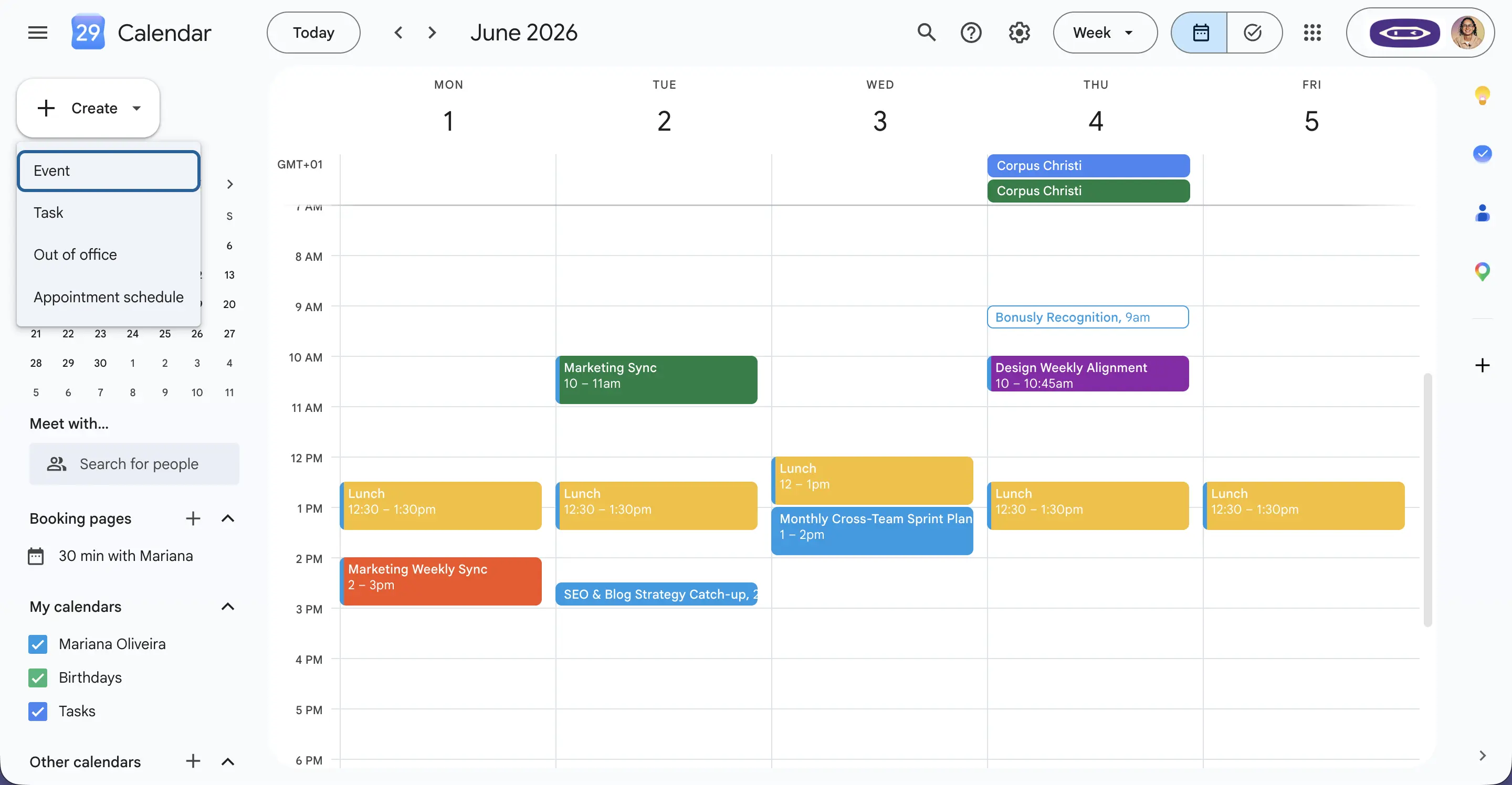
2. Click Create → Event in the top-left corner. (You can also click any empty time slot on your calendar to create an event there.)
3. Add a title, date, and time. Use a clear, descriptive title. "Q3 Planning, Sales + Marketing" beats "Sync."
Did you know?
According to MeetGeek data from the first half of 2026, 46.6% of Google Meet calls ended in under 30 minutes, the highest share of short meetings across Google Meet, Microsoft Teams and Zoom.
4. Click "Add Google Meet video conferencing." Google Calendar generates a unique meet.google.com link automatically.
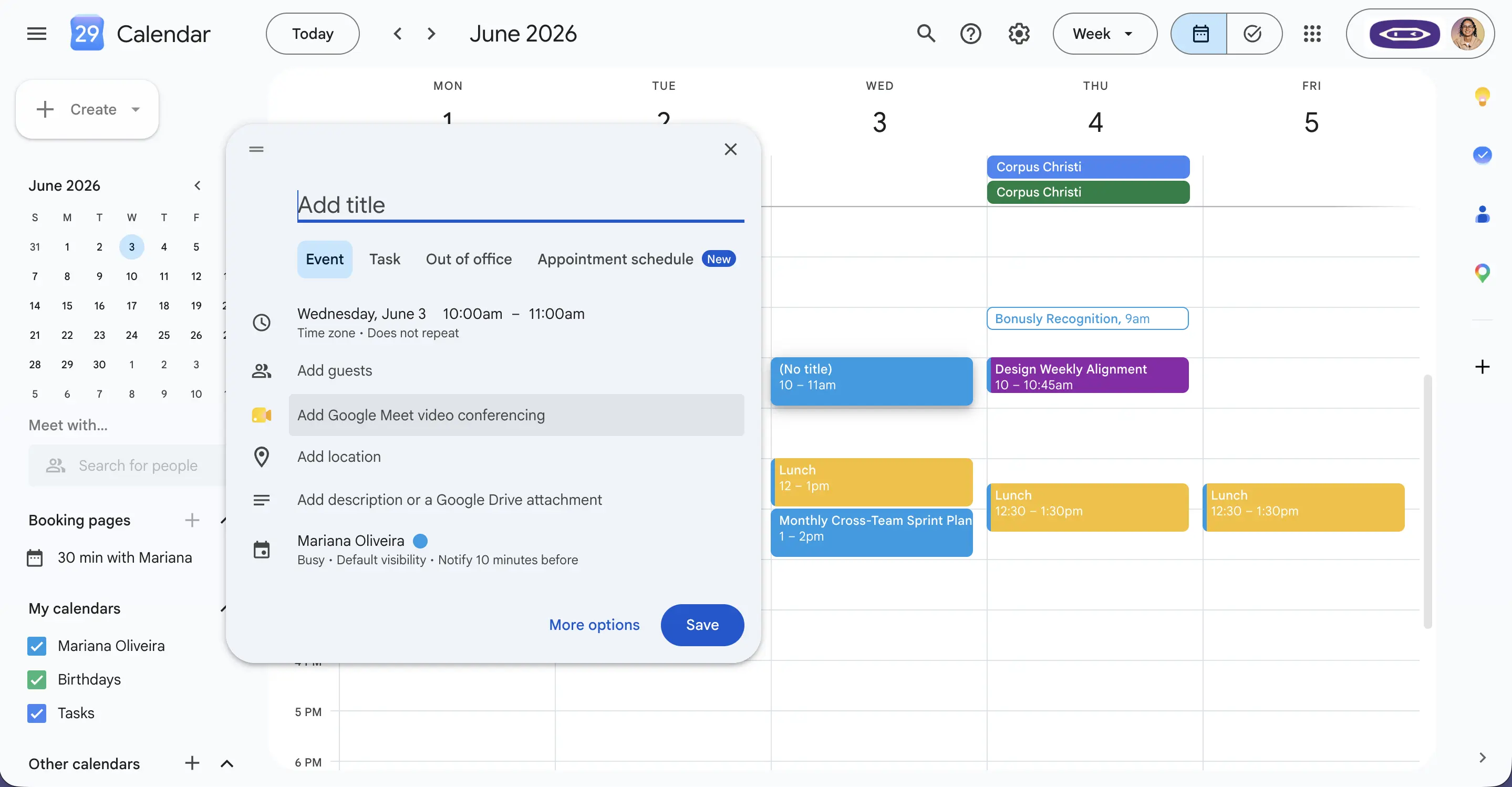
5. Add guests. Type email addresses in the Add guests field. Calendar auto-suggests contacts as you type.
6. (Optional) Add an agenda in the Description field and attach meeting notes, slides, or documents for guests to read beforehand. Anything you attach is visible to all guests.
7. Click Save. Calendar asks if you want to send invitation emails. Click Send.
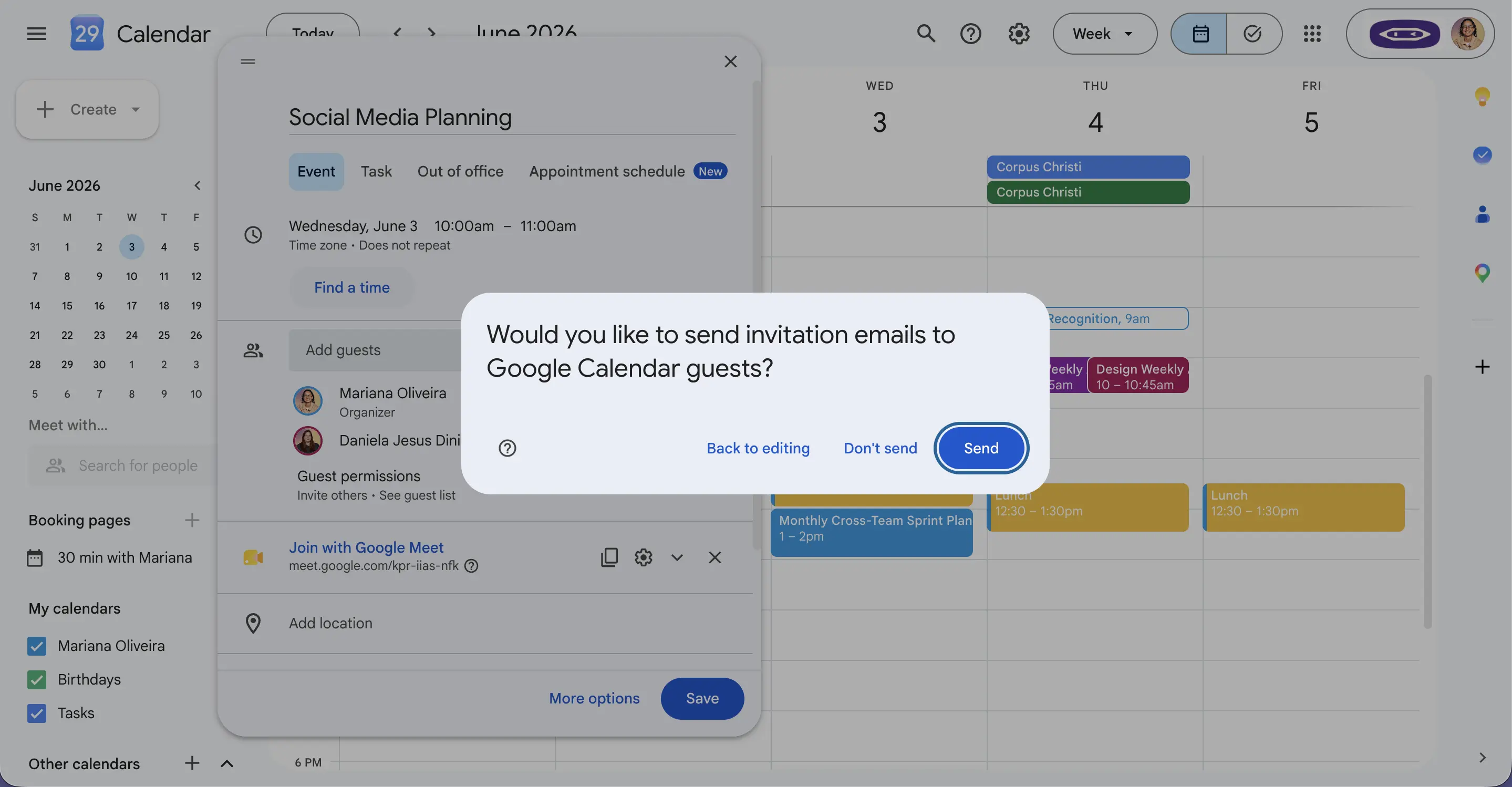
Guests receive an email with the meeting link. The event appears in their calendar with reminders.
Method 2: Schedule a Google Meet From Gmail
Best when you're already writing an email and want to add a meeting to the conversation.
1. In Gmail, click Compose to draft an email.
2. At the bottom of the compose window, click "Set up a time to meet" > "Create an event." If you don't see it, click More options (the three-dot menu) first.
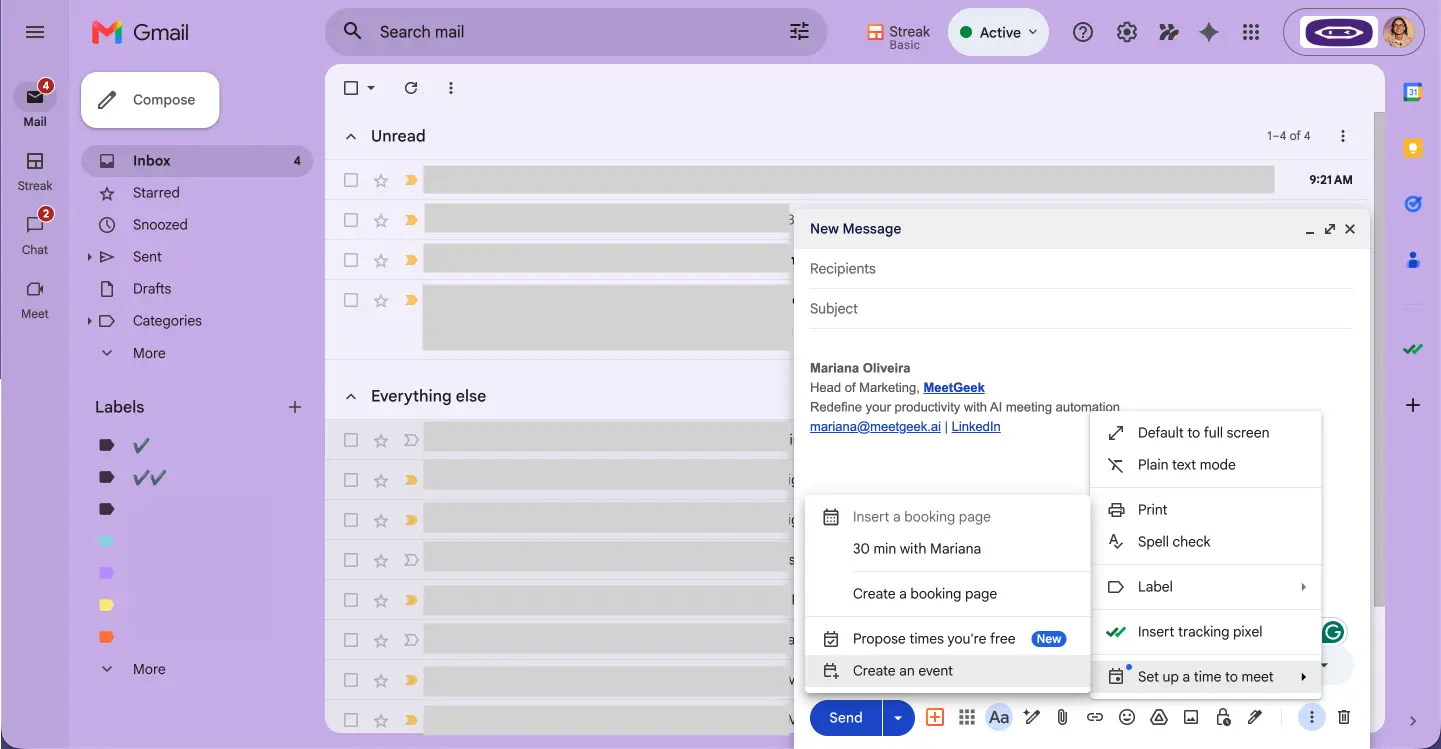
3. A Google Calendar event window opens. Add a title, date, and time, then click Add Google Meet video conferencing.
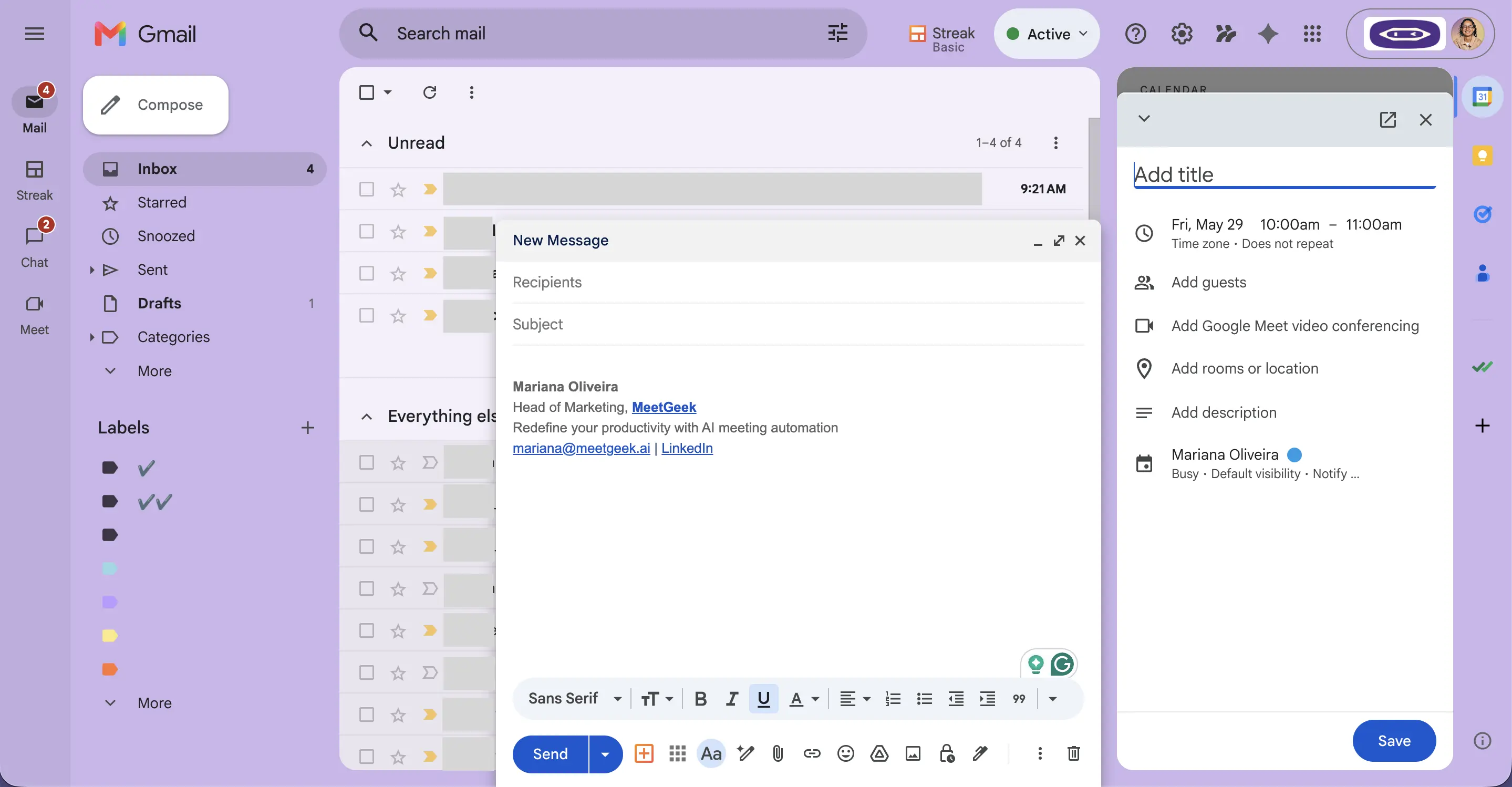
4. Click Save in the Calendar window. Calendar adds the meeting to your schedule and inserts the meeting details into your email draft.
5. Finish your email and click Send. The recipient gets both your message and the calendar invite.
Google lists "Set up a time to meet" for personal Gmail accounts and Workspace Business Starter. On other Workspace editions you may see "Help me schedule" instead, or you can use Method 1.
Method 3: Schedule a Google Meet From Inside Google Meet
Use this method to start scheduling from Google Meet.
1. Open Google Meet in your browser.
2. Click "New meeting."
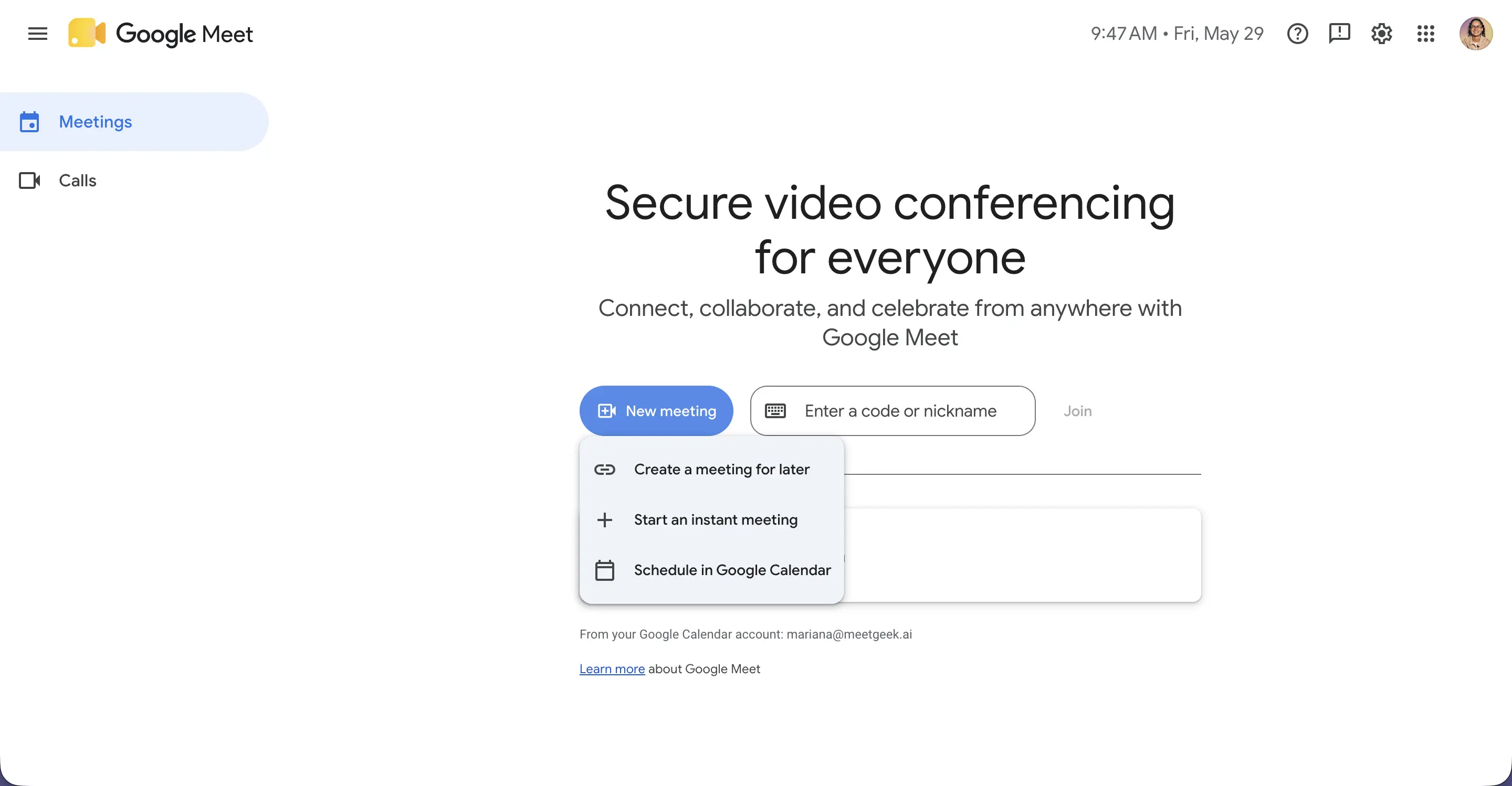
3. You see three options: Create a meeting for later, Start an instant meeting, or Schedule in Google Calendar.
- Create a meeting for later generates a reusable link you can copy and paste anywhere;
- Schedule in Google Calendar opens Calendar with a Meet link pre-attached.
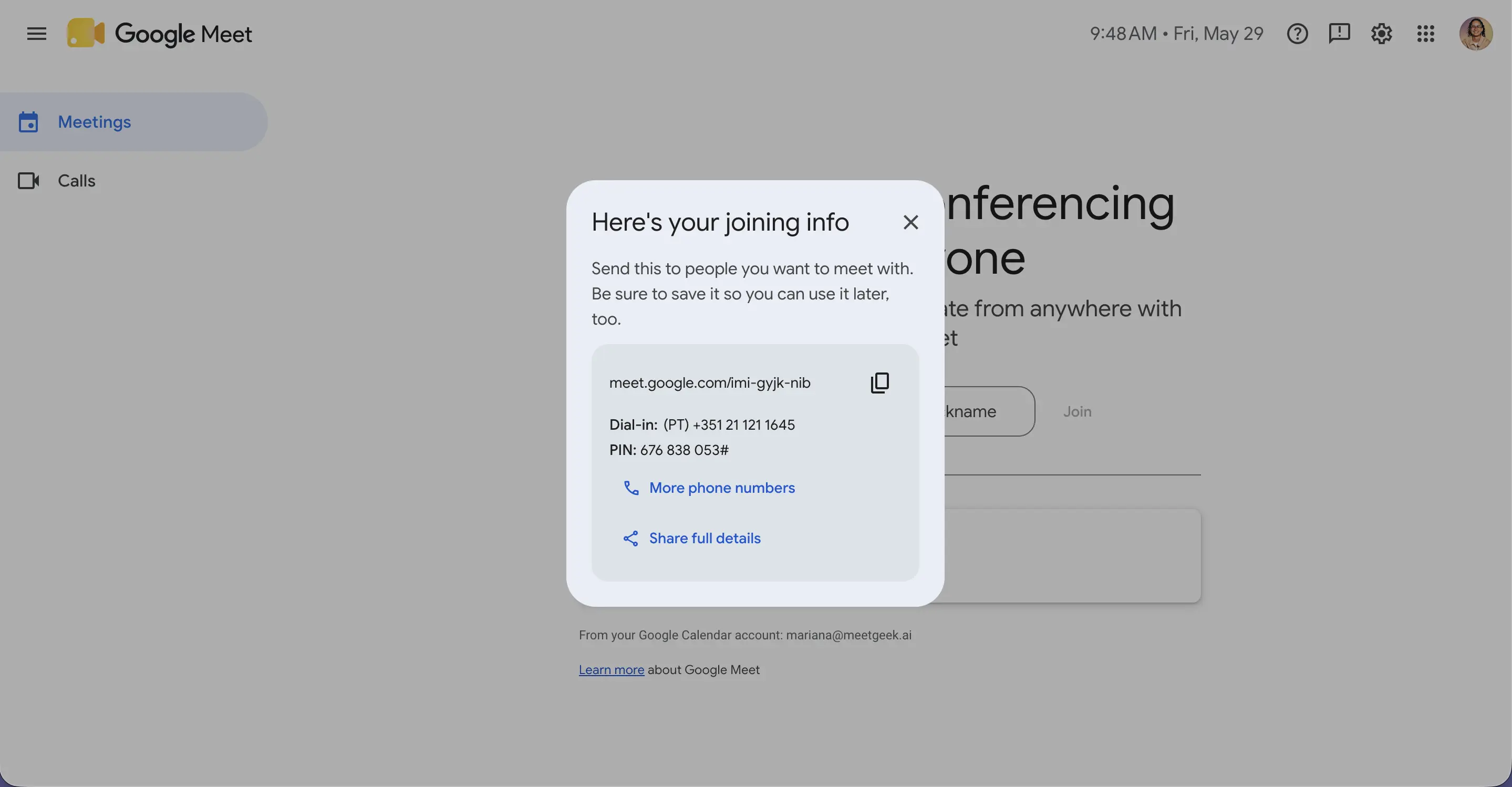
4. For a scheduled meeting, click "Schedule in Google Calendar." Fill in the event details and save.
A Google Meet link isn't tied to a specific time. The date and time are set in the Calendar event; anyone with the link can use it to join. Links attached to a Calendar event expire only when they have gone unused for 60 days and no future event uses them. Links from "Create a meeting for later" expire 365 days after they were last used, according to Google's page on how Google Meet meeting codes expire.
How to Schedule a Meeting in Google Meet on Mobile
Mobile scheduling works two ways depending on which app you start in.
Google Calendar App (iOS and Android)
1. Open the Google Calendar app.
2. Tap Add in the bottom-right corner and select Event.
3. Add a title, date, and time.
4. Tap "Add video conferencing" if the event doesn't show a Google Meet link yet.
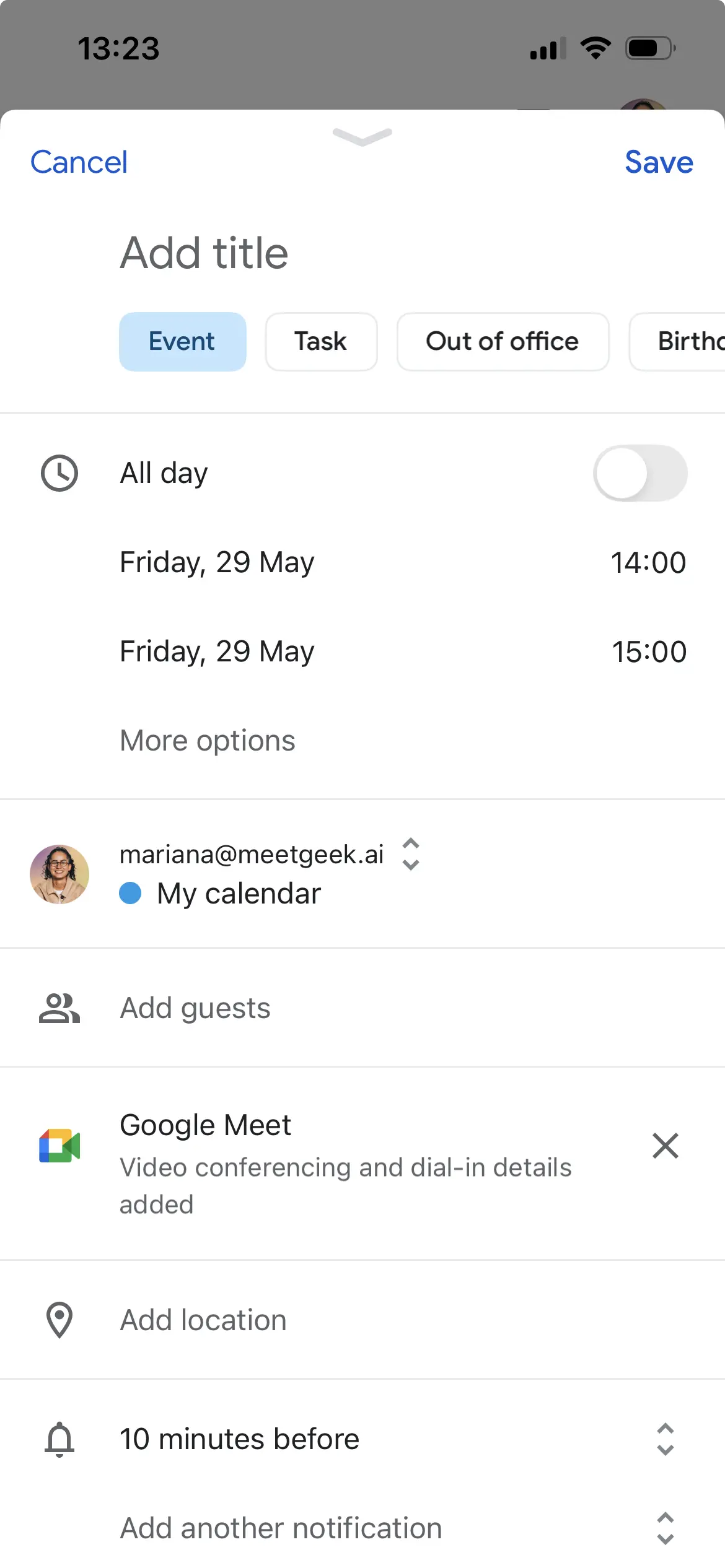
5. Tap "Add people" to invite guests.
6. Tap Done, then Save to send the invitations.
Google Meet App (iOS and Android)
1. Open the Google Meet app.
2. Tap "New" at the bottom right.
3. Tap "Schedule." This opens Google Calendar with a Meet link pre-attached.
4. Fill in title, time, and guests, then tap Save.
If you only need a link to send by message, tap New > Create link instead. That link has no date or time attached.
Make Every Scheduled Google Meet More Productive With MeetGeek

MeetGeek keeps meeting notes, action items, and decisions in one place so participants can refer to them afterward.
MeetGeek is an AI meeting assistant that automatically joins scheduled Google Meet calls and provides:
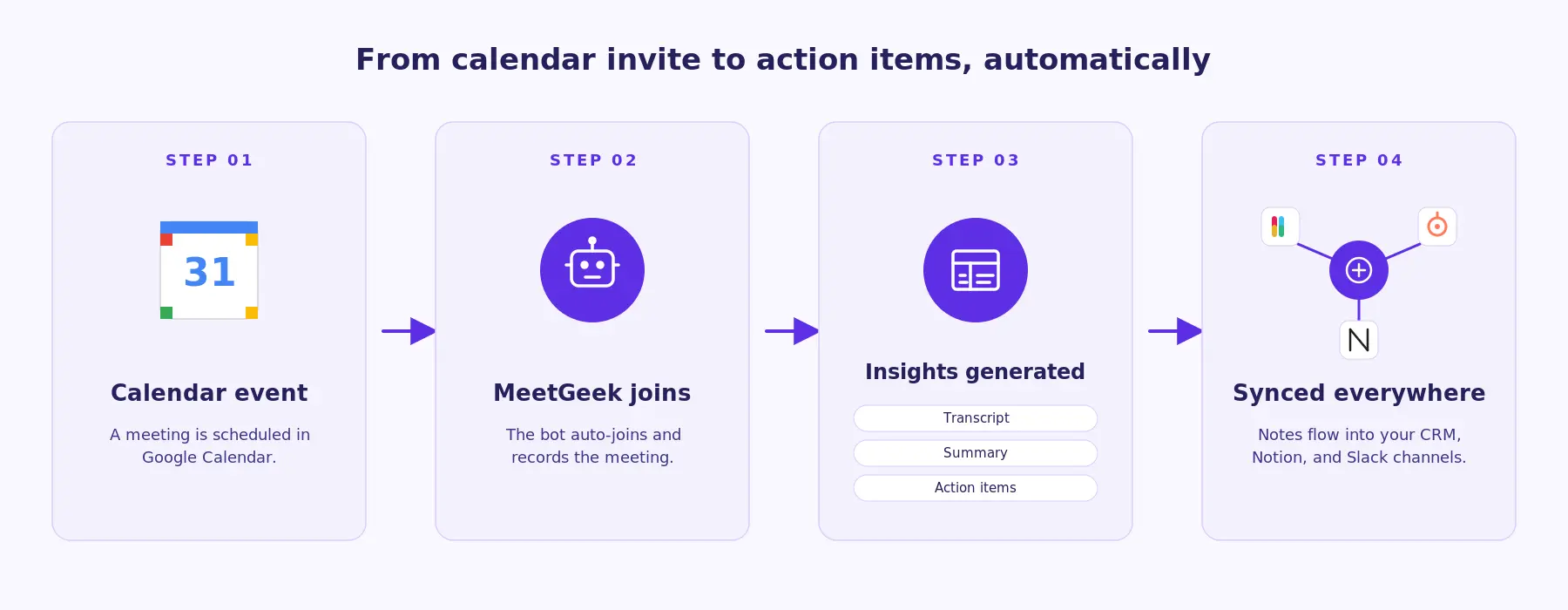
- Auto-records the scheduled calls you choose. Once you connect Google Calendar, MeetGeek detects scheduled Meet events and joins on time;
- Transcribes with speaker labels. 100+ languages, with automatic language detection;
- AI summary, action items, and decisions delivered in your dashboard after the meeting ends;
- Searchable meeting library. Find any moment from any past meeting;
- AI Chat across your meeting library. Ask "What did we agree on about the launch date?" to find the answer in your meetings. The MeetGeek MCP Server connects to Claude and ChatGPT so they can use meeting information in workflows, such as automatically creating tickets;
- Native integrations with Notion, HubSpot, Slack, Trello, Google Drive and more, plus 10,000+ connected apps through Zapier, Make and n8n.
How to Connect MeetGeek With Google Meet
- Sign up for a free MeetGeek account.
- Connect your Google Calendar when prompted.
- Choose which scheduled Google Meet events you want MeetGeek to join.
- MeetGeek automatically joins your next scheduled call. You'll find the recording, transcript, and summary in your dashboard after the meeting ends.
If you'd rather not have a bot in the call, the MeetGeek Chrome Extension records right from your browser without one. Inform participants that the meeting is being recorded, even when recording without a bot, and follow the consent requirements that apply to you.
The free plan includes 3 hours of transcription a month, so you can try it on your next few scheduled calls.
Common Google Meet Scheduling Problems (and Fixes)
Guests Aren't Getting the Invitation Email
Usually one of three issues: typos in the email field, the recipient's spam filter, or you skipped the "Send invitations" prompt when saving the event. Fix: open the event in Calendar, click the email-envelope icon next to the guest list, and resend.
The Meeting Link Doesn't Work for External Guests
External guests sometimes need to "ask to join," depending on the meeting's access setting. Fix: open the event, click the gear icon next to the Meet link, and under Meeting access choose Open (anyone with the link joins without asking), or add the external email addresses as guests. Restricted access isn't available on personal accounts.
The Meeting Doesn't Appear in Everyone's Calendar
This happens when guests use a non-Google calendar (Outlook, Apple Calendar). Fix: Calendar sends an .ics file via email; guests need to click "Add to calendar" in that email. If they accept the email invite, it syncs automatically.
Some Scheduling Features Are Missing on a Personal Google Account
Personal Google accounts can schedule Meet calls and add Google Meet video conferencing. They have a 60-minute limit on group calls of 3+ people and do not include native transcription. Native recording needs an eligible paid plan (or a Google One plan with 2 TB or more). Google Workspace Essentials users, on the other hand, can't schedule meetings in Google Calendar at all. For longer group calls, upgrade to Google Workspace. For recording and transcription without a paid Google plan, you can use MeetGeek.
Frequently Asked Questions
How Do I Use Google Meet?
Open Google Meet in your browser, sign in with your Google account, and click "New meeting" to start an instant call or "Join a meeting" to enter a code. On mobile, download the Google Meet app for iOS or Android. Connecting Google Meet to Google Calendar lets you schedule, join and record meetings from one place.
How Do I Schedule a Google Meet With Multiple Coworkers?
In Google Calendar, click Create → Event, add a title and time, click Add Google Meet video conferencing, then enter all coworker emails in the Add guests field. Calendar will auto-suggest contacts. Click Save and Send to email invites to everyone.
What Do I Do If Participants Can't Join the Meeting?
First, confirm their email addresses are on the invite. Second, ask them to check their spam folder. Third, if they're external (outside your Workspace org), open the event's video call options and set Meeting access to Open, or add them as guests. As host, you can also manually admit anyone waiting in the lobby.
Can I Schedule a Recurring Google Meet?
Yes. When creating the event in Google Calendar, click the "Does not repeat" dropdown and choose Daily, Weekly, Monthly, or Custom. The same Meet link is used for every occurrence, so attendees can save it and use it for each meeting.
Can I Schedule a Google Meet Without a Gmail Account?
You need a Google account, but it doesn't have to be a Gmail account. Any Google account (including those tied to a custom domain via Google Workspace) works. If you don't have a Google account at all, you can join meetings as a guest but can't schedule new ones.
How Far in Advance Can I Schedule a Google Meet?
There's no upper limit. You can schedule a Google Meet years in advance, and the link stays valid as long as a future Calendar event uses it. You can customize the reminders per event.
Can MeetGeek Record Any Scheduled Google Meet Automatically?
Yes. Once you connect Google Calendar to MeetGeek, MeetGeek auto-joins your scheduled Google Meet events, records and transcribes them, and delivers an AI summary, action items, and decisions to your dashboard. It works on the free MeetGeek plan up to 3 hours of transcription per month. The Pro plan raises that to 20 hours a month, and Business plans have no monthly limit.





.avif)