By clicking “Accept All Cookies”, you agree to the storing of cookies on your device to enhance site navigation, analyze site usage, and assist in our marketing efforts. View our Privacy Policy for more information.
MeetGeekBlogHow to Change Your Name on Zoom (Before and During a Call)
Back to Blog

How to Change Your Name on Zoom (Before and During a Call)

Productivity
Productivity

A step-by-step guide for desktop, web, and mobile, including how to rename yourself mid-call and stop your name from reverting.

Melania Ciocianu
September 22, 2025
/
5 min read
Table of content
Get started with MeetGeek AI Meeting Assistant:
📝 AI-powered Meeting Note taker
✅ Free meeting recording & transcription
💬 Automated sharing of insights to other tools.
Sign Up for Free
Share the knowledge with your circle
Copied

Changing your name on Zoom means updating the display name that other participants see, either permanently in your account profile or just for a single meeting. You can do it on the Zoom web portal, the desktop app, or the mobile app, before you join or while a call is already running.

The display name matters more than it looks. It is how colleagues, clients, and classmates identify you on a call, and Zoom keeps it in two separate places: your account profile, which is permanent, and the in-meeting rename option, which lasts only for that meeting. Knowing which one you are editing is the difference between a name that sticks and a name that resets the next time you join.

Quick Answer: How to Change Your Name on Zoom

To change your name on Zoom permanently, sign in to the Zoom web portal, open Profile, click Edit next to your name, update the Display Name field, and click Save. To change it for one meeting only, open the Participants panel during the call, hover over your name, click More, and choose Rename.

The permanent method updates your name everywhere you are signed in. The in-meeting method changes it only for the current call, which is why a name set that way reverts afterward.

How to Change Your Zoom Name Before a Meeting

Editing your profile is the permanent option. It updates your display name across every device where you are signed in to the same Zoom account.

On the Zoom Web Portal

  1. Sign in to the Zoom web portal at zoom.us.
  2. Click Profile in the left-hand menu.
  3. Click Edit next to your name at the top of the page.
  4. Update the First Name, Last Name, and Display Name fields.
  5. Click Save.

Your Display Name is what other participants see, so set it to whatever you want on screen, such as your first name, full name, or a nickname.

Editing your display name in the Zoom web portal profile

On the Zoom Desktop App

The desktop app, now part of Zoom Workplace, does not let you edit the name inline. It sends you to the web portal.

  1. Open the Zoom desktop app and sign in.
  2. Click your profile picture in the top-right corner.
  3. Select Settings, then Profile, and click Edit My Profile.
  4. Your browser opens the web portal. Follow the web steps above to update the Display Name and Save.
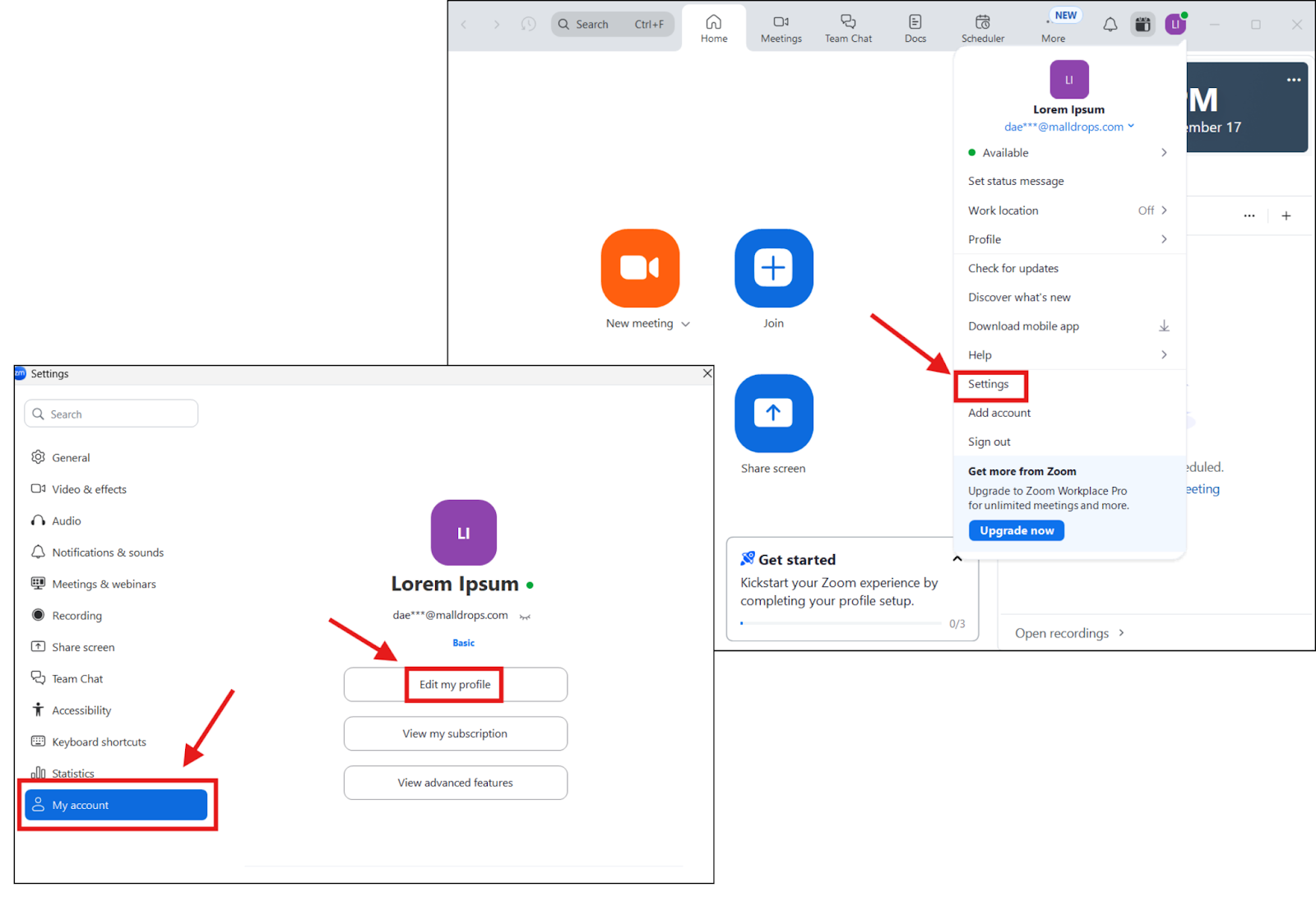
Opening Edit My Profile in the Zoom desktop app

On the Zoom Mobile App

  1. Open the Zoom app on your phone or tablet and sign in.
  2. Tap your profile picture in the top-left corner.
  3. Tap My Profile, then, under Personal, tap Display Name.
  4. Edit the First Name, Last Name, and Display Name fields.
  5. Tap Save.
Changing the display name in the Zoom mobile app

How to Change Your Name During a Zoom Meeting

If you are already in a call and only need the new name for this meeting, use the rename option instead. This is the fastest way to fix a name, and it works even when you joined through a link without signing in, as long as the host allows renaming.

On Desktop or Web

  1. Click Participants in the meeting toolbar.
  2. Hover over your own name in the list.
  3. Click More, then Rename.
  4. Type your new display name and click Change.
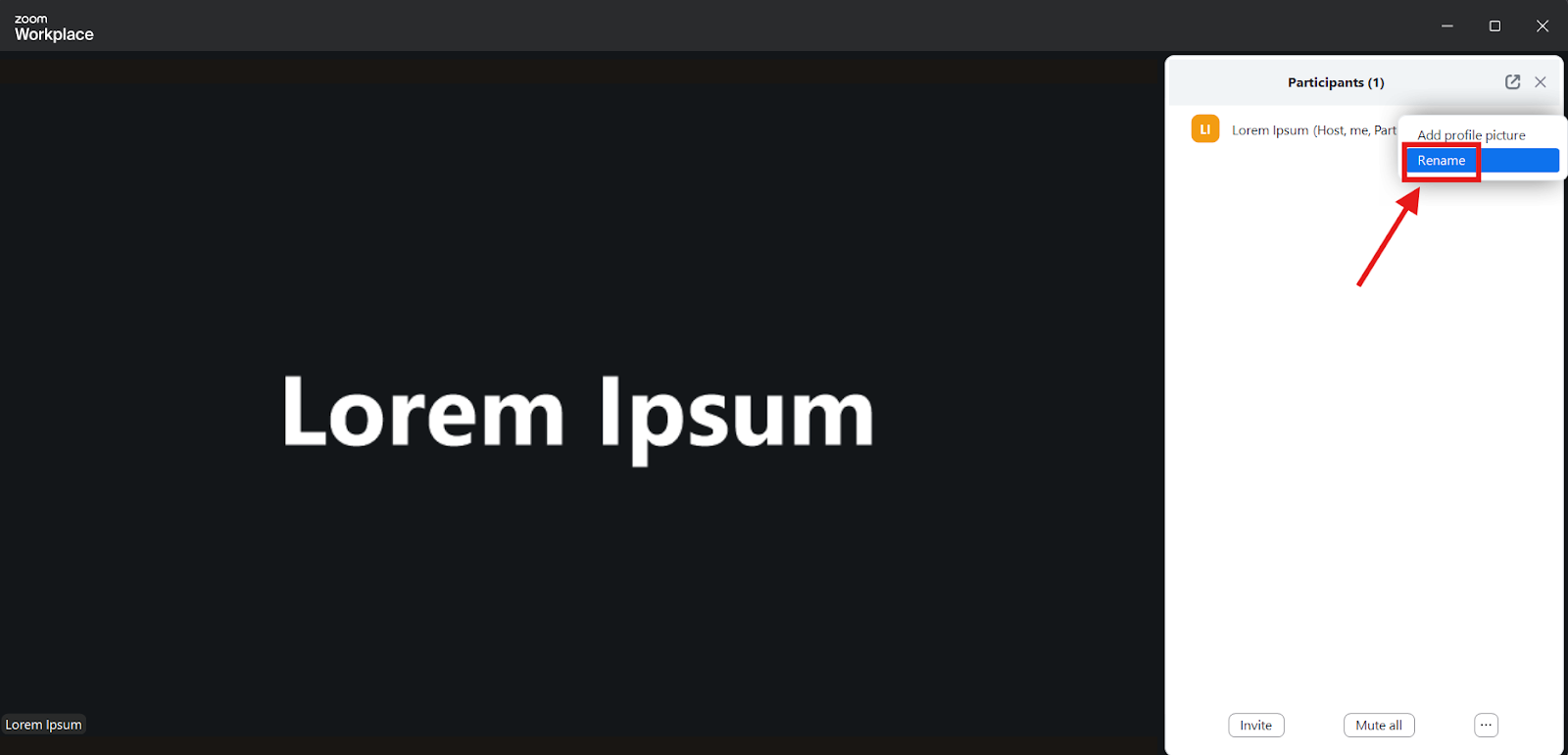
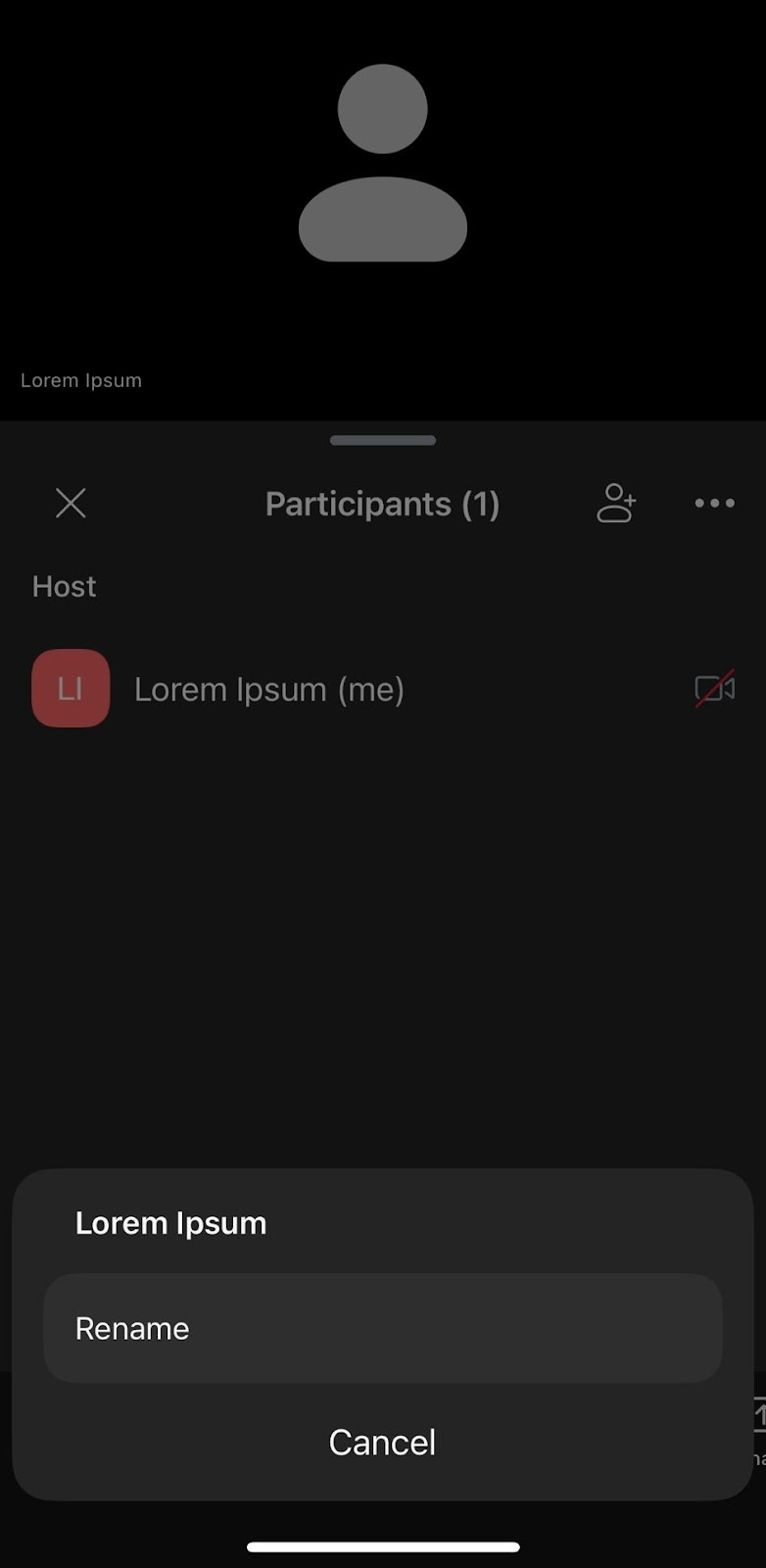
Renaming yourself from the Participants panel during a Zoom meeting

On Mobile

  1. Tap the screen, then tap Participants.
  2. Tap your own name in the list.
  3. Tap Rename.
  4. Enter your new name and tap Done.
Renaming yourself in a Zoom meeting on mobile

Can You Change Your Name in the Zoom Waiting Room?

Usually not. While you are held in the waiting room, the rename option is not available yet. It appears once the host admits you into the meeting, and from there you can rename yourself using the steps above.

If you want the right name to show before you are admitted, set it in your profile ahead of the call, or rename yourself in the meeting the moment you are let in.

Why Does My Zoom Name Keep Reverting?

Because the in-meeting rename is temporary by design. It applies only to the current meeting, so the next time you join, Zoom shows the name stored in your account profile again.

To make a name permanent, change the Display Name in the Zoom web portal, as shown above. Two other cases cause a name to revert: joining as a guest without signing in, which falls back to whatever you typed last time, and accounts managed through single sign-on (SSO/SAML), where your organization's identity provider can control the name and reset it to the directory value. If your name keeps resetting on a work account, ask your Zoom admin which field they manage.

Host Controls: Renaming Participants and Locking Names

Hosts and co-hosts can rename anyone in the meeting, and they can also stop participants from renaming themselves.

To rename a participant as the host, open Participants, hover over the person's name, click More, then Rename. To control whether attendees can rename themselves, use the Security icon in the meeting toolbar and toggle Allow participants to rename themselves. When that setting is off, the rename option disappears for everyone except the host.

Admins can set the same permission account-wide or per group under Settings, in the In Meeting (Basic) section, so it applies to every meeting by default.

Profile Name vs Display Name on Zoom

Your profile name and your in-meeting display name are related but not the same. The profile Display Name is stored on your account and follows you into every meeting you join while signed in. The in-meeting name is a one-time override that lasts until the call ends.

For a name you want everywhere, edit the profile. For a name you need just once, for example adding your pronouns, your team, or a client-facing title for a single call, use the in-meeting rename and let it reset afterward.

Keep Every Zoom Meeting on the Record

Once your name is set, the next thing most people want is a record of what was actually said. MeetGeek is an AI notetaker that can record and transcribe your Zoom meetings automatically, turning each call into a searchable Zoom meeting transcript with a summary and action items, so you are not stuck taking notes during the call. If that sounds useful for the meetings you run, you can try MeetGeek for free.

Key Takeaways

  • To change your name on Zoom permanently, edit the Display Name in your account profile on the web portal; it then syncs to every signed-in device.
  • To change it for one meeting only, use Participants, More, Rename during the call.
  • A name set mid-meeting reverts afterward, which is why permanent changes have to go through the profile.
  • The waiting room does not offer renaming; the option appears once you are admitted.
  • Hosts can rename participants and can turn off self-renaming from the Security menu.

Frequently Asked Questions

How do I change my name on Zoom on my phone?

Open the Zoom app, tap your profile picture in the top-left, tap My Profile, then Display Name, edit the fields, and tap Save. To change it only for the current call, tap Participants, tap your name, and choose Rename.

Why does my Zoom name change back after every meeting?

Because renaming yourself during a meeting is temporary. It only applies to that call. Set the Display Name in the Zoom web portal to make the change permanent.

Can I change my name on Zoom without an account?

Yes, if you joined a meeting through a link, you can still rename yourself from the Participants panel, as long as the host has left self-renaming enabled. The name will not be saved for your next meeting.

Can the host see my real name if I rename myself?

Hosts see the display name you are using in the meeting. On accounts that require sign-in or SSO, your underlying account name may still be visible to the host or admin.

Will changing my display name update it across all my devices?

Yes, when you change the Display Name in your profile while signed in, Zoom applies it on the web, desktop, and mobile app for that account.
Article updated on 
July 24, 2026
Share the knowledge with your circle
Copied
Related posts

Recruitment Automation Tools: 7 Platforms to Try

We compared 7 platforms that automate sourcing, screening, scheduling, and interview documentation, and where each one fits.

This is some text inside of a div block.

Best AI Note Taker for Zoom: 8 Tools Tested (2026)

How 8 AI note takers actually connect to Zoom, and what each one does when you are not the meeting host.

This is some text inside of a div block.

7 Best Free AI Meeting Note Takers in 2026 (Tested)

A hands-on look at seven free plans, including how many meeting hours you actually get before the paywall starts.

This is some text inside of a div block.

Best Applicant Tracking Systems for Growing Teams

Explore the best applicant tracking systems, see who each ATS is best for, and learn how to choose the right one for your hiring process.

This is some text inside of a div block.

Executive Team: Roles, Structure, and Best Practices

Discover the roles, responsibilities, and traits of successful executive teams, plus practical strategies for building stronger leadership.

This is some text inside of a div block.

How to Record on Phone: iPhone and Android Guide

Discover how to record phone calls, voice notes, and screen activity on Android and iPhone, with tools, tips, and legal guidance.

This is some text inside of a div block.

What Is a Summary Report? Examples, Templates & Tips

A summary report helps turn complex information into clear insights. Learn the different types, essential sections, examples, and best practices for creating reports that save time and support better decision-making.

This is some text inside of a div block.

Meeting Notes in Claude: What You Can Build and How to Connect

Connect your meeting notes to Claude and turn past calls into answers, finished documents, and multi-step work.

This is some text inside of a div block.

The 6 Best Airgram Alternatives in 2026

Compare the best Airgram alternatives for 2026, including MeetGeek, Fireflies, Otter, tl;dv, Fellow, and Sembly AI.

This is some text inside of a div block.

Meeting Notes in ChatGPT: Benefits, Uses, and Setup

Connect your meeting notes to ChatGPT and turn past calls into instant answers, drafts, and automations, in plain language.

This is some text inside of a div block.

How To Type Faster: 15 Typing Hacks That Work

Want to type faster and make fewer mistakes? Discover practical typing hacks, keyboard shortcuts, and tools that help you work smarter.

This is some text inside of a div block.

10 Best ChatGPT Alternatives For Work In 2026

Looking for a ChatGPT alternative? Compare the top AI tools for research, meetings, writing, coding, search, and productivity in 2026.

This is some text inside of a div block.

9 Best Calendly Alternatives in 2026 (Tested + Compared)

Cal.com, Acuity, Chili Piper, and more — the best Calendly alternatives in 2026, tested and ranked by use case.

This is some text inside of a div block.

8 Best Google Meet Extensions in 2026 (Tested for Productivity)

From AI notes to noise cancellation, here are 8 Chrome extensions that fix what Google Meet doesn’t do natively.

This is some text inside of a div block.

AI Productivity Tools We Actually Use in Sales and Marketing

A practical look at the AI productivity tools we use daily for meetings, content, automation, sales workflows, and teamwork.

This is some text inside of a div block.

Gemini vs. Google Assistant: Full Comparison Guide

Confused about Gemini vs Google Assistant? Learn the key differences, what Google is changing, and which assistant fits you best.

This is some text inside of a div block.

Managing Hybrid Teams in 2026: Common Challenges and How to Overcome Them

Communication gaps, time-zone friction, culture drift — the four challenges every hybrid manager faces, and how to solve them.

This is some text inside of a div block.

MeetGeek vs tl;dv: Which AI Meeting Tool Is Right for Your Team in 2026?

Features, pricing, accuracy, integrations on a side-by-side comparison with a clear verdict for sales, CS, and ops teams.

This is some text inside of a div block.

How to Convert MP4 to Transcript (Fast & Accurate)

Learn how to convert MP4 files into accurate transcripts, subtitles, and captions with AI tools for meetings, webinars, and interviews.

This is some text inside of a div block.

Google Transcription Service in 2026: Honest Review and Best Alternative

Google Meet, Cloud Speech-to-Text, Docs, Recorder — what each does, where each falls short, and the better alternative.

This is some text inside of a div block.

AI Sales Coaching: How Modern Sales Teams Use AI to Close More Deals

How AI sales coaching analyzes every call (not just the 3% a manager samples) and surfaces coachable moments by rep, stage, and objection type.

This is some text inside of a div block.

Can ChatGPT Transcribe Audio? What It Can and Can’t Do

Can ChatGPT transcribe audio? Discover how it works, its limitations, and when to use MeetGeek for better results.

This is some text inside of a div block.

AI for Customer Success: The 2026 Playbook

Where AI plugs into the CSM day (Renewals, Risk, References, Reviews) plus a maturity model and a 10-item checklist for choosing tools.

This is some text inside of a div block.

A Complete Guide to the MEDDIC Sales Methodology

Discover MEDDIC sales, how it helps qualify leads, understand decision processes, and improve win rates across complex B2B sales cycles.

This is some text inside of a div block.

How To Write an Out of Office Message

Learn how to write a clear out of office message, what to include, and use ready-to-copy examples for any situation.

This is some text inside of a div block.

How To Cancel Your Zoom Subscription in 2026

Need to cancel your Zoom subscription? This guide explains exactly how to do it on the Zoom website, Apple App Store, or Google Play, what happens after cancellation, and how to avoid extra billing charges.

This is some text inside of a div block.

MeetGeek vs Fellow: Comparing Meeting Notes, Agendas, and Automation

Comparing MeetGeek vs Fellow? See how their AI meeting notes, agendas, recordings, and automation features differ to find the best fit for your team.

This is some text inside of a div block.

How to Screen Record on Mac (With Audio, System Sound & Pro Tips)

Learn how to screen record on Mac using built-in tools, capture audio correctly, and see when MeetGeek is the smarter option.

This is some text inside of a div block.

MeetGeek vs Krisp: Which AI Meeting Assistant Is Right for Your Team?

MeetGeek vs Krisp compared: AI notes, noise cancellation, pricing, integrations, and recording features explained clearly.

This is some text inside of a div block.

Video Conference Tips for Running Successful Virtual Meetings

Learn practical video conference tips that improve audio quality, engagement, and follow-through, and help teams stay aligned after virtual meetings.

This is some text inside of a div block.

Webex vs Zoom: Which Video Conferencing Platform Fits Your Meetings Best?

A clear comparison of Webex vs Zoom, from features and pricing to security and integrations.

This is some text inside of a div block.

How to Raise Hand in Zoom and Actually Get Heard

Learn how to raise your hand in Zoom on any device, avoid interruptions, and keep meetings organized from start to finish.

This is some text inside of a div block.

Good Questions to Ask in an Interview That Help You Make the Right Choice

Learn which questions to ask, when to ask them, and how to use interviews to decide if a role, team, and company are truly right for you.

This is some text inside of a div block.

What is Companion Mode in Google Meet? Everything You Need to Know

Read on for a practical guide to using Companion Mode in Google Meet for clearer, more balanced hybrid meetings.

This is some text inside of a div block.

What Is a Skip-Level Meeting? How Leaders Use Skip-Levels to Improve Communication

An in-depth look at skip-level meetings and how they help leaders connect with teams and gain real insight.

This is some text inside of a div block.

What Is an AI Voice Agent? A Practical Guide to How Voice AI Really Works

This guide explains what an AI voice agent is, how it works, the benefits it offers, and where it fits best alongside human teams.

This is some text inside of a div block.

Stand-Up Meeting Guide: What They Are and How to Run Them

Discover what makes a stand-up meeting actually useful. This guide explains how to run daily stand-ups that stay short, surface blockers, and keep teams aligned.

This is some text inside of a div block.

Everything About Microsoft Teams AI Interpreter + How to Go Beyond Translation

Find out how Microsoft Teams AI Interpreter works, where it falls short, and how to go beyond translation.

This is some text inside of a div block.

Best Lecture Recording App in 2026: 5 Tools Students Actually Use

Let’s take an in-depth look at what students are using nowadays to record and organize their lectures, both online and offline.

This is some text inside of a div block.

Read AI Pricing Explained for 2026: Is It Worth It for Meeting Notes

Explore Read AI’s 2026 pricing, its core features, and how it handles meeting notes, transcription, and insights to support modern teams.

This is some text inside of a div block.

What Is a Searchable Knowledge Base and How Does It Work?

Explore how searchable knowledge bases improve access to information and see how MeetGeek turns your meetings into a fast, reliable knowledge hub.

This is some text inside of a div block.

How to Blur Background in Google Meet (Simple Guide for All Devices)

Discover how to blur your background in Google Meet on desktop and mobile, use visual effects, and get a cleaner, more focused look in every call.

This is some text inside of a div block.

How to Join Teams Meeting With Code: A Complete Step-by-Step Guide

Find out how to join Microsoft Teams meetings using a meeting code, as well as other options like a link or invite. This guide explains every method in a clear, step-by-step way.

This is some text inside of a div block.

5 Best NoteGPT Alternatives in 2026

Explore the top 5 NoteGPT alternatives that help you capture key insights, transcribe content, and boost productivity across learning and professional workflows.

This is some text inside of a div block.

What Is Perplexity AI? A Guide to the AI-Powered Search Engine Transforming How We Find Information

In this article we’ll take a close look at Perplexity AI, what it can do for you compared to traditional search engines, and some of its pros and cons.

This is some text inside of a div block.

Top tl;dv Alternatives to Streamline Your Meetings

Discover the top tl;dv alternatives and explore and compare their features to choose the right AI meeting tool for your organization.

This is some text inside of a div block.

ChatGPT Record Mode vs MeetGeek: Here's Everything You Need to Know

Curious how the ChatGPT recorder compares to MeetGeek? We looked at features, integration, and data security for recording meetings.

This is some text inside of a div block.

Fathom AI Pricing 2026: Is It Still Worth It for Modern Teams?

Explore Fathom AI pricing for 2026, including features, limits, and plan comparisons, plus how MeetGeek offers more flexibility for teams.

This is some text inside of a div block.

AI Meeting Agents: How Autonomous AI Is Transforming the Future of Work

Discover how AI meeting agents are redefining the future of work—handling scheduling, follow-ups, and even speaking on your behalf to save time and turn every meeting into real action.

This is some text inside of a div block.

Notta AI Review: Is This AI Transcription Tool Worth It in 2026?

Read this in-depth Notta AI review to see how well it transcribes meetings, handles multiple languages, and delivers AI summaries, plus where it falls short compared to smarter meeting assistants.

This is some text inside of a div block.

These 5 AI Tools for Nonprofits Will Make Every Hour Count

Make your nonprofit more efficient with AI tools that cut admin time, improve collaboration, and maximize every hour of impact.

This is some text inside of a div block.

Granola AI Notes Alternatives: The Best Options to Try in 2026

Explore the best Granola AI Notes alternatives for 2025 with smarter tools that go beyond transcription, offering automation, insights, and collaboration.

This is some text inside of a div block.

Follow-Up Email After Interview: How to Write It, When to Send It, and What to Say

Discover how to write an effective follow-up email after an interview. From timing and templates to tone and structure, this guide covers everything you need to stand out and stay memorable.

This is some text inside of a div block.

Tactiq Pricing 2026: Is It Worth It? Plans & Costs

A clear look at every Tactiq plan, what AI credits really limit, and how the costs add up for solo users and teams.

This is some text inside of a div block.

Ad Hoc Meeting Meaning and How to Run One

Discover the true ad hoc meeting meaning and learn how to make spontaneous discussions more focused and effective. Find out when to hold and manage them.

This is some text inside of a div block.

Virtual Meeting Etiquette: 15 Essential Rules for Professional Video Calls

Discover 15 essential virtual meeting etiquette rules and tips that keep conversations focused, professional, and engaging.

This is some text inside of a div block.

How to Blur Background in Zoom: Step-by-Step Guide

Discover how to use Zoom’s blur background feature for privacy and focus, plus tips, fixes, and when to switch to virtual backgrounds.

This is some text inside of a div block.

How to Share Screen on Google Meet: A Simple Step-by-Step Guide

Learn how to share your screen on Google Meet with clear steps for computer, iPhone, iPad, and Android.

This is some text inside of a div block.

MeetGeek’s MCP Server Explained: How It Enables AI Assistants to Transform Meetings

See how MeetGeek’s MCP Server helps AI assistants turn your meetings into smart, actionable insights, all from your local machine.

This is some text inside of a div block.

How to Change Your Name on Zoom (Before and During a Call)

A step-by-step guide for desktop, web, and mobile, including how to rename yourself mid-call and stop your name from reverting.

This is some text inside of a div block.

Note-Taking AI for Students: The Best Tools to Study Smarter in 2026

A guide to the best AI note-taking tools for students in 2026, with features, pros, and cons to help you choose the right app for learning.

This is some text inside of a div block.

Descript Pricing Review 2026: What It Offers, Where It Falls Short, and a Better Alternative

A closer look at Descript’s pricing tiers, their trade-offs, and why MeetGeek stands out as a smarter choice for creators.

This is some text inside of a div block.

Google Meet Time Limit: Free vs Paid Plans (2026)

Google publishes a different meeting length for free accounts, Workspace editions and Google One. Here is each one.

This is some text inside of a div block.

How To Transcribe Voice Memos To Text (3 Different Ways)

In this article, you’ll learn how to transcribe voice memos in three different ways, weighing the pros and cons of each option.

This is some text inside of a div block.

Best ClickUp Alternatives for AI Note Taking

Learn about the best 5 ClickUp alternatives if you want to go beyond simple AI note-taking and find a comprehensive meeting assistant.

This is some text inside of a div block.

What Is an Objective Summary? Definition, Examples & Tips

Objective summaries are a must when you need key information from lengthy meetings. We’ll discuss all about them in this article!

This is some text inside of a div block.

How to Record a Google Meet: All Options Explained

In this article, we break down how to record a Google Meet both natively and with the help of third-party tools like MeetGeek

This is some text inside of a div block.

8 Best Meeting Note-Taking Apps in 2026

Looking for the best meeting note-taking app for your team? We break down the features, pros, and cons of the 8 best ones right now.

This is some text inside of a div block.

How to Record a Zoom Webinar as a Host or Participant (2 Methods)

In this article, we will review how to record a Zoom webinar as host or participant using Zoom’s built-in recording and third-party tool with AI transcription.

This is some text inside of a div block.

7 Best Chrome Extensions for Salespeople and AMs

In this article, we will explore the best Chrome extensions for sales reps, focusing on tools that improve meeting intelligence, integrate with CRMs, and optimize productivity.

This is some text inside of a div block.

Best Chrome Audio Capture & Recorder Extensions (2026)

Compare the top Chrome extensions and tools for recording tab audio in 2026, from free recorders to full AI meeting assistants.

This is some text inside of a div block.

7 Best Speech to Text Chrome Extensions: Comparison & Features

This guide breaks down the top 8 speech-to-text Chrome extensions for 2025, reviewing their key features, pricing, and ideal use cases to help you make an informed decision.

This is some text inside of a div block.

Meeting Overload Isn’t the Real Problem - Bad Meeting Design Is

When meeting overload becomes obvious, there are soma small changes that can transform your entire meeting culture.

This is some text inside of a div block.

Best Conversation Intelligence Software in 2026

By leveraging AI, these conversational intelligence platforms provide the analysis needed to refine sales or investor pitches, improve coaching, and influence revenue.

This is some text inside of a div block.

How to Add Meeting Notes to Google Docs [3 Easy Ways]

Let's explore 3 ways of how to add your meeting notes to Google Docs - manually or automatically.

This is some text inside of a div block.

Find the Best Zoom Alternative in 2026

Looking for a Zoom alternative? Check out the best options for 2026 and find the perfect fit for your meetings!

This is some text inside of a div block.

How to Extend the Zoom Time Limit: Paid & Free Solutions

Need more time for your Zoom meeting? Learn how to easily extend your session with this simple guide.

This is some text inside of a div block.

Microsoft Teams for Mac: How to Download, Install & Use It (2026)

Setting up Microsoft Teams on Mac is easy! Follow our quick guide to start collaborating seamlessly.

This is some text inside of a div block.

How to Record WhatsApp Calls on Any Device (2026)

Discover the easiest way to record WhatsApp calls with our clear, step-by-step instructions.

This is some text inside of a div block.

Top 5 Integrations for AI Meeting Assistants in 2026

Looking to boost your meeting productivity? Explore the top AI meeting assistant integrations of 2026 that seamlessly connect with your favorite tools and apps.

This is some text inside of a div block.

7 Ways AI Meeting Assistants Save Time for Sales Teams in 2026

Learn how AI meeting assistants transform sales productivity in 2026 by eliminating manual tasks, streamlining workflows, and enabling reps to focus on selling.

This is some text inside of a div block.

Zoom Pricing in 2026: Plans, Add-Ons and Real Costs

A plain-English breakdown of every Zoom Workplace plan, add-on and hidden cost, with the real yearly price for teams of each size.

This is some text inside of a div block.

Can I Take a Screenshot in Teams? Your Questions, Answered

Wondering how to take a screenshot in Teams? We break down what works, what doesn’t, and what to watch for.

This is some text inside of a div block.

Google Meet Pricing in 2026: Free vs. Paid Plans Compared

Find the right Google Meet plan for your team with our clear breakdown and smart cost-saving tips.

This is some text inside of a div block.

Where Are Teams Recordings Stored? All Locations, Explained

Wondering where your Microsoft Teams recordings end up? Here’s every storage option clearly explained.

This is some text inside of a div block.

The 4-Day Workweek: How Companies Are Winning the Talent War

Why working less might be the smartest move for companies chasing productivity, innovation, and talent retention.

This is some text inside of a div block.

Find the Best Speech to Text App for Work in 2026 (Free & Paid)

Looking for a speech to text app in 2026? We’ve rounded up top picks to boost productivity and save time at work.

This is some text inside of a div block.

Managing Security and Compliance Risks Related to AI Note-Takers

Keep your AI-powered meetings secure and compliant! Learn how to manage security and compliance risks, protect sensitive data, and ensure privacy in your virtual meetings.

This is some text inside of a div block.

How to Write a Business Meeting Follow-Up Email + Templates & ChatGPT Prompts

Learn how to write clear, professional business meeting follow-ups with templates and ChatGPT prompts to save time and boost responses.

This is some text inside of a div block.

Microsoft Teams AI: How to Use Copilot in Meetings

A step-by-step guide to Teams Copilot for meetings, plus how MeetGeek adds recording, 100+ languages and follow-ups across platforms.

This is some text inside of a div block.

How to Take Minutes for a Meeting Like a Pro [+ Free Customizable Template]

Take flawless meeting minutes every time! Learn expert tips to capture key points, track action items, and impress your team with professional note-taking skills.

This is some text inside of a div block.

The 5 A's of Effective Communication: A Startup Guide to Better Team Collaboration

Startup success isn’t just about great ideas—it’s about how well your team communicates. Discover the 5 A’s framework to improve collaboration, reduce friction, and turn conversations into action.

This is some text inside of a div block.

Teams Meeting Attendance Report: What It Is & How to Use It

Demystify the Teams Meeting Attendance Report! Learn how to access, interpret, and leverage it to track engagement and improve your virtual meetings effortlessly.

This is some text inside of a div block.

How to Create & Use Google Meet Breakout Rooms

Master Google Meet breakout rooms! Learn how to create, manage, and use them to foster collaboration and engagement in your virtual meetings.

This is some text inside of a div block.

How to Record Yourself on Zoom, Step-by-Step

Master the art of recording on Zoom with our straightforward guide. Learn how to capture your meetings or personal notes effortlessly.

This is some text inside of a div block.

30+ Sales KPIs to Track in 2026

Unlock the secrets to sales success in 2026 with this guide to over 30 essential sales KPIs. Learn what to track to drive your team’s performance and revenue growth.

This is some text inside of a div block.

How to Create a Zoom Transcript: 3 Ways

Discover how to effortlessly create Zoom transcripts with our guide on three simple methods, perfect for capturing every key discussion point.

This is some text inside of a div block.

Find the Perfect Employee Performance Review Template

Discover the best employee performance review templates to streamline your evaluation process and boost workplace productivity.

This is some text inside of a div block.

Best 60+ Sales Motivational Quotes for Your Sales Team in 2026

Looking for sales motivation? Find the best sales quotes for 2026 to empower your team, encourage a positive mindset, and keep everyone focused on hitting targets.

This is some text inside of a div block.

How to Professionally Handle Any Schedule Conflict

Learn how to handle schedule conflicts professionally. This guide offers practical tips to manage overlaps, reschedule meetings, and maintain strong relationships.

This is some text inside of a div block.

Get Started with MeetGeek

Turn meetings from a necessary evil into a positive and rewarding experience
Sign up for free
No credit card required.