


Microsoft Teams now includes an AI Interpreter that translates voices in real time. And, get this, the resulting voices aren't robotic or generic, but each person's real speech, translated. Sounds like Sci-fi, but it's the reality we're living in today.
It's a big win for accessibility and teams working across languages. Still, translation alone doesn't fix how we capture ideas or follow up after the call.
In this article, we'll tell you everything you need to know about the Microsoft Teams AI Interpreter agent, its benefits and current limitations, and why using it alongside MeetGeek's AI meeting intelligence creates a more powerful workflow.
What Is the Microsoft Teams AI Interpreter Agent?
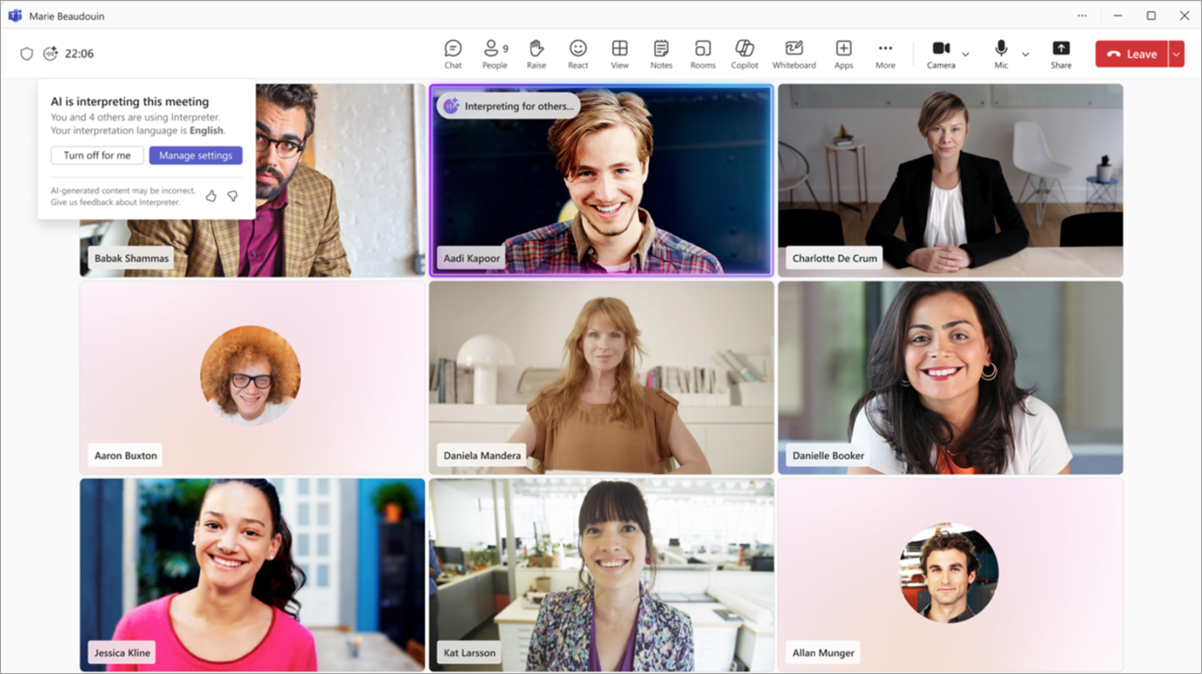
Microsoft Teams now includes an interpreter agent that uses AI-driven speech-to-search technology to translate languages as people speak. Participants can hear what others are saying in their preferred language without the need for human translators or subtitle-based translation tools.
This isn't Microsoft’s first try at breaking language barriers. Teams has long offered Live Captions and translated subtitles to make meetings more inclusive. However, instead of just showing words on screen, the new Microsoft Teams AI Interpreter listens to your voice and instantly translates it into another participant’s chosen language. Rather than reading along, participants now listen, which makes conversations feel more natural.
The Interpreter Agent is available for companies using Microsoft 365 Copilot and Teams Premium. As of November 2025, the system supports nine languages: English, Spanish, French, German, Italian, Japanese, Mandarin Chinese, Korean, and Portuguese.
How Does the Interpreter Work?
In simple terms, Teams’ Interpreter listens to what's being said, translates it instantly, and plays it back in another language. Behind the scenes, it uses speech recognition, machine translation, and AI voice technology to make that happen. The voice you hear can be a standard AI one or a cloned version of the speaker’s own.
Obviously, there are benefits to hearing the translation in your own voice, but you may also want to know how the interpreter uses your voice. Microsoft says the cloned voices are safely created through its 365 Copilot AI models and used only during the live meeting. Once the session wraps up, those synthetic voices aren't stored or reused.
How to Turn On and Use Microsoft Teams Interpreter Agent (Step by Step)
First things first, to use the AI Interpreter, you need a Teams Premium or Microsoft 365 Copilot license. It also requires admin permission, meaning that the feature doesn't show up automatically. Your IT admin has to turn it on in the Microsoft 365 admin center first.
Here's more info on how to set up and manage Microsoft Interpreter Agent as an organization.
Once that's done, follow these steps to activate Interpreter during meetings:
Step 1: Join or Schedule a Teams Meeting
Open Teams to start or join a meeting that's already in your calendar. The Interpreter feature works in both one-on-one calls and meetings with up to 1,000 participants.
Step 2: Open Your Meetings Controls
Once you're in the meeting, look for the More actions button (it's the three vertical dots on your toolbar).
Step 3: Choose Your Language Settings
Click More actions, then go to Language and speech. From there, select Use Interpreter to open the translation settings.
Step 4: Pick Your Languages
In the first menu, pick the language you'll be speaking. In the second step, pick the language your words should be translated into. Teams will handle the translation automatically, so everyone hears you in their own language.
Now click on Turn on.
Step 5: Simulate Your Voice (If Enabled by Your Organization)
If your IT admin has already enabled Voice simulation, Teams will use a version of your own voice for the translation. If it's not turned on, your words will still be translated, just with a standard AI voice.
You can check or change this during a meeting by going to More actions, then Language and speech, and from there, click on Interpreter and then Interpreter settings. Here, from Choose your voice when interpreted, you can select Simulate My Voice or Automated voice. Lastly, select Confirm.
Step 6: Start Speaking
Talk as you normally would. Teams translates your words in real time so others will hear them almost instantly in their chosen language.
Something to keep in mind: In practice, Interpreter works really well on one-on-one calls, but can slow down when too many people talk at once.
What You Can and Can't Do with Teams Interpreter
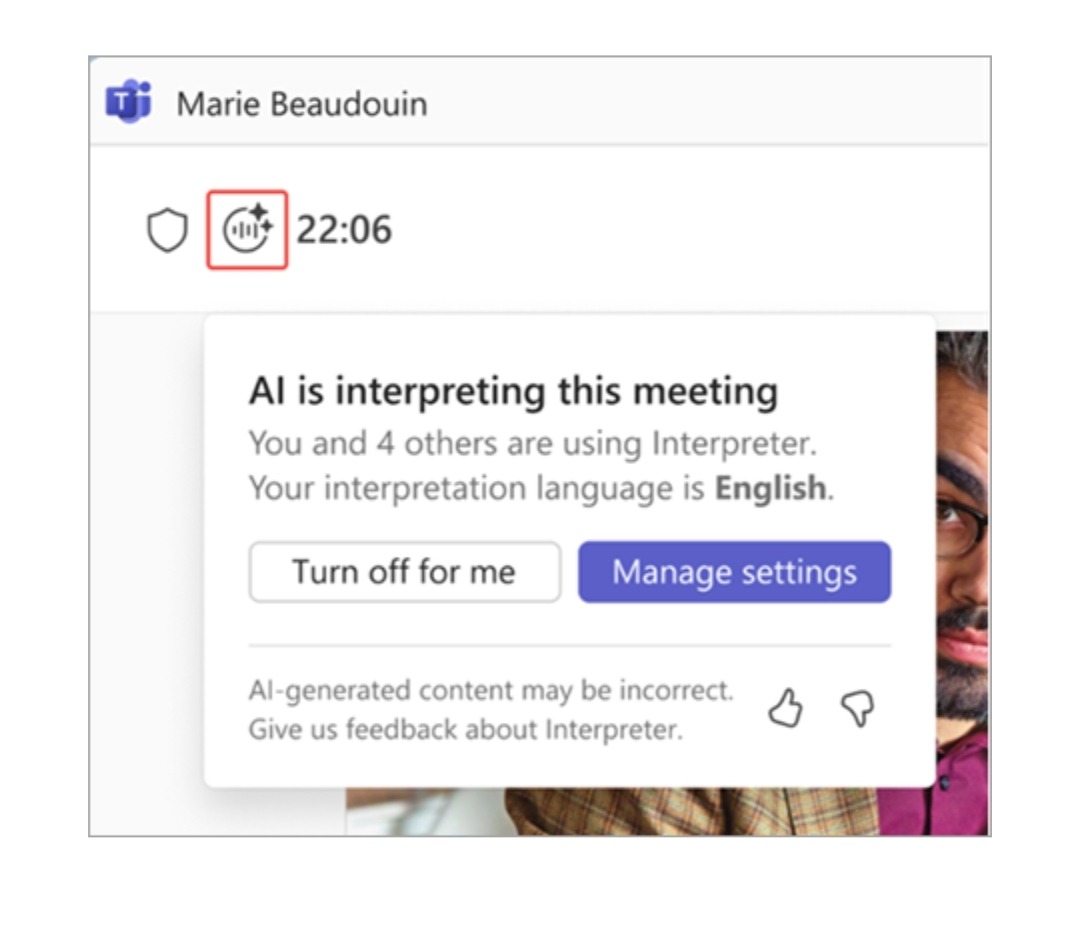
Microsoft Teams AI Interpreter lets people in the same meeting speak different languages and still understand each other. It's a big (nay, giant) step forward smoother global collaboration, but, like with any new AI feature, it still has a few rough edges to be aware of.
These Are Interpreter’s Capabilities:
- Translates speech in real time, so everyone can follow the meeting in their own language.
- Can mimic your natural voice through Microsoft 365 Copilot, making translations sound less robotic.
- Works with Teams transcription, giving you both captions and multilingual transcripts.
- Handles large meetings with ease and can support up to 1,000 participants.
- Built right into Teams, so you don't have to install or connect any extra translation bots.
And Its Limitations:
- Language support is still growing, and translation quality can depend on internet speed, accents, or specialized vocabulary.
- It doesn't include meeting intelligence tools like AI summaries, action items, or topic highlights.
- You'll need Teams Premium or Microsoft 365 Copilot, and your admin must turn the feature on before you can use it.
- Some users might need a quick walk-through to adjust settings like Simulate my voice or fix missing options.
What If You Need More Than Basic Interpretation?

Microsoft Teams’ AI Interpreter does a really good job at solving the immediate challenge of language barriers, but meeting efficiency doesn’t stop at real-time translation. Global teams also need clear takeaways, searchable notes, and accountability so conversations actually turn into shared knowledge.
With translation without comprehension, you’ll only get:
- Real-time translation that doesn’t equate real understanding. People may hear the words but still miss tone, decision cues, or subtle commitments that shape outcomes.
- Context still hasn't been captured. The Interpreter itself doesn’t pull out action items, task owners, or follow-ups. You can use Teams Premium or Copilat for that layer of meeting intelligence, though the available features are also limited.
- Once the call ends, that translated audio is gone; only the original-language transcript is saved.
- You can’t tell who’s tuned out or which topics sparked real interest.
What MeetGeek Offers Beyond Translation

MeetGeek is an AI solution that can transcribe, translate text, and organize meetings across languages. It automatically detects the language being spoken and provides accurate transcription and translated transcripts in 100+ languages (you can find the full list of supported languages here).
But it doesn't stop at understanding what was said. MeetGeek is a complete meeting intelligence solution that can automatically summarize discussions, identify key takeaways, and turn that information into actions your team can use. Here's more:
- Automatically summarizes key takeaways like the topic discussed, decisions made, and next steps.
- Connects with CRMs like Salesforce, HubSpot, and Pipedrive to keep deals and customer notes up to date automatically.
- Syncs with your favorite collaboration tools like Slack and Notion, sending summaries and action items straight to where your team works.
- Breaks down meeting analytics such as talk-time balance, engagement levels, and keyword trends, helping managers spot where conversations were dragged.
- Let's you search past meetings easily so you can jump back to any point in the conversation when you need it. You can also use MeetGeek's AI chat assistant to get more context from your past meetings.
- The AI Voice Agent can run meetings for you, making it perfect for routine or recurring sessions like demo calls or screening interviews.
Bringing It All Together
The Microsoft Teams AI Interpreter helps people understand each other in real time. But, as most of you can probably attest, understanding what's said is only part of the story. You can use MeetGeek alongside Teams Interpreter to record, transcribe, and turn discussions into structured knowledge your team can act on.
Together, these tools cover the full picture: instant communication from the Interpreter, long-term insight and organization from MeetGeek. Ready to see how it works? Sign up for free now!
Frequently Asked Questions about Microsoft Teams AI Interpreter
How Do You Activate Interpreter in Teams?
To turn on the Interpreter in Microsoft Teams, start or join a meeting, click More actions, then select Language and speech, and from there, Use interpreter. Pick your spoken and target languages. If you don’t see the option, your IT admin may need to enable it first in the Microsoft 365 admin center.
What Licenses Do I Need to Use Microsoft Teams’ AI Interpreter?
You’ll need either a Teams Premium or Microsoft 365 Copilot license to use the AI Interpreter. Your IT admin also has to switch it on in the Microsoft 365 admin center and set the right meeting policies before it appears in Teams.
How Accurate Is Teams’ Interpreter Agent?
The Microsoft Teams Interpreter runs on Azure Cognitive Services and supports nine languages so far. It’s built to mirror what each speaker says as naturally as possible, but accuracy can drop with strong accents, technical terms, or rapid speech.
Does the Interpreter Save Meeting Transcripts?
No, the Interpreter agent doesn’t save translated audio. It only works in real time. Your meeting’s regular recording or transcript might still be saved in Teams, depending on your organization’s settings, but the translated voice isn’t stored.
Which Languages Are Currently Supported by the Teams AI Interpreter?
Right now, the Interpreter supports nine languages: English, Chinese (Mandarin), French, Portuguese, German, Italian, Japanese, and Korean.





.avif)