

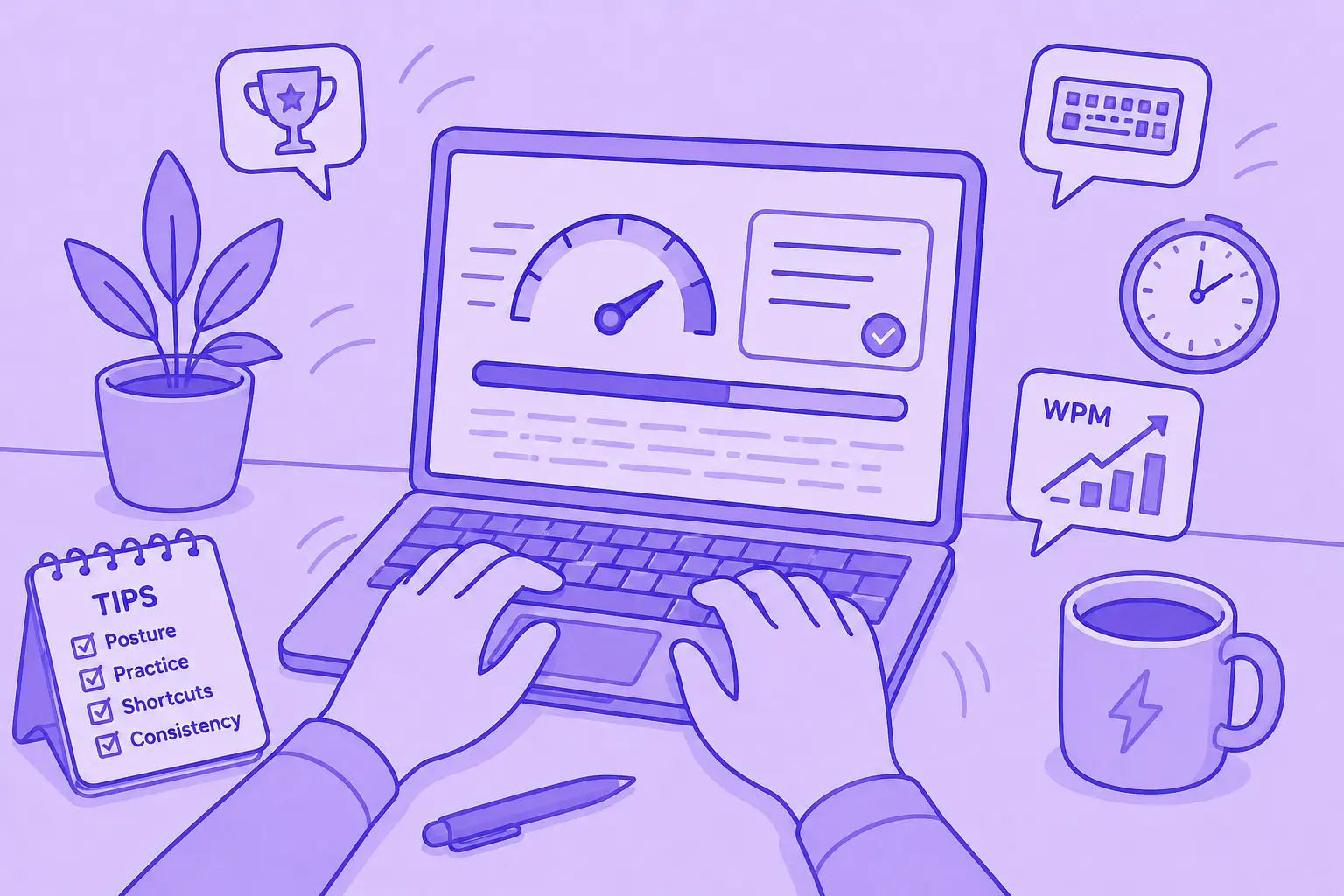

TL;DR
- Touch typing is one of the fastest ways to improve typing speed and reduce errors.
- Focus on accuracy first, then build speed as your muscle memory develops.
- Short, consistent typing practice sessions are more effective than occasional long ones.
- Keyboard shortcuts, templates, and text snippets can save more time than typing faster alone.
- For meetings, tools like MeetGeek can reduce manual typing by automatically capturing notes, summaries, and action items.
Typing faster is not just about hitting more keys per minute, it's about building better typing habits, improving typing accuracy, using the right keyboard shortcuts, and reducing the amount of manual typing you do every day.
Whether you write emails, meeting notes, reports, documentation, follow-ups, or social media posts, faster typing can save real time in the modern workplace. The good news is that you do not need to be an experienced typist to improve. With the right typing exercises, correct posture, and smarter tools, you can improve your speed and accuracy in a few weeks.
Why does typing speed still matter?
Most computer-based work still depends on typing. Even with mobile technology, voice tools, and AI assistants, people still spend a big part of their day writing messages, editing documents, searching for information, and switching between tools.
The average typing speed is often around 40 words per minute, while experienced typists can type much faster with better accuracy. But speed alone is not the full goal. If your accuracy drops every time you start typing quickly, you lose time fixing errors, pressing backspace, and rewriting sentences.
That is why the best typing hacks focus on three things: typing correctly, reducing mistakes, and removing repetitive work.
How to type faster: 15 practical typing hacks
1. Take a typing test first
Before you try to type faster, measure your current typing speed. Free typing tests show your WPM, typing accuracy, and common mistakes.
This gives you a starting position. You can then track progress every few weeks and see whether your typing practice is actually working.
Many websites offer free typing tests, including TypingClub, Keybr, Ratatype, Typing.com, and 10FastFingers. Choose one program, complete a short lesson or test, and write down your score.
2. Learn touch typing
Touch typing means typing without looking down at the keyboard. Instead of using the hunt-and-peck method, you build muscle memory so your fingers know where the correct keys are.
Start with the home row keys. Your left hand should rest on A, S, D, and F. Your right hand should rest on J, K, L, and ;. Your index fingers should sit on F and J, where most keyboards have small bumps. Your thumbs should rest near the space bar.
This correct starting position may feel slow at first, but it helps you type correctly and build muscle memory over time.
3. Focus on accuracy before speed
Faster typing is useless if every sentence is full of mistakes. Each error breaks your flow and adds more editing time.
When you practice typing exercises, slow down enough to hit the right keys. Prioritizing accuracy early on often leads to faster typing later, since you spend less time fixing mistakes and more time maintaining your flow.
A helpful rule: do not chase WPM until your typing accuracy is consistently high.
4. Practice typing exercises every day
Short, regular typing practice sessions tend to be more effective than occasional long ones. Even a few focused minutes each day can help improve your speed and accuracy over time.
Try to practice typing for 10 minutes daily. Use short typing lessons that match your skill level, then move to harder practice typing exercises as you improve.
The goal is repetition. The more you practice regularly, the more natural the keyboard feels.
5. Keep your fingers close to the keys
Fast typing depends on small, efficient movements. If your fingers fly far away from the keyboard after every word, you lose speed.
Keep your fingers close to the home row keys and return to the starting position after hitting nearby letters. Use the correct fingers for each key, including your pinky finger for keys like Shift, Enter, and punctuation marks.
This makes typing feel more controlled and helps you hit the correct keys without looking.
6. Maintain proper posture
Good posture reduces strain and helps you type faster for longer periods.
Good posture can improve both comfort and typing performance. Sit comfortably with your feet on the floor and your back supported. Keep your shoulders relaxed and avoid putting excessive pressure on your wrists by letting them stay slightly elevated above the keyboard.
A laptop stand can also help keep your screen at eye level, especially if you work long hours. Good lighting matters too, because eye strain can slow your focus.
7. Choose a comfortable keyboard
Your keyboard can have a bigger impact on comfort and typing performance than you might expect. If you spend hours typing each day, switching to an ergonomic or mechanical model may help improve the experience.
A mechanical keyboard can feel more responsive, which some people find helpful for rhythm and accuracy.
You do not need the most expensive setup, but your keyboard should feel comfortable, stable, and easy to use for long periods.
8. Learn key shortcuts
Keyboard shortcuts save typing time because they reduce how often you reach for the mouse.
Start with the basics:
- Copy: Ctrl+C or Command+C
- Paste: Ctrl+V or Command+V
- Undo: Ctrl+Z or Command+Z
- Select all: Ctrl+A or Command+A
- Find: Ctrl+F or Command+F
- Save: Ctrl+S or Command+S
Then learn editing shortcuts. For example, use shortcuts to jump word by word, select text quickly, open the menu bar, switch apps, or navigate between tabs.
The less you move between keyboard and mouse, the easier it is to stay in flow.
9. Use text shortcuts for repetitive phrases
One of the best typing hacks is simple: stop retyping the same things.
If you often write the same email intros, meeting follow-ups, links, addresses, product descriptions, or support replies, create shortcuts for them.
For example, you could type “;intro” and insert a full introduction. Or type “;link” and paste a frequently used URL.
This saves time because a few characters can replace full sentences or paragraphs.
10. Save messages you reuse often
When you write something useful, save it immediately. This could be a strong sales follow-up, a customer response, a project update, or a meeting recap.
As you save useful content, you gradually create a library of ready-to-use phrases and templates. Rather than staring at a blank page each time, you can start with a proven draft and adapt it to the situation.
11. Use AI meeting notes instead of typing everything manually
Typing faster helps with emails, documents, and quick edits. But in meetings, the smartest move is often to type less.
MeetGeek automatically joins Zoom, Microsoft Teams, and Google Meet meetings, records the conversation, transcribes it, and creates AI meeting summaries with action items, decisions, and key highlights. Instead of trying to type every word during a call, you can focus on the conversation and review the notes afterwards.
%20(2).webp)
MeetGeek also lets you search past meetings, generate follow-up emails, sync notes to tools like HubSpot, Slack, Notion, Trello, Asana, and ClickUp, and use AI voice agents for repetitive workflows like discovery calls, screening interviews, and qualification meetings.

That means your typing skills are used where they matter most, while MeetGeek handles the meeting documentation.
12. Edit in bigger chunks
A lot of people lose time editing one character at a time. Instead, learn to move and delete in larger units:
- Use shortcuts to jump word by word.
- Delete full words instead of tapping backspace repeatedly.
- Select text with the keyboard instead of dragging with the mouse.
This makes editing faster and keeps your hands on the keyboard.
13. Turn typing practice into a game
Typing practice can get boring, especially for students and young adults who are used to faster digital tools. Games make practice more fun and easier to repeat.
Try typing games or timed challenges where you race against your previous score. You can also focus on one difficult lesson at a time, such as numbers, punctuation, capital letters, or the shift key.
If your accuracy drops, slow down and rebuild control before increasing speed again.
14. Reduce distractions while typing
Typing speed is not only about your fingers. Focus matters.
Close unnecessary tabs, silence notifications, and keep your workspace simple. If you keep pausing to search for links, move between different places, or check unrelated messages, your typing speed will feel slower even if your WPM is fine.
A clean setup helps you start typing faster and stay focused until the task is complete.
15. Track your progress
Track your WPM, accuracy, and mistakes every few weeks. You do not need a complicated system. A simple note with the date, typing test score, and accuracy percentage is enough.
Progress may feel slow at first, but typing skills improve with proper training and regular practice. After a few weeks, you should notice fewer errors, better accuracy, and more comfortable, faster typing.
What is a good typing speed?
A good typing speed depends on your work. For most people, 40 WPM is a normal starting point. Around 50 to 60 WPM is strong for everyday office work. Experienced typists can often reach 75 WPM or more, especially when they use touch typing and practice regularly.
But speed and accuracy should be measured together. Typing 70 WPM with constant mistakes is less useful than typing 55 WPM cleanly.
What slows down typing speed?
The most common typing problems are looking down at the keyboard, using hunt and peck typing, poor posture, tense wrists, overusing the mouse, and correcting too many mistakes.
Repetitive typing also slows people down. If you keep writing the same phrases, searching for the same links, or recreating the same structure, your workflow needs shortcuts, templates, or automation.
Type smarter, not harder
Learning how to type faster is still useful, but the real productivity gain comes from combining better typing habits with smarter tools.
MeetGeek helps you type less during meetings by automatically recording, transcribing, summarizing, and organizing your conversations. You get searchable meeting notes, action items, follow-ups, and insights without manually typing everything in real time.
Try MeetGeek for free and spend less time taking notes, searching through calls, and writing meeting recaps.
Key takeaways
- Learn touch typing to build muscle memory and stop relying on the hunt-and-peck method.
- Prioritize accuracy before speed, since fewer mistakes lead to a smoother and faster workflow.
- Practice consistently with short daily typing exercises instead of occasional long sessions.
- Use keyboard shortcuts, templates, and text snippets to reduce repetitive typing and save time.
- For meetings, tools like MeetGeek can eliminate manual note-taking by automatically recording, transcribing, and summarizing conversations.
Frequently asked questions
How can I type faster?
You can type faster by learning touch typing, practicing it regularly, using the correct starting position, improving typing accuracy, and learning keyboard shortcuts. Start with short daily typing exercises and track your WPM over time.
What is the average typing speed?
The average typing speed is often around 40 words per minute, but it varies by age, role, device, and experience. For everyday computer-based work, 50 to 60 WPM with good accuracy is a strong goal.
How long does it take to learn touch typing?
Many people notice progress after a few weeks of regular typing practice. Developing reliable muscle memory takes time, particularly for people transitioning from the hunt-and-peck method to touch typing.
Is typing speed more important than accuracy?
No, typing speed and accuracy work together. Fast typing loses its value when mistakes become frequent, since you'll spend extra time reviewing and fixing your work afterward.
Can AI tools help me type less?
Yes, AI tools can reduce typing time by drafting text, summarizing content, and automating repetitive documentation. MeetGeek can eliminate much of the manual note-taking that happens during meetings by automatically recording conversations, generating transcripts, and creating summaries.




.avif)